在人口普查資料上建立及使用分類模型

在本教學課程中,您將在 BigQuery ML 中使用二元邏輯迴歸模型,根據人口統計資料預測個人的收入範圍。二元邏輯迴歸模型會預測值是否屬於兩個類別之一,在本例中,即個人年收入是否高於或低於 $50,000 美元。

本教學課程使用 bigquery-public-data.ml_datasets.census_adult_income 資料集。這個資料集包含 2000 年和 2010 年美國居民的人口統計和收入資訊。

目標

在本教學課程中,您會執行下列工作:

  • 建立邏輯迴歸模型。
  • 評估模型。
  • 使用模型進行預測。
  • 說明模型產生的結果。

費用

本教學課程使用 Google Cloud的計費元件,包括:

  • BigQuery
  • BigQuery ML

如要進一步瞭解 BigQuery 費用,請參閱 BigQuery 定價頁面。

如要進一步瞭解 BigQuery ML 費用,請參閱「BigQuery ML 定價」。

事前準備

  1. 在 Google Cloud 控制台的專案選取器頁面中,選取或建立 Google Cloud 專案。

    選取或建立專案所需的角色

    • 選取專案:選取專案時,不需具備特定 IAM 角色,只要您在專案中獲派角色,即可選取該專案。
    • 建立專案:如要建立專案,您必須具備專案建立者角色 (roles/resourcemanager.projectCreator),其中包含 resourcemanager.projects.create 權限。瞭解如何授予角色。

    前往專案選取器

  2. 確認 Google Cloud 專案已啟用計費功能。

  3. 啟用 BigQuery API (如果尚未啟用)。

    啟用 API 所需的角色

    如要啟用 API,您必須具備 serviceusage.services.enable 權限。如果您建立了專案,可能已透過擁有者角色 (roles/owner) 取得這項權限。否則,您可以透過服務使用情形管理員角色 (roles/serviceusage.serviceUsageAdmin) 取得這項權限。瞭解如何授予角色。

    啟用 API

所需權限

如要使用 BigQuery ML 建立模型,您需要下列 IAM 權限:

  • bigquery.jobs.create
  • bigquery.models.create
  • bigquery.models.getData
  • bigquery.models.updateData
  • bigquery.models.updateMetadata

如要執行推論,您必須具備下列權限:

  • bigquery.models.getData模型
  • bigquery.jobs.create

簡介

機器學習的常見工作是將資料分類為兩種標籤之一。舉例來說,零售商可能會想根據某位顧客的其他資訊,預測該顧客是否會購買新產品。在這種情況下,兩個標籤可能是 will buy 和 won't buy。零售商可以建構資料集,讓一個資料欄代表兩個標籤,並包含顧客資訊,例如顧客的位置、先前的購買記錄和回報的偏好。接著,零售商可以使用二元邏輯迴歸模型,根據這些客戶資訊預測最能代表每位顧客的標籤。

在本教學課程中,您將建立二元邏輯迴歸模型,根據美國人口普查受訪者的人口統計屬性,預測受訪者的收入是否落在兩個範圍之一。

建立資料集

建立 BigQuery 資料集來儲存模型:

  1. 前往 Google Cloud 控制台的「BigQuery」頁面。

    前往「BigQuery」

  2. 點選左側窗格中的 「Explorer」。

    醒目顯示的「Explorer」窗格按鈕。

    如果沒有看到左側窗格,請按一下 「Expand left pane」(展開左側窗格),開啟窗格。

  3. 在「Explorer」窗格中,點選專案名稱。

  4. 依序點選 「View actions」(查看動作) >「Create dataset」(建立資料集)。

  5. 在「Create dataset」(建立資料集) 頁面執行下列操作:

    • 在「Dataset ID」(資料集 ID) 中輸入 census。

    • 「位置類型」請選取「多區域」,然後選取「美國 (多個美國區域)」。

      公開資料集儲存在US 多區域。為簡單起見,建議您將資料集放在同一個區域。

    • 其餘設定請保留預設狀態,然後按一下「Create dataset」(建立資料集)。

檢查資料

檢查資料集,找出要用於邏輯迴歸模型的訓練資料欄。從 census_adult_income 資料表選取 100 個資料列:

SQL

  1. 前往 Google Cloud 控制台的「BigQuery」頁面。

    前往「BigQuery」

  2. 在查詢編輯器中執行下列 GoogleSQL 查詢:

    SELECT
    age,
    workclass,
    marital_status,
    education_num,
    occupation,
    hours_per_week,
    income_bracket,
    functional_weight
    FROM
    `bigquery-public-data.ml_datasets.census_adult_income`
    LIMIT
    100;
  3. 結果大致如下:

    普查資料

BigQuery DataFrames

試用這個範例前,請先按照使用 BigQuery DataFrames 的 BigQuery 快速入門導覽課程中的 BigQuery DataFrames 設定操作說明操作。詳情請參閱 BigQuery DataFrames 參考文件。

如要向 BigQuery 進行驗證,請設定應用程式預設憑證。 詳情請參閱「為本機開發環境設定 ADC」。

import bigframes.pandas as bpd

# Set partial ordering mode for BigQuery DataFrames.
# For more information, see the BigQuery DataFrames performance documentation:
# https://cloud.google.com/bigquery/docs/dataframes-performance#partial-ordering-mode
bpd.options.bigquery.ordering_mode = "partial"

df = bpd.read_gbq(
    "bigquery-public-data.ml_datasets.census_adult_income",
    columns=(
        "age",
        "workclass",
        "marital_status",
        "education_num",
        "occupation",
        "hours_per_week",
        "income_bracket",
        "functional_weight",
    ),
    max_results=100,
)
df.peek()
# Output:
# age      workclass       marital_status  education_num          occupation  hours_per_week income_bracket  functional_weight
#  47      Local-gov   Married-civ-spouse             13      Prof-specialty              40           >50K             198660
#  56        Private        Never-married              9        Adm-clerical              40          <=50K              85018
#  40        Private   Married-civ-spouse             12        Tech-support              40           >50K             285787
#  34   Self-emp-inc   Married-civ-spouse              9        Craft-repair              54           >50K             207668
#  23        Private   Married-civ-spouse             10   Handlers-cleaners              40          <=50K              40060

查詢結果顯示,census_adult_income 資料表中的 income_bracket 欄只有兩個值:<=50K 或 >50K。

準備範例資料

在本教學課程中,您將根據 census_adult_income 資料表中下列資料欄的值,預測普查受訪者的收入:

  • age:作答者的年齡。
  • workclass:執行的工作類別。例如地方政府、私人或自僱。
  • marital_status
  • education_num:作答者的最高教育程度。
  • occupation
  • hours_per_week:每週工作時數。

排除重複資料的資料欄。例如 education 欄,因為 education 和 education_num 欄值以不同格式表示相同資料。

functional_weight 欄是普查機構認為特定資料列代表的人數。由於此資料欄的值與任何指定資料列的 income_bracket 值無關,因此您可以使用此資料欄中的值,建立衍生自 functional_weight 資料欄的新 dataframe 資料欄,將資料分隔為訓練、評估和預測集。您將 80% 的資料標示為訓練模型、10% 的資料用於評估,10% 的資料用於預測。

SQL

使用樣本資料建立檢視表。本教學課程稍後會使用 CREATE MODEL 陳述式,

執行查詢來準備範例資料:

  1. 前往 Google Cloud 控制台的「BigQuery」頁面。

    前往「BigQuery」

  2. 在查詢編輯器中執行下列查詢:

    CREATE OR REPLACE VIEW
    `census.input_data` AS
    SELECT
    age,
    workclass,
    marital_status,
    education_num,
    occupation,
    hours_per_week,
    income_bracket,
    CASE
      WHEN MOD(functional_weight, 10) < 8 THEN 'training'
      WHEN MOD(functional_weight, 10) = 8 THEN 'evaluation'
      WHEN MOD(functional_weight, 10) = 9 THEN 'prediction'
    END AS dataframe
    FROM
    `bigquery-public-data.ml_datasets.census_adult_income`;
  3. 查看樣本資料:

    SELECT * FROM `census.input_data`;

BigQuery DataFrames

建立名為 input_data 的 DataFrame。在本教學課程稍後的步驟中,您將使用 input_data 訓練模型、評估模型及進行預測。

試用這個範例前,請先按照使用 BigQuery DataFrames 的 BigQuery 快速入門導覽課程中的 BigQuery DataFrames 設定操作說明操作。詳情請參閱 BigQuery DataFrames 參考文件。

如要向 BigQuery 進行驗證,請設定應用程式預設憑證。 詳情請參閱「為本機開發環境設定 ADC」。

import bigframes.pandas as bpd

# Set partial ordering mode for BigQuery DataFrames.
# For more information, see the BigQuery DataFrames performance documentation:
# https://cloud.google.com/bigquery/docs/dataframes-performance#partial-ordering-mode
bpd.options.bigquery.ordering_mode = "partial"

input_data = bpd.read_gbq(
    "bigquery-public-data.ml_datasets.census_adult_income",
    columns=(
        "age",
        "workclass",
        "marital_status",
        "education_num",
        "occupation",
        "hours_per_week",
        "income_bracket",
        "functional_weight",
    ),
)
input_data["dataframe"] = input_data["functional_weight"].case_when(
    [
        (((input_data["functional_weight"] % 10) == 8), "evaluation"),
        (((input_data["functional_weight"] % 10) == 9), "prediction"),
        (True, "training"),
    ]
)
del input_data["functional_weight"]

建立邏輯迴歸模型

使用您在上一節中加上標籤的訓練資料,建立邏輯迴歸模型。

SQL

使用 CREATE MODEL 陳述式,並將模型類型指定為 LOGISTIC_REG。

以下是 CREATE MODEL 陳述式的實用資訊:

  • input_label_cols 選項會指定 SELECT 陳述式中的哪個資料欄要做為標籤欄。這裡的標籤欄是 income_bracket,因此模型會根據該列中的其他值,學習 income_bracket 的兩個值中,哪一個最有可能出現在指定列中。

  • 您不需要指定邏輯迴歸模型是二元還是多元。BigQuery ML 會根據標籤欄中的不重複值數量,決定要訓練的模型類型。

  • auto_class_weights 選項設為 TRUE,以平衡訓練資料中的類別標籤。根據預設,訓練資料未加權。如果訓練資料中的標籤不平衡,模型可能會更傾向預測最常見的標籤類別。在這個例子中,資料集內的大多數受訪者都屬於較低收入族群。這可能導致模型過度預測低收入族群。類別權重會計算每個類別的權重,並與該類別的頻率成反比,藉此平衡類別標籤。

  • enable_global_explain 選項設為 TRUE,以便您在教學課程稍後對模型使用 ML.GLOBAL_EXPLAIN 函式。

  • SELECT 陳述式會查詢包含樣本資料的 input_data 檢視表。WHERE 子句會篩選資料列,只使用標示為訓練資料的資料列訓練模型。

執行查詢,建立邏輯迴歸模型:

  1. 前往 Google Cloud 控制台的「BigQuery」頁面。

    前往「BigQuery」

  2. 在查詢編輯器中執行下列查詢:

    CREATE OR REPLACE MODEL
    `census.census_model`
    OPTIONS
    ( model_type='LOGISTIC_REG',
      auto_class_weights=TRUE,
      enable_global_explain=TRUE,
      data_split_method='NO_SPLIT',
      input_label_cols=['income_bracket'],
      max_iterations=15) AS
    SELECT * EXCEPT(dataframe)
    FROM
    `census.input_data`
    WHERE
    dataframe = 'training'
  3. 點選左側窗格中的 「Explorer」。

    醒目顯示的「Explorer」窗格按鈕。

  4. 在「Explorer」窗格中,點選「Datasets」(資料集)。

  5. 在「Datasets」(資料集) 窗格中,按一下 census。

  6. 點選「Models」分頁標籤。

  7. 按一下「census_model」。

  8. 「Details」(詳細資料) 分頁會列出 BigQuery ML 用於執行邏輯迴歸的屬性。

BigQuery DataFrames

使用 bigframes.bigquery.ml.create_model 函式訓練模型,並將模型儲存至資料集。

試用這個範例前,請先按照使用 BigQuery DataFrames 的 BigQuery 快速入門導覽課程中的 BigQuery DataFrames 設定操作說明操作。詳情請參閱 BigQuery DataFrames 參考文件。

如要向 BigQuery 進行驗證,請設定應用程式預設憑證。 詳情請參閱「為本機開發環境設定 ADC」。

import bigframes.pandas as bpd
from bigframes.bigquery import ml

# Set partial ordering mode for BigQuery DataFrames.
# For more information, see the BigQuery DataFrames performance documentation:
# https://cloud.google.com/bigquery/docs/dataframes-performance#partial-ordering-mode
bpd.options.bigquery.ordering_mode = "partial"

# input_data is defined in an earlier step.
training_data = input_data[input_data["dataframe"] == "training"].drop(
    columns=["dataframe"]
)

# For more information, see the BigQuery DataFrames API reference documentation:
# https://dataframes.bigquery.dev/reference/api/bigframes.bigquery.ml.create_model.html#bigframes.bigquery.ml.create_model
ml.create_model(
    your_model_id,  # For example: "your-project.census.census_model"
    options={
        "model_type": "LOGISTIC_REG",
        # Balance the class labels in the training data by setting
        # auto_class_weights=True.
        #
        # By default, the training data is unweighted. If the labels
        # in the training data are imbalanced, the model may learn to
        # predict the most popular class of labels more heavily. In
        # this case, most of the respondents in the dataset are in the
        # lower income bracket. This may lead to a model that predicts
        # the lower income bracket too heavily. Class weights balance
        # the class labels by calculating the weights for each class in
        # inverse proportion to the frequency of that class.
        "auto_class_weights": True,
        "enable_global_explain": True,
        "data_split_method": "NO_SPLIT",
        "input_label_cols": ["income_bracket"],
        "max_iterations": 15,
    },
    training_data=training_data,
    replace=True,
)

評估模型成效

建立模型後,請依據評估資料評估模型效能。

SQL

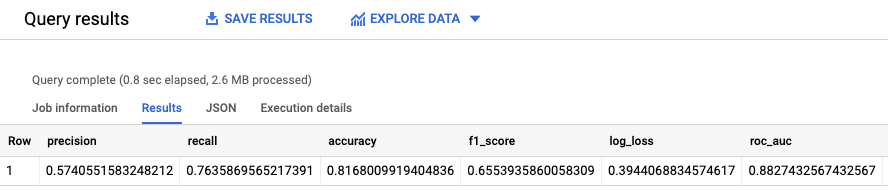
ML.EVALUATE 函式會根據評估資料,評估模型產生的預測值。

ML.EVALUATE 函式會將訓練好的模型和 input_data 檢視表中 dataframe 欄值為 evaluation 的資料列做為輸入內容。這個函式會傳回一列模型統計資料。

執行 ML.EVALUATE 查詢:

  1. 前往 Google Cloud 控制台的「BigQuery」頁面。

    前往「BigQuery」

  2. 在查詢編輯器中執行下列查詢:

    SELECT
    *
    FROM
    ML.EVALUATE (MODEL `census.census_model`,
      (
      SELECT
        *
      FROM
        `census.input_data`
      WHERE
        dataframe = 'evaluation'
      )
    );
  3. 結果大致如下:

    ML.EVALUATE 輸出

BigQuery DataFrames

使用 bigframes.bigquery.ml.evaluate 函式,根據實際資料評估模型。

試用這個範例前,請先按照使用 BigQuery DataFrames 的 BigQuery 快速入門導覽課程中的 BigQuery DataFrames 設定操作說明操作。詳情請參閱 BigQuery DataFrames 參考文件。

如要向 BigQuery 進行驗證,請設定應用程式預設憑證。 詳情請參閱「為本機開發環境設定 ADC」。

import bigframes.pandas as bpd
from bigframes.bigquery import ml

# Set partial ordering mode for BigQuery DataFrames.
# For more information, see the BigQuery DataFrames performance documentation:
# https://cloud.google.com/bigquery/docs/dataframes-performance#partial-ordering-mode
bpd.options.bigquery.ordering_mode = "partial"

# input_data is defined in an earlier step.
evaluation_data = input_data[input_data["dataframe"] == "evaluation"]

# For more information, see the BigQuery DataFrames API reference documentation:
# https://dataframes.bigquery.dev/reference/api/bigframes.bigquery.ml.evaluate.html#bigframes.bigquery.ml.evaluate
ml.evaluate(
    your_model_id,  # For example: "your-project.census.census_model"
    input_=evaluation_data,
)
# Output:
#    precision    recall  accuracy  f1_score  log_loss   roc_auc
# 0   0.685764  0.536685   0.83819  0.602134  0.350417  0.882953

您也可以在 Google Cloud 控制台查看模型的「Evaluation」(評估) 窗格,查看訓練期間計算的評估指標:
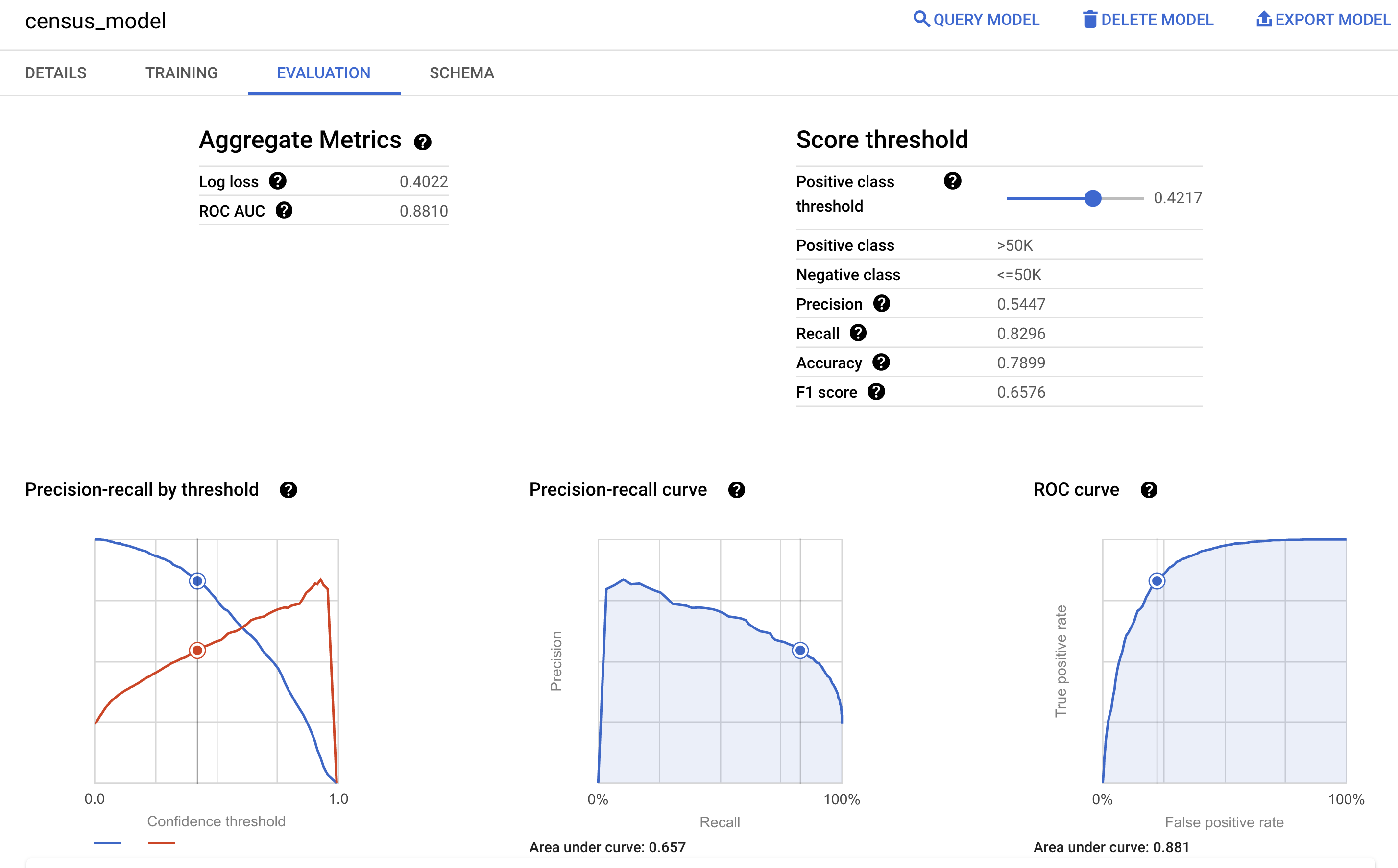
ML.EVALUATE 輸出

預測收入級距

使用模型預測每位受訪者最可能的收入級距。

SQL

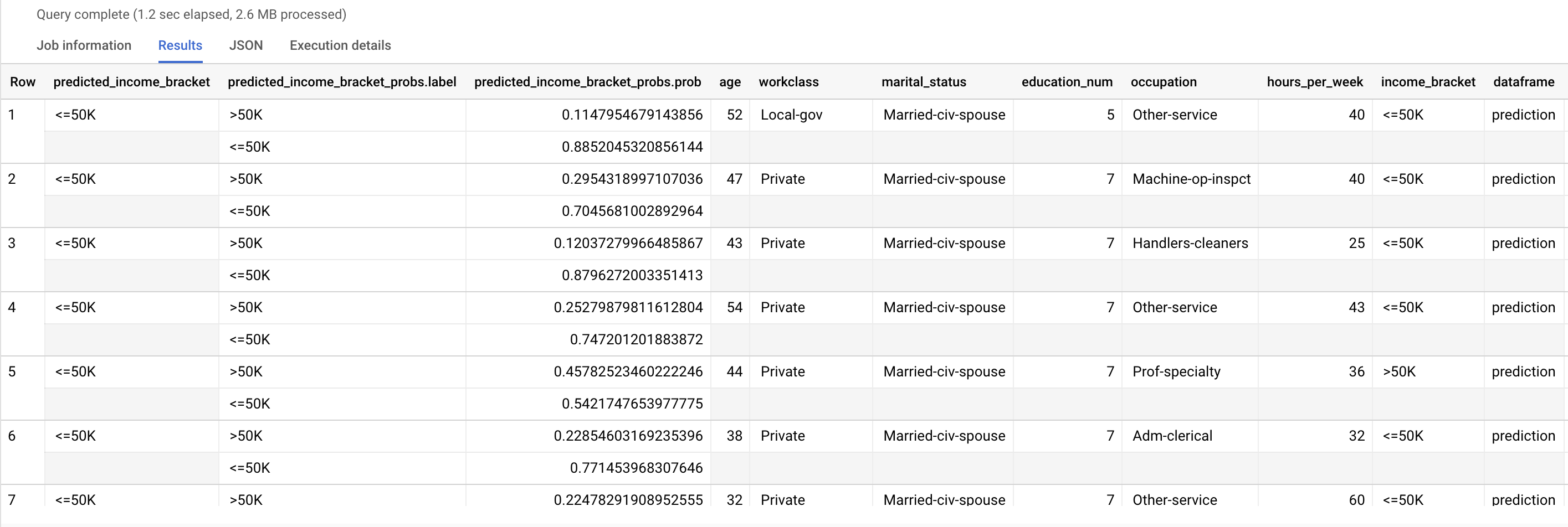
使用 ML.PREDICT 函式預測可能的收入級距。ML.PREDICT 函式會將訓練好的模型和 input_data 檢視表中 dataframe 欄值為 prediction 的資料列做為輸入內容。

執行 ML.PREDICT 查詢:

  1. 前往 Google Cloud 控制台的「BigQuery」頁面。

    前往「BigQuery」

  2. 在查詢編輯器中執行下列查詢:

    SELECT
    *
    FROM
    ML.PREDICT (MODEL `census.census_model`,
      (
      SELECT
        *
      FROM
        `census.input_data`
      WHERE
        dataframe = 'prediction'
      )
    );
  3. 結果大致如下:

    ML.PREDICT 結果

predicted_income_bracket 欄包含受訪者的預測收入級距。

BigQuery DataFrames

使用 bigframes.bigquery.ml.predict 函式預測可能的收入級距。

試用這個範例前,請先按照使用 BigQuery DataFrames 的 BigQuery 快速入門導覽課程中的 BigQuery DataFrames 設定操作說明操作。詳情請參閱 BigQuery DataFrames 參考文件。

如要向 BigQuery 進行驗證,請設定應用程式預設憑證。 詳情請參閱「為本機開發環境設定 ADC」。

import bigframes.pandas as bpd
from bigframes.bigquery import ml

# Set partial ordering mode for BigQuery DataFrames.
# For more information, see the BigQuery DataFrames performance documentation:
# https://cloud.google.com/bigquery/docs/dataframes-performance#partial-ordering-mode
bpd.options.bigquery.ordering_mode = "partial"

# input_data is defined in an earlier step.
prediction_data = input_data[input_data["dataframe"] == "prediction"]

# For more information, see the BigQuery DataFrames API reference documentation:
# https://dataframes.bigquery.dev/reference/api/bigframes.bigquery.ml.predict.html#bigframes.bigquery.ml.predict
ml.predict(
    your_model_id,  # For example: "your-project.census.census_model"
    input_=prediction_data,
)
# Output:
#           predicted_income_bracket                     predicted_income_bracket_probs  age workclass  ... occupation  hours_per_week income_bracket   dataframe
# 18004                    <=50K  [{'label': ' >50K', 'prob': 0.0763305999358786...   75         ?  ...          ?               6          <=50K  prediction
# 18886                    <=50K  [{'label': ' >50K', 'prob': 0.0448866871906495...   73         ?  ...          ?              22           >50K  prediction
# 31024                    <=50K  [{'label': ' >50K', 'prob': 0.0362982319421936...   69         ?  ...          ?               1          <=50K  prediction
# 31022                    <=50K  [{'label': ' >50K', 'prob': 0.0787836112058324...   75         ?  ...          ?               5          <=50K  prediction
# 23295                    <=50K  [{'label': ' >50K', 'prob': 0.3385373037905673...   78         ?  ...          ?              32          <=50K  prediction

說明預測結果

如要瞭解模型為何會產生這些預測結果,可以使用 ML.EXPLAIN_PREDICT 函式。

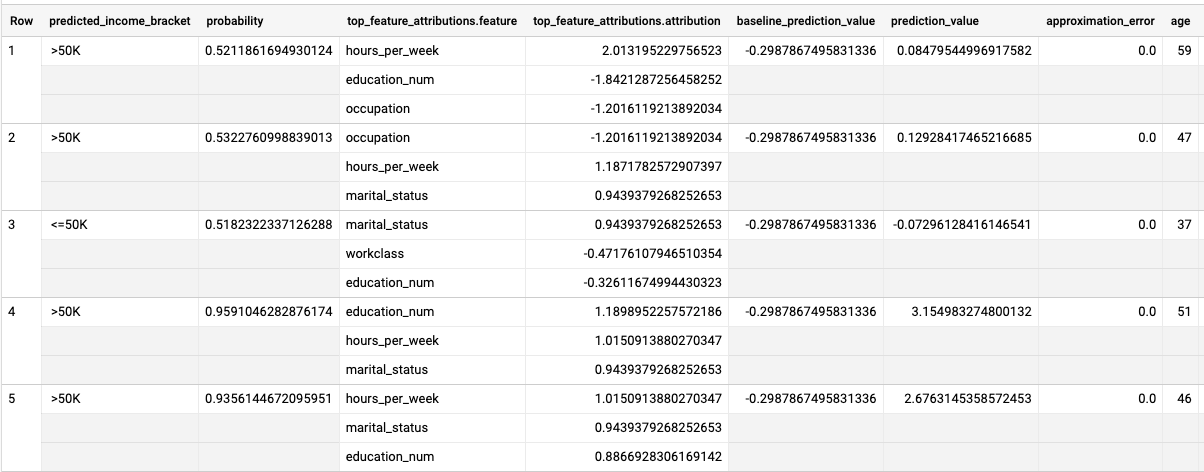
ML.EXPLAIN_PREDICT 是 ML.PREDICT 函式的擴充版本。ML.EXPLAIN_PREDICT 不僅會輸出預測結果,還會輸出其他資料欄來解釋預測結果。如要進一步瞭解可解釋性,請參閱「BigQuery ML 可解釋 AI 總覽」。

執行 ML.EXPLAIN_PREDICT 查詢:

  1. 前往 Google Cloud 控制台的「BigQuery」頁面。

    前往「BigQuery」

  2. 在查詢編輯器中執行下列查詢:

    SELECT
    *
    FROM
    ML.EXPLAIN_PREDICT(MODEL `census.census_model`,
      (
      SELECT
        *
      FROM
        `census.input_data`
      WHERE
        dataframe = 'evaluation'),
      STRUCT(3 as top_k_features));
  3. 結果大致如下:

    ML.EXPLAIN_PREDICT 輸出

如果是邏輯迴歸模型,則會使用 Shapley 值判斷模型中各項特徵的相對特徵歸因。由於查詢中的 top_k_features 選項設為 3,ML.EXPLAIN_PREDICT 會輸出 input_data 檢視表中每一列的前三大特徵歸因。這些歸因會依絕對值遞減排序。

全域解釋模型

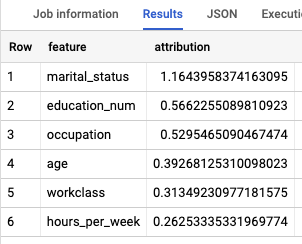
如要瞭解哪些特徵最能決定收入級距,請使用 ML.GLOBAL_EXPLAIN 函式。

取得模型的全域解釋:

  1. 前往 Google Cloud 控制台的「BigQuery」頁面。

    前往「BigQuery」

  2. 在查詢編輯器中執行下列查詢,取得全域解釋:

    SELECT
      *
    FROM
      ML.GLOBAL_EXPLAIN(MODEL `census.census_model`)
  3. 結果大致如下:

    ML.GLOBAL_EXPLAIN 輸出內容

清除所用資源

為避免因為本教學課程所用資源,導致系統向 Google Cloud 帳戶收取費用,請刪除含有相關資源的專案,或者保留專案但刪除個別資源。

刪除資料集

刪除專案將移除專案中所有的資料集與資料表。若您希望重新使用專案,您可以刪除本教學課程中所建立的資料集。

  1. 如有需要,請在Google Cloud 控制台中開啟 BigQuery 頁面。

    前往「BigQuery」頁面

  2. 在導覽列中,點選您建立的 census 資料集。

  3. 按一下視窗右側的「Delete dataset」(刪除資料集)。這項操作會刪除資料集和模型。

  4. 在「Delete dataset」(刪除資料集) 對話方塊中,輸入資料集名稱 (census) 來確認刪除指令,然後點選「Delete」(刪除)。

刪除專案

如要刪除專案,請進行以下操作:

  1. 前往 Google Cloud 控制台的「Manage resources」(管理資源) 頁面。

    前往「Manage resources」(管理資源)

  2. 在專案清單中選取要刪除的專案,然後點選「Delete」(刪除)。
  3. 在對話方塊中輸入專案 ID,然後按一下 [Shut down] (關閉) 以刪除專案。

後續步驟