

Use the Data Engineering Agent to build and modify data pipelines
This document shows you how to use the Data Engineering Agent in BigQuery and Dataform to create and modify data pipelines.
The Data Engineering Agent lets you build, modify, and manage data pipelines to load and process data in BigQuery. With the Data Engineering Agent, you can use natural language prompts to generate data pipelines from various data sources or adapt existing data pipelines to suit your data engineering needs.
The agent generates and organizes data pipeline code directly within Dataform repositories. The agent operates in the Dataform workspace, so Dataform pipelines are automatically available to the agent.
For more examples of prompts you can use with the Data Engineering Agent, see Sample prompts.
You can also use the Data Engineering Agent API, which uses the A2A protocol, to interact with the agent.
Limitations
The Data Engineering Agent has the following limitations:
- The Data Engineering Agent doesn't support natural-language commands for the
following file types:
- Notebooks
- Data preparation
- The Data Engineering Agent cannot execute pipelines. You must review and run or schedule pipelines.
- The Data Engineering Agent cannot search any web links or URLs provided through instructions or direct prompts.
- When importing files in an
agent instruction file,
the
@import syntax supports only paths that begin with./,/, or a letter. - The data preview feature is supported only for
tables, declarations, or queries with the
hasOutputflag set totrue. - The Data Engineering Agent is subject to the general limitations of AI technology.
- When creating pipelines over Apache Iceberg external tables managed by the Lakehouse runtime catalog (formerly BigLake metastore), all Lakehouse runtime catalog limitations apply. Most notably, the agent cannot generate write mutations (such as
INSERT,UPDATE,DELETE, orMERGE) or DDL statements (such asCREATE TABLEorDROP TABLE) on Iceberg tables. For more information, see Apache Iceberg REST catalog endpoint concepts.
Before you begin
Before you use the Data Engineering Agent, perform the steps in this section.
Enable Gemini in BigQuery
Make sure that Gemini in BigQuery is enabled for your Google Cloud project. For more information, see Set up Gemini in BigQuery.
Enable the required APIs
console
Enable the following APIs in the Google Cloud console for the Google Cloud project you use with the Conversational Analytics API, if they aren't already enabled.
Enable the Gemini Data Analytics API
gcloud
To enable the Gemini Data Analytics API, the Gemini for Google Cloud
API, and the BigQuery API, if they aren't already enabled, use the
Google Cloud CLI and run the following
gcloud services enable commands:
gcloud services enable geminidataanalytics.googleapis.com --project=PROJECT_ID
gcloud services enable cloudaicompanion.googleapis.com --project=PROJECT_ID
gcloud services enable bigquery.googleapis.com --project=PROJECT_ID
Replace PROJECT_ID with your Google Cloud project ID.
Required roles
To get the permission that you need to use the Data Engineering Agent, ask your administrator to grant you the following IAM roles on the project:
- Dataform Code Editor (
roles/dataform.codeEditor) - BigQuery Job User (
roles/bigquery.jobUser) - Gemini Data Analytics Stateless Chat User (
roles/geminidataanalytics.dataAgentStatelessUser)
For more information about granting roles, see Manage access to projects, folders, and organizations.
This predefined role contains the
geminidataanalytics.locations.useDataEngineeringAgent
permission,
which is required to
use the Data Engineering Agent.
You might also be able to get this permission with custom roles or other predefined roles.
For details on the required roles to query Apache Iceberg tables, see Required roles for Lakehouse Apache Iceberg support.
Knowledge Catalog integration prerequisites
To get the permission that
you need to integrate the Data Engineering Agent with Knowledge Catalog,
ask your administrator to grant you the
Dataplex Catalog Editor (roles/dataplex.catalogEditor) IAM role on the project.
For more information about granting roles, see Manage access to projects, folders, and organizations.
This predefined role contains the
geminidataanalytics.locations.useDataEngineeringAgent
permission,
which is required to
integrate the Data Engineering Agent with Knowledge Catalog.
You might also be able to get this permission with custom roles or other predefined roles.
If you use a custom service account to run pipelines, you must grant the
Dataplex Catalog Editor
(roles/dataplex.catalogEditor) role on the project or @bigquery entry group.
Additionally, you must enable the
Dataplex API.
Encrypt data with Cloud Key Management Service keys
You can encrypt data at the dataset or project level with the default customer-managed Cloud Key Management Service keys in BigQuery. For more information, see Set a dataset default key and Set a project default key.
You can encrypt pipeline code at the project level by setting a default Dataform Cloud Key Management Service key.
Configure VPC Service Controls perimeters
If you use VPC Service Controls, you must configure the perimeter to protect Dataform, BigQuery, and Conversational Analytics API. For more information, see Dataform, BigQuery, and Conversational Analytics API.
Generate a data pipeline with the Data Engineering Agent
To use the Data Engineering Agent in BigQuery, select one of the following options:
BigQuery pipelines
You can use the Data Engineering Agent in the BigQuery pipelines interface by doing the following:
Go to the BigQuery page.
In the query editor, click arrow_drop_down Create new > Pipeline.
In the pipeline interface, click Ask agent.
In the Ask agent field, enter a natural language prompt to generate a data pipeline—for example:
  Create dimension tables for a taxi trips star schema from
  new_york_taxi_trips.tlc_green_trips_2022. Generate surrogate keys and all
  the descriptive attributes.
After you enter a prompt, click Send.
The Data Engineering Agent generates a data pipeline based on your prompt.
The Data Engineering Agent generates a proposed draft of a data pipeline. You can click a pipeline node to review the generated SQLX query. To apply the agent-suggested data pipeline, click Apply.

Dataform
You can use the Data Engineering Agent in Dataform by doing the following:
Go to Dataform.
Select a repository.
Select or create a development workspace.
In the workspace, click Ask Agent.
In the Ask agent prompt that appears, enter a natural language prompt to generate a data pipeline—for example:
  Create dimension tables for a taxi trips star schema from
  new_york_taxi_trips.tlc_green_trips_2022. Generate surrogate keys and all
  the descriptive attributes.
After you enter a prompt, click Send.
After your prompt is sent, the Data Engineering Agent generates a data pipeline and modifies Dataform SQLX files based on your prompt. The agent applies these changes directly to your workspace files.
Edit a data pipeline
To edit your data pipeline, click Ask agent, and then enter a prompt that suggests a change to the data pipeline.

Review the changes proposed by the Data Engineering Agent, and then click Apply to apply the changes.
You can also edit a SQLX query manually by selecting a pipeline node and then clicking Open.
Review a data pipeline
You can click a pipeline node in a data pipeline generated by the Data Engineering Agent to review it.
- The Configuration tab shows the generated SQLX query associated with the node.
- The Data preview tab shows the input and output table of the file. You can preview your data transformation through this node by clicking Run task to run the task with or without dependencies.
Troubleshoot data pipeline errors
If you encounter any errors during data pipeline generation, verify that you have completed all prerequisites to run the Data Engineering Agent. For more information, see Before you begin.
Run a Gemini Cloud Assist investigation
For further pipeline troubleshooting, you can use the Data Engineering Agent to run a root cause analysis and to suggest troubleshooting recommendations.
This feature uses Gemini Cloud Assist investigations (Preview) and is only available to users with a Premium Support contract. For more information about enabling Gemini Cloud Assist investigations, see Troubleshoot issues with Gemini Cloud Assist Investigations.
You can use the Data Engineering Agent to troubleshoot data pipeline errors with the following steps:
- In your pipeline or your development workspace, click the Executions tab.
From the executions list, find the failed data pipeline run. You can identify failed runs in the Status column.
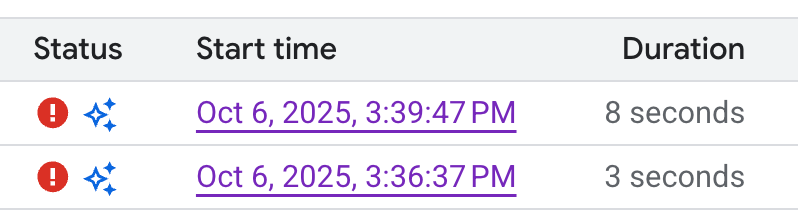
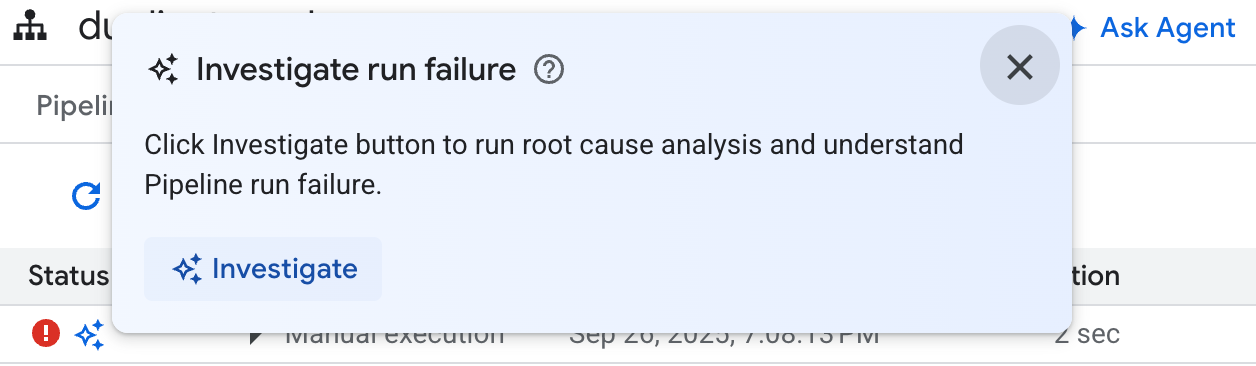
Hover over the icon, and then click Investigate. The Data Engineering Agent runs a root cause analysis (RCA) on your data pipeline execution for errors.
After the analysis is complete, the Data Engineering Agent generates a report in the Observations and Hypothesis section. The report includes the following:
- Observations and data points extracted from the data pipeline execution logs.
- Probable causes for the failure.
- A set of actionable steps or recommendations to resolve the identified issue.
With the troubleshooting report from the Data Engineering Agent, you can implement the recommendations manually. You can also instruct the Data Engineering Agent to apply the fix for you by doing the following steps:
- Copy the suggestions in the troubleshooting report.
- Return to the Data Engineering Agent:
- If you are using BigQuery pipelines, go to your pipelines page, and then click Ask agent.
- If you are using Dataform, click Ask agent.
- Paste the suggestions into the prompt, and then instruct the Data Engineering Agent to make the fixes directly to your data pipeline.
- Click Send.
Create agent instructions
Agent instructions are natural-language instructions for the Data Engineering Agent that let you store persistent instructions so the agent follows a set of custom, predefined rules. Use agent instructions if you want the agent's results to be consistent across your organization—for example, with naming conventions or to enforce a style guide.
You can create a GEMINI.MD context
file
as an agent instruction file for the Data Engineering Agent. You can create agent
instruction files to use in your local workspace, or you can use the same
instruction files across multiple data pipelines with an external repository.
To create agent instructions, do the following:
- Under Ask agent, click Pipeline instructions.
- In the Instructions for pipeline pane, click Create instructions file.
In the
GEMINI.MDfile that appears, enter your instructions in natural language.The following example shows an agent instruction file with several rules:
  1. All event-specific tables MUST be prefixed with `cs_event_`.
  2. The primary key for any player activity table is a composite key of `player_id` and `event_timestamp_micros`.
  3. Filter out any player actions where `mana_spent` is greater than `max_mana_pool`. This is considered a data anomaly.
Click Save.
For information on how best to structure your agent instruction files, see Best practices with agent instruction files.
Load agent instructions from an external repository
To reuse a set of agent instructions across multiple data pipelines, link an external repository:
- Under Ask agent, click Pipeline instructions.
- Under External repository, select Use instructions from external repository.
- In the fields provided, specify a repository that contains agent instructions you want to use with your data pipeline.
- Click Save.
Sample prompts
The following sections provide sample prompts you can use with the Data Engineering Agent to develop your data pipeline.
Aggregate existing data into a new table
With this prompt, the Data Engineering Agent uses the schema and samples to infer data grouping by key. The agent typically sets up a new table configuration with table and column descriptions.
  Create a daily sales report from the
  bigquery-public-data.thelook_ecommerce.order_items table into a
  reporting.daily_sales_aggregation table.
Create a new derived column and add data quality checks to the new table
This prompt shows how to add a table and a column, and specify quality checks to the table at the same time:
  Create a new table named staging.products from
  bigquery-public-data.thelook_ecommerce.products and add a calculated column
  named gross_profit, which is the retail_price minus the cost.


  Also, add the following assertions: ID must not be null and must be unique.
  The retail_price must be greater than or equal to the cost. The department
  column can only contain 'Men' or 'Women'.
Create UDFs as part of the model definition
The Data Engineering Agent can also set up the DDL to create user-defined functions (UDFs). While the agent won't actually create the UDF, you can create the UDF by running the data pipeline. These UDFs can be used in model definitions in your data pipeline.
  Create a user-defined function (UDF) named get_age_group that takes an integer
  age as input and returns a string representing the age group ('Gen Z',
  'Millennial', 'Gen X', 'Baby Boomer').


  Use this UDF on the age column from the
  bigquery-public-data.thelook_ecommerce.users table to create a new view called
  reporting.user_age_demographics that includes user_id, age, and the calculated
  age_group.
Best practices
To improve results when working with the Data Engineering Agent and Dataform, we recommend that you do the following:
Use agent instructions for common requests. If you commonly apply certain techniques, or if you frequently make the same corrections to the agent, use agent instructions as a centralized location to store common instructions and requests.
Utilize agent plans. Agent plans can be helpful to break down complex pipeline tasks. Agent plans can also show you agent assumptions and intentions, so we recommend reviewing those plans to make sure the agent is provided the correct context.
After reviewing a plan, you can edit the plan by prompting the Data Engineering Agent with feedback and changes. For example:
In the plan, ensure that all of the intermediate tables are views.
In some cases, it can be helpful to ask the agent to generate a plan that doesn't need your explicit approval. The act of making the agent plan forces the Data Engineering Agent to break down its actions, which often leads to better outcomes. You can force the agent to generate a plan and execute it automatically. For example:
Create a plan for a pipeline that finds the
top N pick up and drop off locations in NYC. You have my explicit pre-approval
to go ahead and execute this plan.
Write clearly. State your request clearly and avoid being vague. Where possible, provide source and destination data sources when prompting, as shown in the following example:
  Extract data from the sales.customers table in the us_west_1 region, and load
  it into the reporting.dim_customers table in BigQuery. Match the schema of the
  destination table.
Provide direct and scoped requests. Ask one question at a time, and keep prompts concise. For prompts with more than one question, itemize each distinct part of the question to improve clarity, as shown in the following example:
  1. Create a new table named staging.events_cleaned. Use raw.events as the
     source. This new table should filter out any records where the user_agent
     matches the pattern '%bot%'. All original columns should be included.

  2. Next, create a table named analytics.user_sessions. Use
     staging.events_cleaned as the source. This table should calculate the
     duration for each session by grouping by session_id and finding the
     difference between the MAX(event_timestamp) and MIN(event_timestamp).
Provide explicit instructions and emphasize key terms. You can add emphasis to key terms or concepts in your prompts and label certain requirements as important, as shown in the following example:
  When creating the staging.customers table, it is *VERY IMPORTANT* that you
  transform the email column from the source table bronze.raw_customers.
  Coalesce any NULL values in the email column to an empty string ''.
Specify the order of operations. For ordered tasks, structure your prompt in lists, where listed items are divided into small, focused steps, as shown in the following example:
  Create a pipeline with the following steps:
  1. Extract data from the ecomm.orders table.
  2. Join the extracted data with the marts.customers table on customer_id.
  3. Load the final result into the reporting.customer_orders table.
Refine and iterate. Keep trying different phrases and approaches to see what yields the best results. If the agent generates invalid SQL or other mistakes, guide the agent with examples or public documentation.
  The previous query was incorrect because it removed the timestamp. Please
  correct the SQL. Use the TIMESTAMP_TRUNC function to truncate the
  event_timestamp to the nearest hour, instead of casting it as a DATE. For
  example: TIMESTAMP_TRUNC(event_timestamp, HOUR).