

Share sensitive data with data clean rooms
You can use data clean rooms to establish a security-enhanced environment. In this environment, multiple parties share, join, and analyze their data assets. This collaboration occurs without moving or revealing the underlying data.
BigQuery data clean rooms integrate with the BigQuery sharing (formerly Analytics Hub) platform. Standard BigQuery sharing data exchanges support data sharing across organizational boundaries at scale. However, you use data clean rooms specifically for sensitive and protected data. Data clean rooms provide additional security controls that protect underlying data and enforce analysis rules defined by data owners.
Use cases
Primary use cases include the following:
- Campaign planning and audience insights. Let two parties (for example, sellers and buyers) mix first-party data and improve data enrichment in a privacy-centric way.
- Measurement and attribution. Match customer and media performance data to better understand marketing effectiveness and decide on future campaigns.
- Activation. Combine customer data with data from other parties to enrich customer understanding, which lets you improve segmentation capabilities and media activation.
Data clean rooms also support several use cases beyond the marketing industry:
- Retail and consumer packaged goods (CPG). Optimize marketing and promotional activities by combining point-of-sale data from retailers and marketing data from CPG companies.
- Financial services. Improve fraud detection by combining sensitive data from other financial and government agencies. Build credit risk scoring by aggregating customer data across multiple banks.
- Healthcare. Share data between doctors and pharmaceutical researchers to learn how patients are reacting to treatments.
- Supply chain, logistics, and transportation. Combine data from suppliers and marketers to get a complete picture of how products perform throughout their lifecycle.
Roles
There are three main roles in BigQuery data clean rooms:
- Data clean room owner: manages permissions, visibility, and membership of one or more data clean rooms within a Google Cloud project. The data clean room owner can assign the data contributor and data clean room subscriber roles to users. This role is analogous to the Analytics Hub Admin IAM role.
- Data contributor: publishes data to a data clean room. In many cases, a data clean room owner is also a data contributor. This role is analogous to the Analytics Hub Publisher IAM role.
- Data clean room subscriber: subscribes to the data published in a data clean room and runs queries on the data. This role is analogous to a combination of the Analytics Hub Subscriber and Analytics Hub Subscription Owner IAM roles.
Architecture
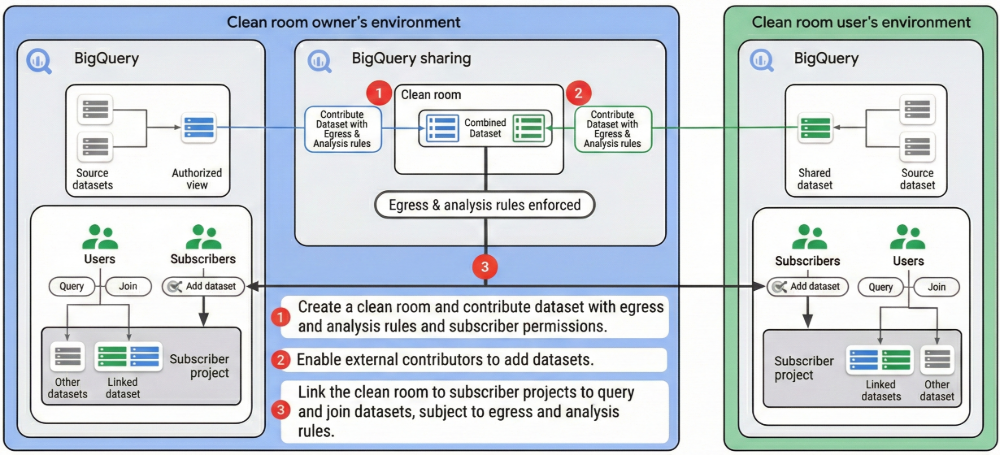
BigQuery data clean rooms use a publish and subscribe model of BigQuery data. BigQuery architecture separates compute and storage, which lets data contributors share data without making multiple copies of the data. The following diagram shows the BigQuery data clean room architecture:
Data clean room
A data clean room is an environment for sharing sensitive data that helps prevent raw access and enforces query restrictions. Only users or groups added as data clean room subscribers can subscribe to the shared data. Data clean room owners can create any number of data clean rooms in BigQuery sharing.
Shared resources
A shared resource is the unit of data sharing in a data clean room. The resource must be a BigQuery table, view, or routine (table-valued function). As a data contributor, you create or use an existing BigQuery resource in your project to share with your data clean room subscribers.
Listings
When you add data to a data clean room as a data contributor, you create a listing. The listing contains a reference to your shared resource along with descriptive information that helps subscribers use the data. You can include information such as a description, sample queries, and links to documentation for your subscribers.
Linked datasets
A linked dataset is a read-only BigQuery dataset that serves as a symbolic link to all data in a data clean room. When data clean room subscribers query resources in a linked dataset, data from the shared resources is returned, satisfying analysis rules set by the data contributor. When you subscribe to a data clean room, BigQuery creates a linked dataset in your project. No copy of the data is created, and subscribers can't see certain metadata, such as view definitions.
Analysis rules
As a data contributor, you configure analysis rules on the resources that you share in the data clean room. Analysis rules help prevent raw access to underlying data and enforce query restrictions. For example, data clean rooms support the aggregation threshold analysis rule, which lets data clean room subscribers analyze data only through aggregation queries.
Data egress controls
Data egress controls automatically prevent data clean room subscribers from copying and exporting raw data from a data clean room. Data contributors can configure additional controls to prevent copying and exporting query results that subscribers obtain.
Query templates
Query templates let data clean room owners and BigQuery sharing publishers share predefined queries without sharing the underlying resources of tables and views.
Predefined queries use table-valued functions (TVFs) in BigQuery that allow an entire table or specific fields to pass as input parameters and return a table as the output.
Limitations
BigQuery data clean rooms have the following limitations:
- You can set analysis rules only on views, not on tables or materialized views. Because of this limitation, subscribers have raw data access if a data contributor shares tables, materialized views, or views without analysis rules directly to a data clean room.
- While analysis rules provide privacy controls, they aren't guaranteed to block every unauthorized query designed to extract raw data. To help secure your information, use query templates in data clean rooms to review and approve queries, which helps block unauthorized attempts.
- Because data clean rooms use the BigQuery sharing platform, all BigQuery sharing limitations apply.
- Data clean rooms are available only in BigQuery sharing regions.
- As a data clean room subscriber, you can't search for shared resources in Knowledge Catalog or Data Catalog.
- As a data clean room subscriber, you can't query
INFORMATION_SCHEMAviews on linked datasets. - As a data contributor, you can't publish an entire dataset directly to a data clean room.
- As a data contributor, you can't publish models or routines (outside of query templates) to a data clean room.
- You can add a maximum of 100 shared resources to a data clean room. If you need to increase this limit, contact bq-dcr-feedback@google.com.
- Listings for multiple regions aren't supported in data clean rooms.
Before you begin
Grant Identity and Access Management (IAM) roles to ensure that you have the required permissions to complete the tasks in this document, enable the Analytics Hub API, and assign the Analytics Hub Admin role to your data clean room owner.
Required permissions
To get the permissions that
you need to use data clean rooms,
ask your administrator to grant you the
BigQuery Data Editor (roles/bigquery.dataEditor) IAM role.
For more information about granting roles, see Manage access to projects, folders, and organizations.
This predefined role contains the permissions required to use data clean rooms. To see the exact permissions that are required, expand the Required permissions section:
Required permissions
The following permissions are required to use data clean rooms:
-
serviceUsage.services.get -
serviceUsage.services.list -
serviceUsage.services.enable
You might also be able to get these permissions with custom roles or other predefined roles.
For more information about IAM roles and permissions in BigQuery, see Introduction to IAM.
Enable the Analytics Hub API
To enable the Analytics Hub API, select one of the following options:
Console
Go to the Analytics Hub API page and enable the API for your Google Cloud project.
bq
Run the
gcloud services enable command:
gcloud services enable analyticshub.googleapis.com
After you enable the Analytics Hub API, you can access the Sharing (Analytics Hub) page.
Grant the Analytics Hub Admin role
To create a data clean room as an owner, you must have the
Analytics Hub Admin role
(roles/analyticshub.admin).
For more information about granting this role to other users, see
Create BigQuery sharing administrators.
Data clean room owner workflows
As a data clean room owner, you can do the following:
- Create a data clean room.
- Update data clean room properties.
- Delete a data clean room.
- Manage data contributors.
- Manage data clean room subscribers.
- Share a data clean room.
Additional data clean room owner permissions
To complete data clean room owner tasks, you must have the Analytics Hub Admin
role (roles/analyticshub.admin) on your project. You can also assign this role
at the folder or organization level, if applicable.
Create a data clean room
To create a data clean room, select one of the following options:
Console
In the Google Cloud console, go to the Sharing (Analytics Hub) page.
Click Create clean room.
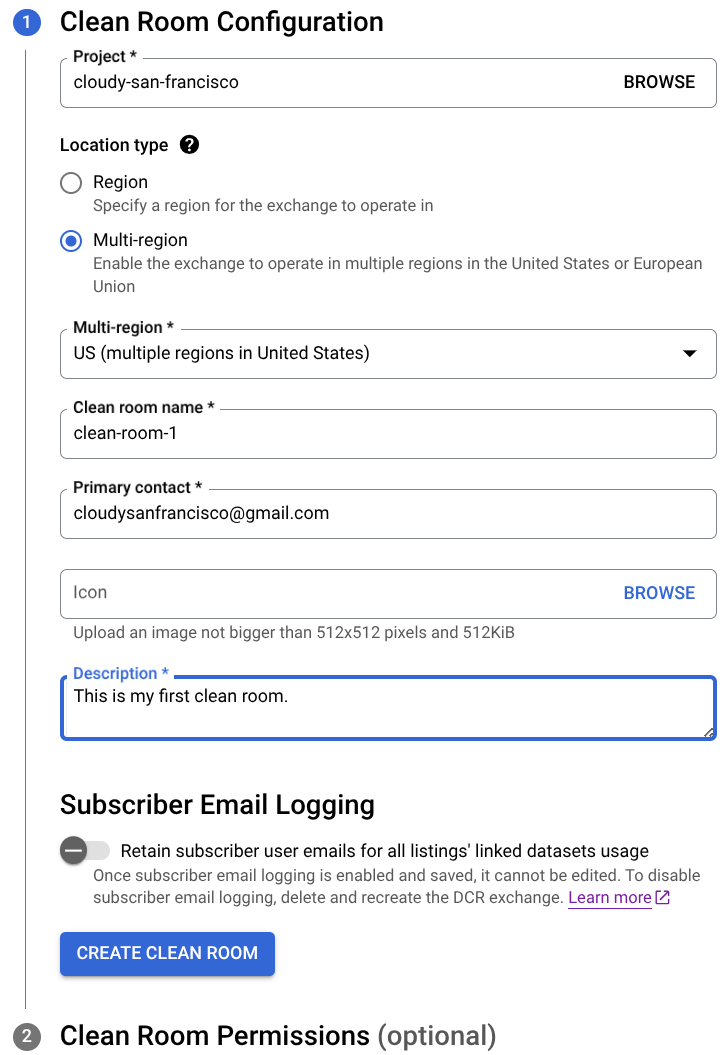
For Project, select the project for the data clean room. You must enable the Analytics Hub API for the project.
Specify the location, name, primary contact, icon (optional), and description for the data clean room. You can only list resources in the data clean room that are in the same region as the data clean room.
Optional: To log the principal identifiers of all users running jobs and queries on linked datasets, click the Subscriber Email Logging toggle. The logged data appears in the
job_principal_subjectfield of theINFORMATION_SCHEMA.SHARED_DATASET_USAGEview.Click Create clean room.
Optional: In the Clean Room Permissions section, add other data clean room owners, data contributors, or data clean room subscribers.
API
Use the
projects.locations.dataExchanges.create method
and set the
sharing environment
to dcrExchangeConfig.
The following example shows how to call the projects.locations.dataExchanges.create method using the curl command:
  curl -H "Authorization: Bearer $(gcloud auth print-access-token)" -H "Content-Type: application/json" -L -X POST https://analyticshub.googleapis.com/v1/projects/PROJECT_ID/locations/LOCATION/dataExchanges?data_exchange_id=CLEAN_ROOM_ID -d
  '{
    display_name: "CLEAN_ROOM_NAME",
    sharing_environment_config: {dcr_exchange_config: {}}
  }'
Replace the following:
PROJECT_ID: your project IDLOCATION: the location of the data clean roomCLEAN_ROOM_ID: your data clean room IDCLEAN_ROOM_NAME: the display name of your data clean room
In the body of the request, provide the data exchange details.
If the request is successful, the response body contains the details of the data clean room.
If you enable subscriber email logging with the
logLinkedDatasetQueryUserEmail field, the data exchange response contains
log_linked_dataset_query_user_email: true. The logged data appears
in the job_principal_subject field of the
INFORMATION_SCHEMA.SHARED_DATASET_USAGE view.
Update a data clean room
To update data clean room properties, select one of the following options:
Console
In the Google Cloud console, go to the Sharing (Analytics Hub) page.
Click the display name of the data clean room that you want to update.
In the Details tab, click Edit clean room details.
Update the data clean room name, primary contact, icon, description, or subscriber email logging setting as needed.
Click Save.
API
Use the
projects.locations.dataExchanges.patch method
and set the
sharing environment
to dcrExchangeConfig.
The following example shows how to call the
projects.locations.dataExchanges.patch method using the curl command:
curl -H "Authorization: Bearer $(gcloud auth print-access-token)" -H "Content-Type: application/json" -L -X PATCH https://analyticshub.googleapis.com/v1/projects/PROJECT_ID/locations/LOCATION/dataExchanges/CLEAN_ROOM_ID?updateMask=UPDATEMASK -d
'{
  display_name: "CLEAN_ROOM_NAME",
  sharing_environment_config: {dcr_exchange_config: {}}
}'
Replace the following:
PROJECT_ID: your project IDLOCATION: the location of the data clean roomCLEAN_ROOM_ID: your data clean room IDCLEAN_ROOM_NAME: the display name of your data clean room
Replace UPDATEMASK with the list of fields that you
want to update. To update multiple values, use a comma-separated list. For
example, to update the display name and primary contact for a data exchange,
enter displayName,primaryContact.
In the body of the request, specify updated values for the following fields:
displayNamedescriptionprimaryContactdocumentationicondiscoveryTypelogLinkedDatasetQueryUserEmail
For more information about these fields, see Resource: DataExchange.
Delete a data clean room
To delete a data clean room, select one of the following options:
Console
In the Google Cloud console, go to the Sharing (Analytics Hub) page.
In the row of the data clean room that you want to delete, click More actions > Delete.
To confirm, enter
delete, and then click Delete. You can't undo this action.
API
Use the
projects.locations.dataExchanges.delete method
and set the
sharing environment
to dcrExchangeConfig.
The following example shows how to call the
projects.locations.dataExchanges.delete method using the curl command:
curl -H "Authorization: Bearer $(gcloud auth print-access-token)" -H "Content-Type: application/json" -L -X DELETE https://analyticshub.googleapis.com/v1/projects/PROJECT_ID/locations/LOCATION/dataExchanges?data_exchange_id=CLEAN_ROOM_ID
Replace the following:
PROJECT_ID: your project IDLOCATION: the location of the data clean roomCLEAN_ROOM_ID: your data clean room ID
When you delete a data clean room, all the listings within it are deleted. The shared resources and linked datasets aren't deleted. The linked datasets are unlinked from the source datasets, so querying resources in the data clean room starts to fail for data clean room subscribers.
Manage data contributors
As a data clean room owner, you manage who can add data to your data
clean rooms (your data contributors). To let a data contributor add data to a
data clean room, grant them the
Analytics Hub Publisher role
(roles/analyticshub.publisher) on that data clean room:
Console
In the Google Cloud console, go to the Sharing (Analytics Hub) page.
Click the display name of the data clean room that you want to grant permissions to.
In the Details tab, click Set permissions.
Click Add principal.
For New principals, enter the usernames or emails of the data contributors that you're adding.
For Select a role, select Analytics Hub > Analytics Hub Publisher.
Click Save.
You can delete and update data contributors at any time by clicking Set permissions.
API
Use the
projects.locations.dataExchanges.setIamPolicy method.
The following example shows how to call the projects.locations.dataExchanges.setIamPolicy method using the curl command:
curl -H "Authorization: Bearer $(gcloud auth print-access-token)" -H "Content-Type: application/json" -L -X POST https://analyticshub.googleapis.com/v1/projects/PROJECT_ID/locations/LOCATION/dataExchanges/CLEAN_ROOM_ID:setIamPolicy -d
'{
  "policy": {
    "bindings": [
      {
        "members": [
          "my-service-account@my-project.iam.gserviceaccount.com"
        ],
        "role": "roles/analyticshub.publisher"
      }
    ]
  }
}'
The policy in the request body must conform to the structure of a Policy.
You can grant the Analytics Hub Publisher role (roles/analyticshub.publisher)
for an entire project on the
IAM page.
This grants permission to add data to any data clean room in that project.
Granting this role at the project level isn't recommended because it can
result in overly permissive access.
Manage data clean room subscribers
As a data clean room owner, you manage who can subscribe to your data
clean rooms (your subscribers). To let a subscriber subscribe to a data clean
room, grant them the
Analytics Hub Subscriber role
(roles/analyticshub.subscriber) and
Analytics Hub Subscription Owner role
(roles/analyticshub.subscriptionOwner) on that data clean room:
Console
In the Google Cloud console, go to the Sharing (Analytics Hub) page.
Click the display name of the data clean room that you want to grant permissions to.
In the Details tab, click Set permissions.
Click Add principal.
For New principals, enter the usernames or emails of the data clean room subscribers that you're adding.
For Select a role, select Analytics Hub > Analytics Hub Subscriber.
Click Add another role.
For Select a role, select Analytics Hub > Analytics Hub Subscription Owner.
Click Save.
You can delete and update data clean room subscribers at any time by clicking Set permissions.
API
Use the
projects.locations.dataExchanges.setIamPolicy method.
The following example shows how to call the projects.locations.dataExchanges.setIamPolicy method using the curl command:
curl -H "Authorization: Bearer $(gcloud auth print-access-token)" -H "Content-Type: application/json" -L -X POST https://analyticshub.googleapis.com/v1/projects/PROJECT_ID/locations/LOCATION/dataExchanges/CLEAN_ROOM_ID:setIamPolicy -d
'{
  "policy": {
    "bindings": [
      {
        "members": [
          "user:mike@example.com"
        ],
        "role": "roles/analyticshub.subscriptionOwner"
      },
      {
        "members": [
          "user:mike@example.com"
        ],
        "role": "roles/analyticshub.subscriber"
      }
    ]
  }
}'
The policy in the request body must conform to the structure of a Policy.
You can grant the Analytics Hub Subscriber role
(roles/analyticshub.subscriber) and Analytics Hub Subscription Owner role
(roles/analyticshub.subscriptionOwner) for an entire project on the
IAM page.
These roles give permission to subscribe to any data clean room in that
project. Avoid granting these roles at the project level because it can result
in overly permissive access.
Share a data clean room
You can directly share a data clean room with data clean room subscribers:
In the Google Cloud console, go to the Sharing (Analytics Hub) page.
In the row of the data clean room that you want to share, click More actions > Copy share link.
To let subscribers view and subscribe to the data clean room, share the copied link with them.
Data contributor workflows
As a data contributor, you can do the following:
- Add data to a data clean room by creating a listing.
- Update a listing.
- Delete a listing.
- Share a data clean room.
- Monitor listings.
Additional data contributor permissions
To complete data contributor tasks, you must have the
Analytics Hub Publisher role
(roles/analyticshub.publisher) on a data clean room.
In addition, you need the bigquery.datasets.get, bigquery.datasets.update,
and bigquery.tables.get permissions on the source dataset and table. These
permissions are available in the
BigQuery Data Owner role
(roles/bigquery.dataOwner).
To view data clean rooms in your organization that aren't in your
current project, you need the resourcemanager.organization.get
permission.
To use the data clean room creation process to create a
BigQuery view
with
analysis rules,
you need the bigquery.tables.setPrivacyPolicy and
bigquery.tables.create permissions. If you reference the view directly,
this permission isn't required.
Create a listing (add data)
To prepare data with analysis rules and publish to a data clean room as a listing, do the following:
Console
In the Google Cloud console, go to the Sharing (Analytics Hub) page.
Click the display name of the data clean room that you want to create a listing in.
If you're in a different organization than your data clean room owner and the data clean room isn't visible to you, ask the data clean room owner for a direct link.
Click Add data.
For Select dataset and Table/view name, enter the table or view that you want to list in the data clean room and its corresponding dataset. You will add analysis rules to prevent raw access to this underlying data in a few steps.
Select the columns of your resource that you want to publish.
Set the view name, primary contact, and description (optional) for the listing.
Click Next.
Choose an analysis rule for your listing and configure the details.
Set data egress controls for the listing.
Click Next.
Review the data and analysis rule that you're adding to the data clean room.
Click Add data. A view is created for your data and is added as a listing to the data clean room. The source table or view itself isn't added.
API
Use the
projects.locations.dataExchanges.listings.create method.
The following example shows how to call the projects.locations.dataExchanges.listings.create method using the curl command:
  curl -H "Authorization: Bearer $(gcloud auth print-access-token)" -H "Content-Type: application/json" -H 'x-goog-user-project:DCR_PROJECT_ID' -X POST https://analyticshub.googleapis.com/v1/projects/DCR_PROJECT_ID/locations/LOCATION/dataExchanges/CLEAN_ROOM_ID/listings?listingId=LISTING_ID -d
  '{"bigqueryDataset":{"dataset":"projects/PROJECT_ID/datasets/DATASET_ID","selectedResources":[{"table":"projects/PROJECT_ID/datasets/DATASET_ID/tables/VIEW_ID"}],},"displayName":LISTING_NAME"}'
Replace the following:
DCR_PROJECT_ID: the project ID of the project where the data clean room was created.PROJECT_ID: the project ID of the project where the source dataset was contained.DATASET_ID: your source dataset ID.LOCATION: the location of the data clean room.CLEAN_ROOM_ID: your data clean room ID.LISTING_ID: your listing ID.LISTING_NAME: your listing name.VIEW_ID: your view ID. The view that you add to a data clean room must be an authorized view that is configured with analysis rules.
By listing a resource in a data clean room, you grant all current and future data clean room subscribers access to the data in your shared resource.
If you create a listing with a shared resource that lacks an analysis rule, a warning indicates that subscribers can access raw data for that resource. If you confirm the warning, you can still create the listing.
If you get the Failed to save listing error, verify that you have the
required permissions to complete data contributor tasks.
Update a listing
To update a listing, select one of the following options:
Console
In the Google Cloud console, go to the Sharing (Analytics Hub) page.
Click the display name of the data clean room that contains the listing.
In the row of the listing that you want to update, click More actions > Edit listing.
Update the primary contact or description as needed.
Click Next.
Update the analysis rule as needed. You can update only the parameters of the chosen rule. You can't switch to a different rule.
Click Next.
Review the listing and click Save.
API
Use the
projects.locations.dataExchanges.listings.patch method.
The following example shows how to call the projects.locations.dataExchanges.listings.patch method using the curl command:
curl -H "Authorization: Bearer $(gcloud auth print-access-token)" -H "Content-Type: application/json" -H 'x-goog-user-project:DCR_PROJECT_ID' -X PATCH https://analyticshub.googleapis.com/v1/projects/DCR_PROJECT_ID/locations/LOCATION/dataExchanges/CLEAN_ROOM_ID/listings/listingId=LISTING_ID?updateMask=displayName -d
'{"displayName":LISTING_NAME"}'
Replace the following:
DCR_PROJECT_ID: the project ID of the project where the data clean room was created.LOCATION: the location of the data clean room.CLEAN_ROOM_ID: your data clean room ID.LISTING_ID: your listing ID.LISTING_NAME: your listing name.
After a listing is created, you can't change its source resource or data egress controls.
Delete a listing
To delete a listing, select one of the following options:
Console
In the Google Cloud console, go to the Sharing (Analytics Hub) page.
Click the display name of the data clean room that contains the listing.
In the row of the listing that you want to delete, click More actions > Delete listings.
To confirm, enter
delete, and then click Delete. You can't undo this action.
API
Use the
projects.locations.dataExchanges.listings.delete method.
The following example shows how to call the projects.locations.dataExchanges.listings.delete method using the curl command:
curl -H "Authorization: Bearer $(gcloud auth print-access-token)" -H "Content-Type: application/json" -H 'x-goog-user-project:DCR_PROJECT_ID' -X DELETE https://analyticshub.googleapis.com/v1/projects/DCR_PROJECT_ID/locations/LOCATION/dataExchanges/CLEAN_ROOM_ID/listings?listingId=LISTING_ID
Replace the following:
DCR_PROJECT_ID: the project ID of the project where the data clean room was created.LOCATION: the location of the data clean room.CLEAN_ROOM_ID: your data clean room ID.LISTING_ID: your listing ID.
When you delete a listing, the shared resources and linked datasets aren't deleted. The linked datasets are unlinked from the source datasets, so querying resources in that listing starts to fail for data clean room subscribers.
Share a data clean room
You can directly share a data clean room with data clean room subscribers:
In the Google Cloud console, go to the Sharing (Analytics Hub) page.
In the row of the data clean room that you want to share, click More actions > Copy share link.
To let subscribers view and subscribe to the data clean room, share the copied link with them.
Monitor listings
You can view the usage metrics on the source datasets of the resources that you
share in a data clean room by querying the
INFORMATION_SCHEMA.SHARED_DATASET_USAGE view.
To view your listing data clean room subscribers, do the following:
In the Google Cloud console, go to the Sharing (Analytics Hub) page.
Click the display name of the data clean room.
In the row of a listing that you want to view, click More actions > View subscriptions.
Data clean room subscriber workflows
As a data clean room subscriber, you can do the following:
- Subscribe to a data clean room.
- Query data in a linked dataset.
Subscribing to a data clean room creates one linked dataset in your project. Each linked dataset has the same name as the data clean room.
You can't subscribe to a specific listing within a data clean room. You can subscribe only to the data clean room itself.
Additional data clean room subscriber permissions
To complete data clean room subscriber tasks, you must have the
Analytics Hub Subscriber role
(roles/analyticshub.subscriber) on the data clean room and the
Analytics Hub Subscription Owner role
(roles/analyticshub.subscriptionOwner) on the subscription project.
When you subscribe to a data clean room, you also need the
bigquery.datasets.create permission in your project to create the linked
dataset.
Subscribe to a data clean room
Subscribing to a data clean room gives you query access to the data in the listings by creating a linked dataset in your project. To subscribe to a data clean room, do the following:
Console
In the Google Cloud console, go to the BigQuery page.
In the Explorer pane, click Add data.
Select Sharing (Analytics Hub). A discovery page opens.
To display the data clean rooms that you have access to, in the filters list, select Clean rooms.
Click the data clean room that you want to subscribe to. A description page of the data clean room opens. On this page, you can also see if the provider has enabled subscriber email logging.
Click Subscribe.
Select the destination project for the subscription and click Subscribe.
API
Use the
projects.locations.dataExchanges.subscribe method.
The following example shows how to call the projects.locations.dataExchanges.subscribe method using the curl command:
curl -H "Authorization: Bearer $(gcloud auth print-access-token)" -H "Content-Type: application/json" -L -X POST https://analyticshub.googleapis.com/v1/projects/DCR_PROJECT_ID/locations/LOCATION/dataExchanges/CLEAN_ROOM_ID:subscribe --data '{"destination":"projects/SUBSCRIBER_PROJECT_ID/locations/LOCATION","subscription":"SUBSCRIPTION"}'
Replace the following:
DCR_PROJECT_ID: the project ID of the project where the data clean room was created.LOCATION: the location of the data clean room.CLEAN_ROOM_ID: your data clean room ID.SUBSCRIBER_PROJECT_ID: the project ID of the subscriber project.SUBSCRIPTION: the name of your subscription.LINKED_DATASET_ID: the ID that you want to give to the linked dataset.PRIMARY_REGION: the primary geographic region where you want to create the linked dataset.
In the body of the request, specify the destination location, subscription name, and the dataset where you want to create the linked dataset:
{
  "destination": "projects/SUBSCRIBER_PROJECT_ID/locations/LOCATION",
  "subscription": "SUBSCRIPTION",
  "destinationDataset": {
    "datasetReference": {
      "projectId": "SUBSCRIBER_PROJECT_ID",
      "datasetId": "LINKED_DATASET_ID"
    },
    "location": "PRIMARY_REGION"
  }
}
If the request is successful, the response body contains the subscription object.
If you enable subscriber email logging for the data clean room with the
logLinkedDatasetQueryUserEmail field, the subscription response contains
log_linked_dataset_query_user_email: true. The logged data appears
in the job_principal_subject field of the
INFORMATION_SCHEMA.SHARED_DATASET_USAGE view.
A linked dataset is now added to the project that you specified and is available for query.
As a data clean room subscriber, your access to linked datasets is subject to the following conditions:
- Metadata and permissions: you can edit some metadata of your linked datasets, such as descriptions and labels, and you can set permissions on your linked datasets. Changes to linked datasets don't affect source datasets. You can't see view definitions.
- Read-only resources: resources contained in linked datasets are read-only. As a subscriber, you can't edit data or metadata for resources in linked datasets, or specify permissions for individual resources within the linked dataset.
- Unsubscribe: to unsubscribe from the data clean room, delete your linked dataset.
Query data in a linked dataset
To query data in a linked dataset, use the
SELECT WITH AGGREGATION_THRESHOLD syntax,
which lets you run queries on analysis rule-enforced views. For an
example of this syntax, see
Query an aggregation threshold analysis rule–enforced view.
Example scenario: Advertiser and publisher attribution analysis
An advertiser wants to track the effectiveness of its marketing campaigns. The advertiser has first-party data on its customers, including their purchase history, demographics, and interests. The publisher has data from its website, including which ads were shown to visitors and their conversions.
The advertiser and publisher agree to use a data clean room to combine data and measure the results of their campaigns. In this case, the publisher creates the data clean room and makes data available for the advertiser to analyze. The resulting attribution report shows the advertiser which ads were most effective in driving sales. The advertiser uses this information to optimize future marketing campaigns.
The advertiser and publisher orchestrate the BigQuery data clean room through the process described in the following sections.
Create the data clean room (publisher)
- A data clean room owner in the publisher organization enables the
Analytics Hub API in their BigQuery project
and assigns User A as the data clean room owner
(Analytics Hub Admin (
roles/analyticshub.admin)). - User A creates a data clean room called
Campaign Analysisand assigns the following permissions:- Data contributor (Analytics Hub Publisher
(
roles/analyticshub.publisher)): User B, a data engineer in the publisher organization. - Data clean room subscriber (Analytics Hub Subscriber
(
roles/analyticshub.subscriber) and Subscription Owner (roles/analyticshub.subscriptionOwner)): User C, a marketing analyst in the advertiser organization.
- Data contributor (Analytics Hub Publisher
(
Add data to the data clean room (publisher)
User B creates a new listing in the data clean room called
Publisher Conversion Data. As part of listing creation, a new view with
analysis rules is created.
Subscribe to the data clean room (advertiser)
- User C subscribes to the data clean room, which creates a linked dataset for
all listings in the data clean room, including the
Publisher Conversion Datalisting. - User C can now run aggregation queries to combine the data from this linked dataset with their first-party data to measure the campaign effectiveness.
Entity resolution
Data clean room use cases often require linking entities across data contributor and data clean room subscriber datasets that don't include a common identifier. Subscribers and data contributors might represent the same records differently in multiple datasets, either because datasets originate from different data sources or because datasets use identifiers from different namespaces.
As a part of data preparation, entity resolution in BigQuery does the following:
- For data contributors, it deduplicates and resolves records in their shared resources by using identifiers from a common provider of their choice. This process enables cross-contributor joins.
- For data clean room subscribers, it deduplicates and resolves records in their first-party datasets and links to entities in data contributor datasets. This process enables joins between subscriber and data contributor data.
For more information about configuring entity resolution, see Configure and use entity resolution in BigQuery.
Discover data clean room assets
To find all the data clean rooms that you have access to, do the following:
For data clean room owners and data contributors, in the Google Cloud console, go to the Sharing (Analytics Hub) page.
All the data clean rooms that you can access are listed.
For data clean room subscribers, do the following:
In the Google Cloud console, go to the BigQuery page.
In the Explorer pane, click Add data.
Select Sharing (Analytics Hub). A discovery page opens.
To display the data clean rooms that you have access to, in the filters list, select Clean rooms.
To find all the linked datasets created by data clean rooms in your project, run the following command in a command-line environment:
PROJECT=PROJECT_ID \
for dataset in $(bq ls --project_id $PROJECT | tail +3); \
do [ "$(bq show -d --project_id $PROJECT $dataset | egrep LINKED)" ] \
&& echo $dataset; done
Replace PROJECT_ID with the project that contains your
linked datasets.
Pricing
The following table summarizes pricing for BigQuery data clean rooms:
| Role | Pricing details |
|---|---|
| Data contributor | Charged only for data storage. |
| Data clean room subscriber | Charged only for compute (analysis) when running queries. |
What's next
- Learn how to use query templates.
- Learn how to restrict data access with analysis rules.
- Learn how to use VPC Service Controls.