

Create notebooks
This document describes how to create Colab Enterprise notebooks in BigQuery. Notebooks are BigQuery Studio code assets powered by Dataform.
Before you begin
- Sign in to your Google Cloud account. If you're new to Google Cloud, create an account to evaluate how our products perform in real-world scenarios. New customers also get $300 in free credits to run, test, and deploy workloads.
-
In the Google Cloud console, on the project selector page, select or create a Google Cloud project.
Roles required to select or create a project
- Select a project: Selecting a project doesn't require a specific IAM role—you can select any project that you've been granted a role on.
-
Create a project: To create a project, you need the Project Creator role
(
roles/resourcemanager.projectCreator), which contains theresourcemanager.projects.createpermission. Learn how to grant roles.
-
Verify that billing is enabled for your Google Cloud project.
Enable the BigQuery, Dataform, and Compute Engine APIs, if any are not already enabled.
Roles required to enable APIs
To enable APIs, you need the
serviceusage.services.enablepermission. If you created the project, then you likely already have this permission through the Owner role (roles/owner). Otherwise, you can get this permission through the Service Usage Admin role (roles/serviceusage.serviceUsageAdmin). Learn how to grant roles.-
In the Google Cloud console, on the project selector page, select or create a Google Cloud project.
Roles required to select or create a project
- Select a project: Selecting a project doesn't require a specific IAM role—you can select any project that you've been granted a role on.
-
Create a project: To create a project, you need the Project Creator role
(
roles/resourcemanager.projectCreator), which contains theresourcemanager.projects.createpermission. Learn how to grant roles.
-
Verify that billing is enabled for your Google Cloud project.
Enable the BigQuery, Dataform, and Compute Engine APIs, if any are not already enabled.
Roles required to enable APIs
To enable APIs, you need the
serviceusage.services.enablepermission. If you created the project, then you likely already have this permission through the Owner role (roles/owner). Otherwise, you can get this permission through the Service Usage Admin role (roles/serviceusage.serviceUsageAdmin). Learn how to grant roles.
Required permissions
Set the appropriate permissions to create, edit, or view notebooks.
All users with the
Dataform Admin role
(roles/dataform.admin) have owner access to all notebooks created in the
project.
For more information about BigQuery Identity and Access Management (IAM), see Access control with IAM.
Permissions to create notebooks
To get the permissions that
you need to create and run notebooks,
ask your administrator to grant you the
BigQuery Studio User (roles/bigquery.studioUser) IAM role on the project.
For more information about granting roles, see Manage access to projects, folders, and organizations.
You might also be able to get the required permissions through custom roles or other predefined roles.
You might also be able to get the required permissions through custom roles or other predefined roles. To see the exact permissions that are required to create and run notebooks, expand the Required permissions section:
Required permissions
bigquery.config.getbigquery.jobs.createbigquery.readsessions.createbigquery.readsessions.getDatabigquery.readsessions.updateresourcemanager.projects.getresourcemanager.projects.listdataform.locations.getdataform.locations.listdataform.repositories.createdataform.repositories.listdataform.collections.createdataform.collections.listaiplatform.notebookRuntimeTemplates.applyaiplatform.notebookRuntimeTemplates.getaiplatform.notebookRuntimeTemplates.listaiplatform.notebookRuntimeTemplates.getIamPolicyaiplatform.notebookRuntimes.assignaiplatform.notebookRuntimes.getaiplatform.notebookRuntimes.listaiplatform.operations.list
Roles to edit notebooks
To edit and run notebooks, you need the following IAM roles:
- BigQuery Job User (
roles/bigquery.jobUser) - BigQuery Read Session User (
roles/bigquery.readSessionUser) - Notebook Runtime User (
roles/aiplatform.notebookRuntimeUser) - Code Editor (
roles/dataform.codeEditor)
Roles to view notebooks
To view and run notebooks, you need the following IAM roles:
- BigQuery Job User (
roles/bigquery.jobUser) - BigQuery Read Session User (
roles/bigquery.readSessionUser) - Notebook Runtime User (
roles/aiplatform.notebookRuntimeUser) - Code Viewer (
roles/dataform.codeViewer)
Security considerations for notebooks
Because code assets in BigQuery are powered by Dataform, you should consider the following security implications for users with access to these assets:
- Visibility for code assets is governed by project-level Dataform permissions. Users with the
dataform.repositories.listpermission—which is included in standard BigQuery roles such as BigQuery Job User, BigQuery Studio User, and BigQuery User—can see all code assets in the Explorer panel of the Google Cloud project, regardless of whether they created these assets or these assets were shared with them. To restrict visibility, you can create custom roles that exclude thedataform.repositories.listpermission. - Any secrets shared with the Dataform service agent can potentially be accessed by users who can edit these assets. To secure your credentials, restrict creation and edit access to trusted users, and limit the secrets accessible to the Dataform service agent. For more information, see Secrets access during package installation.
For more information, see Security considerations for Dataform permissions.
Create notebooks
Use the following sections to learn how to create a notebook.
Set the default region for code assets
All new code assets in your Google Cloud project use a default region. After the asset is created, you can't change its region.
To set the default region for new code assets, do the following:
Go to the BigQuery page.
In the left pane, click Files to open the file browser:
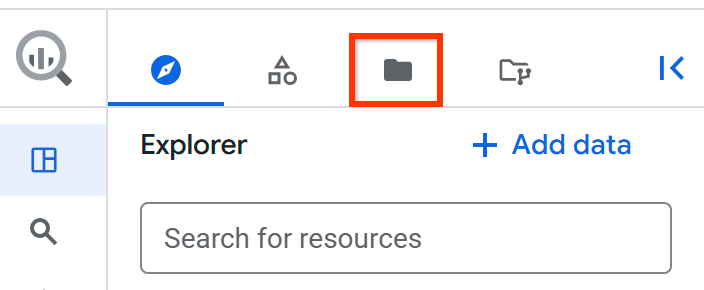
Next to the project name, click View files panel actions > Switch code region.
Select the code region that you want to use as a default.
Click Save.
For a list of supported regions, see BigQuery Studio locations.
Create a notebook using the notebook gallery
The notebook gallery in the Google Cloud console for BigQuery is your central hub for discovering and using prebuilt notebook templates.
To create a notebook from a template in the notebook gallery, follow these steps:
In the Google Cloud console, go to BigQuery Studio.
To open the gallery, in the tab bar of the editor pane, click the arrow next to SQL query, and then click Notebook > All templates.
In the notebook gallery, select a template. For example, you can select Getting started with BigQuery DataFrames.
The new notebook opens, containing cells that show example queries against the
bigquery-public-data.ml_datasets.penguinspublic dataset.Alternatively, you can click the arrow next to SQL query, and then click Notebook > Empty notebook, Notebook > BigQuery template, or Notebook > Spark template to open these specific templates.
To create a runnable notebook from the template, click Use this template.
Optional: To view notebook details or the version history, add new comments, or reply to or get a link to an existing comment, use the following toolbar:
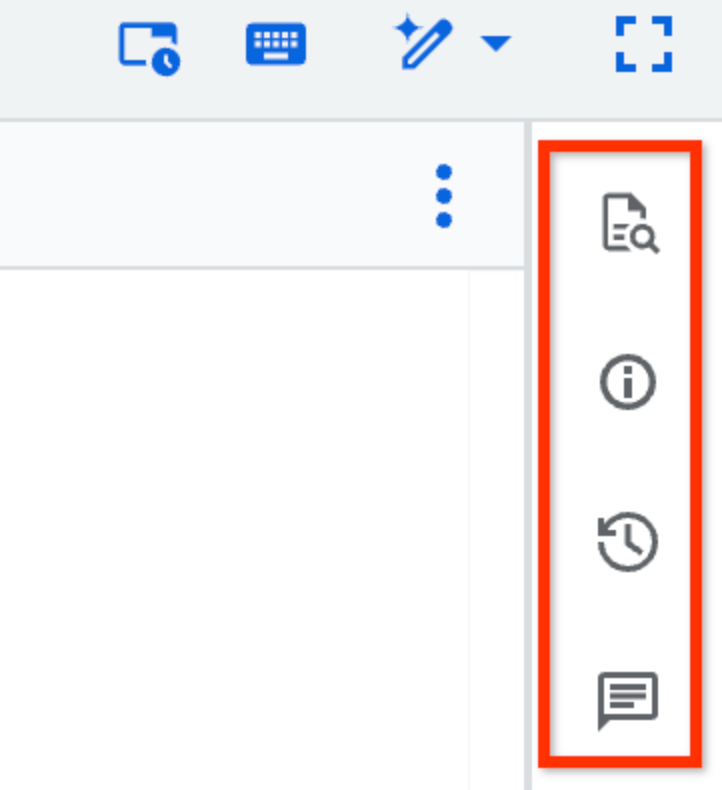
The Comments toolbar feature is in Preview. To provide feedback or request support for this feature, send an email to bqui-workspace-pod@google.com.
Optional: In the Comments toolbar, you can use the Reference panel to preview the schema details of tables, snapshots, views, or materialized views, or open them in a new tab. The panel also has a list of recent and starred resources.
Create a notebook from a table
To create a notebook containing a default query for a specific table, follow these steps:
In the Google Cloud console, go to the BigQuery page.
In the left pane, click Explorer:

If you don't see the left pane, click Expand left pane to open the pane.
In the Explorer pane, expand your project, click Datasets, and then click your dataset.
Click Overview > Tables, and find the table that you want to query.
Next to the table, click Actions, and then click Open in > Python notebook.
The new notebook opens, containing cells that show example queries against the selected table.
Create a notebook to explore the result set of a query
To create a notebook to explore the result set of a query, follow these steps:
In the Google Cloud console, go to the BigQuery page.
In the editor pane, run a query that generates a query result.
In the Query results pane, click Open in > Notebook.
The new notebook opens, containing cells with code to return the query SQL and the query results.
Create a notebook from an existing notebook
To open any version of an existing notebook as a new notebook, follow these steps:
In the Google Cloud console, go to the BigQuery page.
In the left pane, click Explorer:
In the Explorer pane, expand your project and click Notebooks.
Select a notebook.
Click Version history.
Click View actions next to a notebook version and then click Open as new Python notebook.
A copy of the notebook is opened as a new notebook.
Upload notebooks
You can upload a local notebook to use it in BigQuery Studio. The uploaded notebook is then visible in the BigQuery page of the Google Cloud console.
To upload a notebook, follow these steps:
In the Google Cloud console, go to the BigQuery page.
In the left pane, click Explorer:
In the Explorer pane, expand your project, and then do one of the following:
- Next to Notebooks, click View actions > Upload notebook.
- Next to the Google Cloud project name, click View actions > Upload to project > Notebook.
In the Upload Notebook dialog, in the Notebook field, click Browse, and then select the notebook that you want to upload.
Optional: In the Notebook name field, edit the name of the notebook.
In the Region field, select the region where you want to upload your notebook.
Click Upload.
Your notebook can be accessed through the Explorer pane.
Connect to a runtime
Use the following sections to learn how to connect a notebook to an Gemini Enterprise Agent Platform runtime. A runtime is a compute resource that runs the code in your notebook. The runtime must be in the same region as your notebook.
For more information about runtimes, see Runtimes and runtime templates.
Connect to the default runtime
The default runtime is a preset runtime that requires minimal setup.
To connect to the default runtime, follow these steps:
In the Google Cloud console, go to the BigQuery page.
In the left pane, click Explorer:
In the Explorer pane, expand your project and click Notebooks.
Click the name of a notebook to open it.
In the notebook, click Connect, or run any cell in the notebook.
It might take several minutes to connect to the default runtime if you don't already have an active runtime.
Connect to a non-default runtime
If you want to use a runtime other than the default runtime, you must first create that additional runtime in Agent Platform.
To connect to non-default runtime, follow these steps:
In the Google Cloud console, go to the BigQuery page.
In the left pane, click Explorer:
In the Explorer pane, expand your project and click Notebooks.
Click the name of a notebook to open it.
In the notebook, click the drop-down next to Connect and then click Connect to a runtime.
Click Connect to an existing runtime.
In Runtimes, select the runtime to use. The runtime must be in the same location as the notebook.
Click Connect.
Connect to a new runtime
To connect to a new runtime, follow these steps:
In the Google Cloud console, go to the BigQuery page.
In the left pane, click Explorer:
In the Explorer pane, expand your project and click Notebooks.
Click the name of a notebook to open it.
In the notebook, click the drop-down next to Connect and then click Connect to a runtime.
Click Create new runtime.
In Runtime Template, select the Agent Platform runtime template to use.
In Runtime name, type a name for the runtime.
Click Connect.
Troubleshooting
For more information, see Troubleshoot Colab Enterprise.
What's next
- Learn how to manage notebooks.
- Learn how to schedule notebooks.
- Learn how to access notebook files in a BigQuery Studio Git repository mount.