

View and subscribe to listings and data exchanges
In BigQuery sharing (formerly Analytics Hub), you can discover and subscribe to listings and data exchanges to query shared data directly in BigQuery without replicating data or incurring storage costs. Subscribing creates read-only linked datasets in your project that let you analyze shared tables and views alongside your existing resources.
Required roles
To get the permissions that you need to use listings, ask your administrator to grant you the following IAM roles:
-
Discover listings and data exchanges:
Analytics Hub Viewer (
roles/analyticshub.viewer) on the subscriber project -
Subscribe to listings:
- BigQuery User (
roles/bigquery.user) on the subscriber project - Analytics Hub Subscriber (
roles/analyticshub.subscriber) on the publisher's listing, exchange, or project
- BigQuery User (
-
Subscribe to data exchanges:
- BigQuery User (
roles/bigquery.user) on the subscriber project - Analytics Hub Subscriber (
roles/analyticshub.subscriber) on the data clean room - Analytics Hub Subscription Owner role (
roles/analyticshub.subscriptionOwner) on the destination project
- BigQuery User (
-
View and query linked datasets:
BigQuery Data Viewer (
roles/bigquery.dataViewer) on the subscriber project -
View table metadata:
BigQuery Data Viewer (
roles/bigquery.dataViewer) on the subscriber project -
Update linked datasets:
BigQuery Data Owner (
roles/bigquery.dataOwner) on the subscriber project -
Delete linked datasets:
BigQuery Admin (
roles/bigquery.admin) on the subscriber project
For more information about granting roles, see Manage access to projects, folders, and organizations.
These predefined roles contain the permissions required to use listings. To see the exact permissions that are required, expand the Required permissions section:
Required permissions
The following permissions are required to use listings:
-
Create new datasets:
bigquery.datasets.createon the subscriber project -
Query datasets:
bigquery.jobs.createon the subscriber project
You might also be able to get these permissions with custom roles or other predefined roles.
Discover listings
To discover public and private listings, follow these steps:
In the Google Cloud console, go to the Sharing (Analytics Hub) page.
Click Search listings. A dialog appears that contains listings that you can access.
To filter listings by name or description, enter the text in the Search for listings field.
In the Filters section, filter listings by using the following fields:
Listings: select whether you want to view private listings, public listings, or listings within your organization.
Categories: select one or more categories.
Location: select a location. You can only search by the data exchange location. For more information, see Supported regions.
Provider: select a data provider. Some data providers require you to request access to their commercial datasets. After you request access, the data provider contacts you to share their datasets.
Browse the filtered listings.
Discover data exchanges
To discover data exchanges, follow these steps:
In the Google Cloud console, go to the Sharing (Analytics Hub) page.
Click Search listings. A dialog appears that contains listings and data exchanges that you can subscribe to.
To filter data exchanges by name or description, enter the text in the Search for listings field.
In the Filters section, filter data clean room exchanges by using the following fields:
Listings: select the Clean rooms checkbox to view shared clean rooms.
Categories: select one or more categories.
Location: select a location. You can only search by the data exchange location. For more information, see Supported regions.
Browse the filtered data clean rooms.
Subscribe to listings
Subscribing to a listing gives you read-only access to the data in the listing by creating a linked dataset in your project.
To subscribe to a listing, follow these steps:
Console
To view a list of listings that you have access to, follow the steps in Discover listings.
In the listings list, click the listing that you want to subscribe to. A dialog with the listing details appears. The dialog indicates whether the provider enabled subscriber email logging and lists the regions where the listing is available.
If the listing requires approval or purchase (such as a commercial dataset), click Request access or Purchase via Marketplace. Otherwise, click Subscribe to open the Create linked dataset dialog.
If the Analytics Hub API isn't enabled in your project, click Enable Analytics Hub API in the message that appears.
In the Create linked dataset dialog, specify the following details:
- Project: enter the name of the project where you want to add the dataset.
- Linked dataset name: enter a name for the linked dataset.
Primary region: select the region where you want to create the linked dataset.
Optional: Replica regions: select the regions where you want to create linked dataset replicas. Colocating your linked dataset with other data minimizes egress and facilitates cross-dataset joins. To create replicas, you must have the
bigquery.datasets.updatepermission on the linked dataset.
To create the linked dataset, click Save.
API
To subscribe to a listing, call the
projects.locations.dataExchanges.listings.subscribe method:
POST https://analyticshub.googleapis.com/v1/projects/PROJECT_ID/locations/LOCATION/dataExchanges/DATAEXCHANGE_ID/listings/LISTING_ID:subscribe
Replace the following:
PROJECT_ID: the Google Cloud project ID of the project that contains the listing that you want to subscribe to.LOCATION: the location of the listing.DATAEXCHANGE_ID: the data exchange ID of the listing.LISTING_ID: the listing ID that you want to subscribe to.SUBSCRIBER_PROJECT_ID: the Google Cloud project ID of your subscriber project where you want to create the linked dataset.LINKED_DATASET_ID: the ID that you want to give to the linked dataset.PRIMARY_REGION: the primary geographic region where you want to create the linked dataset.
In the body of the request, specify the dataset where you want to create the linked dataset:
{
"destinationDataset": {
  "datasetReference": {
    "projectId": "SUBSCRIBER_PROJECT_ID",
    "datasetId": "LINKED_DATASET_ID"
  },
  "location": "PRIMARY_REGION"
}
}
To create a subscription with linked dataset replicas in multiple regions,
specify the primary region in the location field. To specify secondary
replica regions, add the regions to the
destinationDataset.replica_locations field. Ensure that all specified
regions are regions where the listing is available.
If the request is successful, the response body contains the subscription object.
If you enable subscriber email logging for the data exchange or listing with
the logLinkedDatasetQueryUserEmail field, the subscription response contains
log_linked_dataset_query_user_email: true. The logged data is available in
the job_principal_subject field of the
INFORMATION_SCHEMA.SHARED_DATASET_USAGE view.
If you enable stored procedure sharing
(Preview), the listing response
contains stored_procedure_config: true.
Subscribe to data exchanges
Subscribing to a data exchange gives you read-only access to the data in the data exchange by creating a linked dataset in your project.
To subscribe to a data clean room exchange, follow these steps:
Console
To view a list of data clean room exchanges that you have access to, follow the steps in Discover data exchanges.
In the data clean room list, click the data clean room exchange that you want to subscribe to. A dialog with the data clean room exchange details appears.
Click Subscribe to open the Add data clean room to project dialog.
If the Analytics Hub API isn't enabled in your project, click Enable Analytics Hub API in the message that appears.
In the Add data clean room to project dialog, specify the following details:
- Destination: enter the name of the project where you want to add the dataset.
To create the linked dataset, click Save.
API
To subscribe to a data clean room exchange, call the
projects.locations.dataExchanges.subscribe method:
POST https://analyticshub.googleapis.com/v1/projects/PROJECT_ID/locations/LOCATION/dataExchanges/DATAEXCHANGE_ID:subscribe
Replace the following:
PROJECT_ID: the Google Cloud project ID of the project that contains the data exchange that you want to subscribe to.LOCATION: the location of the data exchange.DATAEXCHANGE_ID: the data exchange ID.SUBSCRIBER_PROJECT_ID: the Google Cloud project ID of your subscriber project where you want to create the linked dataset.SUBSCRIPTION_ID: the name of the subscription to create.LINKED_DATASET_ID: the ID that you want to give to the linked dataset.PRIMARY_REGION: the primary geographic region where you want to create the linked dataset.
In the body of the request, specify the destination location, subscription name, and the dataset where you want to create the linked dataset:
{
"destination": "projects/SUBSCRIBER_PROJECT_ID/locations/LOCATION",
"subscription": "SUBSCRIPTION_ID",
"destinationDataset": {
  "datasetReference": {
    "projectId": "SUBSCRIBER_PROJECT_ID",
    "datasetId": "LINKED_DATASET_ID"
  },
  "location": "PRIMARY_REGION"
}
}
If the request is successful, the response body contains the
operation object.
If you have enabled subscriber email logging for the data exchange, the
subscription response contains log_linked_dataset_query_user_email: true.
View linked datasets
Linked datasets are displayed together with other datasets in the Google Cloud console.
To view linked datasets in your project, follow these steps:
Console
In the Google Cloud console, go to the BigQuery page.
In the Classic Explorer pane, click category Classic Explorer:
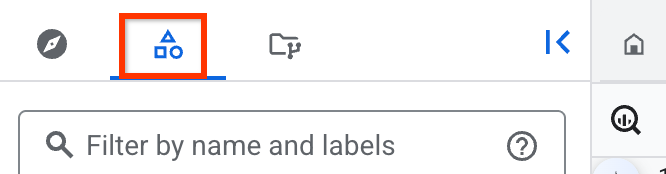
If the Classic Explorer pane isn't visible, click Expand left pane to open the pane.
In the Classic Explorer pane, click the project name that contains the
 linked dataset.
Alternatively, you can search for and view linked datasets with
Knowledge Catalog.
To match all the BigQuery sharing linked datasets in your search query,
use the type=dataset.linked predicate. For more information, see
Knowledge Catalog search syntax.
Cloud Shell
To list linked datasets in your project using the bq command-line tool, run
the following command in Cloud Shell:
PROJECT=PROJECT_ID \
for dataset in $(bq ls --project_id $PROJECT | tail +3); do [ "$(bq show -d --project_id $PROJECT $dataset | egrep LINKED)" ] && echo $dataset; done
Replace PROJECT_ID with your Google Cloud project
ID.
Query linked datasets
You can query tables and views in your linked datasets in the same way that you query any other BigQuery table.
To query a table in a linked dataset, run a SELECT query that references your
project ID, the linked dataset ID, and the table name:
SELECT * FROM `PROJECT_ID`.`LINKED_DATASET_ID`.`TABLE_NAME`
LIMIT 10;
Replace the following:
PROJECT_ID: your Google Cloud project ID.LINKED_DATASET_ID: the ID of the linked dataset.TABLE_NAME: the name of the table or view that you want to query.
For more information, see Run interactive queries.
Update linked datasets
Resources in a linked dataset are read-only. You can't edit data or metadata for resources in linked datasets, or specify permissions for individual resources.
You can only update the description and labels of your linked datasets. Changes to a linked dataset don't affect the source or shared datasets.
To update the description and labels of a linked dataset, follow these steps:
In the Google Cloud console, go to the BigQuery page.
In the Explorer pane, click Explorer:

In the Explorer pane, expand your project name, click Datasets, and click the linked dataset name to open it.
In the details pane, click Edit details and configure the following options:
- To add labels, see Adding a label to a dataset.
To enable collation, expand Advanced options and follow these steps:
- Select Enable default collation.
- In the Default collation list, select an option.
To save your changes, click Save.
View table metadata
To view table metadata for a linked dataset, query the
INFORMATION_SCHEMA.TABLES
view:
SELECT * FROM `LINKED_DATASET_ID`.INFORMATION_SCHEMA.TABLES;
Replace LINKED_DATASET_ID with the ID of your linked
dataset.
Unsubscribe from or delete linked datasets
To unsubscribe from a dataset, delete the linked dataset. Deleting a linked dataset doesn't delete the source dataset.
You can't retrieve a linked dataset after you delete it. However, you can recreate the deleted linked dataset at any time by subscribing to the listing again.
If a publisher removes your subscription, your linked dataset unlinks from the shared dataset. Because this is a publisher-initiated action on a subscriber-owned resource, the linked dataset remains in your project in an unlinked state. You can remove the unlinked dataset by deleting it.
To delete a linked dataset, follow these steps:
In the Google Cloud console, go to the BigQuery page.
In the Explorer pane, click Explorer:
In the Explorer pane, expand your project name, click Datasets, and click the linked dataset name to open it.
Click Delete.
In the Delete linked dataset? dialog, confirm deletion by entering
delete.Click Delete.
What's next
- Learn about BigQuery sharing.
- Learn how to manage listings.
- Learn how to manage data exchanges.
- Learn how to view BigQuery sharing audit logs.