

Optimize AI function costs with model distillation
This document describes how to use the optimized mode for managed AI
functions in BigQuery. You can use optimized mode to process
large-scale datasets containing thousands, or even billions, of rows with
significantly reduced large language model (LLM) token consumption and query
latency compared to standard per-row LLM inference. This optimization only
applies to the AI.IF and AI.CLASSIFY functions.
To better understand your token consumption, you can view the number of tokens
used by a query in the
Google Cloud console. To estimate this usage before you run a query, use the
AI.COUNT_TOKENS function.
The following example demonstrates how to use the AI.IF function
with the optimized mode to identify news articles about natural disasters, using text-embedding-005
as the embedding model:
SELECT
  title,
  body,
  AI.IF(
    ('The following news story is about a natural disaster: ', body),
    embeddings => AI.EMBED(body, endpoint => 'text-embedding-005', task_type => 'CLASSIFICATION').result,
    -- Optional, 'MINIMIZE_COST' is the default when embeddings are provided.
    optimization_mode => 'MINIMIZE_COST'
   ) AS is_natural_disaster
FROM
  `bigquery-public-data.bbc_news.fulltext`;
The optimization_mode => 'MINIMIZE_COST' argument enables the optimized
mode. This is the default setting when embeddings are provided, so you can omit
this argument.
For this example, embeddings are generated on-the-fly. In practice, we recommend that you materialize embeddings so that they can be reused.
How optimized mode works
The managed AI functions, AI.IF and AI.CLASSIFY, typically call a
remote LLM for every row in your dataset. When you use optimized mode,
BigQuery automatically trains a lightweight, distilled model
during query execution.
The process works as follows:
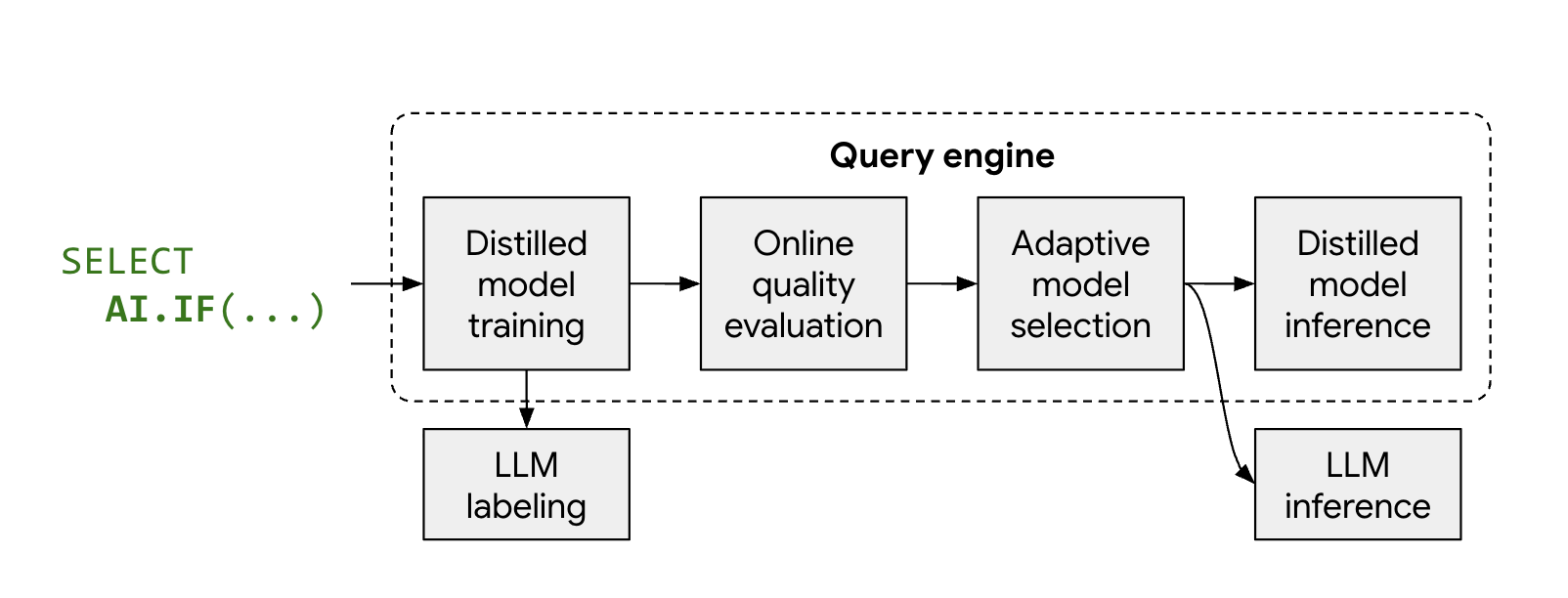
- Sampling and labeling: BigQuery selects a small representative sample of your data and calls Gemini to provide labels.
- Distilled model training: a local distilled model is trained just-in-time using the LLM labels and data embeddings as features.
- Quality check: BigQuery evaluates the distilled model's accuracy against the LLM's results. By default, if the distilled model fails to meet the required quality threshold, the query fails with an error explaining why the model was discarded. If the model is of acceptable quality, BigQuery might still fall back to the remote LLM for specific rows to maintain consistent quality, or for rows lacking valid embeddings.
- Inference: the distilled model processes the majority of the rows, significantly reducing the number of Gemini calls.
Limitations
The optimized mode has the following limitations:
- Minimum row count: the input to the AI function must contain approximately 3,000 rows to ensure enough data for model training.
- Data types: for prompts that reference multiple columns, only string columns are supported for optimization.
- Multi-label classification:
AI.CLASSIFYwithoutput_mode => 'multi'isn't supported in optimized mode. - Function support: only
AI.IFandAI.CLASSIFYfunctions support optimized mode; however, when using optimized mode withAI.CLASSIFY, queries can fail if distilled model quality is insufficient. - Error ratio: The
max_error_ratioargument isn't supported in optimized mode.
Before you begin
To get the permissions that you need to run managed AI functions in BigQuery, see Set permissions for generative AI functions that call Gemini Enterprise Agent Platform LLMs.
Choose an embedding model
To use optimized mode, you must compute embeddings for your data and provide them to the AI function. For input columns to have associated embeddings, all rows must have consistent embedding dimensions and be generated by the same embedding model.
For best cost-quality and scalability, we recommend computing embeddings for
your data using an embedding model, such as
text-embedding-005 or the Gemini embeddings
for English or multilingual tasks. For multimodal data (text and images), use a
multimodal embedding model such as
multimodalembedding@001.
Generate embeddings
You can compute embeddings for your data using autonomous generation managed by
BigQuery, or by manually creating the embedding columns.
The following sections describe how to use both approaches with the
AI.CLASSIFY and AI.IF functions.
Autonomous embedding generation
If you use autonomous embedding generation,
BigQuery automatically uses the embeddings when AI.IF or
AI.CLASSIFY are called. This is the recommended approach, but is limited to
one embedding column per table.
The following example creates a table with an autonomously generated embedding
column, using text-embedding-005 as the embedding model, then uses the
AI.CLASSIFY function to categorize the data:
-- Create a table with an autonomously generated embedding column
CREATE TABLE my_dataset.bbc_news (
  title STRING,
  body STRING,
  body_embedding STRUCT<result ARRAY<FLOAT64>, status STRING>
    GENERATED ALWAYS AS (
      AI.EMBED(
        body,
        connection_id => '<my_connection_id>',
        task_type => 'CLASSIFICATION',
        endpoint => 'text-embedding-005')
    ) STORED
    OPTIONS(asynchronous = TRUE)
);

-- Insert data into the table
INSERT INTO my_dataset.bbc_news (title, body)
SELECT title, body FROM `bigquery-public-data.bbc_news.fulltext`;

-- Run the optimized query.
-- Wait for the background job to finish generating embeddings before running.
SELECT
  title,
  body,
  AI.CLASSIFY(
    body,
    categories => ['tech', 'sport', 'business', 'other']
  ) AS category
FROM
  my_dataset.bbc_news;
Manual column specification
If you have an existing embedding column, specify it in the embeddings
argument of AI.IF or AI.CLASSIFY. You can generate this using the
AI.EMBED function.
The following example demonstrates how to create a table with an embedding
column, using text-embedding-005 as the embedding model, and then use that
column in an AI.CLASSIFY query:
-- Create a table with an embedding column
CREATE TABLE my_dataset.bbc_news AS
SELECT
  title,
  body,
  AI.EMBED(
    body,
    endpoint => 'text-embedding-005',
    task_type => 'CLASSIFICATION'
  ).result AS body_embedding
FROM
  `bigquery-public-data.bbc_news.fulltext`;

-- Run the optimized query
SELECT
  title,
  body,
  AI.CLASSIFY(
    body,
    categories => ['tech', 'sport', 'business', 'other'],
    embeddings => body_embedding,
  ) AS category
FROM
  my_dataset.bbc_news;
If your prompt references multiple columns, provide a list of column names and
their corresponding embeddings in the embeddings argument. For example:
embeddings => [('body', body_embedding), ('title', title_embedding)].
Monitor query optimization
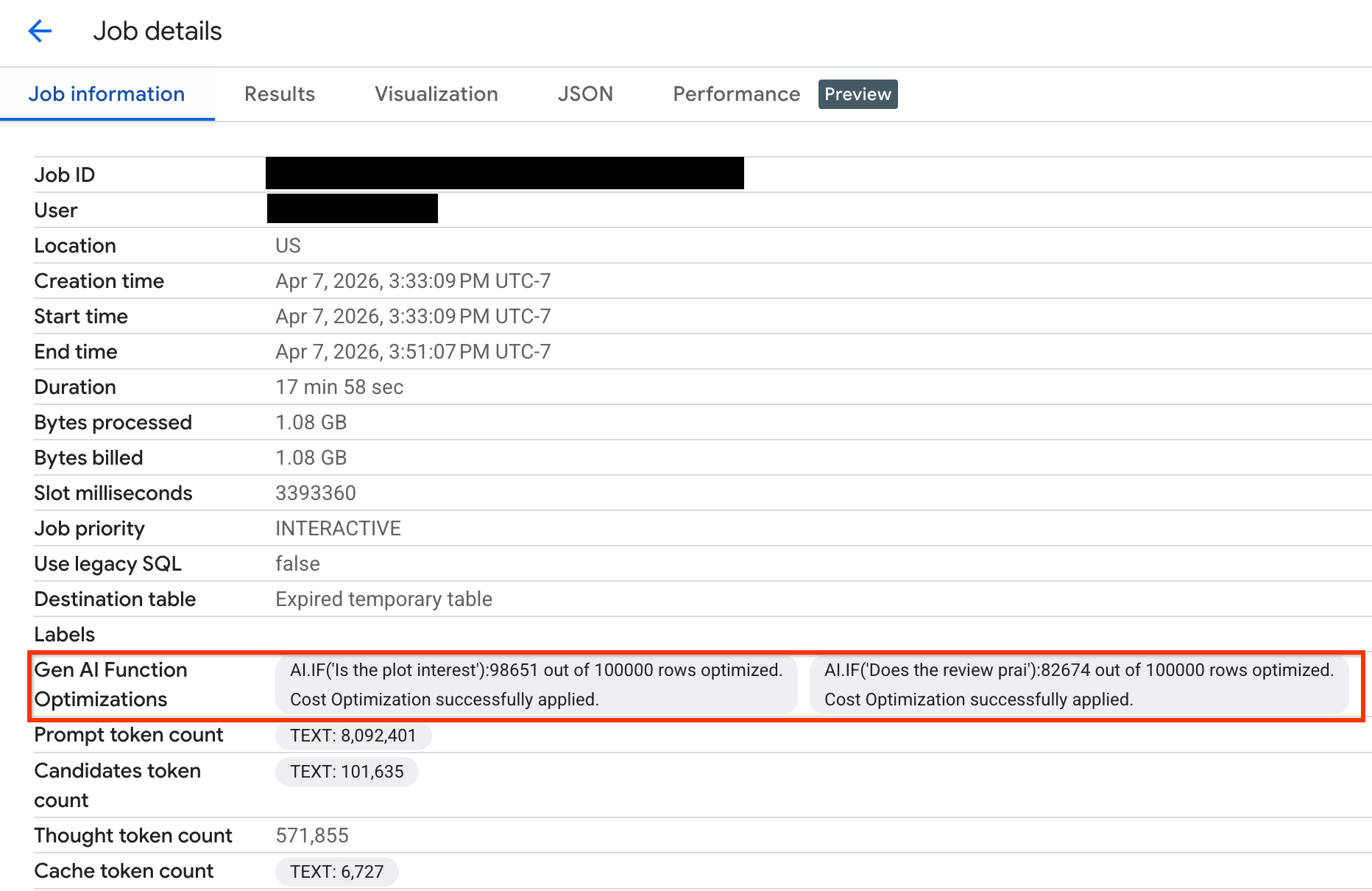
To verify how many rows were optimized during your query execution, you can view the execution statistics in the Google Cloud console or through the API:
Console
To view how many rows were optimized and to see system messages about the optimization status, do the following:
In the Google Cloud console, go to the BigQuery page.
In the navigation menu, click Jobs explorer.
Click the job ID to view the Job details pane.
Click the Job information tab and view the metrics and status in the Gen AI function optimizations field.
API
Check the FunctionGenAiCostOptimizationStats in the GenAIFunctionStats
object of the job metadata. This object includes the number of rows inferred
through the optimized workflow and system-generated messages providing
insights into the optimization state.
Troubleshoot
The following sections explain how to diagnose and resolve common issues with using optimized mode.
Data size is too small
Issue: Insufficient data for model training. You might see the following
error message: Fail to apply cost optimization because the data size is too
small.
Solution: Increase the size of your input to approximately 3,000 rows and verify that valid embeddings have been properly generated for all rows.
Few or no samples in some classes
Issue: Insufficient number of samples for certain categories during the
sampling phase, which prevents model training. You might see the following
error message: Fail to apply cost optimization because some classes have
few or no samples.
Solution:
- Remove rare or empty categories from the
AI.CLASSIFYfunction call. - Group rare categories into a broader one to increase the sample size. You
can use an
OTHERcategory to group items not covered by more specific categories. However, don't addOTHERif your list of categories is already complete, as this term is ambiguous and might cause confusion.
Embeddings have inconsistent dimensions
Issue: Inconsistencies between embedding dimensions across rows. You
might see the following error message: Fail to apply cost optimization
because the embeddings have inconsistent dimensions.
Solution: Verify that the embeddings are generated by the same model and have the same embedding vector length. You can use a SQL query similar to the following to check that the embeddings in a column have the same length:
SELECT ARRAY_LENGTH(body_embedding.result), COUNT(*)
FROM `PROJECT_ID.DATASET.TABLE_NAME`
GROUP BY 1;
Prompt complexity is too high
Issue: The distilled model cannot achieve a high accuracy threshold. You
might see the following error message: Fail to apply cost optimization
because the prompt complexity is too high.
Solution:
Use a set of categories that form a partition. Ensure that the categories have minimal overlap and cover all possible inputs.
- Avoid overlapping categories where an input might belong to multiple
categories simultaneously. For example, avoid categories like
['terrible', 'bad', 'okay', 'good', 'excellent']. - Avoid gaps where no categories apply. For example, the list of
categories
['bad', 'average']doesn't cover a review expressing praise. Provide category descriptions to guide the LLM to resolve ambiguity between categories. For example:
AI.CLASSIFY(
  review,
  categories => [
    ('terrible', 'Review where customer was not happy and the message indicates they will never try this product again'),
    ('bad', 'Review where customer was not happy but suggested improvements to the product'),
    ('okay', 'Review where customer was neutral about the product. Short reviews qualify for this category'),
    ('good', 'Review where customers were happy using this product but had minor critiques'),
    ('excellent', 'Review where customers were very happy using this product and will recommend others to try it too')],
  embeddings => review_embeddings)
- Avoid overlapping categories where an input might belong to multiple
categories simultaneously. For example, avoid categories like
Try more advanced embedding models like
text-embedding-005ormultimodalembedding.Contact bqml-feedback@google.com for additional debugging assistance.
Unexpected number of rows processed by the LLM
Issue: Query execution statistics show that an unexpectedly high number of rows were processed by the remote LLM instead of the distilled model. This might be due to the following reasons:
- The distilled model was trained successfully, but some rows had missing embeddings. These rows are processed by the remote LLM.
- The distilled model was not able to be applied for each row and had to fall back to the remote LLM to maintain consistent quality.
Solution: Verify that embeddings are properly generated and valid for all rows in your data. If the issue persists, contact bqml-feedback@google.com for debugging.
Autonomous embedding column not detected
Issue: BigQuery can't detect an autonomous embedding column. This might occur if your script uses a temporary table, and the reference to the original table is lost.
Solution: Use the embeddings parameter to explicitly pass an autonomous
embedding column—for example, embeddings => content_embedding.result—which
triggers cost optimization.
What's next
- Learn more about generative AI in BigQuery.
- Refer to the
AI.IFfunction documentation. - Refer to the
AI.CLASSIFYfunction documentation.