

Opening BigQuery query results directly in a Colab Enterprise notebook lets you seamlessly transition from writing SQL to analyzing data in Python. By exploring your data with both SQL and code cells, you can efficiently filter and categorize large datasets before performing deeper analysis.
In this tutorial, you query data from a BigQuery public dataset and explore the query results in a notebook.
Objectives
- Create and run a query in BigQuery.
- Explore query results in a notebook using SQL cells and code cells.
Costs
This tutorial uses a dataset available through the Google Cloud Public Datasets Program. Google pays for the storage of these datasets and provides public access to the data. You incur charges for the queries that you perform on the data. For more information, see BigQuery pricing.
Before you begin
-
In the Google Cloud console, on the project selector page, select or create a Google Cloud project.
Roles required to select or create a project
- Select a project: Selecting a project doesn't require a specific IAM role—you can select any project that you've been granted a role on.
-
Create a project: To create a project, you need the Project Creator role
(
roles/resourcemanager.projectCreator), which contains theresourcemanager.projects.createpermission. Learn how to grant roles.
-
Verify that billing is enabled for your Google Cloud project.
-
Enable the BigQuery API, if it is not already enabled.
Roles required to enable APIs
To enable APIs, you need the
serviceusage.services.enablepermission. If you created the project, then you likely already have this permission through the Owner role (roles/owner). Otherwise, you can get this permission through the Service Usage Admin role (roles/serviceusage.serviceUsageAdmin). Learn how to grant roles.For new projects, BigQuery is automatically enabled.
Set the default region for code assets
All new code assets in your Google Cloud project use a default region. After the asset is created, you can't change its region.
To set the default region for new code assets, do the following:
Go to the BigQuery page.
In the left pane, click Files to open the file browser:
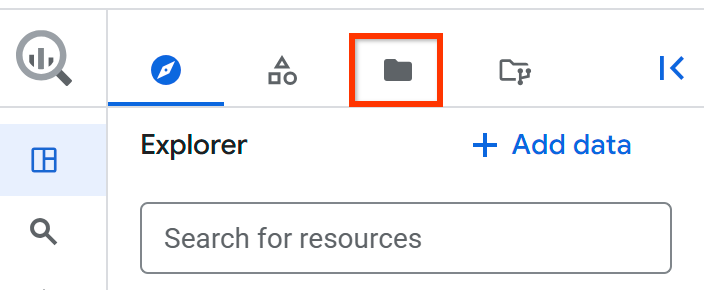
Next to the project name, click View files panel actions > Switch code region.
Select the code region that you want to use as a default.
Click Save.
For a list of supported regions, see BigQuery Studio locations.
Required permissions
To create and run notebooks, you need the following Identity and Access Management (IAM) roles:
- BigQuery User (
roles/bigquery.user) - Notebook Runtime User (
roles/aiplatform.notebookRuntimeUser) - Code Creator (
roles/dataform.codeCreator)
Open query results in a notebook
You can run a SQL query and then use a notebook to explore the data. This approach is useful if you want to modify the data in BigQuery before working with it, or if you need only a subset of the fields in the table.
In the Google Cloud console, go to the BigQuery page.
In the left pane, click Explorer.
Go to the
bigquery-public-dataproject, click Toggle node to expand it, and then click Datasets. A new tab opens in the details pane that shows a list of all the datasets in the project.In the Filter box, choose Dataset ID and enter ml_datasets.
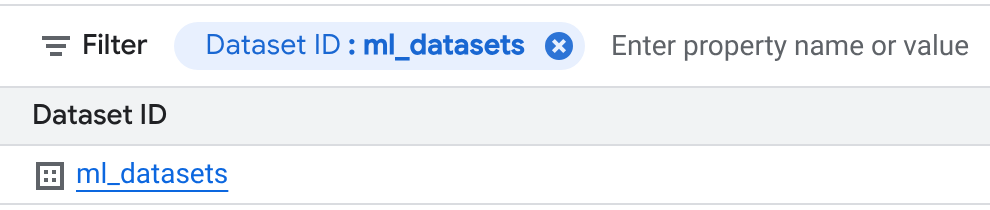
On the Datasets page, click ml_datasets > penguins.
Click Query.
Add an asterisk (
*) for field selection to the generated query, so that it looks like the following example:SELECT * FROM `bigquery-public-data.ml_datasets.penguins` LIMIT 1000;
Click Run.
In the Query results section, click Open in, and then click Notebook.
Prepare the notebook for use
Prepare the notebook for use by connecting to a runtime and setting application default values.
In the notebook header, click Connect to connect to the default runtime.
In the Setup code block, click Run cell.
Explore the data
Click Insert code cell options > Add SQL cell.
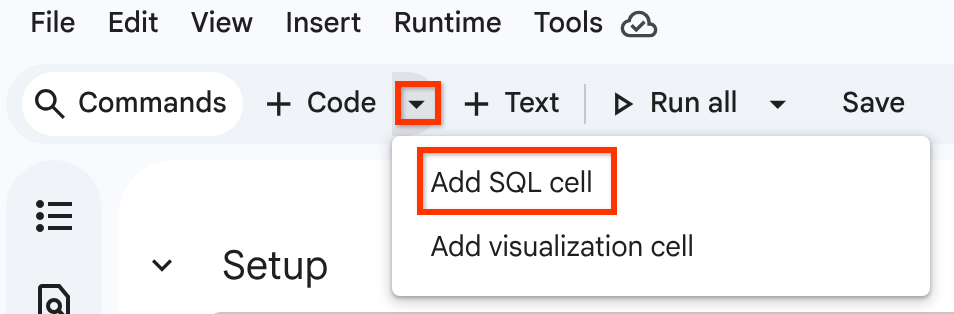
Enter the following query in the SQL cell:
SELECT * FROM `bigquery-public-data.ml_datasets.penguins` LIMIT 1000;Click Run cell.
The query results are displayed in a BigQuery DataFrame.
Alternatively, to load the query results into a BigQuery DataFrame using the query job you previously ran in the query editor, follow these steps:
Go to the Result set loaded from BigQuery job as a DataFrame section.
In the code block, click Run cell.
The query results are displayed in a BigQuery DataFrame.
To get descriptive metrics for the data, follow these steps:
Go to the Show descriptive statistics using describe() section.
In the code block, click Run cell.
The results are displayed in a BigQuery DataFrame.
Optional: Use other Python functions or packages to explore and analyze the data.
The following example uses
bigframes.pandas
to analyze data, and bigframes.ml
to create a linear regression model from penguins data in a
BigQuery DataFrame. This example calculates the model's R2
score and returns it as a statistical metric table. It doesn't generate a chart.
Clean up
To avoid incurring charges to your Google Cloud account for the resources used in this tutorial, either delete the project that contains the resources, or keep the project and delete the individual resources.
The easiest way to eliminate billing is to delete the Google Cloud project that you created for this tutorial.
- In the Google Cloud console, go to the Manage resources page.
- In the project list, select the project that you want to delete, and then click Delete.
- In the dialog, type the project ID, and then click Shut down to delete the project.
What's next
- Learn more about creating notebooks in BigQuery.
- Learn more about exploring data with BigQuery DataFrames.