


本文說明如何在可存取 Google 服務的機器或自行管理的 VM 上,安裝及使用 JupyterLab 擴充功能。此外,也會說明如何開發及部署無伺服器 Spark 筆記本程式碼。
只要幾分鐘就能安裝擴充功能,並享有下列功能:
- 啟動無伺服器 Spark 和 BigQuery 筆記本,快速開發程式碼
- 在 JupyterLab 瀏覽及預覽 BigQuery 資料集
- 在 JupyterLab 中編輯 Cloud Storage 檔案
- 在 Composer 安排筆記本執行時間
使用 Google Cloud Data Agent Kit:除了 JupyterLab 之外,您也可以在 VS Code 中使用 Data Agent Kit,開發及管理 Managed Service for Apache Spark 工作負載。Data Agent Kit 可讓您在 IDE 中,或使用支援的 Agents CLI 管理整個資料工作負載生命週期,包括建構資料管道。
事前準備
- 登入 Google Cloud 帳戶。如果您未曾使用過 Google Cloud,歡迎 建立帳戶,親自體驗實際使用我們產品的成效。新客戶還能獲得價值 $300 美元的免費抵免額,用於執行、測試及部署工作負載。
-
In the Google Cloud console, on the project selector page, select or create a Google Cloud project.
Roles required to select or create a project
- Select a project: Selecting a project doesn't require a specific IAM role—you can select any project that you've been granted a role on.
-
Create a project: To create a project, you need the Project Creator role
(
roles/resourcemanager.projectCreator), which contains theresourcemanager.projects.createpermission. Learn how to grant roles.
-
Verify that you have the permissions required to complete this guide.
-
Verify that billing is enabled for your Google Cloud project.
Enable the Dataproc API, if it is not already enabled.
Roles required to enable APIs
To enable APIs, you need the
serviceusage.services.enablepermission. If you created the project, then you likely already have this permission through the Owner role (roles/owner). Otherwise, you can get this permission through the Service Usage Admin role (roles/serviceusage.serviceUsageAdmin). Learn how to grant roles.-
Install the Google Cloud CLI.
-
If you're using an external identity provider (IdP), you must first sign in to the gcloud CLI with your federated identity.
-
To initialize the gcloud CLI, run the following command:
gcloud init -
In the Google Cloud console, on the project selector page, select or create a Google Cloud project.
Roles required to select or create a project
- Select a project: Selecting a project doesn't require a specific IAM role—you can select any project that you've been granted a role on.
-
Create a project: To create a project, you need the Project Creator role
(
roles/resourcemanager.projectCreator), which contains theresourcemanager.projects.createpermission. Learn how to grant roles.
-
Verify that you have the permissions required to complete this guide.
-
Verify that billing is enabled for your Google Cloud project.
Enable the Dataproc API, if it is not already enabled.
Roles required to enable APIs
To enable APIs, you need the
serviceusage.services.enablepermission. If you created the project, then you likely already have this permission through the Owner role (roles/owner). Otherwise, you can get this permission through the Service Usage Admin role (roles/serviceusage.serviceUsageAdmin). Learn how to grant roles.-
Install the Google Cloud CLI.
-
If you're using an external identity provider (IdP), you must first sign in to the gcloud CLI with your federated identity.
-
To initialize the gcloud CLI, run the following command:
gcloud init
必要的角色
您必須具備特定 IAM 角色,才能執行本頁中的範例。視組織政策而定,這些角色可能已授予。如要查看角色授予,請參閱「是否需要授予角色?」一節。
如要進一步瞭解如何授予角色,請參閱「管理專案、資料夾和組織的存取權」。
使用者角色
如要取得建立互動式筆記本工作階段所需的權限,請要求管理員授予您下列 IAM 角色:
- 專案的 Dataproc 編輯者 (
roles/dataproc.editor) - Compute Engine 預設服務帳戶的服務帳戶使用者 (
roles/iam.serviceAccountUser)
服務帳戶角色
為確保 Compute Engine 預設服務帳戶具備建立互動式工作階段的必要權限,請要求管理員將專案的 Dataproc 工作站 (roles/dataproc.worker) IAM 角色授予 Compute Engine 預設服務帳戶。
安裝 JupyterLab 擴充功能
您可以在可存取 Google 服務的機器或 VM 上安裝及使用 JupyterLab 擴充功能,例如本機機器或 Compute Engine VM 執行個體。
如要安裝擴充功能,請按照下列步驟操作:
從
python.org/downloads下載並安裝 Python 3.11 以上版本。- 驗證 Python 3.11 以上版本的安裝。
python3 --version
- 驗證 Python 3.11 以上版本的安裝。
虛擬化 Python 環境。
pip3 install pipenv
- 建立安裝資料夾。
mkdir jupyter
- 切換至安裝資料夾。
cd jupyter
- 建立虛擬環境。
pipenv shell
- 建立安裝資料夾。
在虛擬環境中安裝 JupyterLab。
pipenv install jupyterlab
安裝 JupyterLab 擴充功能。
pipenv install bigquery-jupyter-plugin
jupyter lab
瀏覽器會開啟 JupyterLab Launcher 頁面。其中包含「Dataproc Jobs and Sessions」(Dataproc 工作和工作階段) 專區。如果您有權存取 Managed Service for Apache Spark 筆記本,或專案中執行 Jupyter 選用元件的叢集,則可能也會包含「Dataproc Serverless Notebooks」和「Dataproc Cluster Notebooks」部分。
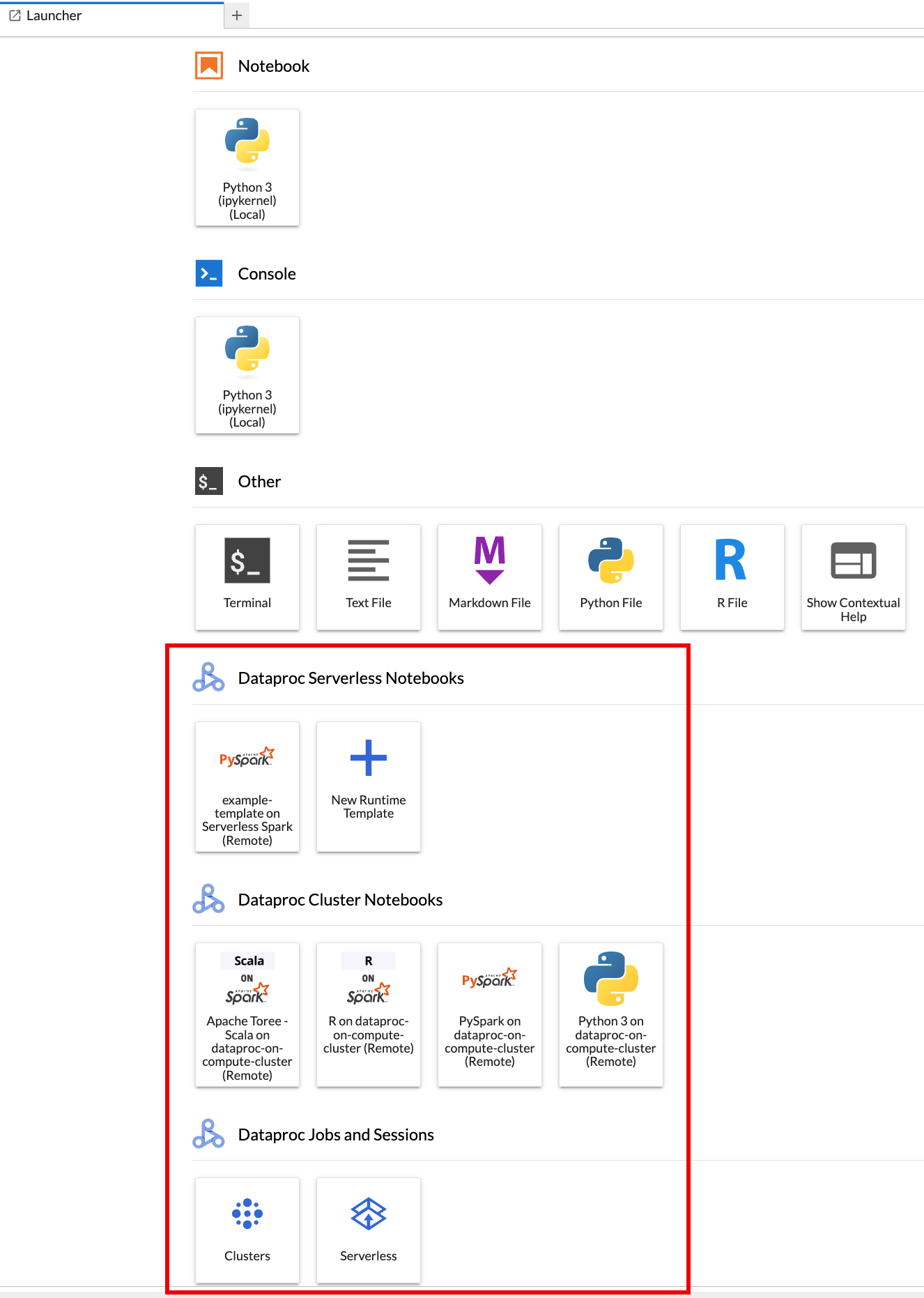
根據預設,互動式工作階段會在您執行「事前準備」中的
gcloud init時,設定的專案和區域中執行。如要變更工作階段的專案和 區域設定,請依序前往 JupyterLab 的「Settings」>「Settings」 Google Cloud >「專案設定」 Google Cloud 。您必須重新啟動擴充功能,變更才會生效。
建立 Managed Service for Apache Spark 執行階段範本
Managed Service for Apache Spark 執行階段範本 (在Google Cloud 控制台的「Runtime Profiles」(執行階段設定檔) 頁面中稱為「執行階段設定檔」,在 Google Cloud CLI 和 Dataproc API 中稱為「工作階段範本」) 包含在工作階段中執行 Spark 程式碼的設定。您可以使用 JupyterLab、Google Cloud 控制台或 Google Cloud CLI 建立及管理執行階段範本。
JupyterLab
在 JupyterLab「Launcher」頁面的「Dataproc Serverless Notebooks」部分,點選「
New runtime template」資訊卡。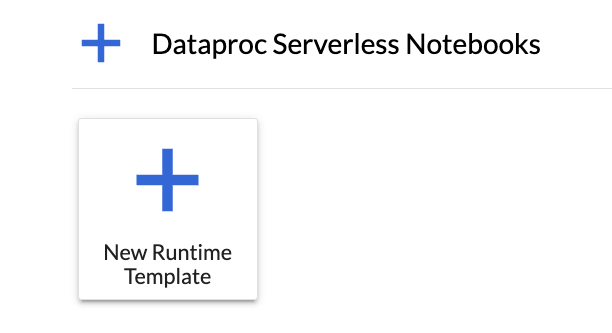
填寫「Runtime template」(執行階段範本) 表單。
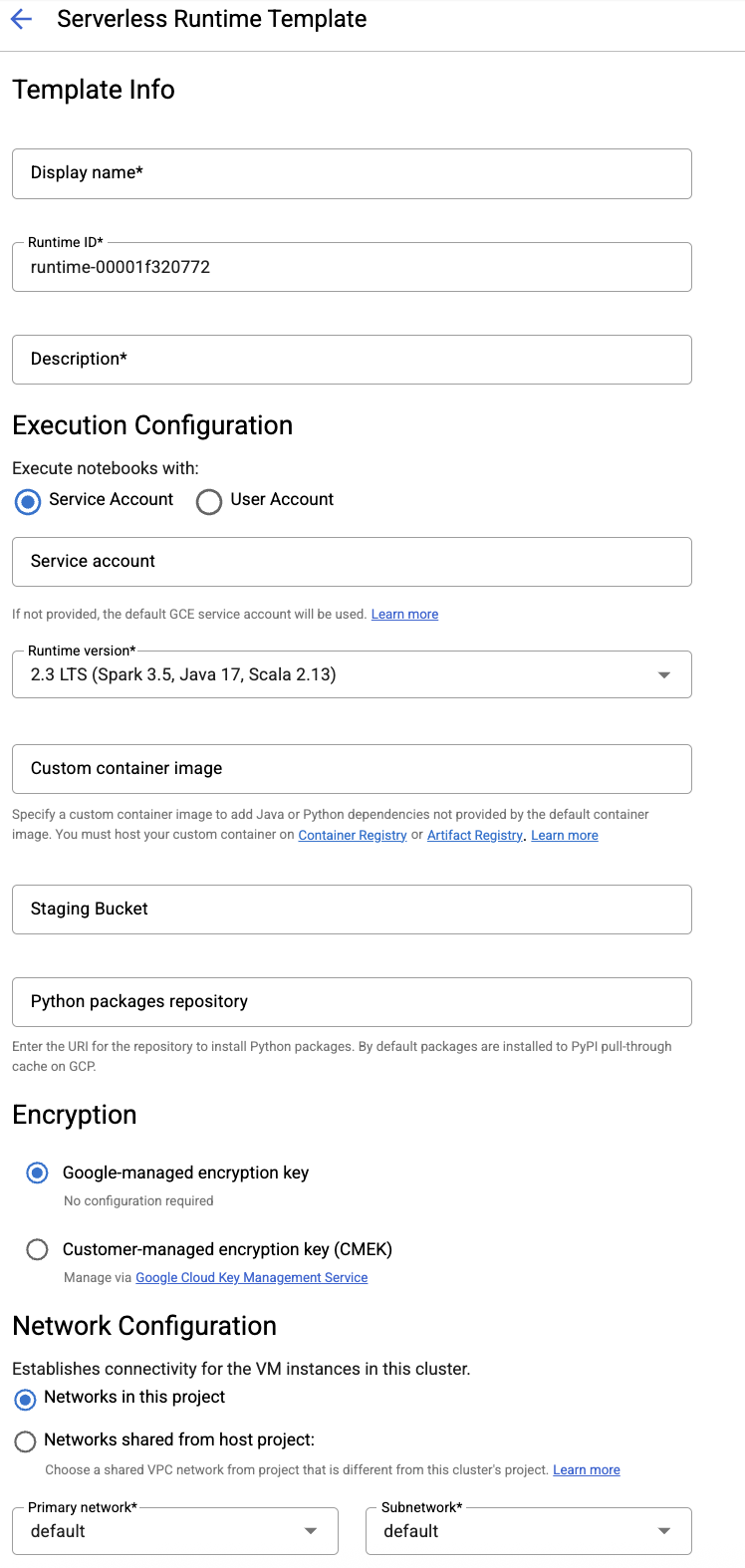
範本資訊:
- 「Display name」(顯示名稱)、「Runtime ID」(執行階段 ID) 和「Description」(說明):接受或填寫範本顯示名稱、範本執行階段 ID 和範本說明。
「Execution Configuration」(執行設定):選取「User Account」(使用者帳戶),即可使用使用者身分執行筆記本,而非 Dataproc 服務帳戶身分。
- 服務帳戶:如未指定服務帳戶,系統會使用 Compute Engine 預設服務帳戶。
- 執行階段版本:確認或選取
2.3執行階段版本。 - 自訂容器映像檔:視需要指定自訂容器映像檔的 URI。
- 暫存 bucket:您可以視需要指定 Cloud Storage 暫存 bucket 的名稱,供 Managed Service for Apache Spark 使用。
- Python Package Repository:根據預設,當使用者在 Notebooks 中執行
pip安裝指令時,系統會從 PyPI 提取式快取下載並安裝 Python 套件。您可以指定貴組織的 Python 套件私人構件存放區,做為預設 Python 套件存放區。
「Encryption」(加密):接受預設的「Google-owned and Google-managed encryption key」,或選取「 Customer-managed encryption key(客戶自行管理的加密金鑰) (CMEK)。 如果選擇 CMEK,請選取或提供金鑰資訊。
網路設定:選取專案中的子網路 ,或從主專案共用的子網路 (如要變更專案,請在 JupyterLab 依序點選「Settings」>「 Google Cloud Settings」>「 Google Cloud 專案設定」。 您可以指定要套用至指定網路的網路標記。請注意,Managed Service for Apache Spark 會在指定子網路上啟用 Private Google Access (PGA)。如需網路連線需求,請參閱「Managed Service for Apache Spark 網路設定」。
工作階段設定:您可以視需要填寫這些欄位,限制使用範本建立的工作階段時間長度。
- Max idle time (閒置時間上限):工作階段終止前的閒置時間上限。允許範圍:10 分鐘至 336 小時 (14 天)。
- 工作階段時間上限:工作階段終止前的最長生命週期。允許範圍:10 分鐘至 336 小時 (14 天)。
「Metastore」Metastore:如要搭配工作階段使用 Dataproc Metastore 服務,請選取 metastore 專案 ID 和服務。
永久記錄伺服器:您可以選取可用的永久 Spark 記錄伺服器,以便在工作階段期間和之後存取工作階段記錄。
Spark 屬性:您可以選取並新增 Spark「Resource Allocation」(資源分配)、「Autoscaling」(自動調度資源) 或「GPU」屬性。按一下「Add Property」(新增屬性),新增其他 Spark 屬性。詳情請參閱「Spark 屬性」。
標籤:按一下「Add Label」(新增標籤),為使用範本建立的工作階段設定各個標籤。
按一下「儲存」,建立範本。
查看或刪除執行階段範本。
- 依序點選「設定」>「 Google Cloud 設定」。
「Dataproc Settings」(Dataproc 設定) >「Serverless Runtime Templates」(無伺服器執行階段範本) 部分會顯示執行階段範本清單。
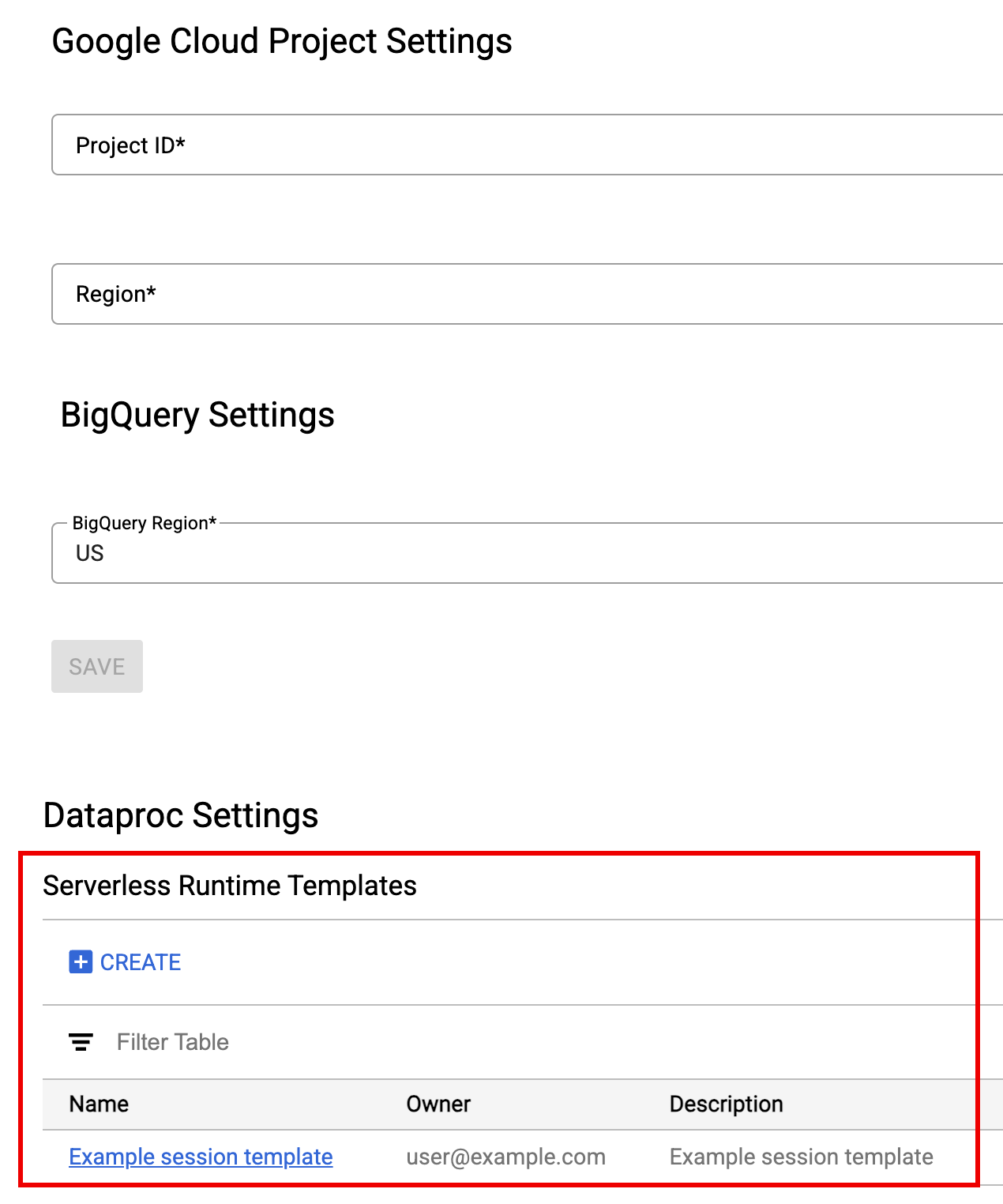
- 按一下範本名稱,即可查看範本詳細資料。
- 如要刪除範本,請在範本的「動作」選單中操作。
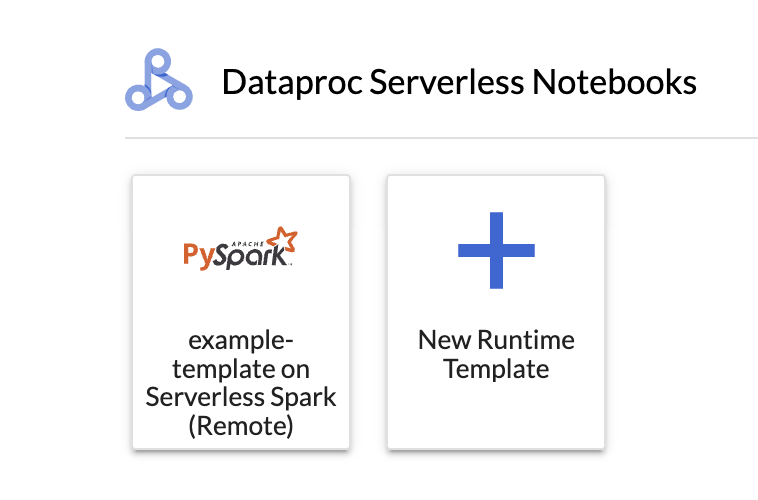
開啟並重新載入 JupyterLab「Launcher」頁面,即可在 JupyterLab「Launcher」頁面查看已儲存的筆記本範本資訊卡。
gcloud
使用執行階段範本設定建立 YAML 檔案。
簡易 YAML
environmentConfig:
  executionConfig:
    networkUri: default
jupyterSession:
  kernel: PYTHON
  displayName: Team A
labels:
  purpose: testing
description: Team A Development Environment
複雜的 YAML
description: Example session template
environmentConfig:
  executionConfig:
    serviceAccount: sa1
    # Choose either networkUri or subnetworkUri
    networkUri:
    subnetworkUri: default
    networkTags:
     - tag1
    kmsKey: key1
    idleTtl: 3600s
    ttl: 14400s
    stagingBucket: staging-bucket
  peripheralsConfig:
    metastoreService: projects/my-project-id/locations/us-central1/services/my-metastore-id
    sparkHistoryServerConfig:
      dataprocCluster: projects/my-project-id/regions/us-central1/clusters/my-cluster-id
jupyterSession:
  kernel: PYTHON
  displayName: Team A
labels:
  purpose: testing
runtimeConfig:
  version: "2.3"
  containerImage: gcr.io/my-project-id/my-image:1.0.1
  properties:
    "p1": "v1"
description: Team A Development Environment
在本機或 Cloud Shell 執行下列 gcloud beta dataproc session-templates import 指令,從 YAML 檔案建立工作階段範本 (執行階段設定檔):
gcloud beta dataproc session-templates import TEMPLATE_ID \
    --source=YAML_FILE \
    --project=PROJECT_ID \
    --location=REGION
- 如要查看說明、列出、匯出及刪除工作階段範本 (執行階段設定檔) 的指令,請參閱「gcloud beta dataproc session-templates」。
啟動及管理筆記本
安裝 Managed Service for Apache Spark JupyterLab 擴充功能後,您可以在 JupyterLab 的「Launcher」(啟動器) 頁面點選範本資訊卡,執行下列操作:
啟動 Jupyter 筆記本
JupyterLab 啟動器頁面的「Dataproc Serverless Notebooks」部分會顯示筆記本範本資訊卡,對應至 Managed Service for Apache Spark 執行階段範本 (請參閱「建立 Managed Service for Apache Spark 執行階段範本」)。
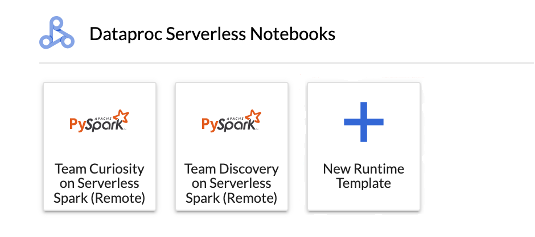
按一下資訊卡,即可建立 Managed Service for Apache Spark 工作階段並啟動筆記本。工作階段建立完成,且筆記本核心可供使用時,核心狀態會從
Starting變更為Idle (Ready)。編寫及測試筆記本程式碼。
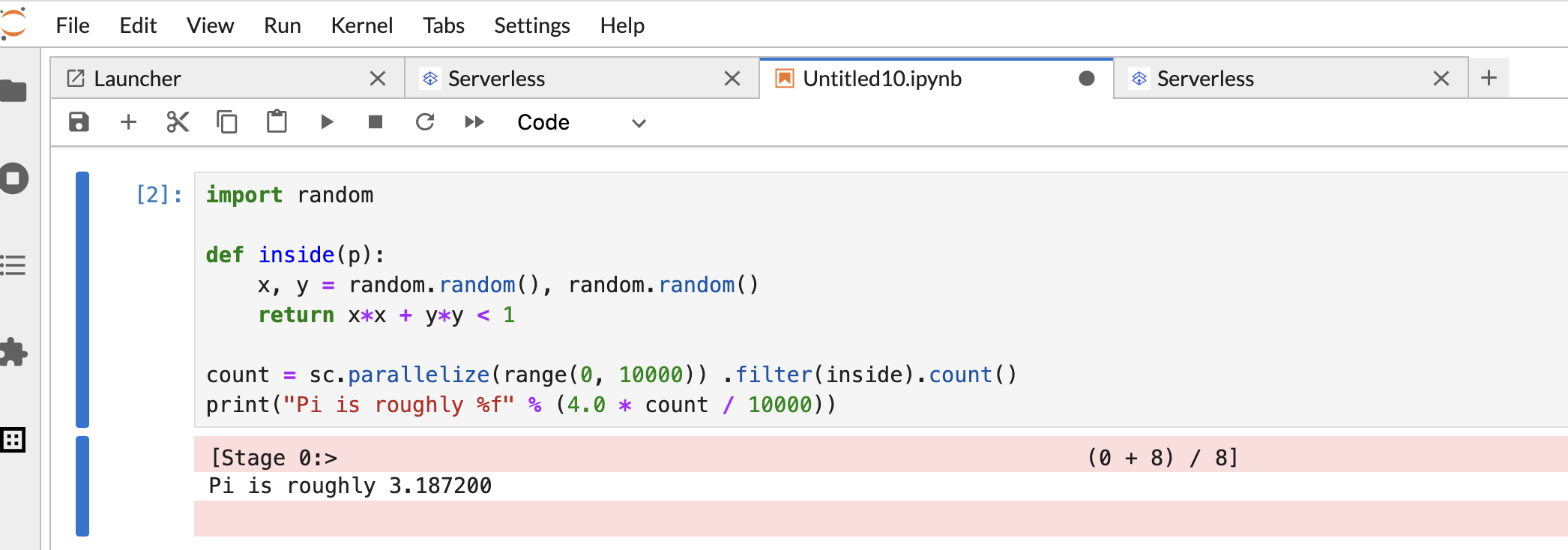
複製下列 PySpark
Pi estimation程式碼,並貼到 PySpark 筆記本儲存格,然後按下 Shift + Return 鍵執行程式碼。import random def inside(p): x, y = random.random(), random.random() return x*x + y*y < 1 count = sc.parallelize(range(0, 10000)) .filter(inside).count() print("Pi is roughly %f" % (4.0 * count / 10000))
Notebook 結果:
建立並使用筆記本後,您可以按一下「Kernel」分頁中的「Shut Down Kernel」,終止筆記本工作階段。
- 如要重複使用工作階段,請依序點選「File」>>「New」選單中的「Notebook」,建立新的筆記本。建立新筆記本後,請在核心選取對話方塊中選擇現有工作階段。新筆記本會重複使用工作階段,並保留先前筆記本的工作階段內容。
如果您未終止工作階段,Managed Service for Apache Spark 會在工作階段閒置計時器到期時終止工作階段。您可以在執行階段範本設定中,設定工作階段閒置時間。預設的工作階段閒置時間為一小時。
在叢集上啟動筆記本
如果您建立 Managed Service for Apache Spark Jupyter 叢集,JupyterLab 的「Launcher」(啟動器) 頁面會包含「Dataproc Cluster Notebook」(Dataproc 叢集筆記本) 區段,其中有預先安裝的核心資訊卡。
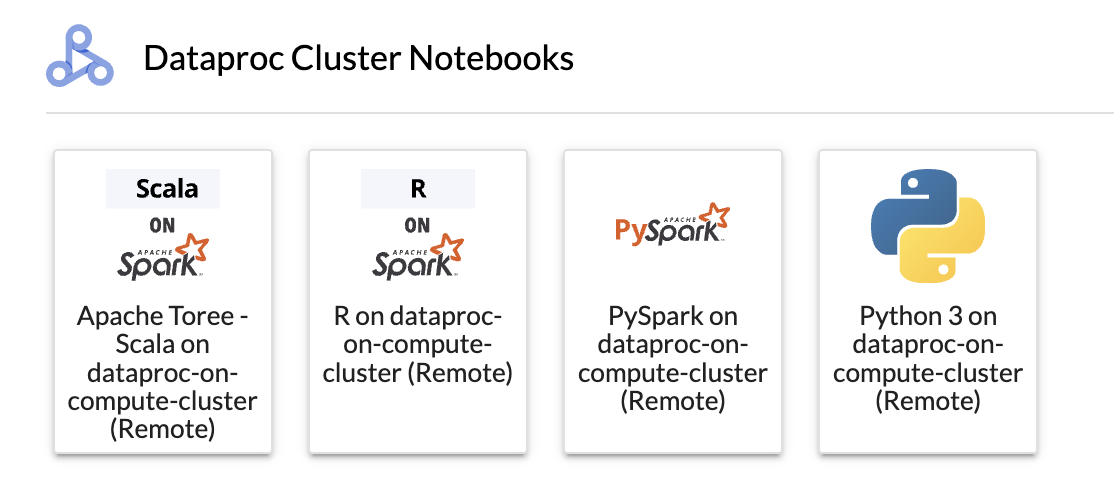
如要在 Compute Engine 叢集上啟動 Managed Service for Apache Spark 的 Jupyter 筆記本,請按照下列步驟操作:
按一下「Dataproc 叢集筆記本」部分的資訊卡。
核心狀態從
Starting變更為Idle (Ready)時,即可開始編寫及執行筆記本程式碼。建立並使用筆記本後,您可以按一下「Kernel」分頁中的「Shut Down Kernel」,終止筆記本工作階段。
在 Cloud Storage 管理輸入和輸出檔案
分析探索性資料和建構機器學習模型時,通常會涉及檔案輸入和輸出。Managed Service for Apache Spark 會存取 Cloud Storage 中的這些檔案。
如要存取 Cloud Storage 瀏覽器,請按一下 JupyterLab「Launcher」(啟動器) 頁面側欄中的 Cloud Storage 瀏覽器圖示,然後按兩下資料夾來查看內容。
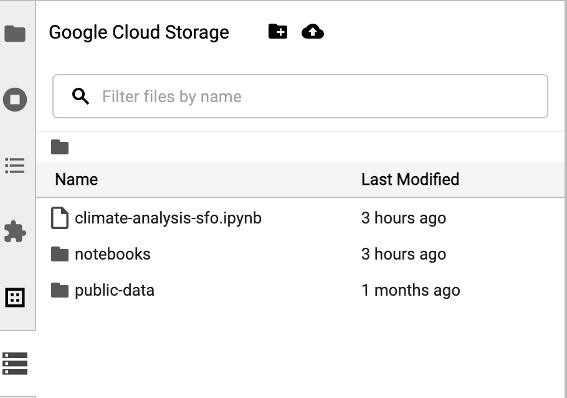
點選 Jupyter 支援的檔案類型,即可開啟及編輯檔案。儲存檔案變更時,系統會將變更寫入 Cloud Storage。
如要建立新的 Cloud Storage 資料夾,請按一下「新增資料夾」圖示,然後輸入資料夾名稱。
如要將檔案上傳至 Cloud Storage bucket 或資料夾,請按一下上傳圖示,然後選取要上傳的檔案。
開發 Spark 筆記本程式碼
安裝 JupyterLab 擴充功能後,您可以從 JupyterLab 啟動器頁面啟動 Jupyter 筆記本,開發應用程式程式碼。
PySpark 和 Python 程式碼開發
Managed Service for Apache Spark 叢集支援 PySpark 和 Python 核心。
在 JupyterLab「Launcher」(啟動器) 頁面的「 Dataproc Serverless Notebooks 」或「Dataproc Cluster Notebook 」部分,點選 PySpark 資訊卡,開啟 PySpark 筆記本。
在 JupyterLab「Launcher」(啟動器) 頁面的 「Dataproc Cluster Notebook」(Dataproc 叢集筆記本) 區段 中,點選 Python 核心資訊卡,開啟 Python 筆記本。
SQL 程式碼開發
如要開啟 PySpark 筆記本來編寫及執行 SQL 程式碼,請在 JupyterLab 的「Launcher」(啟動器) 頁面,點選「Dataproc Serverless Notebooks」或「Dataproc Cluster Notebook」 區段中的 PySpark 核心資訊卡。
Spark SQL magic:啟動 Dataproc Serverless Notebooks的 PySpark 核心已預先載入 Spark SQL magic,因此您不必使用 spark.sql('SQL STATEMENT').show() 包裝 SQL 陳述式,只要在儲存格頂端輸入 %%sparksql magic,然後在儲存格中輸入 SQL 陳述式即可。
BigQuery SQL:BigQuery Spark 連接器可讓筆記本程式碼從 BigQuery 資料表載入資料、在 Spark 中執行分析,然後將結果寫入 BigQuery 資料表。
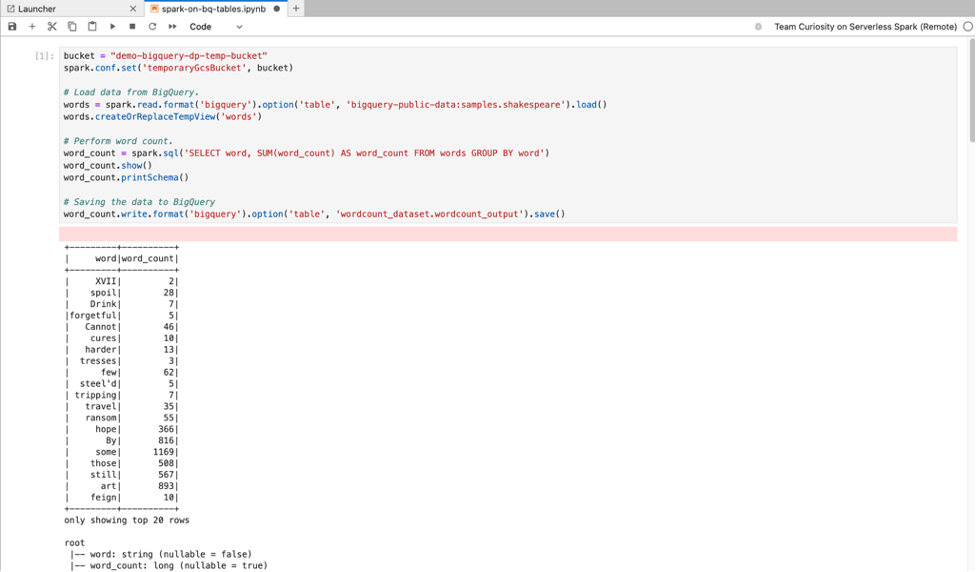
Managed Service for Apache Spark 2.2 和後續執行階段包含 BigQuery Spark 連接器。如果您使用舊版執行階段啟動 Managed Service for Apache Spark 筆記本,可以將下列 Spark 屬性新增至 Managed Service for Apache Spark 執行階段範本,安裝 Spark BigQuery 連接器:
spark.jars: gs://spark-lib/bigquery/spark-bigquery-with-dependencies_2.12-0.25.2.jar
Scala 程式碼開發
使用映像檔版本 2.0 以上建立的 Managed Service for Apache Spark 叢集,包含 Apache Toree,這是 Jupyter Notebook 平台的 Scala 核心,可提供 Spark 的互動式存取權。
在 JupyterLab「Launcher」(啟動器) 頁面的「 Dataproc cluster Notebook」(Dataproc 叢集筆記本) 區段中,點選 Apache Toree 資訊卡,開啟 Scala 程式碼開發筆記本。
圖 1. JupyterLab 啟動器頁面中的 Apache Toree 核心資訊卡。
使用 Visual Studio Code 擴充功能開發程式碼
您可以使用 Google Cloud Visual Studio Code (VS Code) 擴充功能執行下列操作:
在 Managed Service for Apache Spark 筆記本中開發及執行 Spark 程式碼。
建立及管理 Managed Service for Apache Spark 執行階段設定檔 (工作階段範本)、互動式工作階段和批次工作負載。
Visual Studio Code 擴充功能可免費使用,但您必須支付所用Google Cloud 服務的費用,包括 Managed Service for Apache Spark、Managed Service for Apache Spark 和 Cloud Storage 資源。
搭配使用 VS Code 與 BigQuery:您也可以搭配使用 VS Code 與 BigQuery,執行下列操作:
- 開發及執行 BigQuery 筆記本。
- 瀏覽、檢查及預覽 BigQuery 資料集。
事前準備
- 下載並安裝 VS Code。
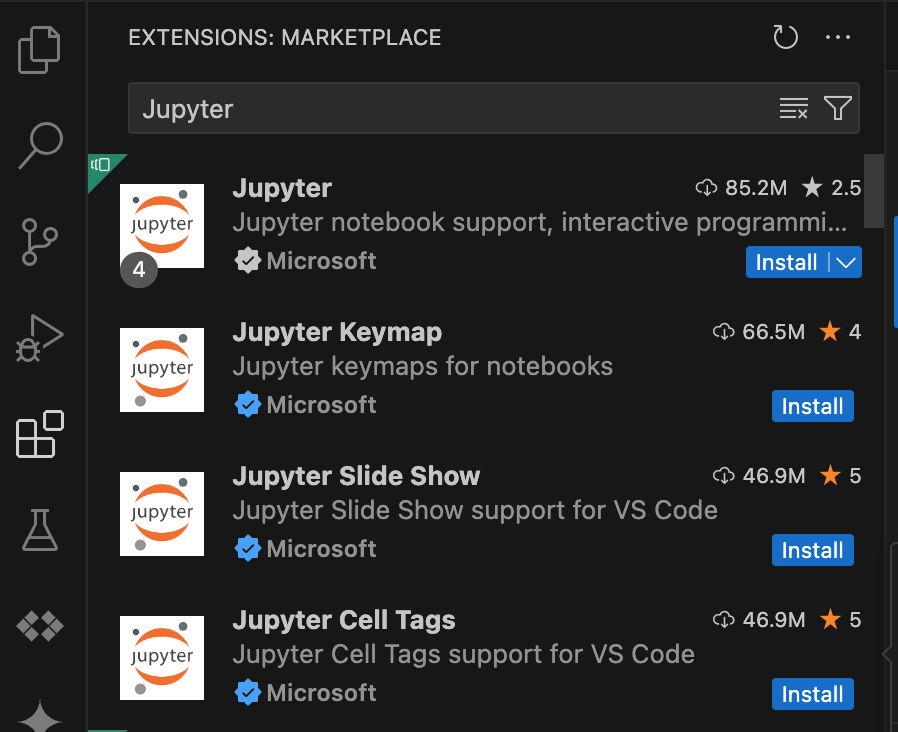
- 開啟 VS Code,然後在活動列中按一下「Extensions」。
使用搜尋列找到 Jupyter 擴充功能,然後按一下「Install」(安裝)。Microsoft 的 Jupyter 擴充功能是必要依附元件。
安裝 Google Cloud 擴充功能
- 開啟 VS Code,然後在活動列中按一下「Extensions」。
使用搜尋列找出 Google Cloud Code 擴充功能,然後按一下「Install」。

如果系統提示,請重新啟動 VS Code。
Google Cloud Code 圖示現在會顯示在 VS Code 活動列中。
設定擴充功能
- 開啟 VS Code,然後在活動列中點選「Google Cloud Code」。
- 開啟「Dataproc」Dataproc部分。
- 按一下「Login to Google Cloud」。系統會將您重新導向,請使用憑證登入。
- 使用頂層應用程式工作列,依序前往 「Code」>「Settings」>「Settings」>「Extensions」。
- 找到 Google Cloud Code,然後點選「管理」圖示開啟選單。
- 選取 [設定]。
- 在「Project」(專案)和「Managed Service for Apache Spark Region」(Managed Service for Apache Spark 區域) 欄位中,輸入 Google Cloud 專案名稱和區域,用於開發筆記本及管理 Managed Service for Apache Spark 資源。
開發筆記本
- 開啟 VS Code,然後在活動列中點選「Google Cloud Code」。
- 開啟「Notebooks」部分,然後點選「New Serverless Spark Notebook」。
- 選取或建立新的執行階段設定檔 (工作階段範本),用於筆記本工作階段。
系統會建立新的
.ipynb檔案,其中包含程式碼範例,並在編輯器中開啟。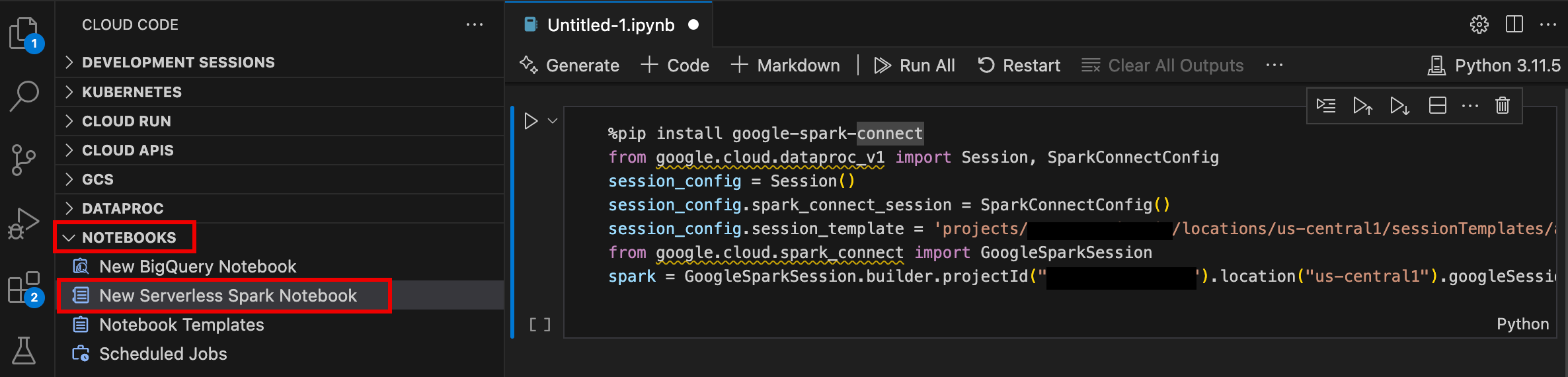
現在可以在 Managed Service for Apache Spark 筆記本中編寫及執行程式碼。
建立及管理資源
- 開啟 VS Code,然後在活動列中點選「Google Cloud Code」。
開啟「Dataproc」Dataproc部分,然後按一下下列資源名稱:
叢集:建立及管理叢集和工作。
無伺服器:建立及管理批次工作負載和互動式工作階段。
Spark 執行階段範本:建立及管理執行階段設定檔 (工作階段範本)。

資料集探索工具
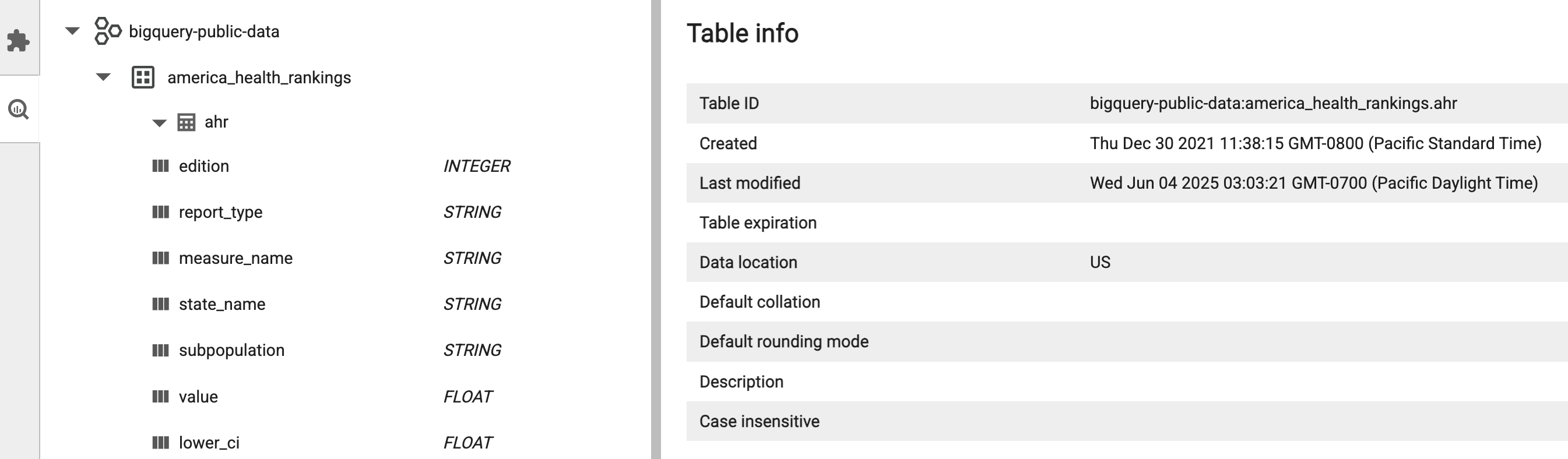
使用 JupyterLab 資料集探索工具,查看 BigLake metastore 資料集。
如要開啟 JupyterLab Dataset Explorer,請按一下側欄中的圖示。

您可以在資料集探索工具中搜尋資料庫、資料表或資料欄。按一下資料庫、資料表或資料欄名稱,即可查看相關聯的中繼資料。
部署程式碼
安裝 JupyterLab 擴充功能後,您可以使用 JupyterLab 執行下列操作:
在 Managed Service for Apache Spark 基礎架構上執行筆記本程式碼
在 Managed Service for Apache Airflow 排定筆記本執行作業
將批次工作提交至 Managed Service for Apache Spark 基礎架構或 Managed Service for Apache Spark 叢集。
在 Managed Airflow 安排筆記本執行作業
請完成下列步驟,在 Managed Airflow 排定筆記本程式碼,以便在 Managed Service for Apache Spark 或 Managed Service for Apache Spark 叢集,以批次工作形式執行。
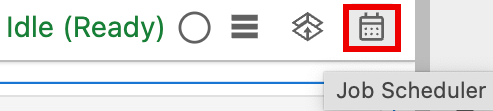
按一下筆記本右上方的「Job Scheduler」(工作排程器) 按鈕。
填寫「Create A Scheduled Job」表單,提供下列資訊:
- 筆記本執行工作的專屬名稱
- 用於部署筆記本的 Managed Airflow 環境
- 如果筆記本已參數化,請輸入參數
- 要用來執行筆記本的 Managed Service for Apache Spark 叢集或無伺服器執行階段範本
- 如果選取叢集,是否要在筆記本在叢集上執行完畢後停止叢集
- 如果筆記本執行作業首次嘗試失敗,則重試次數和重試延遲時間 (以分鐘為單位)
- 要傳送的執行通知和收件者清單。系統會使用 Airflow SMTP 設定傳送通知。
- 筆記本執行排程
點選「建立」。
成功排定筆記本後,工作名稱會顯示在 Managed Airflow 環境的排定工作清單中。

將批次工作提交至 Managed Service for Apache Spark
在 JupyterLab「Launcher」(啟動器) 頁面的「Dataproc Jobs and Sessions」(Dataproc 工作和工作階段) 部分,點選「Serverless」(無伺服器) 資訊卡。
按一下「Batch」分頁標籤,然後點選「Create Batch」並填寫「Batch Info」欄位。
按一下「提交」,提交工作。
將批次工作提交至 Managed Service for Apache Spark 叢集
在 JupyterLab「Launcher」(啟動器) 頁面的「Dataproc Jobs and Sessions」(Dataproc 工作和工作階段) 區段中,按一下「Clusters」(叢集) 資訊卡。
依序點選「工作」分頁標籤和「提交工作」。
選取「叢集」,然後填寫「工作」欄位。
按一下「提交」,提交工作。
查看及管理資源
安裝 JupyterLab 擴充功能後,您可以在 JupyterLab 啟動器頁面的「Dataproc Jobs and Sessions」(Dataproc 工作和工作階段) 區段,查看及管理 Managed Service for Apache Spark 和 Managed Service for Apache Spark。
按一下「Dataproc Jobs and Sessions」(Dataproc 工作和工作階段) 區段,即可顯示「Clusters」(叢集) 和「Serverless」(無伺服器) 資訊卡。
如要查看及管理 Managed Service for Apache Spark 工作階段,請按照下列步驟操作:
- 按一下「Serverless」資訊卡。
- 按一下「Sessions」(工作階段) 分頁標籤,然後點選工作階段 ID,開啟「Session details」(工作階段詳細資料) 頁面,即可查看工作階段屬性、在 Logs Explorer 中查看 Google Cloud 記錄,以及終止工作階段。注意:系統會建立專屬的 Managed Service for Apache Spark 工作階段,用於啟動各個 Managed Service for Apache Spark 筆記本。
如要查看及管理 Managed Service for Apache Spark 批次,請按照下列步驟操作:
- 按一下「Batches」(批次) 分頁標籤,即可查看目前專案和區域中的 Managed Service for Apache Spark 批次清單。按一下批次 ID,即可查看批次詳細資料。
如要查看及管理 Managed Service for Apache Spark 叢集,請按照下列步驟操作:
- 按一下「叢集」資訊卡。選取「Clusters」(叢集) 分頁標籤,列出目前專案和區域中,使用中的 Managed Service for Apache Spark 叢集。您可以點選「Actions」(動作) 欄中的圖示,啟動、停止或重新啟動叢集。按一下叢集名稱,即可查看叢集詳細資料。您可以按一下「Actions」(動作) 欄中的圖示,複製、停止或刪除工作。
如要查看及管理 Managed Service for Apache Spark 工作,請按照下列步驟操作:
- 按一下「Jobs」(工作) 資訊卡,即可查看目前專案中的工作清單。按一下工作 ID 即可查看工作詳細資料。