

You can interactively explore PySpark DataFrames in Jupyter notebooks, including
Google Cloud Data Agent Kit (DAK), by using the
google-colabsqlviz Python package with
Managed Service for Apache Spark. Built on anywidget and powered by
the Data Studio charting engine, google-colabsqlviz renders an
interactive visualization inside your notebook cell output without
plotting code.
When you pass a DataFrame to google-colabsqlviz, you can switch between chart
and data table views, configure dimensions and metrics, apply aggregations, sort
or filter data interactively, and export filtered or aggregated chart data to a
new DataFrame:
- Multi-engine DataFrame support: Visualize
pyspark.sql.DataFrame(including Spark Connect DataFrames),bigframes.pandas.DataFrame, andpandas.DataFrameobjects using one API. - In-kernel and distributed execution: Although the widget loads the Data Studio charting UI from Google's CDN, your underlying data isn't sent to Data Studio. All aggregations and filters run in your Python kernel or your Managed Service for Apache Spark session, and charts render locally in your notebook client.
- Zero environment conflicts: Optional distributed engines such as
pysparkandbigframesare detected at runtime and aren't upgraded or overwritten when you installgoogle-colabsqlviz.
Before you begin
Rendering PySpark DataFrames over Spark Connect with
google-colabsqlviz is supported in Managed Service for Apache Spark interactive
sessions with serverless runtime version 3.0 or later.
Follow these instructions to create a notebook in Visual Studio Code (VS Code) with Data Agent Kit, or use another supported Jupyter notebook environment such as JupyterLab:
- Set up and configure the Data Agent Kit (DAK):
- Create a notebook:
- In the VS Code activity bar, click Data Agent Kit, expand Apache Spark, and select + New Spark Notebook.
- To Select kernel type, click Local Kernel.
- To Select a Serverless Runtime template, click the name of a listed runtime template.
- In the notebook toolbar, click Select Kernel, click Python Environments..., and then choose your local Python environment.
To install the required Spark Connect and
google-colabsqlvizPython packages in your local environment, run the following command in a notebook cell or local terminal:Notebook cell
%pip install -U 'google-cloud-spark-connect[interactive,client]'Local terminal
pip install -U 'google-cloud-spark-connect[interactive,client]'
Load and visualize a dataset
After you start a ManagedSparkSession and load a dataset into a
pyspark.sql.DataFrame, pass the DataFrame to the explore_dataframe function
to render the interactive visualization. The following example connects to a
serverless session and loads the Palmer Penguins dataset
(`lakehouse-public-data`.ml_datasets.penguins) from the
Lakehouse public datasets:
# Importing managed_spark_connect automatically imports explore_dataframe
from google.cloud.managed_spark_connect import ManagedSparkSession

spark = (
    ManagedSparkSession.builder.projectId("PROJECT_ID")
    .location("REGION")
    .getOrCreate()
)

df = spark.read.table("`lakehouse-public-data`.ml_datasets.penguins")

explore_dataframe(df)
Replace the following:
PROJECT_ID: your Google Cloud project ID.REGION: the Managed Service for Apache Spark region for your session (for example,us-central1).
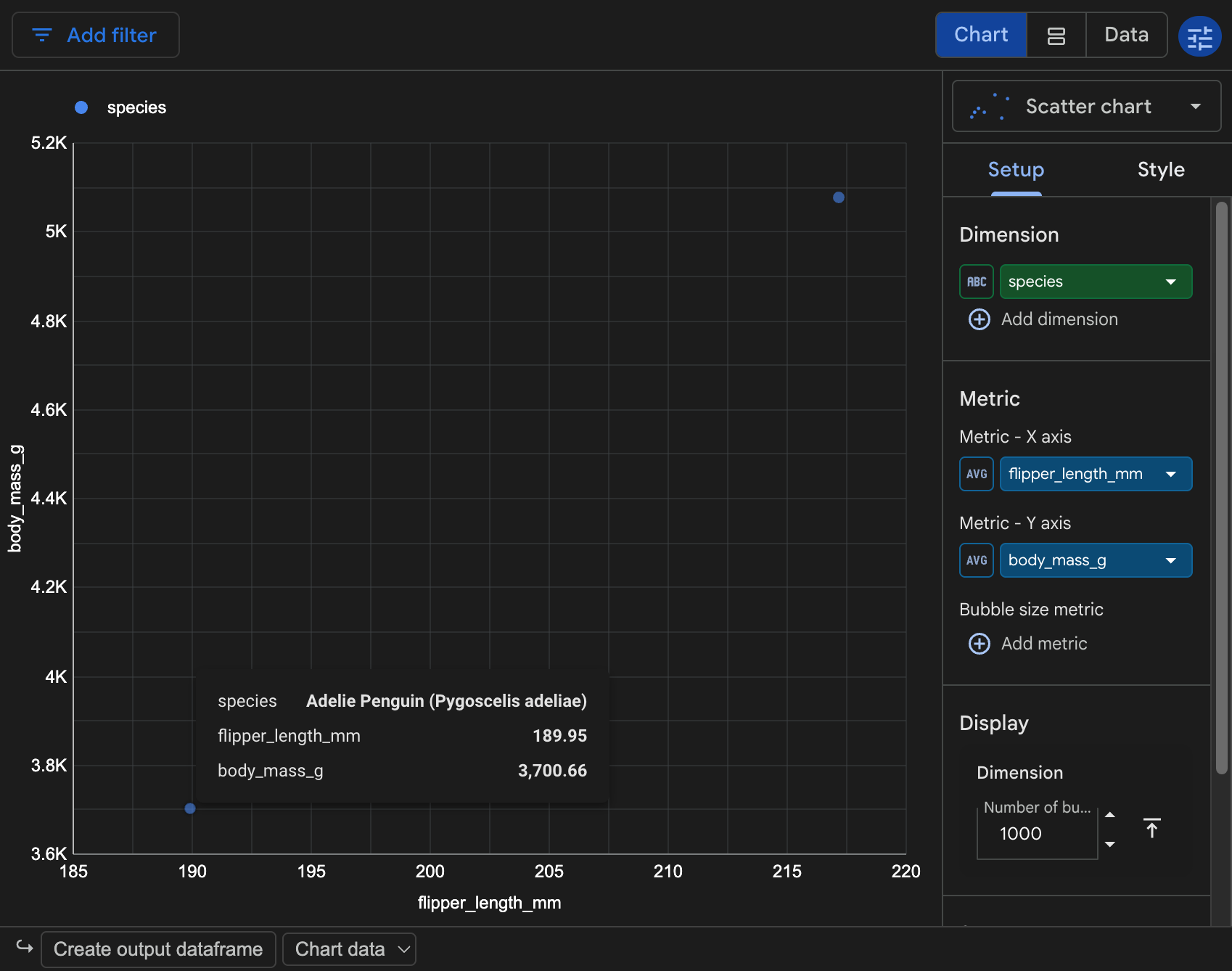
When you run the cell, google-colabsqlviz inspects the DataFrame schema
and renders an interactive visualization widget in the cell output area with
a default visualization—for the penguins dataset, it renders a scatter
chart of average flipper_length_mm and body_mass_g grouped by species.
In the widget toolbar, click Data to inspect the underlying DataFrame rows in a paginated table. Select Split mode to view the chart and underlying data table together. Click Chart to return to the chart view.
Explore and customize charts
You can customize chart types, dimensions, metrics, aggregations, sorting, and filters in the widget interface, and export the resulting data back to a DataFrame in your notebook.
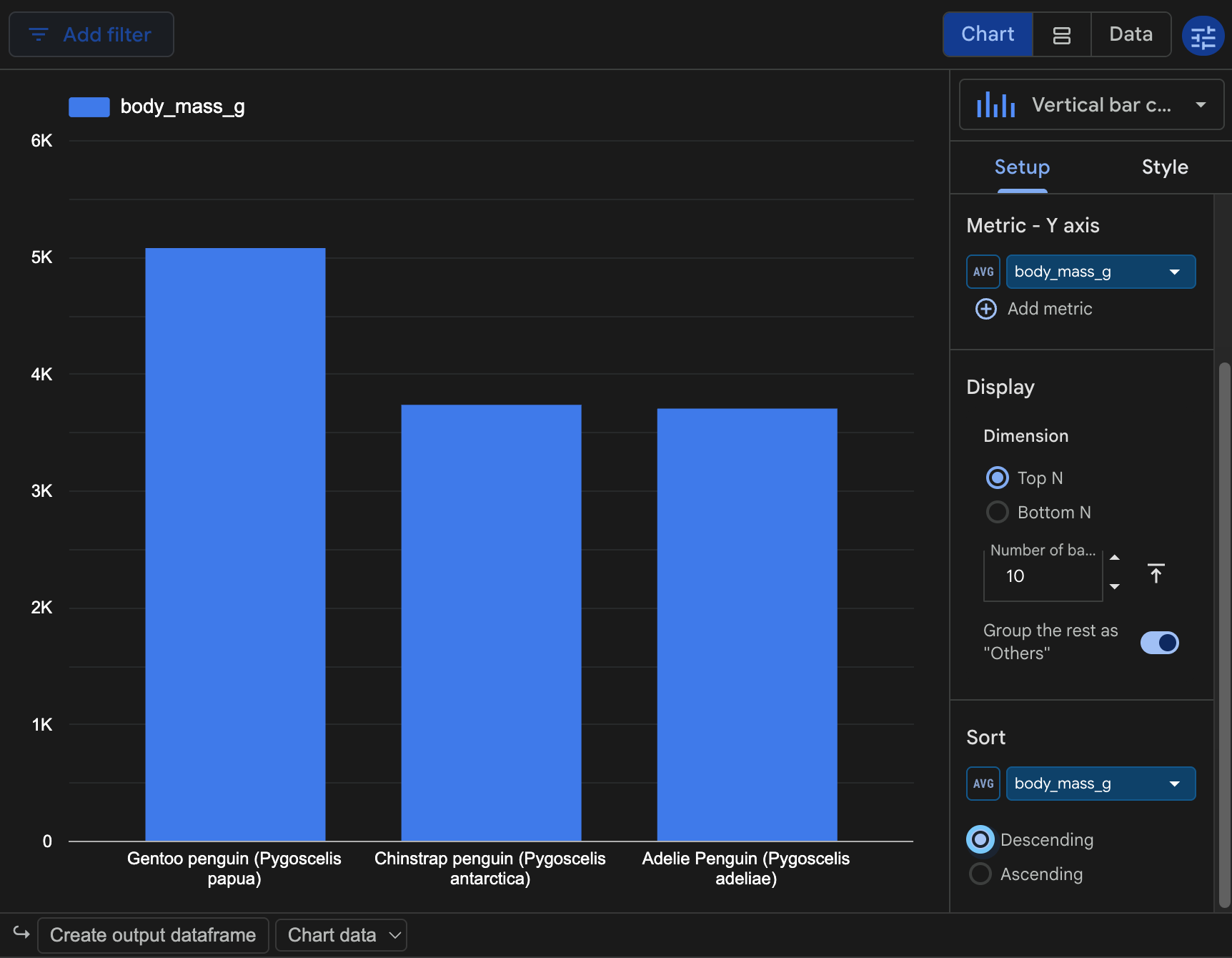
- Select a chart type: In the configuration settings panel, click the chart type menu and select a chart type, such as Vertical bar chart. For a complete list of supported chart types, see Types of charts in Data Studio.
- Configure dimensions and metrics: On the Setup tab, configure the
fields for the
penguinsDataFrame:- Keep Dimension set to
speciesto group records by penguin species. - Under Metric - Y axis, set the metric to
body_mass_gwith aggregation set to AVG (Average) to calculate the average body mass in grams for each species. - Click Add dimension and select
islandorsexto break down the chart across multiple dimensions, or change the metric aggregation from AVG to MAX or SUM.
- Keep Dimension set to
- Sort and filter the visualization:
- On the Setup tab, under Sort, select
body_mass_gwith the AVG aggregation and select Descending to rank species by highest average body mass. - Click Add filter in the widget toolbar to filter records
by field values (for example,
body_mass_ggreater than or equal to4000), or click Create output dataframe at the bottom of the widget to export the aggregated chart data or filtered data to a new DataFrame cell. When you update a chart property or filter,google-colabsqlvizrecomputes the query against your DataFrame and updates the visualization:
- On the Setup tab, under Sort, select
For more information on configuring chart properties, aggregations, and interactive controls in the embedded charting interface, see the following documentation:
- Types of charts in Data Studio
- Explore your data in Data Studio
- Use visualization cells in Colab Enterprise
Configure execution for large DataFrames
When you pass a pyspark.sql.DataFrame to explore_dataframe(df),
google-colabsqlviz chooses between two execution strategies
based on the size of the DataFrame:
- In-memory materialization (default for smaller DataFrames): If the
DataFrame is estimated at
256 MiBor less and contains at most 5,000,000 rows,google-colabsqlvizcollects the DataFrame into kernel memory once. Subsequent chart type changes, aggregations, sorting, and filtering run in memory with minimal latency and don't trigger new Spark jobs. - Distributed Spark pushdown (the default for larger DataFrames): If the
DataFrame exceeds the byte or row budget,
google-colabsqlvizkeeps the DataFrame lazy and translates each chart query, filter, sort, and pagination request into a PySpark operation executed on your Managed Service for Apache Spark serverless session. This approach can add additional latency, but lets you visualize much larger DataFrames.
You can adjust or disable the in-memory materialization threshold by setting the
COLABSQLVIZ_PYSPARK_EAGER_MAX_BYTES environment variable before calling
explore_dataframe(df):
import os

# Importing managed_spark_connect automatically imports explore_dataframe
from google.cloud.managed_spark_connect import ManagedSparkSession

# Set to "0" to disable upfront collection and push all chart queries to Spark,
# or set a custom byte limit, such as str(64 * 1024 * 1024) for 64 MiB.
os.environ["COLABSQLVIZ_PYSPARK_EAGER_MAX_BYTES"] = "0"

explore_dataframe(df)
What's next
- Explore Types of charts in Data Studio.
- Learn how to transform data with Data Agent Kit.
- Learn how to use the serverless Spark Connect client.
- Learn how to use JupyterLab and VS Code for serverless sessions.