

As a Looker customer, you can get complimentary Data Studio Pro licenses as part of your Looker agreement. To start using Data Studio Pro, you must set up a subscription, accept the complimentary licenses, and assign them to users.
Your Looker agreement determines the number of complimentary Data Studio Pro licenses that are allocated to your Looker account. For more information about the terms of this offer, see Complimentary Data Studio Pro licenses offer details.
This document describes how to perform the following tasks for a Looker instance:
- Accept the complimentary Data Studio Pro licenses
- Select a Google Cloud project to host your subscription
- Add users to your Data Studio Pro subscription
- Transfer the complimentary licenses to a different subscription
Before you begin
If you don't already have a Data Studio Pro subscription, we recommend that you set up the Google Cloud project for your Data Studio content before you accept your account's allotted complimentary licenses. For more information about Google Cloud project requirements and setting a new Data Studio Pro subscription, see the Start a new Pro subscription documentation page.
Each user with a
Looker Viewer
(roles/looker.viewer) role who uses Data Studio Pro must
also be a Google Workspace or Cloud Identity user with a
Managed Google account.
You can associate each Looker (Google Cloud core) instance with only one Data Studio Pro subscription.
Required roles
You need different permissions to perform the following tasks:
To get the permission to accept complimentary
Data Studio Pro licenses and update
Looker (Google Cloud core) instance information, ask your administrator to
grant you an IAM role containing the looker.instances.update
permission for the Google Cloud project that your
Looker (Google Cloud core) instance resides in. The
Looker Admin
(roles/looker.admin) IAM role contains this permission by
default, but you can get this permission with
custom roles or other
predefined roles.
To get the permission to set up a self-service subscription to
Data Studio Pro, ask your administrator to
grant you an IAM role containing the lookerstudio.pro.manage
permission for the Google Cloud project that your
Looker (Google Cloud core) instance resides in. The
Looker Studio Pro Manager
(roles/lookerstudio.proManager) and
Owner (roles/owner)
IAM roles contain this permission by default,
but you can get this permission with
custom roles or other
predefined roles.
Accept Data Studio Pro licenses
By default, Looker (Google Cloud core) instances include 50 complimentary Data Studio Pro licenses.
To accept these licenses, follow these steps in the Google Cloud console or the Google Cloud CLI:
console
- Navigate to the Instances page for the Google Cloud project in which your Looker (Google Cloud core) instance resides.
- Select the name of the Looker (Google Cloud core) instance that you want to use with Data Studio Pro.
- Select the Data Studio Pro tab. This tab is not visible if your Looker (Google Cloud core) instance was created after August 1, 2026.
- Select Accept Data Studio Pro licenses.
gcloud
With the Google Cloud CLI, you accept complimentary Data Studio Pro
licenses and link your Data Studio Pro Google Cloud project
in a single step using the --linked-lsp-project-number flag. Proceed to
Select a Google Cloud project and
follow the gcloud instructions.
By accepting these complimentary licenses, you agree to the Google Cloud Terms of Service. Use of Data Studio Pro (even when it's connected to Looker) is subject to the agreement under which you use Google Cloud, not your Looker agreement.
Select a Google Cloud project
After you accept the complimentary Data Studio Pro licenses, you must associate your Looker (Google Cloud core) instance with the Google Cloud project that your Data Studio Pro subscription uses. You can specify your Data Studio Pro Google Cloud project by using the Google Cloud console or the Google Cloud CLI:
console
Follow these steps in the Data Studio Pro tab of your Looker (Google Cloud core) instance settings:
- Click Select project.
- In the Select a resource dialog, select your project from the list, and click Select project.
- In the Data Studio Pro tab of your Looker (Google Cloud core) instance settings, click Save.
The Project name field now displays the selected Google Cloud project ID.
gcloud
Get the project number of the Google Cloud project that hosts your Data Studio Pro subscription:
gcloud projects describe DSP_PROJECT_ID \
    --format="value(projectNumber)"
Replace
DSP_PROJECT_IDwith the project ID of the Google Cloud project that hosts your Data Studio Pro subscription. This project must belong to the same Google Cloud organization as your Looker (Google Cloud core) instance.Accept the complimentary licenses and link the Data Studio Pro project to your Looker (Google Cloud core) instance:
gcloud looker instances update INSTANCE_NAME \
    --project=PROJECT_ID \
    --region=REGION \
    --linked-lsp-project-number=DSP_PROJECT_NUMBER
Replace the following:
INSTANCE_NAME: the name of your Looker (Google Cloud core) instance.PROJECT_ID: the project ID of the Google Cloud project that hosts your Looker (Google Cloud core) instance.REGION: the region where your Looker (Google Cloud core) instance is located.DSP_PROJECT_NUMBER: the project number of your Data Studio Pro Google Cloud project.
Verify that your Looker (Google Cloud core) instance is linked to the Data Studio Pro project:
gcloud looker instances describe INSTANCE_NAME \
    --project=PROJECT_ID \
    --region=REGION \
    --format="value(linkedLspProjectNumber)"
Add users to your Data Studio Pro subscription
To finish setting up your new Data Studio Pro subscription, add users to your subscription and assign their licenses. You can complete these steps in either the Google Cloud console or Data Studio. If you had already completed the setup for your Data Studio Pro subscription before you accepted your complimentary licenses, your licenses have been applied automatically to your existing Data Studio Pro users.
Console
To finish setting up your new Data Studio Pro subscription in the Google Cloud console, follow these steps:
- Open the Data Studio Pro homepage within the Google Cloud console by either clicking Add users on the Data Studio Pro page or tab for your Looker instance, or navigating directly to the Data Studio page in the Google Cloud console for your linked Google Cloud project.
- Click Subscribe to open the Buy Data Studio
Pro licenses panel:
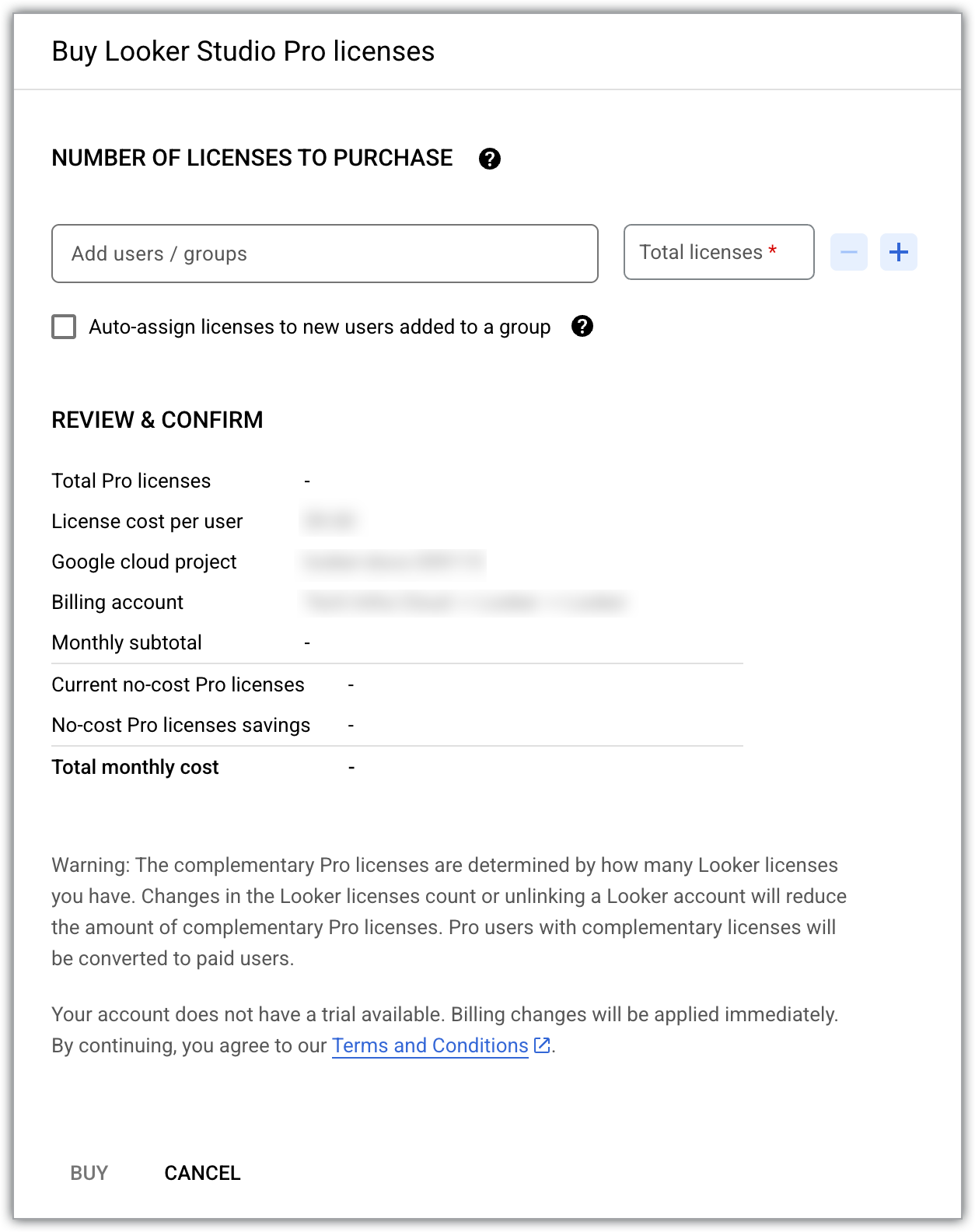
- The Current no-cost Pro licenses line item displays the number of complimentary Data Studio Pro licenses that have been allocated to your Looker (Google Cloud core) instance.
- In the Add users / groups field, add the email
addresses of users or groups to your subscription.
- The Total licenses field displays the total number of licenses that are required to support the number of users that you have added.
- Select Auto-assign licenses to new users added to a group to assign available licenses to users who are added to Google Groups under the Data Studio subscription.
- Click Buy.
Data Studio
To finish setting up your new Data Studio Pro subscription in Data Studio, follow these steps:
- Open Data Studio (or click add users in Data Studio Pro on the Data Studio Pro page or tab for your Looker instance).
- Add users to your subscription by following the steps described on the Add people to the subscription documentation page.
Remove licenses or users
Each Data Studio Pro user requires a Data Studio Pro license. If you need to decrease the number of licenses that are used with your Data Studio Pro subscription, you will also need to remove the corresponding number of users.
To remove licenses and users from your Data Studio Pro subscription in the Google Cloud console, follow these steps:
- In the Google Cloud project that hosts your Data Studio Pro subscription content, navigate to the Data Studio page.
- Select Manage access.
- Select the user or group that you want to remove from the subscription.
- Select delete Delete. In the resulting dialog, select Delete again.
- Close the Manage access window.
- Select Add / remove licenses.
- Next to the Total licenses field, select remove Decrement license count to decrease the number of licenses under the Data Studio Pro subscription.
- Select Confirm.
For more information, see Remove users from a Pro subscription.
Transfer complimentary Data Studio Pro licenses to a different subscription
After you have saved the project that you selected for your Data Studio Pro licenses in your Looker instance, we strongly recommend that you don't modify the project selection. Your complimentary licenses must be associated with the same Google Cloud project as your Data Studio Pro subscription. If you need to transfer your licenses from one Data Studio Pro subscription to another, follow these steps:
- Set up a new Data Studio Pro subscription based on a different project.
- Add users to your new subscription.
- Transfer ownership for any "ownerless" content that resides in team workspaces that are associated with the old subscription.
- Cancel the old subscription.
Next, to associate your complimentary Data Studio Pro licenses with the new Data Studio Pro subscription, follow these steps:
console
- Navigate to the Data Studio Pro tab of your Looker (Google Cloud core) instance settings.
- Click Select project.
- In the Select a resource dialog, choose your new selection from the list, and click Select project.
- Select a Google Cloud project that is associated with the new Data Studio Pro subscription.
- In the Data Studio Pro tab of your Looker (Google Cloud core) instance settings, click Save.
The Project name field now displays the Google Cloud project ID that is associated with the new Data Studio Pro subscription.
gcloud
Get the project number of the Google Cloud project that is associated with the new Data Studio Pro subscription:
gcloud projects describe NEW_DSP_PROJECT_ID \
    --format="value(projectNumber)"
Replace
NEW_DSP_PROJECT_IDwith the project ID of the Google Cloud project that hosts your new Data Studio Pro subscription.Update your Looker (Google Cloud core) instance to link the new project:
gcloud looker instances update INSTANCE_NAME \
    --project=PROJECT_ID \
    --region=REGION \
    --linked-lsp-project-number=NEW_DSP_PROJECT_NUMBER
Replace the following:
INSTANCE_NAME: the name of your Looker (Google Cloud core) instance.PROJECT_ID: the project ID of the Google Cloud project that hosts your Looker (Google Cloud core) instance.REGION: the region where your Looker (Google Cloud core) instance is located.NEW_DSP_PROJECT_NUMBER: the project number from the previous step.
Verify that your Looker (Google Cloud core) instance is linked to the new project:
gcloud looker instances describe INSTANCE_NAME \
    --project=PROJECT_ID \
    --region=REGION \
    --format="value(linkedLspProjectNumber)"
Unlink complimentary Data Studio Pro licenses from your instance
If you no longer want to link your Looker (Google Cloud core) instance to your Data Studio Pro Google Cloud project, you can unlink the project using the Google Cloud console or the Google Cloud CLI.
console
- In the Data Studio Pro tab of your Looker (Google Cloud core) instance settings, disable the Accept Data Studio Pro licenses toggle.
- Click Save.
gcloud
Unlink the Data Studio Pro project from your Looker (Google Cloud core) instance by setting the
--linked-lsp-project-numberflag to0:gcloud looker instances update INSTANCE_NAME \ --project=PROJECT_ID \ --region=REGION \ --linked-lsp-project-number=0Replace the following:
INSTANCE_NAME: the name of your Looker (Google Cloud core) instance.PROJECT_ID: the project ID of the Google Cloud project that hosts your Looker (Google Cloud core) instance.REGION: the region where your Looker (Google Cloud core) instance is located.
Verify that the Data Studio Pro project is unlinked:
gcloud looker instances describe INSTANCE_NAME \
    --project=PROJECT_ID \
    --region=REGION \
    --format="value(linkedLspProjectNumber)"
When the project is unlinked, the command returns empty output.
Effects of canceling a Data Studio Pro subscription
If the Data Studio Pro subscription is canceled, Looker will no longer recognize the subscription. Although the Google Cloud console will continue to reflect that the Looker instance and the Data Studio Pro subscription are linked, you will no longer be billed for Data Studio Pro usage on the Google Cloud project. Your Looker instance's Data Studio Pro licenses are still available if you reinstate your subscription (within the 30-day grace period) or if you initiate a new subscription. The no-cost version of Data Studio is also available for use.
For more information about the effects of canceling a Data Studio Pro subscription or deleting a Google Cloud project that is associated with a canceled subscription, see Cancel a Data Studio Pro subscription.
Troubleshooting complimentary licenses
Errors may occur when you accept complimentary Data Studio Pro licenses or add users to a Data Studio Pro subscription. See the following table for steps on how to troubleshoot errors that are related to accepting licenses.
| Error message | Steps to resolve | Example |
|---|---|---|
You have reached your license limit. To add more users, either delete some existing users/groups or purchase additional licenses. |
|
If there are 10 complimentary licenses available, add 10 users to your subscription to use all licenses. If you add 11 users, you will be charged for 1 additional license. If you increase the Number of licenses to buy field to 11, you will be charged for 1 additional license, which you can assign at a later date. |