

This page explains how to set up a connection in Looker to Google Spanner.
Encrypting network traffic
It is a best practice to encrypt network traffic between the Looker application and your database. Consider one of the options that are described on the Enabling secure database access documentation page.
Getting the connection credentials
Log in to the Google Cloud console.
Select the appropriate project.
From the menu, select IAM & Admin and then Service accounts.
Select Create service account and fill in the dialog box as follows:
- Service account name: Enter
looker-spanner-serviceor something similar. - Role: Select Cloud Spanner and then Cloud Spanner Database Reader.
- Furnish a new private key: Select the Furnish a new private key checkbox, and select JSON under Key type.
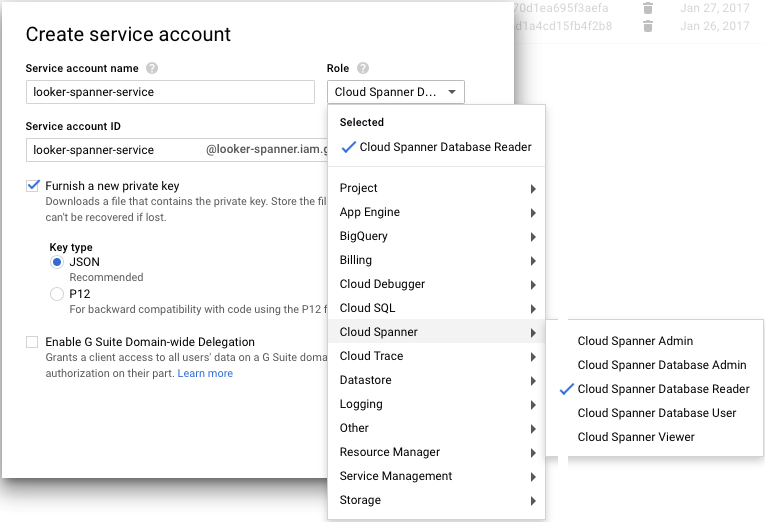
- Service account name: Enter
Click Create and keep track of the following:
- The email address associated with the service account
- The name and location of the JSON credential file that was downloaded

Creating the Looker connection to your database
In the Admin section of Looker, select Connections, and then click Add Connection.
Fill out the connection details. The majority of the settings are common to most database dialects. See the Connecting Looker to your database documentation page for information. Some of the settings are described next:
- Dialect: Google Spanner.
- Name: The name of the connection.
- Project Name: The project ID for the Google project that contains the Spanner database.
- Instance Name: The name of the instance that contains the Spanner database.
- Database: The name of the Spanner database.
- Schema: Leave this blank.
- Max connections per node: The maximum number of total connections to the Spanner database across all users. The default is 30. This setting can be left at the default value initially. See the Connecting Looker to your database documentation page for more information.
- Connection Pool Timeout: The number of seconds a query will wait before timing out because of a full connection pool.
- Additional JDBC parameters: Add any additional JDBC parameters. See the Supported JDBC parameters section on this page for a list of supported parameters.
To verify that the connection is successful, click Test. See the Testing database connectivity documentation page for troubleshooting information.
To save these settings, click Connect.
Supported JDBC parameters
For Google Spanner {: #google}, Looker supports the following JDBC parameters in the Additional JDBC parameters field for the connection. See the documentation for your database for information on these parameters.
autocommitautoConfigEmulatorendpointmaxSessionsminSessionsnumChannelsoauthTokenoptimizerVersionreadonlyretryAbortsInternallyrpcPriorityusePlainText
Feature support
For Looker to support some features, your database dialect must also support them.
Google Spanner supports the following features as of Looker 26.10:
| Feature | Supported? |
|---|---|
| Looker (Google Cloud core) | |
| Symmetric aggregates | |
| Derived tables | |
| Persistent SQL derived tables | |
| Persistent native derived tables | |
| Stable views | |
| Query killing | |
| SQL-based pivots | |
| Timezones | |
| SSL | |
| Subtotals | |
| JDBC additional params | |
| Case sensitive | |
| Location type | |
| List type | |
| Percentile | |
| Distinct percentile | |
| SQL Runner Show Processes | |
| SQL Runner Describe Table | |
| SQL Runner Show Indexes | |
| SQL Runner Select 10 | |
| SQL Runner Count | |
| SQL Explain | |
| OAuth 2.0 credentials | |
| Context comments | |
| Connection pooling | |
| HLL sketches | |
| Aggregate awareness | |
| Incremental PDTs | |
| Milliseconds | |
| Microseconds | |
| Materialized views | |
| Period-over-period measures | |
| Approximate count distinct | |
| In-database analytic models | |
| Custom calendars |
References
Next steps
After you have connected your database to Looker, configure sign-in options for your users.