

You can view user-defined dashboards and LookML dashboards on your mobile device in the Looker mobile application. You can also view Looks in the app.
Opening a dashboard
You can navigate to dashboards from the Recently Viewed and Favorites screens, while viewing a board that you follow, or while browsing content in folders in the Looker mobile app.
To open a dashboard in the app, select the content card for the dashboard.
You can also search for a specific dashboard on the Recently Viewed and Favorites screens.
To open a LookML dashboard in the app, navigate to the LookML Dashboards folder and select the dashboard. If a LookML dashboard has been pinned to a board that you have added to your list of boards, you can open the LookML dashboard while viewing that board in the app.
Viewing a dashboard
Dashboards include the following elements:
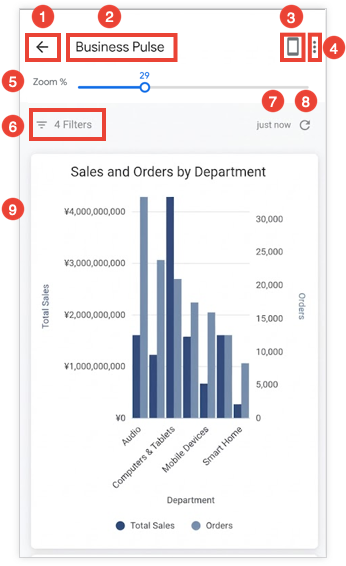
- Back button: Returns you to the previous screen.
- Dashboard title: Displays the title of the dashboard.
Switch to Mobile View button: Revert to viewing the dashboard tiles in a single column. When you're in Mobile View, the button is replaced with the Switch to Desktop View button for switching the view to desktop layout.
Three-dot menu: Provides the options to add or remove the dashboard from your favorites, share the dashboard, copy the link to the dashboard, or view information about the dashboard.
Zoom % slider: Lets users enlarge tiles when they're viewing dashboards in desktop view.
Dashboard filters: Shows any dashboard filters that have been added to a dashboard. You can temporarily change dashboard filter values while in the app to see how the data changes.
Dashboard last updated indicator: Shows how recently the data on the dashboard has been queried from (or refreshed from) the database.
Reload data: Updates the data on the dashboard. This element is often useful after filters have been changed.
Dashboard tiles: Displays one or more dashboard tiles.
Interacting with data and drilling on dashboards
If your Looker developer has configured interactive elements like drilling, links, data actions, or custom tooltips, you can interact with dashboard tiles on your mobile device.
Tapping on a data point on a supported dashboard tile displays a tooltip with details or opens a bottom sheet with a menu of options. Depending on how the data and visualization have been configured by your Looker developer, you can do one or more of the following:
- Drill into data: Drill down into the data to view more granular information about the selected data point.
- Take configured actions: Perform data actions directly from the app, such as sending emails, posting messages to Slack, or setting values in other fields.
- Open links: Open links embedded in the visualization to navigate to other Looks or dashboards, or open external websites.
- View all underlying data: Open the drill window and select Explore all to view the raw, row-level data that comprises the selected metric.
- View custom tooltips: View custom tooltips configured by your developer using Liquid templating or UI settings.
For more information about drilling and configuring links in the mobile app, see the Drilling in the mobile application documentation page.
Visualization types that support drilling
The following visualization types and elements support link actions like drilling:
- Cartesian charts: Column, Bar, Scatterplot, Line, Area, Boxplot, and Waterfall charts.
- Pie and donut charts: Pie charts and Donut Multiples charts.
- Progression charts: Funnel charts and Timeline charts.
- Maps: Google Maps, Map, Static Map (Regions), and Static Map (Points) charts.
- Text and tables: Table, Table (Legacy), and Word Cloud charts. Text tiles are also supported.
- Buttons: Dashboard buttons are supported.
While tiles that use other visualization types (including Single Value charts, Single Record charts, and custom or community visualizations) can be viewed in the app, they do not support link actions or drilling.
Switching between portrait mode and landscape mode
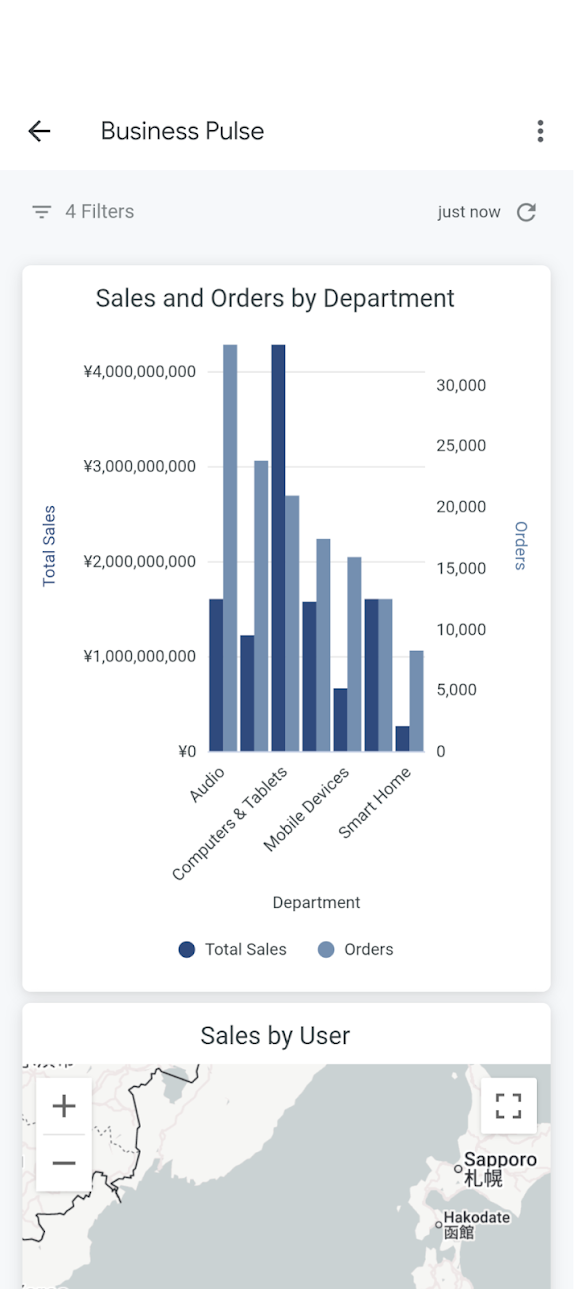
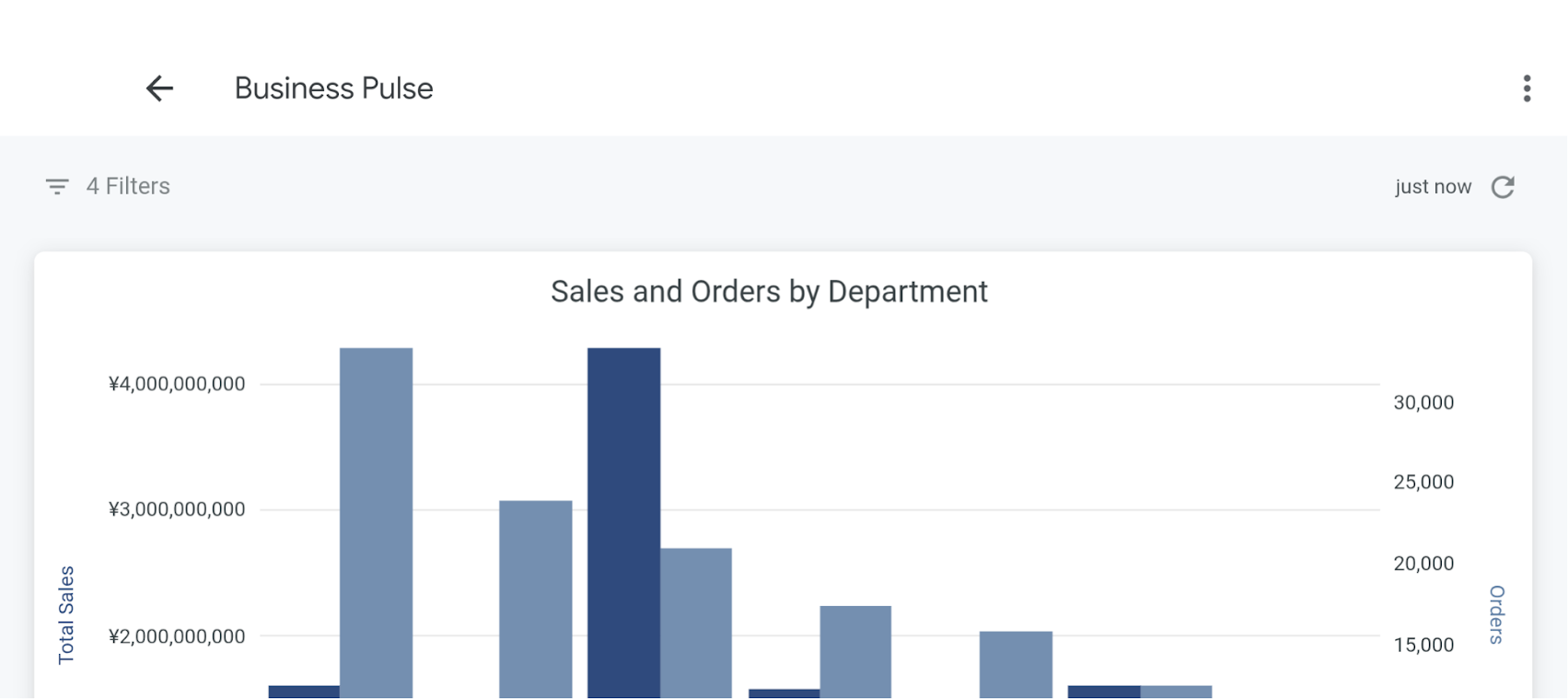
When you view a dashboard or a Look in the Looker mobile app, you can rotate the screen of your mobile device to switch between portrait mode and landscape mode.
Content is displayed in portrait mode by default. Portrait mode can be useful for viewing multiple dashboard tiles on the screen at once (especially when you're viewing the dashboard in mobile view when your dashboard editor has enabled the Preserve desktop layout setting).
In landscape mode, dashboard tiles expand horizontally to fill the width of the screen. Landscape mode can be useful for viewing the details of one tile at a time (or for viewing multiple dashboard tiles on the screen at once when you're viewing the dashboard in desktop view when your dashboard editor has enabled the Preserve desktop layout setting).
Temporarily changing filter values
Looker dashboards can have one or more filters that affect one or more dashboard tiles.
You can temporarily change the values of dashboard filters to see how the data changes. You won't affect anyone else's dashboard results by changing the filter values temporarily in the app.
Dashboards display a filter icon and the number of filters that have been added at the top of the dashboard in the mobile app. To view the filters that have been added to a dashboard, select the filter icon or the text indicating the number of filters that have been added.
You can temporarily change the value for a dashboard filter. Select a filter value, change its value, and reload the data to see how the filter value changes affect your data.
For more information on making temporary changes to filter values on dashboards, see the Viewing dashboards documentation page.
Using the dashboard three-dot menu
The Looker mobile app displays a three-dot menu on the dashboard. Select the three-dot menu for a user-defined dashboard to use the following options:
- Add to Favorites or Remove from Favorites: Add a dashboard to your favorites, or remove a dashboard from your favorites.
- Share: Share a link to a dashboard from your mobile device.
- Copy link: Copy the link to a dashboard.
- Get info: View information about a dashboard, including its title, information about views and favorites, the date the dashboard was created, and the name of the user who created the dashboard.
The three-dot menu for a LookML dashboard includes the options to share the dashboard or copy the link to the dashboard.
You can also access the three-dot menu for a dashboard from the Recently Viewed and Favorites screens, a board, or a folder that contains the dashboard.
Adding or removing a dashboard from your favorites
The Favorites screen in the Looker mobile app lists the user-defined dashboards that you have added to your favorites.
To add a dashboard to your favorites while viewing the dashboard, or from the Recently Viewed screen, a board, or a folder:
- Select the three-dot menu for the dashboard.
- Choose Add to Favorites.
To remove a dashboard from your favorites while viewing the dashboard, or from the Recently Viewed screen, the Favorites screen, a board, or a folder:
- Select the three-dot menu for a dashboard that you added to your favorites.
- Choose Remove from Favorites.
Sharing a dashboard
You can share dashboards with other users with the sharing options that are available on your mobile device, or with a third-party service that's integrated with Looker, such as Slack.
Copying the link to a dashboard
You can copy the link to a dashboard to your mobile device's clipboard:
- Select the three-dot menu for the dashboard.
- Select Copy link.
After you copy a link, the app displays the message Link copied to clipboard.
Viewing information about a dashboard
Select Get info from the three-dot menu for a user-defined dashboard to view the following information:
- Title: Shows the title of the dashboard, the number of views, and the number of favorites
- Created: Displays the date the dashboard was created and the name of the user who created it