

This page explains how to configure a custom domain for your Looker (Google Cloud core) private connections instance using Google-managed certificates. This simplified method eliminates the need for you to obtain, upload, and manage your own SSL certificates or configure a reverse proxy for TLS termination.
Overview
You can now use a custom domain under *.private.looker.app (for example, my-instance.private.looker.app) for your Looker (Google Cloud core) Private Service Connect instances. This domain is secured by a Google-managed certificate, which means Google handles the certificate provisioning and renewal process for you.
You must configure private DNS (either on-premises or within Google Cloud) and use a Private Service Connect endpoint, setting the PSC endpoint IP address as the value of the A record for the specified domain.
This feature provides the following benefits:
- Simplified certificate management: You no longer need to obtain, upload, and manage your own SSL certificates.
- Automatic certificate renewal: Google automatically handles certificate renewals, ensuring continuous security without manual intervention.
- Reduced configuration complexity: You don't need to configure an internal application load balancer (HTTPS), Private Service Connect network endpoint group (NEG), and certificate for TLS termination.
Before you begin
If your instance uses Private Service Connect, ensure that your Looker (Google Cloud core) instance is using the new service attachment URI for its inbound connections. If you are unsure, see the Migrating Private Service Connect connections to the new service attachment URI documentation.
Before you can customize the domain of your Looker (Google Cloud core) instance, identify where your domain's DNS records are stored, so that you can update them.
Required roles
To get the permissions that
you need to create a custom domain for a Looker (Google Cloud core) instance,
ask your administrator to grant you the
Looker Admin (roles/looker.admin) IAM role on the project the instance resides in.
For more information about granting roles, see Manage access to projects, folders, and organizations.
You might also be able to get the required permissions through custom roles or other predefined roles.
Create a custom domain
In the Google Cloud console, follow these steps to customize the domain of your Looker (Google Cloud core) instance:
- On the Instances page, click the name of the instance for which you would like to set up a custom domain.
- Click the Custom domain tab.
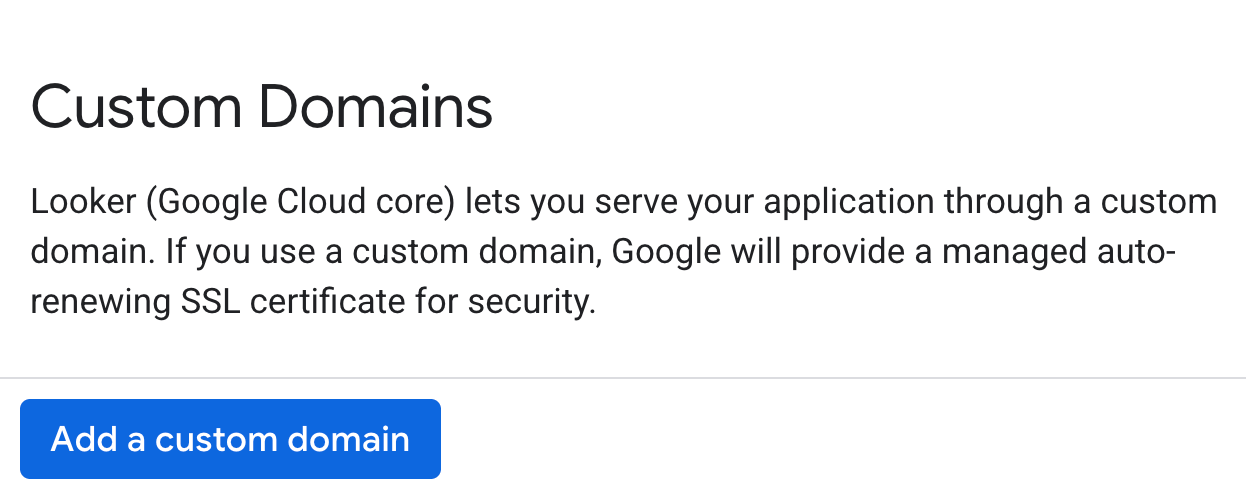
Click Add a custom domain to open the Add a new custom domain panel.
Enter a custom domain under
*.private.looker.app. For example,my-instance.private.looker.app.On the Add a new custom domain panel, click Done to return to the Custom domain tab.
Updating the custom domain takes 10 to 15 minutes to complete.
Once your custom domain is set up, it's displayed in the Domain column on the CUSTOM DOMAIN tab of the Looker (Google Cloud core) instance details page in the Google Cloud console.
After your custom domain has been created, you can view information about it, or delete it.
Update the OAuth credentials
You can use any OAuth client to create authorization credentials for your Looker (Google Cloud core) instance. As an example, these steps walk you through updating the credentials by using the Google Cloud console. If you're using a different client, adjust the steps accordingly.
- Access your OAuth client by navigating in the Google Cloud console to APIs & Services > Credentials and selecting the OAuth client ID for the OAuth client that is used by your Looker (Google Cloud core) instance.
- Click the Add URI button to update the Authorized JavaScript origins field in your OAuth client to include the same DNS name that your organization will use to access Looker (Google Cloud core). For example, if your custom domain is
my-instance.private.looker.app, you entermy-instance.private.looker.appas the URI. - Update or add the custom domain to the list of Authorized redirect URIs for the OAuth credentials that you used when you created the Looker (Google Cloud core) instance. Add
/oauth2callbackto the end of the URI. For example, if your custom domain ismy-instance.private.looker.app, you entermy-instance.private.looker.app/oauth2callback.
DNS configuration steps
To configure DNS, complete the following steps:
Configure private DNS: Implement a private DNS solution, which can be deployed either on-premises or within Google Cloud (for example, using Cloud DNS).
Use a Private Service Connect endpoint: Ensure that you have provisioned a Private Service Connect endpoint that connects to Looker (Google Cloud core).
Create the A record: In your private DNS zone, create an A record that maps your custom domain under
*.private.looker.app(for example, my-instance.private.looker.app) to the IP address of your Private Service Connect endpoint.
Once your private DNS is configured to resolve your custom domain to the Private Service Connect endpoint's IP address, you can securely access your Looker (Google Cloud core) instance using that custom domain, enabling native support of TLS termination.
Using other custom domains
You may use a custom domain other than *.private.looker.app. However, for these custom domains, you must manually provide the following configurations:
- Certificate provisioning: You must provide your own certificates. These can be self-managed (self-signed) or Google-managed certificates.
- Infrastructure deployment: Deploy an HTTPS Application Load Balancer (either internal or external). This load balancer must use a Private Service Connect NEG as its backend service with the certificate applied to the frontend.
- DNS configuration: Configure the necessary DNS records (either private or public DNS) to map your custom domain to the IP address of the Application Load Balancer via an A record.
What's next
- Connect Looker (Google Cloud core) to your database
- Prepare a Looker (Google Cloud core) instance for users
- Manage users within Looker (Google Cloud core)