

This documentation page describes how to use the Gemini Insight Assistant to ask questions to gain insights into an Explore, and then use the results to build or modify the Explore.
Gemini in Looker provides generative AI-powered assistance to help you work with your data.
Learn how and when Gemini for Google Cloud uses your data.
Before you begin
To use the Insight Assistant to work with your data, note the following requirements:
- Gemini in Looker must be enabled for your Looker instance:
- For Looker (original), the instance must be running Looker 26.6 or later, and the instance must be enabled for Gemini in Looker in the Admin settings. For detailed enablement instructions, see the Admin settings — Gemini in Looker documentation page.
- For Looker (Google Cloud core), the instance must be enabled for Gemini in Looker in the Google Cloud console. For detailed enablement instructions, see the Administer Gemini on your Looker (Google Cloud core) instance documentation page.
- The Explore Insight Assistant must be enabled in the Gemini in Looker panel in the Admin settings.
- You must be assigned a Looker role that contains the
explorepermission to access and use the Explore page. - You must be assigned the Looker Gemini role.
Using the Insight Assistant
The Gemini Insight Assistant lets you use natural language to ask questions about and analyze the data that's used by a specific Explore. To use the Gemini Insight Assistant to ask questions about and generate queries for your data, follow these steps:
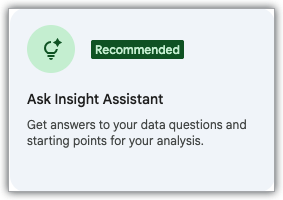
Open the Insight Assistant panel by either clicking Insight Assistant button or by clicking the Ask Insight Assistant tile in a blank Explore:
Ask a question in the Ask a data question field. The Insight Assistant will return the answer to your question, describing the process the assistant is using to generate the response, showing key details in your data that it used to generate the response, and listing the fields from your Explore that it used.
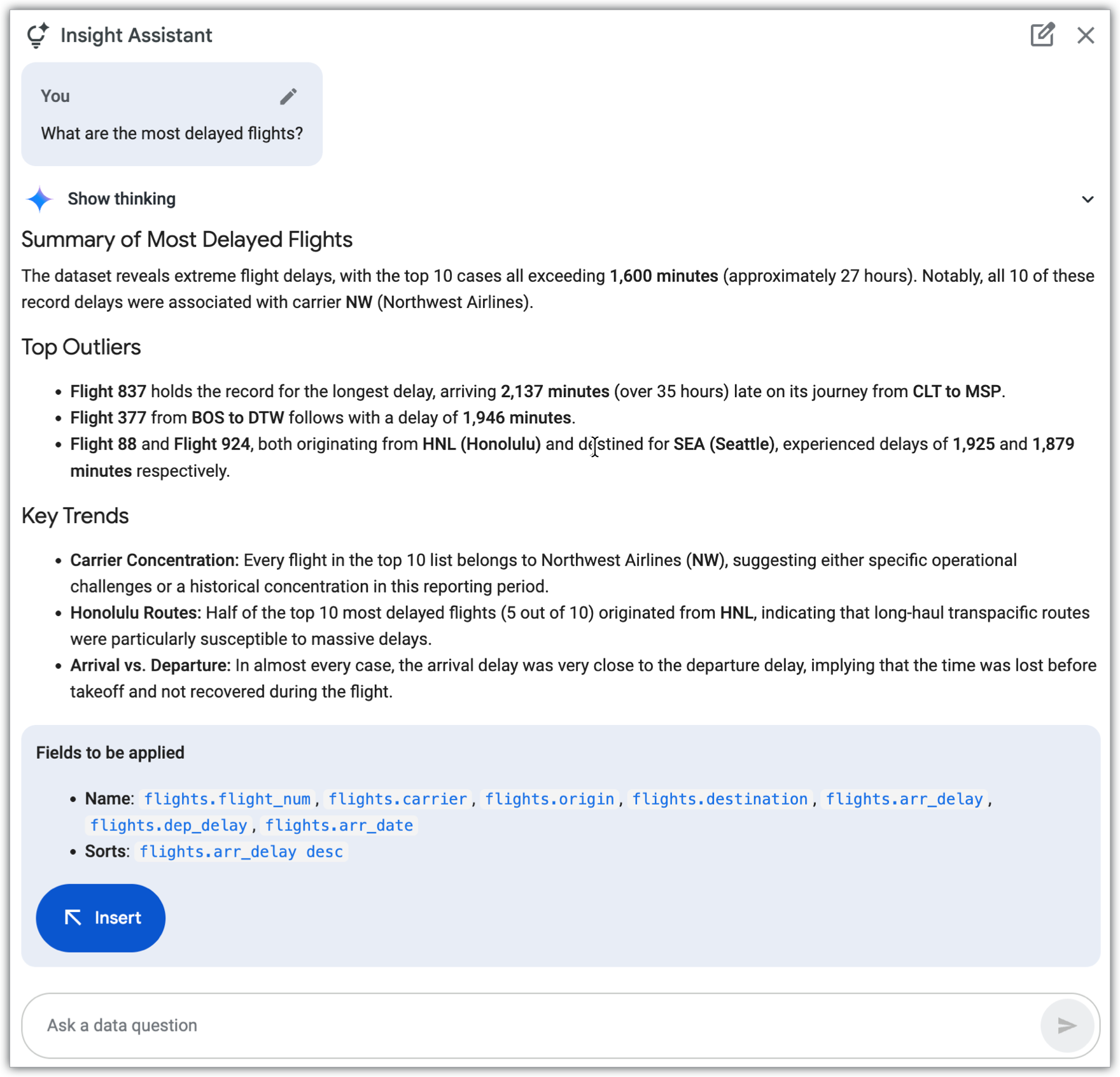
Once the Insight Assistant returns the response, it hides the process it used to generate the response. But, if you click Show thinking, the Insight Assistant will display the process it used to generate the response.
If you click the Insert button at this point, the Insight Assistant will create an Explore by using the fields that are listed in the response.
You can ask further questions in the Ask a data question field to refine or update your results. You can also click Edit button to edit your original question, or click the New Chat button to remove your question and the results, and start over with new question.
Tips for using the Insight Assistant
Here are some tips for using the Insight Assistant:
- For best results, write your prompts in American English. See the Gemini for Google Cloud limitations documentation for more information.
- When you use a response that was suggested by Gemini, always test your new fields in the Explore.
Provide feedback
You can provide feedback for the Insight Assistant in the Insight Assistant panel. If the response looks correct, click the thumb_up thumbs-up icon. If the Insight Assistant response looks incorrect or isn't what you expected, click the thumb_down thumbs-down icon.