

This documentation page describes how to use Gemini in Looker to generate starter questions for an Explore, or if you are using the classic Explore, how to generate AI Quick Starts.
Gemini in Looker provides generative AI-powered assistance to help you work with your data.
Learn how and when Gemini for Google Cloud uses your data.
Before you begin
To use Gemini in Looker to generate starter question analyses, note the following requirements:
- Gemini in Looker must be enabled for your Looker instance:
- For Looker (original), the instance must be running Looker 25.2 or later, and the instance must be enabled for Gemini in Looker in the Admin settings. For detailed enablement instructions, see the Admin settings — Gemini in Looker documentation page.
- For Looker (Google Cloud core), the instance must be enabled for Gemini in Looker in the Google Cloud console. For detailed enablement instructions, see the Administer Gemini on your Looker (Google Cloud core) instance documentation page.
- You must be assigned a Looker role that contains the
developpermission for at least one model in a LookML project. - You must be assigned the Looker Gemini role or be assigned a role that includes the
gemini_in_lookerpermission.
Generating starter question analyses from the new Explore experience
When you select an Explore that doesn't contain modeled queries, Gemini in Looker can generate them from the Looker Explore interface.
Select an Explore from the Explore menu, and then click the Starter Questions drop-down field. If the Explore doesn't already have starter questions defined, Gemini in Looker will analyze the Explore and generate starter questions.
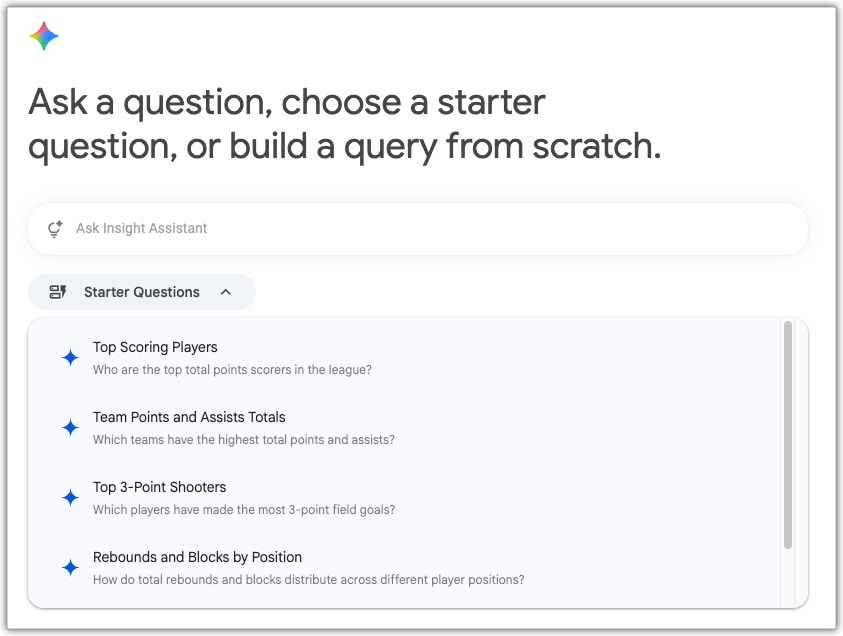
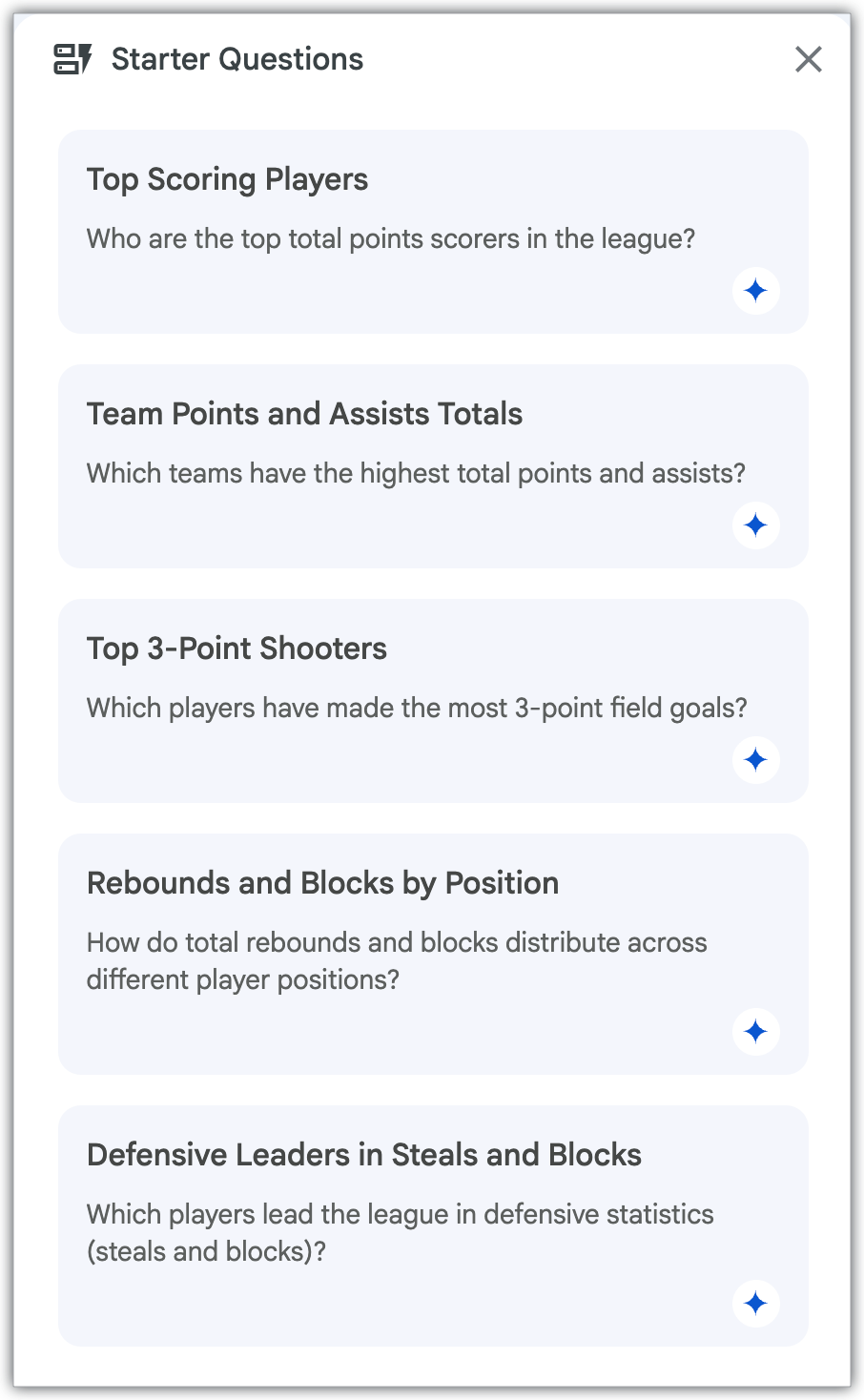
You can also generate starter question analyses any time by clicking the Show starter questions button, which will open the Starter Questions panel.
Generating Quick Start analyses from a classic Explore
If you're using the classic Explore experience, when you select an Explore from the Explore menu that doesn't already have Quick Start analyses defined, Gemini in Looker will give you an option to Try AI Quick Starts. Click Add, and Gemini will analyze the Explore and generate Quick Start analyses.
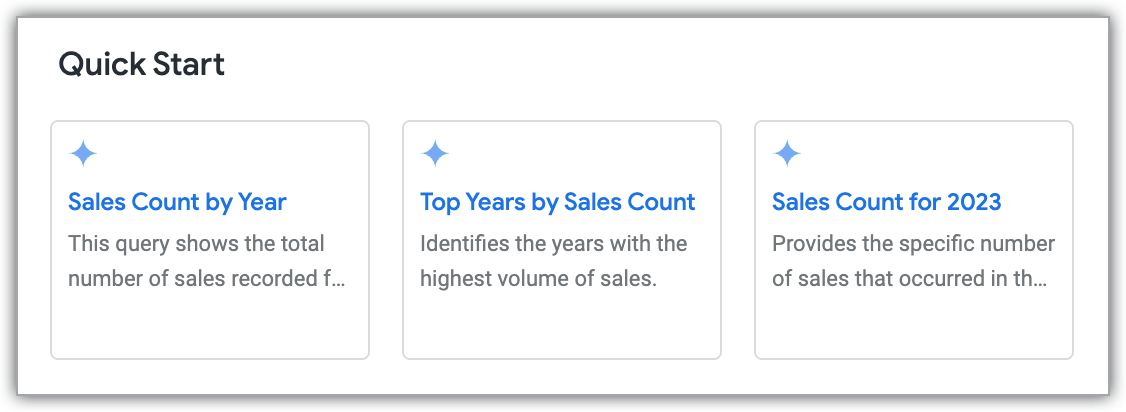
When you're editing an Explore, you can also generate new Quick Start analyses by clicking the Quick Start button next to the Explore name.
Running a starter question analysis
After you've generated starter questions (or AI Quick Starts on the classic Explore experience), click the analysis card that you want to explore. The query will automatically run and display results, including the visualization.
Once the starter question analysis has finished running, you can modify it like any other Explore.