

This documentation page describes how to use Gemini assistance to write Looker expressions for table calculations and custom fields.
Gemini in Looker provides generative AI-powered assistance to help you work with your data.
Learn how and when Gemini for Google Cloud uses your data.
Before you begin
To use Gemini to write expressions, note the following requirements:
- Gemini in Looker must be enabled for your Looker instance:
- For Looker (original), the instance must be running Looker 26.4 or later, and the instance must be enabled for Gemini in Looker in the Admin settings. For detailed enablement instructions, see the Admin settings — Gemini in Looker documentation page.
- For Looker (Google Cloud core), the instance must be enabled for Gemini in Looker in the Google Cloud console. For detailed enablement instructions, see the Administer Gemini on your Looker (Google Cloud core) instance documentation page.
- Looker Assistants must be enabled in the Gemini in Looker panel in the Admin settings.
- You must be assigned a Looker role that contains the
create_table_calculationspermission to use Gemini to write a table calculation expression, or a role that contains thecreate_custom_fieldspermission to write a custom field expression. - You must be assigned the Looker Gemini role.
Use Gemini to write an expression
To use Gemini for assistance in creating a Looker expression, follow these steps:
When creating a table calculation or custom dimension, click Help me write an expression with Gemini.
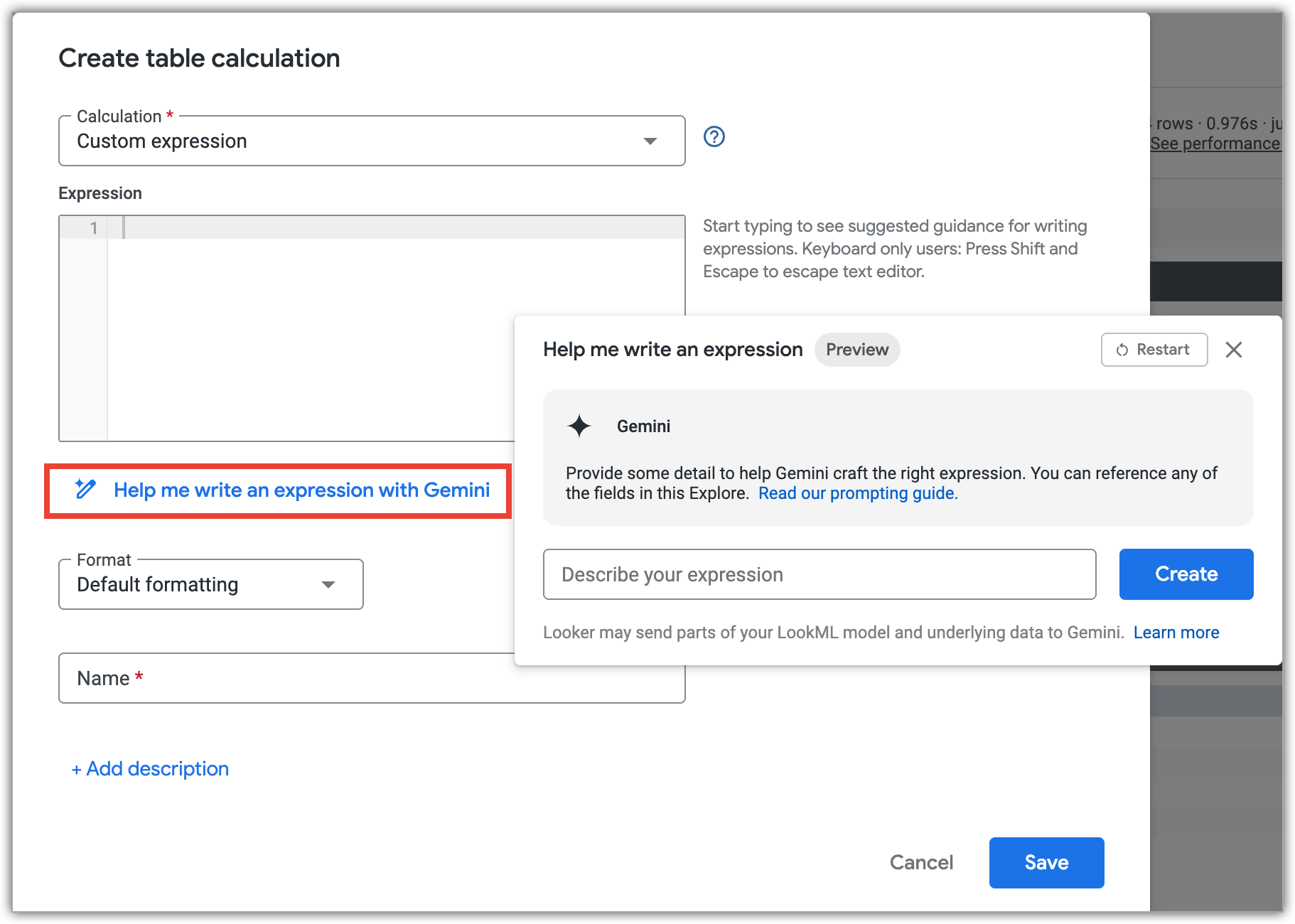
In the Help me write an expression dialog, describe the table calculation or custom dimension that you want to write using natural language.
Click Create.
Gemini will display the expression that's created based on your description. You can click Refine to add to or modify your description, or Apply to add the expression to your table calculation or custom dimension definition.
Tips for using the Gemini Expression Assistant
Here are some tips for using Gemini to write table calculations or custom dimensions:
- For best results, write your prompts in American English. See the Gemini for Google Cloud limitations documentation for more information.
- The Help me write an expression panel does not retain context from a previous prompt in the conversation and does not retain prompts across logins and refreshes.
- When you use an expression that was suggested by Gemini, always test your new fields in an Explore.
Sample prompts
Here is an example using the Help me write an expression option that asks Gemini to create a table calculation that shows the percentage change from one row to the next. Then this example further refines the table calculation to include formatting.
Enter the first prompt in the Describe your expression field:
Add a field that shows percentage change from one row to the next
Gemini returns a suggested expression:
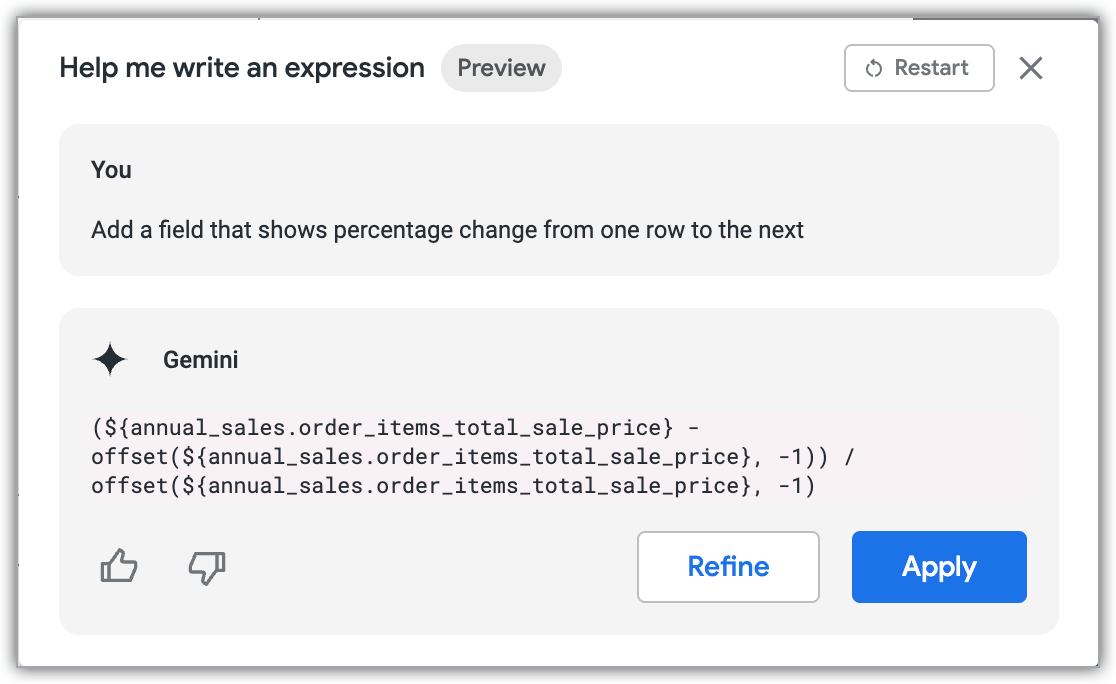
Then, click Refine to ask Gemini to add formatting:
Now format the output in percentages and append an up arrow when the percentage is above zero or a down arrow when the percentage is below zero
Gemini updates the suggested expression:
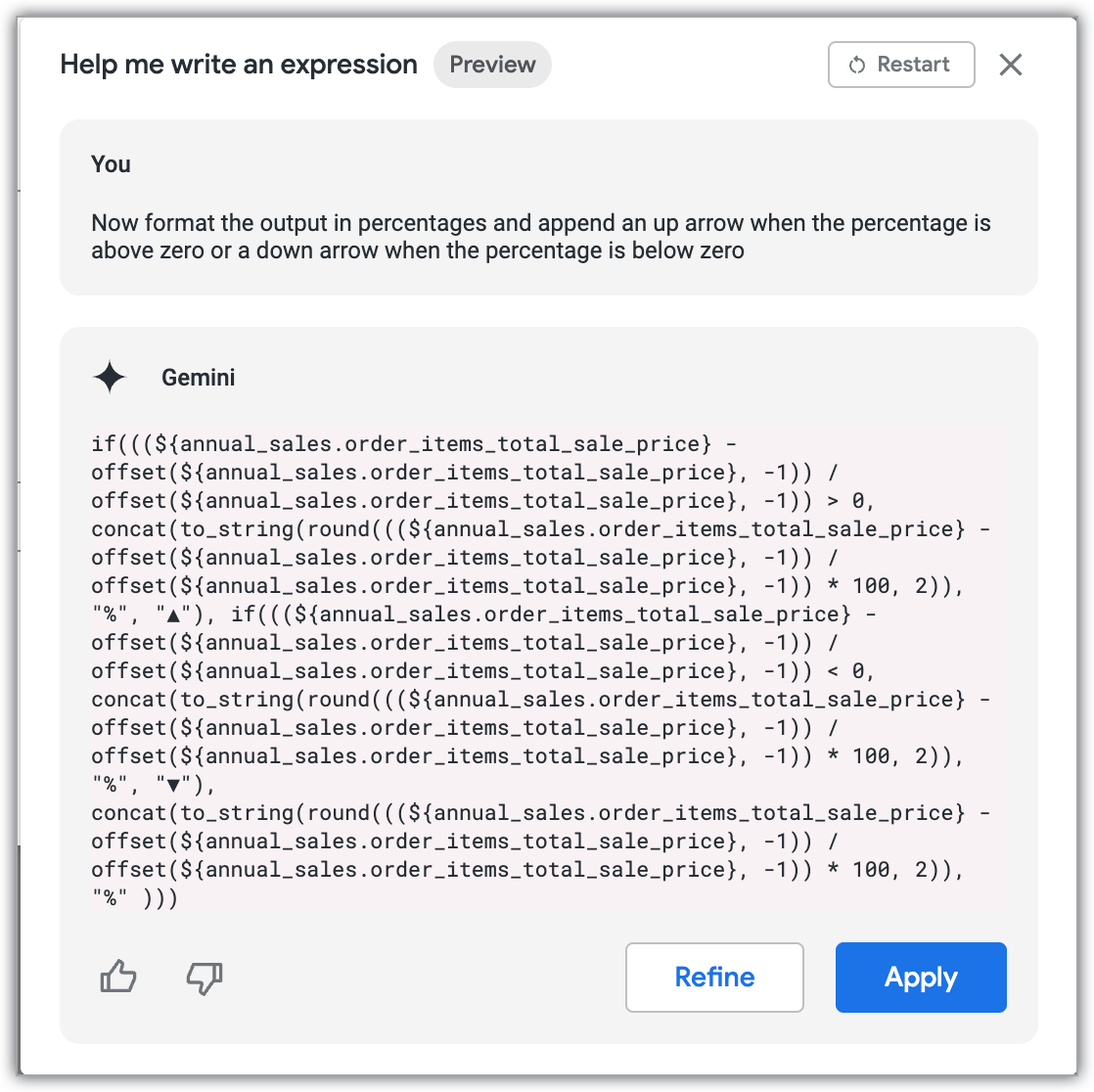
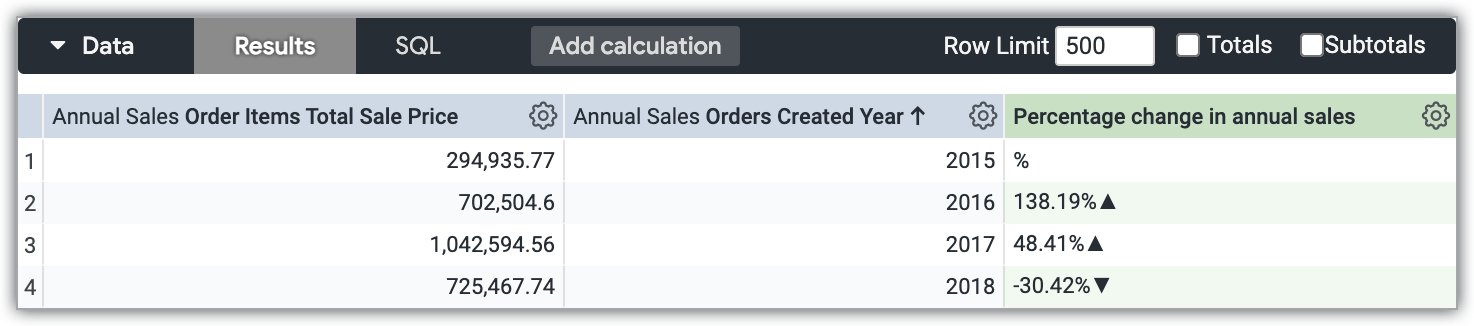
Click Apply, and the new table calculation is created:
Provide feedback
You can provide feedback for the generated expression in the Help me write an expression panel. If the generated expression looks correct, click the thumb_up thumbs-up icon. If the generated expression looks incorrect or isn't what you expected, click the thumb_down thumbs-down icon.