


适用于 Apple iOS 操作系统的 Contact Center AI 平台 (CCAI 平台) 移动 SDK 可让您在 iOS 移动应用中嵌入 CCAI 平台移动体验。
要求
iOS 移动 SDK 具有以下要求:
- iOS 12.0 及更高版本
检索公司凭据
使用管理员凭据登录 Contact Center AI 平台 (CCAI Platform) 门户。
依次前往设置 > 开发者设置。
在公司密钥和密钥代码下,记下公司密钥和公司密钥代码。
使用入门
下文将介绍如何开始使用 CCAI 平台 iOS 移动 SDK。
安装
如需开始使用,您需要安装 iOS SDK。
下载示例应用
下载 iOS 示例应用。
前往相应文件夹,然后使用 CocoaPods 安装依赖项:
$ pod install --project-directory=ExampleApp如需快速配置项目设置,请运行 shell 脚本:
$ ./setup.sh或者,您也可以按照以下步骤手动修改项目设置:
打开
ExampleApp.xcworkspace。将
Info.plist中的UJETCompanyKey和UJETCompanySecret值替换为 CCAI 平台门户网站中设置 > 开发者设置页面中的公司密钥和公司密文代码值。将
Info.plist中的UJETSubdomain值替换为 CCAI 平台门户网站网址中的子网域。子网域直接位于网址中的.ujet.com之前,例如https://your-subdomain.ujet.com/settings/developer-setting中的your-subdomain。
集成到您的项目中
将 iOS SDK 与应用集成取决于您的开发环境。
Swift 软件包管理器
在 build 设置中,将 -ObjC 放在 Other Linker Flags 中。
在最新版 Xcode(目前为 13.2)中,使用 Swift Package Manager 分发的二进制框架存在已知问题。目前解决此问题的权宜措施是向 Xcode 项目的构建阶段添加运行脚本阶段。此“运行脚本”阶段应位于“嵌入框架”构建阶段之后。这个新的“运行脚本”阶段应包含以下代码:
find "${CODESIGNING_FOLDER_PATH}" -name '*.framework' -print0 | while read -d $'0' framework
do
codesign --force --deep --sign "${EXPANDED_CODE_SIGN_IDENTITY}" --preserve-metadata=identifier,entitlements --timestamp=none "${framework}"
done
CocoaPods
将以下代码行添加到 Podfile 中:
pod 'UJET', :podspec =>
'https://sdk.ujet.co/ios/x.y.z/ujet.podspec' #specific version
x.y.z
运行 pod install。如果之前已集成 iOS SDK,请改为运行 pod update CCAI Platform。
Carthage
Google Cloud 建议使用依赖项管理器或手动集成,因为 CCAI 平台依赖项不支持 Carthage。
如需使用其他依赖项管理器,请按以下步骤操作:
添加以下几行内容:
binary "https://sdk.ujet.co/ios/UJETKit.json"
binary "https://sdk.ujet.co/ios/UJETFoundationKit.json"
binary "https://sdk.ujet.co/ios/UJETCallRedKit.json"
binary "https://sdk.ujet.co/ios/UJETChatRedKit.json"
# optional
# binary "https://sdk.ujet.co/ios/UJETChatBlueKit.json"
binary "https://raw.githubusercontent.com/twilio/twilio-voice-ios/Releases/twilio-voice-ios.json"
# this is not supported: https://github.com/twilio/conversations-ios/issues/12
# binary "https://raw.githubusercontent.com/twilio/conversations-ios/master/twilio-convo-ios.json"
运行
carthage bootstrap --use-xcframeworks(如果您要更新依赖项,则运行carthage update --use-xcframeworks)。
手动集成
下载
UJETKit.xcframework、UJETFoundationKit.xcframework、UJETChatRedKit.xcframework、UJETChatBlueKit.xcframework、UJETTwilioCallKit.xcframework以及所有依赖项TwilioVoice.xcframework和TwilioConversationsClient.xcframework。将 UJETKit.xcframework 拖动到“Frameworks, Libraries, and Embedded Content”(框架、库和嵌入式内容)部分,以将其添加到目标中。
针对第 1 步中的所有依赖项重复执行第 2 步和第 3 步。
在build 设置中,将
-ObjC放在Other Linker Flags上。在目标的
Linked Frameworks部分中,将libc++.tbd添加为依赖项。
如果您要使用示例项目手动构建 SDK,请按照以下部分中的步骤操作。
使用示例项目手动构建 SDK
请按顺序执行以下步骤:
下载所有框架,包括
UJETKit.xcframework和其他依赖项。在项目根目录下创建文件夹 CCAI Platform,并提取所有框架。
选择
Objc-Manual或Swift-Manual目标,然后进行构建。
导入框架
以下部分提供了有关如何导入框架的说明。
Objective-C 项目
@import UJETKit;
Swift 项目
swiftimport
UJETimport UJETKit
初始化 SDK
使用 UJET_COMPANY_KEY 和 UJET_SUBDOMAIN 初始化 CCAI Platform。
In application:didFinishLaunchingWithOptions: method:
- (BOOL)application:(UIApplication *)application didFinishLaunchingWithOptions:(NSDictionary *)launchOptions {

    // Initialize CCAI Platform
    [UJET.initialize:UJET_COMPANY_KEY subdomain:UJET_SUBDOMAIN delegate:self];

    // YOUR CODE

    return YES;
}
您可以将日志级别从 verbose 更改为 error。默认日志级别为 UjetLogLevelInfo。
[UJET.setLogLevel:UjetLogLevelVerbose];
最终用户身份验证
通过 iOS 应用访问 iOS SDK。
为了确保最终用户已通过身份验证,我们引入了 JWT 签名机制。
当需要进行身份验证时,iOS SDK 会要求对载荷进行签名。如果签名成功,应用会将已签名的 JWT 交换为最终用户身份验证令牌。必须在委托返回之前调用成功或失败块。
对于匿名用户(标识符 = nil),应用将为该用户创建一个 UUID。如果用户稍后通过某个标识符进行身份验证,应用会尝试根据 UUID 合并这两个用户。
在示例项目中的 UJETObject.h 中:
@import UJETKit;

@interface UJETObject : NSObject <UJETDelegate>
实现 signPayload:payloadType:成功:失败:委托方法。
- (void)signPayload:(NSDictionary *)payload payloadType:(UjetPayloadType)payloadType success:(void (^)(NSString *))success failure:(void (^)(NSError *))failure {
  if (payloadType == UjetPayloadAuthToken) {
    [self signAuthTokenInLocal:payload success:success failure:failure];
  }
}

- (void)signAuthTokenInLocal:(NSDictionary *)payload success:(void (^)(NSString *))success failure:(void (^)(NSError *))failure {
    NSMutableDictionary *payloadData = [payload mutableCopy];

    NSDictionary *userData = [[NSUserDefaults standardUserDefaults] objectForKey:@"user-data"];
    [payloadData addEntriesFromDictionary:userData];
    payloadData[@"iat"] = [NSNumber numberWithDouble:[[NSDate date] timeIntervalSince1970]]; // required
    payloadData[@"exp"] = [NSNumber numberWithDouble:([[NSDate date] timeIntervalSince1970] + 600)]; // required

    NSString *signedToken = [self encodeJWT:payloadData];

    if (signedToken.length > 0) {
        success(signedToken);

    } else {
        NSDictionary *userInfo = @{ NSLocalizedDescriptionKey: @"Failed to sign token" };
        NSError *error = [NSError errorWithDomain:@"ExampleApp" code:0 userInfo:userInfo];
        failure(error);
    }
}

- (NSString *)encodeJWT:(NSDictionary *)payload {
    id<JWTAlgorithm> algorithm = [JWTAlgorithmHSBase algorithm384];
    NSString *secret = NSBundle.mainBundle.infoDictionary[@"UJETCompanySecret"];
    return [JWTBuilder encodePayload:payload].secret().algorithm(algorithm).encode;
}
我们强烈建议您从应用服务器(而非客户端)对载荷进行签名。
此示例使用本地签名进行测试。请参阅 UJETObject.m 文件中的 signDataInRemote: success: failure:。
如需了解详情,请参阅 SDK 最终用户身份验证。
设置推送通知
应用会发送推送通知来请求智能操作(例如验证和拍照),以及报告来电。应用需要将两种不同类型的证书(VoIP 和 APNs)保存在管理门户中。
准备 VoIP 服务证书
您可以参阅 Apple 的 VoIP 推送通知的相关参考文档。
从 Apple 开发者网站创建并下载 VoIP 证书。
双击证书,将其添加到钥匙串中。
在 Mac 上启动“钥匙串访问”应用。
在左侧边栏中选择“我的证书”类别。
右键点击 VoIP 服务:your.app.id 证书。
在弹出式菜单中,选择导出。
将其另存为 cert.p12,不使用密码保护,方法是将密码留空。
在终端中运行以下命令。
openssl s_client -connect gateway.push.apple.com:2195 -cert cert.pem -debug -showcertcert.pem 的上半部分是证书,下半部分是私钥。
检查您的证书是否可与 Apple 的推送通知服务器搭配使用。
openssl s_client -connect gateway.push.apple.com:2195 -cert cert.pem -debug -showcerts如果成功,它应返回:
---
New, TLSv1/SSLv3, Cipher is AES256-SHA
Server public key is 2048 bit
Secure Renegotiation IS supported
Compression: NONE
Expansion: NONE
SSL-Session:
    Protocol  : TLSv1
    Cipher    : AES256-SHA
    Session-ID:
    Session-ID-ctx:
    Master-Key: XXXXXXXXXXXXXXXXXXXXXXXXXXXXXXXXXXXXXXXXXXXXXXXXXXXXXXXXXXXXXXXXXXXXXXXXXXXXXXXXXXXXX
    Key-Arg   : None
    Start Time: 1475785489
    Timeout   : 300 (sec)
    Verify return code: 0 (ok)
---
使用管理员凭据登录 CCAI 平台门户,然后依次前往设置 > 开发者设置 > 移动应用。
在“VoIP 服务证书”部分中填写证书,然后保存。 请务必包含证书和私钥的边界(
-----BEGIN-----和-----END-----)。如果您运行的应用具有开发配置描述文件(例如在 Xcode 中进行调试),请选中“沙盒”复选框。如果您的应用已针对临时或 App Store 归档,并且正在使用分发预配配置文件,请清除“沙盒”复选框。
准备 Apple 推送通知服务 SSL
此流程与 VOIP 服务证书的流程类似。在这种情况下,系统会使用 Apple 推送通知服务 SSL(沙盒和生产环境)证书。如需获取有关如何创建证书的指导,请参阅 Apple 远程通知服务器文档。
集成推送通知
在 AppDelegate.m 中:
@import PushKit;

@interface AppDelegate() <PKPushRegistryDelegate>
In application:didFinishLaunchingWithOptions: method:
// Initialize CCAI Platform
[UJET initialize:UJET_COMPANY_KEY subdomain:UJET_SUBDOMAIN delegate:self];

//  Register for VoIP notifications on launch.
PKPushRegistry *voipRegistry = [[PKPushRegistry alloc] initWithQueue: dispatch_get_main_queue()];
voipRegistry.delegate = self;
voipRegistry.desiredPushTypes = [NSSet setWithObject:PKPushTypeVoIP];
在实现 UIApplicationDelegate 协议的文件中添加以下委托方法:
请打印设备令牌以测试推送通知。
// PKPushRegistryDelegate

- (void)pushRegistry:(PKPushRegistry *)registry didUpdatePushCredentials:(PKPushCredentials *)credentials forType:(NSString *)type {
  [UJET updatePushToken:credentials.token type:UjetPushTypeVoIP];
}

- (void)pushRegistry:(PKPushRegistry *)registry didReceiveIncomingPushWithPayload:(PKPushPayload *)payload forType:(PKPushType)type withCompletionHandler:(void (^)(void))completion {
  if (payload.dictionaryPayload[@"ujet"]) {
    [UJET receivedNotification:payload.dictionaryPayload completion:completion];
  } else {
    completion();
  }
}

// UIApplicationDelegate

- (void)application:(UIApplication *)application didRegisterForRemoteNotificationsWithDeviceToken:(NSData *)deviceToken {
  [UJET updatePushToken:deviceToken type:UjetPushTypeAPN];
}

- (void)application:(UIApplication *)application didReceiveRemoteNotification:(NSDictionary *)userInfo fetchCompletionHandler:(void (^)(UIBackgroundFetchResult))completionHandler {
  if (userInfo[@"ujet"]) {
    [UJET receivedNotification:userInfo completion:nil];
  }
}

// UserNotificationsDelegate overrides [UIApplicationDelegate didReceiveRemoteNotification:]

- (void)userNotificationCenter:(UNUserNotificationCenter *)center willPresentNotification:(UNNotification *)notification withCompletionHandler:(void (^)(UNNotificationPresentationOptions))completionHandler {
    NSDictionary *userInfo = notification.request.content.userInfo;

    if (userInfo[@"ujet"] != nil) {
        [UJET receivedNotification:userInfo completion:nil];
    }
}

- (void)userNotificationCenter:(UNUserNotificationCenter *)center didReceiveNotificationResponse:(UNNotificationResponse *)response withCompletionHandler:(void (^)(void))completionHandler {
    NSDictionary *userInfo = response.notification.request.content.userInfo;

    if (userInfo[@"ujet"] != nil) {
        [UJET receivedNotification:userInfo completion:nil];
    }
}
启用推送通知
选择目标,然后打开功能标签页。
开启推送通知开关。
测试推送通知
以下部分介绍了如何测试推送通知。
推送通知调试部分
在管理员门户中,依次前往“设置”>“开发者设置”。在此页面上,找到标题为 Push Notification Debug 的部分:
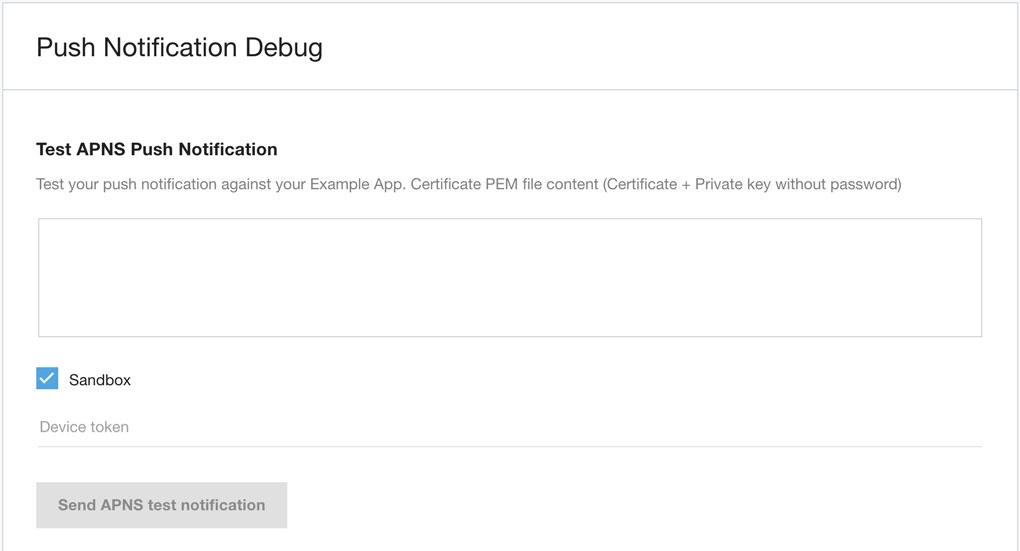
将设备令牌复制并粘贴到右侧的文本区域,然后选择正确的移动应用。
获取设备令牌
设备令牌字符串的示例如下所示:
7db0bc0044c8a203ed87cdab86a597a2c43bf16d82dae70e8d560e88253364b7
推送通知通常在符合 UIApplicationDelegate 或 PKPushRegistryDelegate 协议的类中设置。在某个时间点,您会获得设备令牌。您可以在将其传递给 iOS SDK 之前将其打印出来。如需获取设备令牌,请使用代码段。
Swift
func tokenFromData(data: Data) -> String {
  return data.map { String(format: "%02x", $0) }.joined()
}

func application(_ application: UIApplication, didRegisterForRemoteNotificationsWithDeviceToken deviceToken: Data) {
  print("apns token: ", tokenFromData(data: deviceToken))
  ...
}

func pushRegistry(_ registry: PKPushRegistry, didUpdate credentials: PKPushCredentials, for type: PKPushType) {
  print("voip token: ", tokenFromData(data: credentials.token))
  ...
}
Obj-C
- (NSString *)tokenFromData:(NSData *)data {
  const char *d = data.bytes;
  NSMutableString *token = [NSMutableString string];

  for (NSUInteger i = 0; i < data.length; i++) {
    [token appendFormat:@"%02.2hhX", d[i]];
  }

  return [[token copy] lowercaseString];
}

- (void)pushRegistry:(PKPushRegistry *)registry didUpdatePushCredentials:(PKPushCredentials *)credentials forType:(PKPushType)type {
  NSLog(@"voip token: %@", [self tokenFromData:credentials.token]);
  ...
}

- (void)application:(UIApplication *)application didRegisterForRemoteNotificationsWithDeviceToken:(NSData *)deviceToken {
  NSLog(@"apns token: %@", [self tokenFromData:deviceToken]);
}
结果
输入证书 PEM 文件和设备令牌后,点击相应按钮。
如果测试推送通知成功送达,结果会显示消息推送通知已成功配置。
推送通知不保证 100% 能够送达,具体取决于设备的网络连接。
项目配置
以下各部分概述了配置项目所需的更改。
功能
在目标设置中,开启以下功能:
推送通知
后台模式(检查这些项)
音频和 AirPlay
IP 语音
Info.plist
为保护用户隐私,在 iOS 10.0 及更高版本上链接的任何访问设备麦克风、照片库和相机的 iOS 应用都必须声明其意图。请在应用的 Info.plist 文件中添加以下键(附带字符串值),并为此键提供用途字符串。如果您的应用尝试访问设备的任何麦克风、照片库和摄像头,但没有相应的用途字符串,则应用会退出。
NSMicrophoneUsageDescription: 允许访问麦克风,以便拨打电话、与支持团队或问题排查团队对话,以及发送与产品咨询相关的含声音的视频。
NSCameraUsageDescription:允许客户使用相机拍摄并发送与客户支持咨询相关的照片。
NSPhotoLibraryUsageDescription:允许客户访问照片,以便发送与客户支持咨询相关的照片。
NSFaceIDUsageDescription:允许使用面容 ID 进行验证。
启动 iOS SDK
在您要启动 iOS SDK 的位置添加以下行:
[UJET startWithOptions:nil];
您还可以使用直接访问点,通过此键从菜单中的特定点启动 iOS SDK:
UJETStartOptions *option = [[UJETStartOptions alloc] initWithMenuKey:@"MENU_KEY"];
[UJET startWithOptions:option];
menuKey 可以通过创建直接访问点 (DAP) 来创建。以下步骤提供了有关如何创建 DAP 的指导:
使用管理员凭证登录 CCAI Platform 门户。
前往设置 > 队列。
从菜单结构中选择任意队列。
选择创建直接访问点
以文本形式输入密钥。
点击保存。
如果用户数据已更新,则清除本地缓存
我们会在钥匙串中缓存身份验证令牌,以便重复使用,并减少从宿主应用请求签名载荷的频率。SDK 会一直使用该令牌,直到令牌过期或通过 clearUserData 调用撤消。每当用户相关数据发生更改或更新(例如用户退出账号)时,宿主应用负责撤消此缓存。
[UJET clearUserData];
在启动 Contact Center AI 平台之前检查是否存在现有会话
在开始会话之前,请检查当前是否没有会话。当 userId 发生变化时,这一点尤为重要。
[UJET getStatus];
如果存在现有会话,我们应提示用户继续会话或取消操作:
if ([UJET getStatus] != UjetStatusNone) {
  // Display alert to cancel login or resume existing session
}
自定义
UJETGlobalTheme.h 中列出了多种 SDK 主题。
在 [UJET initialize] 之后设置主题,例如:
UJETGlobalTheme *theme = [UJETGlobalTheme new];

theme.font = [UIFont fontWithName:@"OpenSans" size: 16.0f];
theme.lightFont = [UIFont fontWithName:@"OpenSans-Light" size: 16.0f];
theme.boldFont = [UIFont fontWithName:@"OpenSans-Bold" size: 16.0f];
theme.tintColor = [UIColor colorWithRed:0.243 green:0.663 blue:0.965 alpha:1.00];

[Ujet setGlobalTheme:theme];
公司名称是从管理门户> 设置> 支持中心详细信息> 显示名称中检索的。
您可以设置徽标图片,而不是公司名称,如下所示:
theme.companyImage = [UIImage imageNamed:@"logo"];
如果图片过大,系统会调整其大小,使其适合该区域。
字符串
您还可以通过替换值来自定义字符串。例如,将以下键值对放在 Localizable.strings 中:
"ujet_greeting_title" = "Title";

"ujet_greeting_description" = "Description";
可自定义的字符串列在 ujet.strings 文件中。
深色模式
您可以为深色模式指定所需的颜色色调,以便更好地辨认字体。
@property (nonatomic, strong) UIColor \*tintColorForDarkMode;
如果您未设置该属性,则系统会在深色模式下使用 UJETGlobalTheme.tintColor。如果您的应用支持深色模式,建议您设置此属性。 如需了解如何为深色模式选择合适的色调,请参阅以下 Apple 文章:
Chat 主题
如需自定义聊天界面,您可以选择使用 JSON 字符串或每个主题类。
如需参考,请查看示例应用并取消注释 customizeChatTheme 方法。
func customizeChatTheme() throws {
  guard let file = Bundle.main.path(forResource: "chat-theme-custom", ofType: "json") else { return }
  let json = try String.init(contentsOfFile: file, encoding: .utf8)

  let chatTheme = UJETChatTheme.init(jsonString: json)

  let quickReplyTheme = UJETChatQuickReplyButtonTheme()
  quickReplyTheme.style = .individual
  quickReplyTheme.alignment = .right
  quickReplyTheme.backgroundColor = UJETColorRef(assetName: "white_color")
  quickReplyTheme.backgroundColorForHighlightedState = UJETColorRef(assetName: "quick_reply_color")
  quickReplyTheme.textColor = UJETColorRef(assetName: "quick_reply_color")
  quickReplyTheme.textColorForHighlightedState = UJETColorRef(assetName: "white_color")

  let fontTheme = UJETFontTheme()
  fontTheme.family = "Arial Rounded MT Bold"
  fontTheme.size = 14
  quickReplyTheme.font = fontTheme

  chatTheme?.quickReplyButtonTheme = quickReplyTheme

  let globalTheme = UJETGlobalTheme()
  globalTheme.chatTheme = chatTheme
  globalTheme.defaultAgentImage = UIImage(named: "agent_avatar_image")
  globalTheme.font = UIFont(name: "Arial Rounded MT Bold", size: 14)

  UJET.setGlobalTheme(globalTheme)
}
内容卡片主题
您可以添加内容卡片自定义设置以及聊天自定义设置。
您可以使用 JSON 文件(请参阅 content_card 属性)或使用 UJETChatContentCardTheme 类来执行此操作。
func customizeChatTheme() throws {
  guard let file = Bundle.main.path(forResource: "chat-theme-custom", ofType: "json") else { return }
  let json = try String.init(contentsOfFile: file, encoding: .utf8)

  let chatTheme = UJETChatTheme.init(jsonString: json)

  let contentCardTheme = UJETChatContentCardTheme()
  contentCardTheme.backgroundColor = UJETColorRef(assetName: "agent_message_background_color")
  contentCardTheme.cornerRadius = 16

  let contentCardFontTheme = UJETFontTheme()
  contentCardFontTheme.family = "Arial Rounded MT Bold"
  contentCardFontTheme.size = 18
  contentCardTheme.font = contentCardFontTheme

  let contentCardBorder = UJETBorderTheme()
  contentCardBorder.width =  1
  contentCardBorder.color = UJETColorRef(assetName: "agent_message_border_color")
  contentCardTheme.border = contentCardBorder

  let contentCardFontTheme = UJETFontTheme()
  contentCardFontTheme.family = "Arial Rounded MT Bold"
  contentCardFontTheme.size = 18
  contentCardTheme.font = contentCardFontTheme

  // The font family is inherited from the contentCardFontTheme
  let subtitle = UJETFontTheme()
  subtitle.size = 12
  contentCardTheme.subtitle = subtitle

  // The font family is inherited from the contentCardFontTheme
  let bodyFont = UJETFontTheme()
  bodyFont.size = 10
  contentCardTheme.body = bodyFont

  theme.chatTheme?.contentCard = contentCardTheme

  let globalTheme = UJETGlobalTheme()
  globalTheme.chatTheme = chatTheme
  globalTheme.defaultAgentImage = UIImage(named: "agent_avatar_image")
  globalTheme.font = UIFont(name: "Arial Rounded MT Bold", size: 14)

  UJET.setGlobalTheme(globalTheme)
}
表单卡主题
您可以同时添加表单卡片自定义设置和聊天自定义设置。您可以使用 JSON 文件(请参阅 form_card property)或使用 UJETChatFormCardTheme 类来执行此操作。
func customizeChatTheme() throws {
    guard let file = Bundle.main.path(forResource: "chat-theme-custom", ofType: "json") else { return }
    let json = try String.init(contentsOfFile: file, encoding: .utf8)

    let chatTheme = UJETChatTheme.init(jsonString: json)

    let formCardTheme = UJETChatFormCardTheme()
    formCardTheme.backgroundColor = UJETColorRef(assetName: "agent_message_background_color")
    formCardTheme.cornerRadius = 16

    let formCardFontTheme = UJETFontTheme()
    formCardFontTheme.family = "Arial Rounded MT Bold"
    formCardFontTheme.size = 18
    formCardTheme.font = formCardFontTheme

    let formCardBorder = UJETBorderTheme()
    formCardBorder.width =  1
    formCardBorder.color = UJETColorRef(assetName: "agent_message_border_color")
    formCardTheme.border = formCardBorder

    let titleFontTheme = UJETFontTheme()
    titleFontTheme.family = "Arial Rounded MT Bold"
    titleFontTheme.size = 18
    formCardTheme.title = titleFontTheme

    // The font family is inherited from the formCardFontTheme
    let subtitleFontTheme = UJETFontTheme()
    subtitleFontTheme.size = 12
    formCardTheme.subtitle = subtitleFontTheme

    chatTheme?.formCard = formCardTheme

    let globalTheme = UJETGlobalTheme()
    globalTheme.chatTheme = chatTheme
    globalTheme.defaultAgentImage = UIImage(named: "agent_avatar_image")
    globalTheme.font = UIFont(name: "Arial Rounded MT Bold", size: 14)

    UJET.setGlobalTheme(globalTheme)
}
Web 表单配置
如需配置 Web 表单功能,请实现 UJETDelegate 协议的 ujetWebFormDidReceive 方法。此方法会接收一个事件(一个 FormMessageReceivedEvent 字典)作为参数,其中包含与表单相关的信息。事件 (FormMessageReceivedEvent) 字典包含以下 JSON 结构:
  {
    "type": "form_message_received",
    "smart_action_id": 1,
    "external_form_id": "external_foobar"
    "signature": "4868a7e1dcb5..."
  }
如需处理该事件,请执行以下操作:
从事件字典(
smart_action_id、external_form_id和signature)中提取相关信息。为表单数据生成表单 URI 和签名。
使用
completion closure将表单数据作为FormDataEvent字典传递给 SDK。如果在 URI/签名生成期间发生任何错误,请使用
callback.onError()和Error调用回调。
传递给 SDK 的字典 (FormDataEvent) 应具有以下结构:
 {
    "type": "form_data",
    "signature": "4868a7e1dcb5...",
    "data": {
       "smart_action_id":1,
       "external_form_id": "form_id",
       "uri":"foobar"
    }
  }
签名 (HMAC-SHA:256) 必须使用 data 生成,并使用共享密钥令牌进行签名。在生成签名之前,数据的对象键必须按字母顺序排序,并且应将相同的 data 发送到 SDK。
会话后转移
您可以添加会后虚拟助理的自定义设置,以及聊天自定义设置。
这可以通过使用 JSON 文件(请参阅 post_session 属性)或使用 UJETChatPostSessionVaTheme 类来实现。边框宽度只能为 0 或 1,如果您不想区分会话后 VA 体验,可以将 containerColor 设置为白色,并将边框设置为 0。
func customizeChatTheme() throws {
    guard let file = Bundle.main.path(forResource: "chat-theme-custom", ofType: "json") else { return }
    let json = try String.init(contentsOfFile: file, encoding: .utf8)

    let chatTheme = UJETChatTheme.init(jsonString: json)

    let postSessionVaTheme = UJETChatPostSessionVaTheme()
    postSessionVaTheme.containerColor = UJETColorRef(assetName: "white_color")

    let postSessionVaBorder = UJETBorderTheme()
    postSessionVaBorder.width =  0
    postSessionVaBorder.color = UJETColorRef(assetName: "white_color")
    containerColor.border = postSessionVaBorder

    chatTheme?.postSessionVaTheme = postSessionVaTheme

    let globalTheme = UJETGlobalTheme()
    globalTheme.chatTheme = chatTheme

    UJET.setGlobalTheme(globalTheme)
}
Chat 操作菜单
您可以同时添加聊天操作菜单的自定义设置和聊天自定义设置。您可以使用 JSON 文件(请参阅 form_card 属性)或使用 UJETChatActionMenuTheme 类来实现此目的。
func customizeChatTheme() throws {
    guard let file = Bundle.main.path(forResource: "chat-theme-custom", ofType: "json") else { return }
    let json = try String.init(contentsOfFile: file, encoding: .utf8)

    let chatTheme = UJETChatTheme.init(jsonString: json)

    let actionMenuTheme = UJETChatActionMenuTheme()

    let photoLibraryIcon = UJETChatUserInputIconTheme()
    photoLibraryIcon.visible = true
    photoLibraryIcon.image = UJETImageRef(assetName: "library_button_asset")

    let cameraIcon = UJETChatUserInputIconTheme()
    cameraIcon.visible = true
    cameraIcon.image = UJETImageRef(assetName: "camera_button_asset")

    let cobrowseIcon = UJETChatUserInputIconTheme()
    cobrowseIcon.visible = true
    cobrowseIcon.image = UJETImageRef(assetName: "cobrowse_button_asset")

    actionMenuTheme.libraryIcon = photoLibraryIcon
    actionMenuTheme.cameraIcon = cameraIcon
    actionMenuTheme.cobrowseIcon = cobrowseIcon

    chatTheme?.actionMenu = actionMenuTheme

    let globalTheme = UJETGlobalTheme()
    globalTheme.chatTheme = chatTheme

    UJET.setGlobalTheme(globalTheme)
}
其他外观
您还可以自定义其他外观,例如字号和背景颜色。
theme.supportTitleLabelFontSize = 30;
theme.supportDescriptionLabelFontSize = 20;
theme.supportPickerViewFontSize = 30;
theme.staticFontSizeInSupportPickerView = YES;

theme.backgroundColor = UIColor.darkGrayColor;
theme.backgroundColorForDarkMode = UIColor.lightGrayColor;
CallKit
在 iOS 10.0 及更高版本中,系统会为所有通话启用 CallKit。
借助 CallKit,它会在通话屏幕上显示应用内来电,并在手机的通话记录中显示该通话。
如需从通话记录中开始新的 CCAI 平台支持会话,请将以下代码块添加到 AppDelegate.m 中:
AppDelegate.m:
- (BOOL)application:(UIApplication *)app continueUserActivity:(nonnull NSUserActivity *)userActivity restorationHandler:(nonnull void (^)(NSArray * _Nullable))restorationHandler {
    if ([userActivity.activityType isEqualToString:@"INStartAudioCallIntent"]) {
        // Open app from Call history
        [UJET startWithOptions:nil];
    }

    return YES;
}
CallKit 允许在设备处于锁定状态时接听来电时,在锁定屏幕上显示 40x40 图标。在名为“icon-call-kit”的 Xcassets 中放置图片。
配置 SDK
您可以在启动 SDK 之前设置多个选项。
如需了解详情,请查看 UJETGlobalOptions 类。
UJETGlobalOptions *options = [UJETGlobalOptions new];
options.fallbackPhoneNumber = @"+18001112222";
options.preferredLanguage = @"en";

[UJET setGlobalOptions:options];
显示或隐藏“下载转写内容”按钮
您可以配置 SDK,以在聊天选项菜单和聊天后界面中显示或隐藏“下载转写内容”按钮。
以下代码展示了如何配置“下载转写内容”按钮:
typedef NS_OPTIONS(NSUInteger, UJETChatDownloadTranscriptVisibilityOptions) {
    UJETChatDownloadTranscriptVisibilityOptionsShowAll = 0,
    UJETChatDownloadTranscriptVisibilityOptionsHideFromOptionsMenu = 1 << 0,
    UJETChatDownloadTranscriptVisibilityOptionsHideFromPostChatScreen = 1 << 1,
    UJETChatDownloadTranscriptVisibilityOptionsHideAll = UJETChatDownloadTranscriptVisibilityOptionsHideFromOptionsMenu | UJETChatDownloadTranscriptVisibilityOptionsHideFromPostChatScreen
};

@property (nonatomic, assign) UJETChatDownloadTranscriptVisibilityOptions transcriptVisibilityOptions;
PSTN 回退
在以下几种情况下,我们会提供 PSTN 回退:
移动网络已离线。
无法访问应用后端。
VoIP 不可用
网络状况不佳,无法连接。如需了解详情,请参阅 UJETGlobalOptions.pstnFallbackSensitivity 属性。
由于防火墙配置或提供商问题,连接期间发生故障。
建议您在 UJETGlobalOptions.fallbackPhoneNumber 中设置公司 IVR 号码。建议的格式是“+”后跟国家/地区代码和手机号码。例如:+18001112222。
PSTN 回退敏感度
您可以调整检查网络状况以进行 PSTN 回退的灵敏度级别。
@property (nonatomic, assign) float pstnFallbackSensitivity;
值必须在 0.0 到 1.0 的范围内。如果设置为 1,通话将始终通过 PSTN 而不是 VoIP 进行连接。如果值为 0,则最大延迟和最小带宽阈值分别为 10000 毫秒和 10KB/秒。例如,值为 0.5 表示最低延迟时间和带宽分别为 5000 毫秒和 15KB/秒。
您可以按照以下步骤配置此值:
以管理员身份登录 CCAI 平台门户。
依次前往设置 > 开发者设置 > 移动应用。
找到“回退手机号码阈值”部分。默认值为 0.85。
指定新的阈值。
点击保存。
在全局层面关闭推送通知
您可以在全局范围内关闭推送通知。将以下属性设置为 false 会绕过所有推送通知依赖项,并阻止推送通知到达最终用户:
@property (nonatomic, assign) BOOL allowsPushNotifications;
忽略深色模式
您可以使用以下属性专门忽略 CCAI 平台 SDK 中的深色模式:
@property (nonatomic, assign) BOOL ignoreDarkMode;
隐藏状态栏
您可以使用此属性控制状态栏的可见性:
@property (nonatomic, assign) BOOL hideStatusBar;
默认情况下,hideStatusBar 设置为 false 和 visible。
跳过 CSAT 调查问卷
您可以添加一个按钮,让用户跳过 CSAT 调查问卷。以下代码示例展示了如何添加按钮:
let options = UJETGlobalOptions()
options.skipCsat = true
非工作时间聊天签到选项
如果您的聊天队列使用聊天签到,您可以控制非工作时间聊天签到屏幕上显示的内容。这两个选项都是 UJETGlobalOptions 的属性。
// YES to hide the "Next availability" message on the after-hours
// chat check-in screen. Default is NO.
@property (nonatomic, assign) BOOL hideNextAvailability;

// YES to hide the "Start over" button on the after-hours chat
// check-in screen. Default is NO.
@property (nonatomic, assign) BOOL hideStartOver;
自定义活动指示器
您可以向 SDK 添加自己的加载动画(在 UIView 内),并替换默认的 UIActivityIndicatorView。实现 UJETDelegate 中的 ujet_activityIndicator 方法,并返回自定义视图。
public func ujet_activityIndicator() -> UIView! {
    let loader = UIView.init()
    let animation = CABasicAnimation()
    loader.backgroundColor = .blue
    loader.layer.cornerRadius = 15
    animation.timingFunction = CAMediaTimingFunction.init(name: CAMediaTimingFunctionName.easeOut)
    animation.keyPath = "transform.scale"
    animation.duration = 1.0
    animation.fromValue = 0.0
    animation.toValue = 1.0
    animation.repeatCount = Float.infinity
    animation.isRemovedOnCompletion = false
    loader.layer.add(animation, forKey: "Load")

    return loader
}
如果您已在应用的 Info.plist 中将 UIUserInterfaceStyle 设置为 Light 以完全选择停用深色模式,则可以忽略此属性。
首选语言
CCAI 平台 SDK 将使用以下优先级顺序来确定首选语言。
从应用内的启动画面中选择的语言。
默认语言已从
UJETGlobalOptions中选择。您可以使用preferredLanguage属性设置默认语言。您可以在UJETGlobalOptions.h文件中找到支持的语言代码。如果应用支持,系统将使用在设备中选择的设备语言(依次点击设置 > 常规 > 语言和地区)。
如果应用不支持设备语言,但支持其最接近的父方言,则会使用设备语言的最接近方言。例如,如果用户在设备中选择的语言是“西班牙语(古巴)”,但应用不支持“西班牙语(古巴)”,但支持父方言“西班牙语”,则系统会使用“西班牙语”。
如果应用不支持设备语言,则会使用英语。
配置外部转接链接图标
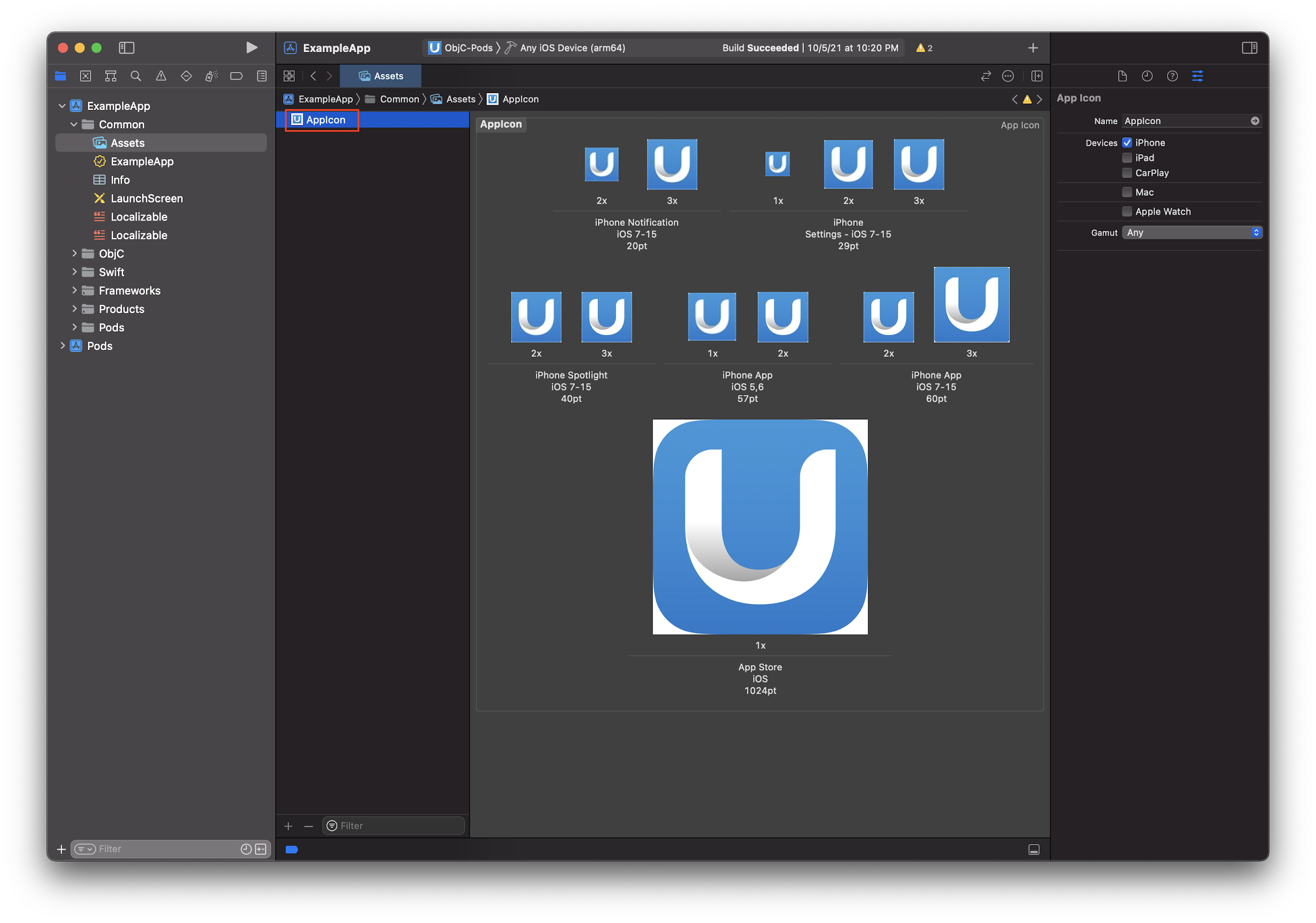
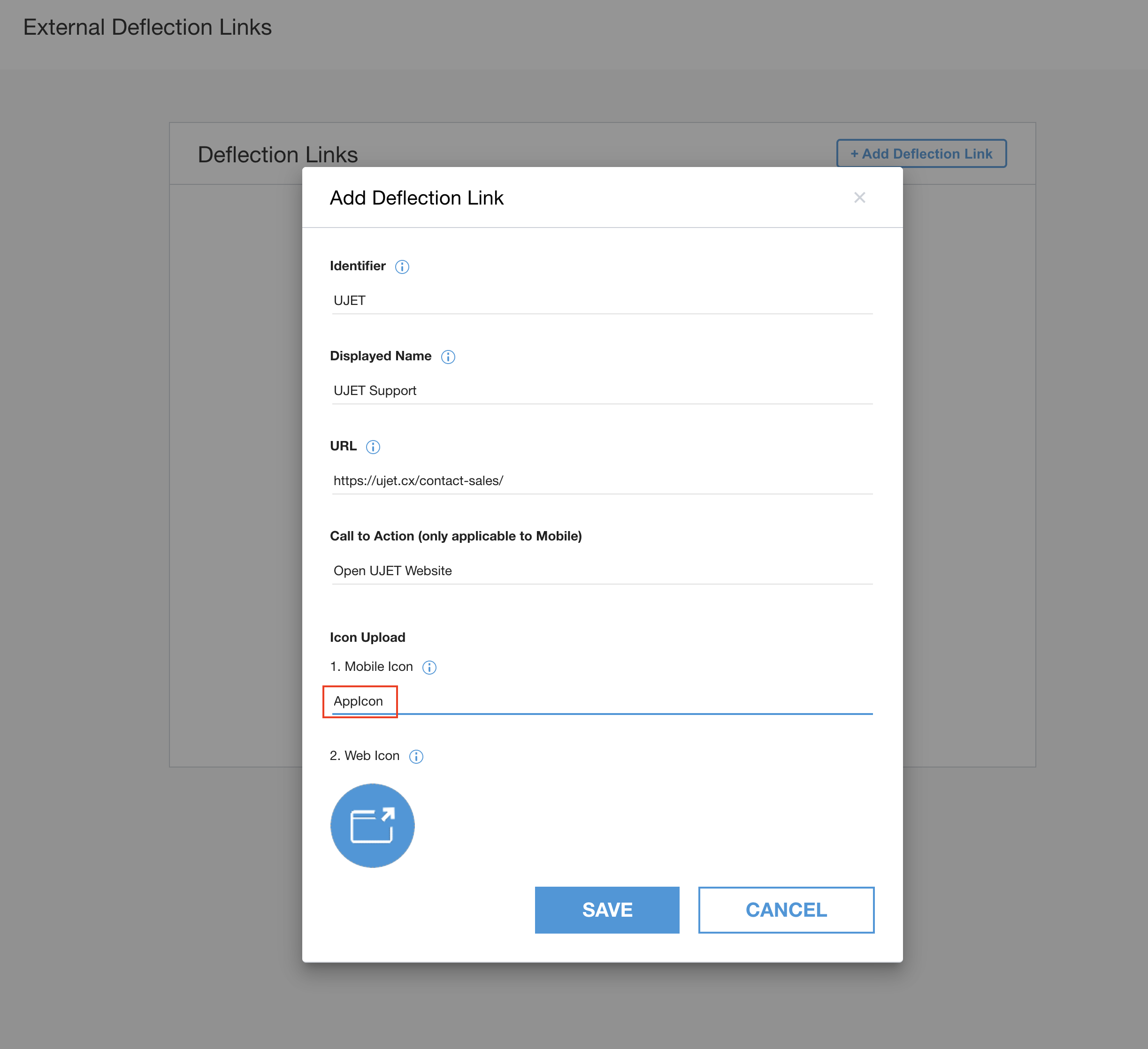
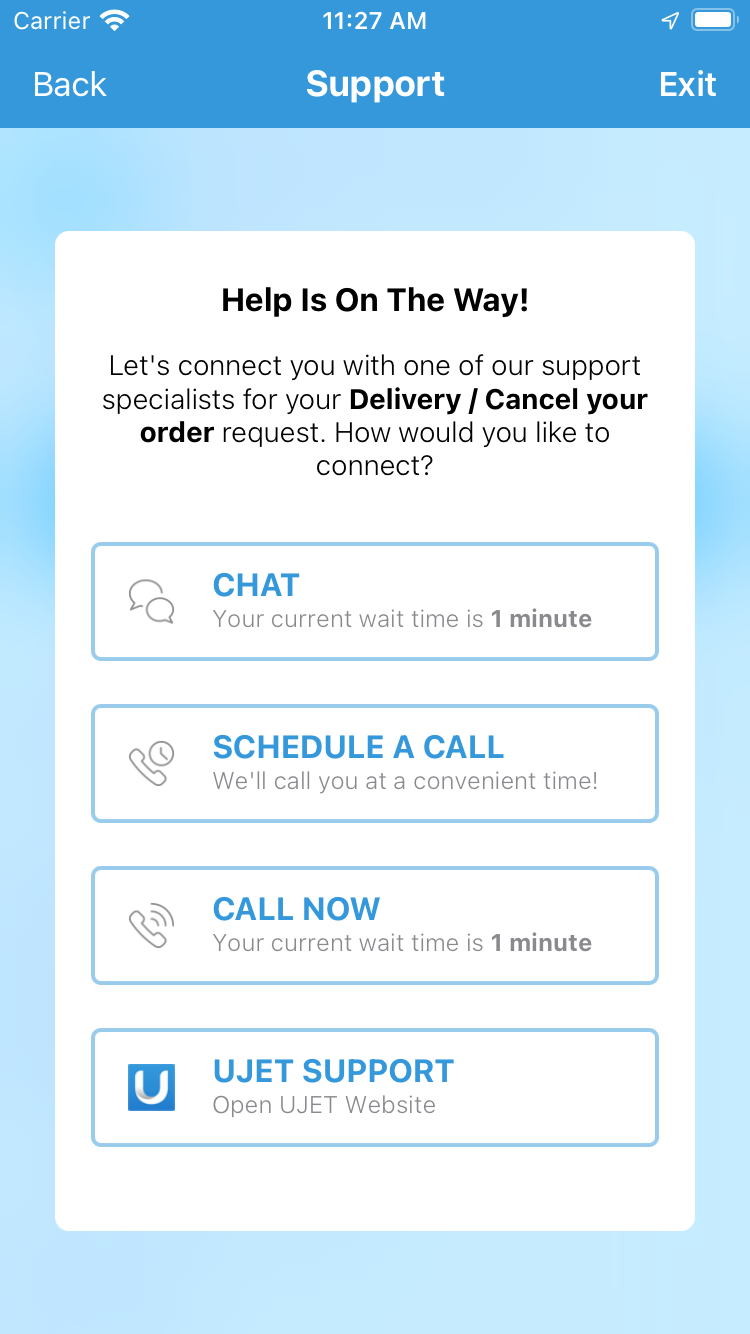
您可以自定义外部分流链接渠道中的图标,方法是将图标上传到应用的资源目录中,并确保在管理门户中依次前往“设置”>“Chat”>“外部分流链接”>“查看链接”>“添加分流链接”以创建外部分流链接时使用相同的图标名称。如果管理门户中的图标名称与上传到应用中的图标不一致,SDK 将使用默认图标。您可以点击此链接,了解如何在资产目录中添加图片。
向 CRM 发送自定义数据
您可以向 CRM 工单发送自定义数据。
您可以通过以下两种方法发送自定义数据:
安全方法:使用 JWT 预定义数据签名。
不安全的方法:使用纯 JSON 的预定义数据(不推荐)。
使用安全方法发送自定义数据
您必须实现签名方法。首先,您可以在客户端放置自定义数据,然后将其发送到服务器进行签名。您可以在服务器上添加定义好的表单,使用 company.secret 对其进行签名,并通过 JWT 返回。
- (void)signPayload:(NSDictionary *)payload payloadType:(UjetPayloadType)payloadType success:(void (^)(NSString *))success failure:(void (^)(NSError *))failure
{
    if (payloadType == UjetPayloadCustomData) {
      // sign custom data using UJET_COMPANY_SECRET on your server.

      NSURLSessionConfiguration *sessionConfiguration = [NSURLSessionConfiguration defaultSessionConfiguration];
      NSURLSession *session = [NSURLSession sessionWithConfiguration:sessionConfiguration];

      NSMutableURLRequest *mutableRequest = [[NSMutableURLRequest alloc] init];
      mutableRequest.URL = [NSURL URLWithString:@"https://your.company.com/api/ujet/sign/custom_data"];
      mutableRequest.HTTPMethod = @"POST";
      NSError *error;

      // Make client's custom data
      UJETCustomData *customData = [[UJETCustomData alloc] init];
      [customData set:@"name" label:@"Name" stringValue:@"USER_NAME"];
      [customData set:@"os_version" label:@"OS Version" stringValue:[[UIDevice currentDevice] systemVersion]];
      [customData set:@"model" label:@"Model number" numberValue:[NSNumber numberWithInteger:1234]];
      [customData set:@"temperature" label:@"Temperature" numberValue:[NSNumber numberWithFloat:70.5]];
      [customData set:@"purchase_date" label:@"Purchase Date" dateValue:[NSDate date]];
      [customData set:@"dashboard_url" label:@"Dashboard" urlValue:[NSURL URLWithString:@"http://internal.dashboard.com/1234"]];

      NSDictionary *data = @{@"custom_data": [customData getData]};
      mutableRequest.HTTPBody = [NSJSONSerialization dataWithJSONObject:data options:0 error:&error];
      NSURLSessionDataTask *task = [session dataTaskWithRequest:mutableRequest completionHandler:^(NSData *data, NSURLResponse *response, NSError *error) {
          if(error) {
              failure(error);
          }
          else {
              NSDictionary *json = [NSJSONSerialization JSONObjectWithData:data options:0 error:nil];
              success(json[@"jwt"]);
          }
      }];

      [task resume];
    }
}
使用不安全的方法发送自定义数据
不建议使用此方法,因为它会造成潜在的漏洞,可能会使您的应用遭受中间人攻击。如果您选择使用此方法,我们不对可能发生的安全风险和潜在损害负责。我们建议您使用前面介绍的安全方法在应用中发送自定义数据。或者,您也可以只使用 UJETCustomData 实例启动 iOS SDK。在这种情况下,UJETPayloadCustomData 的 signPayload 委托应仅调用 success(nil);。
- (void)signPayload:(NSDictionary *)payload payloadType:(UjetPayloadType)payloadType success:(void (^)(NSString *))success failure:(void (^)(NSError *))failure {
    if (payloadType == UjetPayloadCustomData) {
      success(nil);
    }
}
UJETStartOptions *options = [UJETStartOptions new];
options.unsignedCustomData = customData;

[UJET startWithOptions:options];
使用未签名的自定义数据发送外部聊天记录
当 SDK 通过未签名的自定义数据启动时,您可以通过调用 setExternalChatTransfer: 或 setExternalChatTransferWithDictionary: 方法将聊天记录发送到 SDK,以分别使用 NSString 或 NSDictionary 设置 JSON 数据。
UJETCustomData *customData = [UJETCustomData new];
[customData setExternalChatTransfer:jsonString];

UJETStartOptions *options = [UJETStartOptions new];
options.unsignedCustomData = customData;

[UJET startWithOptions:options];
JSON 格式:
greeting_override:字符串agent:字典name:字符串avatar:字符串 [代理头像的网址,可选]
transcript:数组sender:字符串 [end_user或agent]timestamp:字符串 [例如,2021-03-15 12:00:00Z]content:数组type:字符串 [text、media中的一个]text:字符串 [文本类型必需]media:字典 [媒体类型必需]type:字符串 [图片、视频之一]url:字符串 [指向媒体文件的公开网址]
JSON 示例:
{
  "greeting_override": "Please hold while we connect you with a human agent.",
  "agent": {
    "name": "Name",
    "avatar": "avatar url"
  },
  "transcript": [
    {
      "sender": "agent",
      "timestamp": "2021-03-15 12:00:15Z",
      "content": [
        {
          "type": "text",
          "text": "**Suggestions shown:**\n\n* Help with batch or delivery\n* Help with metrics or order feedback\n* Help with Instant Cashout"
        }
      ]
    },
    {
      "sender": "end_user",
      "timestamp": "2021-03-15 12:00:16Z",
      "content": [
        {
          "type": "text",
          "text": "Help with batch or delivery"
        }
      ]
    }
  ]
}
您可以在文本类型中使用 Markdown。支持的语法包括斜体、粗体、项目符号列表、超链接和下划线 (--text--)。
自定义数据示例
JSON 编码为 JWT
JSON 文件应验证 JWT。自定义数据对象是 custom_data 键的值。
{
  "iat" : 1537399656,
  "exp" : 1537400256,
  "custom_data" : {
    "location" : {
      "label" : "Location",
      "value" : "1000 Stockton St, San Francisco, CA, United States",
      "type" : "string"
    },
    "dashboard_url" : {
      "label" : "Dashboard URL",
      "value" : "http://(company_name)/dashboard/device_user_ID",
      "type" : "url"
    },
    "contact_date" : {
      "label" : "Contact Date",
      "value" : 1537399655992,
      "type" : "date"
    },
    "membership_number" : {
      "label" : "Membership Number",
      "value" : 62303,
      "type" : "number"
    },
    "model" : {
      "label" : "Model",
      "value" : "iPhone",
      "type" : "string"
    },
    "os_version" : {
      "label" : "OS Version",
      "value" : "12.0",
      "type" : "string"
    },
    "last_transaction_id" : {
      "label" : "Last Transaction ID",
      "value" : "243324DE-01A1-4F71-BABC-3572B77AC487",
      "type" : "string"
    },
    "battery" : {
      "label" : "Battery",
      "value" : "-100%",
      "type" : "string"
    },
    "bluetooth" : {
      "label" : "Bluetooth",
      "value" : "Bluetooth not supported",
      "type" : "string"
    },
    "wifi" : {
      "label" : "Wi-Fi",
      "value" : "Wi-Fi not connected",
      "type" : "string"
    },
    "ssn" : {
      "invisible_to_agent" : true,
      "label" : "Social Security Number",
      "value" : "102-186-1837",
      "type" : "string"
    }
  }
}
每个数据都类似于 JSON 对象格式,应包含键、值、类型和标签。
键是数据的唯一标识符。标签是 CRM 页面上的显示名称。类型是值的类型。
字符串
- JSON 字符串
数值
- 整数、浮点数
日期
- 采用 13 位数的 UTC Unix 时间戳格式。(包含毫秒)
网址
- HTTP 网址格式
CRM 示例
以下是一个 CRM 示例。
位置
使用 CoreLocation 框架。如需了解详情,请参阅 AppDelegate.m。
设备操作系统版本
[customData set:@"os_version" label:@"OS Version" stringValue:[[UIDevice currentDevice] systemVersion]];
防止显示自定义数据
您可以将 invisible_to_agent 属性与自定义数据对象搭配使用,以防止在代理适配器中显示已签名或未签名的自定义数据。在上述示例中,代理适配器中未显示最终用户的社会保障号,因为 "invisible_to_agent" : true 包含在 ssn 对象中。
如果您在自定义数据对象中添加 "invisible_to_agent" : true 属性,则会发生以下行为:
- 自定义数据包含在会话元数据文件中。
- 自定义数据不包含在 CRM 记录中。
如需了解详情,请参阅在代理适配器中查看会话数据。
预留的数据属性
您可以在会话开始时,以签名自定义数据的形式将预留数据属性发送到 Contact Center AI 平台 (CCAI Platform)。如需了解详情,请参阅发送预留数据属性。
以下是自定义数据中预留的数据属性的示例:
  {
    "custom_data": {
      "reserved_verified_customer": {
        "label": "Verified Customer",
        "value": "VERIFIED_CUSTOMER_BOOLEAN": ,
        "type": "boolean"
      },
      "reserved_bad_actor": {
        "label": "Bad Actor",
        "value": "VERIFIED_BAD_ACTOR_BOOLEAN": ,
        "type": "boolean"
      },
      "reserved_repeat_customer": {
        "label": "Repeat Customer",
        "value": "REPEAT_CUSTOMER_BOOLEAN": ,
        "type": "boolean"
      }
    }
  }
替换以下内容:
VERIFIED_CUSTOMER_BOOLEAN:如果您认为相应最终用户是合法客户,则为 True。VERIFIED_BAD_ACTOR_BOOLEAN:如果您认为此最终用户可能是作恶方,则为 True。REPEAT_CUSTOMER_BOOLEAN:如果已确定相应最终用户之前曾联系过您的联络中心,则为 True。
自定义 Flow
断开 CCAI 平台以处理宿主应用事件
// CCAI Platform is connected
...
// An event has come
[UJET disconnect:^{
  // Handle an event
}];
推迟 CCAI Platform 来电或聊天
实现用于处理传入事件的委托方法
- (BOOL)shouldConnectUjetIncoming:(NSString *)identifier forType:(UjetIncomingType)type {
  if (weDoingSomething) {
    // save identifier and type
    return NO; // postpone
  } else {
    return YES;
  }
}
关联已延期的活动
[UJET connect:identifier forType:UjetIncomingTypeCall];
设置深层链接
这样一来,PSTN 通话中的客服人员就可以通过短信使用智能操作,无论最终用户是否安装了该应用。
在 CCAI 平台门户中,依次前往设置 > 操作管理 > 启用“发送短信以下载应用”。
配置通用链接或自定义网址架构后,您可以将应用网址设置为网页网址(例如 https://your-company.com/support)。 您可以选择任一方式。
实现委托方法来处理深层链接
通用链接和自定义网址分别类似于 https://your-company.com/support?call_id=x&nonce=y 和 your-company://support?call_id=x&nonce=y。在管理门户中,将不含查询参数的链接放在“应用网址”下方。例如,如果使用自定义网址协议,则放置 your-company://support。
在委托方法中,请务必确保仅当通用链接或自定义网址中的网址路径和参数是 CCAI 平台特有的时,才调用 [UJET start]。
- (BOOL)application:(UIApplication *)app continueUserActivity:(nonnull NSUserActivity *)userActivity restorationHandler:(nonnull void (^)(NSArray * _Nullable))restorationHandler {
  ...
  if ([NSUserActivityTypeBrowsingWeb isEqualToString:userActivity.activityType]) {
    NSURL *url = userActivity.webpageURL;

    NSArray *availableSchema = @[
                                  @"your-company",   // custom URL scheme
                                  @"https"           // universal link
                                  ];

    NSArray *availableHostAndPath = @[
                                      @"ujet",                  // custom URL scheme
                                      @"your-comany.com/ujet"   // universal link
                                      ];

    if (![availableSchema containsObject:url.scheme]) {
      return NO;
    }

    NSString *hostAndPath = [NSString stringWithFormat:@"%@%@", url.host, url.path];
    if (![availableHostAndPath containsObject:hostAndPath]) {
      return NO;
    }

    // your-company://ujet?call_id={call_id}&nonce={nonce}
    // https://your-company.com/ujet?call_id={call_id}&nonce={nonce}
    NSURLComponents *urlComponents = [NSURLComponents componentsWithURL:url
                                                resolvingAgainstBaseURL:NO];
    NSArray *queryItems = urlComponents.queryItems;
    NSString *callId = [self valueForKey:@"call_id" fromQueryItems:queryItems];
    // validate call id
    if (![self isValidCallId:callId]) {
      return NO;
    }
    NSString *nonce = [self valueForKey:@"nonce" fromQueryItems:queryItems];

    UJETStartOptions *options = [[UJETStartOptions alloc] initWithCallId:callId nonce:nonce];

    [UJET startWithOptions:options];
  }
  ...
}
如果您的应用采用 UIWindowSceneDelegate,请添加以下代码段:
class SceneDelegate: UIResponder, UIWindowSceneDelegate {

    var window: UIWindow?

    func scene(_ scene: UIScene, willConnectTo session: UISceneSession, options connectionOptions: UIScene.ConnectionOptions) {

        //if app is called with universal Link and started from cold
        if connectionOptions.urlContexts.first != nil  {
            self.scene(scene, openURLContexts: connectionOptions.urlContexts)
        }

        guard let _ = (scene as? UIWindowScene) else { return }
    }

    func scene(_ scene: UIScene, willContinueUserActivityWithType userActivityType: String) {
        guard let appDelegate = UIApplication.shared.delegate as? AppDelegate else { return }
        let _ = appDelegate.application(UIApplication.shared,
                                        continue: NSUserActivity(activityType: userActivityType)) { _ in

        }
    }

    func scene(_ scene: UIScene, openURLContexts URLContexts: Set<UIOpenURLContext>) {
        guard let url = URLContexts.first?.url else {
            return
        }

        guard let appDelegate = UIApplication.shared.delegate as? AppDelegate else { return }
        let _ = appDelegate.application(UIApplication.shared,
                                        open: url,
                                        options: [:])
    }
}
如需了解详情,请参阅 UJETObject+DeepLink 文件中的示例代码。
观察 CCAI 平台事件
我们通过 NSNotificationCenter.defaultCenter 发布以下事件。您可以监听这些事件,并根据自己的使用情形(例如自定义键盘布局)自定义流程。
UJETEventEmailDidClick
- 队列菜单数据
UJETEventEmailDidSubmit
队列菜单数据
has_attachment: (NSNumber) @YES, @NO
UJETEventSessionViewDidAppear
type: @"call", @"chat"
时间戳:(NSString) ISO 8601
UJETEventSessionViewDidDisappear
type: @"call", @"chat"
时间戳:(NSString) ISO 8601
UJETEventSessionDidCreate
- 会话数据
UJETEventSessionDidEnd
会话数据
agent_name:(NSString)如果客服人员未加入,则为 null
时长:(NSNumber) 仅限通话
ended_by: (NSString)
type=call: @"agent", @"end_user"
type=chat:@"agent"、@"end_user"、@"timeout"、@"dismissed"
UJETEventSdkDidTerminate
UJETEventPostSessionOptInDidSelected
- opt_in_selected: (NSString) @"Yes"、@"No"
事件数据
元数据
application: @"iOS"
app_id:(NSString) 软件包标识符
app_version: (NSString)
公司:(NSString) 子网域
device_model: (NSString)
device_version: (NSString)
sdk_version: (NSString)
时间戳:(NSString) ISO 8601
将菜单数据加入队列
元数据
menu_id: NSString
menu_key: NSString, nullable
menu_name:NSString
menu_path : NSString
会话数据
元数据
session_id: NSString
type: @"call", @"chat"
end_user_identifier: NSString
设置屏幕共享
如果您想使用屏幕共享功能,请集成 UJETCobrowseKit.xcframework。
CocoaPods:将以下子规范添加到您的应用目标。
    ruby
target 'MyApp' do
  pod 'UJET'
  pod 'UJET/Cobrowse'
end
Carthage:在 Cartfile 中添加以下代码行:
binary "https://sdk.ujet.co/ios/UJETKit.json"
SwiftPM:选择 UJET 和 UJETCobrowse 产品,然后将其添加到应用目标中。
并设置 UJETGlobalOptions.cobrowseKey 属性。
swift
let options = UJETGlobalOptions()
options.cobrowseKey = cobrowseKey

UJET.setGlobalOptions(options)
完整设备屏幕共享(可选)
通过全设备屏幕共享,支持代理可以查看您自己应用以外的应用的屏幕。当支持代理需要检查系统设置的状态,或者需要查看用户在多个应用之间导航时,此功能通常非常有用。如果您不想使用此功能,可以跳过此部分。
自定义屏幕共享意见征求对话框
如需自定义屏幕共享权限请求对话框,您需要在提供程序类中实现 UJETCobrowseAlertProvider 协议。在此实现中,通过相应协议方法返回自定义 UIViewController 或任何其他继承自 UIViewController 的对象。UIViewController应包含两个按钮,一个用于接受,另一个用于拒绝。
获得用户同意后,通过调用闭包 consentStatus 将用户同意传递到我们的 SDK。来自cobrowseFullDeviceRequestAlert的UIViewController。委托应包含带有标题的 RPSystemBroadcastPickerView(请参见下面的示例代码),并且应包含另一个拒绝按钮。在点击“拒绝”按钮时调用已关闭的闭包。
class CobrowseAlertProvider: NSObject, UJETCobrowseAlertProvider {
    func cobrowseSessionInitializationAlert(consentStatus: @escaping (Bool) -> Void) -> UIViewController? {
        let customAlertViewController = CustomAlertViewController()
        customAlertViewController.consentStatus = consentStatus
        return customAlertViewController
    }

    func cobrowseSessionRequestAlert(consentStatus: @escaping (Bool) -> Void) -> UIViewController? {
        // Same as cobrowseSessionInitializationAlert
    }

    func cobrowseRemoteRequestAlert(consentStatus: @escaping (Bool) -> Void) -> UIViewController? {
        // Same as cobrowseSessionInitializationAlert
    }

    func cobrowseFullDeviceRequestAlert(dismissed: @escaping () -> Void) -> UIViewController? {
        let customAlertViewController = CustomFullDeviceAlertViewController()
        cobrowseSessionAlertViewController.dismissed = dismissed
        return customAlertViewController
    }

    func cobrowseSessionEndAlert(consentStatus: @escaping (Bool) -> Void) -> UIViewController? {
        // Same as cobrowseSessionInitializationAlert
    }
}
自定义视图控制器应具有一个闭包,用于将同意情况传递给 SDK。
class CustomAlertViewController: UIViewController {
    var consentStatus: ((Bool) -> Void)?

    @IBAction func allowButtonClicked(_ sender: Any) {
        dismiss(animated: true) {[weak self] in
            self?.consentStatus?(true)
        }
    }

    @IBAction func denyButtonClicked(_ sender: Any) {
        dismiss(animated: true) {[weak self] in
            self?.consentStatus?(false)
        }
    }
}
用于显示完整设备请求提醒的自定义视图控制器应具有 RPSystemBroadcastPickerView 和一个用于将 dismiss 状态传递给 SDK 的闭包。
class CustomFullDeviceAlertViewController: UIViewController {
    var broadcastPickerView: RPSystemBroadcastPickerView!
    var dismissed: (() -> Void)?

    override func viewDidLoad() {
        super.viewDidLoad()

        let frame = CGRect(x: x, y: y, width: 50, height: 50) // Set your own value
        broadcastPickerView = RPSystemBroadcastPickerView(frame: frame)
        broadcastPickerView.preferredExtension = Bundle.main.object(forInfoDictionaryKey: "CBIOBroadcastExtension") as? String // Should have this value as it is
        view.addSubview(broadcastPickerView)
    }

    @IBAction func denyButtonClicked(_ sender: Any) {
        dismiss(animated: true) {[weak self] in
            self?.dismissed?()
        }
    }
}
别忘了通过以下 API 将此提供程序传递给我们的 SDK:
let provider = CobrowseAlertProvider()
UJET.setCobrowseAlertProvider(provider)
广播扩展服务
此功能需要添加广播扩展服务。
打开您的 Xcode 项目。
依次选择 File > Target。
选择广播上传扩展服务。
输入目标的名称。
取消选中包含界面扩展程序。
创建目标,并记下其软件包 ID。
将广播扩展程序的目标 SDK 更改为 iOS 12.0 或更高版本。
集成 SDK
CocoaPods:将以下子规范添加到您的扩展程序目标:
target 'MyApp' do
  pod 'UJET'
  pod 'UJET/Cobrowse'
end
target 'MyAppExtension' do
  pod 'UJET/CobrowseExtension'
end
如果您使用的是 SwiftPM,请选择 UJETCobrowseExtension 产品并将其添加到您的扩展程序目标中。
设置密钥链共享
您的应用和之前创建的应用扩展程序需要通过 iOS Keychain 共享一些密钥。它们使用自己的密钥链群组来实现此目的,因此与您其余应用的密钥链隔离开来。
在应用目标和扩展目标中,为 io.cobrowse 密钥链群组添加密钥链
共享授权。
将软件包 ID 添加到 plist 中
获取您之前创建的扩展程序的软件包 ID,然后在应用的 Info.plist(注意:不是扩展程序的 Info.plist)中添加以下条目,并将以下软件包 ID 替换为您自己的:
xml
<key>CBIOBroadcastExtension</key>
<string>your.app.extension.bundle.ID.here</string>
实现扩展程序
Xcode 会将 SampleHandler.m 和 SampleHandler.h(或 SampleHander.swift)文件添加为您之前创建的目标的一部分。将文件的内容替换为以下内容:
Swift:选择 UJETCobrowseExtension 产品并将其添加到您的扩展程序目标中:
import CobrowseIOAppExtension
class SampleHandler: CobrowseIOReplayKitExtension {
}
ObjC
objc// SampleHandler.h
@import CobrowseIOAppExtension;
@interface SampleHandler : CobrowseIOReplayKitExtension
@end// SampleHandler.m
#import "SampleHandler.h"
@implementation SampleHandler
@end
构建并运行您的应用
现在,您可以构建并运行应用了。完整的设备功能仅在实体设备上可用,在 iOS 模拟器中无法使用。
最小化 SDK
当聊天会话或通话正在进行时,Contact Center AI 平台 SDK 可以最小化。当您希望在收到 SDK 事件(例如内容卡片点击)后将用户引导回应用时,此功能非常有用。为了尽可能减少 SDK 并吸引用户返回您的应用,您可以使用:
UJET.minimize(nil)
 // Or if you want to take some action once the SDK has been minimized:

UJET.minimize {
  // Add the code you want to run once the SDK has been minimized here
}
后备
您可以使用 didHandleUjetError 函数来处理意外错误。如果您不使用此函数或此函数返回 false,iOS SDK 会处理相应错误。
下表显示了 didHandleUjetError 函数监听的错误:
| 错误类型 | 错误代码 | 说明 |
|---|---|---|
networkError |
1 | 网络不可用。 注意:如果在聊天或通话会话期间或在评分界面上网络不可用,系统不会触发此错误。 |
authenticationError |
100 | 身份验证期间发生意外错误。 |
authenticationJwtError |
101 | 在 JWT 验证期间发生意外错误,例如解析错误。 |
voipConnectionError |
1000 | 无法建立与 VoIP 提供商的连接。VoIP SDK 回调会处理此问题。 |
voipLibraryNotFound |
1001 | 系统预期通过 VoIP 提供商连接通话,但找不到任何 VoIP 提供商。如果您集成了错误的 SDK 或未向依赖项添加 VoIP 提供程序库,就可能会发生这种情况。 |
chatLibraryNotFound |
1100 | 当系统找不到聊天库时发生。如果您集成了错误的 SDK 或未将 Twilio 聊天库添加到依赖项中,就可能会发生这种情况。 |
以下代码示例展示了如何使用 didHandleUjetError 函数:
public func didHandleUjetError(_ errorCode: Int32) -> Bool {
    guard let ujetError = UjetErrorCode(rawValue: Int(errorCode)) else {
        return false // Let the SDK handle unknown integer codes.
    }

    switch ujetError {
    case .networkError:
        // Example for if you have a custom UI for network errors. You can
        // handle the error and prevent the SDK from showing its own alert.
        showCustomNetworkAlert() // Your custom UI for this type of error.
        return true

    case .authenticationError, .voipConnectionError:
        // For all other errors, use the default SDK behavior.
        return false

    @unknown default:
        // Let the SDK handle future errors.
        return false
    }
}
问题排查
应用提交被拒
应用提交因在中国境内包含 CallKit 框架而被拒。
如果您的应用因上述原因而被 Apple 拒绝,只需发表评论即可,因为系统旨在针对中国大陆地区的 VoIP 通话停用 CallKit 框架。自 SDK 版本 0.31.1 起生效。
SDK 大小过大
当 SDK 大小过大且难以在 GitHub 上跟踪时
在这篇文章中,他们提供了两种选择。建议使用 Git LFS。
如果您不使用 Bitcode,则从二进制文件中剥离 Bitcode 也是一种选择。在 UJETKit.xcframework 文件夹下运行此命令。
xcrun bitcode_strip -r UJET -o UJET
dyld:未加载库错误
从目标> 构建设置 > 链接中,在 Runpath Search Paths 上添加 @executable_path/Frameworks。
在 iTunes Connect 上提交应用
在审核过程中,Apple 可能会因启用了 VoIP 后台模式而提出以下问题:
用户能否在您的应用中接听 VoIP 通话?
对问题回答是。
启动 SDK 时,提醒通知不可用
请检查以下各项:
使用真实设备,而非模拟器。
启用推送通知和后台模式 > Voice over IP 功能。
如果这些方法不起作用,请尝试使用分发配置文件(临时或 Apple Store)进行构建。
针对测试应用测试推送通知
准备好 VoIP 证书和设备的设备令牌。
在 CCAI 平台门户网站上,请参阅设置 > 开发者设置菜单中的推送通知调试部分。
如果您已为 APNS 设置证书,则无需再次放置证书。
输入您的证书(可选),检查是否为沙盒(可选),然后输入您的测试应用推送通知设备令牌。
开始新对话的时间超过 30 秒
检查您是否正在响应自定义数据的委托方法。您应在请求时返回有效的自定义数据,或者在成功块中仅返回 nil。
使用以下代码段作为配置示例:
public func signPayload(_ payload: [AnyHashable: Any]?, payloadType: UjetPayloadType, success: (String?) -> Void, failure: (Error?) -> Void)
{
    if payloadType == .customData {
        success(nil)
    }
}