

Configure private connectivity for Snowflake transfers
This guide shows you how to configure private connectivity to create private data transfers from Snowflake to BigQuery. Private data transfers let you transfer data from one source to another all within a private network, and let you lower security risks when transferring data over the public internet.
The following sections show you the required steps to configure private connectivity before you can create a Snowflake transfer.
Private transfers are supported for Snowflake instances that are hosted on Amazon Web Services (AWS), Microsoft Azure, and Google Cloud.
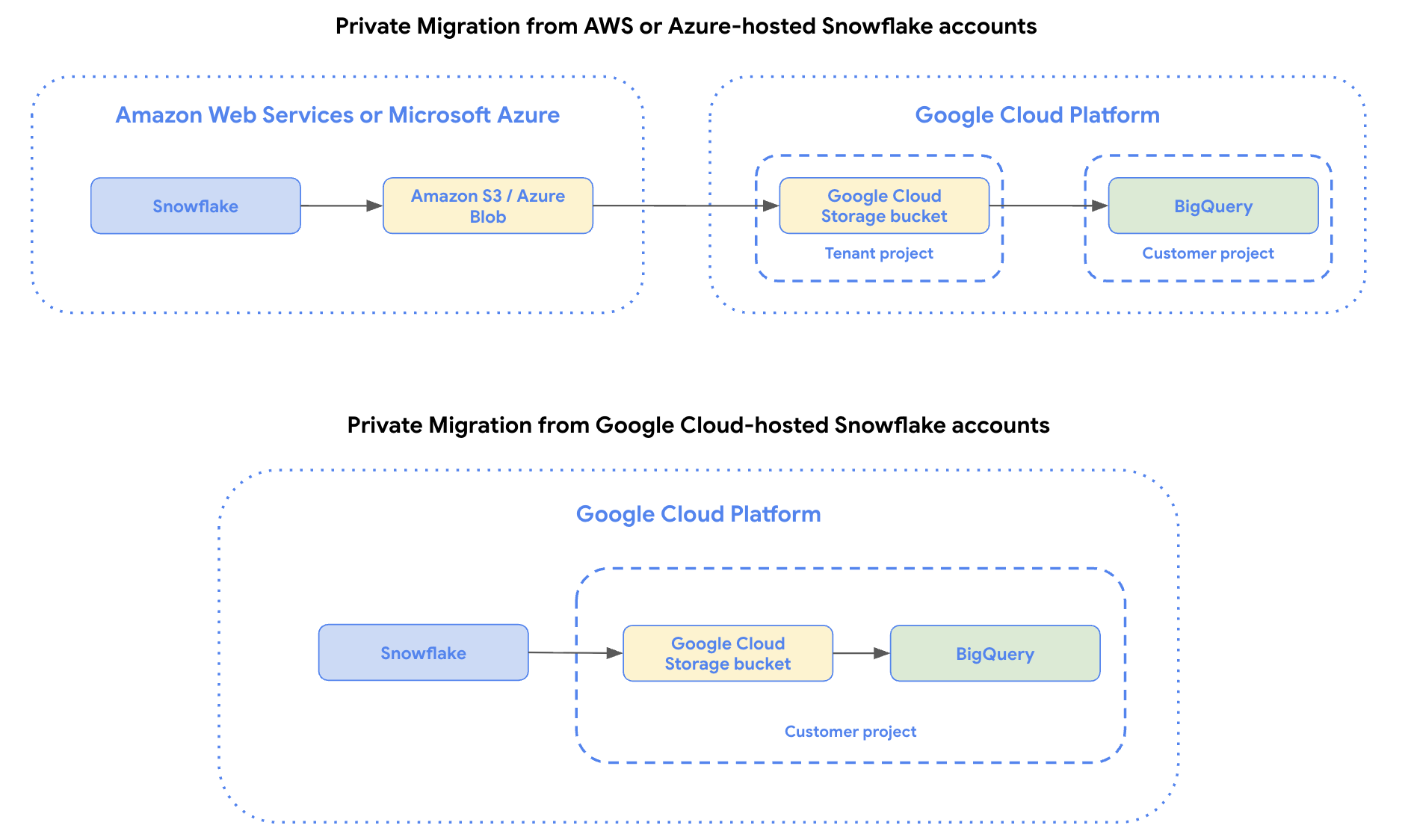
Create a private link to Snowflake
Create a private link that connects your Snowflake account to your cloud provider. For more information, select one of the following options:
AWS
Configure AWS PrivateLink to connect your Snowflake account to your AWS account. Your AWS account must contain the Amazon S3 staging bucket required for a Snowflake transfer.
Azure
Configure Azure Private Link to connect your Azure Virtual Network (VNet) to the Snowflake VNet in Azure. Your Azure account must contain the Blob staging bucket required for a Snowflake transfer.
Google Cloud
Configure Google Cloud Private Service Connect to connect your Virtual Private Cloud (VPC) network subnet to your Snowflake account hosted on Google Cloud. Your Google Cloud must have a Cloud Storage staging bucket required for a Snowflake transfer.
Set up Cross-Cloud Interconnect or HA VPN
Set up either Cross-Cloud Interconnect or HA VPN from AWS or Azure. This step is not required for Google Cloud-hosted Snowflake accounts.
AWS
A high availability VPN lets you transfer data through an encrypted VPN tunnel. To use an HA VPN for your private Snowflake transfer, see Create HA VPN connections between Google Cloud and AWS.
A Cross-Cloud Interconnect connection creates a dedicated private link between cloud providers and is suitable for large data transfers with low-latency requirements. To use Cross-Cloud Interconnect for your private Snowflake transfer, see Connect to AWS.
Azure
A high availability VPN lets you transfer data through an encrypted VPN tunnel. To use an HA VPN for your private Snowflake transfer, see Create HA VPN connections between Google Cloud and Azure.
A Cross-Cloud Interconnect connection creates a dedicated private link between cloud providers and is suitable for large data transfers with low-latency requirements. To use Cross-Cloud Interconnect for your private Snowflake transfer, see Connect to Azure.
Create proxy VM
To complete a private connection, a proxy VM is required to complete the connection between your data sources without your data reaching the public internet. This step is required for Snowflake instances hosted on AWS, Azure, or Google Cloud.
To create and configure a proxy VM for a Snowflake private transfer, do the following:
- Create one or more Compute Engine VM instances within the consumer VPC network.
- Download a TCP proxy software, such as HAProxy or Nginx, and configure the following:
- Specify a port. For example,
443. - Forward all incoming TCP traffic to the private hostname and port on the Snowflake instance.
- Specify a port. For example,
- Configure the VMs to resolve the Snowflake private hostname through the DNS configured in the consumer VPC network.
- Set up an internal passthrough load balancer by doing the following:
Create service attachment
Use Private Service Connect to create a network attachment and publish the service. This step is required for Snowflake instances hosted on AWS, Azure, or Google Cloud.
Your service attachment must be in the same region as your BigQuery dataset.
If your service uses explicit approval (connection-preference is set as
ACCEPT_MANUAL), then the service account used in your Snowflake
private data transfer must have the following IAM permissions:
compute.serviceAttachments.getcompute.serviceAttachments.updatecompute.regionOperations.get
Once you have created the service attachment, note the service attachment URI. You'll need this URI when you create your Snowflake transfer configuration.
Create endpoint
Create an endpoint in your AWS or Azure account. This step is not required for Google Cloud-hosted Snowflake accounts.
AWS
In AWS, create a VPC endpoint that connects to Amazon S3. For more information, see Access an AWS service using an interface VPC endpoint.
Azure
Configure a Private Endpoint on the Storage Account in Azure. For more information, see Use private endpoints for Azure Storage.
Storage Transfer Service requires the *.blob.core.windows.net endpoint. The
*.dfs.core.windows.net endpoint isn't supported.
Once created, note the endpoint's IP address. You'll need to specify the IP address when creating your load balancer in the following section.
Create a network load balancer
In Google Cloud, set up a regional internal proxy Network Load Balancer with hybrid connectivity. This provides an internal IP address that's restricted to clients running in the same VPC network as the load balancer, and that routes traffic to the S3 VPC endpoints or Azure Storage private endpoints that you created in the previous section.
You should create the load balancer in the same project and VPC network as the VLAN attachment which interfaces with the Cloud Interconnect. While the interconnect itself can be in a different project within the same organization, the attachment must be in the same VPC and region as the load balancer.
Specify the S3 VPC endpoint or Azure Storage private endpoint IP address when you reach the steps labeled Add endpoints to the hybrid connectivity NEG.
Note the NLB's frontend IP address and port, as you'll need to specify them in the next section.
Validate the connection
Before proceeding, we recommend that you validate that the load balancer can connect to the remote storage endpoint.
To do so:
- Create a Compute Engine VM in the same VPC network as your load balancer.
From the VM, use
curlto test connectivity to the load balancer's IP address and port:curl -v --resolve HOSTNAME:PORT:LOAD_BALANCER_IP https://HOSTNAMEReplace the following:
- HOSTNAME is the hostname of your source storage provider.
- For AWS S3, use the S3 API endpoint for your bucket's region, for
example
s3.us-west-1.amazonaws.com. - For Azure Storage, use your storage account's blob endpoint, for
example
mystorageaccount.blob.core.windows.net.
- For AWS S3, use the S3 API endpoint for your bucket's region, for
example
- PORT is the port you configured on the load balancer's
forwarding rule, typically
443. - LOAD_BALANCER_IP is the frontend IP address of your load balancer.
- HOSTNAME is the hostname of your source storage provider.
A response from the remote endpoint, even an error, indicates that connectivity is successful. A connection timeout indicates a misconfiguration in your network setup that you should resolve before continuing.
Register your NLB
Register the NLB in Service Directory. BigQuery uses Service Directory to resolve the address of the load balancer and connect to it directly.
Follow the instructions to register an internal load balancer. Use the IP address and port of the load balancer that you created when specifying the forwarding rule.
Once created, note the self-link of the service. It uses the format
projects/{project_id}/locations/{location}/namespaces/{namespace}/services/{service}.
You'll need this value when creating the transfer job.
Prepare staging bucket
To complete a Snowflake data transfer, you must create a staging bucket and then configure it to allow write access from Snowflake.
Select one of the following options:
AWS
For AWS-hosted Snowflake accounts, create an Amazon S3 bucket to stage the Snowflake data before it is loaded into BigQuery.
Create and configure a Snowflake storage integration object to allow Snowflake to write data into the Amazon S3 bucket as an external stage.
To allow read access on your Amazon S3 bucket, you must also do the following:
Create a dedicated Amazon IAM user and grant it the
AmazonS3ReadOnlyAccesspolicy.Create an Amazon access key pair for the IAM user.
Azure
For Azure-hosted Snowflake accounts, create a Azure Blob Storage container to stage the Snowflake data before it is loaded into BigQuery.
- Create an Azure storage account and a storage container within it.
- Create and configure a Snowflake storage integration object to allow Snowflake to write data into the Azure storage container as an external stage. You can skip the steps to create an external stage, as this is not required.
To allow read access on your Azure container, generate a SAS Token for it.
Google Cloud
For Google Cloud-hosted Snowflake accounts, create a Cloud Storage bucket to stage the Snowflake data before it is loaded into BigQuery.
- Create a Cloud Storage bucket.
- Create and configure a Snowflake storage integration object to allow Snowflake to write data into the Cloud Storage bucket as an external stage.
To allow access to staging bucket, Grant DTS service agent the
roles/storage.objectViewerrole with the following command:gcloud storage buckets add-iam-policy-binding gs://STAGING_BUCKET_NAME \ --member=serviceAccount:service-PROJECT_NUMBER@gcp-sa-bigquerydatatransfer.iam.gserviceaccount.com \ --role=roles/storage.objectViewer
Create a private Snowflake transfer configuration
Create the Snowflake transfer. When you set up the transfer configuration, do the following:
Console
- For Use Private Network, select True.
- For PSC Service Attachment, enter the service attachment URI. For information about finding the service attachment
URI, see View details for a published
service.
The service attachment URI is in the format
projects/PROJECT_ID/regions/REGION/serviceAttachments/SERVICE_ATTACHMENT. - For Private Network Service, enter the self-link of the NLB service.
It uses the format
projects/PROJECT_ID/locations/LOCATION/namespaces/NAMESPACE/services/SERVICE_NAME. - The URI of the staging bucket that you want to use for the transfer:
- For an AWS-hosted Snowflake account, an Amazon S3 bucket URI is required along with access credentials.
- For an Azure-hosted Snowflake, an Azure Blob Storage account and container is required.
- For a Google Cloud-hosted Snowflake account, a Cloud Storage bucket URI is required.
For Cloud Provider, select
AWSorAZUREorGCPdepending on which cloud provider is hosting your Snowflake account.AWS
- For Amazon S3 URI, enter the URI of the Amazon S3 bucket to use as a staging bucket.
- For Access key ID and Secret access key, enter the access key pair.
Azure
- For Azure storage account name and The container in the Azure storage account, enter the storage account and container name of the Azure Blob Storage to use as a staging bucket.
- For SAS Token, enter the SAS token generated for the container.
Google Cloud
- For GCS URI, enter the URI of the Cloud Storage to use as a staging bucket.
bq
- For the
use_private_networkparameter, set toTRUE. - For the
service_attachmentparameter, specify the service attachment URI. For information about finding the service attachment URI, see View details for a published service. The service attachment URI is in the formatprojects/PROJECT_ID/regions/REGION/serviceAttachments/SERVICE_ATTACHMENT. - For the
private_network_serviceparameter, provide the the self-link of the NLB service. It uses the formatprojects/PROJECT_ID/locations/LOCATION/namespaces/NAMESPACE/services/SERVICE_NAME. cloud_provider: enterAWSorAZUREorGCPdepending on which cloud provider is hosting your Snowflake account.staging_s3_uri: enter the URI of the S3 bucket to use as a staging bucket. Only required when yourcloud_providerisAWS.aws_access_key_id: enter the access key pair. Only required when yourcloud_providerisAWS.aws_secret_access_key: enter the access key pair. Only required when yourcloud_providerisAWS.azure_storage_account: enter the storage account name to use as a staging bucket. Only required when yourcloud_providerisAZURE.staging_azure_container: enter the container within Azure Blob Storage to use as a staging bucket. Only required when yourcloud_providerisAZURE.azure_sas_token: enter the SAS token. Only required when yourcloud_providerisAZURE.staging_gcs_uri: enter the URI of the Cloud Storage to use as a staging bucket. Only required when yourcloud_providerisGCP.