

The Manage Workflows user page is where you can manage and view information about the active and inactive Conversational Analytics agentic workflows that you have created or for which you were added as a recipient.
To navigate to the Manage Workflows user page, select the Profile menu and then select Workflows. This page appears in your profile menu only if a Looker admin has granted you the chat_with_agent permission and the see_schedules permission or the create_alerts permission.
Workflow information
The Manage Workflows user page provides information about workflows that you own or for which you are listed as a recipient. Depending on when you created your workflows, the information is displayed in either the Workflows tab or the Legacy Workflows tab.
Workflows
The Workflows tab displays active and disabled agentic workflows created in Looker 26.14 or later.
| Column | Definition |
|---|---|
| Workflow | The title of the workflow, which is set by the agent when the workflow is initiated. The agent generates a default workflow title that's based on the content of the conversation. Click the workflow name to open the Details page for that workflow. |
| Data Agent | If the data source that is associated with the workflow is a data agent, the name of the agent that created the workflow. |
| Owner | The name of the user who created the workflow. |
| Destination | The destination to which the workflow notification is sent. Options are email or Slack. |
| Frequency | The frequency at which the workflow is run. |
| Options menu | A menu from which you can take additional actions on the workflow. See more in the Workflow management options section on this page. |
Legacy Workflows
| Column | Definition |
|---|---|
| Workflow Name | The title of the workflow, which is set by the agent when the workflow is initiated. The agent generates a default workflow title that's based on the content of the conversation. Click the workflow name to open the Details page for that workflow. |
| Owner | The name of the user who created the workflow. |
| Avg Run Time | The duration of the workflow query in seconds. |
| Condition Met | A Yes or No that indicates whether the workflow conditions were met when the workflow query was last run. A -- symbol is displayed if the workflow query has not yet run or if the workflow query ran but it couldn't be determined whether the workflow conditions were met. This column displays warning icons or error icons related to any warnings or errors that surface when the workflow query is run or the workflow notification is delivered. Hold your pointer over the warning or error icon to see the associated error message, if applicable.A warning icon with a stale workflow warning indicates that the data on the dashboard tile did not change between the two most recent workflow queries. Read more about this message in the Alert error and warning messages section on this page. |
| Frequency | The frequency at which the workflow is run to check whether conditions have been met or exceeded. |
| Status | This column indicates whether the workflow is active or disabled. A workflow is marked as Disabled when a user disables their own workflow from their user page or when a Looker admin disables the workflow. Disabling the workflow will pause notifications for any workflow recipients. |
| Activity | A link that directs you to the workflow's Activity page. |
| Options menu | A menu from which you can take additional actions on the workflow. See more in the Manage workflows for the Looker instance section on this page. |
Manage workflows for the Looker instance
Workflow management may involve the following tasks:
- Managing its status
- Viewing its metadata on the Details page
- Monitoring its activity on the Activity page
- Modifying its conditions and thresholds
Inline with each workflow is an Options menu with these selections:
Workflows
- Edit Workflow
- History
- Delete
Click Edit Workflow to open and modify the workflow's settings. Click Save Workflow to save your changes or Cancel to close the editing window without saving.
Click History to open the Workflow Executions page with the history for the selected workflow.
Click Delete to delete the workflow. If you choose to delete the workflow, you will be asked to confirm your choice.
Legacy Workflows
- View Workflow
- Edit Workflow
- Disable Workflow (if the workflow is active)
- Enable Workflow (if the workflow is disabled)
Click View Workflow to open the Details page.
Click Edit Workflow to open and modify the workflow's settings. Click Save Workflow to save your changes or Cancel to close the editing window without saving.
Manage the status of a workflow
Although you cannot permanently delete a workflow, you can control whether the workflow is active. When a workflow's Status is Active, the workflow query continues to run according to the frequency that's specified in the workflow in order to check whether its conditions have been met. If conditions have been met, workflow recipients are notified with the notification method that's specified in the workflow. When a workflow's Status is Disabled, no workflow query will run and no notifications will be sent. A disabled workflow's Details page shows no results in the workflow visualization.
A workflow owner or Looker admin may need to disable a workflow manually under some circumstances, which may include the following:
- Temporarily pausing workflow notifications in order to re-configure workflow conditions
- Troubleshooting error messages or warnings
- Resolving notification delivery failures
To disable a workflow, follow these steps:
- On the Manage Workflows user page, find the workflow that needs to be disabled.
- Select the workflow's Options menu.
- Select Disable Workflow.
You can re-enable the workflow at any time by following these steps and selecting Enable Workflow.
View workflow details
The Details page shows a summary of workflow settings and configuration. The information that is displayed depends on whether the workflow was created in Looker 26.14 or later (Workflows tab) or prior to 26.14 (Legacy Workflows tab).
Workflows
When you select View Workflow from the Options menu or click the workflow name in the Workflows tab, you can view and edit the following workflow configuration settings:
- Data source: The underlying data source for the workflow, either an Agent (data agent) or specific Explores (such as
purchases). - Workflow: The name of the workflow.
- Trigger: The schedule or condition that kicks off the workflow:
- Repeat: The execution frequency (such as Minutes, Hourly, Daily, Weekly, or Monthly).
- Day: The day of the week or month on which the workflow executes.
- Time: The specific time of day at which the workflow runs.
- Directives: The step-by-step natural language directives and instructions that the agent executes during each workflow run.
- Destination: The delivery options for the workflow execution results. Each execution creates a new conversation visible in Conversational Analytics. Additional delivery options include:
- Email: Delivers the natural language narrative summary, data tables, and PDF reports to specified email recipients.
- Slack: Delivers the narrative summary, data blocks, and PDF reports to designated Slack channels or direct messages.
- Recipient list: Add or remove individual recipient email addresses or Slack destinations.
Click Save changes to save any modifications to the workflow configuration.
Legacy Workflows
When you select a workflow in the Legacy Workflows tab, the Details page displays legacy alert and schedule information:
- Context about what conditions trigger the workflow or what it means for the workflow to be triggered.
- A visualization of the workflow query results.
- The More menu on the workflow visualization, which has an option to Explore from here. Select this option to open an Explore that is pre-set with the workflow query.
- The Test Now button, which runs an instant workflow query.
From the Manage Workflows user page, you can view the Details page for the workflows that you own or are a recipient for in one of these ways:
- Select the workflow's Options menu, and then select View Workflow.
- Click the workflow name.
On the Details page, you can perform the following tasks:
- Select the text field to add context about the workflow.
- Select the More menu, and then select the Explore from here option to open an Explore that is pre-set with the workflow query.
- Select Test Now to run a workflow query instantly, without having to wait for the workflow's specified frequency. If the workflow's conditions are met, a notification will be sent to its owner and any additional recipients.
Click Done to close the Details page.
Monitor workflow activity
Accessing a workflow's history provides several key advantages:
- Verify execution and delivery success:
- Confirm whether scheduled runs or threshold checks occurred on time.
- View the status of each execution (Complete, Running, or Error / Failed).
- Verify delivery methods and confirm that notifications reached intended destinations (Email or Slack).
- Diagnose and troubleshoot errors:
- Inspect detailed error messages to resolve issues such as:
- Missing user permissions (model access).
- Deleted data agents or inaccessible Explores.
- Unauthorized external email domains or Slack channels.
- Intermittent connection timeouts or queue dequeue delays.
- Audit trigger conditions and data freshness:
- Condition checks: See whether threshold conditions were met or exceeded during each evaluation run.
- Data freshness: Identify whether the underlying database data had changed between runs (Fresh: Yes or No), helping prevent or diagnose stale workflow alerts.
- Performance monitoring:
- Track query runtime duration over time to identify performance degradation, slow-running queries, or database bottlenecks.
- Auditability and compliance:
- Maintain a clear record of automated report deliveries, recipient lists, and execution logs across your team or Looker instance.
Looker runs a workflow query at its specified frequency. For triggered workflows, it checks whether its conditions have been met. The results of these checks become the workflow's history. For legacy workflows, this history is viewable on the Activity page. For workflows, this history is viewable on the Workflow Executions page in the admin panel. Looker runs a workflow query at its specified frequency. For triggered workflows, it checks whether its conditions have been met. The results of these checks become the workflow's history. For legacy workflows, this history is viewable on the Activity page. For workflows, this history is viewable on the Workflow Executions page in the admin panel.
Workflows
You can access the Workflow Executions page from the Manage Workflows user page by selecting the History option from the Options menu. To view the Workflow Executions page, you must be assigned a role that contains the see_schedules permission.
Legacy Workflows
For legacy workflows, the table on the Activity page includes the following information about each workflow query job:
| Heading | Definition | Possible values |
|---|---|---|
| Ran At | The timestamp of when the workflow query was initiated | Any timestamp in the format DD/MM HH:MM05/30 18:25 |
| Run Time | How long the workflow query took to run | Any duration in the format 0.81s |
| Fresh | A Boolean that indicates whether the workflow query checked data that had changed between the two most recent workflow queries |
|
| Source | The origin of the data from which the workflow query checked for the threshold value that was indicated in the workflow conditions |
|
| Source Time | The timestamp of the database row from which the workflow query checked for the threshold value | Any timestamp in the format DD/MM HH:MMExample: 05/25 16:01 |
| Condition Met | A Boolean that indicates whether or not the workflow conditions were met |
|
| Trigger | The threshold value that would trigger the workflow if met or exceeded | Any numerical value |
| Observed | The observed value that met or exceeded the workflow conditions and triggered the workflow | Any numerical value |
| Status | The status of the workflow query |
|
On the Activity page, you can perform the following tasks:
- View the frequency with which the workflow query checks its conditions.
- View the workflow history.
- Use the Test Now button to run an instant workflow query — if the workflow is triggered, a notification will be sent to its owner and any additional recipients.
Click Done to close the Activity page.
Workflow error and warning messages
The Manage Workflows user page displays any errors or warnings that are surfaced when the workflow is run or the workflow notification is delivered. Error messages, if applicable, appear when you hold your pointer over the warning icon or error icon in the Condition Met column.
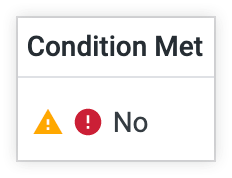
Notification delivery failed with existing configuration
For workflows that are set up to deliver notifications to Slack or the Looker mobile app, the error message Notification delivery failed with existing configuration appears when the workflow determines that the workflow conditions have been met but the notification couldn't be delivered. This failure may occur if something about the Slack configuration has changed since the workflow was created — for example, if the Slack workspace that the workflow was delivering to was disconnected from the Looker instance, if the Slack channel that the workflow was delivering to was deleted, or if Looker cannot connect to the integrations.
Warning: Querying fresh data
A warning icon in the Condition Met column indicates that the data upon which the workflow is based did not change between the two most recent workflow queries. Holding your pointer over this icon displays the message Stale Alert Warning.
There are a few possible explanations for why the data did not change between queries. If this warning persists, talk to your Looker developer to verify that the caching policies that are defined for the agent's Explores are aligned with the workflow frequency setting.
Modify workflow conditions
A workflow owner or Looker admin may need to modify the workflow configuration manually under some circumstances, which may include the following:
- Enabling or disabling Gemini powered key driver analysis, which appears in the notification
- Adjusting the metric thresholds and conditions that trigger the workflow as organization needs evolve
- Updating notification destinations
- Updating the workflow frequency to align better with caching policies
To modify the settings of a workflow, following these steps:
- From the Manage Workflows user page, select the Options menu for the workflow that you want to modify.
- Select Edit Workflow, which opens the workflow editing dialog.
- Make your changes to the workflow's settings.
- For legacy workflows, select Save Alert to save your changes. For workflows, select Save changes to save your changes.
Effect of deleting agents, conversations, Explores, or dashboards on workflows
Deleting a data agent or a conversation affects the associated workflow in the following ways:
- If a user deletes the conversation with the agent that generates the workflow, that workflow remains active. Any workflow notification recipients will continue to receive notifications when the workflow conditions are met.
- If a user deletes the agent that generates the workflow, that workflow remains active. Any workflow notification recipients will continue to receive notifications when the workflow conditions are met.
- If a user deletes the Explore or dashboard that contains the data that the workflow is monitoring, that workflow remains active. Any workflow notification recipients will continue to receive notifications when the workflow conditions are met.
Related resources
- Conversational analytics overview
- Admin settings - Workflows
- Create a triggered agentic workflow
- Create a scheduled agentic workflow