

The Looker–Power BI Connector lets you use Microsoft Power BI Desktop to connect to data from a Looker Explore.
The Looker–Power BI Connector is designed to be used with Power BI's DirectQuery Mode.
When you use the Looker–Power BI Connector in DirectQuery mode, Power BI doesn't import or copy your data. Instead, Power BI generates a Power Query M expression for every visualization, filter, and DAX calculation. The Looker–Power BI Connector translates these expressions into live queries by using the Looker API.
This process relies on Power BI query folding. If your query uses a function that the Looker–Power BI Connector doesn't support, query folding stops. When query folding stops, Power BI downloads all your data to calculate the results locally, which slows down report loading and increases network usage.
Setting up Power BI Desktop to connect to Looker
The general steps to use the Looker–Power BI Connector are as follows:
- Verify the requirements.
- Enable the connector on your Looker instance.
- Download and save the connector file: Each user who wants to access the Looker–Power BI Connector must download the
looker_1.4.3.mezfile and save it in a specific directory on their computer. - Set up Power BI Desktop for a custom connector: Each Power BI user must configure their Power BI Desktop security settings to use a non-certified custom connector.
The sections on this page describe these steps in detail.
After you complete the steps to connect Looker with Power BI Desktop, you can connect to Looker data from Power BI and publish reports in Power BI. You can optionally use Power BI service (Power BI online) to interact with your Looker reports in a web browser. You can also publish reports with Power BI service using row-level security.
Requirements
To set up the Looker–Power BI Connector, you need the following:
- Microsoft Power BI Desktop installed on your computer.
- A Looker user account on the Looker instance with the
explorepermission, which is required to access Explores in Looker. If you want to work with queries with more than 5,000 rows, you also need thedownload_without_limitpermission (see Query row limits for information on downloading limits).
In addition, your Looker instance must meet the following requirements:
- Your instance must be enabled for the Microsoft Power BI connector. A Looker admin must enable the Microsoft Power BI toggle on the Looker BI Connectors page.
- Looker (Google Cloud core) instances that are configured for private connections and customer-hosted Looker instances must meet the following requirements:
- The instance must be running Looker 25.16 or later.
- Your network administrator must configure your network so that traffic from Looker–Power BI Connector can reach your Looker instance.
Enable the connector on your Looker instance
The Looker instance you want to use with the Looker–Power BI Connector must be enabled for the Microsoft Power BI connector:
- For Looker (Google Cloud core) instances, BI connectors are enabled by default.
- For Looker (original) instances, BI connectors are disabled by default.
Your Looker admin can enable BI connectors on the BI Connectors panel in the Platform section of the Looker Admin menu.
Download and save the connector file
To download the connector file, follow these steps on the computer with Microsoft Power BI Desktop installed:
- To download the connector file, click the following link:
looker_1.4.3.mez - When the download is completed, move the
looker_1.4.3.mezfile to the directory [Documents]\Microsoft Power BI Desktop\Custom Connectors. (Create the folders on your computer if they don't already exist.)
Setting up Power BI Desktop for a custom connector
To set up the Looker–Power BI Connector on the Power BI Desktop side, follow the Custom connectors instructions on the Microsoft Power BI website.
As it says in the instructions, under Data Extensions, you will select the option (Not Recommended) Allow any extension to load without validation or warning. Select OK, and then restart the Power BI Desktop.
Connecting to Looker data from Power BI Desktop
Once you have downloaded the looker_1.4.3.mez connector file and set up your Power BI Desktop application for a custom connector, you can use Power BI Desktop to connect to data from your Looker instance:
- From the Power BI Desktop toolbar, select Get Data > More...
- In the Get Data dialog, enter Looker in the search field.
- In the search results, click the Looker entry, and then click Connect.
- In the Connecting to a third-party service dialog, click Continue.
- Power BI Desktop will display a Looker sign-in dialog. In the Host field, type in the URL of your instance. For example:
example.cloud.looker.com. Optionally, click Advanced Options to expand the section and configure the following additional options:
- Use the Show Hidden Explores and Fields drop-down to include Explores and fields that are configured as hidden in LookML (for more information, see the documentation for hidden (for Explores) and hidden (for fields)):
- FALSE (default): Hidden fields are suppressed.
- TRUE: Hidden fields are shown.
- Use the Enable Logging drop-down to enable or disable diagnostic logs within the connector for troubleshooting purposes. See the Enabling debug logging for Power BI Desktop section for information.
- Use the Show Hidden Explores and Fields drop-down to include Explores and fields that are configured as hidden in LookML (for more information, see the documentation for hidden (for Explores) and hidden (for fields)):
Select the DirectQuery option to create a live connection to your data on Looker.
Click OK.
In the Looker dialog, click Sign in.
In the Looker login screen, sign in to your Looker instance.
Power BI Desktop will return to the Looker sign-in dialog, with a message that says that you are signed in. Click Connect.
Power BI Desktop will display a list of the Looker models that you have access to, each represented as a folder. Click the Looker model that you want to access, and then select the checkbox next to the Looker Explore that you want to load in Power BI Desktop. To see a model, you must have Looker user access or group access to a model set that contains the model. To access Explores, you must have the Looker
explorepermission.Click Load.
Power BI Desktop will populate its Data pane with the fields from your selected Explore. You can then use the Looker data from the Explore to create reports in Power BI Desktop. See Viewing Looker elements in Power BI Desktop for information on how Looker elements are displayed by the Looker–Power BI Connector.
Field names will appear in a single list in the format ViewName.FieldName.
Viewing Looker elements in Power BI Desktop
After you connect to Looker data from Power BI Desktop, Power BI Desktop will populate its Data pane with the fields from your selected Explore.
The Looker–Power BI Connector uses the following format to display Looker fields in Power BI Desktop:
ViewName.FieldType.FieldName
- The
ViewNamevalue is the LookML view where the field is defined. - The
FieldTypevalue can be one of the following types that are supported by the Looker–Power BI Connector:dim: Dimension, a field that represents an attribute, a fact, or a value, such as dates, names, and IDs. Dimensions often correspond to columns in your underlying data table. In LookML, dimensions are defined with thedimensionparameter.mea: Measure, a field that represents measurable information about your data, such as sums, counts, averages, minimums, and maximums. In LookML, measures are defined with themeasureparameter.fil: Filter, a filter-only field that's used only to create a filter in an Explore query; filter fields aren't included in a query's result set. In LookML, filters are defined with thefilterparameter.par: Parameter, a field that's used only to create a filter in an Explore query; parameter fields aren't included in a query's result set. A parameter can create interactive query results, labels, URLs, and more when it's defined with the{% parameter parameter_name %}andparameter_name._parameter_valueLiquid variables. In LookML, parameters are defined with theparameterparameter.
- The
FieldNamevalue is the name of the field as it's displayed in the Looker Explore.
Power BI Desktop displays Looker elements just as they are displayed in the Looker Explore, with the same capitalization and word spacing. For example, if a Looker Explore displays a LookML dimension as Created Date from a view displayed as Order Items, Power BI Desktop will display this field as Order Items.dim.Created Date.
Creating queries with Looker dimensions and measures
The Looker–Power BI Connector lets you use Looker dimensions and measures to create queries in Power BI Desktop.
To create a query in Power BI Desktop using Looker dimensions and measures, follow these steps:
- Connect to Looker data from Power BI Desktop, and wait for Power BI to populate its Data pane with the fields from your selected Looker Explore.
- In the Power BI Data pane, select the checkbox for each Looker dimension or measure that you want to include in the query.
As you select each dimension or measure, Power BI will update the query that is displayed in the report canvas.
Filtering queries with Looker filters and parameters
The Looker–Power BI Connector lets you use LookML parameters and filter-only fields from a Looker Explore to add filters to your Power BI report.
To filter a report in Power BI Desktop using Looker parameters and filter-only fields, follow these steps:
If you haven't already, connect to Looker data from Power BI Desktop and wait for Power BI to populate its Data pane with the fields from your selected Looker Explore.
In the Power BI Data pane, drag the name of a parameter or a filter-only field into one of the Add data fields here boxes in Filters pane, either for Filters on this page or for Filters on all pages. See the Power BI documentation for details on adding filters to a report in Power BI.
Note the following about using Looker parameters and filter-only fields in Power BI:
- For filter-only fields that are configured in LookML with the
suggestionsparameter or thesuggest_dimensionparameter, Power BI will fetch the suggestion values and display them in the Basic filtering options in the Filters pane. For parameters that are configured in LookML with the
allowed_valueattribute, Power BI will fetch all of the allowed values that are configured in LookML for the parameter and display them in the Basic filtering options in the Filters pane.
Using DAX with the Looker–Power BI Connector
DAX (Data Analysis Expressions) is a formula language that's used in Power BI to create custom calculations.
Power BI translates DAX queries into Power Query M expressions and sends them to the Looker–Power BI Connector. The Looker–Power BI Connector then translates these M expressions into Looker API calls.
If a DAX or Power Query M function isn't supported, query folding stops. When this happens, Power BI retrieves the entire raw table from Looker in order to process the operation locally, which can cause significant performance degradation. See the Supported Power Query M functions section for a list of supported functions.
Measures versus columns
Power BI provides two primary ways to create new data by using DAX: New Measure and New Column.
- New Measure: Power BI calculates this dynamic value on the fly when you use it in a visualization. This model doesn't store this value. Use measures primarily for aggregating data.
- Example:
Total Sales = SUM('Sales'[Revenue])
- Example:
- New Column: Power BI calculates this static value row by row. It updates only when the data refreshes. The model stores this value. Use columns primarily for categorizing data.
- Example:
Profit = 'Sales'[Revenue] - 'Sales'[Cost]
- Example:
Create a new measure
To create a new measure in Power BI, follow these steps:
- In the Data pane, right-click the table where you want to add the measure.
- Select New measure.
- In the formula bar, enter your DAX formula. Replace
Measurewith your selected measure name.
Create a new column
To create a new column in Power BI, follow these steps:
- In the Data pane, right-click the table where you want to add the column.
- Select New column.
- In the formula bar, enter your DAX formula. Replace
Columnwith your selected column name.
DAX query examples
The following tables provide examples of DAX queries for common aggregations. For more information, see the DAX documentation.
The following table provides some examples of how to create measures for common aggregations.
| Aggregation type | Example |
|---|---|
| SUM | Total Sales = SUM('The Look E-Commerce'[Order Items Ecomm.dim.Sale Price]) |
| AVERAGE | Average Sale Price = AVERAGE('The Look E-Commerce'[Order Items Ecomm.dim.Sale Price]) |
| MIN | Minimum Sale Price = MIN('The Look E-Commerce'[Order Items Ecomm.dim.Sale Price]) |
| MAX | Maximum Sale Price = MAX('The Look E-Commerce'[Order Items Ecomm.dim.Sale Price]) |
| COUNT | Order Count = COUNT('The Look E-Commerce'[Order Items Ecomm.dim.Order ID]) |
| DISTINCTCOUNT | Distinct Order Count = DISTINCTCOUNT('The Look E-Commerce'[Order Items Ecomm.dim.Order ID]) |
The following table shows how to perform basic arithmetic operations.
| Aggregation type | Example |
|---|---|
| Addition | Total Orders = [Shipped Orders] + [Pending Orders] |
| Subtraction | Total Profit = [Total Sales] - [Total Cost] |
| Multiplication | Total Sales with Tax = [Total Sales] * 1.05 |
| Division | Profit Margin = DIVIDE([Total Profit], [Total Sales]) |
| Power | Sales Squared = POWER([Total Sales], 2)or Sales Squared = [Total Sales] ^ 2 |
| Square root | Square Root of Sales = SQRT([Total Sales]) |
| Modulus | Order ID Type = IF(MOD('The Look E-Commerce'[Order Items Ecomm.dim.Order ID], 2) = 0,"Even","Odd") |
| Absolute value | Absolute Profit = ABS([Total Profit]) |
Supported Power Query M functions
When you use the Looker–Power BI Connector in DirectQuery mode, Power BI generates a Power Query M expression for every visualization, filter, and DAX calculation. The Looker–Power BI Connector translates these expressions into live queries by using the Looker API.
Text
Text.FromText.AtText.CombineText.Contains(Text.Containsis case-sensitive)Text.EndText.EndsWithText.LengthText.LowerText.UpperText.MiddleText.PositionOfText.RangeText.RemoveRangeText.ReplaceText.StartText.StartsWithText.InsertText.SplitText.FromBinary
List and table
Value.Equals/Value.NullableEqualsTable.RowCountTable.FirstTable.FirstNTable.SelectRowsTable.SortList.SumList.AverageList.MaxList.MinList.CountList.DistinctList.SelectList.ContainsList.AnyTrue
Numeric
Basic arithmetic
Value.AddValue.SubtractValue.MultiplyValue.Divide
Scientific and advanced math
Number.PowerNumber.SqrtNumber.ExpNumber.LnNumber.Log10Number.LogNumber.PI
Number properties
Number.SignNumber.IsEvenNumber.IsOddNumber.Abs
Division and remainder
Number.ModNumber.IntegerDivide
Random number generation
Number.RandomNumber.RandomBetween
Type conversions
The connector doesn't support using the following numeric conversion functions within visualizations:
Byte.FromCurrency.FromDecimal.FromInt8.From,Int16.From,Int32.From,Int64.FromNumber.From,Number.FromTextSingle.From,Double.From
Numeric rounding
Number.RoundNumber.RoundDownNumber.RoundUpNumber.RoundTowardZeroNumber.RoundAwayFromZero
The following table shows examples for each rounding operation:
| Input | Number.Round |
Number.RoundDown |
Number.RoundUp |
Number.RoundTowardZero |
Number.RoundAwayFromZero |
|---|---|---|---|---|---|
| 2.7 | 3 | 2 | 3 | 2 | 3 |
| 2.5 | 3 | 2 | 3 | 2 | 3 |
| 2.2 | 2 | 2 | 3 | 2 | 3 |
| 0 | 0 | 0 | 0 | 0 | 0 |
| -2.2 | -2 | -3 | -2 | -2 | -3 |
| -2.5 | -3 | -3 | -2 | -2 | -3 |
| -2.7 | -3 | -3 | -2 | -2 | -3 |
Date and time
Getting current date and time
DateTime.LocalNowDateTime.FixedLocalNowDateTimeZone.UtcNowDateTimeZone.FixedUtcNowDateTimeZone.LocalNowDateTimeZone.FixedLocalNow
Datetime type conversion
DateTime.FromTextDateTimeZone.FromTextDateTime.FromDateTimeZone.FromDate.FromTextTime.ToText
Date arithmetic
Date.AddDaysDate.AddMonthsDate.AddYears
Extracting date and time parts
Date.DayDate.MonthDate.YearTime.HourTime.MinuteTime.SecondDateTime.Time
Date and time period boundaries
Date.StartOfDayDate.StartOfYearDate.EndOfDayDate.EndOfYearTime.StartOfHourTime.EndOfHour
Higher-order functions
The Looker–Power BI Connector supports the following higher-order functions, provided that the Looker–Power BI Connector also supports the nested operations.
Table.AddColumn- Constraint: The Looker–Power BI Connector must support the function that's defined in the
columnGeneratorparameter. - Example: The following query works because the Looker–Power BI Connector supports the nested function
Text.Length:powerquery Table.AddColumn(LookerTable, "NewColumnName", each Text.Length([lookerTextDimensionColumn]))
- Constraint: The Looker–Power BI Connector must support the function that's defined in the
Table.Group- Constraint: The Looker–Power BI Connector must support any aggregation functions that are used in the
aggregatedColumnslist. - Example: The following query works because the Looker–Power BI Connector supports the nested function
List.Sum:powerquery Table.Group(LookerTable, "CustomerID", {"total", each List.Sum([price])})
- Constraint: The Looker–Power BI Connector must support any aggregation functions that are used in the
Using Looker measures in Power BI in DirectQuery mode
Many Power BI visualizations that use column, bar, and line charts require an aggregated value on the Y-axis. Power BI needs a single value to determine where to plot the data point, such as the height of a column or the position of a line. Without an aggregation, the visualization won't render.
For example, here is the visualization of a Looker measure of type: sum that shows the total cost per item:
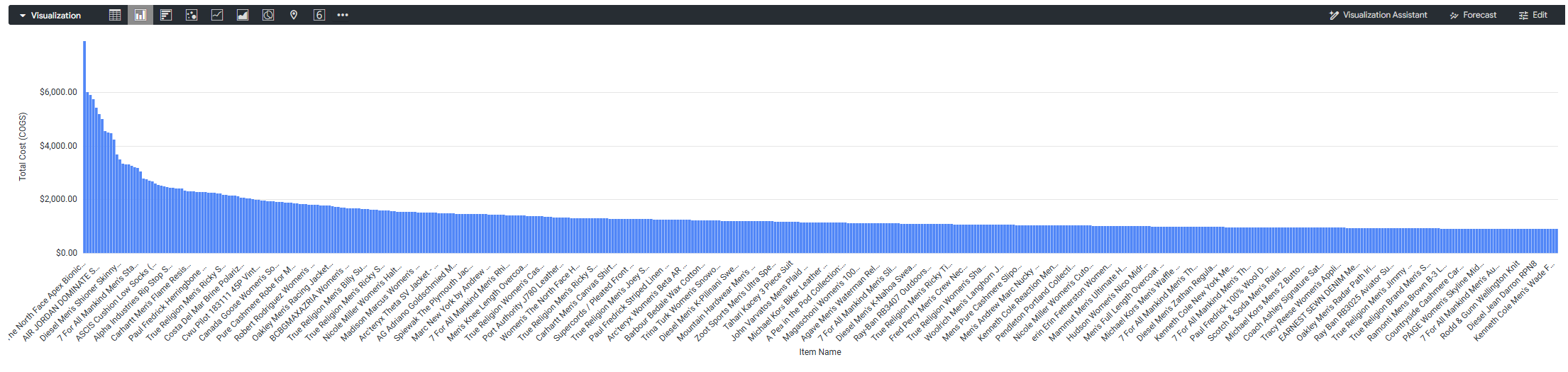
Power BI won't display a type: sum measure in most visualizations unless you apply an aggregation. To display the sum, you can set the Power BI aggregation to Sum. Here is the resulting visualization in Power BI using a sum aggregation:
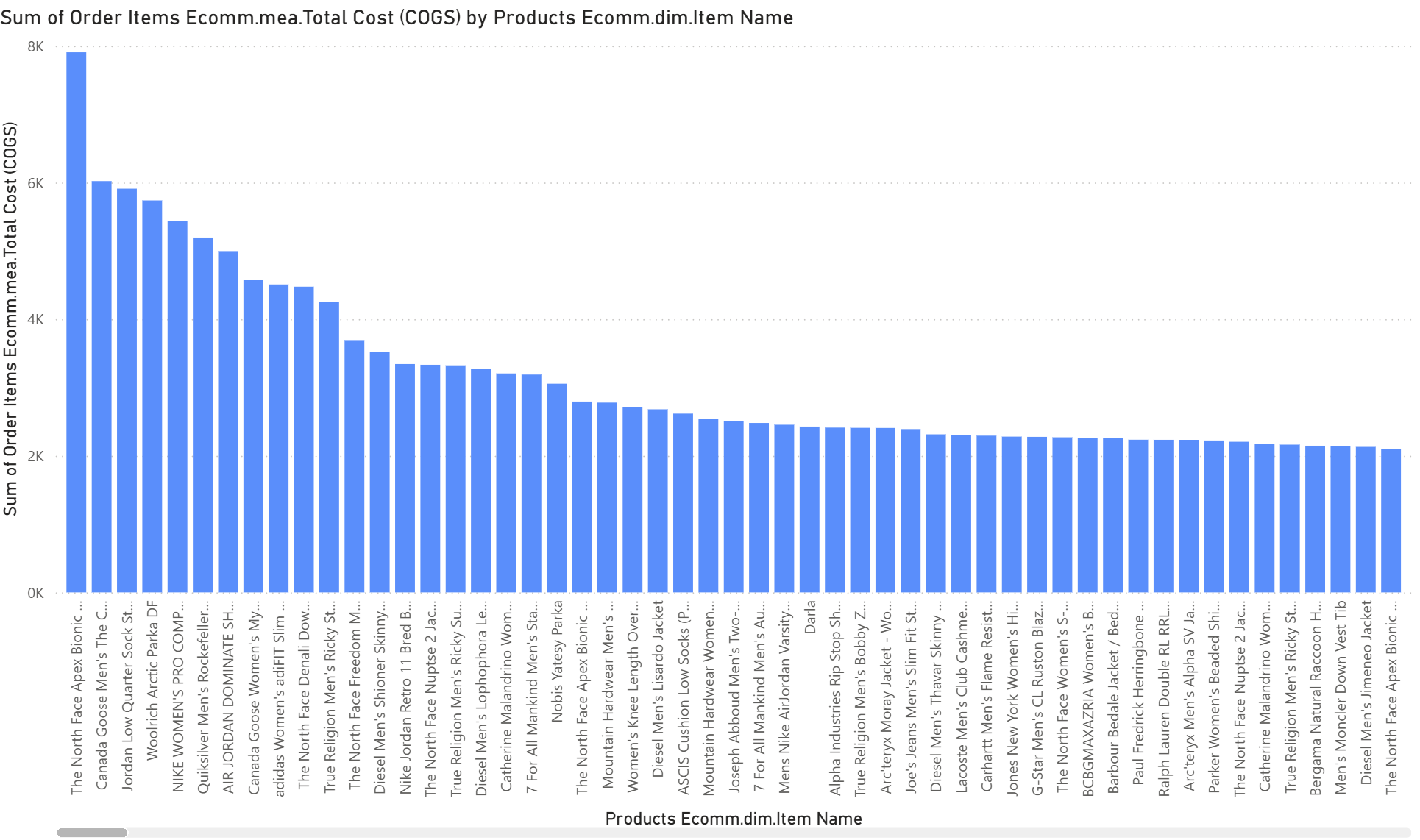
Similarly, you can use Power BI's sum aggregation to visualize Looker measures that use the following types of aggregation:
Using Power BI features with the Looker–Power BI Connector
The following sections describe the Looker–Power BI Connector support for various Power BI features:
Sparkline
Add sparklines to table or matrix visualizations. For more information, see the Power BI sparklines documentation.
Conditional formatting
Conditional formatting can be applied to table or matrix visualizations. The Looker–Power BI Connector supports conditional formatting for numerical columns, but not for text fields. For general setup instructions, see the Power BI documentation.
Type conversion
The Looker–Power BI Connector doesn't support converting a column to a number or a date within a visualization. However, the connector supports converting a column to text and using that field within a visualization.
Connect with Excel
You can load data from Looker directly into Excel for Desktop or Excel for web. For setup instructions, see the Connect Excel to Power BI datasets Power BI documentation.
When using the Looker–Power BI Connector in Excel, it functions similarly to DirectQuery mode in Power BI. When the data is filtered, the connector applies the filter at the source before loading the data into Excel.
You can connect to your data using one of the following methods in Excel:
Insert a PivotTable
To insert a PivotTable that is directly connected to the dataset, follow these steps:
- Select the Insert tab.
- Select PivotTable > From Power BI.
Get data
To import the data using the Data ribbon, follow these steps:
- Select the Data tab.
- Select Get Data > From Fabric & Power Platform > From Power BI.
Monitoring the Looker–Power BI Connector
A Looker admin can view Looker–Power BI Connector usage using the Query API Client Properties group of fields in the System Activity History Explore. An entry is created in the History Explore every time a new query is run.
In the Query API Client Properties group of fields, the API Client Name shows a Power BI value to identify Looker–Power BI Connector entries.
The following is an example of a System Activity URL that shows Power BI usage. Replace <instance_name.looker.com> with your instance URL.
https://<instance_name.looker.com>/explore/system__activity/history?fields=query_api_client_context.name,user.name,history.created_date,history.created_time_of_day&f[query_api_client_context.name]=Power+BI&sorts=history.created_time_of_day+desc&limit=5000
Power BI service
After you connect to Looker data from Power BI and publish reports in Power BI, you can optionally use Power BI service (Power BI online) to interact with your Looker reports in a web browser.
You can also publish reports with Power BI service using row-level security.
Authentication considerations
When you publish a report to the Power BI service, the credentials that you used to create the report are embedded in the report. These credentials are reused for all users who view the report in the Power BI service.
This re-use of credentials occurs because the Microsoft Power BI connector framework doesn't support end-user single sign-on (SSO) authentication for custom connectors. To restrict data access based on the user viewing the report, use row-level security (RLS) within Power BI.
Publishing a report with Power BI service using row-level security
After you have published reports in Power BI Desktop using the Looker–Power BI Connector, you can optionally use Power BI service to interact with the reports from a web browser.
Power BI Desktop lets you use row-level security (RLS) to restrict data access for certain users. See the Power BI documentation for the procedures for defining roles and rules and validating the roles within Power BI Desktop.
Once you define the roles in Power BI Desktop, you can use the roles and rules online with Power BI service.
To publish a report with Power BI service using row-level security, follow these steps:
- In Power BI Desktop, open your report and select the Home menu from the top of the window.
- Select the Publish option from the Home menu.
- Select a workspace from the drop-down menu, and then click Select. Power BI Desktop shows a success message that includes a link to open the report in Power BI.
- Click the link to open Power BI.
- In Power BI service, go to Workspaces and select the workspace where you published the report.
- Find the listing for your report's dataset (not the report itself).
- In the dataset's listing, click the three-dot More options menu, and then select Security.
Power BI will show the Row-Level Security window. From here, you can select the role that you created in Power BI Desktop and add people or groups who belong to the role and validate your roles in Power BI service.
Now you can share the report with anyone you want, and they will see only the data that they are allowed to see, based on the roles that you created.
Enabling debug logging for Power BI Desktop
To troubleshoot or diagnose an issue, you can enable logging for the connection between Power BI and Looker.
You must enable logging for the connection and also for Power BI itself, as described in the following sections:
Enabling connector-level logging
To troubleshoot issues, you can enable diagnostic logging within the Looker–Power BI Connector.
When you're creating a new connection to Looker data from Power BI Desktop, enable logging by following these steps:
- In the Looker connection dialog, expand Advanced Options.
- Select TRUE from the Enable Logging drop-down menu.
If you have already created a connection to Looker data from Power BI Desktop, you must edit the query manually within the Power Query editor by following these steps:
- In Power BI Desktop, select Transform Data.
- In the Home ribbon, select Advanced Editor.
- Locate the line starting with
Source = Looker.DataSource. Update the second argument of the function to include
EnableLogging=true.Looker.DataSource("instance.looker.com", [EnableLogging=true])Click Done.
Enabling Power BI level tracing
In addition to enabling logging on the connection to Looker data from Power BI Desktop, you must also enable tracing from Power BI Desktop by following these steps:
- Select File > Options and settings > Options.
- In the Options dialog, select Diagnostics.
- Under Diagnostic Options, select Enable tracing.
- To view the log files, select Open crash dump/traces folder.
Things to consider
Query row limits
Queries from the Looker–Power BI Connector will automatically include a LIMIT 5000 statement unless the Looker user account has the download_without_limit permission. If the Looker user account has download_without_limit, queries from the Looker–Power BI Connector have no imposed query row limit.
Explore filters
If the Looker Explore is defined with always_filter or conditionally_filter LookML parameters, the filters will be applied to queries in the Looker–Power BI Connector, even though the filters won't be visible in Power BI.
Supported dimension group timeframes
For the dimension_group of type: time, only the date and time timeframes are supported with the Looker–Power BI Connector. Other timeframes will be hidden.
System Activity Explores aren't surfaced with the Looker–Power BI Connector
System Activity Explores aren't surfaced in the Looker–Power BI Connector. Looker admins can view the System Activity Explores directly in the Looker UI.
Type conversion limitations
When possible, it's best to set column types inside of your LookML view.
Known limitations
Be aware of the following limitations when using the Looker–Power BI Connector:
Data modeling and modes
- Numeric dimensions: Both numeric dimensions and measures appear as measures in Power BI. To use a numeric dimension as a dimension, you must change its default summarization to Do not summarize in Power BI Desktop.
- Import mode: For optimal performance, use DirectQuery Mode. If you are using Power BI Import Mode, note the following constraints:
- Performance: Reports that access large models might load slowly.
- Timeouts: If the "Get Data" process hangs or times out, switch to DirectQuery Mode.
- Field restrictions: Import Mode disables filter-only fields and parameter fields.
- Measure evaluation: Import mode restricts Looker from evaluating measures within the Explore, which can impact report accuracy.
Aggregations
Power BI applies its own aggregations to Looker measures. This can cause errors or inconsistent results, particularly in matrix visuals.
- Supported types: Only use
average,count,count_distinct,max,min, andsum. - Unsupported types: The connector doesn't support queries for standard deviation, variance, or alphabetical first or last string aggregations.
- Median performance: Power BI calculates median locally by retrieving all values. This is slow on large datasets and may time out.
Filtering and sorting
- Sorting by hidden fields: You can't sort by a field that isn't included in the visualization. To sort by a field, add it to the visualization.
- Advanced filter limitations: Due to differences between Power Query and Looker filter expressions, the following limitations apply:
- Text: Multiple text filters aren't supported.
- Dates: For date and datetime fields, only
is,is not,is on or after, andis beforeare supported. - Multiple number filters are supported only in the following cases:
- INEQUALITY AND INEQUALITY (for example, is less than AND is greater than).
- INEQUALITY OR INEQUALITY (for example, is less than OR is greater than).
- is OR is.
- Multiple date and datetime filters are supported only in the following cases:
is on or after AND is beforeis or is
Power Query functions
The following table functions aren't foldable:
Table.DistinctTable.JoinTable.NestedJoinTable.Skip
Troubleshooting
The following sections describe common issues and their solutions.
The Looker–Power BI Connector doesn't appear in Power BI's Get Data list
Verify that the [Documents]\Microsoft Power BI Desktop\Custom Connectors directory contains the looker_1.4.3.mez file.
- In Power BI Desktop, verify the security settings:
- Select File > Options and settings > Options.
- Select Security.
- Under Data Extensions, select (Not Recommended) Allow any extension to load without validation or warning.
- Click OK.
- Restart Power BI Desktop.
Error: Field names may only include letters, numbers and underscores
In some cases, you may receive the following error message when refreshing data or applying changes:
DataSource.Error
Message: A LookML model issue has occurred.
Details: Invalid field name "...". Field names may only include letters, numbers and underscores and must start with a letter or underscore for Google BigQuery Standard SQL
This error occurs when a column name contains spaces or special characters that aren't supported by the underlying database (such as BigQuery).
To resolve this, follow these steps:
- Identify the column causing the error (usually referenced in the
Detailssection of the error message). - Rename the column to use only letters, numbers, and underscores.
- Incorrect:
Custom Column Name - Correct:
Custom_Column_Name
- Incorrect:
Error: Error fetching data for this visual
In some cases, you may receive an authentication error in Power BI that indicates an OAuth failure or a credential issue, such as Looker database authentication required.
If you see this error, your Looker account is missing the required OAuth credentials for the database connection. To resolve this, follow these steps:
- Log in to your Looker instance.
- Select your user profile icon, and then select Account.
- Go to the OAuth Connection Credentials section.
- Find the connection you are trying to access and select Log In.
- Return to Power BI Desktop and refresh the data.
Looker–Power BI Connector changelog
The following sections show the updates in each version of the Looker–Power BI Connector:
Version 1.4.3
Version 1.4.3 of the Looker–Power BI Connector has the following updates:
- The connector label now includes the connector version number.
- Added a new Enable Logging option to dynamically enable diagnostic logs within the connector for troubleshooting purposes.
- Added a new Show Hidden Explores and Fields option. When enabled, hidden explores and fields are shown. This replaces the previous Show Hidden Fields option.
Version 1.4.3 of the Looker–Power BI Connector has the following bug fixes:
- Fixed an issue where string concatenation DAX operator (
&) was failing. - Fixed the issue where applying a Power BI measure onto a Looker measure would cause an error.
- The Credential Configuration menu now shows the Looker icon again.
Version 1.4.2
Version 1.4.2 of the Looker–Power BI Connector has the following updates:
- The Disable Preview Optimization connection setting has been removed.
- The Show Hidden Fields connection option has moved under the Advanced Options section.
- The Beta flag has been removed; the connector no longer appears as beta in Power BI.
Version 1.4.2 of the Looker–Power BI Connector has the following bug fixes:
- Fixed the regression error where Boolean slicers and date slicers failed in Power BI.
- Fixed
is-notfilter not working fordatesfilter.
Version 1.4.0
Version 1.4.0 of the Looker–Power BI Connector has the following updates:
- Added support for Import Mode
- Enabled data preview
- Improved behavior when performing
SELECT *queries - Improved Looker cache hit rate
- Improved performance of filter suggestions retrieval
Version 1.4.0 of the Looker–Power BI Connector has the following bug fixes:
- Fixed bug where Looker wouldn't detect that values had been passed for filter and parameter fields
- Fixed bug where parameter suggested values would sometimes be missing from slicers
- Fixed bug where Liquid variables would be ignored by LookML statements
- Fixed bug where count distinct measure values would be inconsistent in Power BI matrix views
Version 1.3.1
Version 1.3.1 of the Looker–Power BI Connector has the following updates:
- Added option to show hidden fields
Version 1.3.1 of the Looker–Power BI Connector has the following bug fix:
- Fixed bug where a visual would fail if a filter exists on both the visual and report
Version 1.3.0
Version 1.3.0 of the Looker–Power BI Connector has the following updates:
- Simplified datetime formatting
- Improved detection on unsupported text expressions
- Improved error message reporting
Version 1.3.0 of the Looker–Power BI Connector has the following bug fix:
- Improved support for escape characters in filter values
Version 1.2.0
Version 1.2.0 of the Looker–Power BI Connector has the following updates:
- Parameter and filter-only fields are now supported
- Advanced filters support for filter-only fields of type text, number, date and datetime
- Basic filter support for filter-only field utilizing Looker suggested values