

This documentation page describes how to use the Admin Assistant to manage Looker roles.
The Admin Assistant lets you use natural language and can help you with the following tasks:
Learn about your existing configuration with tasks like the following:
- Searching for roles by name, permission set, or model set
- Searching for permission sets by name or the permissions that they contain
- Searching for model sets by name or the models that they contain
- Listing all available permissions in Looker
- Listing all available LookML models
Create new configurations like these examples:
- Creating new roles by combining a permission set and a model set
- Creating new permission sets with a specified list of permissions
- Creating new model sets with a specified list of models
Provide insights and best practices by helping you analyze existing configurations and guide you on best practices for role structuring and permissions management.
Gemini in Looker provides generative AI-powered assistance to help you work with your data.
Learn how and when Gemini for Google Cloud uses your data.
Before you begin
To use the Admin Assistant to manage roles, note the following requirements:
- You must be using a Looker (Google Cloud core) instance that is not configured for private connections only. The Admin Assistant is not available for Looker (original) instances.
- Gemini in Looker must be enabled for your Looker (Google Cloud core) instance in the Google Cloud console. For detailed enablement instructions, see the Administer Gemini on your Looker (Google Cloud core) instance documentation page.
- The Trusted Tester features option must be enabled.
- The Admin Assistant must be enabled on the Gemini in Looker page in the Admin panel.
- You must be assigned a Looker Admin role.
Use the Admin Assistant to manage roles
Once enabled, the Admin Assistant is available from the Roles page in the Users section of Looker's Admin panel. If the Admin Assistant panel is not visible, click the Admin Assistant button to open the Admin Assistant panel. The Admin Assistant is also available from the New Role and Edit Role pages, New Permission Set and Edit Permission Set pages, and New Model Set and Edit Model Set pages.
To use the Admin Assistant, enter your questions or instructions into the Ask a question field.
Tips for using the Admin Assistant
Here are some tips for using the Admin Assistant to manage Looker roles:
- For best results, write your prompts in American English. See the Gemini for Google Cloud limitations documentation for more information.
- When creating or editing a role, permission set, or model set that was suggested by the Admin Assistant, always verify the Admin Assistant's suggestions.
Sample prompts
Here are some examples of tasks that the Admin Assistant can help with.
You can ask the Admin Assistant for information about roles and permissions:
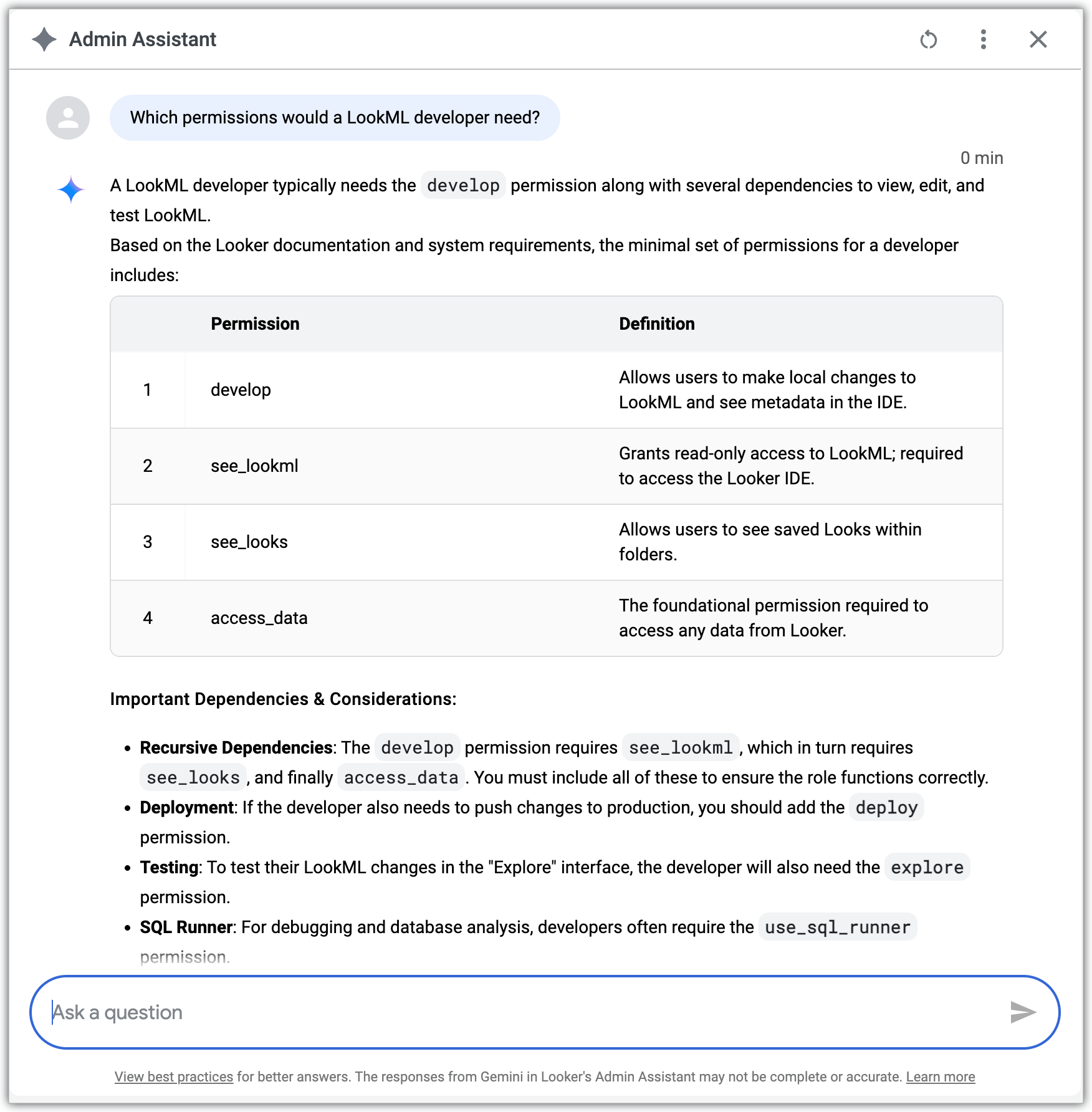
You can also get help with creating a new role. The Admin Assistant will prompt you to name the role, whether you want to use existing permission and model sets, or whether you want to create new permission or model sets:
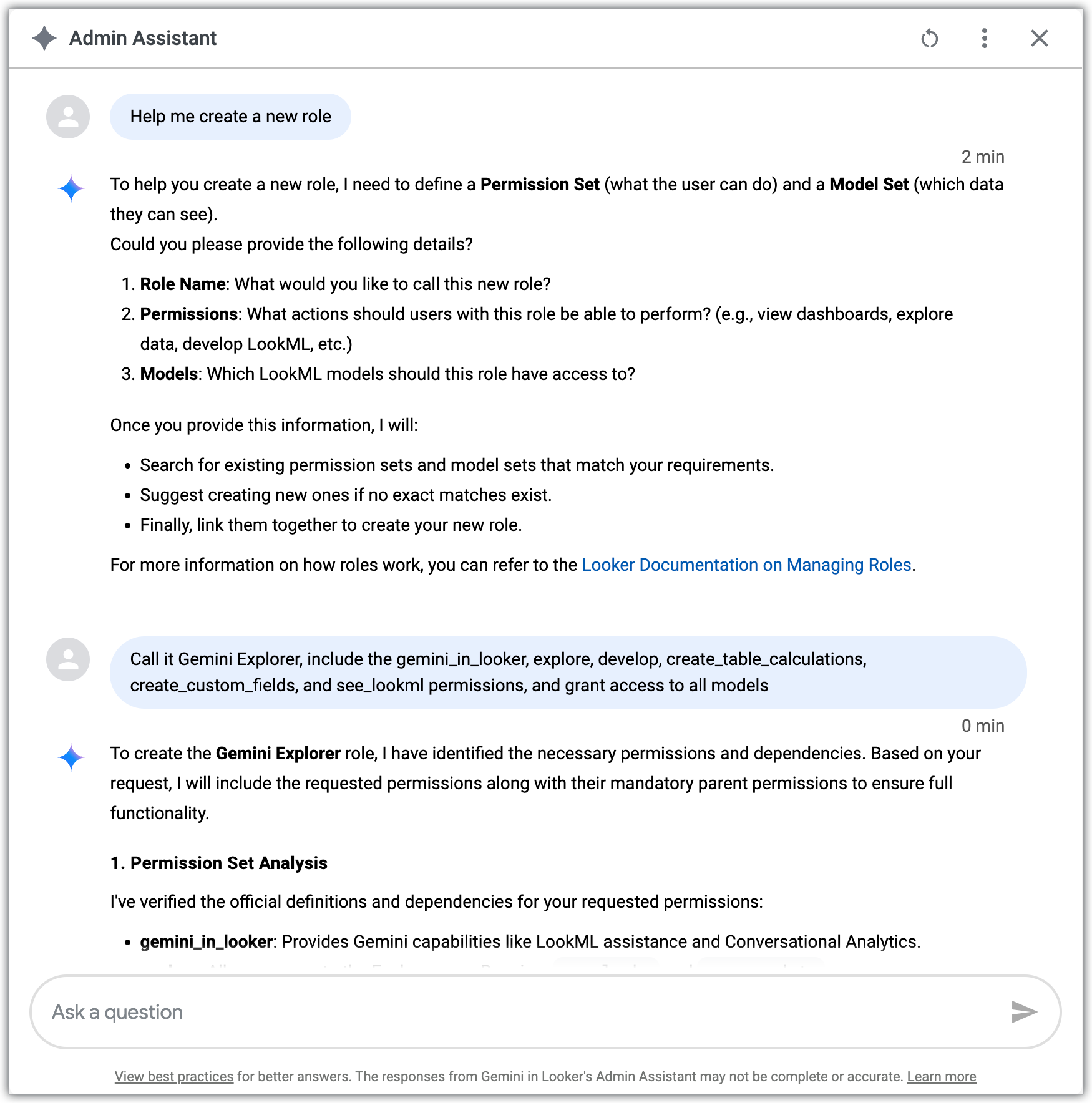
Limitations
The Admin assistant is in preview, and the following limitations apply:
- The number of responses is limited to 100:
- In instances where queries yield over 100 records, the preview scope will be restricted to exactly 100 responses.
- To optimize the user experience, the initial result set will be limited to 25 items; users will then be prompted to load more results if chosen, up to the maximum preview limit of 100.
- There are limits for both the user interface and the context window:
- Only the six most recent conversations will be displayed in the Admin Assistant panel.
- The model will summarize conversation threads after every sixth interaction for storing context.
- This summarized context must be cleared when a new conversation is initiated.
- The user query size is limited to 1,000 words.
Provide feedback
You can provide feedback for the Admin Assistant in the Admin Assistant panel. If the Admin Assistant response looks correct, click the thumb_up thumbs-up icon. If the Admin Assistant response looks incorrect or isn't what you expected, click the thumb_down thumbs-down icon.