

Looker projects rely on stable Git configurations (such as remote repository connections, valid deploy keys, intact repository structures, and correct file system permissions). When Git issues occur, developers and administrators can use the Diagnose & Repair tool to test repository health, identify root causes, and run automated repairs.
The Diagnose & Repair tool evaluates your LookML project repository across eight diagnostic test checks in either your personal development environment or the shared production environment. When issues are found, Looker can automatically perform surgical repairs (such as removing stale lock files, fixing file permissions, or repairing corrupted object indexes) or rebuild damaged repositories while safeguarding uncommitted changes on a dedicated recovery branch.
Prerequisites and permissions
To use the Git Diagnose & Repair tool, you must meet the following permission requirements:
- Developer environment: Requires the
developpermission for at least one model in the project. - Production environment: Requires the
deploypermission for at least one model in the project.
Running a Git diagnosis
To diagnose a LookML project, follow these steps:
- Enable Development Mode.
- In the navigation panel, select Develop to open the Develop panel.
- In the Develop panel, select Projects to display the LookML Projects page.
- Open the project that you want to diagnose.
- Select the Settings icon from the Looker IDE icon menu.
- In the Git Diagnose and Repair section, click Diagnose & Repair.
In the Diagnose & Repair dialog, select the environment that you want to test:
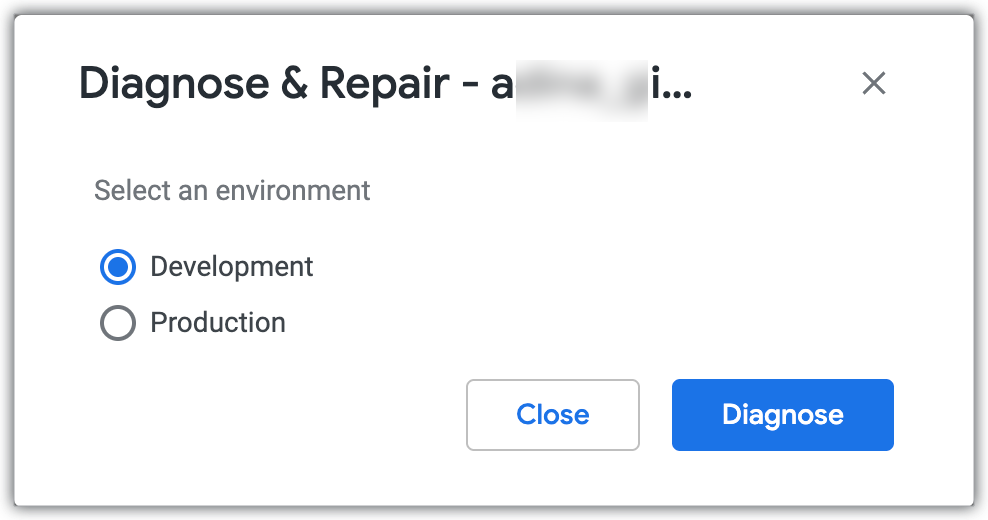
- Development: Tests your personal developer copy of the Git repository.
- Production: Tests the production copy of the Git repository.
Click Diagnose.
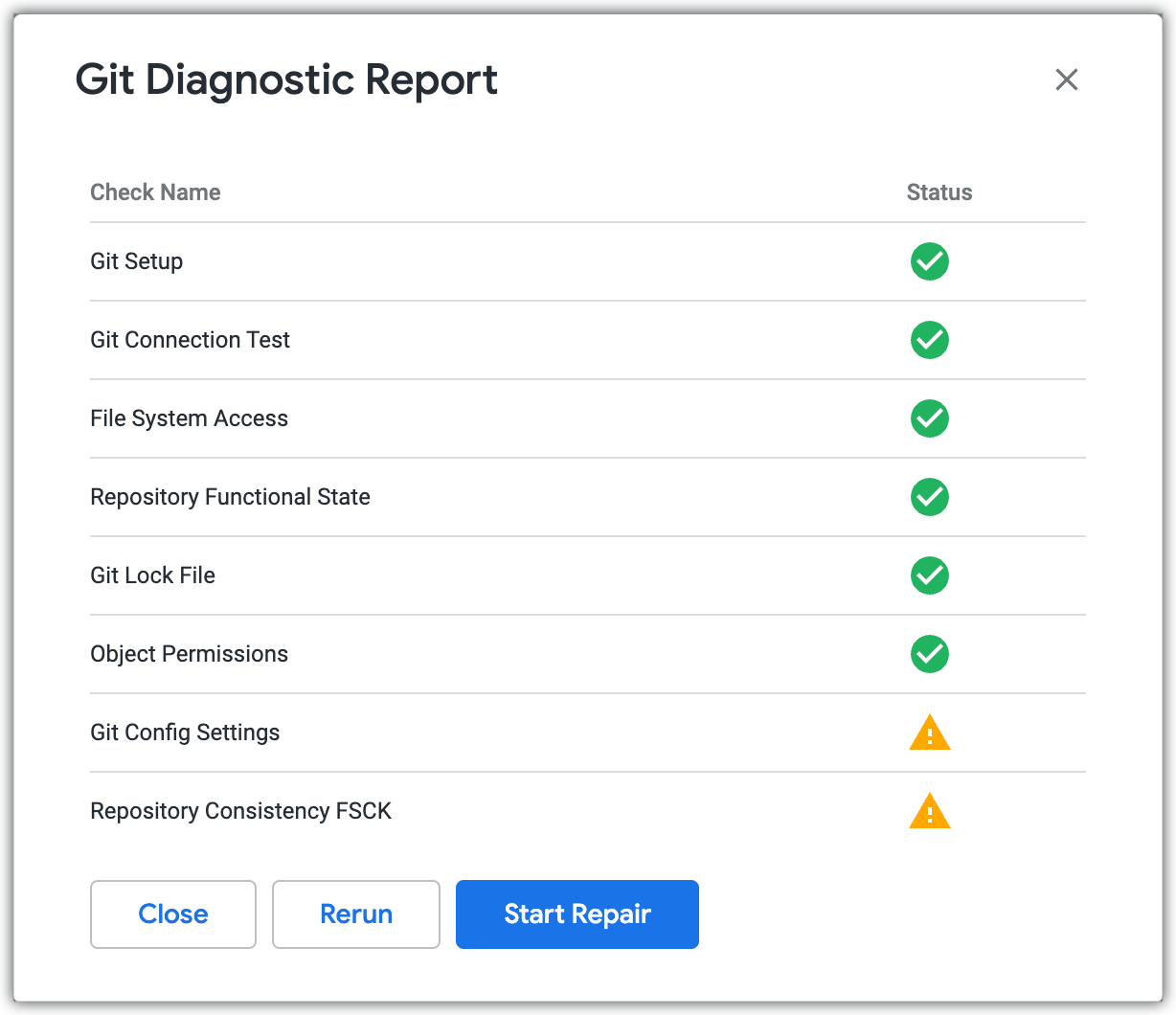
Looker initiates the diagnostic test suite and displays live progress for each test check in the dialog.
Understanding diagnostic results
As the diagnostic test suite runs, each check reports one of the following statuses:
| Status Badge | Meaning | Action Required |
|---|---|---|
| Not Detected | The diagnostic check passed with no issues found. | No action required. |
| Detected | An issue or inconsistency was identified in the repository or connection. | Run automated repair if available, or follow manual resolution steps. |
| Repaired | An issue was successfully resolved by the automated repair process. | No further action required. |
| Failed | The automated repair attempt could not resolve the issue, or the check requires manual intervention. | Review the issue details and follow manual remediation procedures. |
Running automated repairs
If any diagnostic checks return a Detected status and support automated repair, you can initiate repairs directly from the dialog:
- In the Diagnose & Repair dialog, click the Start Repair button.
- Looker applies automated repairs across all repairable issues.
- When the repair process finishes, the status badges update to Repaired for resolved checks, or Failed if manual intervention is required.
Diagnostic checks and repairs reference
The diagnostic test suite evaluates eight categories of Git issues. The following table describes each check, its diagnosis, and the remediation action performed:
| Diagnostic Check | Description | Repair Type | Remediation Actions |
|---|---|---|---|
| Git Setup | Verifies that the project has the prerequisites required to initialize its repository (a configured remote Git origin URL and an active database configuration record). | Manual | If required values are missing, complete initial Git configuration in project settings (Settings > Configuration > Configure Git). For more information, see the Resolving Git setup issues section. |
| Git Connection Test | Runs Looker's standard Git connection test suite against the remote origin repository, verifying credentials, network reachability, and remote access permissions. | Manual | Connection failures are caused by external factors (such as expired SSH deploy keys, revoked OAuth or personal access tokens, firewall restrictions, or provider outages). Resolve the credential or network issue directly with your Git provider. For more information, see the Resolving Git connection test issues section. |
| File System Access | Detects file system I/O or storage errors that prevent Looker from reading directory listings or filenames in the project repository. | Automated | Rebuilds a clean copy of the project repository from scratch. Archives the old directory to a secure backup and saves uncommitted work to a remote recovery branch. |
| Repository Functional State | Checks whether the internal .git structure is present and intact, and verifies that Git recognizes the directory as a functional working tree. |
Automated | Rebuilds the project repository from scratch, restoring a healthy Git directory structure while archiving previous contents to prevent data loss. |
| Git Lock File | Scans for stale .lock files (such as index or configuration locks) left behind by interrupted or terminated Git operations that block subsequent Git commands. |
Automated | Safely removes stale lock files immediately, unblocking Git operations without altering repository history or working files. |
| Object Permissions | Scans project files and directories for file system permissions that deviate from recommended security and operational standards (for example, ensuring that directories and scripts have read and execute access while standard files remain non-executable). | Automated | Automatically normalizes file and directory permissions across the project, restoring safe standard access permissions without modifying file contents. |
| Git Config Settings | Checks whether the repository's internal Git configuration matches Looker's required defaults (specifically verifying that file mode tracking core.filemode is disabled so permission differences across file systems don't generate false changes). |
Automated | Updates the repository configuration to match Looker defaults and saves the updated configuration. |
| Repository Consistency FSCK | Runs a Git file system check (git fsck) to inspect the repository's internal object database for structural corruption (including broken index files, bad commit signatures, invalid object pointers, corrupt objects, or broken references). |
Automated | Initial repair: Rebuilds indexes, prunes stale reference logs, removes corrupted references, and runs git fetch --refetch to retrieve missing objects.Fallback rebuild: If initial repair cannot resolve all errors, safely rebuilds the repository and preserves uncommitted work on a remote recovery branch. |
Resolving manual Git issues
If the Git Setup or Git Connection Test checks detect an issue, automated repair is unavailable because the issue originates outside the local repository. Follow these guidelines to resolve manual issues:
Resolving Git setup issues:
- Open your project in the Looker IDE.
- Select the Settings icon from the icon menu.
- In the Configuration tab, select Reset Git Connection or Configure Git to complete the repository setup. For detailed instructions, see Setting up and testing a Git connection.
Resolving Git connection test issues:
- SSH deploy keys: Verify that the deploy key in Looker matches the public key registered with your Git hosting provider, and ensure that the key has write access enabled. If needed, generate a new deploy key in project settings and update your Git provider.
- HTTPS credentials and personal access tokens: Check whether your personal access token or service account password has expired or been revoked. Generate a new token on your Git provider and update your credentials in Looker.
- IP allowlists and firewalls: Ensure that your Git hosting provider allows inbound traffic from your Looker instance IP addresses.