

For Looker developers: The formatting shown on this page is the same as formatting used with the
value_formatLookML parameter, except that thevalue_formatparameter requires the formatting string to be enclosed in double quotes.
Custom formatting gives you greater control over how numeric data appears in a Looker result set. With custom formatting, you can apply Excel-style formatting options to numeric data shown in visualizations, or produced by custom fields or table calculations.
Using custom formatting in visualizations
For visualizations with a Values tab in the gear menu:
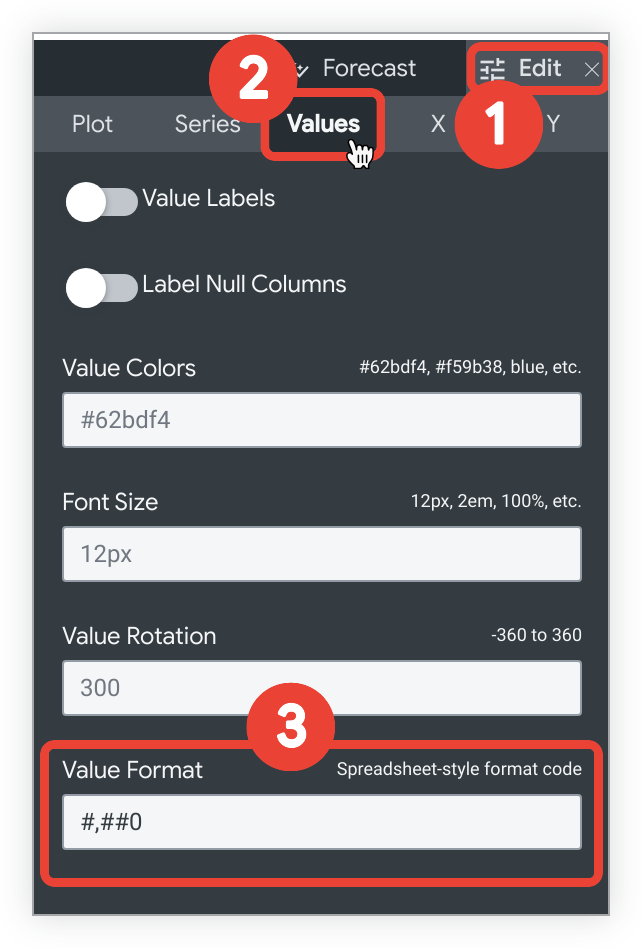
- Select the Edit menu on the Visualization bar.
- Select the Values tab.
- In the Value Format field, enter the custom formatting string.
For example, to add custom formatting for a table visualization:
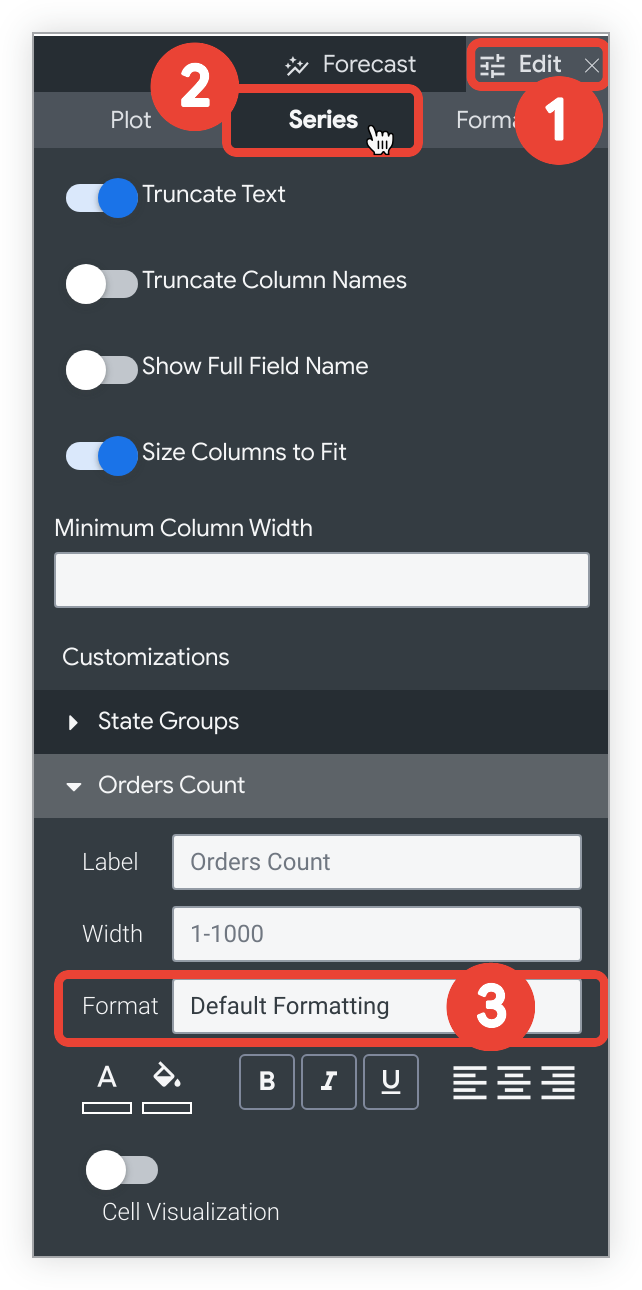
- Select the Edit menu on the Visualization bar.
- Select the Series tab.
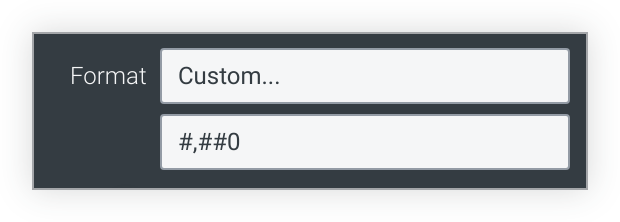
- In the Customizations section, select the Format drop-down and choose Custom....
A new blank field appears when you select Custom.... Enter the custom formatting string in the blank field.
Using custom formatting with table calculations and custom fields
When you create or edit a table calculation or custom field, select the Custom option in the Format drop-down and enter the custom format in the blank field.
Custom formatting examples
You can reference Excel's complete guide to specifying these formats on their Number format codes documentation page, or you can use a third-party tool to build a custom format, such as Custom Formats Builder.
Some of the most common formatting options are listed in the following table. A format code that uses 0 requires that non-significant zeros be displayed if the number contains fewer digits than specified in the code. A format code that uses # displays only the significant digits, even if there are fewer digits than specified in the code.
Some special characters, such as international currency symbols, must be treated as strings and enclosed in double quotes.
| Format | Result |
|---|---|
0 | Integer (123) |
00# | Integer zero-padded to 3 places (001) |
0 "String" | Integer followed by a string (123 String)("String" can be replaced with any text string) |
0.## | Number up to 2 decimals (1. or 1.2 or 1.23) |
0.00 | Number with exactly 2 decimals (1.23) |
00#.00 | Number zero-padded to 3 places and exactly 2 decimals (001.23) |
#,##0 | Number with comma between thousands (1,234) |
#,##0.00 | Number with comma between thousands and 2 decimals (1,234.00) |
0.000,, "M" | Number in millions with 3 decimals (1.234 M)Division by 1 million happens automatically |
0.000, "K" | Number in thousands with 3 decimals (1.234 K)Division by 1 thousand happens automatically |
$0 | Dollars with 0 decimals ($123) |
$0.00 | Dollars with 2 decimals ($123.00) |
"€"0 | Euros with 0 decimals (€123) |
$#,##0.00 | Dollars with comma between thousands and 2 decimals ($1,234.00) |
$#.00;($#.00) | Dollars with 2 decimals, positive values displayed normally, negative values wrapped in parentheses |
0\% | Display as percent with 0 decimals (1 becomes 1%) |
0.00\% | Display as percent with 2 decimals (1 becomes 1.00%) |
0% | Convert to percent with 0 decimals (.01 becomes 1%) |
0.00% | Convert to percent with 2 decimals (.01 becomes 1.00%) |
Custom thousands separators and conditional formatting
Looker uses Excel-style formatting rules. Although Looker recognizes a comma as a thousands separator, it treats other characters, such as apostrophes that are used for the Swiss franc (CHF), as literal characters.
If you use an apostrophe directly as a thousands separator (for example,
"CHF "#'##0.00), the formatting engine treats the apostrophe as a literal
character and forces it into the output string even for values under 1,000 (such
as CHF '20.00 instead of CHF 20.00).
To apply a custom thousands separator exclusively to numbers 1,000 and greater, use conditional formatting within your format string. You can specify different formatting rules for numbers greater than or equal to 1,000 versus numbers less than 1,000, separated by a semicolon:
[>=1000]"CHF "#'##0.00;[<1000]"CHF "0.00
For Looker developers using the
value_format parameter in
LookML, enclose the format string in double quotes and escape the inner double
quotes:
value_format: "[>=1000]\"CHF \"#'##0.00;[<1000]\"CHF \"0.00"
Time formatting for charts
If your chart has a time dimension on the x-axis, you can change the formatting of the x-axis label by using the Time Label Format setting in the X tab of the visualization options. You can format time values by using the syntax on the Time formatting for charts page.