

In Looker, an Explore is your starting point for querying and analyzing data. Interacting with an Explore lets you examine metrics, drill into granular details, and act on your findings. You can safely explore and manipulate data without altering underlying reports or affecting other Looker users. Read the following sections to learn about these concepts:
- Required roles
- Finding Explores in Looker
- Navigating the Explore interface
- Drilling into data for additional detail
- Using links and actions that might be available in the data
- Related resources
Visit the Creating and editing Explores page to learn more about creating or editing an Explore query.
Required roles
To view and interact with Explores, you must have the User Looker role or another role that contains the explore permission.
Finding Explores in Looker
You can find prebuilt Explore queries in Looker in several ways, including the following:
- Click the Explore from Here link while editing Looks or dashboard tiles.
- Click the Explore from Here link on Alerts and scheduled deliveries.
- Follow links that are shared by other users.
- Use Quick Start analyses or Insight Assistant as a starting point in a blank Explore.
- Upload a CSV, an XLS, or an XLSX file.
You can also use the Explore section in the main navigation panel to open a blank Explore.
Navigating the Explore interface
The Explore interface consists of the following elements:
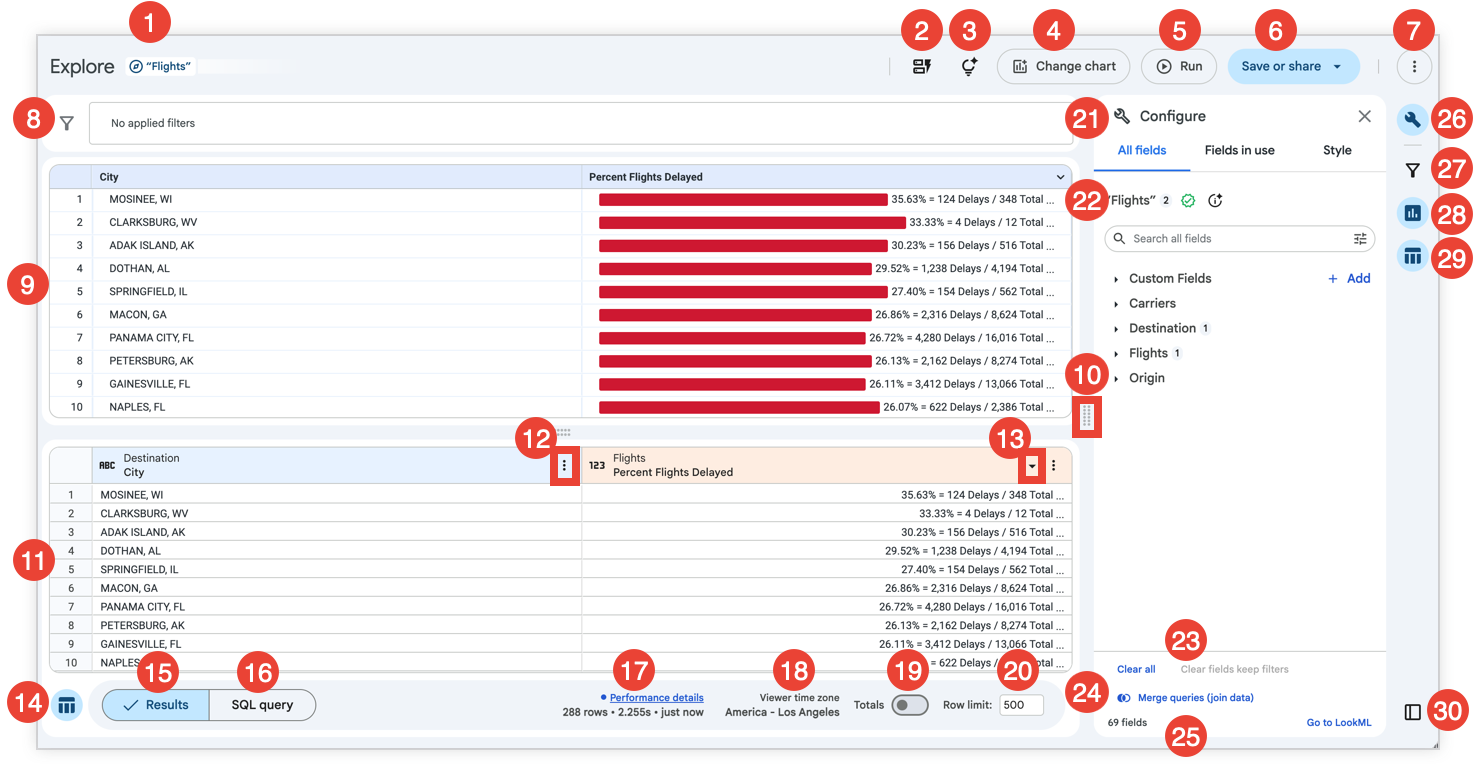
- The name of the Explore.
- The Show quick start button: Opens the Quick Starts panel that displays quick starts, when available. Learn more about using quick starts.
- The Insight Assistant button: Opens the Insight Assistant panel, which lets you ask questions to discover insights and answers by using data from the Explore. Learn more about using the Insight Assistant in Explores.
- The Change chart button: Opens the All chart types menu, which let you choose how to visualize the Explore data. You can also click Auto visualize to let Looker choose the best chart option for displaying the results. Learn more about selecting an effective data visualization and editing visualizations in Explores.
- The Run button: Runs the query with the fields that are selected from the Configure panel. When a query is running, the button becomes the Stop button. You can stop a query when it is running by clicking the Stop button.
- The Save or share button: Opens a menu that displays the options to save, download, or share an Explore query. Learn more about saving or sharing Explores.
- The More options menu: Opens a menu that lets users use or customize their Explore in several ways. Learn more about More options menu.
- The Filter pane: Displays the filters that are applied to Explores, as well as filter options. Learn more about applying filters in Explores.
- The Visualization pane: Displays the results of the Explore query that are visualized in a chart.
- The Drag indicator: Lets you resize the height of the Visualization pane and the Data pane, and the width of the Configure panel when you click and hold your cursor on the Drag indicator.
- The Data pane: Displays the results of the Explore query in a data table, or the underlying SQL query when the SQL Query button is clicked.
- The data column More menu: Displays the options for editing the Explore query around a specific column. Learn more about using the data column More menu to edit Explore queries.
- The Sort Order indicator: Indicates the field or fields, the direction (ascending or descending), and the order that an Explore query is sorted by. Learn more about sorting queries.
- The Data Table button: Lets you display or hide the Data panel.
- The Results button: When clicked, displays the Explore results in a data table.
- The SQL Query button: When clicked, displays the SQL query that's generated to fetch the Explore results instead of the results data table.
- The Explore Performance panel: Displays the number of rows that are returned, the time it took to run the query, how old the data is, and a link to view the Explore Performance panel. When your browser window is too small to display the text, you can click the Performance details icon to display the details.
- The viewer time zone: Displays the time zone that is used by the viewer to interpret the time-based data, if your admin has enabled user-specific time zones. You can change the viewer time zone by clicking the Viewer time zone text. If your browser window is too small to display the time zone, you can click the Viewer time zone icon to display the time zone.
- The Limit field: Lets you input a number to limit the displayed results. Learn more about limiting data.
- The Totals and, when available, Subtotals switch: When enabled, displays the row or column totals and subtotals in the Explore results. Learn more about displaying totals.
- The Configure panel: Displays the All Fields, Fields in use, and visualization Style tabs, which let you select fields to create and edit the Explore results and the Explore visualization. Learn more about creating and editing Explores and about editing visualizations.
- The name of the Explore. Click the Explore Summary button to view a description of the Explore that was either added by a developer, or generated by Gemini in Looker. If your Explore is certified, a
 Certified badge is displayed next to the Explore name.
 - The Clear all and Clear fields keep filters options: When clicked, Clear all clears all of the Explore fields, and Clear fields keep filters clears the Explore fields but keeps any filters that are applied.
- The Merge queries (join data) button: Opens the Join data page. Learn more about joining data.
- The Explore summary: Displays the total number of fields in an Explore (including custom fields and table calculations when permissions allow), and the Go to LookML link. The Go to LookML link directs users to the
exploredefinition in its LookML project. This link is visible only to users with thesee_lookmlpermission. - The Configure button: Lets you display or hide the Configure panel. Alternatively, click the Close button to close the Configure panel.
- The Filter button: Lets you display or hide the Filter pane.
- The Visualization button: Lets you display or hide the Visualization pane.
- The Data Table button: Lets you display or hide the Data pane.
- The Move Left or Move Right button: Lets you change the docking orientation of the Configure panel on the Explore page. The button label is Move Left when the Configure panel is docked on the right and Move Right when the Configure panel is docked on the left.
Using the Save or share menu
The Save or share menu lets users save and share an Explore in several ways, depending on their permissions in Looker. Depending on user permissions and instance integrations, the options can include the following:
- Save to new dashboard: Save an Explore as a query tile to a new dashboard.
- Save to existing dashboard: Save an Explore as a query tile to an existing dashboard.
- Save as a Look: Save an Explore as a Look.
- Send: Select this option to send an Explore as a one-off delivery.
- Save and schedule: Save an Explore as a Look and set a recurring delivery for that Look.
- Share URLs: Opens the Share URLs menu to copy the short or expanded Explore URL to your clipboard.
- Download: Download the contents of an Explore in one of several format options.
- Connected Sheets: Open a new Google Sheets file that's initialized with Connected Sheets for Looker.
- Open in Excel: Open the results of an Explore query in Google Sheets. This menu option is available only when the Google Sheets action is enabled for your instance.
Using the More options menu
The More options menu lets users use or customize their Explore in several ways, depending on their permissions in Looker. Depending on user permissions and instance integrations, the options can include the following:
- Get LookML: Select this option to get the Explore's query and visualization LookML elements to add to a LookML dashboard, an aggregate table, or a native derived table.
- Remove fields and filters: Removes all fields and filters from the Explore, giving you a blank Explore.
- Clear cache and refresh: Force new query results to be retrieved from the database.
- Certify or Remove certification: If content certification is enabled on your instance, users with the proper permission will see the option to certify the Explore; or, if the Explore is already certified, users with the proper permission will see the option to revoke certification of the Explore.
- Edit data fields: If you are using a self-service Explore, the Edit data fields option lets you modify the data fields in the Explore.
- Update data: If you are using a self-service Explore, the Update data option lets you update the data in the Explore.
- Rebuild Derived Tables & Run: The Rebuild Derived Tables & Run option rebuilds all the persistent tables (all the PDTs and aggregate tables) that are required to answer the query, regardless of their persistence strategy. This option includes any aggregate tables and PDTs in the current query, and it also includes any aggregate tables and PDTs that are referenced by the aggregate tables and PDTs in the current query.
- Switch to classic Explore: You can use this option to switch to the classic Explore interface.
Drilling into the data
Every query result is the starting point for another query. Selecting any data point in a result will drill down, creating another query that's refined by the data point that you selected. For example, you might have an Explore that displays flight information, in this case Flight Count grouped by Origin City. In this example, the selected origin city, Chicago, has 4,719,108 flights. Clicking the count value of 4,719,108 opens a drill window that displays a data table that contains details about those specific flight records.

Drilling deeper ...
The drill window displays all the flights that had Chicago as a point of origin. From the drill window, you can do the following:
- Click Explore to open an Explore that uses the fields in the drill window as a starting point.
- Click Download to download the data with the same options as shown on the Downloading content documentation page.
- Select a value from the drill window data table to keep drilling in the drill window.
Looker query results are linked so that you can keep drilling, exploring, and uncovering new insights.
Drilling into dashboards
You can also drill into data from dashboards. For example, suppose you have a dashboard called Business Overview that has a filter on the field State for all dashboard tiles. In this example Explore, which is a query tile on the dashboard, the Business Overview dashboard appears as an option in the Dashboards section of the drill menu for the State field, since the State field is used as a filter on that dashboard:
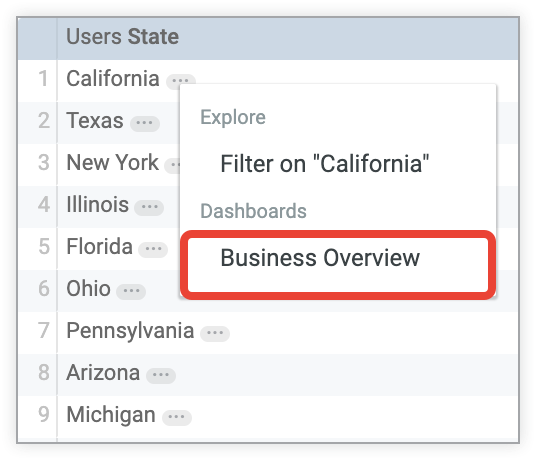
When you click the name of the dashboard in the drill menu's Dashboards section, Looker takes you to the Business Overview dashboard, with the filter for the dashboard set to the value for the State field that you selected in the Explore.
Using links and data actions
The presence of links or data actions is indicated by an ellipsis (…) following the value in an Explore column. You can access links and action options by clicking the ellipsis (...) to open the drill menu.
Using links
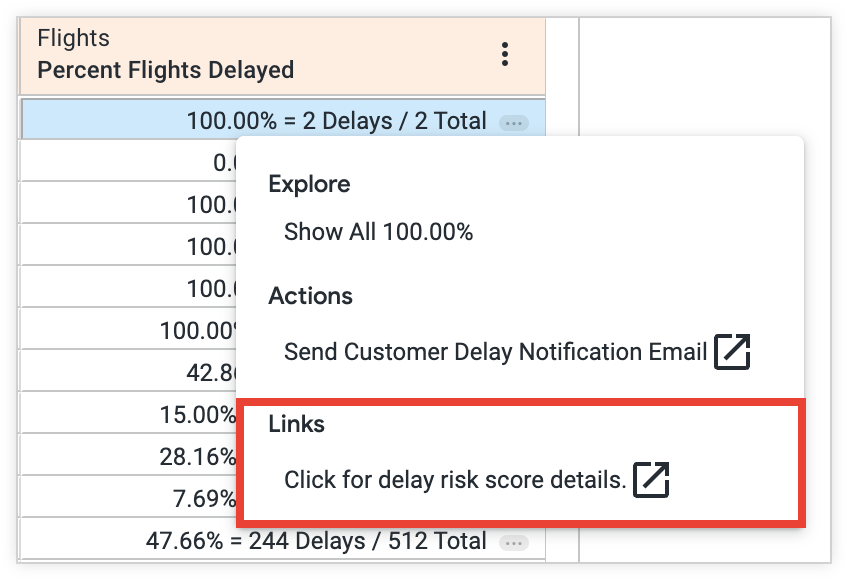
Your Looker developers may have added links to your data. The option to open the link will be available in the Links section of the drill menu when you click a value in a data table column.
For example, if a developer adds a link to an external resource to the Percent Flights Delayed field, Looker provides an option to navigate to that resource. You can select this option in the Links section of the drill menu when you select a value from the Percent Flights Delayed column in a data table.
Using data actions
Your Looker developers may have added data actions to the dimensions or measures in your data. With data actions, you can perform tasks with other tools directly from Looker, such as sending an email or setting values in other applications. These data actions appear in the drill menu in the Actions section.
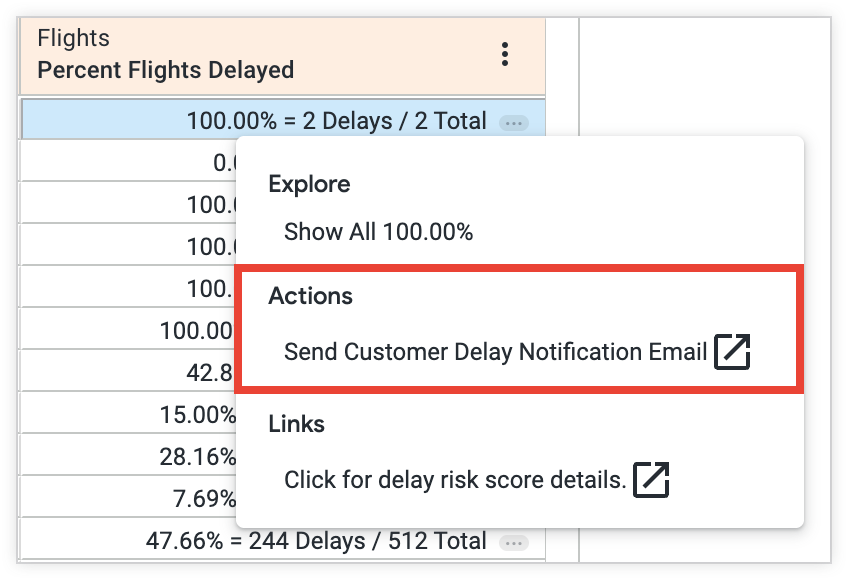
In this example, the Percent Flights Delayed field has a link to email a delay notification to customers. When the user clicks a column value and chooses the Send Customer Delay Notification Email action, the user will be taken to an email service to send a delay notification to impacted customers.
Related resources
Now that you know how powerful the Explore experience is for learning more about data and discovering insights through iterative searches, you might want to learn how to do the following:
- Learn how to create or edit Explores.
- Learn how to edit visualizations.
- Learn how to save Explore queries as Looks.
- Learn how to add Explore queries to dashboards.
- Learn how to share data with other users.