

When you explore data in Looker, you might need to calculate metrics that aren't defined in your data model—such as calculating running totals, comparing values across rows or columns, or finding percent changes over time. Instead of waiting for a LookML developer to update the model, you can create table calculations directly in your Explore to analyze your query results on the fly.
Table calculations let you create ad hoc metrics that operate on the dimensions, measures, and other table calculations in your query after data is retrieved from your database. They are similar to formulas found in spreadsheet tools such as Google Sheets. In the data table, table calculations appear as green columns, distinguishing them from blue dimensions and orange measures.
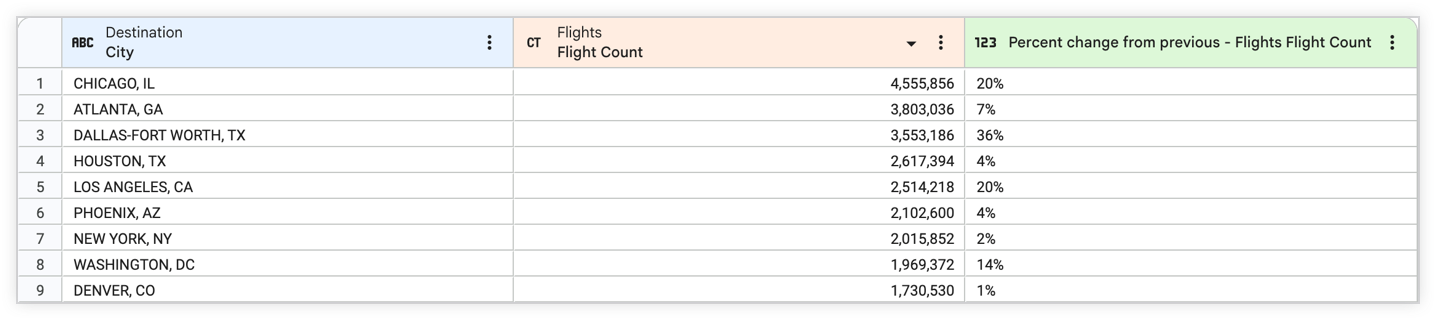
For example, the last column in the following table uses the % change of previous shortcut calculation to calculate the percent change of Flights Flight Count from the previous row:
To create and use table calculations, you must have the create_table_calculations permission.
Depending on your analytical goals, you can create table calculations in two ways:
- Shortcut calculations: Apply common calculations—such as percent of previous row, running total, percent of column total, or moving average—directly to numeric fields without writing formulas.
- Custom expressions: Build mathematical, logical (true/false), text-based, or date-based calculations by using Looker expressions (Lexp) across any fields in your query results.
Table calculations are different from LookML-defined fields and custom fields
There are a few differences between table calculations and LookML-defined fields that are defined in LookML:
- Table calculations give anyone who has the appropriate permissions the ability to create calculations that are based on LookML-defined fields, rather than the ability to create LookML-defined fields, which require that the user have development permissions and understand LookML.
- Table calculations operate on the results from your query after it has run, as opposed to LookML-defined or custom fields, which are part of the query that is run against the database. In other words, first you select a set of dimensions and measures and run your query as normal, and then you can base table calculations on the data in the query results.
- Although table calculations are quicker to create than LookML-defined fields, they are not as easily controlled as LookML-defined fields. Since any user can create a table calculation, they might not be the "official" calculations. Keep this trade-off in mind as you decide between LookML-defined fields and table calculations, since Looker leverages LookML to maintain a single source of truth.
There are a few differences between table calculations and custom fields:
- Custom fields generate SQL that will run against the database, similar to a LookML-defined field. Table calculations are executed post-query and don't run against the database.
- Table calculations are dependent on data from the data table; custom fields are not.
Table calculation fields appear next to dimensions and measures in the table. If you want to reuse your table calculations in the future, be sure to save your Explore as a Look or as a dashboard tile.
Creating table calculations
To allow users or groups to create table calculations, your Looker admin must give those users or groups access to the feature by granting them the create_table_calculations permission.
Looker's Explore page has a built-in Looker expression editor to help you create table calculations, custom fields, and custom filters. If you're a Looker developer who is creating a data test to verify the logic of your model, you can also use the Looker expression editor to build a Looker expression and then copy the expression into your data test's expression parameter.
The methods for creating a table calculation differ depending on whether you're using the default Explore interface or classic Explore interface.
Creating table calculations in the default Explore interface
To create a table calculation in the default Explore interface, follow these steps:
In the Configure panel, select + Add, and then select Table Calculation to open the Create table calculation dialog.
In the Create table calculation dialog, select a calculation type from the Calculation drop-down. The options for a Custom expression are displayed by default.
Add the calculation definition, including selecting a shortcut calculation's Source column. Only numeric fields that appear in the Explore's data table are eligible for calculation types other than Custom expression.
- If Custom expression is selected from the Calculation drop-down, enter a Looker expression in the large field to create your calculation. You can create table calculations only from fields that appear in the Explore's data table. Looker expressions can evaluate to a number, date, string (text), or Boolean (true/false).
- The Creating Looker expressions documentation page explains how to create Looker expressions and how the editor can assist you.
Optionally, select a format other than the default from the Format drop-down.
Optionally, enter a new calculation name other than the default in the Name field. The calculation name appears in the Configure panel and in the data table.
Select + Add Description to add an optional description of up to 255 characters that can give other users more context or information about the table calculation.
Select Save.
You can also create shortcut calculations directly from the Data pane by following these steps:
- In the Data pane, select the data column More menu on a numeric field.
- select Calculations, and choose a shortcut calculation.
The new calculation will automatically appear as a green column in the data table and in the Custom Fields view in the Configure panel.
As with other fields, you can select the calculation's name to add or remove it from a query. You can also hold your cursor over the field to reveal more options that are available for that calculation.
Creating table calculations in classic Explores
In classic Explores, you can access the Looker expression editor from the Explore page in these ways:
Using the + Add button in the Custom Fields section of the field picker to create table calculations
If you have the permissions to create table calculations, you can use the Custom Fields section of the field picker to open the Create table calculation dialog.
To create a table calculation using the Custom Fields section, follow these steps:
- Select + Add in the Custom Fields section of the field picker.
Select Table Calculation to open the Create table calculation dialog.
Then, for each table calculation, follow these steps:
- Select a calculation type from the Calculation drop-down. The options for a Custom expression are displayed by default.
- Add the calculation definition, including selecting a shortcut calculation's Source column. Only numeric fields that appear in the Explore's data table are eligible for calculation types other than Custom expression.
- If Custom expression is selected from the Calculation drop-down, enter a Looker expression in the large text field to create your calculation. You can only create table calculations from fields that appear in the Explore's data table. Looker expressions can be basic; or they can use as many fields, functions, and operators as your business logic requires. The expression you create can evaluate to a number, date, string (text), or Boolean (true/false).
- The Creating Looker expressions documentation page explains how to create Looker expressions and how the editor can assist you.
- Optionally, select a format other than the default from the Format drop-down.
- Optionally, enter a new calculation name other than the default in the Name field. The calculation name appears in the field picker and in the data table.
- Select + Add Description to add an optional description of up to 255 characters that can give other users more context or information about the table calculation.
- Select Save.
The new calculation will automatically appear in the data table and in the Custom Fields section of the field picker. As with other fields, you can select the calculation's name to add or remove it from a query. You can also hold your cursor over the field to reveal more options that are available for that calculation.
Using the Data pane to create table calculations
In addition to using the Custom Fields section of the field picker, you can open the Create table calculation dialog by clicking the Add calculation button from the Data pane.
Then, for each table calculation, follow these steps:
- Select a calculation type from the Calculation drop-down. The options for a Custom expression are displayed by default.
- Add the calculation definition, including selecting a shortcut calculation's Source column. Only numeric fields that appear in the Explore's data table are eligible for calculation types other than Custom expression.
- If Custom expression is selected from the Calculation drop-down, enter a Looker expression in the large field to create your calculation. You can only create table calculations from fields that appear in the Explore's data table. Looker expressions can be quite basic; or they can use as many fields, functions, and operators as your business logic requires. The expression you create can evaluate to a number, date, string (text), or Boolean (true/false).
- The Creating Looker expressions documentation page explains how to create Looker expressions and how the editor can assist you.
- Optionally, select a format other than the default from the Format drop-down.
- Optionally, enter a new calculation name other than the default in the Name field. The calculation name appears in the field picker and in the data table.
- Select + Add Description to add an optional description of up to 255 characters that can give other users more context or information about the table calculation.
- Select Save.
The new calculation will automatically appear in the data table and in the Custom Fields section of the field picker. As with other fields, you can select the calculation's name to add or remove it from a query. You can also hold your cursor over the field to reveal more options that are available for that calculation.
Shortcuts for common calculations
If you have the permissions to create and edit table calculations, you can perform a shortcut calculation on certain numeric fields that are in an Explore's data table — including other table calculations.
You can perform shortcut calculations in one of the following ways:
- Using a field in the Data pane
- Using the Create table calculation dialog or the Edit table calculation dialog
The second method lets you customize the table calculation as you create it, such as renaming, adding an optional description, or selecting a format other than the default.
The following section describes the types of available calculation options.
Types of common calculation shortcuts
Several types of calculations are available as shortcut options. The following table lists each available calculation along with its description, input, and Looker expression (Lexp), and the default value format and default name of the calculation. You can specify a different name or value format by editing your calculation.
For common calculation shortcuts that are only available for pivoted results, see the table of common pivot calculation shortcuts on this page.
| Calculation | Description | Input | Lexp | Format | Name |
|---|---|---|---|---|---|
% of column% of column |
The row value divided by the sum of values in the column. When the row limit has been reached, this calculation includes only values in the data table. |
field_1
|
field_1/sum(field_1)
|
% (0 decimal places) |
Percent of view_name field_name
|
% of previous row% of previous row |
The current row's value divided by the value of the following row. |
field_1
|
field_1/offset(field_1, 1)
|
% (0 decimal places) |
Percent of previous - view_name field_name
|
% change from previous row% change from previous row |
The difference between the current row's value and the value of the following row, divided by the value of the following row. |
field_1
|
field_1/offset(field_1, 1) - 1
|
% (0 decimal places) |
Percent change from previous - view_name field_name
|
Running column totalRunning column total |
The cumulative sum of the current row's value and all previous row values in the column. |
field_1
|
running_total(field_1)
|
Default formatting |
Running total of view_name field_name
|
Rank of columnRank of column |
The rank of a row's value among all values in the column. When the row limit has been reached, this calculation includes only values in the data table. |
field_1
|
rank(field_1,field_1)
|
Default formatting |
Rank of view_name field_name
|
When Explore results are pivoted, there are more common calculation shortcuts available for pivoted measures.
The following table lists each available calculation along with its description, input, and Looker expression (Lexp), and the default value format and default name of the calculation. You can specify a different name or value format by editing your calculation.
Using the data table to use shortcuts for common calculations
If you have the permissions to create and edit table calculations, you can create a shortcut calculation from a field's column in the data table in the following ways:
In the default Explore interface:
- In the Data pane, select the data column More menu on a numeric field.
- Select Calculations.
- Choose a calculation type.
In classic Explores:
- Select the gear menu next to the field's name in the data table.
- Select Calculations.
- Choose a calculation type.
Pivot calculation types won't appear unless Explore results are pivoted.
The new calculation will automatically appear as a green column in the data table.
The new calculation will also appear in the Custom Fields view in the Configure panel (or the Custom Fields section of the field picker in classic Explores).
As with other fields, you can select the calculation's name to add or remove it from a query. You can also hold your cursor over the field to reveal more options that are available for that calculation, including editing the calculation.
Using the Create or Edit table calculation dialog to use shortcuts for common calculations
This method lets you select a format or name other than the default, or add a description as you create the calculation.
- Open the Create table calculation dialog if you are creating a table calculation, or open the Edit table calculation dialog if you are editing a table calculation.
- Select a calculation type from the Calculation drop-down.
- Pivot calculation types won't appear unless Explore results are pivoted.
- Select the field on which you want to perform the calculation in the Source column drop-down. Only numeric fields that appear in the Explore's data table will be available to choose from.
- Optionally, use the Format drop-down to choose a predefined format or create a custom format for the results. If you create a custom format, use spreadsheet-style formatting as described on the Adding custom formatting to numeric fields documentation page. If no selection is made, Looker uses a default format.
- Optionally, rename your table calculation from the default name in the Name field. The calculation name appears in the field picker and in the data table.
- Select + Add Description to add an optional description of up to 255 characters that can give other users more context or information about the table calculation.
- If you are finished creating the table calculation, select Save to add the calculation to the Explore.
The new calculation will automatically appear as a green column in the data table.
The new calculation will also appear in the Custom Fields section of the Configure panel (or the Custom Fields section of the field picker in classic Explores).
As with other fields, you can select the calculation's name to add or remove it from a query. You can also hold your cursor over the field to reveal more options that are available for that calculation, including editing the calculation.
Duplicating table calculations
If you have the permissions to create table calculations, you can also duplicate existing table calculations that you or other users have created. Duplicating and then editing table calculations can be helpful if you'd like to create multiple table calculations with only small differences (for example, 30-day, 60-day, or 90-day sums).
The methods for duplicating a table calculation differ depending on whether you're using the default Explore interface or classic Explore interface.
Duplicating table calculations in the default Explore interface
You can duplicate table calculations in the default Explore interface in either of the following ways:
- In the Configure panel, expand the Custom Fields view, select the calculation's More menu, and select Duplicate.
- In the Data pane, select the calculation's data column More menu, and select Duplicate.
The duplicated table calculation appears in the Custom Fields view in the Configure panel and in the data table, using the name of the original table calculation plus the word "Copy" appended to the end.
Next, you can edit the duplicated table calculation.
Duplicating table calculations in classic Explores
In classic Explores, you can duplicate table calculations in these ways:
- Using a calculation's three-dot More menu in the Custom Fields section of the field picker
- Using a calculation's data table gear menu
To duplicate a table calculation in classic Explores, follow these steps:
- In the field picker, expand the Custom Fields section of the field picker.
- Select the three-dot More menu for the table calculation that you want to duplicate.
- Select Duplicate.
Alternatively, select Duplicate from a calculation's data table gear menu.
The duplicated table calculation appears after the original in the Custom Fields section of the field picker, using the name of the original table calculation plus the word "Copy" appended to the end.
Next, you can edit the duplicated table calculation.
Editing table calculations
If you have the permissions to create table calculations, you also can edit existing table calculations that you or other users have created.
The methods for editing a table calculation differ depending on whether you are using the default Explore interface or classic Explore interface.
Editing table calculations in the default Explore interface
You can edit table calculations in the default Explore interface in either of the following ways:
- In the Configure panel, expand the Custom Fields view, select the calculation's More menu, and select Edit.
- In the Data pane, select the calculation's data column More menu, and select Edit or Edit Calculation.
Either option opens the Edit table calculation dialog. To edit the table calculation, follow these steps:
- Select a new calculation type from the Calculation drop-down.
- Change the calculation definition, including a shortcut calculation's Source column. Only numeric fields that appear in the Explore's data table are eligible for calculation types other than Custom expression.
- If Custom expression is selected from the Calculation drop-down, either add a Looker expression to, or edit an existing Looker expression in, the large text field. You can only create table calculations from fields that appear in the Explore's data table. When available, you can use Gemini assistance in creating a Looker expression.
- Select a new format from the Format drop-down.
- Optionally, enter a new calculation name in the Name field. The calculation name appears in the Configure panel and in the data table. If you have changed anything on a table calculation, consider modifying the name to match.
- Add or update an optional field description of up to 255 characters with details about the table calculation, including its intended use.
- If there is an existing description, the Description box will automatically appear. If there is no existing description, select + Add Description to add an optional description.
- Select Save.
Editing table calculations in classic Explores
In classic Explores, you can edit table calculations in these ways:
- Using a calculation's three-dot More menu in the Custom Fields section of the field picker
- Using a calculation's data table gear menu
To edit a table calculation in classic Explores, follow these steps:
- Expand the Custom Fields section of the field picker, or select Edit calculation from the calculation's data table gear menu to open the Edit table calculation dialog.
- Select the three-dot More menu next to the table calculation that you want to edit.
- Select Edit to open the Edit table calculation dialog.
- Select a new calculation type from the Calculation drop-down.
- Change the calculation definition, including a shortcut calculation's Source column. Only numeric fields that appear in the Explore's data table are eligible for calculation types other than Custom expression.
- If Custom expression is selected from the Calculation drop-down, either add a Looker expression to, or edit an existing Looker expression in, the large text field. You can only create table calculations from fields that appear in the Explore's data table.
- Select a new format from the Format drop-down.
- Optionally, enter a new calculation name in the Name field. The calculation name appears in the field picker and in the data table. If you have changed anything on a table calculation, consider modifying the name to match.
- Add or update an optional field description of up to 255 characters with details about the table calculation, including its intended use.
- If there is an existing description, the Description box will automatically appear. If there is no existing description, select + Add Description to add an optional description.
- Select Save.
Removing and deleting table calculations
If you have the permissions to create table calculations, you can remove table calculations from a query or delete them from the Explore.
When you delete a table calculation, it disappears from the Explore but not from any Looks or dashboard tiles that use that calculation. Also, anyone who is using a URL for an Explore that had the table calculation will still see the calculation.
You can choose between Remove and Delete:
- Remove: Removes the table calculation from the Explore query and data table, but keeps the calculation definition in the Custom Fields view in the Configure panel so that you can add it back to the query later.
- Delete: Permanently deletes the table calculation from both the Explore query and the Custom Fields view in the Configure panel.
The methods for removing and deleting table calculations differ depending on whether you are using the default Explore interface or classic Explore interface.
Removing table calculations in the default Explore interface
To remove a table calculation from the query while keeping it in the Configure panel, use either of the following methods:
- In the Data pane, select the calculation's data column More menu, and select Remove.
- In the Configure panel, expand the Custom Fields view, and click the table calculation's name to deselect it.
The table calculation will no longer appear in the data table or query results, but remains available under the Custom Fields view in the Configure panel.
Deleting table calculations in the default Explore interface
To permanently delete a table calculation from an Explore query and the Configure panel, use either of the following methods:
- In the Configure panel, expand the Custom Fields view, select the calculation's More menu, and select Delete.
- In the Data pane, select the calculation's data column More menu, and select Delete.
You can also use the keyboard shortcuts Command-K (Mac) or Ctrl+K (Windows) to delete table calculations and clear fields from an Explore query.
You can reinstate a table calculation that you've deleted by selecting the back arrow on your browser.
Removing table calculations in classic Explores
In classic Explores, you can remove table calculations in these ways:
- Using a calculation's three-dot More menu in the Custom Fields section of the field picker
- Using a calculation's data table gear menu
To remove a table calculation in classic Explores, follow these steps:
- Expand the Custom Fields section of the field picker.
- Select the three-dot More menu next to the table calculation that you want to remove.
- Select Remove.
Alternatively, select Remove from the table calculation's data table gear menu.
Deleting table calculations in classic Explores
In classic Explores, you can delete table calculations in these ways:
- Using a calculation's three-dot More menu in the Custom Fields section of the field picker
- Using a calculation's data table gear menu
To delete a table calculation in classic Explores, follow these steps:
- Expand the Custom Fields section of the field picker.
- Select the three-dot More menu next to the table calculation that you want to delete.
- Select Delete.
Alternatively, select Delete from the table calculation's data table gear menu.
You can also use the keyboard shortcuts Command-K (Mac) or Ctrl+K (Windows) to delete table calculations and clear fields from an Explore query.
You can reinstate a table calculation that you've deleted by selecting the back arrow on your browser.
Sorting table calculations
To sort on a table calculation, select the field name at the top of the column, just as you would a dimension or measure. For more information on sorting, see the Creating and editing Explores documentation page.
When table calculations cannot be sorted
Sorting on a table calculation works similarly to sorting on a dimension or measure in Looker. However, there are two important differences that prevent sorting in some scenarios:
- Table calculations are created after the data is retrieved from your database, which means that when you sort a table calculation, you can only sort the data that is already displayed.
- Some table calculations are applied to multiple rows within the same column, such as when using an
offset()function (see more on using theoffsetandpivot_offsetfunctions in Looker's Best Practices). In these cases, sorting the table calculation would change its results and is therefore disabled.
Specific scenarios where you can't sort a table calculation include the following:
- When you're using a calculation that hits a row limit
- When you're using a dimension or measure after you've already sorted by a table calculation
- When you're using a table calculation that makes use of an offset
Calculations that hit a row limit
If the number of rows in your query exceeds the row limit that you've set, you won't be able to sort table calculations. This is because table calculations are only based on the rows that are displayed. Therefore, if you hit a row limit, the table calculation might be missing some rows that it should be sorting into your results. If you run into this issue, you can try increasing your row limit (up to 5,000 rows, or up to 50,000 rows if a higher limit is specified by your admin).
Looker will warn you when results have reached a row limit by displaying the text Row limit reached: Results may be incomplete in a yellow bar at the top of the data table.
When this occurs, you can try sorting the data table by a field that's not a table calculation.
Sorting a dimension or measure after sorting a table calculation
As indicated in the Calculations that hit a row limit section on this page, table calculations are only based on the rows that are displayed. In contrast, sorting by a dimension or a measure goes back to your database to make sure it finds the correct rows. As a result, you should start sorting with dimensions and measures. Then, when the correct data has been returned from your database, you can sort those results based on a table calculation.
Using table calculations in visualizations
Just like LookML-defined dimensions and measures, table calculations are automatically displayed in visualizations.
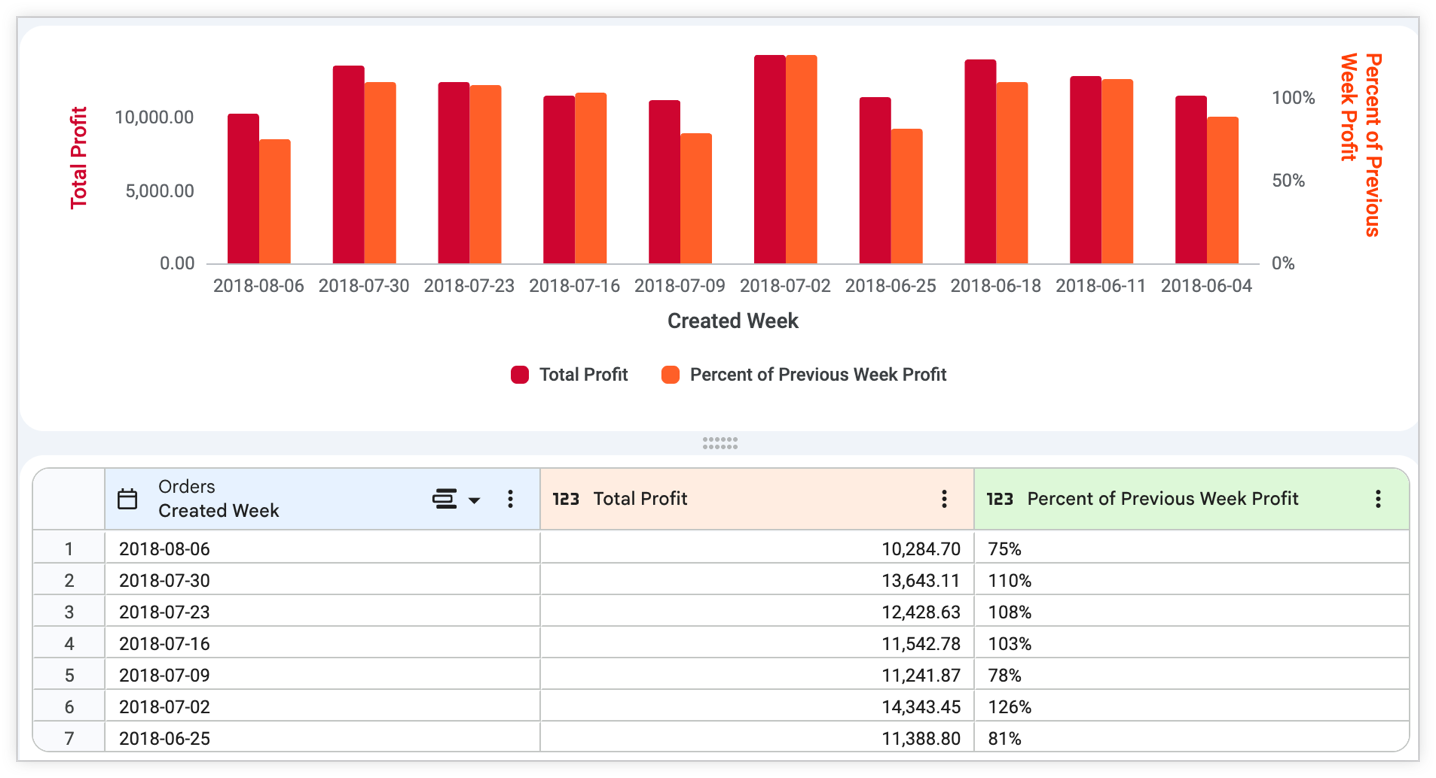
In addition, you can use table calculations to decide which rows of your data should be displayed in a visualization. The following example will be used to explore this feature; this example includes weekly sales information about the Accessories category.
Note that the underlying data table includes the dimension Orders Created Week and the measure Order Items Total Profit, along with a table calculation called Percent of Previous Week Profit, which compares the profit of each week against the previous week:
You can now prevent certain rows of data from showing up in the column chart. To do so, you'll create a table calculation that evaluates to true or false, then hide the false values (which will appear as "No" entries in your data table). You don't want the formula to result in the word "true" or "false"; rather, it should be a condition that is either true or false.
To achieve this result, you could create a table calculation, Exceeds Previous Week Profit, that evaluates whether the Percent of Previous Week Profit calculation is greater than 1:
${percent_of_previous_week_profit} > 1
The resulting table will include a new table calculation that evaluates each row against the Exceeds Previous Week Profit calculation and that displays a Yes or a No, depending upon whether the percent of previous is greater than 1.
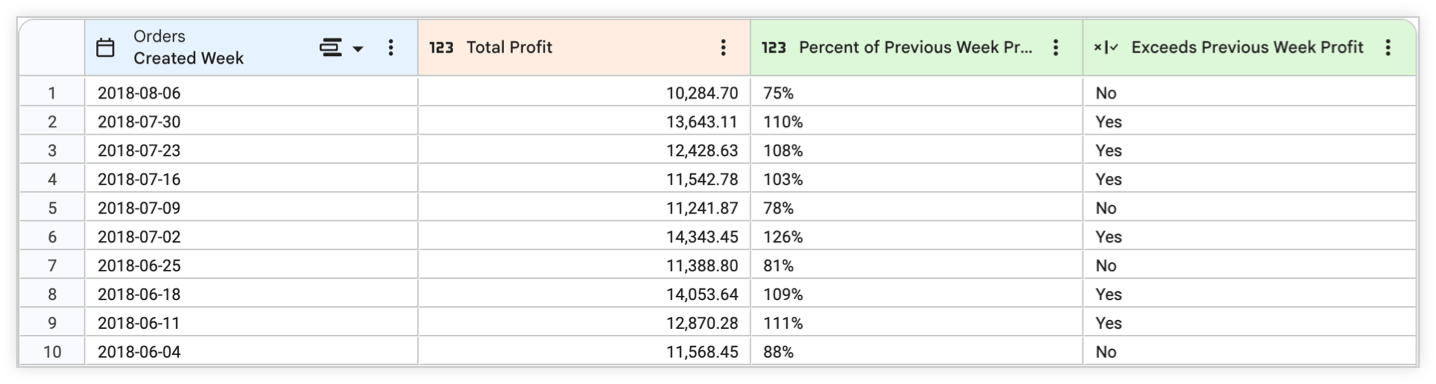
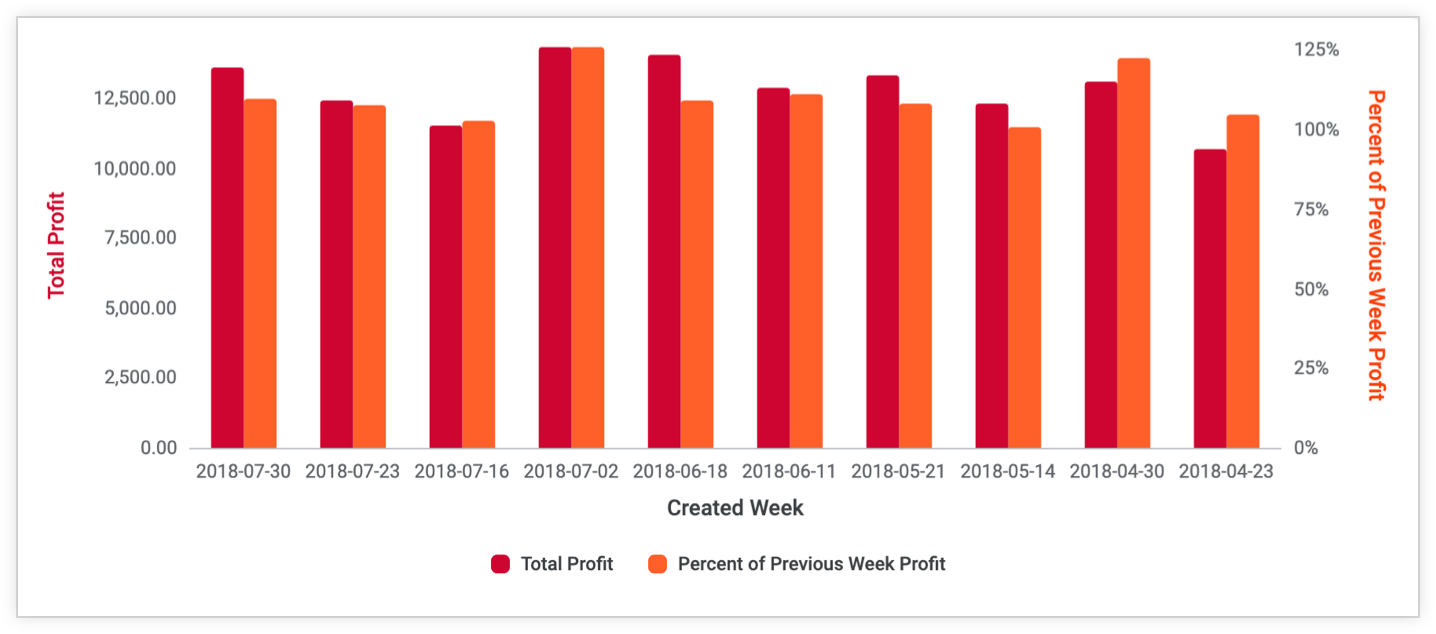
To hide all the rows where a particular week's revenue did not exceed the revenue of the previous week, select the true or false calculation's data table gear menu and select Hide "No"s from Visualization.
The resulting visualization will now display only the weeks that exceeded the previous week's revenue.
One common use case for this feature is hiding the first or last row from a visualization, since many types of analyses create rows that contain null values at the beginning or end of a table:
- Data tables that display running totals
- Results with a partial day that ends a date analysis
- When you are calculating a percent of the previous row
To filter out rows with null values, create a new table calculation using the is_null logical function:
NOT is_null(${percent_of_previous_week_sales})
Then, hide the row by selecting Hide "No"s from Visualization from the table calculation's data table gear menu.
Considerations for using table calculations
- All the fields that you use in your table calculations MUST be part of your initial query.
- Formulas must be in lowercase.
ROUNDwon't work, butroundwill. - Table calculations will only operate over rows that are returned in your query. If there is a 500-row limit, the 501st row won't be considered.
- If you add a Total row to your data table, some table calculations that perform aggregations might not add up as you expect, for example, calculations that use
percentileormedian. This is because table calculations calculate totals using the values in the Total row, not by using the values in the data column. See the Display potentially confusing table calculation totals as nulls Best Practices page for troubleshooting tips. - Always use leading zeroes for decimals less than 1. For example, 0.95 will work, but .95 will cause an error.
- Using the Command-K (Mac) or Ctrl+K (Windows) keyboard shortcut will clear all table calculations, including custom fields. To reinstate your table calculations, select the back arrow on your browser. You may also need to re-run your query.
Related resources
Now that you have learned how to create and edit table calculations, you may want to do the following:
- Filter and limit your results to just the data you're interested in.
- Create custom fields to create ad hoc Explore metrics.
- Create visualizations.
- Save Explore queries as Looks.
- Add Explore queries to dashboards.
- Share data with other users.