


本教學課程說明如何將現有的 MySQL 資料從 Persistent Disk (PD) 遷移到 Google Kubernetes Engine 上的 Hyperdisk,藉此提升儲存空間效能。Hyperdisk 的 IOPS 和處理量高於 Persistent Disk,可縮短資料庫查詢和交易的延遲時間,進而提升 MySQL 效能。您可以視機型相容性,使用磁碟快照將資料遷移至不同磁碟類型。舉例來說,Hyperdisk 磁碟區僅與部分第三代、第四代和後續機型 (例如 N4) 相容,這些機型不支援永久磁碟。詳情請參閱「可用的機器系列」。
為示範從 Persistent Disk 遷移至 Hyperdisk 的過程,本教學課程使用 Sakila 資料庫提供範例資料集。Sakila 是 MySQL 提供的範例資料庫,可用於教學課程和範例的結構定義。這個資料庫代表虛構的 DVD 租借商店,內含電影、演員、顧客和租借項目等資料表。
本指南適用於儲存空間專家和儲存空間管理員,他們負責建立及分配儲存空間,以及管理資料安全性和資料存取權。如要進一步瞭解我們在 Google Cloud 內容中提及的常見角色和範例工作,請參閱「常見的 GKE 使用者角色和工作」。
部署架構
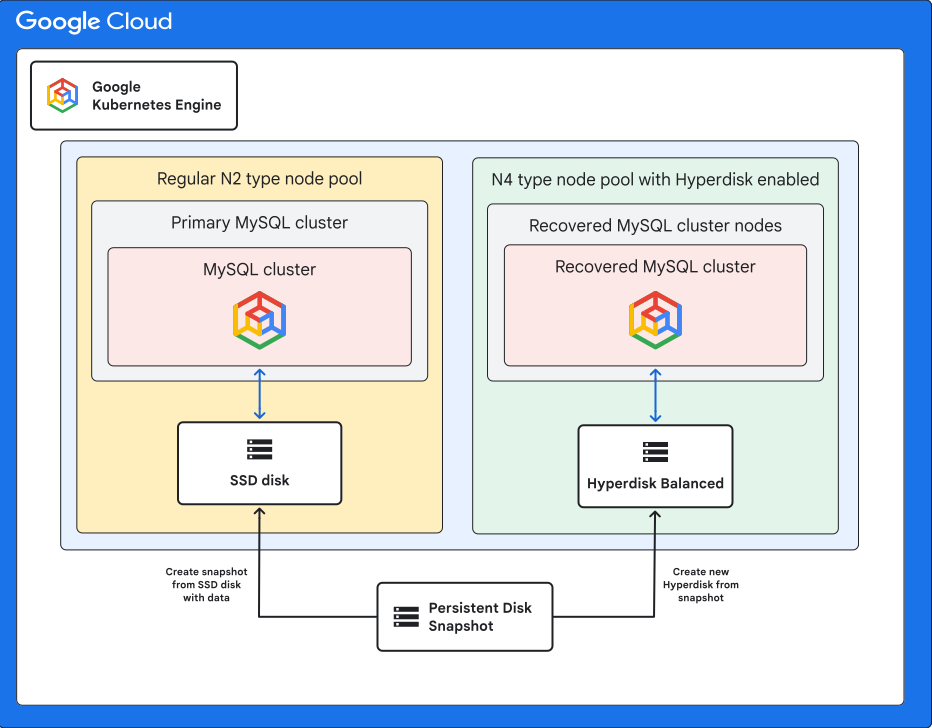
下圖說明從 Persistent Disk 遷移至 Hyperdisk 的程序。
- MySQL 應用程式會在搭載 N2 機器類型的 GKE 節點集區上執行,並將資料儲存在永久磁碟 SSD 上。
- 為確保資料一致性,應用程式會縮減規模,防止寫入新資料。
- 系統會建立永久磁碟的快照,做為資料的完整時間點備份。
- 系統會從快照佈建新的 Hyperdisk,並在獨立且與 Hyperdisk 相容的 N4 節點集區中,部署新的 MySQL 執行個體。這個新執行個體會附加至新建立的 Hyperdisk,完成遷移至高效能儲存空間的作業。
目標
在本教學課程中,您將瞭解如何執行下列操作:
- 部署 MySQL 叢集。
- 上傳測試資料集。
- 建立資料快照。
- 從快照建立 Hyperdisk。
- 在啟用 Hyperdisk 的 N4 機型節點集區中,啟動新的 MySQL 叢集。
- 驗證資料完整性,確認遷移作業是否成功。
費用
在本文件中,您將使用下列 Google Cloud計費元件:
- GKE
- Compute Engine, which includes:
- Storage capacity provisioned for both Persistent Disk and Hyperdisk.
- Storage costs for the snapshots.
如要根據預測用量估算費用,請使用 Pricing Calculator。
事前準備
- 登入 Google Cloud 帳戶。如果您未曾使用過 Google Cloud,歡迎 建立帳戶,親自體驗實際使用我們產品的成效。新客戶還能獲得價值 $300 美元的免費抵免額,用於執行、測試及部署工作負載。
-
In the Google Cloud console, on the project selector page, select or create a Google Cloud project.
Roles required to select or create a project
- Select a project: Selecting a project doesn't require a specific IAM role—you can select any project that you've been granted a role on.
-
Create a project: To create a project, you need the Project Creator role
(
roles/resourcemanager.projectCreator), which contains theresourcemanager.projects.createpermission. Learn how to grant roles.
-
Verify that billing is enabled for your Google Cloud project.
Enable the Compute Engine, GKE, Identity and Access Management Service Account Credentials APIs, if any are not already enabled.
Roles required to enable APIs
To enable APIs, you need the
serviceusage.services.enablepermission. If you created the project, then you likely already have this permission through the Owner role (roles/owner). Otherwise, you can get this permission through the Service Usage Admin role (roles/serviceusage.serviceUsageAdmin). Learn how to grant roles.-
In the Google Cloud console, on the project selector page, select or create a Google Cloud project.
Roles required to select or create a project
- Select a project: Selecting a project doesn't require a specific IAM role—you can select any project that you've been granted a role on.
-
Create a project: To create a project, you need the Project Creator role
(
roles/resourcemanager.projectCreator), which contains theresourcemanager.projects.createpermission. Learn how to grant roles.
-
Verify that billing is enabled for your Google Cloud project.
Enable the Compute Engine, GKE, Identity and Access Management Service Account Credentials APIs, if any are not already enabled.
Roles required to enable APIs
To enable APIs, you need the
serviceusage.services.enablepermission. If you created the project, then you likely already have this permission through the Owner role (roles/owner). Otherwise, you can get this permission through the Service Usage Admin role (roles/serviceusage.serviceUsageAdmin). Learn how to grant roles.-
確認您在專案中具備下列角色:roles/container.admin、roles/iam.serviceAccountAdmin、roles/compute.admin
檢查角色
-
前往 Google Cloud 控制台的「IAM」頁面。
前往「IAM」頁面 - 選取專案。
-
在「主體」欄中,找出所有可識別您或您所屬群組的資料列。如要瞭解自己所屬的群組,請與管理員聯絡。
- 針對指定或包含您的所有資料列,檢查「角色」欄,確認角色清單是否包含必要角色。
授予角色
-
前往 Google Cloud 控制台的「IAM」頁面。
前往「IAM」頁面 - 選取專案。
- 按一下「Grant access」(授予存取權)。
-
在「New principals」(新增主體) 欄位中,輸入您的使用者 ID。 這通常是指 Google 帳戶的電子郵件地址。
- 按一下「Select a role」(選取角色),然後搜尋角色。
- 如要授予其他角色,請按一下「Add another role」(新增其他角色),然後新增其他角色。
- 按一下「Save」(儲存)。
-
設定 Cloud Shell
-
在 Google Cloud 控制台啟用 Cloud Shell。
Google Cloud 控制台底部會開啟 Cloud Shell 工作階段,並顯示指令列提示。Cloud Shell 是已安裝 Google Cloud CLI 的殼層環境,並已設定適用於您目前專案的值。工作階段可能要幾秒鐘的時間才能初始化。
- 設定您的預設專案:
gcloud config set project PROJECT_ID將
PROJECT_ID替換為專案 ID。
Cloud Shell 工作階段會開啟,並顯示指令列提示。工作階段可能要幾秒鐘的時間才能初始化。
準備環境
在 Cloud Shell 中,設定專案、位置和叢集前置字串的環境變數。
export PROJECT_ID=PROJECT_ID
export EMAIL_ADDRESS=EMAIL_ADDRESS
export KUBERNETES_CLUSTER_PREFIX=offline-hyperdisk-migration
export LOCATION=us-central1-a
更改下列內容:
PROJECT_ID:您的 Google Cloud 專案 ID。EMAIL_ADDRESS:您的電子郵件地址。LOCATION:要建立部署資源的可用區。在本教學課程中,請使用us-central1-a可用區。
從 GitHub 複製程式碼範例存放區:
git clone https://github.com/GoogleCloudPlatform/kubernetes-engine-samples前往
offline-hyperdisk-migration目錄,開始建立部署資源:cd kubernetes-engine-samples/databases/offline-hyperdisk-migration
建立 GKE 叢集和節點集區
為簡化教學課程,本課程會使用可用區叢集,因為 Hyperdisk 磁碟區是可用區資源,只能在單一可用區內存取。
建立可用區 GKE 叢集:
gcloud container clusters create ${KUBERNETES_CLUSTER_PREFIX}-cluster \
    --location ${LOCATION} \
    --node-locations ${LOCATION} \
    --shielded-secure-boot \
    --shielded-integrity-monitoring \
    --machine-type "e2-micro" \
    --num-nodes "1"
新增 N2 機型的節點集區,用於初始 MySQL 部署作業:
gcloud container node-pools create regular-pool \
    --cluster ${KUBERNETES_CLUSTER_PREFIX}-cluster \
    --machine-type n2-standard-4 \
    --location ${LOCATION} \
    --num-nodes 1
在 Hyperdisk 新增一個 N4 機型的節點集區,用於遷移及執行 MySQL 部署作業:
gcloud container node-pools create hyperdisk-pool \
    --cluster ${KUBERNETES_CLUSTER_PREFIX}-cluster \
    --machine-type n4-standard-4 \
    --location ${LOCATION} \
    --num-nodes 1
連線至叢集:
gcloud container clusters get-credentials ${KUBERNETES_CLUSTER_PREFIX}-cluster --location ${LOCATION}
在 Persistent Disk 上部署 MySQL
在本節中,您將部署使用 Persistent Disk 做為儲存空間的 MySQL 執行個體,並載入範例資料。
建立 Hyperdisk 的
StorageClass並套用。本教學課程稍後會用到這個StorageClass。kubectl apply -f manifests/01-storage-class/storage-class-hdb.yaml建立及部署包含節點親和性的 MySQL 執行個體,確保 Pod 會排定在
regular-pool節點上執行,並佈建 Persistent Disk SSD 磁碟區。kubectl apply -f manifests/02-mysql/mysql-deployment.yaml這份資訊清單會建立 MySQL 部署作業和服務,並動態佈建永久磁碟來儲存資料。
root使用者的密碼為migration。部署 MySQL 用戶端 Pod 來載入資料,並驗證資料遷移作業:
kubectl apply -f manifests/02-mysql/mysql-client.yaml
kubectl wait pods mysql-client --for condition=Ready --timeout=300s
連線至用戶端 Pod:
kubectl exec -it mysql-client -- bash從用戶端 Pod Shell 下載並匯入 Sakila 範例資料集:
# Download the dataset
curl --output dataset.tgz "https://downloads.mysql.com/docs/sakila-db.tar.gz"

# Extract the dataset
tar -xvzf dataset.tgz -C /

# Import the dataset into MySQL (the password is "migration").
mysql -u root -h regular-mysql.default -p
    SOURCE /sakila-db/sakila-schema.sql;
    SOURCE /sakila-db/sakila-data.sql;
確認資料已匯入:
USE sakila;
SELECT      table_name,      table_rows  FROM      INFORMATION_SCHEMA.TABLES  WHERE TABLE_SCHEMA = 'sakila';
輸出內容會顯示資料表清單和列數。
| TABLE_NAME                 | TABLE_ROWS |
+----------------------------+------------+
| actor                      |        200 |
| actor_info                 |       NULL |
| address                    |        603 |
| category                   |         16 |
| city                       |        600 |
| country                    |        109 |
| customer                   |        599 |
| customer_list              |       NULL |
| film                       |       1000 |
| film_actor                 |       5462 |
| film_category              |       1000 |
| film_list                  |       NULL |
| film_text                  |       1000 |
| inventory                  |       4581 |
| language                   |          6 |
| nicer_but_slower_film_list |       NULL |
| payment                    |      16086 |
| rental                     |      16419 |
| sales_by_film_category     |       NULL |
| sales_by_store             |       NULL |
| staff                      |          2 |
| staff_list                 |       NULL |
| store                      |          2 |
+----------------------------+------------+
23 rows in set (0.01 sec)
結束
mysql工作階段:exit;退出用戶端 Pod 殼層:
exit取得為 MySQL 建立的 PersistentVolume (PV) 名稱,並儲存在環境變數中:
export PV_NAME=$(kubectl get pvc mysql-pv-claim -o jsonpath='{.spec.volumeName}')
將資料遷移至 Hyperdisk 磁碟區
現在您有一個 MySQL 工作負載,資料儲存在永久磁碟 SSD 磁碟區。本節說明如何使用快照將這項資料遷移至 Hyperdisk 磁碟區。這種遷移方式也會保留原始的永久磁碟磁碟區,讓您在必要時復原使用原始的 MySQL 執行個體。
雖然您可以從磁碟建立快照,而不必將磁碟從工作負載中卸載,但為了確保 MySQL 的資料完整性,您必須在建立快照期間,停止任何新的寫入作業。將 MySQL Deployment 縮減為
0個副本,停止寫入作業:kubectl scale deployment existing-mysql --replicas=0從現有的永久磁碟建立快照:
gcloud compute disks snapshot ${PV_NAME} --zone=${LOCATION} --snapshot-names=original-snapshot --description="snapshot taken from pd-ssd"從快照建立名為
mysql-recovery的新 Hyperdisk 磁碟區:gcloud compute disks create mysql-recovery --project=${PROJECT_ID} \ --type=hyperdisk-balanced \ --size=150GB --zone=${LOCATION} \ --source-snapshot=projects/${PROJECT_ID}/global/snapshots/original-snapshot使用專案 ID 更新已還原 PV 的資訊清單檔案:
sed -i "s/PRJCTID/$PROJECT_ID/g" manifests/02-mysql/restore_pv.yaml從新的 Hyperdisk 建立 PersistentVolume (PVC) 和 PersistentVolumeClaim:
kubectl apply -f manifests/02-mysql/restore_pv.yaml
驗證資料遷移作業
部署新的 MySQL 執行個體,並使用新建立的 Hyperdisk 磁碟區。這個 Pod 會排定在由 N4 節點組成的 hyperdisk-pool 節點集區上。
部署新的 MySQL 執行個體:
kubectl apply -f manifests/02-mysql/recovery_mysql_deployment.yaml如要驗證資料完整性,請再次連線至 MySQL 用戶端 Pod:
kubectl exec -it mysql-client -- bash在用戶端 Pod 中,連線至新的 MySQL 資料庫 (
recovered-mysql.default) 並驗證資料。密碼為migration。mysql -u root -h recovered-mysql.default -p USE sakila; SELECT table_name, table_rows FROM INFORMATION_SCHEMA.TABLES WHERE TABLE_SCHEMA = 'sakila';資料應與永久磁碟磁碟區上的原始 MySQL 執行個體相同。
結束
mysql工作階段:exit;退出用戶端 Pod 殼層:
exit
清除所用資源
為避免因為本教學課程所用資源,導致系統向 Google Cloud 收取費用,請刪除含有相關資源的專案,或者保留專案但刪除個別資源。
刪除專案
刪除 Google Cloud 專案:
gcloud projects delete PROJECT_ID
刪除個別資源
如果您使用現有專案,但不想刪除專案,請刪除個別資源:
設定用於清除作業的環境變數,並擷取
mysql-pv-claimPersistentVolumeClaim 建立的 Persistent Disk 磁碟區名稱:export PROJECT_ID=PROJECT_ID export KUBERNETES_CLUSTER_PREFIX=offline-hyperdisk-migration export location=us-central1-a export PV_NAME=$(kubectl get pvc mysql-pv-claim -o jsonpath='{.spec.volumeName}')將
PROJECT_ID替換為專案 ID。刪除快照:
gcloud compute snapshots delete original-snapshot --quiet刪除 GKE 叢集:
gcloud container clusters delete ${KUBERNETES_CLUSTER_PREFIX}-cluster --location=${LOCATION} --quiet刪除 Persistent Disk 和 Hyperdisk 磁碟區:
gcloud compute disks delete ${PV_NAME} --zone=${LOCATION} --quiet
gcloud compute disks delete mysql-recovery --zone=${LOCATION} --quiet
後續步驟
- 如要查看更多程式碼範例,請前往 GKE 範例 GitHub 存放區。
- 瞭解如何透過 Hyperdisk 磁碟區調整儲存空間效能。
- 瞭解如何使用 Compute Engine Persistent Disk CSI 驅動程式管理 Persistent Disk 和 Hyperdisk 磁碟區。
- 探索 Google Cloud 的參考架構、圖表和最佳做法。歡迎瀏覽我們的 Cloud Architecture Center。