

This document explains how to plan and design your cluster by prompting the Compute Advisor, an AI-powered interface that is powered by Gemini. To learn more about the components that you must configure before or when you create a GKE cluster, see GKE overview.
Compute Advisor helps you evaluate hardware options, estimate deployment costs, and view recommended configurations for your clusters. To tailor its recommendations, Compute Advisor evaluates your Google Cloud project by checking your quota limits, existing reservations, committed use discounts (CUDs), default region and zone, and any resource location constraints. By using Compute Advisor to help with your planning, you can reach an optimal configuration for your workload before you create or modify a GKE cluster.
Limitations
When you prompt Compute Advisor in the Google Cloud console, you can't directly create, modify, or delete resources.
Before you begin
When you use the Google Cloud console to access Google Cloud services and APIs, you don't need to set up authentication.
Required roles
To get the permissions that
you need to access and prompt Gemini,
ask your administrator to grant you the
Kubernetes Engine Cluster Viewer (roles/container.clusterViewer) IAM role on the project.
For more information about granting roles, see Manage access to projects, folders, and organizations.
This predefined role contains the permissions required to access and prompt Gemini. To see the exact permissions that are required, expand the Required permissions section:
Required permissions
The following permissions are required to access and prompt Gemini:
-
To view a list of clusters:
container.clusters.list
You might also be able to get these permissions with custom roles or other predefined roles.
Access Compute Advisor in the Google Cloud console
To access Compute Advisor in the Google Cloud console, complete the following steps:
In the Google Cloud console, go to the Overview page.
In the Design your infrastructure with Compute Advisor section, you can view the following:
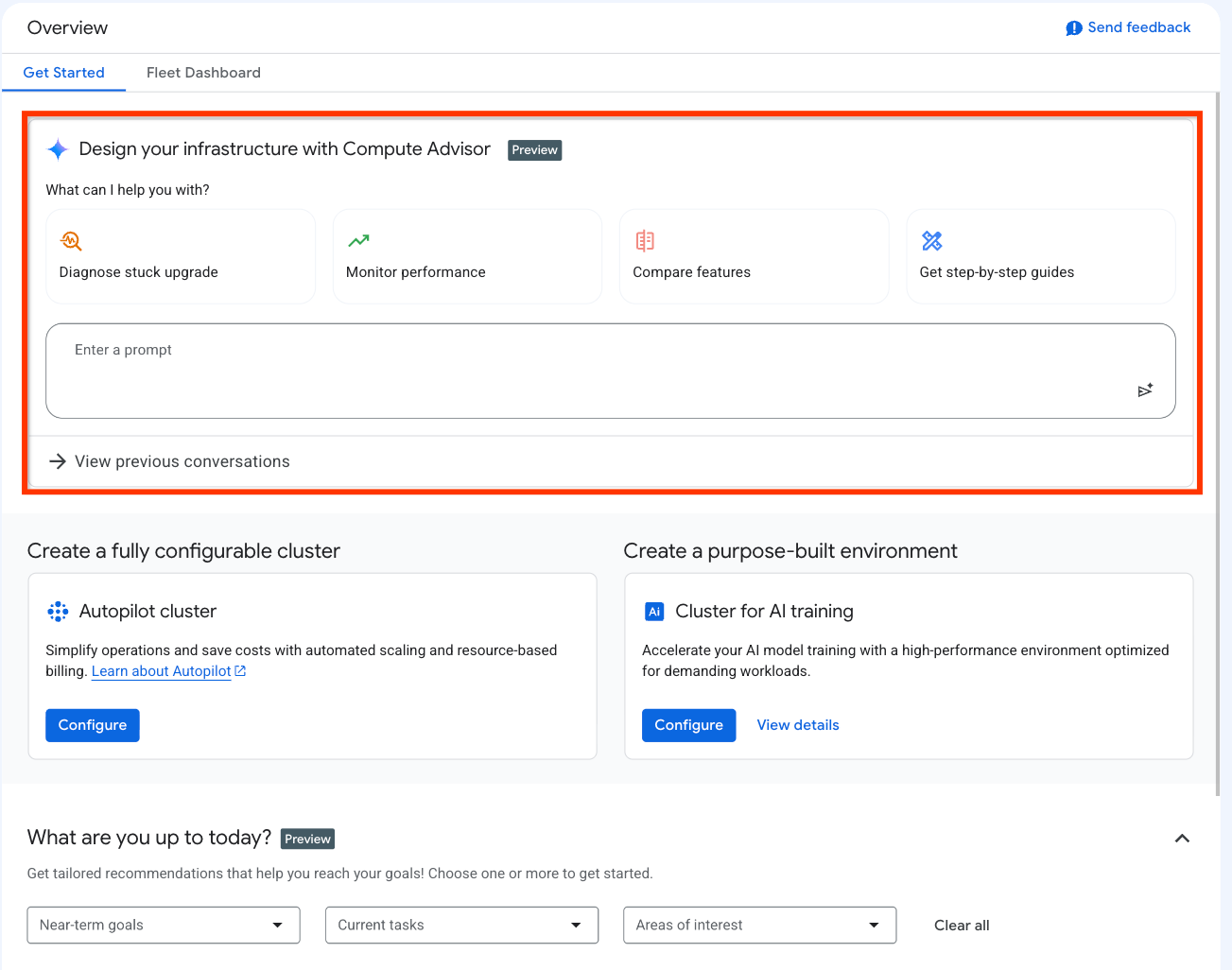
The UI elements that are displayed in the preceding screenshot are the following:
Quick-action prompt cards: a set of cards that each contain a sample prompt. If you click a card, then Google Cloud console automatically populates the prompt box with the sample prompt.
Prompt box: this field lets you enter and submit prompts. To submit a prompt, click Submit prompt.
View previous conversations: this feature lets you view the details of a past conversation and resume it, or delete conversations if you no longer need them.
Conversation history side panel: shows your recent chats. This panel is visible only after you start prompting from the Overview page. You can interact with this panel as follows:
To start a new conversation, click New chat.
To resume a recent conversation, in the Recent chats section, click the conversation.
To view a list of all your conversations, click View all. On the My history page, you can view the details of a past conversation and resume it, or delete conversations if you no longer need them.
Prompt Compute Advisor
After you submit a prompt, Compute Advisor starts to generate a response. A pane appears and Google Cloud console displays the response to your prompt in the pane, as shown in the following screenshot:
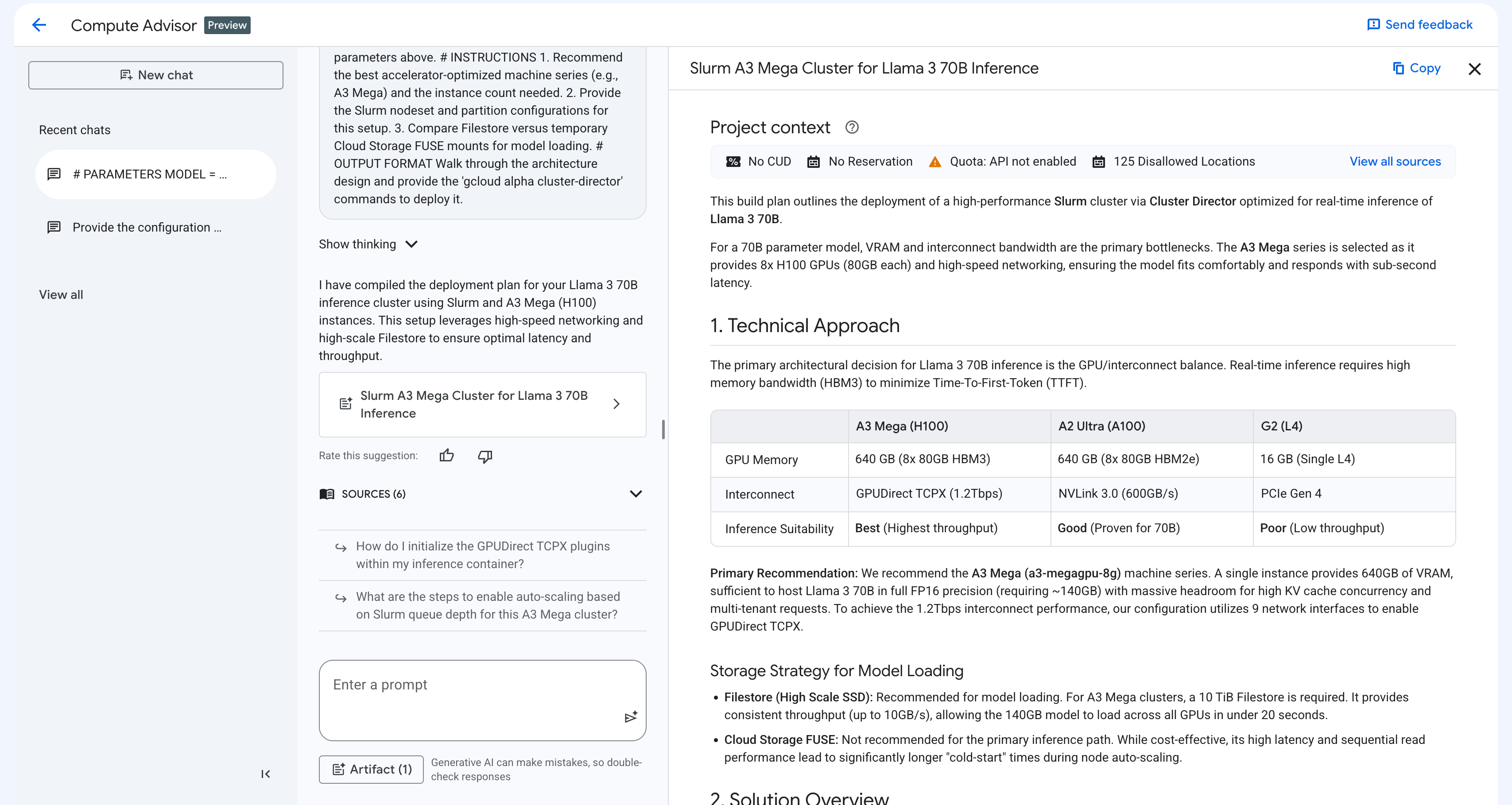
Based on your prompt, the response pane includes the following elements:
Contextual grounding: Compute Advisor automatically evaluates your project context to deliver highly tailored recommendations, including quota limits, existing reservations, CUDs, your default region and zone, and any resource location constraints.
Interactive code snippets: Compute Advisor generates gcloud commands, REST API methods, or Terraform resources. You can copy and paste these code snippets or run them in Cloud Shell.
Visual canvas: Compute Advisor organizes recommendations into structured tables and side-by-side comparisons. This view helps you evaluate product features and architectural approaches. It also provides an implementation plan for your use case.
The following sections outline the best practices for writing prompts, and example prompts that you can use before you create or modify a GKE cluster.
Best practices for prompts
To get the most accurate and actionable recommendations from Compute Advisor, we recommend that you structure your prompts in the same way that you would do a code block. This approach guides the generative AI by using clear parameter declarations, role definitions, specific instructions, and explicit output formats.
When you prompt Compute Advisor, consider the following best practices:
Focus on design and planning: we recommend that you don't prompt Compute Advisor for troubleshooting GKE cluster errors. To resolve these errors, see instead Troubleshoot GKE.
Specify a persona or role: declare a target role or persona, such as an IT administrator, AI researcher, or platform engineer, for Compute Advisor to adopt. This approach guides the tone, depth, and expertise level of the resulting recommendations.
Provide explicit, numbered instructions: break your objective down into concrete, step-by-step questions or tasks. This approach structures the Compute Advisor's reasoning process and helps ensure that Compute Advisor addresses all of your requirements.
Define a specific output format: explicitly state how you want the recommendation to be formatted, such as a walkthrough explanation, a Markdown comparison table, or a ready-to-use gcloud code block.
Leverage automatic context grounding: you don't need to include your default region or zone, available quotas, CUDs, or resource location constraints into your prompt. Compute Advisor can access this information in your Google Cloud project.
Iteratively refine your designs: you can modify or expand the response that Compute Advisor generated by sending new prompts. For example, you can ask the assistant to add networking recommendations to your deployment plan or modify the storage requirements without starting a new conversation.
Example prompts
The following are examples of prompts that you can use to help you design and optimize your GKE cluster:
Cluster topology and node pool configuration: to determine the optimal GKE mode, machine types, and node pool configurations for a workload, use a prompt like the following:
Act as a cloud architect. I need to design a GKE cluster topology for a
scalable microservices application that requires both GPU nodes for AI
inference and CPU nodes for general-purpose APIs.

Please provide the following:
1. A comparison of running this workload on GKE Autopilot versus GKE Standard.
2. Recommendations for GKE machine types for the GPU node pool.
3. The optimal autoscaling and auto-provisioning settings.
4. A YAML manifest that configures tolerations for GPU taints, which are required for AI workloads.

Format the comparison as a Markdown table, and provide the cluster creation
steps as a ready-to-use gcloud CLI command.
Provisioning model and cost optimization: to evaluate provisioning models and optimize resource utilization for batch processing workloads, use a prompt like the following:
Act as an IT administrator. I need to design a cost-optimized GKE cluster
to run large-scale batch processing workloads that are fault-tolerant.

Please provide the following:
1. A cost and reliability comparison of using Spot VMs versus standard VMs
   in GKE node pools.
2. An explanation of how to configure Kueue for queueing training jobs.
3. A warning about the risk of latency for real-time inference when using Spot VMs.
4. A YAML manifest to deploy the workloads onto Spot VM nodes.

Format the comparison as a Markdown table, and provide the manifest as a
ready-to-use code block.
Stateful disk topology: to find an optimized persistent storage architecture for a high-availability database on GKE, use a prompt like the following:
Act as a storage engineer. I need to design a StatefulSet topology in
GKE for a distributed database that relies on Persistent Disks.

Please provide the following:
1. A comparison of regional Persistent Disks versus zonal Persistent Disks.
2. An explanation of how the standard-rwo StorageClass prevents deadlocks in zonal Persistent Disks.
3. A YAML manifest that shows how to deploy a stateful workload with the "volumeBindingMode: WaitForFirstConsumer" field.

Format the response with Markdown headers, and provide the deployment
manifest as a ready-to-use code block.
Karpenter Migration Prompt: to plan a migration from AWS Karpenter to GKE autoscaling capabilities, use a prompt like the following:
Act as a Kubernetes migration specialist. I am migrating an EKS cluster
that uses Karpenter to GKE. Please translate my AWS Karpenter
NodePool into a GKE custom ComputeClass.

Please provide the following:
1. A summary that maps Karpenter concepts to GKE Node Auto-Provisioning (NAP) and ComputeClasses.
2. A YAML manifest that shows how a ComputeClass provides the same variety of instance types and weighting for  Spot VMs as Karpenter.
3. The changes required in the Pod manifest to use the new ComputeClass.

Format the mapping as a Markdown table, and provide the GKE
manifests as code blocks that are ready to use.