

This page describes how to connect a data store to an app and authorize Gemini Enterprise for an existing data store.
Connect a data store to an app
Console
Follow these steps to connect an existing data store to your app:
- In the Google Cloud console, go to the Gemini Enterprise page.
- From the navigation menu, click Apps.
- Select the Gemini Enterprise app where you want to connect your data store.
- From the navigation menu of the app, click Connected data sources.
- Click Add existing data stores and select your data store.
- Click Connect.
User authorization
To successfully connect and use data stores with your Gemini Enterprise app, ensure that you have authorized Gemini Enterprise to access data from your data store.
Console
- In the Google Cloud console, go to the Gemini Enterprise page.
- From the navigation menu, click Apps.
- Select the Gemini Enterprise app that you have connected your data store to.
- Click the web app URL or copy it to open it in a new tab.
- Select database Manage your data.
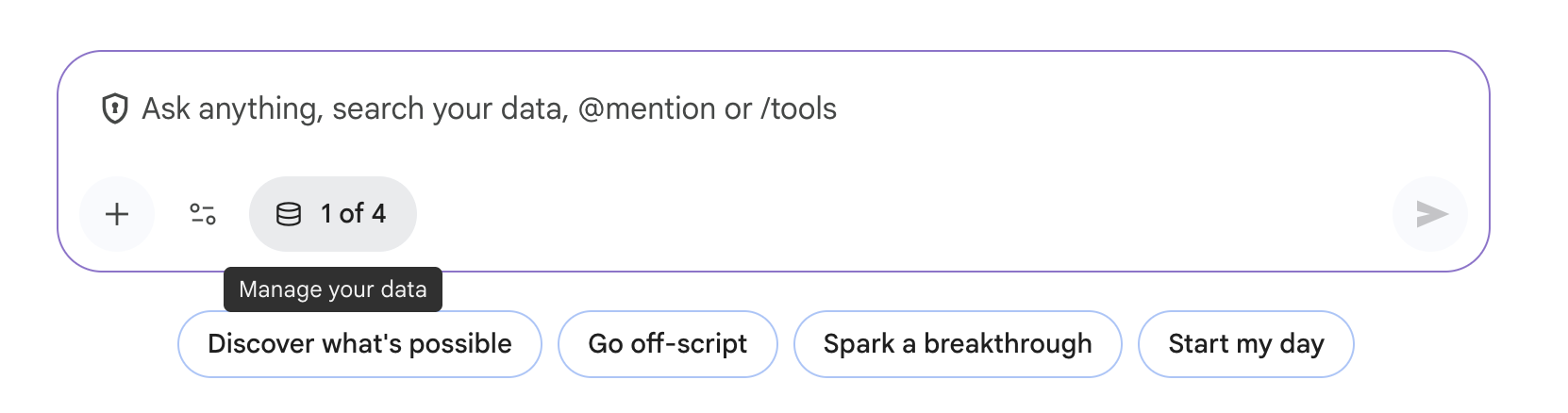
Manage data Authorize your data store:
- For data stores with actions configured, click Enable actions and then sign in to authorize your data store.
- For search-only data stores, click Authorize and then sign in to authorize your data store.
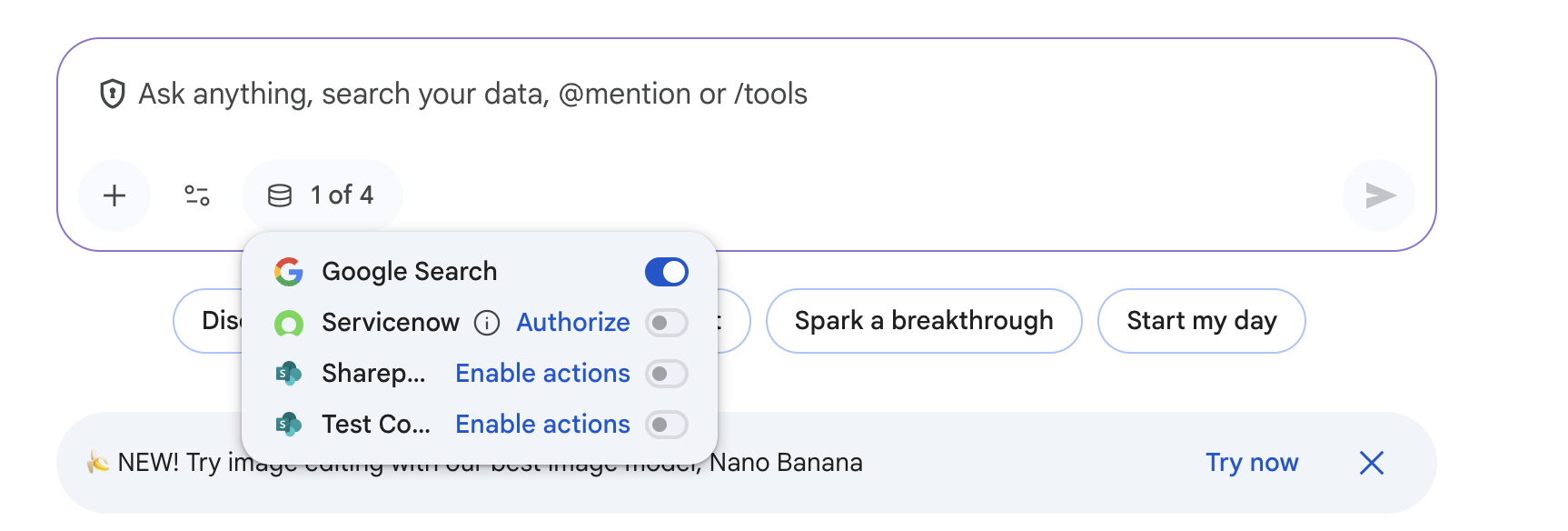
User authorization