

This page describes how to set up authentication and permissions before creating a Dropbox data store for use with Gemini Enterprise.
Set up authentication and permissions
To connect Dropbox to Gemini Enterprise, you must create an app in the Dropbox DBX Platform.
Create and configure a Dropbox app
Navigate to the Dropbox App Console.
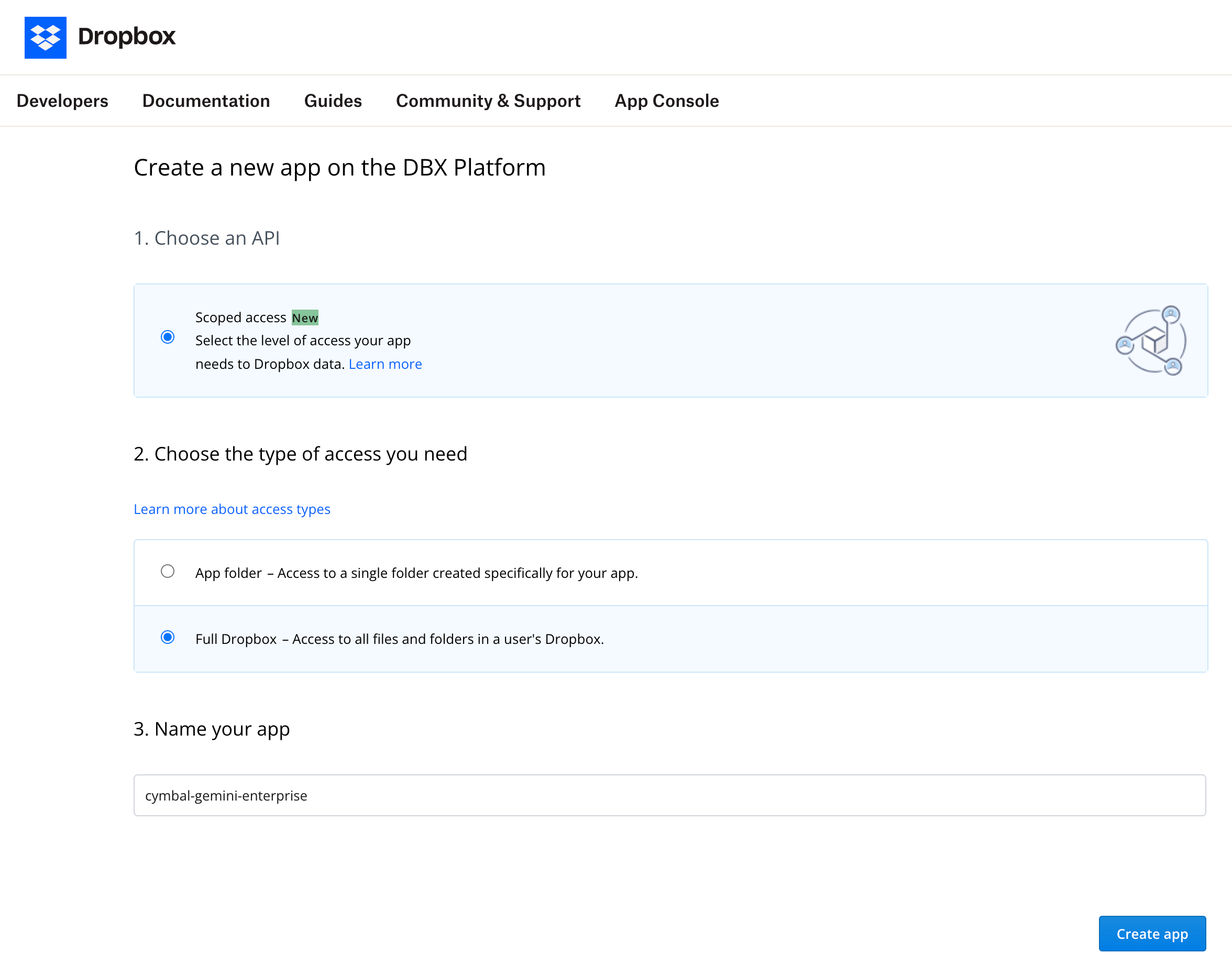
Click Create app. Fill in the following fields:
For Choose an API, select Scoped access.
For Choose the type of access you need, select Full Dropbox.
In the Name your app field, enter a name for your Dropbox app.
Select the I agree to Dropbox API Terms and Conditions checkbox.
Click Create app.
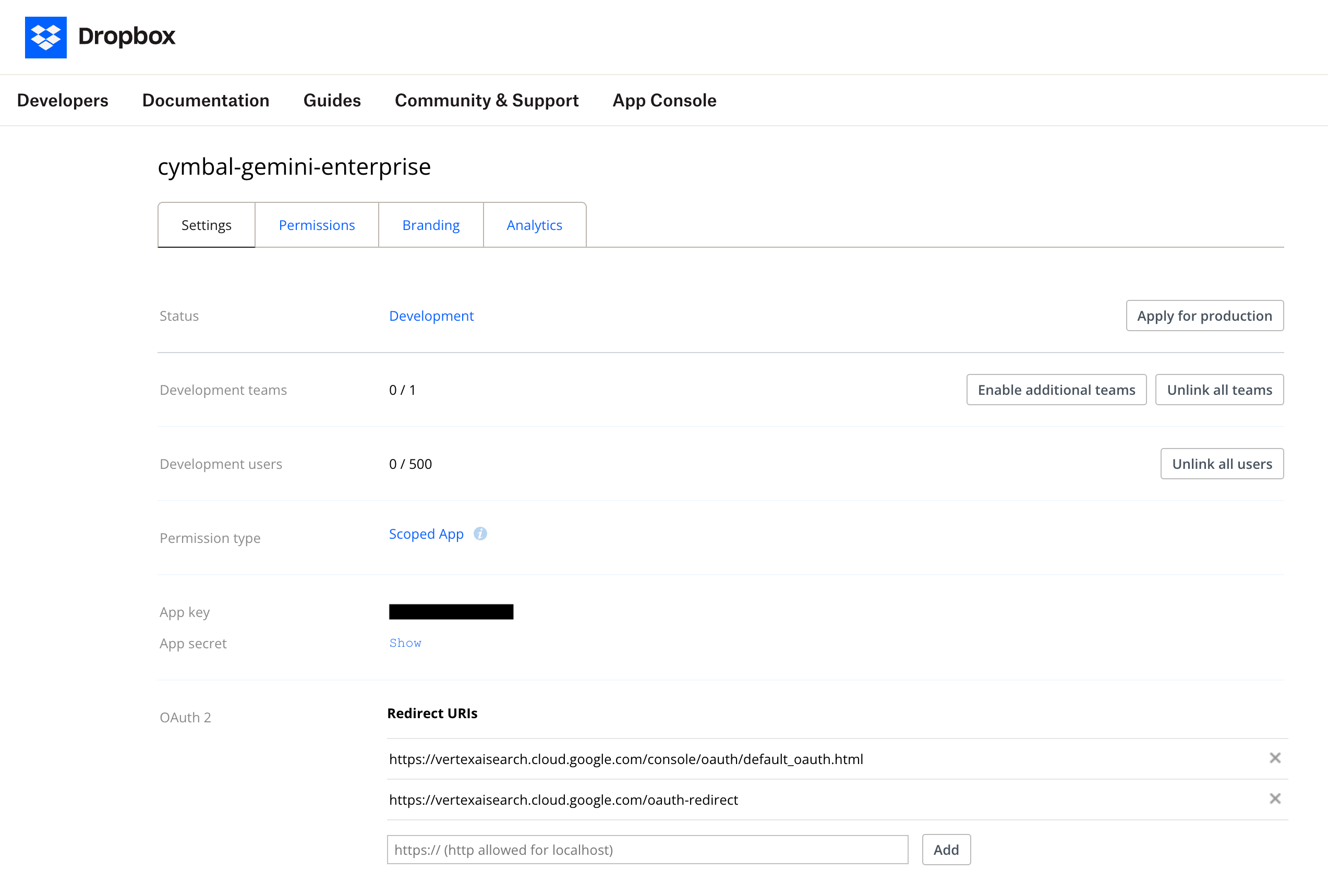
In the details page for your new app, click the Settings tab. Configure the following settings:
For the Development users status, click Enable additional users. A Limit raised to 500 users dialog opens and displays a message that your app can link to up to 500 users.
Click Okay.
Copy the App key and App secret.
For the OAuth 2 field, add
https://vertexaisearch.cloud.google.com/console/oauth/default_oauth.htmlin the Redirect URIs field.Click Add.
Enter
https://vertexaisearch.cloud.google.com/oauth-redirectin the Redirect URIs field.Click Add.
https://vertexaisearch.cloud.google.com/console/oauth/default_oauth.htmlhttps://vertexaisearch.cloud.google.com/oauth-redirect
Click the Permissions tab. In the Individual Scopes section, select the following scopes:
In the Account Info section, select the account_info.read checkbox.
In the Files and folders section, select the files.metadata.read checkbox and the files.content.read checkbox.
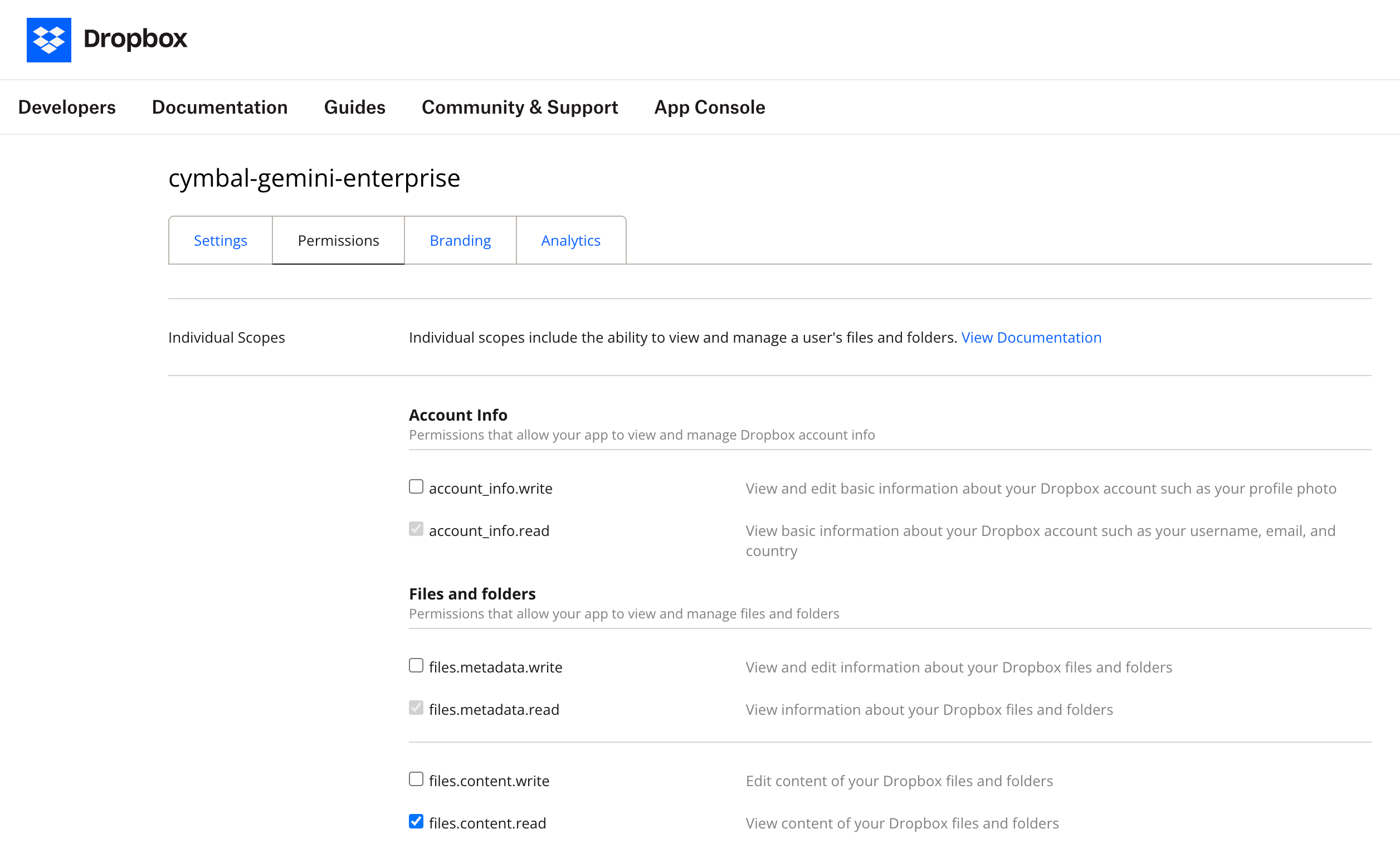
Click Submit.