

This page describes how to set up and configure a third-party configuration before creating the Jira Cloud data store.
Set up authentication and permissions
You need to set up authentication and permissions in the Atlassian administrator account center. This is crucial for allowing the connector to access and synchronize data. The Jira Cloud connector supports various authentication methods, such as OAuth client credentials or API tokens.
Create an OAuth 2.0 app
To create an OAuth 2.0 app for authentication, follow these steps to set up the application in your Atlassian Developer Console and obtain the necessary client ID and client secret.
Verify Jira organization administrator access
To verify Jira organization administrator access, do the following:
Sign-in to Atlassian with your user credentials.
Select the Jira app.
Click Settings.
If you see the System option under Jira settings, you have Jira organization administrator access. Otherwise, request your Jira organization administrator to provide access.
Create OAuth 2.0 app
To create an OAuth 2.0 app, do the following:
Sign in to the Atlassian Developer Console.
Click the profile icon and select Developer console.
In the Console page, click Create and select OAuth 2.0 Integration.
In the app creation page, do the following:
Enter a name for the app.
Select the checkbox to agree to Atlassian's developer terms.
Click Create.
In the app page, do the following:
From the navigation menu, click Authorization.
In the Authorization type table, select Add for OAuth 2.0 (3LO).
In the Callback URL field, enter enter the URL as per the connection mode of your data store.
Federated search and actions:
https://vertexaisearch.cloud.google.com/oauth-redirect.Data ingestion and actions:
https://vertexaisearch.cloud.google.com/console/oauth/jira_oauth.html.
Click Save changes.
Obtain client ID and client secret
To obtain the client ID and client secret, do the following:
- In the app page, from the navigation menu click Distribution.
In the Distribution page, do the following:
- In the Distribution controls section, select Edit.
- In the Distribution status section, select Sharing to enable editing other fields.
- Enter information in the following mandatory fields:
- For Vendor, enter
Google. - For Privacy policy, enter
https://policies.google.com. - For Does your app store personal data?, select Yes.
- Select I confirm that I've implemented the personal data reporting API checkbox. For more information, see Personal data reporting API.
- For Vendor, enter
- Click Save changes.
In the app page, do the following:
- From the navigation menu, click Settings.
- From the settings page, copy your Client ID and Client secret.
Obtain an instance ID and instance URL
Obtain the instance ID:
- Open a new tab, copy the instance URL, and append
/_edge/tenant_infoto the instance URL. For example,https://YOUR_INSTANCE.atlassian.net/_edge/tenant_info. - Navigate to the link to find the
cloudIdvalue. ThecloudIdis your instance ID.
- Open a new tab, copy the instance URL, and append
Obtain the instance URL:
- Go to atlassian.net and sign in with your administrator account.
- Select the app you want to sync. For example, sync the first app.
- Find the instance URL (the subdomain in the address bar).
Obtain project key
To obtain the project key, do the following:
Sign in to your Jira Cloud account.
From the navigation menu, select Spaces.
Select the project for which you need the project ID.
Open any issue within that project and click more_horiz Actions.
Click Export XML and download the file.
Open the downloaded XML file and search for the tag containing
project id. Copy the value associated with this tag for later use.
Grant administrator roles
To grant the Jira administrator the Discovery Engine Editor role in the Google Cloud console, do the following:
- In the Google Cloud console, go to the Gemini Enterprise page.
Navigate to IAM.
Locate the user account which has administrator access in Jira and click the Edit icon .
Grant the Discovery Engine Editor role to the administrator.
To grant a user an administrator role in Atlassian, do the following:
Sign in to Atlassian using an organization administrator account.
Click the menu icon and select your organization. Alternatively, you can go to admin.atlassian.com.
On the Admin page, click the product and select the Manage users button.

Manage users Click Groups under User management.
On the Groups page:
- Click Create group.
- Enter a name for the group.
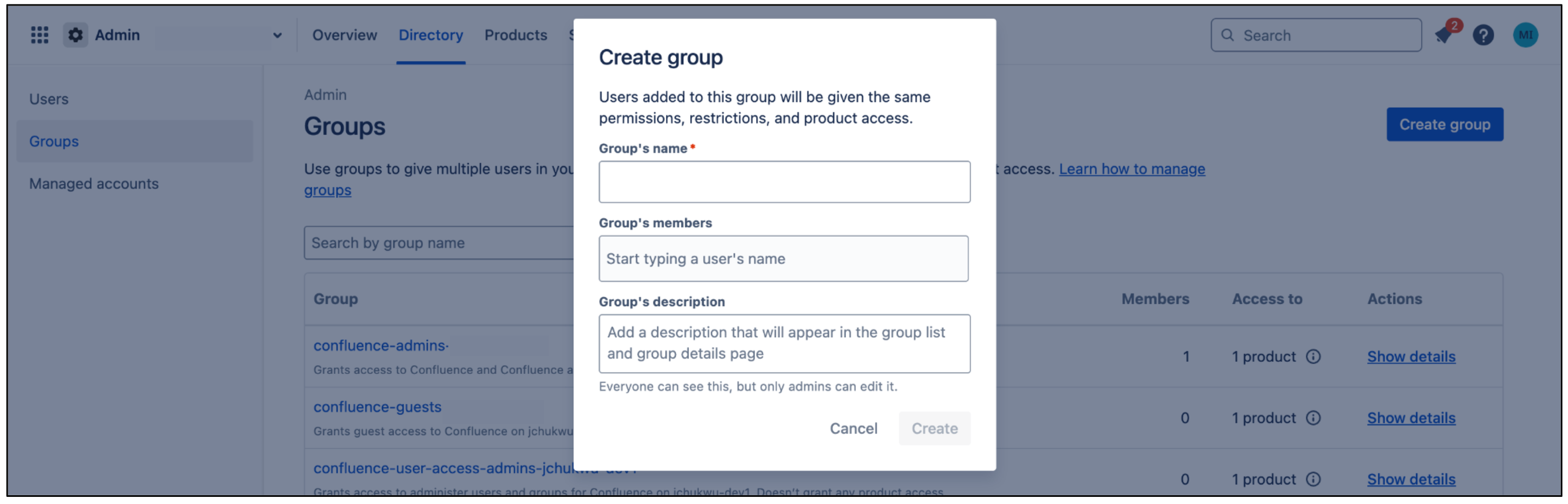
Create group
This group receives permissions required by the connector. Users added to this group inherit these permissions. The connector uses this group to authenticate and fetch documents.
On the Group page, click Add product.
Select User access admin as the role for Jira.
Select Product admin as the role for Jira administration.
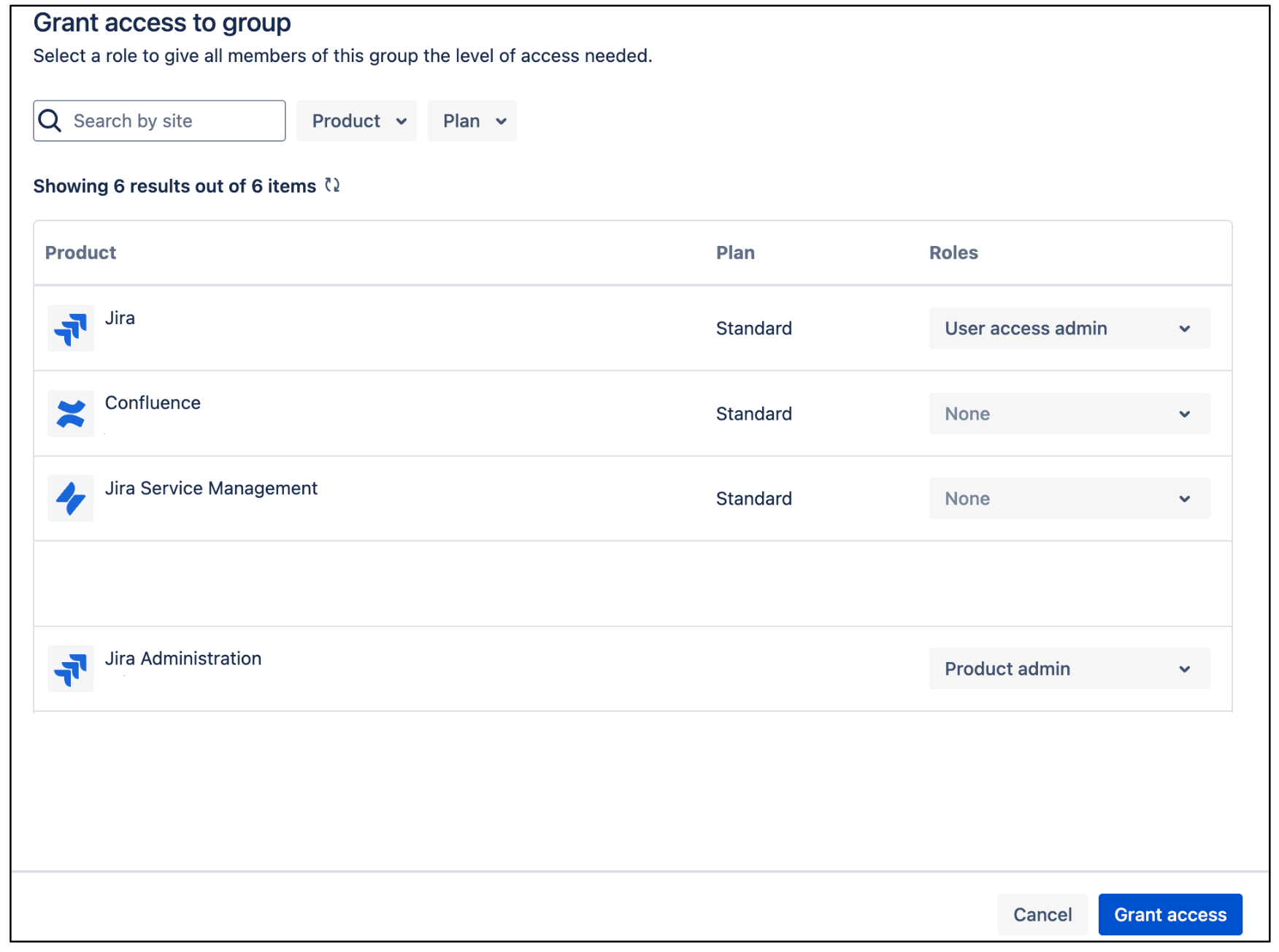
Jira user access administrator Click Grant Access.
Click Add group members to add a user account or group members that the connector uses to authenticate and access the required resources.
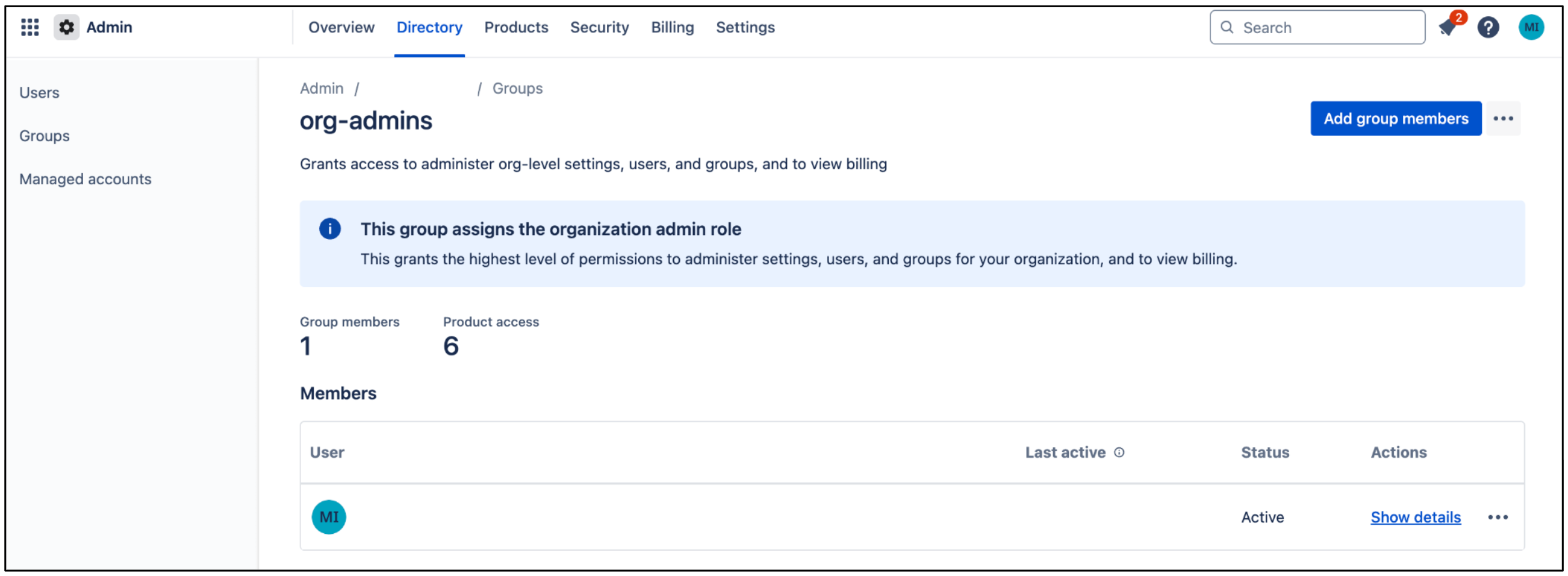
Add group members
Manage user visibility
To make the user's email visible to anyone in the Atlassian account, do the following:
Sign in to the Atlassian Developer Console.
Click the profile icon and select Developer console.
Click the user profile icon and select Manage account.
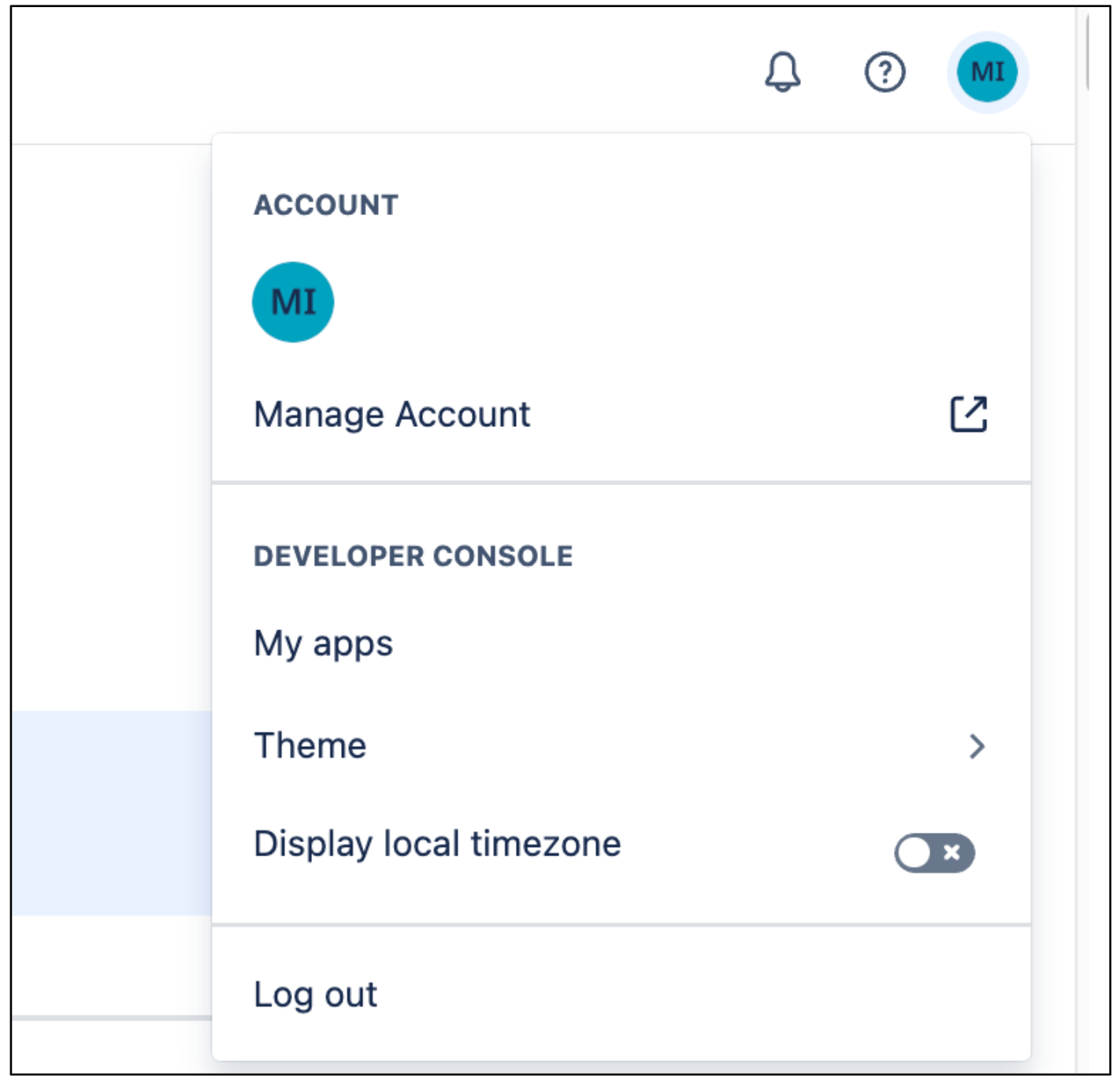
Manage account Navigate to the Profile and visibility.
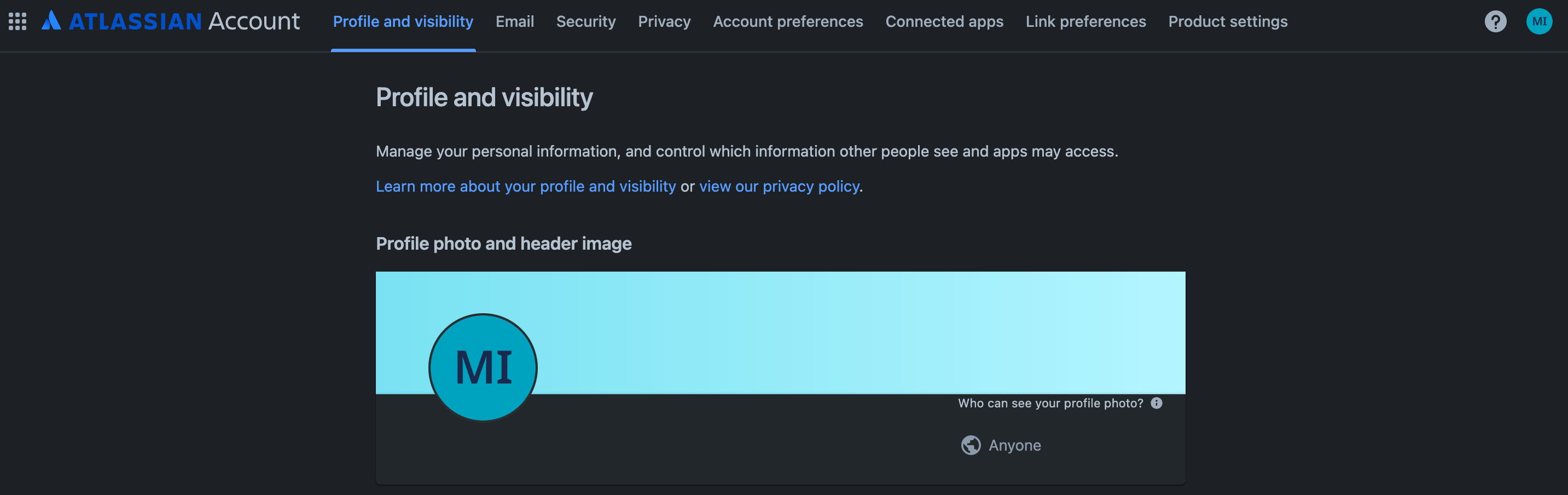
Profile and visibility Go to Contact and set the Who can see this as Anyone.

Contact
To make the user's email visible to anyone in Jira, do the following:
Sign in to Atlassian with your user credentials.
Select a Jira app.
Click Settings > System.
Select General Configuration in the left pane.
Click Edit Settings.
For User email visibility, select Public.

Select email visibility Click Update.
Configure minimum application scopes
To perform the defined actions, you need to set up the following permissions for the Jira Cloud connector in the Atlassian platform.
On the application page, click Permissions.
Go to Jira API and click Add.
Click Configure.
Go to the Classic scopes tab.
Click Edit scopes and select the classic scopes as per your requirement from the following table:
Connection mode Permission Purpose Federated search and actions read:jira-user,read:jira-workAllows the assistant to fetch and display search results and user details in real-time. write:jira-workAllows the assistant to modify work items (e.g., updating issue fields) and manage comments or issues. Federated search only read:jira-user,read:jira-workAllows the assistant to search for and view issues, projects, and user profiles. Data ingestion and actions read:jira-workAllows the assistant to perform broad data crawling and indexing of work items. write:jira-workAllows the assistant to perform write actions (creation, updates, comments) on work items within the ingested environment. Data ingestion read:jira-workAllows the assistant to crawl and index Jira content for search availability. Confirm all the scopes are selected, and click Save.
Go to the Granular scopes tab.
Click Edit scopes and select the granular scopes as per your requirement from the following table:
Connection mode Permission Purpose Federated search and actions write:comment:jiraAllows the data store to post new comments or replies directly from the search interface. write:issue:jiraAllows the data store to create new issues or perform major edits to existing ones. write:attachment:jiraAllows the data store to add attachments to Jira issues. read:issue:jiraAllows the data store to read issues. read:issue-type:jiraAllows the data store to read issue types. read:comment:jiraAllows the data store to read comments. read:comment.property:jiraAllows the data store to read issue comment properties. read:project:jiraAllows the data store to read projects. read:priority:jiraAllows the data store to read priorities. read:issue.transition:jiraAllows the data store to read issue transitions. read:issue-meta:jiraAllows the data store to read issue metadata. read:board-scope.admin:jira-softwareAllows the data store to read the configuration, project features, filters, properties, and quick filters for a board. read:board-scope:jira-softwareAllows the data store to read boards, issues on a board, issues from a backlog, reports, and versions. read:issue-details:jiraAllows the data store to read issue details. read:jql:jiraAllows the data store to read Jira Query Language (JQL) queries. Federated search only read:issue:jiraAllows the data store to read issues. read:issue-type:jiraAllows the data store to read issue types. read:comment:jiraAllows the data store to read comments. read:comment.property:jiraAllows the data store to read issue comment properties. read:project:jiraAllows the data store to read projects. read:priority:jiraAllows the data store to read priorities. read:issue.transition:jiraAllows the data store to read issue transitions. read:issue-meta:jiraAllows the data store to read issue metadata. read:board-scope.admin:jira-softwareAllows the data store to read the configuration, project features, filters, properties, and quick filters for a board. read:board-scope:jira-softwareAllows the data store to read boards, issues on a board, issues from a backlog, reports, and versions. read:issue-details:jiraAllows the data store to read issue details. read:jql:jiraAllows the data store to read Jira Query Language (JQL) queries. Data ingestion and actions read:user:jira,read:group:jira,read:avatar:jiraAllows syncing user/group metadata and displaying user profiles. read:issue-security-level:jira,read:issue-security-scheme:jiraAllows for access control, ensuring the ingested data respects Jira's security boundaries. read:audit-log:jiraAllows tracking changes and performing incremental syncs to keep ingested data up to date. write:comment:jiraAllows adding comments to issues using the data store. write:issue:jiraAllows the assistant to create or modify issues. Data ingestion read:user:jira,read:group:jira,read:avatar:jiraAllows crawling and indexing Jira content and user relationships. read:issue-security-level:jira,read:issue-security-scheme:jiraAllows mapping permissions so only authorized users can search the ingested data. read:audit-log:jiraAllows the sync engine to identify which items have been updated or deleted. Confirm all the scopes are selected, and click Save.
Install User Identity Accessor
To install the User Identity Accessor for Jira Cloud app on your Jira Cloud site, follow these steps:
- Navigate to Atlassian Marketplace.
Click Get it now.
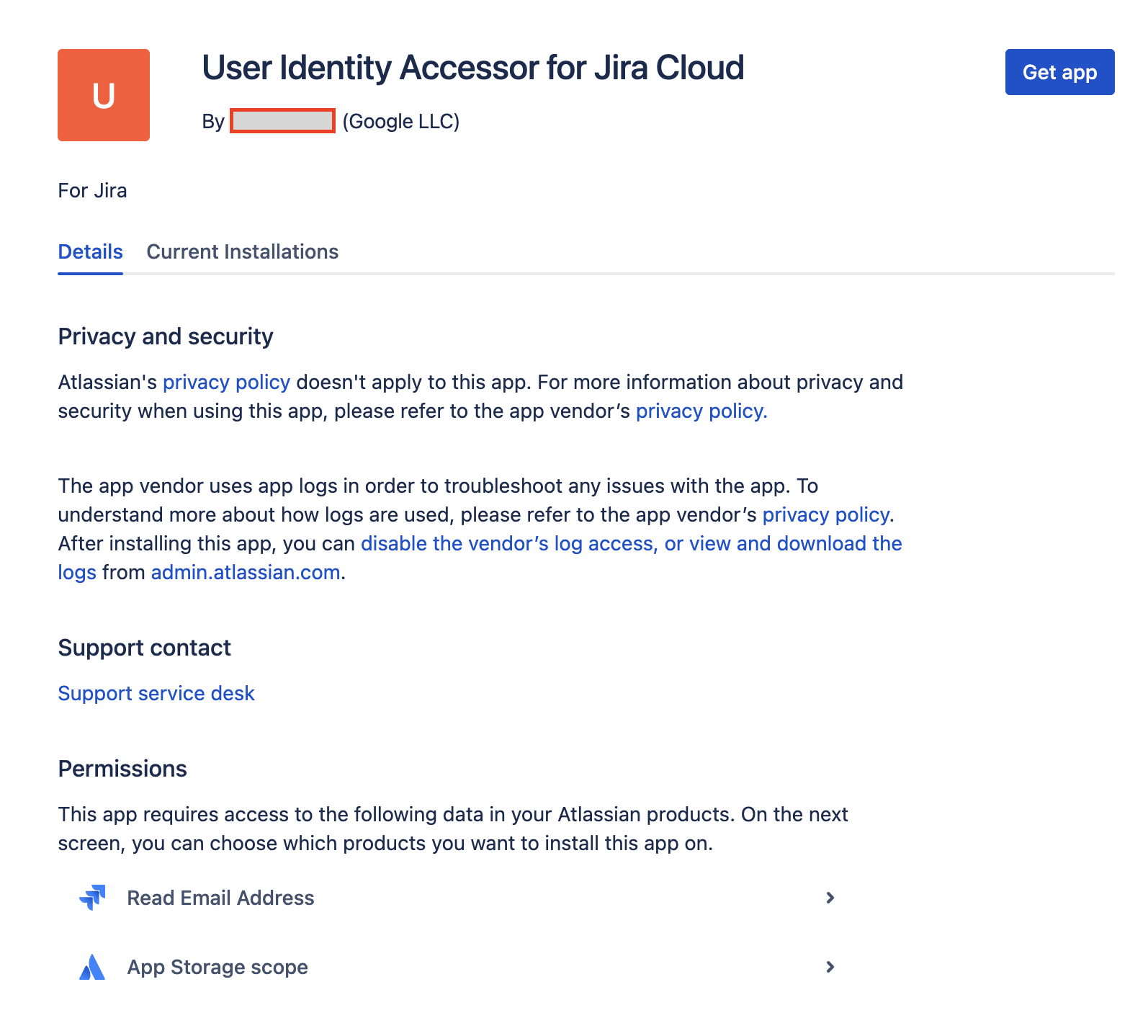
Get it now From the Select a site list, select the Jira site where you want to install the app.
Click Review to authorize the required permissions and agree to the terms and conditions.
Click Get it now to complete the app installation.
Upon successful installation, a confirmation message appears: "Your app has been added to your instance and is ready for use."
Configure User Identity Accessor
After you've installed the User Identity Accessor for Jira Cloud app, configure an API key that your external system (for example, your Jira Cloud Connector) uses to securely call the app's web trigger to fetch emails.
Access the configuration page
To access the User Identity Accessor for Jira Cloud app's configuration page, do the following:
- In your Jira Cloud instance, click the Settings ⚙️ icon in the navigation menu.
- Select Apps from the menu.
- On the Apps administration page, locate your app, User Identity Accessor for Jira Cloud, in the Manage apps list.
Click Configure or the link associated with your app. The app's dedicated configuration page opens within Jira Cloud.
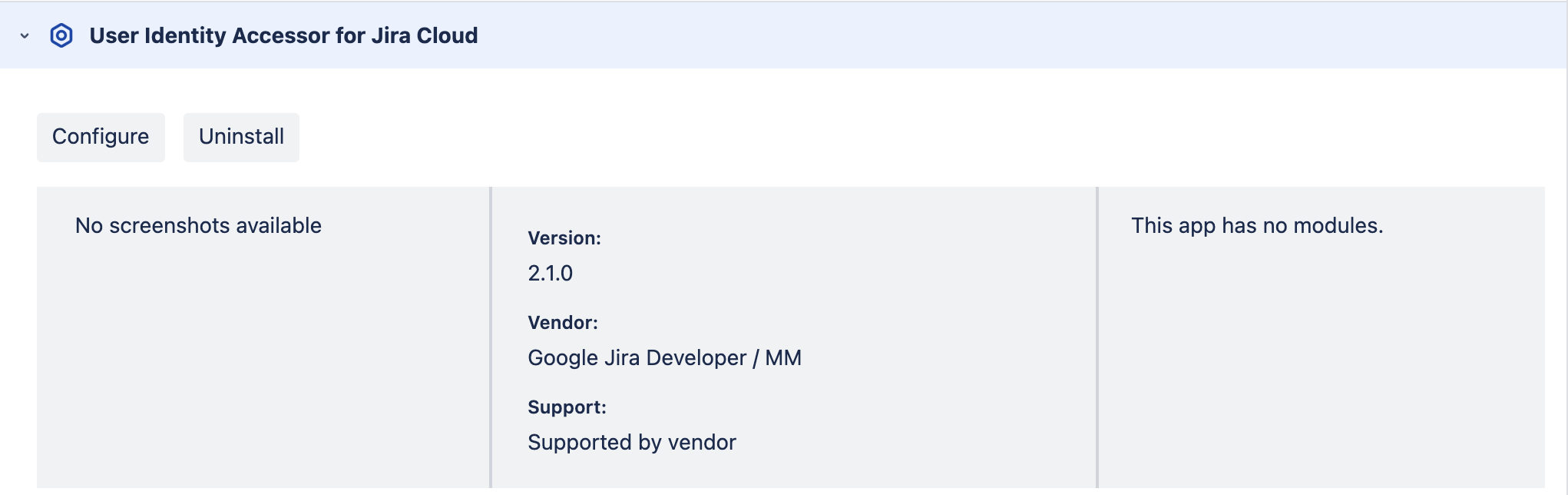
Configure the User Identity Accessor for Jira Cloud app
Set up the API key
To set up the API key on the configuration page, do the following:
In the API Key Configuration section, specify the secret key for authenticating requests to the app's web trigger. You can authenticate requests using either of the following methods:
Enter your own key: Type or paste your own strong, unique API key into the API Key field. Use a key of at least 20–30 characters with a mix of uppercase letters, lowercase letters, numbers, and symbols.
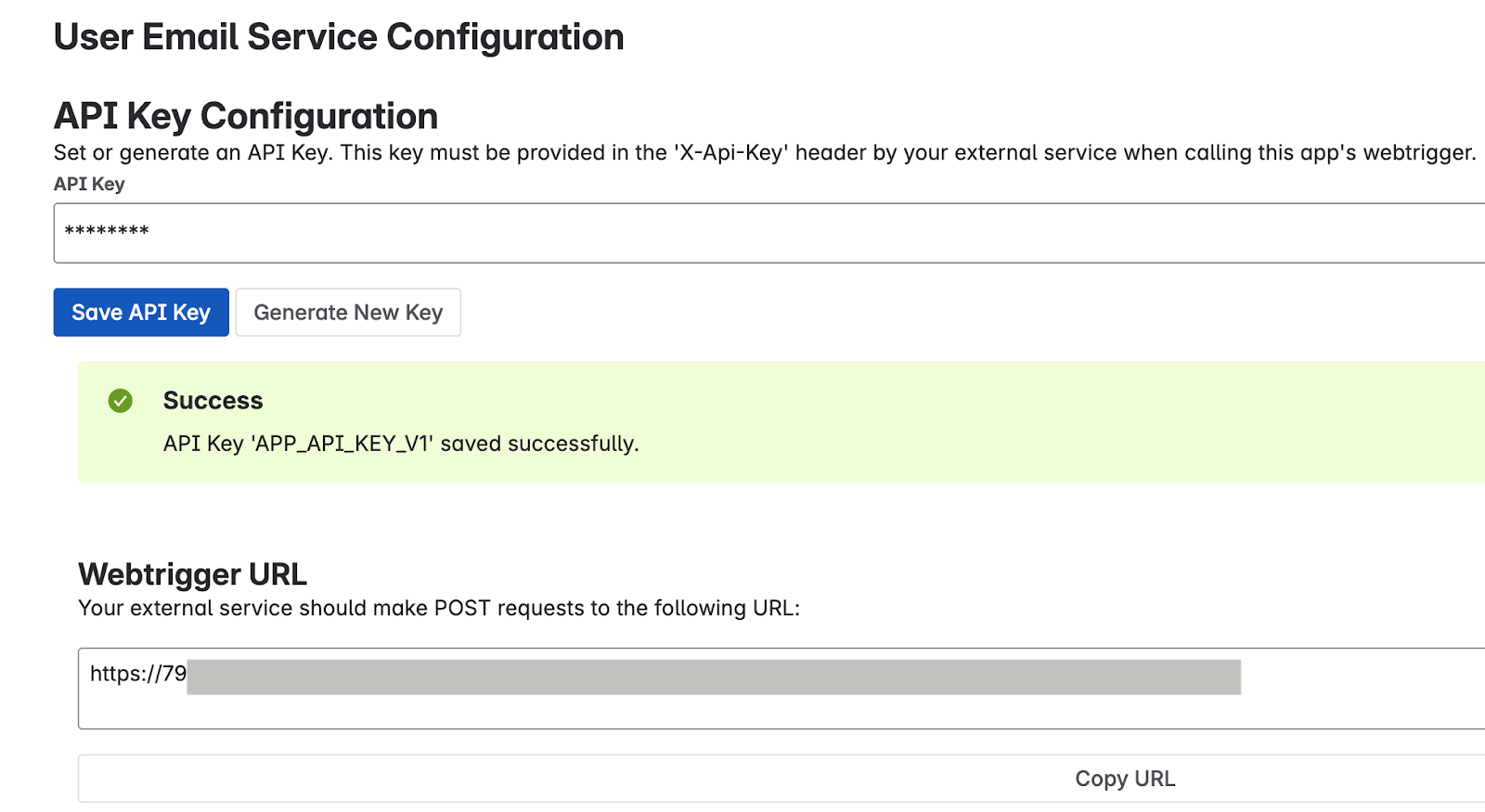
Enter your own key Generate a key: Click the Generate New Key button. The system generates and displays a strong, random key in the field.
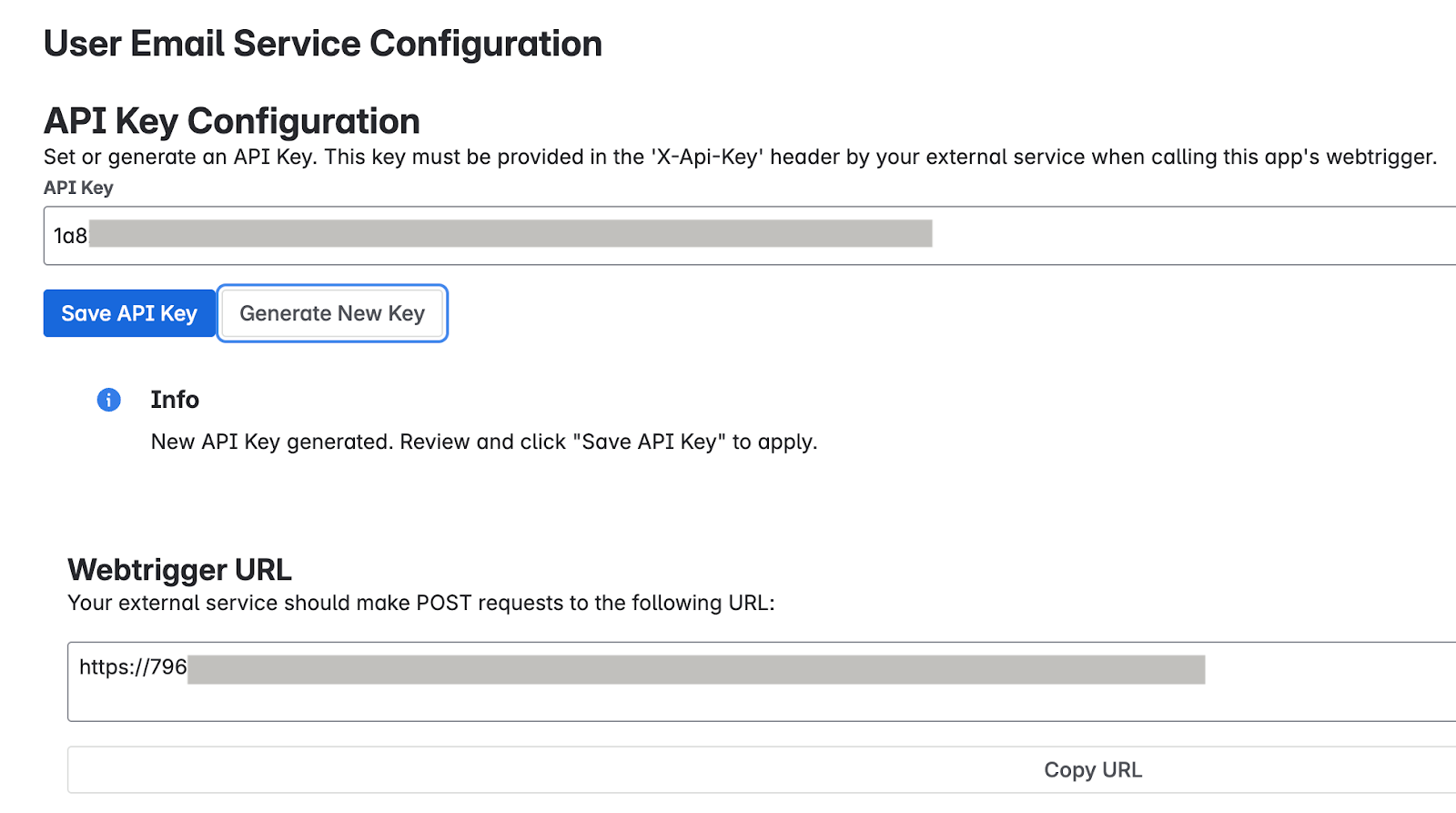
Generate a key Important: Immediately copy the API key displayed in the field. For security reasons, you might be unable to view the full key again after saving or navigating away. If lost, you need to set or generate a new one.
Click Save API Key. A success message confirms that the key is securely saved.
Test the app configuration
Verify if the User Identity Accessor for Jira Cloud app is configured correctly by sending a request from your external system and confirming that user email addresses are returned successfully.
Get the web trigger URL
- On the Apps administration page, locate the Webtrigger URL section, which displays the
unique URL specific to your Jira site and this app installation:
- Your external system must call this URL to request user emails.
- URL example:
https://YOUR_INSTANCE_ID.hello.atlassian-dev.net/x1/WEBTRIGGER_ID, whereYOUR_INSTANCE_IDis your Jira Cloud instance identifier andWEBTRIGGER_IDis the unique identifier for the web trigger endpoint generated for your app.
- Click the Copy URL button or copy the entire URL.
Configure your external system
Configure your external system that needs to fetch Jira user emails with the API key and web trigger URL obtained in the previous steps.
Endpoint URL: The web trigger URL you copied.
HTTP Method:
POSTRequired Headers:
- Content-Type:
application/json X-Api-Key:
YOUR_API_KEYReplace
YOUR_API_KEYwith the API key you set or generated in the Set up the API key section.
- Content-Type:
Example curl command
This example demonstrates calling the User Identity Accessor for Jira Cloud web trigger, which accepts an array of account IDs and returns the email addresses.
curl --location --request POST 'https://YOUR_INSTANCE_ID.hello.atlassian-dev.net/x1/ENDPOINT_PATH' \
--header 'X-Api-Key: YOUR-API-KEY' \
--header 'Content-Type: application/json' \
--data-raw '{
   "accountIds": [
       "ACCOUNT_ID_1",
       "ACCOUNT_ID_2"
   ]
}'
Replace:
YOUR_INSTANCE_IDwith your Jira Cloud instance IDENDPOINT_PATHwith the API endpoint pathYOUR_API_KEYwith the API key you set or generated in the Set up the API key sectionACCOUNT_IDwith Atlassian account IDs that you want to target
Expected response
[{"accountId":"ACCOUNT_ID_1","emailAddress":"EMAIL_ADDRESS_1"},
 {"accountId":"ACCOUNT_ID_2","emailAddress":"EMAIL_ADDRESS_2"}]
Replace:
ACCOUNT_ID_Xwith actual Atlassian account IDsUSER_EMAIL_Xwith user email addresses returned from your API call
Implement security best practices
To confirm the security of your API key, follow these recommendations:
- Store the API key securely within your Jira Cloud Connector's configuration.
- Verify that all communication with the webhook URL occurs over HTTPS. This is the default for User Identity Accessor for Jira Cloud web triggers.
Support for User Identity Accessor for Jira Cloud
Support offerings are available from Google for the User Identity Accessor for Jira Cloud app that can include maintenance and regular updates to keep the app up-to-date. If you encounter any issues or have questions specific to the app functionality, contact Google Cloud Support. For more information, see Getting Cloud Customer Care.