

Gemini Enterprise provides centralized oversight and management for agents used by your organization, including those from Google, third parties, and internal teams.
Agent types
The following table details the different types of agents available in Gemini Enterprise, the Gemini Enterprise tools that are used to create the agent, and the admin configurations required to view and manage them on the web app.
| Agent type | Gemini Enterprise tool | Description |
|---|---|---|
| Employee-made agents from your organization | Workflow Builder |
This interactive, no-code, low-code tool lets users in your organization create,
launch, and manage single and multi-step agents on the Gemini Enterprise
web app. For more information, see
Workflow Builder overview.
A Gemini Enterprise admin must enable this feature on the web app by turning on the Enable Workflow Builder toggle in the End user features control page. For more information, see Manage web app features. |
| Google-made agents | Core Assistant | Handles interactions when users talk to the Gemini Enterprise engine without specifying any other agent. For more information, see Core Assistant agent. |
| Deep Research | Helps users perform in-depth exploration of topics. For more information, see Get reports with Deep Research. | |
| Custom agents from your organization | ADK agents hosted on Agent Runtime on Gemini Enterprise Agent Platform | Gemini Enterprise admins can register custom agents built by your organization and hosted on Agent Runtime, making them available to users on the Gemini Enterprise web app. For more information, see Register and manage ADK agents. |
| Agent2Agent (A2A) |
Gemini Enterprise admins can register custom agents built using the
Agent2Agent (A2A) Protocol, making them available to users on the
Gemini Enterprise web app. For more information, see
Register and manage A2A agents. Also, A2A agents in Agent Registry can be discovered and added to apps in Gemini Enterprise. For more information, see Import A2A agents from Agent Registry. |
|
| Dialogflow | Gemini Enterprise admins can register conversational agents built with Dialogflow, making them available to users on the Gemini Enterprise web app. For more information, see Register and manage Dialogflow agents. |
View agents
To view the agents that are registered or available, do the following:
In the Google Cloud console, go to the Gemini Enterprise page.
Click the name of the app that has the agents.
Click Agents. The Agents page is displayed.
Agent identity
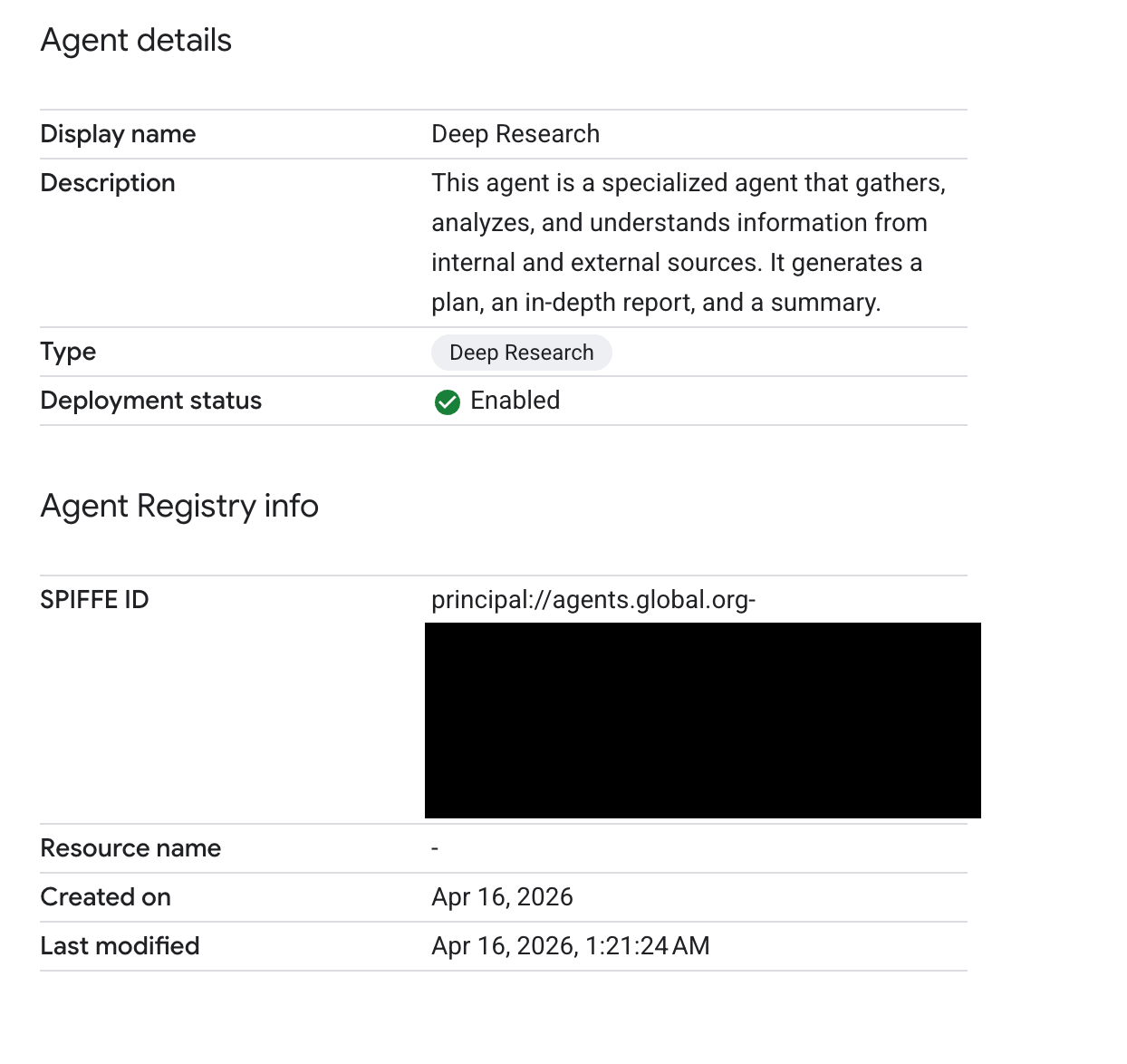
As a Gemini Enterprise administrator, you can view an agent's identity. This is typically the agent's SPIFFE ID. However, the SPIFFE ID is only visible if the publisher has made it available. If the SPIFFE ID is not published, the Agent Registry resource ID is displayed as a fallback.
The following image shows an example of an agent's details displaying a SPIFFE ID:
Manage agents
A Gemini Enterprise admin can manage the lifecycle of the available agents from the Agents page in the Gemini Enterprise console and can perform the following tasks:
| Task | Description |
|---|---|
| Update an agent |
You can update the details of an agent. For more information, see: |
| Test an agent |
Test your agents before your end users find problems.
On the Agents page, click more_vert next to the agent that you want to test, and then click Preview. This opens the agent in the Gemini Enterprise app. |
| Invoke an agent programmatically |
Call a specific registered agent from custom applications, orchestrators, or scripts. For instructions, see: |
| Share an agent or transfer ownership | You can share available agents or transfer ownership of shared agents in your Google Cloud console. For more information, see Share agents from Google Cloud console. |
| Configure agent sharing by end users and review their requests to share |
For agents created using Workflow Builder, you can let end
users share
their agents with other users in the organization through email addresses
or groups.
You can also configure whether sharing requires administrator review and approval. For more information, see the settings Enable agent sharing, Enable agent sharing without admin approval, and Enable End Users to share with Groups in Manage features on the web app. Also see Share an agent. |
| Delete an agent |
You can delete an agent from the Agents page. After an agent is
deleted, it is removed from the Agents page and the
Gemini Enterprise web app.
On the Agents page, click more_vert next to the agent you want to delete, and then click Delete. |
Agent states
This table describes each state that an agent might be in. In the Google Cloud console on the Agents page, you can see the state listed for each agent in the Agent state column of the Agents table.
| State | Description |
|---|---|
| Private | The agent is intended for personal use and is available exclusively to its creator. After the agent's status is changed to Enabled, the agent is visible to other users on the Gemini Enterprise web app. |
| Suspended | The agent is temporarily deactivated. It remains visible in the Agent Gallery with a message explaining its deactivation. Although users can't interact with the agent, owners and admins retain full access. |
| Enabled | The agent is active and available for use on the Gemini Enterprise web app. Authorized users can interact with the agent as intended. |
| Disabled | The agent is inactive and hidden from the Agent Gallery. Interaction isn't available for any user until the owner or admin re-enables the agent. |