

Create data agents
This document describes how to create, edit, manage, and delete data agents in BigQuery.
In BigQuery, you can have conversations with data agents to ask questions about BigQuery data using natural language. Data agents contain table metadata and use-case-specific query processing instructions that define the best way to answer user questions about a set of knowledge sources, such as tables, views, or user-defined functions (UDFs) that you select.
Before you begin
-
Verify that billing is enabled for your Google Cloud project.
-
Enable the BigQuery, Gemini Data Analytics, Gemini for Google Cloud, and Knowledge Catalog APIs.
Roles required to enable APIs
To enable APIs, you need the
serviceusage.services.enablepermission. If you created the project, then you likely already have this permission through the Owner role (roles/owner). Otherwise, you can get this permission through the Service Usage Admin role (roles/serviceusage.serviceUsageAdmin). Learn how to grant roles.
Required roles
To work with data agents, you must have Identity and Access Management (IAM) permissions that match your use case. The following sections list required roles based on whether you are creating and publishing agents, provisioning agents in Gemini Enterprise, or discovering and using agents across various surfaces. For more information, see Conversational Analytics API IAM roles.
- Create, edit, publish, share, and delete agents:
- To create data agents in a project: Gemini
Data Analytics Data Agent Creator
(
roles/geminidataanalytics.dataAgentCreator) on the project. This role automatically grants you the Gemini Data Analytics Data Agent Owner role on the data agents that you create. - To edit, share, or delete a data agent: Gemini Data
Analytics Data Agent Owner (
roles/geminidataanalytics.dataAgentOwner) on the agent or project. - To edit a data agent in a project: Gemini Data Analytics Data
Agent Editor (
roles/geminidataanalytics.dataAgentEditor) on the project. - To view data agents in a project: Gemini Data Analytics Data Agent
Viewer (
roles/geminidataanalytics.dataAgentViewer) on the project.
- To create data agents in a project: Gemini
Data Analytics Data Agent Creator
(
- Provision agents in Gemini Enterprise:
- To make a published agent available to users in Gemini Enterprise, you need permissions to register and manage A2A agents in the Gemini Enterprise administration console.
- Discover and use agents:
- To chat with data agents: Gemini Data Analytics Data Agent User
(
roles/geminidataanalytics.dataAgentUser). - To view all data agents in the project: Gemini Data Analytics Data
Agent Viewer (
roles/geminidataanalytics.dataAgentViewer). - To interact with the Gemini-powered chat interface
in Data Studio: BigQuery Studio User (
roles/bigquery.studioUser) or Gemini for Google Cloud User (roles/cloudaicompanion.user), each of which provide thecloudaicompanion.topics.createpermission. Grant these roles at the project level. Users also require the Data Studio Asset Viewer (roles/datastudio.viewer) role.
- To chat with data agents: Gemini Data Analytics Data Agent User
(
- Add knowledge sources to an agent:
- Data Catalog Viewer (
roles/datacatalog.viewer) on the project.
- Data Catalog Viewer (
To have conversations, see the required roles for conversations.
Agents act on your behalf and uses your permissions. Agents can only access data and resources that you have permission to access.
Best practices
Conversational analytics automatically runs queries on your behalf to answer your questions. Consider the following factors that might increase query cost:
- Large table sizes
- Use of data joins in queries
- Frequent calls to AI functions within queries
Generate insights
You can optionally generate data insights in Knowledge Catalog for any table that you want to use as a knowledge source.
Generated insights provide table metadata that the data agent can use to help generate responses to your questions.
If you don't generate insights beforehand, the system automatically generates them when you select a table as a knowledge source while creating a data agent.
Work with the sample data agent
If you're unfamiliar with configuring agents for conversational analytics, you can optionally view the predefined sample agent generated for every Google Cloud project. You can chat with it and view its parameters to see how it was created, but you can't modify it.
To view the sample agent, do the following:
In the Google Cloud console, go to the BigQuery Agents page.
Select the Agent catalog tab.
Under the section Sample agents by Google, click the sample agent card.
Create a data agent
The following sections describe how to create a data agent.
After you create an agent, you can edit its settings.
Initial steps
In the Google Cloud console, go to the BigQuery Agents page.
Select the Agent catalog tab.
Click New agent. The New agent page opens.
In the Editor section, in the Agent name field, type a descriptive name for the data agent—for example,
Q4 sales dataorUser activity logs.In the Agent description field, type a description of the data agent. A good description explains what the agent does, what data it uses, and helps you know when this is the right data agent to chat with—for example,
Ask questions about customer orders and revenue.In the Knowledge sources section, click Add source. The Add knowledge source page opens.
In the Recents section, select any tables, views, graphs, or UDFs that you want to use as knowledge sources. UDFs are prefixed with an 'fx' indicator in the Google Cloud console.
To view additional knowledge sources, select Show more.
Optional: Add a knowledge source that isn't listed in the Recents section:
In the Search section, type the source name into the Search for tables field, and then press Enter. The source name doesn't need to be exact.
In the Search results section, select one or more sources.
Click Add. The new agent page reopens.
Customize table and field descriptions
To improve data agent accuracy, you can optionally provide additional table metadata. Only the data agent uses this metadata, and it doesn't affect the source table.
Follow these best practices when you create a table and field descriptions:
Use these descriptions as a guide to understand how the data agent understands the schema. If the descriptions suggested by the agent are correct, you can accept them.
If the data agent doesn't show an understanding of the schema after you configure these descriptions, then manually adjust the descriptions to provide the correct information.
Follow these steps to configure table and field descriptions:
In the Knowledge sources section, click the Customize link for a table.
Create a table description. You can type a description in the Table Description field or accept the suggestion from Gemini.
In the Fields section, review the Gemini-suggested field descriptions.
Select any field descriptions that you want to accept and click Accept suggestions. Select any descriptions that you want to reject and click Reject suggestions.
Manually edit any field description by clicking Edit next to the field. The Edit field pane opens.
- In the Description field, type a field description.
- To save the field description, click Update.
To save the description and field updates, click Update. The new agent page reopens.
Repeat these steps for each table that needs customization.
Create agent instructions
The agent should understand context for user questions without needing any custom instructions. Create custom instructions for the agent only if you need to change the agent's behavior or improve the context in ways that aren't already supported by other context features—for example, custom table and field metadata, or verified queries.
In the Instructions section, type instructions for the data agent in the Agent instructions field. Because the data agent uses these instructions to understand the context for user questions and to provide answers, make the instructions as clear as possible.
If you don't get a satisfactory answer from the agent, then add structured context such as descriptions, examples or glossary terms. If you still don't get a satisfactory answer, add custom instructions like the examples in the following table.
For even more examples of instructions, click Show examples.
| Information type | Description | Examples |
|---|---|---|
| Key fields | The most important fields for analysis. | "The most important fields in this table are: Customer ID, Product ID, Order Date." |
| Filtering and grouping | Fields that the agent should use to filter and group data. | "When a question is about a timeline or 'over time,' always use the order_created_date column." "When someone says 'by product,' group by the product_category column." |
| Default filtering | Fields to filter on by default. | "Unless stated otherwise, always filter the data on order_status = 'Complete'." |
| Synonyms and business terms | Alternative terms for key fields. | "If someone asks about 'Revenue' or 'Sales', use the total_sale_amount column." "We consider 'loyal' customers to be those with purchase_count > 5." |
| Excluded fields | Fields that the data agent should avoid using. | "Never use these fields: Transaction Date Derived, City Derived." |
| Join relationships | How two or more tables are related to each other, and which columns are used to join them. The agent must use standard SQL JOINs on column pairs to combine data. See the example column. | Customer Activity
|
Create verified queries
An agent uses verified queries in two ways:
- If an agent can use a verified query to answer a question that you ask it, to ensure a trustworthy answer, the agent invokes the query exactly as written.
- If the agent can't use the verified query to answer a question, it still uses the query as a reference to understand the data and the best practices for querying it.
You can select verified queries from a list generated by the system, or create your own.
To create a verified query for the data agent, formerly known as a golden query, do the following:
Select one or more Gemini-suggested verified queries:
- In the Verified Queries section, click Review suggestions. The Review suggested verified queries page opens.
- Review the suggested verified queries. Select any that apply to your use case.
- Click Add. The new agent page reopens.
To create your own verified query, click Add query. The Add verified query page opens.
- In the Question field, type the user question that the verified query answers.
- Click Generate SQL to have Gemini generate a verified query that corresponds to the user question that you specified.
- Modify the verified query if you choose.
- Click Run and verify that the query returns the results that you expect.
- Click Add. The new agent page reopens.
Repeat these steps as needed to create additional verified queries.
Create parameterized verified queries
Parameterized verified queries extract values from a user's question for the conversational analytics agent and provide tailored results.
Analysts and builders can create reusable SQL templates that contain placeholders for these values. The templates dynamically substitute parameters at runtime to answer a wider range of user questions than do regular verified queries.
When a user asks a question that matches the template's pattern, the conversational analytics agent extracts parameter values from the question— for example, product name, region, and date. It then injects these values into the parameterized query. Matching responses from the query template appear as verified.
Parameterized verified queries significantly enhance the power and flexibility of verified queries. They ensure consistent, trusted answers across various inputs and reduce the number of individual queries to maintain.
How it works
An expert, such as a data analyst, defines a verified query by using a template
question—for example, "What were the sales for @product in @region?" Then,
the expert creates or modifies the verified query using SQL parameters, as
the following example shows:
SELECT * FROM sales WHERE region = @region AND product = @product
After the verified query is saved, a user can ask the conversational analytics agent a question in natural language; for example, "What were the sales for laptops in North America?"
To answer the user's question, the agent performs the following steps:
- Matches the question to the pattern associated with the parameterized
verified query. The agent uses natural language understanding
(NLU) to
identify and extract the values for
@region(North America) and@product(laptops) from the user's question. - Substitutes the extracted values into the
@regionand@productplaceholders in the SQL template. - Runs the complete SQL query; for example,
SELECT * FROM sales WHERE
region = 'North America' AND product = 'Laptops'
. - Returns the results to the user. Matches are always marked as verified.
Tips for creating effective parameterized queries
- Use clear parameter names. Use descriptive names for parameters—for
example,
@start_dateinstead of@d1. - Create detailed parameter descriptions. The large language model (LLM)
for conversational analytics uses parameter descriptions to identify the
parameters and their values from user questions. For example,
num_enrollmentsis an effective parameter name, butnumber of student enrollments from ages 5-14is a parameter description that gives more context about the query. - Ensure consistent data typing. Ensure that the data types expected by the SQL query match the data types likely to be extracted from the user's question.
- Provide a well-defined scope. Create templates for common and important question patterns where the query construction is complex, or the logic is unintuitive. Doing so helps the LLM return optimal results.
- Test thoroughly. Test with various natural language phrasings to ensure that parameters are extracted correctly.
Create a parameterized verified query
You can select verified queries from a list generated by the system, or you can create your own.
Before you create or modify a query, draft the query, considering the natural language pattern and your question. For example, if you ask "Do we know the total stock for organic bananas in the US-EAST warehouse?," you can rewrite the question as the parameterized verified query as "What is the total stock for @product in the @region warehouse?" The agent turns this question into a SQL query that you update with default values.
To create a parameterized verified query for a data agent, you can either create a new query when you create a new agent, or you can edit an existing verified query for a new or existing agent.
The following instructions use a sample verified query to configure with parameters.
Select an existing Gemini-suggested verified query
- In the Verified Queries section of a new or existing agent, click Review suggestions. The Review suggested verified queries page opens.
- Select the checkbox next to a suggested verified query.
- In the query window, click Show more to expand the query description.
- To open the existing query, click Edit.
- To finish configuring the query, see Configure the parameters for the verified query.
Create an agent and then create a verified query
- See Initial steps and continue through the rest of the configuration steps to Verified queries.
- In the Google Cloud console, in the Verified queries section of the new agent, click Add query. The Add verified query page opens.
- To finish configuring the query, see Configure the parameters for the verified query.
Configure the parameters for the verified query
- In the Question field, type the user question answered by the verified query.
- To specify parameters, use the
@symbol followed by a parameter name. This syntax identifies a placeholder that ingests a value from the user question. Use a natural language question that shows how the parameters will be used in user questions. For example: "What is the total stock for @product in the @region warehouse?" Click Generate SQL. The SQL looks like the following example:
   SELECT
       SUM(stock) AS total_stock
   FROM
       inventory
   WHERE
       product_id = @product
       AND region = @region;
To add default values to the placeholders in the query, click Manage query parameters, and then click Add query parameter.
For the first parameter, four fields appear for Name, Type, Value, and Description.
- For Name, copy
@productfrom your question and paste it into this field. - For Type, select STRING.
- For Value, enter
organic bananas. - For Description, enter as specific a description as possible. For example, a product located in a regional warehouse.
- For Name, copy
For the second parameter, click Add query parameter.
- For Name, copy
@regionfrom your question and paste it into this field. - For Type, select STRING.
- For Value, enter
US-EAST. - For Description, enter as specific a description as possible—for
example,
a regional warehouse where products are located.
- For Name, copy
When you have filled out fields for both parameters, click Save.
Test the parameterized verified query
- Click Run and verify that the query returns the results that you expect.
- To test the query for users in a later screen, copy the entire question field.
- Click Save to exit the Add query screen and return to the agent Edit page.
- On the agent Edit page, paste the question field, that you copied
previously, into the Preview window.
- Replace the
@productvariable withorganic bananas. - Replace the
@regionvariable withUS-EAST.
- Replace the
- Press enter. Check the result. In this case, a valid answer is the total stock number of the bananas in the US-EAST region—for example, 1,000.
- To create or edit additional verified queries, repeat these steps as needed.
Now that you have saved the query, a user can ask the question "Do we know the total stock for organic bananas in the US-EAST warehouse?" Conversational analytics then does the following:
- Matches this question to the pattern.
- Extracts the
@productparameter as@product= "organic bananas" and the@regionparameter = "US-EAST" from the question. - Executes the query:
SELECT SUM(stock) AS total_stock FROM inventory WHERE product_id = 'organic bananas' AND region = 'US-EAST'; - Returns the calculated
total_stock.
Create or review glossary terms
You can create BigQuery custom glossary terms local to an agent, or review business glossary terms imported from Knowledge Catalog that apply to the knowledge sources that you selected for an agent.
- Because business glossary terms from Knowledge Catalog apply globally to BigQuery resources, if you use Knowledge Catalog, create and manage business glossary terms in Knowledge Catalog instead of for individual agents.
- If you need to modify business glossary terms imported from Knowledge Catalog, you must edit them in Knowledge Catalog and return to BigQuery to see them.
- BigQuery custom glossary terms stay in BigQuery. They don't appear in Knowledge Catalog.
- If you're not using Knowledge Catalog, you can create BigQuery custom glossary terms for terms that you need to define for a specific agent.
Follow these steps to create custom glossary terms for an agent:
- In the Glossary section of the agent Editor page, click Add term.
- In the Custom terms section, you can edit or delete any existing custom terms.
- To create one or more new terms, click Create term.
- Enter a Term, a Definition, and one or more Synonyms separated by a comma.
- To create the term, click Add.
- If you want to delete the new term, click Delete.
- To create more custom terms, repeat these steps.
Follow these steps to view business glossary terms imported from Knowledge Catalog:
- In the Glossary section of the agent Editor page, click Add term.
- Navigate to the page section called Imported from Dataplex.
- To modify imported terms in Knowledge Catalog, click Go to Dataplex glossaries.
- After you've modified the terms in Knowledge Catalog, you can return to the agent Editor page to view the modified terms.
Configure settings
In the Settings section, you can configure the following optional settings:
In the Model section, choose which types of models are available to users in a conversation with the agent. Both Preview and Generally Available models are available by default. Models that are in Preview might use the global endpoint.
Create labels to help you organize your Google Cloud resources. Labels are key-value pairs that let you group related objects together or with other Google Cloud resources.
- In the Settings section, click Manage labels.
- Click Add label.
- In the key and value fields, enter your key-value pair for the label.
- If you want to add more labels, click Add label again.
- To delete a label, click Delete.
- When you're finished, click Add. The new agent page reopens.
Set a size limit for the queries processed by the data agent. In the Settings section, type a value in the Maximum bytes billed field. You must set this limit to
10485760or higher, otherwise you receive the following error message:
Value error. In BigQuery on-demand pricing charges are
rounded up to the nearest MB, with a minimum of 10 MB of data processed
per query. So, max bytes billed must be set to greater or equal to
10485760.
If you don't specify a value, maximum bytes billed defaults to the
project's query usage per day quota. The
usage per day quota is unlimited unless you have specified a custom
quota.
Continue to the next section to place the agent in draft mode or publish the agent.
Preview and publish the agent
In the Preview section, type an example user question in the Ask a question field, and then press Enter. To verify that the data agent returns the data that you expect, review the agent's response. If the response is not what you expect, change the settings in the Editor section to refine the data agent configuration until you get satisfactory responses. You can continue to test and modify your agent to refine the agent's results.
Click Save.
To place the data agent in draft mode, which you can re-edit later, click Go back to return to the Agent Catalog page. Because your agent is now in draft mode, it appears in the My draft agents section on the Agent Catalog tab.
To publish your agent, remain on the agent creation page and proceed to the next step.
Click Publish to publish the data agent and make it available for use in the project. You can create conversations with the data agent by using BigQuery Studio or Data Studio. You can also build your own interface to chat with the data agent by using the Conversational Analytics API. For information on publishing to Data Studio, see Publish a data agent in Data Studio. For information on publishing to Gemini Enterprise, see Publish a data agent in Gemini Enterprise.
Optional: In the Your agent has been published dialog, click Share to share the data agent with other users.
In the Share permissions pane, click Add principal.
In the New principals field, enter one or more principals.
Click the Select a role list.
In the Role list, select one of the following roles:
- Gemini Data Analytics Data Agent User
(
roles/geminidataanalytics.dataAgentUser): grants permission to chat with the data agent. - Gemini Data Analytics Data Agent Editor
(
roles/geminidataanalytics.dataAgentEditor): grants permission to edit the data agent. - Gemini Data Analytics Data Agent Viewer
(
roles/geminidataanalytics.dataAgentViewer): grants permission to view the data agent.
- Gemini Data Analytics Data Agent User
(
Click Save.
To return to the new agent page, click Close. Immediately after saving or publishing your agent, you can see it in the Agent Catalog.
Manage data agents
You can find existing agents in the Agent Catalog tab, which consists of three sections:
- My agents: a list of all agents that you create and publish. You can modify and share published agents with others.
- My draft agents: agents that you haven't published yet. You can't share draft agents.
- Shared by others in your organization: Agents that others create and share with you. If others grant you permissions, you can edit these shared agents.
Edit a data agent
Follow these steps to edit a data agent:
Go to the BigQuery Agents page.
Select the Agent Catalog tab.
Locate the agent card of the data agent that you want to modify.
To open the data agent in the agent editor, click Open actions > click Edit on the agent card.
Edit the data agent's configuration as needed.
To save your changes without publishing, click Save.
To publish your changes, click Publish . In the Share dialog, you can either share the agent with others, or click Cancel.
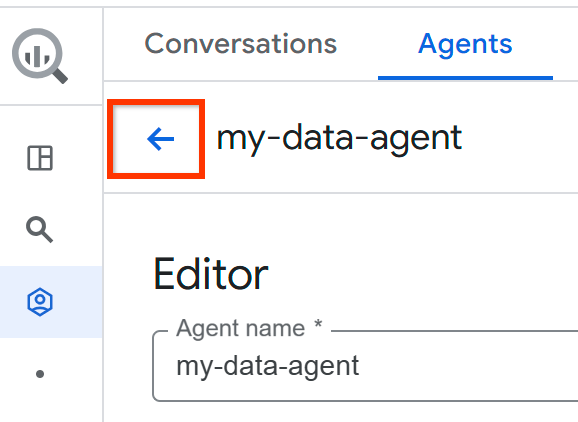
To return to the Agents pane, click Go back.
Share a data agent
Follow these steps to share a published data agent. You can't share draft agents.
Go to the BigQuery Agents page.
Select the Agent Catalog tab.
Locate the agent card of the data agent that you want to modify.
To open the data agent in the agent editor, click Open actions > click Edit on the agent card.
To share the data agent with other users, click Share.
In the Share permissions pane, click Add principal.
In the New principals field, enter one or more principals.
Click the Select a role list.
In the Role list, select one of the following roles:
- Gemini Data Analytics Data Agent User
(
roles/geminidataanalytics.dataAgentUser): gives permission to chat with the data agent. - Gemini Data Analytics Data Agent Editor
(
roles/geminidataanalytics.dataAgentEditor): gives permission to edit the data agent. - Gemini Data Analytics Data Agent Viewer
(
roles/geminidataanalytics.dataAgentViewer): gives permission to view the data agent.
- Gemini Data Analytics Data Agent User
(
Click Save.
To return to the agent editing page, click Close.
To return to the Agents pane, click Go back.
Delete a data agent
Go to the BigQuery Agents page.
Select the Agent Catalog tab.
In either the My agents or My draft agents section of the Agent Catalog tab, locate the agent card of the data agent that you want to delete.
Click Open actions > Delete.
In the Delete agent? dialog, click Delete.
Publish a data agent in Data Studio
When you publish your agent and share it with Data Studio users, the agent automatically appears for those users to chat with on the Chat with your data page in Data Studio.
Create and publish your agent to Data Studio
As a data analyst, you can create, edit, and publish an agent to Data Studio by completing the following steps:
- Create or edit your data agent in BigQuery.
- Publish the agent. When you publish the agent, select Data Studio as the publishing option.
- Follow the instructions to share the agent, granting the appropriate Identity and Access Management roles to your Data Studio users.
Share your agent with Data Studio users
You can share agents with Data Studio users directly by copying a link that opens a conversation with the agent in Data Studio or you can send an email to inform the user that they have access to an agent.
To share a direct link to the agent, you can copy the agent's dedicated URL in these ways:
- From the agent catalog: Select Open actions > select Copy link > select Data Studio.
- From the agent details view: Select Copy agent link > select Data Studio.
- From the Share overflow menu: Select Copy link to agent in Data Studio.
- After clicking Save from the Share permissions panel: Select Copy link.
To send an email notification that informs recipients of their access to an agent, select Send email from the Share permissions panel. Email notifications are sent only to the users or groups with whom you have just shared the agent in that editing session. All members of a group receive the email notification, even if a given user already has agent-level permission for the agent. The email includes the name of the user who shared the agent, the name of the agent, and a link to open the agent in Data Studio.
Publish a data agent in Gemini Enterprise
The following sections describe how to publish a data agent in Gemini Enterprise. This process typically involves collaboration between data analysts, Gemini Enterprise administrators, and business users. For more information about the roles required for these users, see Required roles.
To publish a data agent in Gemini Enterprise, complete the following steps:
- Create and publish the data agent.
- Configure authorization details.
- Provision the agent.
- Discover and use the agent.
Create and publish an agent
As a data analyst, you create, edit, and publish an agent to Gemini Enterprise by completing the following steps:
- Create or edit your data agent in BigQuery.
- Publish the agent. When you publish the agent, select Gemini Enterprise as a publishing option.
- Copy the A2A endpoint JSON.
- Share the A2A endpoint JSON and the list of users with your Gemini Enterprise administrator.
- Share the agent with the users and groups who need access.
Configure authorization details
Before your Gemini Enterprise administrator can provision the agent, you or the administrator must configure authorization details to generate Google Cloud OAuth client credentials.
To create the OAuth client ID and client secret, follow the steps in Configure authorization details.
Provision an agent
As the Gemini Enterprise administrator, you can make a published agent available to users in the Google Cloud console.
In the Google Cloud console, go to Gemini Enterprise.
Click the name of the app where you want to register the agent.
Click Agents > Add Agents.
In the Choose an agent type section, click Add for Custom agent via A2A.
In the Agent card JSON field, enter the agent card details that you previously received from the data analyst in JSON format. For a complete list of available fields, see the Agent2Agent (A2A) Protocol Specification. The example uses only the required fields.
Click Preview agent details > Next.
To enable the agent to access Google Cloud resources on your behalf, complete the following steps:
Enter the Client ID and Client secret that you generated in the Configure authorization details section.
In the Authorization URI field, enter the following:
https://accounts.google.com/o/oauth2/v2/auth?client_id=client_id&redirect_uri=https%3A%2F%2Fvertexaisearch.cloud.google.com%2Fstatic%2Foauth%2Foauth.html&scope=https%3A%2F%2Fwww.googleapis.com%2Fauth%2Fcloud-platform&include_granted_scopes=true&response_type=code&access_type=offline&prompt=consent
Replace client_id with the client ID that you generated in the Configure authorization details section.
In the Token URI field, enter the following:
https://oauth2.googleapis.com/token
In the Scopes field, enter the following:
https://www.googleapis.com/auth/cloud-platform
Click Finish.
Share the agent with the users or groups that the data analyst provides.
For more information about working with A2A agents in Gemini Enterprise, see Register and manage A2A agents.
Discover and use an agent
You can discover and use a data agent in Gemini Enterprise using any of these methods:
- Manual discovery: Locate a data agent in the
Agent Gallery and use it
with any of these methods:
- Browse the gallery: Select the agent and start a dedicated chat.
- Direct link: Use the agent's dedicated URL to open Gemini Enterprise directly into a session with that specific BigQuery data agent.
- Directed intent: Invoke the agent by
@mention(for example,@sales_pipeline_agent) in the Gemini Enterprise core chat. - Seamless orchestration: Ask a general analytical question (for example, "How is our sales pipeline trending in the last 3 months?") and Gemini Enterprise automatically routes the query to the relevant data agent.
After you've discovered the agent, you can interact with it by performing the following steps:
- Authenticate: Complete the one-time OAuth sign-in to securely authenticate to BigQuery.
- Chat: Ask natural language questions to the agent. The requests are processed by the agent, and the response is streamed back to Gemini Enterprise as text, Markdown, charts, or tables.
- View conversation history: Conversations are automatically saved in the history pane.
Monitor agents and conversations
You can monitor the performance, adoption, latency, and costs of your data agents and their conversations by using Google Cloud Observability in BigQuery. When you enable agent observability, you can view metrics such as the following:
- The number of agents used in conversations
- The number of users who have asked questions
- The number of conversations created
- The agents that have answered the most questions
- The most commonly used knowledge sources
- User engagement
- Projected token usage
- Hourly answer latency
Before you begin
Enable the Cloud Trace, Cloud Monitoring, Cloud Logging APIs.
Roles required to enable APIs
To enable APIs, you need the serviceusage.services.enable permission. If you
created the project, then you likely already have this permission through the
Owner role (roles/owner). Otherwise, you can get this permission through the
Service Usage Admin role (roles/serviceusage.serviceUsageAdmin).
Learn how to grant roles.
Required roles and permissions
To enable agent observability, you must have the following permissions on your project:
cloudaicompanion.gibqObservabilitySettings.createcloudaicompanion.gibqObservabilitySettings.listcloudaicompanion.gibqObservabilitySettings.updategeminidataanalytics.dataAgents.creategeminidataanalytics.operations.getobservability.traceScopes.createresourcemanager.projects.updateserviceusage.services.enableserviceusage.values.test
To get the permissions that you need to monitor your agents by using metrics, traces, and logs, ask your administrator to grant you the following IAM roles on your project:
-
View monitoring data and configurations:
Monitoring Viewer (
roles/monitoring.viewer) -
View traces:
Cloud Trace User (
roles/cloudtrace.user) -
View logs:
Logs Viewer (
roles/logging.viewer) -
View datasets and their contents:
BigQuery Data Viewer (
roles/bigquery.dataViewer) -
View administrator settings:
Gemini for Google Cloud User (
roles/cloudaicompanion.user)
For more information about granting roles, see Manage access to projects, folders, and organizations.
You might also be able to get the required permissions through custom roles or other predefined roles.
Enable observability
Agent observability is disabled by default. An administrator can enable it for your project or organization. To enable observability for your agents, select one of the following options:
Console
In the Google Cloud console, go to the BigQuery Agents page.
Select the Monitoring tab.
If observability is disabled, follow the prompts to enable it.
Google Cloud CLI
Create an observability setting:
gcloud gemini gibq-observability-settings create SETTING_NAME \
  --conversational-analytics-setting-metrics-enabled \
  --conversational-analytics-setting-traces-enabled \
  --project=PROJECT_ID \
  --location=global
Replace the following:
SETTING_NAME: A name for the observability setting.PROJECT_ID: Your project ID.
Bind the observability setting to your project:
gcloud gemini gibq-observability-settings setting-bindings create BINDING_NAME \
  --gibq-observability-setting=SETTING_NAME \
  --target=projects/PROJECT_ID \
  --location=global \
  --project=PROJECT_ID
Replace
BINDING_NAMEwith a name for the setting binding. We recommend that you usebinding-PROJECT_IDfor your binding name.
API
Create an observability setting:
curl -X POST \
    -H "Authorization: Bearer $(gcloud auth print-access-token)" \
    -H "Content-Type: application/json; charset=utf-8" \
    -d '{
          "conversational_analytics_setting": {
            "metrics_enabled": true
          }
        }' \
    "https://cloudaicompanion.googleapis.com/v1/projects/PROJECT_ID/locations/global/gibqObservabilitySettings?gibq_observability_setting_id=SETTING_NAME"
Replace the following:
SETTING_NAME: A name for the observability setting.PROJECT_ID: Your project ID.
Bind the observability setting to your project:
curl -X POST \
    -H "Authorization: Bearer $(gcloud auth print-access-token)" \
    -H "Content-Type: application/json; charset=utf-8" \
    -d '{
          "target": "projects/PROJECT_ID",
          "product": "GEMINI_IN_BIGQUERY"
        }' \
    "https://cloudaicompanion.googleapis.com/v1/projects/PROJECT_ID/locations/global/gibqObservabilitySettings/SETTING_NAME/settingBindings?setting_binding_id=BINDING_NAME"
Replace
BINDING_NAMEwith a name for the setting binding. We recommend that you usebinding-PROJECT_IDfor your binding name.
View metrics
Metrics are collected after you enable observability. Data isn't backfilled. To view agent metrics, select one of the following options:
BigQuery
In the Google Cloud console, go to the BigQuery Agents page.
Select the Monitoring tab.
Cloud Monitoring
In the Google Cloud console, go to the Cloud Monitoring Dashboards page.
In the My Dashboards pane, search for the dashboard named
BigQuery Conversational Analytics.To open the dashboard, click its name.
Optional: Create a custom dashboard.
Optional: To view metrics individually, go to the Metrics explorer page.
Agent metrics include agent usage, model calls, tool usage, health, latency, and token usage.
Debug model calls
You can visualize the sequence of operations within a conversation turn, such as model calls and tool calls, to help you troubleshoot errors and latency.
In the Google Cloud console, go to the Cloud Monitoring Trace explorer page.
Click a span to examine.
Review the information in the Details pane.
Optional: Create a custom trace dashboard.
Retain traces
Your Cloud Trace data is stored in an observability dataset for 30 days. To store your trace data for longer, move your trace data to a BigQuery dataset.
Required roles
To get the permissions that you need to expose live traces to BigQuery by creating a linked dataset, ask your administrator to grant you the following IAM roles on your project:
- Cloud Trace Admin (
roles/cloudtrace.admin) - Observability Editor (
roles/observability.editor) - BigQuery User (
roles/bigquery.user)
For more information about granting roles, see Manage access to projects, folders, and organizations.
You might also be able to get the required permissions through custom roles or other predefined roles.
Move trace data to BigQuery
To retain your trace data, do the following:
Open Cloud Shell.
Find the location of your
_Tracebucket:gcloud beta observability buckets list --location=-
Note the location of your
_Tracebucket for the next step.Create a linked dataset in your BigQuery project that points to your
_Tracebucket:gcloud beta observability buckets datasets links create \ projects/PROJECT_ID/locations/LOCATION/buckets/_Trace/datasets/Spans/links/LINK_NAME \ --dataset=Spans \ --bucket=_Trace \ --location=LOCATION \ --project=PROJECT_ID
Replace the following:
PROJECT_ID: your project IDLOCATION: the location of your_Tracebucket from the previous stepLINK_NAME: a name for the linked dataset
Create a standard dataset in which to store your historical traces. The following command sets the default partition expiration to 90 days (7,776,000 seconds):
bq --location=LOCATION mk \
    --dataset \
    --default_partition_expiration=7776000 \
    --description="Archive storage for historical traces" \
    PROJECT_ID:STORAGE_DATASET
Replace
STORAGE_DATASETwith a name for the dataset.Create an empty partitioned table in your storage dataset with the same schema as the linked dataset. Partitioning by date helps you manage data retention and query costs. To create the table, run the following query in the SQL editor:
CREATE TABLE `PROJECT_ID.STORAGE_DATASET.TABLE_NAME`
PARTITION BY DATE(start_time)
AS
SELECT *
FROM `PROJECT_ID.LINK_NAME._AllSpans`
WHERE FALSE;
Replace
TABLE_NAMEwith a name for the table.Create a scheduled query to copy daily trace data from the linked dataset to your archive table. The following query copies data from the previous day:
INSERT INTO `PROJECT_ID.STORAGE_DATASET.TABLE_NAME`
SELECT *
FROM `PROJECT_ID.LINK_NAME._AllSpans`
WHERE start_time >=
  TIMESTAMP_SUB(TIMESTAMP_TRUNC(CURRENT_TIMESTAMP(), DAY), INTERVAL 1 DAY)
  AND start_time < TIMESTAMP_TRUNC(CURRENT_TIMESTAMP(), DAY);
For more information, read about how to find and explore traces.
Turn off observability
To turn off observability for your data agents, update your observability setting:
gcloud gemini gibq-observability-settings update SETTING_NAME \
    --no-conversational-analytics-setting-metrics-enabled \
    --no-conversational-analytics-setting-traces-enabled \
    --project=PROJECT_ID \
    --location=global
Replace the following:
SETTING_NAME: The name of the observability setting that you created to enable observability. If you enabled observability by using the Google Cloud console, then the setting name isdefault.PROJECT_ID: Your project ID.
What's next
- Learn more about conversational analytics in BigQuery.
- Learn more about the Conversational Analytics API.
- Analyze data with conversations.
- Learn more about how the Gemini Data Analytics Data Agent Viewer
(
roles/geminidataanalytics.dataAgentViewer) role gives permission to view the data agent.