

Analyze data with conversations
This document describes how to create, edit, and delete conversations in BigQuery. Conversations are persisted chats with a data agent or data sources, such as tables, views or graphs, that you select.
Conversations are persisted chats with a data agent or data source. You can ask data agents multi-part questions that use common terms like "sales" or "most popular," without having to specify table field names or define conditions to filter the data. You can also ask questions about data located in objects such as PDFs. An agent can determine which data sources to query and take advantage of optimizations, such as table partitions or search indexes, when it constructs a response.
The chat response returned to you provides the following features:
- The answer to your question as text, code, or images (multimodal). The answer can include supported BigQuery AI and ML functions.
- Generated charts where appropriate.
- The agent's reasoning behind the results.
- Metadata about the conversation, such as the agent and data sources used.
When you create a direct conversation with a data source, the Conversational Analytics API interprets your question without the context and processing instructions that a data agent offers. Because of this, direct conversation results can be less accurate. Use data agents for cases that require greater accuracy.
You can create and manage conversations in BigQuery using the Google Cloud console. For more information, see Analyze data with conversations.
Before you begin
-
Verify that billing is enabled for your Google Cloud project.
-
Enable the BigQuery, Gemini Data Analytics, and Gemini for Google Cloud APIs.
Roles required to enable APIs
To enable APIs, you need the
serviceusage.services.enablepermission. If you created the project, then you likely already have this permission through the Owner role (roles/owner). Otherwise, you can get this permission through the Service Usage Admin role (roles/serviceusage.serviceUsageAdmin). Learn how to grant roles.
Required roles
To create conversations, you must have one of the following Conversational Analytics API IAM roles:
- To view and create conversations with any data agent that has been shared
with you, you must have the Gemini Data Analytics Data Agent User
(
roles/geminidataanalytics.dataAgentUser) role and the Gemini for Google Cloud User (roles/cloudaicompanion.user) role at the project level. - To create a direct conversation, you must have the Gemini Data Analytics
Stateless Chat User (
roles/geminidataanalytics.dataAgentStatelessUser) role.
Additionally, in the following situations, you must have the following roles:
- If a data agent uses a dataset as a knowledge source, you need the
BigQuery Data Viewer
(
roles/bigquery.dataViewer) role on the dataset. - If a data agent runs a SQL query for you, you need the
BigQuery Job User
(
roles/bigquery.jobUser) role on the project. - If a data agent uses a table or view as a knowledge source, you need the
BigQuery Data Viewer
(
roles/bigquery.dataViewer) role on the table or view. - If a table uses column-level access control,
you need the
Fine-Grained Reader
(
roles/datacatalog.categoryFineGrainedReader) role. This role is assigned to principals as part of configuring a policy tag. For more information, see Roles used with column-level access control. - If a data table uses row-level access control, you must be granted access through the role-level access policy on that table. For more information, see Create or update row-level access policies.
- If a data table uses data masking,
you must be granted the Masked Reader
(
roles/bigquerydatapolicy.maskedReader) role through the appropriate data policy. For more information, see Roles for querying masked data. - To converse with a dataset, you need the Data Catalog Viewer
(
roles/datacatalog.viewer) on the project.
If you don't have appropriate roles on the source data tables used by the data agent, the system returns the following error when you chat with the data agent:
Schema_Resolution: Access Denied
Best practices
Conversational analytics automatically runs queries on your behalf to answer your questions. Consider the following factors that might increase query cost:
- Large table sizes
- Use of data joins in queries
- Frequent calls to AI functions within queries
Create a conversation with a data agent
To create a conversation with a data agent, you first create a data agent and publish it. You can also initiate a conversation with agents that others share with you.
To create a conversation with an existing data agent in the Google Cloud console, follow these steps:
Go to the BigQuery Agents page.
Select the Agent Catalog tab.
From either the My agents or Shared by others in your organization section, click the agent card of the agent that you want to chat with.
A new chat panel opens.
In the Ask a question field, enter your question and choose a mode:
- Fast (default): best for most questions.
- Thinking: detailed reasoning.
You can also click one of the Gemini-suggested questions to get started.
Click send_spark Send.
The Conversational Analytics API processes your question and returns the results.
Create a direct conversation with a data source
You can create a direct conversation with these BigQuery data sources (also referred to as knowledge sources). When you create a direct conversation, the Conversational Analytics API interprets your question without the context and processing instructions offered by a data agent.
You can create a conversation with the following data sources:
Converse with a data source using the Agents page
To create a conversation with a data source using the Agents page in the Google Cloud console, follow these steps:
To create a direct conversation with a data source from the Agents page, follow these steps:
Go to the BigQuery Agents page.
On the Conversations tab, click New conversation.
In the Chat with your data pane, click the Knowledge sources tab. If your data source doesn't appear in the list, you can search for it.
Select one or more data sources and click Chat.
Converse with a data source using BigQuery Studio
To create a direct conversation with a data source using BigQuery Studio, choose one of the following options.
Converse with a dataset, table, view, or graph
To create a direct conversation with a dataset, table, view, or graph, follow these steps:
In the Google Cloud console, go to the BigQuery Studio page.
In the left pane, click Explorer.
In the Explorer pane, expand your project, click Datasets, and then select a dataset. The Datasets page opens.
Click a dataset to open it.
To chat with the dataset, click chat_spark Chat.
To chat with a table or view in the dataset, follow these steps:
On the Overview tab, click Tables.
In the Table ID column, click the link to the table or view.
Click chat_spark Chat.
To chat with a graph, follow these steps:
On the Overview tab, click Graphs.
In the Graph ID column, click the link to the graph.
Click chat_spark Chat.
Datasets
Creating a conversation with a dataset lets you ask questions about your data without having to list data sources explicitly. When you create a conversation with a dataset, the data agent has access to all the tables in that dataset. When you ask a question, the data agent looks for relevant tables and joins them if necessary to produce an answer.
Converse with a query result
You can create a new conversation with the results after you run a query. The data source is the temporary table of cached results that typically persists for 24 hours. After the cached results expire, you can't ask questions about the data.
To create a conversation from a query result, follow these steps:
In the Google Cloud console, go to the BigQuery Studio page.
Switch to the search_insights query editor tab or click arrow_drop_down > Sql query.
Enter your SQL query, and then click play_circle Run.
On the Results tab, click chat_spark Chat.
How to have a conversation with a data source
After you click the Chat option for your data source, you can start your conversation. To have a conversation, do the following:
In the Ask a question field, enter your question and choose a mode:
- Fast (default): best for most questions.
- Thinking: detailed reasoning.
Click send_spark Send.
The Conversational Analytics API processes your question and returns the results. When appropriate for the data, the response provides images, charts, tables, and other visualizations.
To see each step the data agent took to provide the answer to your question, expand the Show thinking option in the response.
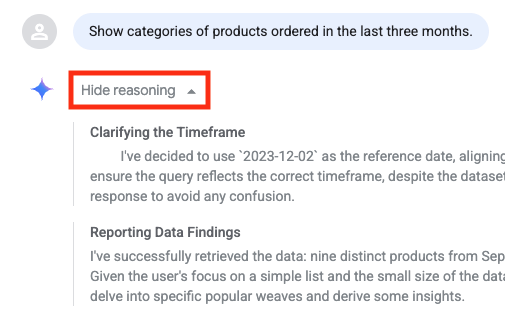
To see information about how the results were calculated, click How was this calculated?
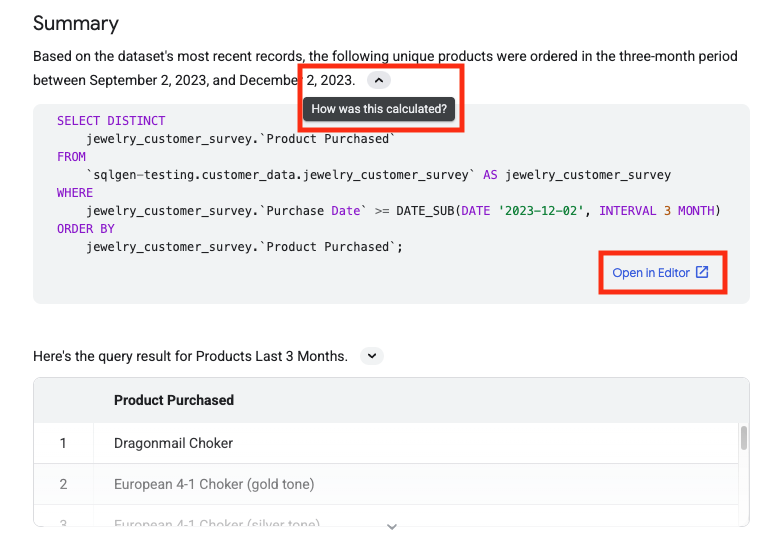
The Summary section includes the generated query followed by the query result. You can optionally open the query in the query editor.
Create a data agent from a conversation
You can create a data agent from a conversation with a table or view. You can't create a custom agent from a conversation with a dataset.
To create a data agent from a conversation, follow these steps:
From within a conversation's Details pane, click Create Agent.
In the Editor section, in the Agent name field, type a descriptive name for the data agent—for example,
Q4 sales dataorUser activity logs.In the Agent description field, type a description of the data agent. A good description explains what the agent does, what data it uses, and helps you know when this is the right data agent to chat with—for example,
Ask questions about customer orders and revenue.In the Knowledge sources section, verify the entry in Knowledge sources. You can customize the existing data source, or you can click Add source to add additional data sources. If your data source doesn't appear in the list, you can search for it.
After you've made changes, click Save draft.
Click Publish.
Manage conversations
You can open, rename, or delete a conversation on the Agents page, and manage conversations in BigQuery Studio Explorer.
Open an existing conversation
In the Google Cloud console, go to the BigQuery Agents page.
On the Conversations tab, in the conversations list, click the conversation you want to open.
Rename a conversation
In the Google Cloud console, go to the BigQuery Agents page.
On the Conversations tab, in the conversations list, click the conversation you want to rename.
Click View actions > Rename.
In the Rename conversation dialog, enter a new name for the conversation in the Conversation name field.
Click Rename.
Delete a conversation
Results from questions in a conversation persist even if the underlying data sources are deleted. To delete a conversation and all the results that it contains, follow these steps:
In the Google Cloud console, go to the BigQuery Agents page.
On the Conversations tab, in the conversations list, click the conversation you want to delete.
Click View actions > Delete.
In the Delete conversation? dialog, click Delete.
If you don't update a conversation for 180 days, then BigQuery deletes it automatically.
Manage conversations using BigQuery Studio Explorer
Manage conversations using BigQuery Studio Explorer. This conversation list provides a central place to search for, open, or create conversations. You can also copy the conversation ID or refresh the conversations list.
To manage your conversations, follow these steps:
Go to the BigQuery Studio Explorer page.
In the Explorer pane, expand a project name.
Click Conversations.
- To filter the conversation list, enter a property name or value in the filter field.
- To open a conversation, click View actions > Open.
- To copy a conversation ID, click View actions > Copy ID.
- To create a conversation, in the menu bar, click Create conversation.
- To refresh the list, in the menu bar, click Refresh.
What's next
- Learn about Conversational analytics in BigQuery.
- Learn about the Conversational Analytics API.
- Create data agents.