

Explore BigQuery in the Google Cloud console
The BigQuery Google Cloud console is a graphical interface where you can create and manage your BigQuery resources. You can use the Google Cloud console to view tables and datasets, create and run SQL queries, build pipelines, and perform other tasks to help you manage your BigQuery workflows.
Before you begin
- Sign in to your Google Cloud account. If you're new to Google Cloud, create an account to evaluate how our products perform in real-world scenarios. New customers also get $300 in free credits to run, test, and deploy workloads.
-
In the Google Cloud console, on the project selector page, select or create a Google Cloud project.
Roles required to select or create a project
- Select a project: Selecting a project doesn't require a specific IAM role—you can select any project that you've been granted a role on.
-
Create a project: To create a project, you need the Project Creator role
(
roles/resourcemanager.projectCreator), which contains theresourcemanager.projects.createpermission. Learn how to grant roles.
-
In the Google Cloud console, on the project selector page, select or create a Google Cloud project.
Roles required to select or create a project
- Select a project: Selecting a project doesn't require a specific IAM role—you can select any project that you've been granted a role on.
-
Create a project: To create a project, you need the Project Creator role
(
roles/resourcemanager.projectCreator), which contains theresourcemanager.projects.createpermission. Learn how to grant roles.
-
Enable the BigQuery API.
Roles required to enable APIs
To enable APIs, you need the
serviceusage.services.enablepermission. If you created the project, then you likely already have this permission through the Owner role (roles/owner). Otherwise, you can get this permission through the Service Usage Admin role (roles/serviceusage.serviceUsageAdmin). Learn how to grant roles.For new projects, the BigQuery API is automatically enabled.
- Optional: Enable billing for the project. If you don't want to enable billing or provide a credit card, the steps in this document still work. BigQuery provides you a sandbox to perform the steps. For more information, see Enable the BigQuery sandbox.
Open the Google Cloud console
Go to the Google Cloud console.
In the Google Cloud console toolbar, click Navigation menu.
Click Solutions > All products.
In the Analytics section, click BigQuery.
The BigQuery Studio page opens.
To expand or collapse the menu, click or Toggle BigQuery navigation menu.
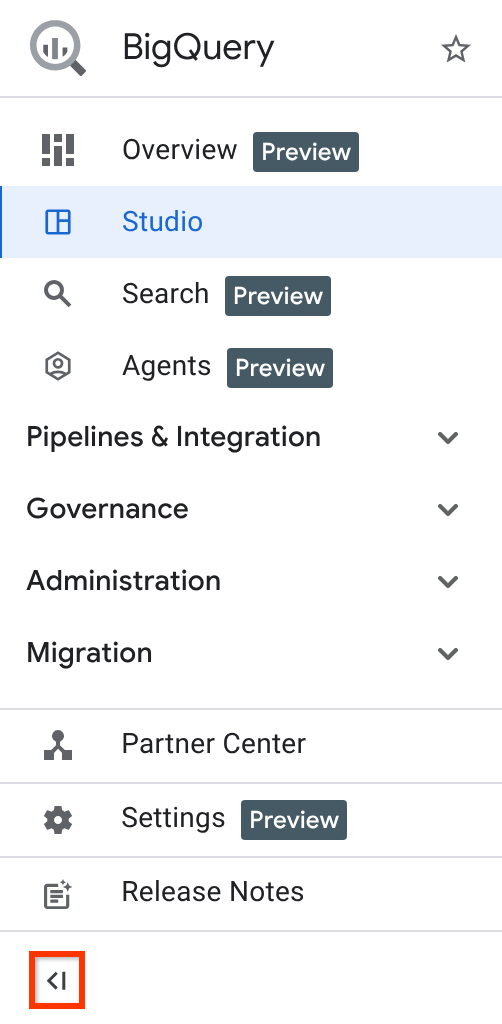
You can use the navigation menu to open the following pages:
- Overview: lets you discover tutorials, features, and resources.
- Studio: lets you display your BigQuery resources and perform common tasks.
- Search (Preview): lets you search for Google Cloud resources from BigQuery by using natural language queries.
- Agents (Preview): lets you create and chat with data agents that are designed to answer questions about BigQuery resources.
You can also use the navigation menu to perform specific tasks in the following menu sections:
- Pipelines and integration: lets you create and configure data transfers, create and list Dataform repositories, and create and list scheduled resources such as scheduled queries.
- Governance: lets you display shared data exchanges and cleanrooms, view policy tags, and curate metadata.
- Administration: lets you perform administrative tasks such as monitoring, viewing information about jobs, managing capacity, viewing information about disaster recovery, and displaying recommendations.
- Migration: lets you view and set up options for migrating your data warehouse to BigQuery.
- Partner Center: provides tools and services from partners to accelerate your workflow.
- Settings: lets you customize your BigQuery user and administrator settings.
- Release notes: contains the latest product updates and announcements for BigQuery.
The BigQuery Studio page
The BigQuery Studio page displays your BigQuery resources and lets you perform common tasks. The Studio page has the following components:
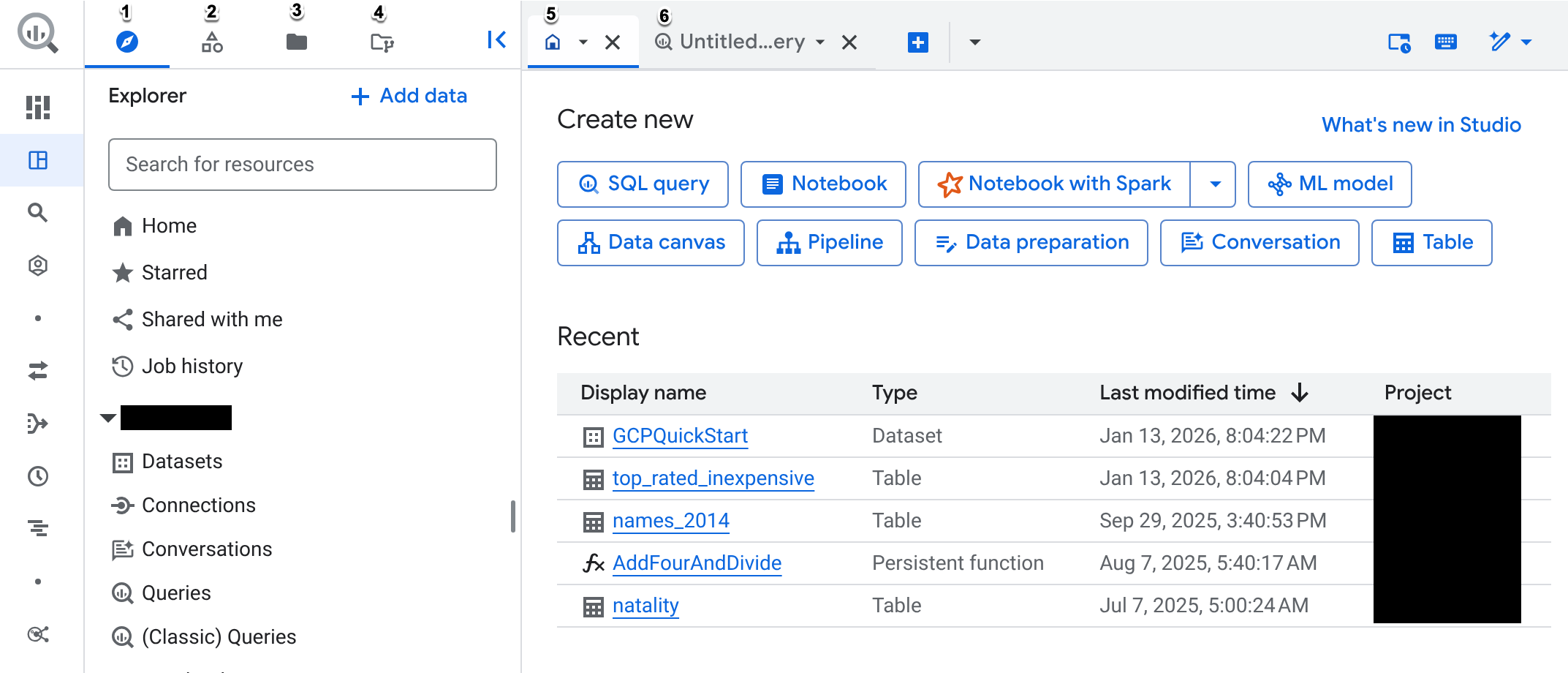
Explorer tab of the left pane: use the Explorer tab to work with tables, views, routines, and other BigQuery resources, and view your job history.
The left pane also contains an option to add data to BigQuery. When you click Add data, you can use search and filtering capabilities to find a data source that you want to work with. After you select a data source, you can do the following based on the capabilities available for your data source:
- Set up BigQuery table over external data (federation): enables BigQuery to access external data without ingesting it into BigQuery. You can create a table to access external data or create a connection to an external source.
- Load data to BigQuery: lets you load data to BigQuery by setting up a data transfer or by using a partner capability. Loading data to BigQuery is recommended for optimal data processing at scale.
- Change data capture to BigQuery: replicates data from a data source to BigQuery by capturing and applying changes. You can use applications such as datastream or partner solutions to ingest data from a data source.
- Stream data to BigQuery: ingests data into BigQuery with low latency. You can use applications such as Dataflow, Pub/Sub, or partner solutions to ingest data from a data source.
For more information about loading data into BigQuery, see Introduction to loading data.
Classic Explorer tab of the left pane: use the legacy version of the Explorer pane to view BigQuery resources.
Files tab of the left pane (Preview): use the Files tab to organize code assets such as saved queries and notebooks by using folders. For more information, see Organize code assets with folders.
Repository tab of the left pane (Preview): use the Repository tab to store code, edit files, and track changes using version control through repositories or by using remote Git-based repositories. For more information, see Introduction to repositories.
Home tab: use the Home tab to view the following resources:
- The Check out what's new in Studio section that lists new features in BigQuery Studio. You can click Try it to view the features. If the section isn't visible, click What's new in Studio to expand the section.
- The Create new section that has options to create a new SQL query, notebook, Apache Spark notebook, data canvas, data preparation file, pipeline, or table.
- The Recent section where you can view your 10 most recently accessed resources. These resources include tables, saved queries, models, and routines.
- The Try with templates section that lets you use templates to get started querying data and working with notebooks.
- The Add your own data section that helps you get started loading data into BigQuery.
Query editor: use the query editor to create and run an interactive query. You can also view the results in the Query results pane that opens after you run the query.
Explore the Studio page
The Studio page BigQuery is the central point for viewing your BigQuery resources and for performing common tasks such as creating datasets and creating and running notebooks.
To explore the Studio page, follow these steps:
In the Google Cloud console, go to the BigQuery Studio page.
Alternatively, enter the following URL in your browser:
https://console.cloud.google.com/bigquery
The Studio page opens in your most recently accessed project.
In the left pane, click the Explorer tab.
The Explorer pane lists different code assets and data resources, and it lets you search for BigQuery resources.
Go to the
bigquery-public-dataproject, click Toggle node to expand it, and then click Datasets. A new tab opens in the details pane that shows a list of all the datasets in the project.BigQuery public datasets are stored in BigQuery and made available to the general public through the Google Cloud Public Dataset Program.
In the list, click the
austin_crimedataset.On the Overview tab, view the resources stored in the dataset such as tables, models, and routines.
Click the Details tab. This tab shows all details for the dataset including metadata information.
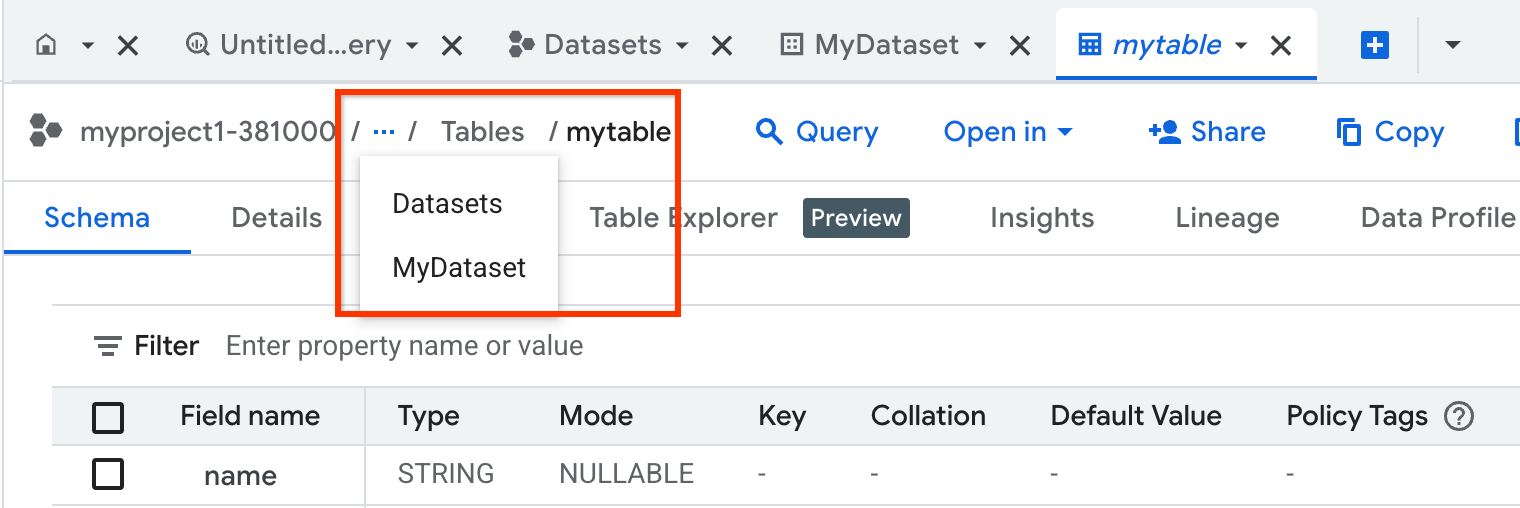
To navigate different tabs and resources, use the breadcrumb trail as shown in the following example:
In the Explorer pane, click Job history. This opens the list of job histories in a new tab:

Every time you load, export, query, or copy data, BigQuery automatically creates, schedules, and runs a job that tracks the progress of the task.
To view details of your own jobs, click Personal history.
To view details of recent jobs in your project, click Project history.
In the left pane, click the folder_data Repository tab (Preview).
You can use repositories to perform version control on files that you use in BigQuery. BigQuery uses Git to record changes and manage file versions.
You can use workspaces within repositories to edit the code stored in the repository. When you click a workspace in the Git repository pane, it opens in a tab in the details pane.
In the left pane, click Files (Preview).
The Files tab lets you create user and team folders that store and organize your code assets.
Click the Home tab.
The Home tab provides links and templates that let you get started using BigQuery.
If you close the Home tab, you can open it by clicking Home in the Explorer tab.
Click the query editor. This tab is labeled search_insights Untitled query.
You use the query editor to create SQL queries, run SQL queries, and view the results.
If you close the query editor, you can open it by clicking the Home tab, and then in the Create new section, click SQL query.
Work with tabs in Studio
Whenever you select a resource or click SQL query in the details pane, a new tab opens. If more than one tab is open, you can split the tabs into two panes and view them side by side.
Prevent tabs from being replaced
To reduce tab proliferation, clicking a resource opens it within the same tab. To open the resource in a separate tab follow these steps:
Press Ctrl (or Command on macOS) and click the resource.
Alternatively, double-click the tab name. The name changes from italicized to regular font.
If you accidentally replace the current page, you can locate it by clicking tab_recent Recent tabs in the details pane.
Split and unsplit tabs
To split tabs into two panes, follow these steps:
Next to the tab name, click Open menu.
Select one of the following options:
To place the selected tab in the left pane, select Split tab to left.
To place the selected tab in the right pane, select Split tab to right.
To unsplit the tabs, select Open menu on one of the open tabs, and then select Move tab to left pane or Move tab to right pane.
Query data using split tabs
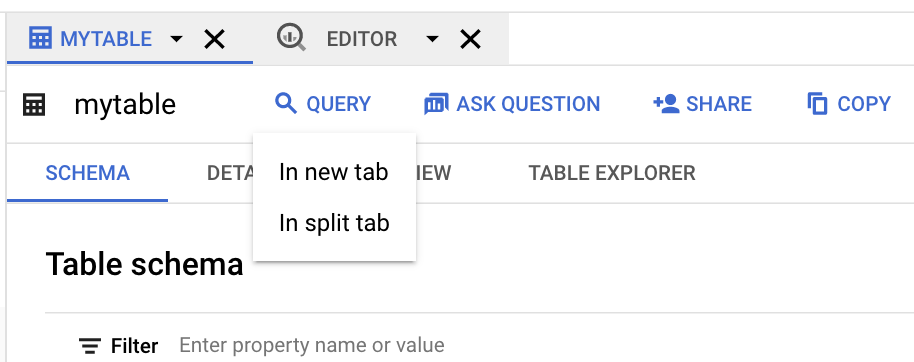
To split tabs when querying tables, follow these steps:
In the Explorer menu, click the table that you want to query.
Click Query, and then click In new tab or In split tab:
Click the field name that you want to query:

The following image shows the details pane with two open tabs. One tab has a SQL query, and the other tab shows details about a table.

Move tabs between panes
To move a tab from one pane to the other pane, follow these steps:
Next to the tab name, click Open menu.
Select Move tab to right pane or Move tab to left pane (whichever option is available).
Close all other tabs
To close all tabs except for one, follow these steps:
Next to the tab name, click Open menu.
Select Close other tabs.
The Overview page
The BigQuery Overview page is your hub for discovering tutorials, features, and resources to help you get the most out of BigQuery. It provides guided paths for users of all skill levels, whether you are running your first query or exploring advanced AI/ML capabilities.
You can use the Overview page to find resources organized by your role or interest like data analysis or data science. These resources let you find the most relevant content to get started quickly.
Explore the Overview page
In the console, go to the Overview page.
You can also open the BigQuery Overview page by entering the following URL in your browser:
https://console.cloud.google.com/bigquery/overview
Review the following sections of the Overview page:
The Introduction section: gives you a quick video overview of BigQuery's capabilities.
The Get started section: designed for learning by doing. Here you can launch interactive guides that help you learn how to use BigQuery features.
The Find out more section: shows the BigQuery release notes so you can view the latest feature announcements and updates.
The Explore possibilities section: provides in-depth tutorials and learning opportunities for specific features.
Customize the Overview page
You can customize the Overview page to show or hide information relevant to your task or role.
On the Overview page, go to the filter bar.
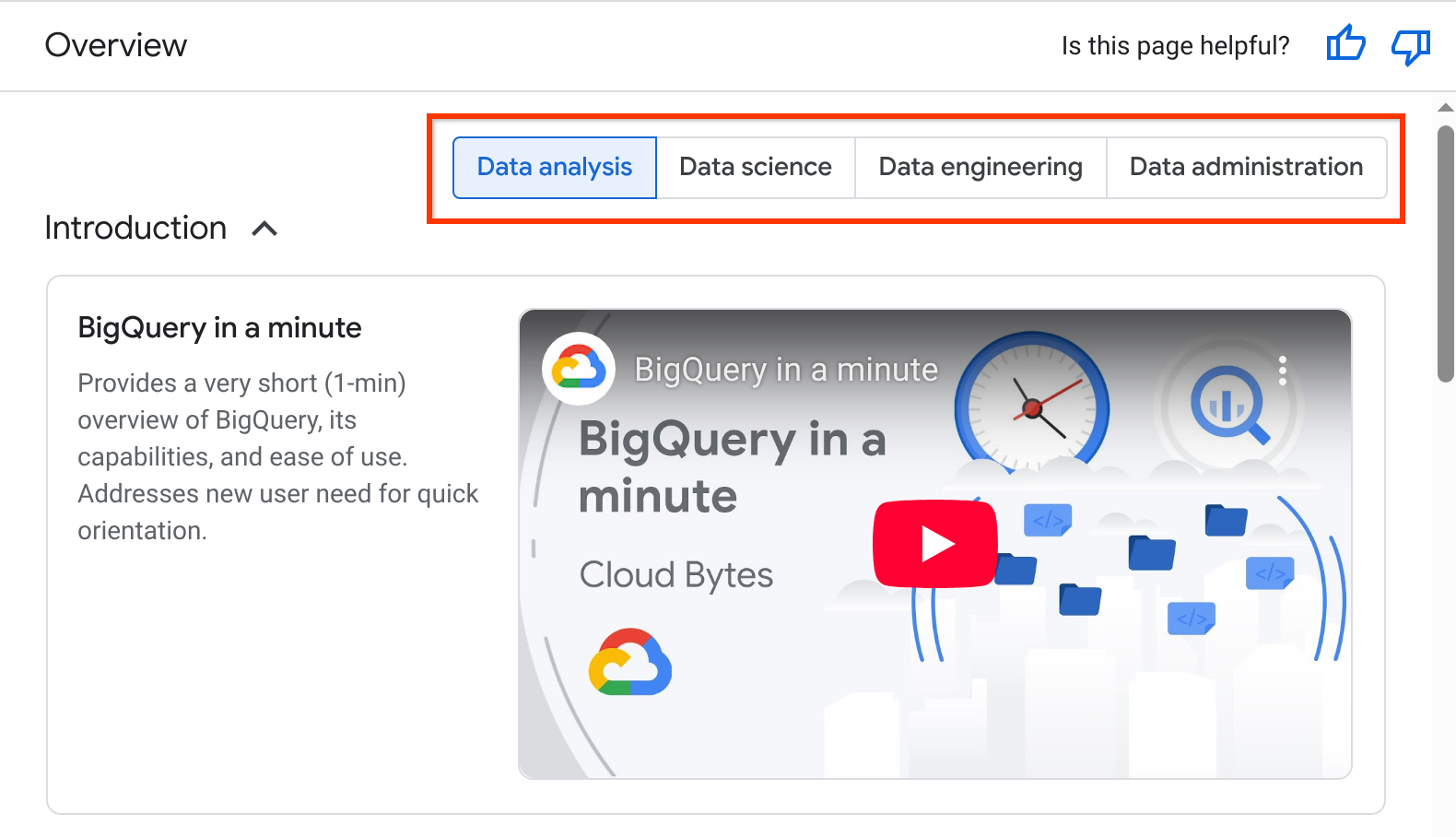
Click the option that best matches your current task or role:
- Data analysis
- Data science
- Data engineering
- Data administration
Selecting a task dynamically changes the content in the Introduction, Get started, and Explore Possibilities sections to show the most relevant content.
Optional: To tailor the content on the Overview page to your specific needs, hide individual cards:
In the card, click More options.
Choose Hide card. Your preferences for hidden cards are saved per user.
To unhide the card, at the end of the section, click Show hidden content.
If an entire section is not relevant, click to collapse it. Your user preferences for collapsed sections are saved.
The Search page
The Search page (Preview) lets you search for Google Cloud resources from BigQuery by using natural language queries.
For information about opting into using the Search page, see Search for resources.
The Agents page
The Agents page (Preview) is a central location for creating and chatting with data agents that are designed to answer questions about BigQuery resources.
Data agents contain table metadata and use case-specific query processing instructions that define the best way to answer user questions about a set of tables that you select. Users can have conversations with data agents to ask questions about BigQuery data using natural language. For more information, see Create data agents.
For information on creating agents and using conversational analytics, see Conversational analytics in BigQuery.
Limitations
The BigQuery Google Cloud console doesn't support Virtual Private Cloud or Private Service Connect.
Troubleshoot BigQuery Google Cloud console issues
If you experience issues in the Google Cloud console when using BigQuery, such as pages not loading, slow responsiveness, or missing features, try the following troubleshooting steps.
Common browser fixes
Many Google Cloud console issues are caused by local browser configurations or cached data.
- Browser troubleshooting: for general browser troubleshooting steps such as using Incognito mode, clearing cache and cookies, or turning off browser extensions, see Troubleshoot Google Cloud console page loading issues.
- Verify service health: check the Google Cloud Service Health dashboard for ongoing BigQuery service outages.
Connectivity and firewall requirements
If you are working behind a corporate VPN or proxy, it might block API calls required by the console. Ensure your network administrator allowlists the following domains:
https://cloudconsole-pa.clients6.google.comhttps://clients6.google.comhttps://cloudusersettings-pa.clients6.google.com
Common symptoms of blocked API endpoints include a spinning progress indicator for autocomplete suggestions or permission errors despite having the correct IAM roles.
Improve performance for large projects
If your project contains a large number of datasets or tables, the Explorer tab can load slowly.
Use the minimal loading parameter: you can prevent the resource tree from pre-loading by appending
?minimal=trueto your URL. For example:https://console.cloud.google.com/bigquery?minimal=true&project=PROJECT_IDUnpin unused projects: remove pinned projects that you are not actively using to reduce the load on the Explorer tab.
Force metadata refresh: if you modified tables through the API/CLI and changes don't show in the console, perform a hard refresh (Ctrl+Shift+R or Cmd+Shift+R). Use
INFORMATION_SCHEMAqueries as a definitive source of truth.
Troubleshoot maps and charts
- Geospatial (TinyMap): the geospatial visualization tab is available
only if your query results contain a
GEOGRAPHYcolumn. Map visualization is limited to a maximum of 20,000 features or 1 million vertices. - Charts: results must contain at least one numeric column to generate charts. If a "No data to display" warning appears, check for null values in the selected X-axis dimension.
Troubleshoot data lineage and profiling
- Lineage delay: data lineage information isn't real-time. Allow up to 30 minutes for lineage data to synchronize.
- Required APIs: ensure the Dataplex API (
dataplex.googleapis.com) and Data Catalog API (datacatalog.googleapis.com) are enabled in your project.
Troubleshoot BigQuery Studio and saved queries
- Saved query migration limit: if you have more than 2,500 saved queries, the automated migration tool cannot process them. Contact Cloud Customer Care to request a manual migration.
- Required APIs: saving scripts and notebooks in BigQuery Studio
requires the Dataform API (
dataform.googleapis.com) to be enabled in your project.
Contact support
If the issue persists, collect the following information before creating a support ticket:
- A HAR file: record the network request log while reproducing the issue (using the browser's developer tools Network tab with Preserve Log checked).
- Console logs: capture JavaScript errors shown in the browser's developer console (Ctrl+Shift+I > Console).
- Project ID: the ID of the project you are working in.
- Tracking number: the tracking ID shown in any error banners.
What's next
- To learn about querying a public dataset and using the BigQuery sandbox, see Try BigQuery using the sandbox.
- To learn how to load and query data in the Google Cloud console, see Load and query data.