

本教學課程說明如何建立代理程式,並使用 Agent Development Kit (ADK) 串流功能啟用語音和視訊通訊。您將安裝 ADK、設定使用 Google 搜尋的基本代理程式,並使用 adk
web 工具執行代理程式。
事前準備
本指南假設您有在 Windows、macOS 或 Linux 環境中使用終端機的經驗。
設定環境並安裝 ADK
本節說明如何準備本機環境。
建立並啟動虛擬環境。建議使用虛擬環境。
# Create the environment python -m venv .venv # Activate the environment in each new terminal # For macOS or Linux: source .venv/bin/activate # For Windows CMD: .venv\Scripts\activate.bat # For Windows PowerShell: .venv\Scripts\Activate.ps1安裝 ADK。
pip install google-adk
建立專案結構
為代理程式建立必要的目錄和檔案。
建立下列資料夾結構,並加入空白檔案:
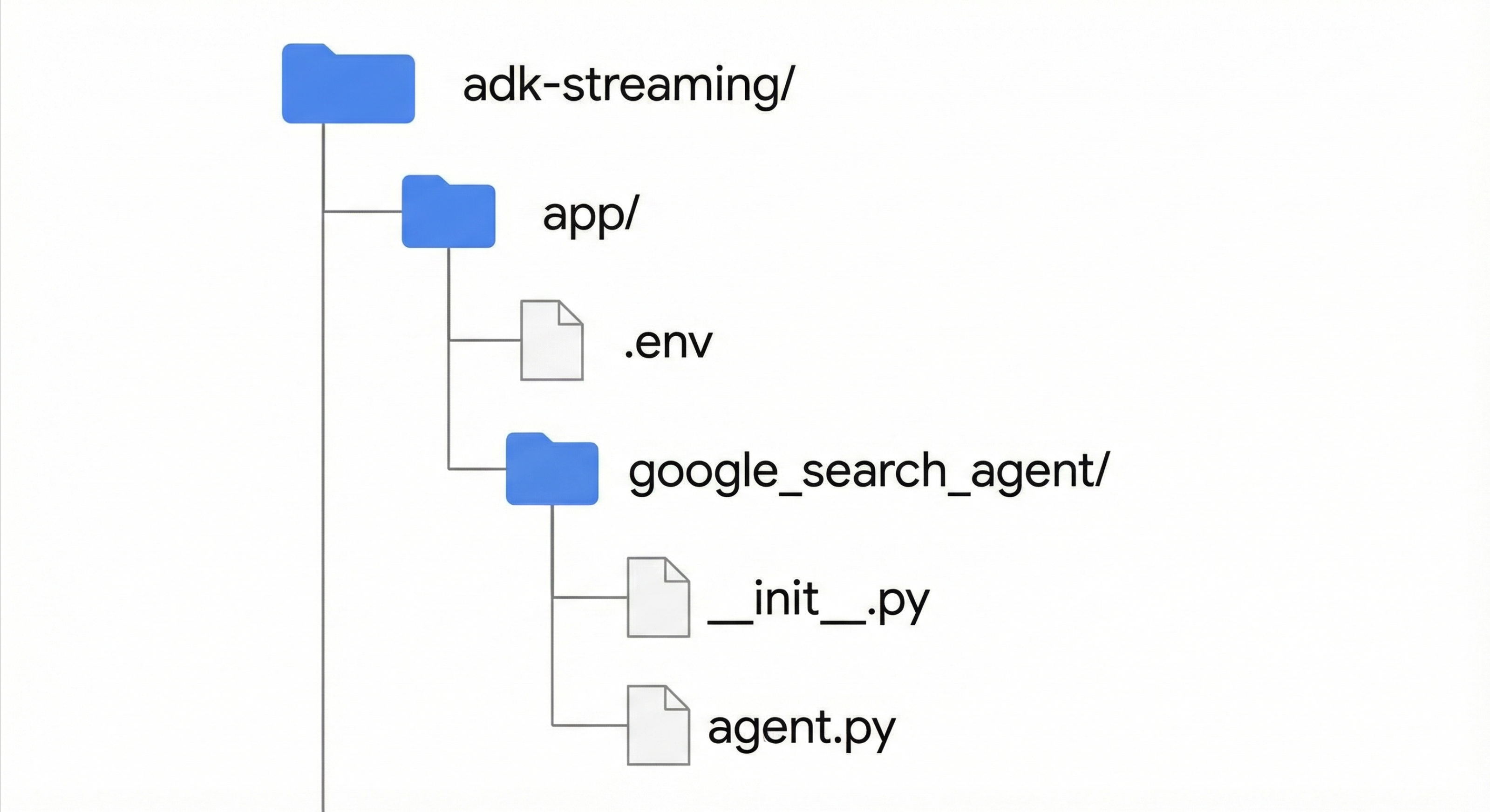
將下列程式碼新增至
app/google_search_agent/agent.py檔案。這個檔案定義了代理程式的邏輯。您必須定義root_agent。在下列程式碼中,將model欄位更新為支援的模型名稱。from google.adk.agents import Agent from google.adk.tools import google_search # Import the tool root_agent = Agent( # A unique name for the agent. name="basic_search_agent", # The Large Language Model (LLM) that agent will use. # Please fill in the latest model id that supports live from # https://google.github.io/adk-docs/get-started/streaming/quickstart-streaming/#supported-models model="...", # for example: model="gemini-live-2.5-flash-preview-native-audio-09-2025" # A short description of the agent's purpose. description="Agent to answer questions using Google Search.", # Instructions to set the agent's behavior. instruction="You are an expert researcher. You always stick to the facts.", # Add google_search tool to perform grounding with Google search. tools=[google_search] )在
app/google_search_agent/__init__.py檔案中新增下列程式碼:from . import agent
設定平台
如要執行代理程式,請將其設定為使用 Google Cloud Vertex AI。
開啟
app/目錄中的.env檔案。在檔案中加入以下內容。將
PROJECT_ID替換為您的 Google Cloud 專案 ID,並將LOCATION替換為您的 Google Cloud 位置。GOOGLE_CLOUD_PROJECT=PROJECT_ID GOOGLE_CLOUD_LOCATION=LOCATION GOOGLE_GENAI_USE_VERTEXAI=True
使用開發 UI 執行代理
啟動開發使用者介面,與代理互動。
將目前目錄變更為
app。cd app設定
SSL_CERT_FILE環境變數。語音和視訊測試必須執行這個步驟。macOS/Linux
export SSL_CERT_FILE=$(python -m certifi)
Windows
$env:SSL_CERT_FILE = (python -m certifi)
執行開發人員使用者介面。
adk web開啟終端機中提供的網址,通常是
http://localhost:8000或http://127.0.0.1:8000。選取「
google_search_agent」。
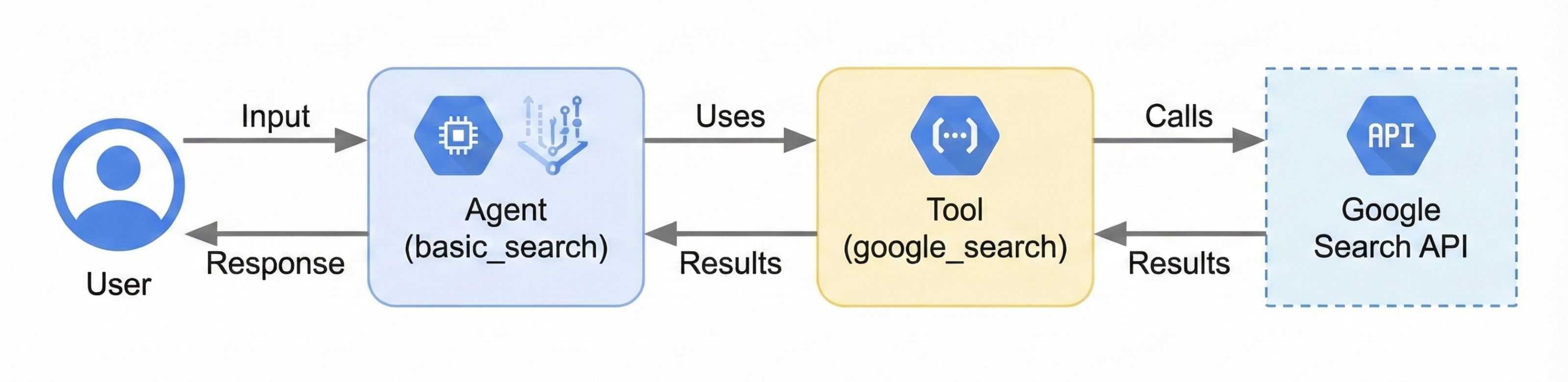
下圖說明使用者輸入內容如何傳送至代理程式、代理程式如何使用 Google 搜尋工具,以及代理程式如何傳回回覆:
與代理程式互動
啟動開發人員 UI 後,您可以使用文字、語音或影片與代理互動。
使用文字輸入
在 UI 中輸入下列提示,測試代理程式的文字回應。
代理程式會使用 google_search 工具取得最新資訊,以便回答這些問題。
- 紐約的天氣如何?
- 紐約現在幾點?
- 巴黎的天氣如何?
- 巴黎現在幾點?
使用語音和視訊輸入
如要使用語音輸入功能,請重新載入網頁瀏覽器,然後按一下麥克風按鈕。提出問題,即可即時聽到答案。
如要使用視訊輸入,請重新載入網路瀏覽器,然後按一下攝影機按鈕。提出問題,例如「你看到什麼?」,然後 AI 代理程式會描述從影片輸入內容中看到的內容。
停止開發人員使用者介面
如要停止 adk web 工具,請在執行該工具的終端機中按下 Ctrl+C。
後續步驟
- 如要進一步瞭解如何使用 ADK 開發 Live API,請參閱 ADK 說明文件。
- 請參閱 Bidi 串流示範。
- 開始使用 Gen AI SDK。
- 開始使用 WebSocket。
- 瞭解如何設定語言和語音。
- 瞭解如何設定 Gemini 功能。
- 瞭解 Gemini Live API 最佳做法。