

This page describes how Grounding with Google Maps with Gemini Enterprise Agent Platform can help to enhance your generative AI applications by providing geospatial context.
Overview
Grounding with Google Maps with Gemini Enterprise Agent Platform is a service that connects Gemini models with geospatial data from Google Maps. Google Maps has access to information on millions of locations, including businesses, landmarks, and points of interest. This data gives you access to information on over 250 million places that can be used to ground your model's responses, enabling your AI applications and agents to provide local data and geospatial context.
You can also enable concurrent grounding with Google Maps, Google Search, and grounding with your data sources.
Uses of Grounding with Google Maps
You can use Grounding with Google Maps for various applications, such as:
- Conversational assistants that can answer questions about nearby places, such as "Where's the nearest place to get an Italian espresso?"
- Personalized descriptions and community insights, such as "Can you tell me more about family-friendly restaurants that are within a walkable distance?"
- Summaries of areas around specific locations, such as an EV charging station or a hotel.
This can be beneficial for use cases in real estate, travel, mobility, and social-media apps.
Supported models
This section lists the models that support Grounding with Google Maps.
Click to expand supported models
- Gemini Nano Banana 2.1
- Gemini 4 Argon Cyber Permissive
- Gemini 4 Argon
- Gemini 3.8 Live
- Gemini 3.8 Flash
- Gemini 3.7 Flash
- Gemini 3.6 Flash
- Gemini 3.5 Flash-Lite
- Gemini 3.5 Flash
- Gemini 3.1 Pro
- Gemini 3.1 Flash-Lite
- Gemini 3.1 Flash Image
- Gemini 3 Pro Image
- Gemini 3 Flash
- Gemini 2.5 Pro
- Gemini 2.5 Flash-Lite
- Gemini 2.5 Flash with Gemini Live API native audio
- Gemini 2.5 Flash
For more information about the Gemini models, see Gemini models.
Use Grounding with Google Maps to ground your model's responses
This code sample demonstrates how to use Grounding with Google Maps to ground your model's responses.
Search results can be customized for a specific geographic location by using the latitude and longitude coordinates.
Console
To use Grounding with Google Maps with Gemini Enterprise Agent Platform, follow these steps:
In the Google Cloud console, go to the Agent Studio page.
In the side panel, under Model settings, go to the Grounding section, and click the edit icon for Google Search, Google Maps. A configuration pane appears.
Turn on the Google Maps toggle.
Click Apply.
Enter your prompt in the field, and click Submit. Your prompt responses ground to Google Maps.
Python
Install
pip install --upgrade google-genai
To learn more, see the SDK reference documentation.
Set environment variables to use the Google Gen AI SDK with Vertex AI:
# Replace the `GOOGLE_CLOUD_PROJECT` and `GOOGLE_CLOUD_LOCATION` values
# with appropriate values for your project.
export GOOGLE_CLOUD_PROJECT=GOOGLE_CLOUD_PROJECT
export GOOGLE_CLOUD_LOCATION=global
export GOOGLE_GENAI_USE_ENTERPRISE=True
from google import genai
from google.genai.types import (
    GenerateContentConfig,
    GoogleMaps,
    HttpOptions,
    Tool,
)

client = genai.Client(http_options=HttpOptions(api_version="v1"))

response = client.models.generate_content(
    model="gemini-2.5-flash",
    contents="Where can I get the best espresso near me?",
    config=GenerateContentConfig(
        tools=[
            # Use Google Maps Tool
            Tool(google_maps=GoogleMaps())
        ],
        tool_config=types.ToolConfig(
            retrieval_config = types.RetrievalConfig(
                lat_lng = types.LatLng( # Pass geo coordinates for location-aware grounding
                    latitude=40.7128,
                    longitude=-74.006
                ),
                language_code = "en_US", # Optional: localize Maps results
            ),
        ),
    ),
)

print(response.text)
# Example response:
# 'Here are some of the top-rated places to get espresso near you: ...'
REST
Before using any of the request data, make the following replacements:
- LOCATION: The region to process the request. To use the global endpoint, exclude the location from the endpoint name and configure the location of the resource to global.
- PROJECT_ID: Your project ID. .
- MODEL_ID: The model ID of the multimodal model.
- PROMPT: The prompt to send to the model.
- LATITUDE: The latitude of the location. For example, a latitude of
37.7749represents San Francisco. You can obtain latitude and longitude coordinates using services like Google Maps or other geocoding tools. - LONGITUDE: The longitude of the location. For example, a longitude of
-122.4194represents San Francisco. - GROUNDING_TYPES: The types of Google Maps grounding to enable. Currently supports
placesandrouting.places: Search for place information including establishments, prominent points of interest, and geographical locations.routing: Find directions and search along route.
placesonly.
HTTP method and URL:
POST https://LOCATION-aiplatform.googleapis.com/v1beta1/projects/PROJECT_ID/locations/LOCATION/publishers/google/models/MODEL_ID:generateContent
Request JSON body:
{
  "contents": [{
    "role": "user",
    "parts": [{
      "text": "PROMPT"
    }]
  }],
  "tools": [{
    "googleMaps": {
      "groundingTypes": {
        "places": {},
        "routing": {}
      }
    }
  }],
  "toolConfig": {
    "retrievalConfig": {
      "latLng": {
        "latitude": LATITUDE,
        "longitude": LONGITUDE
      },
      "languageCode": "en_US"
    }
  },
  "model": "projects/PROJECT_ID/locations/LOCATION/publishers/google/models/MODEL_ID"
}
To send your request, expand one of these options:
You should receive a JSON response similar to the following:
{
  "candidates": [
    {
      "content": {
        "role": "model",
        "parts": [
          {
            "text": "\"The Italian Place\" in Alexandria, VA, is good for children and offers takeout. It has a rating of 4.2 stars based on 411 reviews."
          }
        ]
      },
      "finishReason": "STOP",
      "groundingMetadata": {
        "groundingChunks": [
          {
            "maps": {
              "uri": "https://maps.google.com/?cid=9001322937822692826",
              "title": "The Italian Place",
              "placeId": "places/ChIJOTRDf_qwt4kR2kV_WYUf63w"
            }
          },
          {
            "maps": {
              "uri": "https://maps.google.com/?cid=9001322937822692826",
              "title": "Hank's Pasta Bar",
              "placeId": "places/MMVtPzn9FGcevML89",
              "placeAnswerSources": {
                "reviewSnippets": [
                  {
                    "id": "places/ChIJOTRDf_qwt4kR2kV_WYUf63w",
                    "title": "Google Maps Review",
                    "uri": "https://maps.google.com/?cid=9001322937822692826"
                  },
                ]
              }
            }
          },
          ...
        ],
        "groundingSupports": [
          {
            "segment": {
              "endIndex": 79,
              "text": "\"The Italian Place\" in Alexandria, VA, is good for children and offers takeout."
            },
            "groundingChunkIndices": [
              0
            ]
          },
        ],
      }
    }
  ],
  ...
}
Place properties
This section lists place properties that are used to describe locations and used by Grounding with Google Maps to generate responses. These properties are used to determine the types of questions that Grounding with Google Maps can answer.
Sample place properties
This list provides an alphabetized sampling of properties about places that can be used by your model to generate responses:
- Address
- Busyness trends
- Curbside pickup
- Debit card
- Distance
- EV charging station info (connector types, charging speeds, and availability)
- Free parking lot
- Gas prices and available fuel types
- Good for kids
- Live music
- Menu highlights
- Opening hours
- Payment options (such as cash or credit card)
- Pet friendly
- Review insights
- Serves beer
- Serves vegetarian food
- Wheelchair accessible
- Wifi
Examples of using place properties
The following examples use place properties in questions about different types of places. Grounding with Google Maps uses the properties to understand your intent and then provides relevant answers based on the data associated with places in Google Maps.
Plan a family dinner: You might ask, Is "The Italian Place" good for children, and do they offer takeout? What is their rating?
Answers to these questions help you to determine if a restaurant is suitable for a family and if the restaurant offers a convenient service.
Explore menu highlights and signature dishes: You might ask, What are the most recommended pasta dishes on the menu at "The Italian Place"? Do they have vegetarian entrees, and what do reviewers say about their marinara sauce?
Answers to these questions use Menu highlights, and Review insights to help you explore specific culinary offerings and community favorites.
Check accessibility for a friend: You might ask, I need a restaurant that has a wheelchair accessible entrance.
A response to this prompt might help you to determine if the location meets specific accessibility needs.
Find a location for a late-night snack: You might ask, Is "Burger Joint" open now? Do they serve dinner? What are their opening hours for Friday?
Answers to these questions help you to find an open establishment serving a specific meal during a particular time.
Plan EV charging and hotel amenities for a road trip: You might ask, I am staying at "Overnight Motel". Do they have on-site EV charging stations, what connector types are supported, and how busy is their parking area on Friday evenings?
Answers to these questions combine EV charging station info and Busyness trends to help you plan vehicle charging and evaluate crowd levels during your stay.
Compare gas prices and specialty fuels nearby: You might ask, Which gas stations near Mountain View, CA sell diesel or hydrogen, and how do their current prices compare?
Answers to these questions leverage Gas prices and available fuel types to help you locate specialty fuels and cost-effective refueling stops.
Synthesize work atmosphere from reviews: You might ask, What do customer review summaries say about the noise level, seating comfort, and Wifi reliability at "Breakfast Cafe" for remote work?
A response to this prompt leverages Review insights to assess the suitability of a cafe for working or studying based on community consensus.
Information in the Google Maps Grounded Results might differ from actual conditions of the road or venue.
Understand your response
Google Maps sources are returned in groundingMetadata within
groundingChunks. Sources are returned for places, which are used to help
generate the Google Maps Grounded Result. The uri field may link
to a supporting review or directly to the place sheet on Google Maps.
This code sample demonstrates a place source in the response:
"groundingChunks": [
  {
    "maps": {
      "uri": "{Link to place sheet or review on Maps}",
      "title": "{Name of Maps Place}",
      "placeId": "{Place ID}"
    }
  }
],
Routing - Find Directions
Grounding with Google Maps supports Find Directions capability. This feature lets your AI agents understand physical movement, real-time travel estimates, and the spatial relationships between locations. With Find Directions capability, your model can provide performance-optimized directions and accurate travel times that account for real-time conditions. This integration enables Grounding with Google Maps to filter places based on travel time, offer precise point-to-point directions, and calculate estimated commute times for specific modes of transportation.
Capabilities
Find Directions calculates precise travel distances and durations between origins and destinations.
Find Directions supports the following:
Modes of transportation: Routing for driving, walking, bicycling, transit, and two-wheeled motorized vehicles (not all travel modes are available in all countries)
Multiple waypoints: Up to 13 intermediate stops between origin and destination
Real-time traffic: Accounting for current traffic conditions to provide accurate "live" travel times rather than static averages
The following are examples of the types of questions that Find Directions supports:
Proximity based on travel time: "What are some American restaurants within a 10-minute walk from the Hilton Hotel on 1335 6th Ave in NYC?"
Commute estimation: "How long does it take to take public transit from Pike Place Market to Capitol Hill in Seattle?"
Enable Find Directions
In the REST API and SDKs, Grounding with Google Maps defaults to Places data
only when grounding_types is omitted. To enable directions capabilities, you
must explicitly configure routing in grounding_types in your request
configuration. If you want to use both Places and Routing tools, you must
specify both places and routing in grounding_types.
Understand the response
When a prompt triggers Find Directions capability, the model generates a natural language answer backed by structured metadata. This lets you display precise travel information to the user.
The following data is returned in a payload response:
Duration: The time required to travel between locations, accounting for traffic if requested. For example, "500 seconds".
Distance: The physical distance of the route. For example, "1.9 km".
Polyline: An encoded text string that lets you visually render the specific route path on a map.
The following is an example response for the prompt: "How do I get to Carmine's restaurant from the Hilton Hotel (1335 6th Ave in NYC) where I'm staying?"
To get to Carmine's restaurant from the Hilton Hotel at 1335 6th Ave in NYC, you'll want to head to the Carmine's - Time Square location at 200 W 44th St, New York, NY 10036, USA.
Here are the walking directions:
Start at the Hilton Hotel: Exit the Hilton Hotel at 1335 6th Ave.
Walk South on 6th Avenue: Head south on 6th Avenue (Avenue of the Americas) towards W 44th Street.
Turn Right onto W 44th Street: Turn right onto W 44th Street.
Carmine's is on your left: Walk down W 44th Street, and Carmine's will be on your left side at 200 W 44th St.
This walk is approximately 0.5 miles and should take about 10-15 minutes.
The following is an example response for the prompt: "How long does it take to take public transit from Pikes Place Market to Capitol Hill in Seattle?"
To get from Pike Place Market to Capitol Hill in Seattle using public transit, you have a couple of options:
Tram (Light Rail): The tram from Westlake, which is near Pike Place Market, to Capitol Hill takes approximately 3 minutes. Including transfers, the total travel time is about 9 minutes, with trams departing every 10 minutes.
Bus: A direct King County Metro bus from Pike St & 4th Ave (near Pike Place Market) to Capitol Hill takes about 11 minutes, with departures every 20 minutes. Alternatively, the Line 49 bus takes around 16 minutes.
Routing - Search Along Route
Search Along Route allows your AI agents to discover points of interest that are geographically relevant and convenient to a user's planned journey. By grounding responses in Google Maps's routing and spatial search engines, your model can provide recommendations that minimize detours and understand the logistical flow of a road trip or commute.
Capabilities
Search Along Route allows your application to identify specific businesses, amenities, or attractions situated directly along a generated path between an origin and destination. Only the "Drive" travel mode is supported.
The following examples illustrate the types of questions the Search Along Route tool can handle.
- Basic route search: "Find gas stations on the way from 1800 Amphibious Blvd. Mountain View, CA 94045, to 456 Sunny St, Sunnyvale CA." (Usually, the origin and destination addresses are derived from the chat history.)
- Search based on Place Properties: "Are there any bakeries with at least a 4 star rating between San Francisco and 1800 Amphibious Blvd. Mountain View, CA 94045?"
- Multi-leg route search: "I'm going on a roadtrip from San Francisco to San Luis Obispo to Los Angeles, suggest three EV charger options between San Francisco and San Luis Obispo, and then between San Luis Obispo and Los Angeles?"
Enable Search Along Route
Search Along Route requires both Places and Routing capabilities to
discover places situated along a travel route. In the REST API and SDKs, you
must explicitly configure both places and routing in grounding_types in
your request configuration.
Understand the response
When a prompt triggers the Search Along Route tool, the model generates a
natural language answer backed by structured metadata that combines both Places
and Routing data. This ensures the suggested locations are actually convenient
to the physical path of travel. The groundingMetadata will contain
groundingChunks for returned places and the route searched along.
Example Prompt [Basic route search]:
Find gas stations on the way from 1800 Amphibious Blvd. Mountain View, CA 94045, to 456 Sunny St, Sunnyvale CA.
Example Response [Basic route search]:
Here are some gas stations en route from 1800 Amphibious Blvd. Mountain View, CA 94045 to 456 Sunny St, Sunnyvale, CA:
- Example Gas station - Located at 123 Example Rd, Sunnyvale, CA 94045. It has a rating of 3.5 stars from 122 reviews and sells hydrogen, propane, and gasoline, along with car washes. It is open until 9:50 PM tonight and has restrooms.
- Fictional Gas station - Located at 456 Fictional Ave, Sunnyvale, CA 94045. It has a rating of 3.6 stars from 52 reviews and offers a convenience store and car wash. This station is open 24 hours and has restrooms.
- Generic Gas station - Located at 789 W Generic St, Sunnyvale, CA 94045. It has a rating of 3.6 stars from 35 reviews. This station is open 24 hours and has restrooms.
Example Prompt [Multi-leg route search]:
I'm going on a roadtrip from San Francisco to San Luis Obispo to Los Angeles, suggest three EV charger options between San Francisco and San Luis Obispo, and then between San Luis Obispo and Los Angeles?
Example Response [Multi-leg route search]:
Here are some EV charger options for your road trip from San Francisco to Los Angeles, with stops in San Luis Obispo.
Between San Francisco and San Luis Obispo:
- Example Charger: Located at 123 Example Blvd, Campbell, CA 95008, this station has a rating of 4.5.
- Fictional EV Station: You can find this station at 456 Fictional Rd, Gilroy, CA 95008, with a rating of 4.4.
- Generic Charging Station: This station is at 789 Generic St, Salinas, CA 95008, and has a rating of 3.5.
Between San Luis Obispo and Los Angeles:
- Example Charger: Located at 123 Example Rd, San Luis Obispo, CA 93123, this station has a rating of 4.3.
- Fictional EV Station: This station can be found at 456 Fictional Ave, Santa Barbara, CA 93123, with a rating of 3.9.
- Generic Charging Station: You can find this station at 789 Generic St, Glendale, CA 93123, with a rating of 3.0.
Have a great road trip!
Service usage requirements
This section describes the service usage requirements for Grounding with Google Maps.
Inform the user about the use of Google Maps sources
With each Google Maps Grounded Result, you'll receive sources in
groundingChunks that support each response. The following metadata is also
returned:
- source uri
- title
- ID
When presenting results from Grounding with Google Maps with Gemini Enterprise Agent Platform, you must specify the associated Google Maps sources, and inform your users of the following:
- The Google Maps sources must immediately follow the generated content that the sources support. This generated content is also referred to as Google Maps Grounded Result.
- The Google Maps sources must be viewable within one user interaction.
For voice-first interfaces
Sourcing: Google Maps sources must be displayed in a companion UI that shows a verbatim historical record of any AI voice conversation. This record must adhere to the sourcing requirements and is subject to the applicable data caching and storage limits.
Active disclosure of sources: End users must be made reasonably aware of the role Google Maps plays in their experience and how to find detailed sourcing at the time of interaction.
The active disclosure of sources must convey the following points:
AI generated content may include information from Google Maps.
Detailed sources are available in the companion UI.
You must convey the active disclosure of sources using at least one of the following methods.
Visual display: For voice interactions that occur on a device with a screen, display the active disclosure on the screen whenever Grounding with Google Maps is used.
Voice announcement: Read the active disclosure to the user. This must occur during the first interaction supported by Grounding with Google Maps and recur at least every 6 months.
Example disclosure: "AI generated content may include information from Google Maps. You can find detailed sources in the companion app."
Persistent disclosure: An explanation that Google Maps content may be used in AI generated content must be persistently accessible to the end user (e.g., in a voice settings menu or a voice interaction disclosure).
User inquiries: Your voice assistant must accurately answer end user inquiries regarding the source of the content, including when AI generated content includes information from Google Maps. If Google Maps is the source, direct end users to the companion UI for access to specific source information.
Display Google Maps sources with Google Maps links
For each source in groundingChunks, a link preview must be generated following
these requirements:
- Attribute each source to Google Maps following the Google Maps text attribution guidelines.
- Display the source title provided in the response.
- Link to the source using the
urifrom the response.
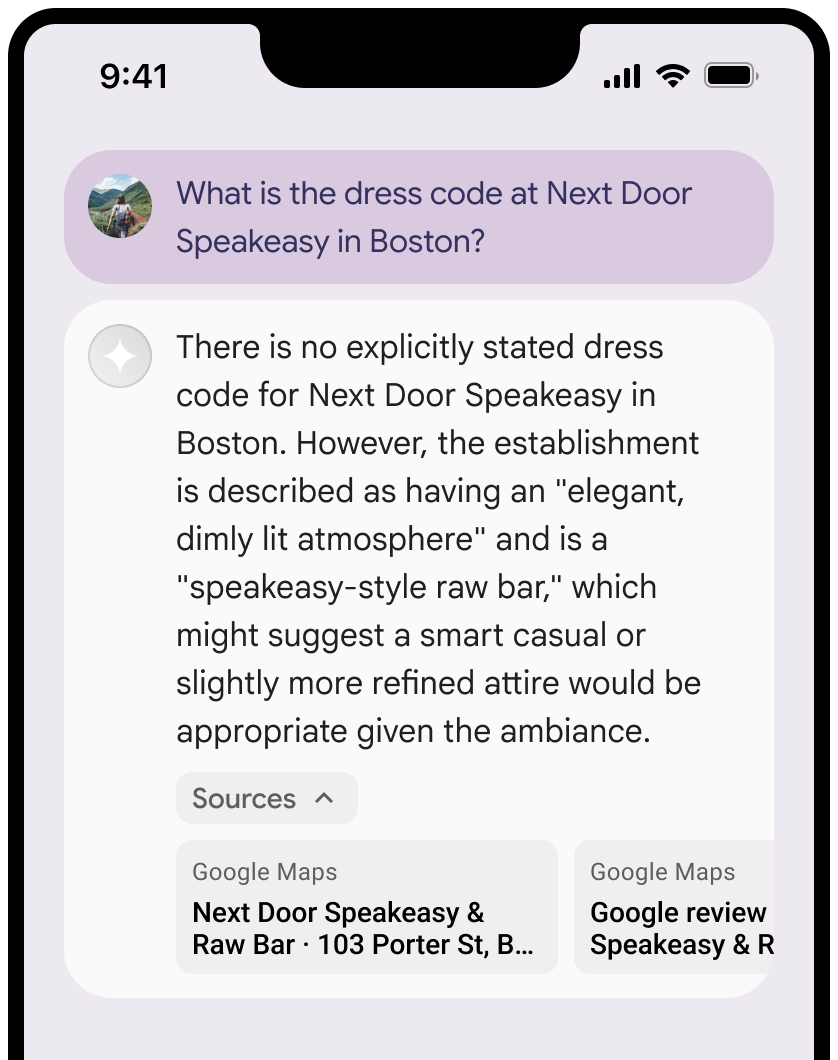
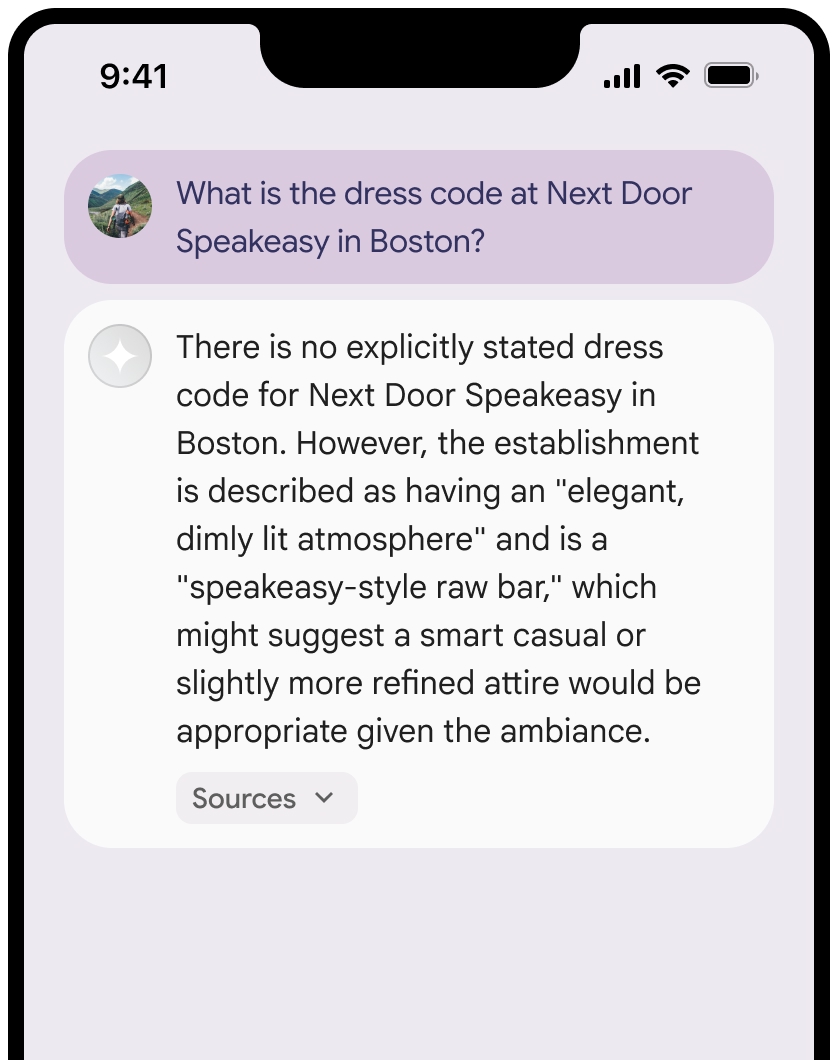
These images show the minimum requirements for displaying the sources and Google Maps links.
You can collapse the view of the sources.
Optional: Enhance the link preview with additional content, such as:
- A Google Maps favicon is inserted before the Google Maps text attribution.
- A photo from the source URL (
og:image).
For more information about some of our Google Maps data providers and their license terms, see the Google Maps and Google Earth legal notices.
Google Maps text attribution guidelines
When you attribute sources to Google Maps in text, follow these guidelines:
- Don't modify the text Google Maps in any way:
- Don't change the capitalization of Google Maps.
- Don't wrap Google Maps onto multiple lines.
- Don't localize Google Maps into another language.
- Prevent browsers from translating Google Maps by using the HTML
attribute
translate="no".
- Style Google Maps text as described in the following table:
| Property | Style |
|---|---|
| Font family | Roboto. Loading the font is optional. |
| Fallback font family | Any sans serif body font already used in your product or "Sans-Serif" to invoke the default system font |
| Font style | Normal |
| Font weight | 400 |
| Font color | White, black (#1F1F1F), or gray (#5E5E5E). Maintain accessible (4.5:1) contrast against the background. |
| Font size | Minimum font size: 12sp Maximum font size: 16sp To learn about sp, see Font size units on the Material Design website. |
| Letter spacing | Normal |
Example CSS
The following CSS renders Google Maps with the appropriate typographic style and color on a white or light background.
@import url('https://fonts.googleapis.com/css2?family=Roboto&display=swap');

.GMP-attribution {
font-family: Roboto, Sans-Serif;
font-style: normal;
font-weight: 400;
font-size: 1rem;
letter-spacing: normal;
white-space: nowrap;
color: #5e5e5e;
}
Place ID and review ID
The Google Maps data includes place ID and review ID. You might cache, store, and export the following response data:
placeIdreviewId
The restrictions against caching in the Grounding with Google Maps Terms don't apply.
Prohibited Territory
Grounding with Google Maps has restrictions for certain content and activities to maintain a safe and reliable platform. Customer won't distribute or market a Customer Application that offers Grounding with Google Maps in a Prohibited Territory. For more information, see Google Maps Platform Prohibited Territories. The list of Prohibited Territories may be updated from time to time.
Billing
Grounding with Google Maps charges for each Google Maps query (see Pricing).
A customer-submitted request to Gemini may result in one or more queries to Google Maps. The following table shows a few examples:
| Example prompt | Potential number of Google Maps queries | Example query generation |
|---|---|---|
| Sushi restaurants near the Hilton Hotel (1335 6th Ave in NYC). | 3 Place Search queries (Google Maps queries), assuming this prompt generates 3 fanout queries. | 3 fanout Place Search queries: - Best sushi near Hilton Midtown Manhattan - Sushi restaurants near 1335 6th Ave New York - Japanese restaurants near 1335 6th Ave New York |
| How do I get to 200 W 44th St, New York from Hilton Hotel, 1335 6th Ave. | 1 Find Directions query (Google Maps query) | 1 Find Directions query: - Directions from Hilton Hotel, 1335 6th Ave, New York, NY to 200 W 44th St, New York, NY 10036 |
| Distance from the Hilton Hotel (1335 6th Ave in NYC) to the airport. | 4 Google Maps queries (1 Place Search query + 3 Find Directions queries), assuming the place search returns 3 airports. | 1 fanout Place Search query: - Airports near New York City 3 Find Directions queries: - Directions from 1335 6th Ave, New York, NY 10019, USA to John F. Kennedy International Airport, Queens, NY 11430, USA - Directions from 1335 6th Ave, New York, NY 10019, USA to Newark Liberty International Airport, Newark, NJ 07114, USA - Directions from 1335 6th Ave, New York, NY 10019, USA to LaGuardia |
| Find gas stations on the way from 1800 Amphibious Blvd. Mountain View, CA 94045, to 456 Sunny St, Sunnyvale CA. | 1 Search Along Route query (Google Maps query) | 1 Search Along Route query: - Gas stations from 1800 Amphibious Blvd. Mountain View, CA 94045, to 456 Sunny St, Sunnyvale CA |
What's next
- To learn more about how to ground Gemini models to your data, see Grounding with your data.
- To learn more about responsible AI best practices and Gemini Enterprise Agent Platform's safety filters, see Responsible AI.