


Vertex AI 的 Imagen 產品重構功能可將產品圖片編輯成不同場景或背景。你提供產品圖片和選填的提示詞,Imagen 產品會生成產品圖片,並在新的場景或背景中重新呈現。
如要申請 Imagen 產品重新脈絡化功能,請填寫 Vertex AI - Generative Media for Marketing Access Request 表單。
支援的產品類型
Imagen 產品重新脈絡化功能支援下列產品類型:
- 設備
- 商業與工業
- 衣服
- 電子
- 家具
- 花園和庭院
- 硬體
- 保健與美容
- 珠寶
- 寵物
- 鞋子
- 運動用品
- 玩具和遊戲
- 車輛
產品重新脈絡化示例
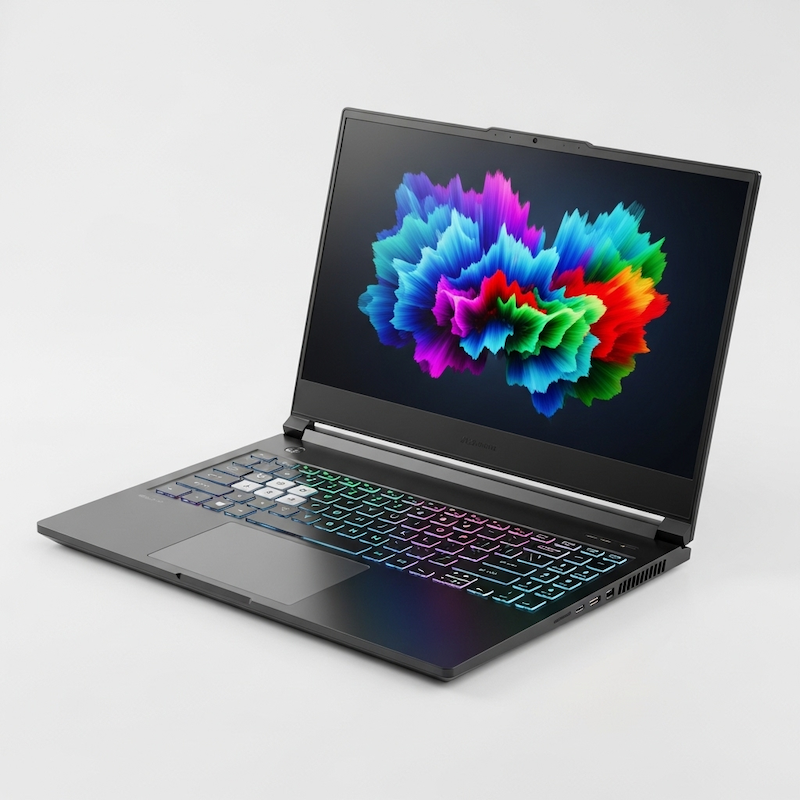
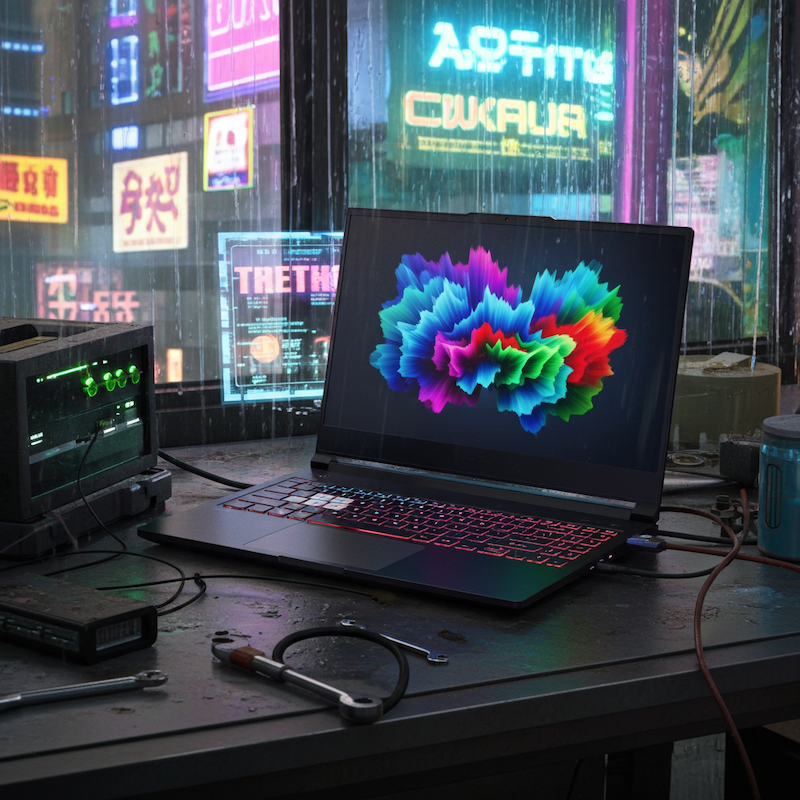
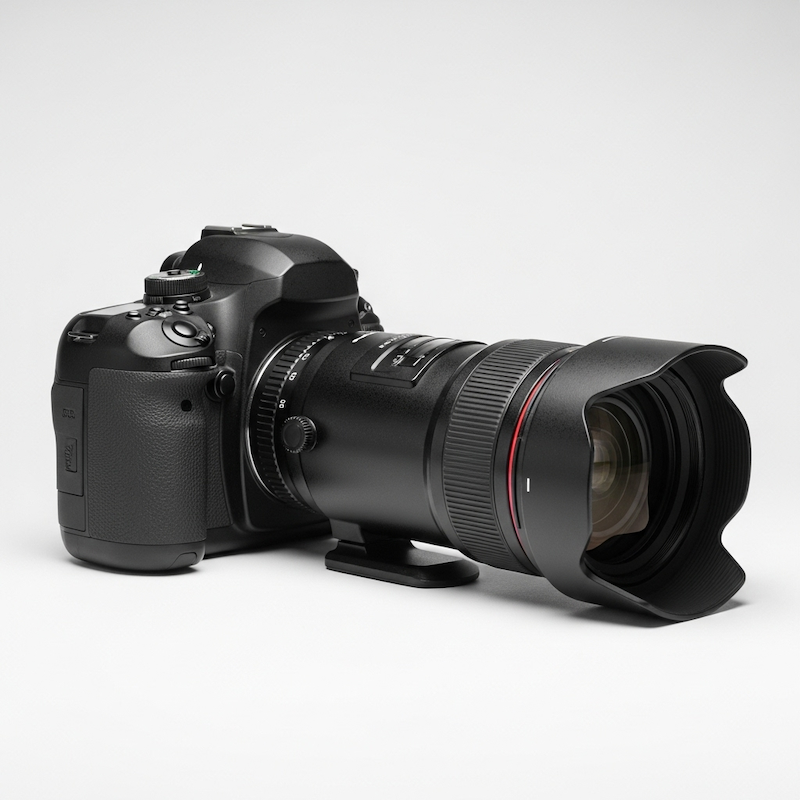
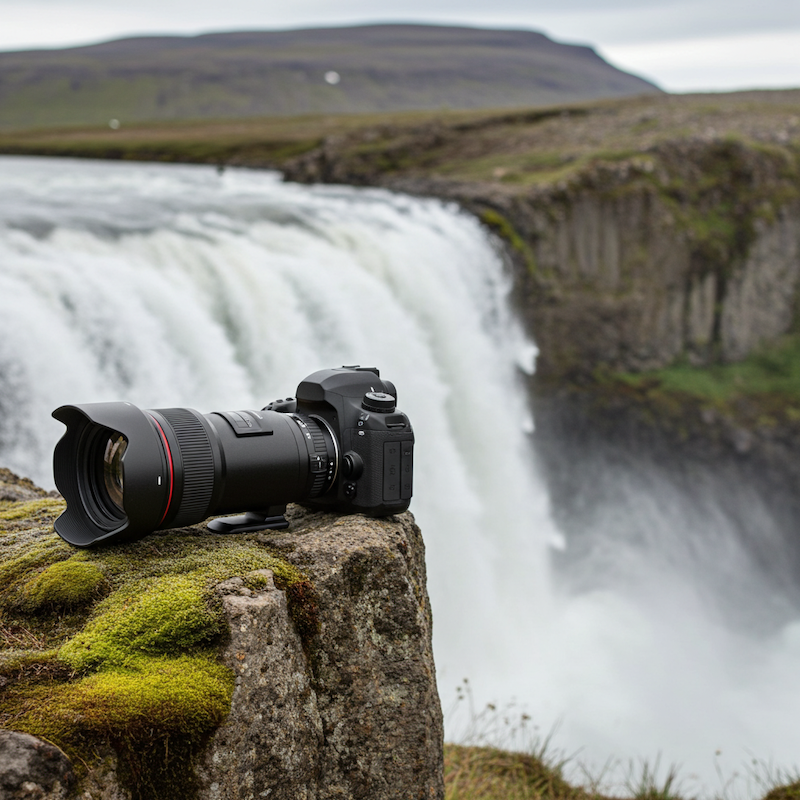
以下是產品重新脈絡化的範例用途:
| 輸入內容範例 | 輸出內容範例 | 使用的提示 |
|---|---|---|
|
|
在雜亂的工作台上,背景是下著雨、霓虹燈閃爍的賽博龐克小巷,以及閃爍的立體投影廣告。 |
|
|
這張照片是在懸崖邊的苔蘚岩石上拍攝,俯瞰冰島陰天時的壯觀瀑布。 |

|

|
在聖托里尼的白色咖啡桌上,放著一杯咖啡,俯瞰愛琴海和標誌性的藍頂建築。 |
事前準備
- Sign in to your Google Cloud account. If you're new to Google Cloud, create an account to evaluate how our products perform in real-world scenarios. New customers also get $300 in free credits to run, test, and deploy workloads.
-
In the Google Cloud console, on the project selector page, select or create a Google Cloud project.
Roles required to select or create a project
- Select a project: Selecting a project doesn't require a specific IAM role—you can select any project that you've been granted a role on.
-
Create a project: To create a project, you need the Project Creator role
(
roles/resourcemanager.projectCreator), which contains theresourcemanager.projects.createpermission. Learn how to grant roles.
-
Verify that billing is enabled for your Google Cloud project.
-
Enable the Vertex AI API.
Roles required to enable APIs
To enable APIs, you need the Service Usage Admin IAM role (
roles/serviceusage.serviceUsageAdmin), which contains theserviceusage.services.enablepermission. Learn how to grant roles. -
In the Google Cloud console, on the project selector page, select or create a Google Cloud project.
Roles required to select or create a project
- Select a project: Selecting a project doesn't require a specific IAM role—you can select any project that you've been granted a role on.
-
Create a project: To create a project, you need the Project Creator role
(
roles/resourcemanager.projectCreator), which contains theresourcemanager.projects.createpermission. Learn how to grant roles.
-
Verify that billing is enabled for your Google Cloud project.
-
Enable the Vertex AI API.
Roles required to enable APIs
To enable APIs, you need the Service Usage Admin IAM role (
roles/serviceusage.serviceUsageAdmin), which contains theserviceusage.services.enablepermission. Learn how to grant roles. -
為環境設定驗證機制。
如要在本機開發環境中使用本頁的 REST API 範例,請使用您提供給 gcloud CLI 的憑證。
Install the Google Cloud CLI. After installation, initialize the Google Cloud CLI by running the following command:
gcloud initIf you're using an external identity provider (IdP), you must first sign in to the gcloud CLI with your federated identity.
詳情請參閱 Google Cloud 驗證說明文件中的「使用 REST 進行驗證」。
-
REGION:專案所在的區域。如要進一步瞭解支援的區域,請參閱「Vertex AI 的生成式 AI 服務地區」。 -
PROJECT_ID:您的 Google Cloud 專案 ID。 -
TEXT_PROMPT:選用。引導模型生成圖片的文字提示。 -
BASE64_SUBJECT_IMAGE:主體圖片的 Base64 編碼圖片。 -
PERSON_SETTING: (選用) 控制模型允許生成的人物或臉部類型。您可以為personGeneration使用下列值:-
"allow_adult":僅允許生成成人內容,名人生成除外。任何設定都不允許生成名人圖像。這是預設設定。 -
"allow_all":可生成所有年齡層的人物,但無法生成名人。任何設定都不允許生成名人圖像。 -
"dont_allow":不允許在生成的輸出內容中生成人物或臉部。
-
-
SAFETY_SETTING: 選用:控制生成圖片安全篩選門檻的字串值。你可以使用下列值選取安全設定:-
"block_low_and_above":最嚴格的安全閾值。"block_low_and_above"會篩選出最多生成的圖片。 -
"block_medium_and_above":中等安全門檻,可平衡篩選可能有害和安全的內容。"block_medium_and_above"是預設安全設定。 -
"block_only_high":最低安全門檻,可減少因安全篩選器而遭封鎖的請求數量。使用"block_only_high"安全性門檻可能會增加模型生成不當圖片的數量。
-
-
WATERMARK_SETTING: 選用:布林值。如果將這個值設為true,模型就會加入數位浮水印,方便您驗證生成的圖片。預設值為true。 -
IMAGE_COUNT:要生成的圖片數量。可接受的值範圍為1到4。 -
PROMPT_SETTING: 選用:布林值。如果將這個值設為true,模型會使用強化版提示。預設值為true。
在不同場景中生成產品圖片
REST
使用任何要求資料之前,請先修改下列項目的值:
HTTP 方法和網址:
POST https://REGION-aiplatform.googleapis.com/v1/projects/PROJECT_ID/locations/REGION/publishers/google/models/imagen-product-recontext-preview-06-30:predict
JSON 要求內文:
{
  "instances": [
    {
      "prompt": "TEXT_PROMPT",
      "productImages": [
        {
          "image": {
            "bytesBase64Encoded": "BASE64_SUBJECT_IMAGE"
          },
        }
      ]
    }
  ],
  "parameters": {
    "personGeneration": PERSON_SETTING,
    "safetySetting": SAFETY_SETTING,
    "addWatermark": WATERMARK_SETTING,
    "sampleCount": IMAGE_COUNT,
    "enhancePrompt": PROMPT_SETTING
  }
}
如要傳送要求,請選擇以下其中一個選項:
curl
將要求主體儲存在名為 request.json 的檔案中,然後執行下列指令:
curl -X POST \
     -H "Authorization: Bearer $(gcloud auth print-access-token)" \
     -H "Content-Type: application/json; charset=utf-8" \
     -d @request.json \
     "https://REGION-aiplatform.googleapis.com/v1/projects/PROJECT_ID/locations/REGION/publishers/google/models/imagen-product-recontext-preview-06-30:predict"
PowerShell
將要求主體儲存在名為 request.json 的檔案中,然後執行下列指令:
$cred = gcloud auth print-access-token
$headers = @{ "Authorization" = "Bearer $cred" }

Invoke-WebRequest `
    -Method POST `
    -Headers $headers `
    -ContentType: "application/json; charset=utf-8" `
    -InFile request.json `
    -Uri "https://REGION-aiplatform.googleapis.com/v1/projects/PROJECT_ID/locations/REGION/publishers/google/models/imagen-product-recontext-preview-06-30:predict" | Select-Object -Expand Content
{
  "predictions": [
    {
      "mimeType": "image/png",
      "bytesBase64Encoded": "BASE64_IMG_BYTES"
    },
    {
      "bytesBase64Encoded": "BASE64_IMG_BYTES",
      "mimeType": "image/png"
    }
  ]
}