

本頁說明如何使用遮罩區域從圖片中移除物件,這個程序也稱為「修復」。您可以自行提供遮罩,也可以讓 Imagen 產生遮罩。
下列模型支援從圖片中移除物件:
移除內容範例
以下範例使用修復和圖片遮罩,從現有圖片中移除內容:
輸入內容
要編輯的基礎圖片* |
使用 Google Cloud 控制台中的工具指定遮罩區域 |
文字提示 |
|---|---|---|

|
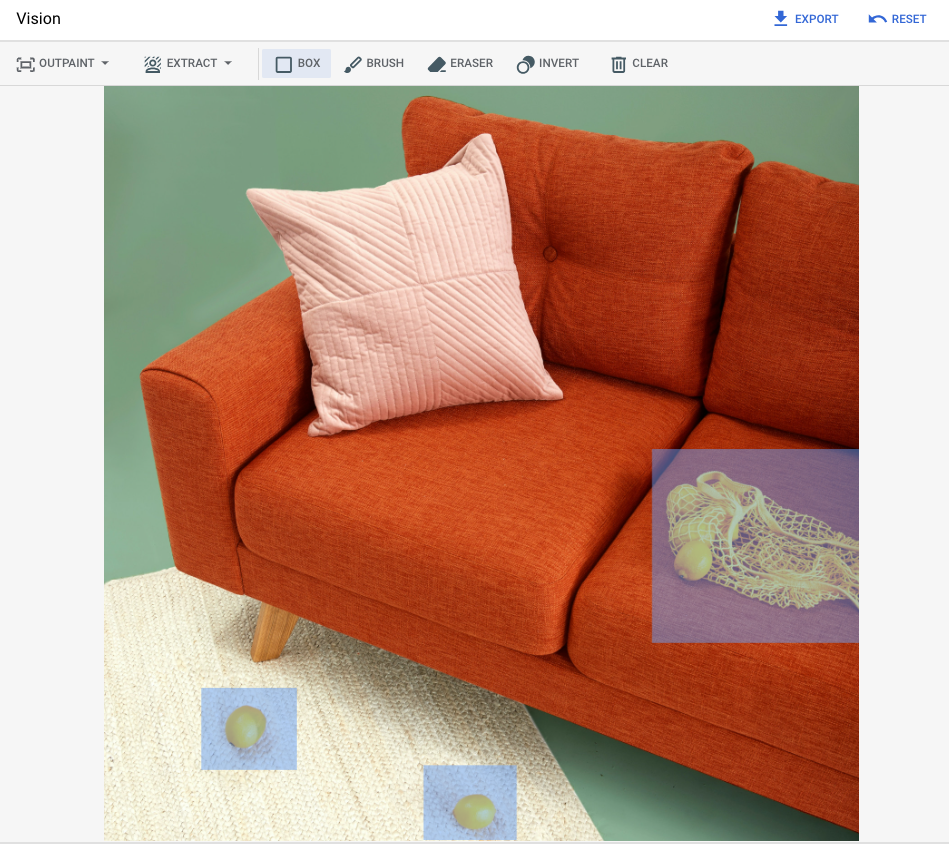
|
提示:從圖片中移除所選物件 |
* 圖片來源:Inside Weather on Unsplash。
在 Google Cloud 控制台中指定遮罩區域後的輸出內容
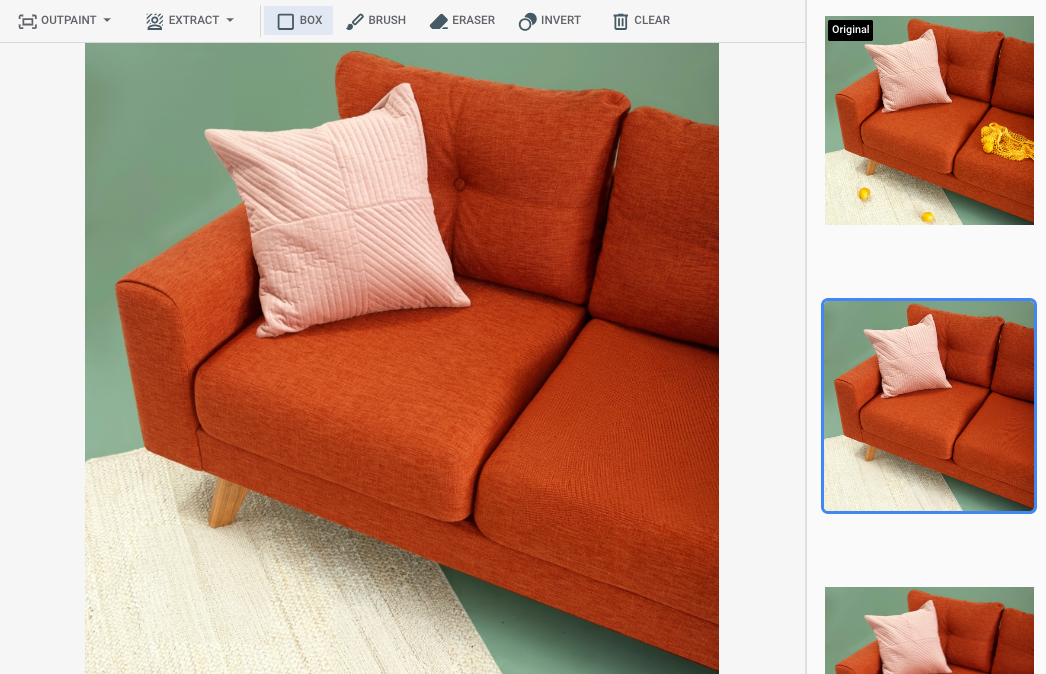
|
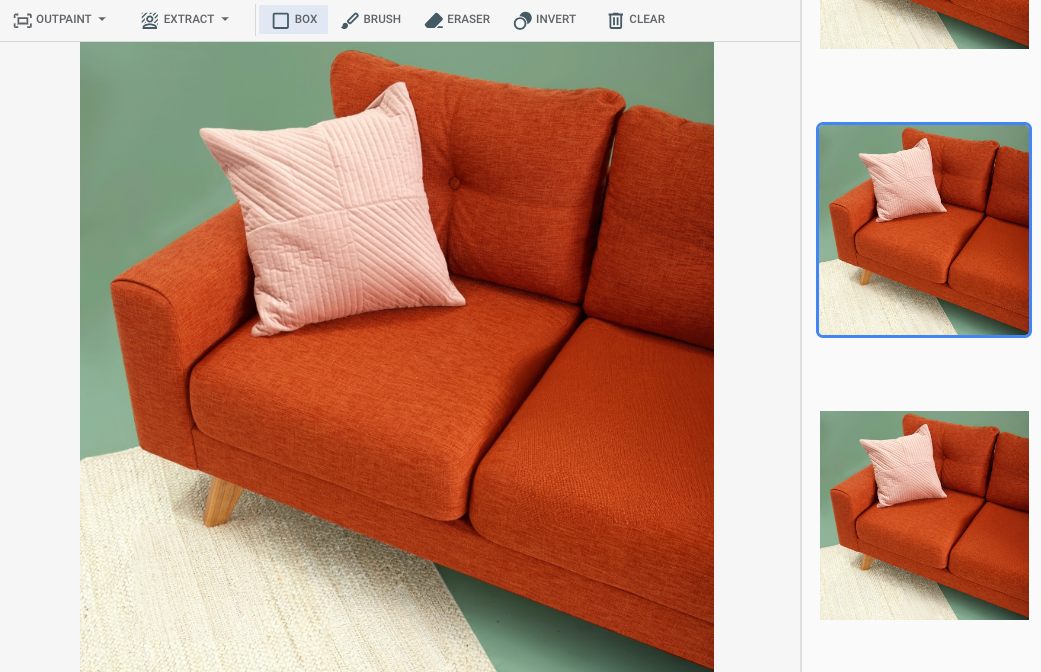
|
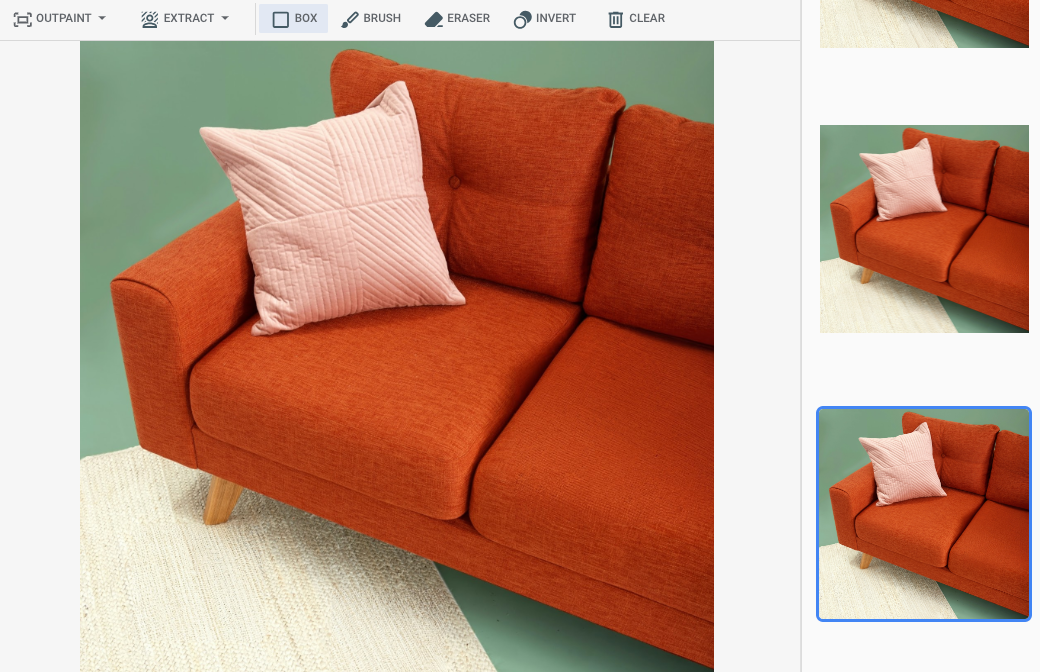
|
查看「Imagen for Editing and Customization」模型資訊卡
事前準備
- 登入 Google Cloud 帳戶。如果您是 Google Cloud新手,歡迎 建立帳戶,親自評估產品在實際工作環境中的成效。新客戶還能獲得價值 $300 美元的免費抵免額,可用於執行、測試及部署工作負載。
-
In the Google Cloud console, on the project selector page, select or create a Google Cloud project.
Roles required to select or create a project
- Select a project: Selecting a project doesn't require a specific IAM role—you can select any project that you've been granted a role on.
-
Create a project: To create a project, you need the Project Creator role
(
roles/resourcemanager.projectCreator), which contains theresourcemanager.projects.createpermission. Learn how to grant roles.
-
Verify that billing is enabled for your Google Cloud project.
Enable the Vertex AI API.
Roles required to enable APIs
To enable APIs, you need the Service Usage Admin IAM role (
roles/serviceusage.serviceUsageAdmin), which contains theserviceusage.services.enablepermission. Learn how to grant roles.-
In the Google Cloud console, on the project selector page, select or create a Google Cloud project.
Roles required to select or create a project
- Select a project: Selecting a project doesn't require a specific IAM role—you can select any project that you've been granted a role on.
-
Create a project: To create a project, you need the Project Creator role
(
roles/resourcemanager.projectCreator), which contains theresourcemanager.projects.createpermission. Learn how to grant roles.
-
Verify that billing is enabled for your Google Cloud project.
Enable the Vertex AI API.
Roles required to enable APIs
To enable APIs, you need the Service Usage Admin IAM role (
roles/serviceusage.serviceUsageAdmin), which contains theserviceusage.services.enablepermission. Learn how to grant roles.-
為環境設定驗證機制。
選取這個頁面上的分頁,瞭解如何使用範例:
控制台
使用 Google Cloud 控制台存取 Google Cloud 服務和 API 時,無須設定驗證。
Python
如要在本機開發環境中使用本頁的 Python 範例,請安裝並初始化 gcloud CLI,然後使用您的使用者憑證設定應用程式預設憑證。
-
安裝 Google Cloud CLI。
-
若您採用的是外部識別資訊提供者 (IdP),請先使用聯合身分登入 gcloud CLI。
-
如果您使用本機殼層,請為使用者帳戶建立本機驗證憑證:
gcloud auth application-default login
如果您使用 Cloud Shell,則不需要執行這項操作。
如果系統傳回驗證錯誤,且您使用外部識別資訊提供者 (IdP),請確認您已 使用聯合身分登入 gcloud CLI。
詳情請參閱 Google Cloud 驗證說明文件中的「 為本機開發環境設定 ADC」。
REST
如要在本機開發環境中使用本頁的 REST API 範例,請使用您提供給 gcloud CLI 的憑證。
安裝 Google Cloud CLI。
若您採用的是外部識別資訊提供者 (IdP),請先使用聯合身分登入 gcloud CLI。
詳情請參閱 Google Cloud 驗證說明文件中的「使用 REST 進行驗證」。
-
使用定義的遮罩區域移除
請使用下列範例指定修復功能來移除內容。在這些範例中,您會指定基本圖片、文字提示和遮罩區域,以修改基本圖片。
控制台
在 Google Cloud 控制台中,依序前往「Vertex AI」>「Vertex AI Studio」 頁面。
按一下「生成媒體」。
按一下「圖片」。
從「工作」清單中選取「Inpaint-remove」。
從「模型」清單中選取要使用的 Imagen 模型。
在「輸入圖片」中,按一下「新增」,然後選取要上傳的編輯圖片。
在「提示」方塊中輸入提示,說明如何編輯圖片。
執行下列任一操作來指定遮罩:
- 上傳自己的遮罩:
- 在電腦上建立遮罩。
- 按一下「上傳」 匯入遮罩,然後選取要上傳的遮罩。
- 定義遮罩:在編輯工具列中,使用遮罩工具 (方塊、筆刷、masked_transitions、反轉工具) 指定要新增內容的區域。
- 上傳自己的遮罩:
按一下「執行」。
Python
安裝
pip install --upgrade google-genai
詳情請參閱 SDK 參考文件。
設定環境變數,透過 Vertex AI 使用 Gen AI SDK:
# Replace the `GOOGLE_CLOUD_PROJECT` and `GOOGLE_CLOUD_LOCATION` values
# with appropriate values for your project.
export GOOGLE_CLOUD_PROJECT=GOOGLE_CLOUD_PROJECT
export GOOGLE_CLOUD_LOCATION=us-central1
export GOOGLE_GENAI_USE_VERTEXAI=True
REST
如要進一步瞭解 Imagen API,請參閱下列內容:- 方法:
endpoints.predict VisionGenerativeModelInstanceVisionGenerativeModelParamsVisionGenerativeModelResult
使用任何要求資料之前,請先修改下列項目的值:
- PROJECT_ID:您的 Google Cloud 專案 ID。
- LOCATION:專案的區域。例如
us-central1、europe-west2或asia-northeast3。如需可用區域的清單,請參閱「Vertex AI 生成式 AI 服務地區」。使用地區 API 端點時,系統會根據端點網址中的區域,決定要求處理位置,並忽略資源路徑中發生衝突的LOCATION。 prompt:如要使用圖像外擴功能,可以提供空字串來建立編輯後的圖片。如果選擇提供提示,請使用遮蓋區域的說明,以獲得最佳結果。例如「a blue sky」,而非「insert a blue sky」。referenceType:ReferenceImage是提供圖片編輯額外背景資訊的圖片。編輯用途需要使用正常的 RGB 原始參考圖像 (REFERENCE_TYPE_RAW)。一個要求最多只能有一個原始參考圖像。輸出圖片的高度和寬度與原始參考圖像相同。如要使用遮罩編輯,必須提供遮罩參考圖像 (REFERENCE_TYPE_MASK)。如有原始參考圖像,遮罩圖片的高度和寬度必須與原始參考圖像相同。如果遮罩參照圖片為空白,且maskMode未設為MASK_MODE_USER_PROVIDED,系統會根據原始參照圖片計算遮罩。- B64_BASE_IMAGE:要編輯或放大畫質的基本圖片。圖片必須指定為 base64 編碼的位元組字串。大小限制:10 MB。
- B64_OUTPAINTING_MASK:要用做遮罩圖層的黑白圖片,用於編輯原始圖片。遮罩的解析度應與輸入圖片相同。輸出圖片的解析度會與輸入圖片相同。這個遮罩圖片必須指定為 Base64 編碼的位元組字串。大小上限:10 MB。
- MASK_DILATION - float。這個遮罩要擴張的圖片寬度百分比。建議將外繪值設為
0.03。設定"dilation": 0.0可能會在擴充點產生明顯的邊框,或造成白色邊框效果。 - EDIT_STEPS - 整數。基礎模型的取樣步驟數。如要使用外繪功能,請從步驟
35開始。如果品質不符合規定,請增加步驟。 - EDIT_IMAGE_COUNT - 編輯圖片的數量。接受的整數值:1 到 4。 預設值:4。
HTTP 方法和網址:
POST https://LOCATION-aiplatform.googleapis.com/v1/projects/PROJECT_ID/locations/LOCATION/publishers/google/models/imagen-3.0-capability-001:predict
JSON 要求內文:
{
  "instances": [
    {
      "prompt": "",
      "referenceImages": [
        {
          "referenceType": "REFERENCE_TYPE_RAW",
          "referenceId": 1,
          "referenceImage": {
            "bytesBase64Encoded": "B64_BASE_IMAGE"
          }
        },
        {
          "referenceType": "REFERENCE_TYPE_MASK",
          "referenceId": 2,
          "referenceImage": {
            "bytesBase64Encoded": "B64_OUTPAINTING_MASK"
          },
          "maskImageConfig": {
            "maskMode": "MASK_MODE_USER_PROVIDED",
            "dilation": MASK_DILATION
          }
        }
      ]
    }
  ],
  "parameters": {
    "editConfig": {
      "baseSteps": EDIT_STEPS
    },
    "editMode": "EDIT_MODE_OUTPAINT",
    "sampleCount": EDIT_IMAGE_COUNT
  }
}
如要傳送要求,請選擇以下其中一個選項:
curl
將要求主體儲存在名為 request.json 的檔案中,然後執行下列指令:
curl -X POST \
     -H "Authorization: Bearer $(gcloud auth print-access-token)" \
     -H "Content-Type: application/json; charset=utf-8" \
     -d @request.json \
     "https://LOCATION-aiplatform.googleapis.com/v1/projects/PROJECT_ID/locations/LOCATION/publishers/google/models/imagen-3.0-capability-001:predict"
PowerShell
將要求主體儲存在名為 request.json 的檔案中,然後執行下列指令:
$cred = gcloud auth print-access-token
$headers = @{ "Authorization" = "Bearer $cred" }

Invoke-WebRequest `
    -Method POST `
    -Headers $headers `
    -ContentType: "application/json; charset=utf-8" `
    -InFile request.json `
    -Uri "https://LOCATION-aiplatform.googleapis.com/v1/projects/PROJECT_ID/locations/LOCATION/publishers/google/models/imagen-3.0-capability-001:predict" | Select-Object -Expand Content
"sampleCount": 2。回應會傳回兩個預測物件,其中包含以 base64 編碼產生的圖片位元組。
{
  "predictions": [
    {
      "bytesBase64Encoded": "BASE64_IMG_BYTES",
      "mimeType": "image/png"
    },
    {
      "mimeType": "image/png",
      "bytesBase64Encoded": "BASE64_IMG_BYTES"
    }
  ]
}
使用自動遮罩偵測功能移除
請使用下列範例指定修復功能來移除內容。在這些範例中,您會指定基本圖片和文字提示。Imagen 會自動偵測並建立遮罩區域,以修改基礎圖片。
控制台
在 Google Cloud 控制台中,依序前往「Vertex AI」>「Vertex AI Studio」 頁面。
按一下「生成媒體」。
按一下「圖片」。
從「工作」清單中選取「Inpaint-remove」。
從「模型」清單中選取要使用的 Imagen 模型。
在「輸入圖片」中,按一下「新增」,然後選取要上傳的編輯圖片。
在「提示」方塊中輸入提示,說明如何編輯圖片。
在編輯工具列中,按一下 background_replace「擷取遮罩」。
選取其中一個遮罩擷取選項:
背景元素:偵測背景元素,並在周圍建立遮罩。
前景元素:偵測前景物件,並在周圍建立遮罩。
background_replace People: 偵測人物並建立周圍的遮罩。
按一下「執行」。
Python
安裝
pip install --upgrade google-genai
詳情請參閱 SDK 參考文件。
設定環境變數,透過 Vertex AI 使用 Gen AI SDK:
# Replace the `GOOGLE_CLOUD_PROJECT` and `GOOGLE_CLOUD_LOCATION` values
# with appropriate values for your project.
export GOOGLE_CLOUD_PROJECT=GOOGLE_CLOUD_PROJECT
export GOOGLE_CLOUD_LOCATION=us-central1
export GOOGLE_GENAI_USE_VERTEXAI=True
REST
使用任何要求資料之前,請先修改下列項目的值:
- PROJECT_ID:您的 Google Cloud 專案 ID。
- LOCATION:專案的區域。例如
us-central1、europe-west2或asia-northeast3。如需可用區域的清單,請參閱「Vertex AI 生成式 AI 服務地區」。使用地區 API 端點時,系統會根據端點網址中的區域,決定要求處理位置,並忽略資源路徑中發生衝突的LOCATION。 prompt:如要獲得最佳效果,使用修復功能移除物件時,請省略提示和negativePrompt。- B64_BASE_IMAGE:要編輯或放大畫質的基本圖片。圖片必須指定為 base64 編碼的位元組字串。大小限制:10 MB。
- MASK_MODE - 一個字串,用於設定模型使用的自動遮罩建立類型。可用值:
MASK_MODE_BACKGROUND:使用背景區隔功能自動生成遮罩。使用這項設定修改背景內容。MASK_MODE_FOREGROUND:使用前景區隔自動生成遮罩。使用這項設定修改前景內容,例如移除這些前景物件 (使用修復功能移除)。MASK_MODE_SEMANTIC:根據您在maskImageConfig.maskClasses陣列中指定的區隔類別,使用語意區隔自動產生遮罩。例如:"maskImageConfig": { "maskMode": "MASK_MODE_SEMANTIC", "maskClasses": [175, 176], // bicycle, car "dilation": 0.01 }
- MASK_DILATION - float。這個遮罩要擴張的圖片寬度百分比。建議使用
0.01的值,補償不完美的輸入遮罩。 - EDIT_STEPS - 整數。基礎模型的取樣步驟數。如要移除修復內容,請從步驟
12開始。如果品質不符合需求,請將步驟數調高至上限75。增加步驟也會增加要求延遲時間。 - EDIT_IMAGE_COUNT - 編輯圖片的數量。接受的整數值:1 到 4。 預設值:4。
HTTP 方法和網址:
POST https://LOCATION-aiplatform.googleapis.com/v1/projects/PROJECT_ID/locations/LOCATION/publishers/google/models/imagen-3.0-capability-001:predict
JSON 要求內文:
{
  "instances": [
    {
      "prompt": "",
      "referenceImages": [
        {
          "referenceType": "REFERENCE_TYPE_RAW",
          "referenceId": 1,
          "referenceImage": {
            "bytesBase64Encoded": "B64_BASE_IMAGE"
          }
        },
        {
          "referenceType": "REFERENCE_TYPE_MASK",
          "referenceId": 2,
          "maskImageConfig": {
            "maskMode": "MASK_MODE",
            "dilation": MASK_DILATION
          }
        }
      ]
    }
  ],
  "parameters": {
    "editConfig": {
      "baseSteps": EDIT_STEPS
    },
    "editMode": "EDIT_MODE_INPAINT_REMOVAL",
    "sampleCount": EDIT_IMAGE_COUNT
  }
}
如要傳送要求,請選擇以下其中一個選項:
curl
將要求主體儲存在名為 request.json 的檔案中,然後執行下列指令:
curl -X POST \
     -H "Authorization: Bearer $(gcloud auth print-access-token)" \
     -H "Content-Type: application/json; charset=utf-8" \
     -d @request.json \
     "https://LOCATION-aiplatform.googleapis.com/v1/projects/PROJECT_ID/locations/LOCATION/publishers/google/models/imagen-3.0-capability-001:predict"
PowerShell
將要求主體儲存在名為 request.json 的檔案中,然後執行下列指令:
$cred = gcloud auth print-access-token
$headers = @{ "Authorization" = "Bearer $cred" }

Invoke-WebRequest `
    -Method POST `
    -Headers $headers `
    -ContentType: "application/json; charset=utf-8" `
    -InFile request.json `
    -Uri "https://LOCATION-aiplatform.googleapis.com/v1/projects/PROJECT_ID/locations/LOCATION/publishers/google/models/imagen-3.0-capability-001:predict" | Select-Object -Expand Content
"sampleCount": 2。回應會傳回兩個預測物件,其中包含以 base64 編碼產生的圖片位元組。
{
  "predictions": [
    {
      "bytesBase64Encoded": "BASE64_IMG_BYTES",
      "mimeType": "image/png"
    },
    {
      "mimeType": "image/png",
      "bytesBase64Encoded": "BASE64_IMG_BYTES"
    }
  ]
}
限制
以下各節說明 Imagen 物件移除功能的限制。
修改過的像素
模型生成的像素不在遮罩內,會以模型解析度 (例如 1024x1024) 生成,且不保證與輸入內容相同。這可能會導致生成的圖片出現些微變化。
如要完美保留圖片,建議使用遮罩將生成的圖片與輸入圖片混合。如果輸入圖片解析度為 2K 以上,通常需要混合。
移除限制
遮罩旁邊的小物體也可能會一併移除。為獲得最佳結果,請盡可能精確地建立遮罩。
移除室外圖片中大面積的天空可能會導致出現不想要的影像瑕疵。為獲得最佳結果,建議您提供提示。
後續步驟
閱讀有關 Imagen 和其他 Vertex AI 生成式 AI 產品的文章:
- 開發人員指南:開始在 Vertex AI 使用 Imagen 3
- 專為創作者打造的全新生成式媒體模型和工具
- Gemini 新功能:自訂 Gem 和 Imagen 3 強化圖像生成功能
- Google DeepMind:Imagen 3 - 品質最高的文字轉圖像模型