Menduplikasi disk dengan clone

Dokumen ini memberikan informasi tentang cara kerja clone disk dan cara membuat clone disk. Dengan meng-clone disk, Anda dapat membuat salinan disk yang ada dan dapat langsung digunakan di lokasi yang sama (zona atau region). Buat clone disk dalam skenario saat Anda menginginkan salinan disk yang ada yang dapat langsung dipasang ke VM, seperti berikut:

  • Membuat lingkungan staging dengan menduplikasi data produksi untuk melakukan debug tanpa mengganggu produksi
  • Melakukan pemindaian malware disk tanpa mengganggu dan tanpa memengaruhi performa workload produksi
  • Membuat salinan untuk verifikasi pencadangan database
  • Memindahkan data disk non-boot ke project baru
  • Menduplikasi disk saat menskalakan VM

Untuk mengaktifkan pemulihan dari bencana untuk data Anda, cadangkan disk Anda dengan snapshot standar, bukan menggunakan clone disk. Untuk merekam konten disk secara berkala tanpa membuat disk baru, gunakan snapshot instan karena lebih hemat penyimpanan daripada clone. Untuk opsi perlindungan disk tambahan, lihat Opsi perlindungan data.

Sebelum memulai

  • Siapkan autentikasi jika Anda belum melakukannya. Autentikasi memverifikasi identitas Anda untuk mengakses layanan Google Cloud dan API. Untuk menjalankan kode atau sampel dari lingkungan pengembangan lokal, Anda dapat melakukan autentikasi ke Compute Engine dengan memilih salah satu opsi berikut:

    Pilih tab untuk melihat bagaimana Anda berencana menggunakan contoh di halaman ini:

    Konsol

    Saat menggunakan konsol Google Cloud untuk mengakses layanan Google Cloud dan API, Anda tidak perlu menyiapkan autentikasi.

    gcloud

    1. Instal Google Cloud CLI. Setelah penginstalan, inisialisasi Google Cloud CLI dengan menjalankan perintah berikut:

      gcloud init

      Jika Anda menggunakan penyedia identitas (IdP) eksternal, Anda harus login ke gcloud CLI dengan identitas gabungan Anda terlebih dahulu.

  • Tetapkan region dan zona default.
  • Terraform

    Untuk menggunakan contoh Terraform di halaman ini dalam lingkungan pengembangan lokal, instal dan lakukan inisialisasi gcloud CLI, lalu siapkan Kredensial Default Aplikasi dengan kredensial pengguna Anda.

    1. Instal Google Cloud CLI.

    2. Jika Anda menggunakan penyedia identitas (IdP) eksternal, Anda harus login ke gcloud CLI dengan identitas gabungan Anda terlebih dahulu.

    3. Jika Anda menggunakan shell lokal, buat kredensial autentikasi lokal untuk akun pengguna Anda:

      gcloud auth application-default login

      Anda tidak perlu melakukan langkah ini jika menggunakan Cloud Shell.

      Jika error autentikasi ditampilkan, dan Anda menggunakan penyedia identitas (IdP) eksternal, konfirmasi bahwa Anda telah login ke gcloud CLI dengan identitas gabungan Anda.

    Untuk mengetahui informasi selengkapnya, lihat Menyiapkan autentikasi untuk lingkungan pengembangan lokal.

    Go

    Untuk menggunakan contoh Go di halaman ini dalam lingkungan pengembangan lokal, instal dan lakukan inisialisasi gcloud CLI, lalu siapkan Kredensial Default Aplikasi dengan kredensial pengguna Anda.

    1. Instal Google Cloud CLI.

    2. Jika Anda menggunakan penyedia identitas (IdP) eksternal, Anda harus login ke gcloud CLI dengan identitas gabungan Anda terlebih dahulu.

    3. Jika Anda menggunakan shell lokal, buat kredensial autentikasi lokal untuk akun pengguna Anda:

      gcloud auth application-default login

      Anda tidak perlu melakukan langkah ini jika menggunakan Cloud Shell.

      Jika error autentikasi ditampilkan, dan Anda menggunakan penyedia identitas (IdP) eksternal, konfirmasi bahwa Anda telah login ke gcloud CLI dengan identitas gabungan Anda.

    Untuk mengetahui informasi selengkapnya, lihat Menyiapkan autentikasi untuk lingkungan pengembangan lokal.

    Java

    Untuk menggunakan contoh Java di halaman ini dalam lingkungan pengembangan lokal, instal dan lakukan inisialisasi gcloud CLI, lalu siapkan Kredensial Default Aplikasi dengan kredensial pengguna Anda.

    1. Instal Google Cloud CLI.

    2. Jika Anda menggunakan penyedia identitas (IdP) eksternal, Anda harus login ke gcloud CLI dengan identitas gabungan Anda terlebih dahulu.

    3. Jika Anda menggunakan shell lokal, buat kredensial autentikasi lokal untuk akun pengguna Anda:

      gcloud auth application-default login

      Anda tidak perlu melakukan langkah ini jika menggunakan Cloud Shell.

      Jika error autentikasi ditampilkan, dan Anda menggunakan penyedia identitas (IdP) eksternal, konfirmasi bahwa Anda telah login ke gcloud CLI dengan identitas gabungan Anda.

    Untuk mengetahui informasi selengkapnya, lihat Menyiapkan autentikasi untuk lingkungan pengembangan lokal.

    Python

    Untuk menggunakan contoh Python di halaman ini dalam lingkungan pengembangan lokal, instal dan lakukan inisialisasi gcloud CLI, lalu siapkan Kredensial Default Aplikasi dengan kredensial pengguna Anda.

    1. Instal Google Cloud CLI.

    2. Jika Anda menggunakan penyedia identitas (IdP) eksternal, Anda harus login ke gcloud CLI dengan identitas gabungan Anda terlebih dahulu.

    3. Jika Anda menggunakan shell lokal, buat kredensial autentikasi lokal untuk akun pengguna Anda:

      gcloud auth application-default login

      Anda tidak perlu melakukan langkah ini jika menggunakan Cloud Shell.

      Jika error autentikasi ditampilkan, dan Anda menggunakan penyedia identitas (IdP) eksternal, konfirmasi bahwa Anda telah login ke gcloud CLI dengan identitas gabungan Anda.

    Untuk mengetahui informasi selengkapnya, lihat Menyiapkan autentikasi untuk lingkungan pengembangan lokal.

    REST

    Untuk menggunakan contoh REST API di halaman ini dalam lingkungan pengembangan lokal, gunakan kredensial yang Anda berikan ke gcloud CLI.

      Instal Google Cloud CLI.

      Jika Anda menggunakan penyedia identitas (IdP) eksternal, Anda harus login ke gcloud CLI dengan identitas gabungan Anda terlebih dahulu.

    Untuk mengetahui informasi selengkapnya, lihat Melakukan autentikasi untuk menggunakan REST dalam dokumentasi autentikasi Google Cloud .

Ringkasan kasus penggunaan

Selain menduplikasi disk untuk pengujian dan proses debug yang cepat, Anda dapat mengaktifkan ketersediaan tinggi untuk disk zonal dengan membuat clone regional dari disk zonal. Saat Anda membuat disk regional dari disk zona, disk regional memiliki replika disk di dua zona dalam region yang sama. Setelah membuat disk regional, Anda akan menggunakan disk regional baru, bukan disk zonal. Jika terjadi gangguan yang jarang terjadi di satu zona, Anda masih dapat mengakses data dari replika di zona lain.

Tabel ini merangkum berbagai jenis clone yang didukung Compute Engine.

Jenis cloning Kapan digunakan Jenis disk yang didukung
Clone zona dari disk zona Buat salinan identik dari disk di zona yang sama untuk salah satu tugas berikut:
  • Menskalakan workload dengan menduplikasi disk yang ada untuk VM baru.
  • Lingkungan staging, proses debug, atau pengujian dengan data produksi.
  • Memindai disk yang sedang dalam produksi untuk mendeteksi malware.
  • Memindahkan disk ke project baru.
  • Persistent Disk: Standard, Seimbang, dan SSD Persistent Disk
  • Hyperdisk: Semua jenis Hyperdisk, kecuali Hyperdisk Balanced High Availability
Clone regional dari disk zonal
  • Membuat workload zonal sangat tersedia dengan menambahkan replika data di zona lain.
  • Memindai disk yang sedang dalam produksi untuk mendeteksi malware.
  • Persistent Disk: Standard, Seimbang, dan SSD Persistent Disk
  • Hyperdisk: Hyperdisk Extreme dan Hyperdisk Balanced
Clone regional dari disk regional Buat salinan identik dari disk regional di region yang sama untuk:
  • Menguji atau menskalakan workload regional dengan ketersediaan tinggi (HA).
  • Mempertahankan redundansi data di dua zona saat melakukan tugas administratif atau pengujian.
  • Membuat salinan volume database HA untuk verifikasi.
  • Persistent Disk: Persistent Disk Seimbang Regional, SSD, dan Standar
  • Hyperdisk: Hyperdisk Balanced High Availability

Cara kerja cloning disk

Saat meng-clone disk, Anda membuat disk baru yang berisi semua data di disk sumber. Anda dapat membuat clone disk meskipun disk yang ada terpasang ke instance VM. Setelah meng-clone disk, Anda dapat menghapus disk sumber tanpa risiko menghapus clone.

Secara default, clone disk mewarisi ukuran, batas performa, jenis, dan zona atau region yang sama persis dengan disk aslinya. Anda dapat mengubah beberapa properti ini, sebagai berikut:

  • Ukuran: Anda dapat membuat clone yang memiliki ukuran lebih besar daripada disk sumbernya, tetapi tidak dapat membuat clone yang memiliki ukuran lebih kecil.

  • Performa: untuk volume Hyperdisk, Anda dapat menentukan batas performa yang berbeda untuk clone. Clone regional volume Hyperdisk zonal adalah volume Hyperdisk Balanced High Availability dan mungkin memiliki batas performa yang berbeda.

  • Lokasi: secara default, clone disk dibuat di zona yang sama untuk disk zona dan region yang sama untuk disk regional. Namun, untuk membuat clone regional dari disk zonal, Anda dapat menentukan zona kedua yang berada dalam region yang sama dengan disk zonal. Clone baru juga disebut sebagai clone regional dan memiliki satu replika di setiap zona disk sumber dan zona kedua yang Anda tentukan.

  • Jenis: Clone regional dari volume Hyperdisk Balanced atau Hyperdisk Extreme zonal adalah volume Hyperdisk Balanced High Availability.

Volume Hyperdisk regional yang di-clone dari volume Hyperdisk zonal

Clone regional dari volume Hyperdisk zona yang ada selalu merupakan volume Hyperdisk Balanced High Availability baru. Hal ini karena Hyperdisk Balanced High Availability adalah satu-satunya Hyperdisk regional yang didukung. Cara Anda membuat Hyperdisk regional dari Hyperdisk zonal bergantung pada jenisnya.

  • Untuk volume Hyperdisk ML dan Hyperdisk Throughput zonal, Anda tidak dapat membuat disk regional dengan meng-clone disk sumber. Anda harus membuat volume Hyperdisk Balanced High Availability baru dari snapshot disk zonal.

  • Untuk volume Hyperdisk Balanced dan Hyperdisk Extreme zonal, Anda membuat volume Hyperdisk Balanced High Availability baru dengan membuat clone regional dari volume Hyperdisk Balanced atau Hyperdisk Extreme zonal.

Performa volume Hyperdisk Balanced High Availability yang di-clone dari disk zonal

Saat Anda membuat volume Hyperdisk Balanced High Availability baru dari volume Hyperdisk Balanced atau Hyperdisk Extreme, disk baru akan mewarisi ukuran disk sumber, tetapi Anda dapat menentukan ukuran yang berbeda.

Performa yang disediakan maksimum disk baru mungkin lebih rendah daripada disk sumber, karena Hyperdisk Extreme dan Hyperdisk Balanced memiliki batas performa yang lebih tinggi daripada Hyperdisk Balanced High Availability, seperti yang tercantum dalam tabel berikut.

Jenis Hyperdisk Operasi I/O per detik (IOPS) maksimum Throughput maks. ( MiB/dtk)
Hyperdisk Balanced High Availability 100.000 2.400
Hyperdisk Balanced 160.000 2.400
Ekstrem Hyperdisk 350.000 5.000

Anda dapat menentukan batas untuk disk regional baru, tetapi batas tersebut tidak boleh melebihi batas performa maksimum yang ditawarkan oleh Hyperdisk Balanced High Availability—100.000 IOPS dan 2.400 MiB/s.

Jika Anda tidak menentukan batas performa untuk disk baru, Compute Engine akan menyediakan disk dengan IOPS dan throughput default yang bergantung pada ukuran volume Hyperdisk Balanced High Availability. Untuk batas default, lihat Batas ukuran dan performa default Hyperdisk Balanced High Availability.

Untuk mencapai 100.000 IOPS, ukuran volume Hyperdisk Balanced High Availability harus minimal 200 GiB, jadi Anda mungkin juga perlu meningkatkan ukuran yang disediakan untuk clone regional.

Contoh

Pertimbangkan volume Hyperdisk Extreme 150 GiB, hdx-1, yang disediakan dengan 180.000 IOPS.

Jika Anda membuat clone regional hdx-1 dan tidak menentukan ukuran atau batas performa baru, Compute Engine akan membuat volume Hyperdisk Balanced High Availability 150 GiB yang memiliki batas IOPS default untuk ukuran tersebut: 3.900 IOPS.

Jika Anda tidak meningkatkan ukuran, Anda dapat menentukan hingga 75.000 IOPS untuk clone regional.

Volume Persistent Disk regional yang di-clone dari volume Persistent Disk zonal

Volume Persistent Disk regional yang di-clone dari Persistent Disk zona memiliki jenis yang sama dengan clone. Misalnya, jika Anda meng-clone Persistent Disk Standar zonal, Anda akan membuat volume Persistent Disk Standar regional.

Namun, clone regional volume Persistent Disk mungkin memiliki batas ukuran dan performa yang berbeda dengan disk sumber zona, sebagai berikut.

  • Batas performa yang lebih rendah: Clone regional Persistent Disk mungkin memiliki batas performa IOPS dan throughput yang lebih rendah daripada disk sumber. Hal ini karena Persistent Disk zonal menawarkan batas performa instance maksimum yang lebih tinggi. Misalnya, Persistent Disk Seimbang zonal memiliki batas instance maksimum sebesar 80.000 IOPS tulis, tetapi Persistent Disk Seimbang regional memiliki batas 60.000 IOPS tulis.

    Untuk mengetahui batas performa mendetail, bandingkan batas performa untuk Persistent Disk zonal dan batas performa untuk Persistent Disk regional.

  • Untuk Persistent Disk Standar regional, ukuran minimum 200 GiB: Persistent Disk Standar regional memiliki ukuran minimum 200 GiB. Jadi, untuk membuat clone regional volume Persistent Disk Standar zona berukuran 10 hingga 199 GiB, Anda harus menentukan ukuran minimal 200 GiB untuk disk regional.

Jenis disk yang didukung

Anda dapat meng-clone semua jenis Persistent Disk dan Hyperdisk jika clone berada di lokasi yang sama (zona atau region) dengan disk sumber.

Meng-clone disk zonal ke disk regional hanya didukung untuk jenis disk berikut:

  • Google Cloud Hyperdisk:

    • Hyperdisk Balanced
    • Ekstrem Hyperdisk

    Untuk membuat disk regional dari volume Hyperdisk ML atau Hyperdisk Throughput, buat snapshot, lalu buat volume Hyperdisk Balanced High Availability dari snapshot tersebut.

  • Persistent Disk:

    • Persistent Disk Seimbang
    • Persistent Disk SSD
    • Standard Persistent Disk

Pembatasan

Clone disk memiliki batasan berikut:

  • Anda tidak dapat membuat volume Hyperdisk Balanced High Availability dengan meng-clone volume Hyperdisk ML atau Hyperdisk Throughput zonal. Untuk membuat volume Hyperdisk Balanced High Availability untuk jenis Hyperdisk ini, selesaikan langkah-langkah di Mengubah disk zonal menjadi volume Hyperdisk Balanced High Availability regional.
  • Anda tidak dapat meng-clone disk yang ada di kumpulan penyimpanan.
  • Anda tidak dapat membuat clone disk zonal dari disk zonal yang ada di zona berbeda.
  • Ukuran clone minimal harus sama dengan ukuran disk sumber. Jika Anda membuat clone menggunakan konsol Google Cloud , Anda tidak dapat menentukan ukuran disk, dan clone tersebut akan memiliki ukuran yang sama dengan disk sumber.
  • Jika Anda meng-clone volume Hyperdisk atau Persistent Disk dari konsol Google Cloud , Anda tidak dapat menentukan performa yang disediakan untuk disk yang di-clone.
  • Jika Anda menggunakan kunci enkripsi yang disediakan pelanggan (CSEK) atau kunci enkripsi yang dikelola pelanggan (CMEK) untuk mengenkripsi disk sumber, Anda harus menggunakan kunci yang sama untuk mengenkripsi clone tersebut. Untuk informasi selengkapnya, lihat Membuat clone disk sumber yang dienkripsi.
  • Anda tidak dapat menghapus disk sumber saat clone-nya sedang dibuat.
  • Instance komputasi yang terpasang ke disk sumber tidak akan dapat diaktifkan saat clone sedang dibuat.
  • Jika disk sumber ditandai untuk dihapus bersama dengan VM yang terpasang, Anda tidak dapat menghapus VM saat clone sedang dibuat.
  • Anda dapat membuat maksimal satu clone disk sumber tertentu atau clone-nya setiap 30 detik.
  • Anda dapat memiliki maksimal 1.000 clone disk secara bersamaan dari disk sumber tertentu atau clone-nya. Jika batas ini terlampaui, internalError akan muncul. Namun, jika Anda membuat clone disk dan menghapusnya nanti, clone disk yang telah dihapus tersebut tidak akan disertakan dalam batasan ini.
  • Setelah disk di-clone, setiap clone berikutnya dari disk tersebut atau clone-nya akan dihitung dalam batas 1.000 clone disk simultan untuk disk sumber asli,dan dihitung dalam batas pembuatan maksimal satu clone setiap 30 detik.
  • Jika Anda membuat disk regional dengan meng-clone disk zona, Anda dapat meng-clone kapasitas maksimal 1 TiB setiap 15 menit, dengan batas permintaan burst sebesar 257 TiB.
  • Anda tidak dapat membuat clone disk zonal dari disk regional.
  • Untuk membuat clone disk regional dari disk sumber zonal, salah satu zona replika clone disk regional harus cocok dengan zona disk sumber.
  • Setelah pembuatan, clone disk regional rata-rata dapat digunakan dalam waktu 3 menit. Namun, disk mungkin memerlukan waktu puluhan menit untuk direplikasi sepenuhnya dan mencapai status dengan tujuan titik pemulihan (RPO) mendekati nol.
  • Jika Anda membuat disk zonal dari image, Anda tidak dapat menggunakan disk zonal tersebut untuk membuat clone disk regional.

Pesan error

Jika Anda melebihi batas frekuensi clone, permintaan akan gagal dengan error berikut:

RATE LIMIT: ERROR: (gcloud.compute.disks.create) Could not fetch resource:
 - Operation rate exceeded for resource RESOURCE. Too frequent operations from the source resource.

Membuat clone disk

Bagian ini menjelaskan cara menduplikasi disk yang ada dan membuat clone disk.

Untuk mengetahui langkah-langkah mendetail, bergantung pada jenis pembuatan clone disk, lihat salah satu bagian berikut dalam dokumen ini:

Membuat clone disk di lokasi yang sama dengan sumber

Anda dapat membuat clone disk zona atau regional yang ada di zona atau region yang sama dengan disk sumber menggunakan konsolGoogle Cloud , Google Cloud CLI, REST, atau Cloud Client Libraries.

Konsol Google Cloud

  1. Di konsol Google Cloud , buka halaman Disks.

    Buka Disk

  2. Dalam daftar disk, buka disk yang ingin Anda clone.

  3. Di kolom Actions, klik tombol menu dan pilih Clone disk.
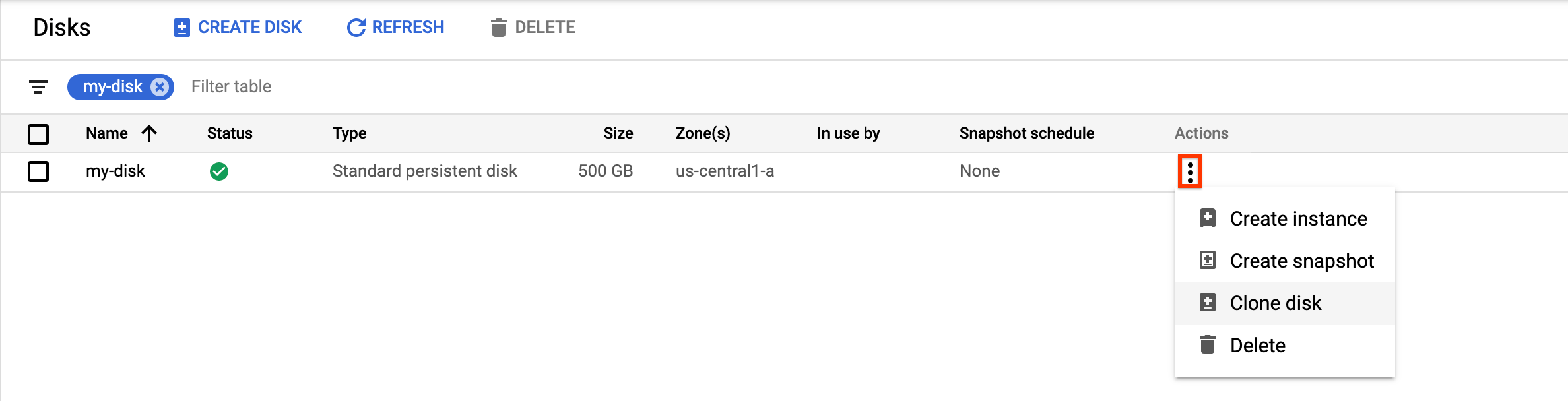
    Membuat clone.

    Di panel Clone disk yang muncul, lakukan langkah berikut:

    1. Di kolom Name, tentukan nama untuk disk yang di-clone.
    2. Opsional: Untuk disk zonal, di bagian Location, pastikan Single zone dipilih.
    3. Di bagian Properties, tinjau detail lain untuk disk yang di-clone.
    4. Untuk menyelesaikan pembuatan disk yang di-clone, klik Buat.

Google Cloud CLI

Untuk meng-clone disk sumber zonal dan membuat disk zonal baru, jalankan perintah disks create dan tentukan flag --source-disk:

gcloud compute disks create TARGET_DISK_NAME \
    --description="cloned disk" \
    --source-disk=projects/PROJECT_ID/zones/ZONE/disks/SOURCE_DISK_NAME

Ganti kode berikut:

  • TARGET_DISK_NAME: nama untuk disk baru.
  • PROJECT_ID: project ID tempat Anda ingin meng-clone disk.
  • ZONE: zona sumber dan disk baru.
  • SOURCE_DISK_NAME: nama disk sumber.

Terraform

Untuk membuat clone disk, gunakan resource google_compute_disk.

resource "google_compute_disk" "default" {
  name  = "disk-name1"
  type  = "pd-ssd"
  zone  = "us-central1-a"
  image = "debian-11-bullseye-v20220719"
  labels = {
    environment = "dev"
  }
  physical_block_size_bytes = 4096
}

Untuk mempelajari cara menerapkan atau menghapus konfigurasi Terraform, lihat Perintah dasar Terraform.

Go

Go

Sebelum mencoba contoh ini, ikuti petunjuk penyiapan Go di panduan memulai Compute Engine menggunakan library klien. Untuk informasi selengkapnya, lihat dokumentasi referensi API Go Compute Engine.

Untuk melakukan autentikasi ke Compute Engine, siapkan Kredensial Default Aplikasi. Untuk mengetahui informasi selengkapnya, lihat Menyiapkan autentikasi untuk library klien.

import (
	"context"
	"fmt"
	"io"

	compute "cloud.google.com/go/compute/apiv1"
	computepb "cloud.google.com/go/compute/apiv1/computepb"
	"google.golang.org/protobuf/proto"
)

// createDiskFromDisk creates a new disk with the contents of
// an already existitng disk. Type, and size and zone may differ.
func createDiskFromDisk(
	w io.Writer,
	projectID, zone, diskName, diskType, sourceDiskLink string,
	diskSizeGb int64,
) error {
	// projectID := "your_project_id"
	// zone := "us-west3-b" // should match diskType below
	// diskName := "your_disk_name"
	// diskType := "zones/us-west3-b/diskTypes/pd-ssd"
	// sourceDiskLink := "projects/your_project_id/global/disks/disk_name"
	// diskSizeGb := 120

	ctx := context.Background()
	disksClient, err := compute.NewDisksRESTClient(ctx)
	if err != nil {
		return fmt.Errorf("NewDisksRESTClient: %w", err)
	}
	defer disksClient.Close()

	req := &computepb.InsertDiskRequest{
		Project: projectID,
		Zone:    zone,
		DiskResource: &computepb.Disk{
			Name:       proto.String(diskName),
			Zone:       proto.String(zone),
			Type:       proto.String(diskType),
			SourceDisk: proto.String(sourceDiskLink),
			SizeGb:     proto.Int64(diskSizeGb),
		},
	}

	op, err := disksClient.Insert(ctx, req)
	if err != nil {
		return fmt.Errorf("unable to create disk: %w", err)
	}

	if err = op.Wait(ctx); err != nil {
		return fmt.Errorf("unable to wait for the operation: %w", err)
	}

	fmt.Fprintf(w, "Disk created\n")

	return nil
}

Java

Java

Sebelum mencoba contoh ini, ikuti petunjuk penyiapan Java di panduan memulai Compute Engine menggunakan library klien. Untuk informasi selengkapnya, lihat dokumentasi referensi API Java Compute Engine.

Untuk melakukan autentikasi ke Compute Engine, siapkan Kredensial Default Aplikasi. Untuk mengetahui informasi selengkapnya, lihat Menyiapkan autentikasi untuk library klien.


import com.google.cloud.compute.v1.Disk;
import com.google.cloud.compute.v1.DisksClient;
import com.google.cloud.compute.v1.Operation;
import java.io.IOException;
import java.util.concurrent.ExecutionException;
import java.util.concurrent.TimeUnit;
import java.util.concurrent.TimeoutException;

public class CreateFromSource {

  public static void main(String[] args)
      throws IOException, ExecutionException, InterruptedException, TimeoutException {
    // TODO(developer): Replace these variables before running the sample.
    // Project ID or project number of the Cloud project you want to use.
    String project = "YOUR_PROJECT_ID";

    // Name of the zone in which you want to create the disk.
    String zone = "europe-central2-b";

    // Name of the disk you want to create.
    String diskName = "YOUR_DISK_NAME";

    // The type of disk you want to create. This value uses the following format:
    // "zones/{zone}/diskTypes/(pd-standard|pd-ssd|pd-balanced|pd-extreme)".
    // For example: "zones/us-west3-b/diskTypes/pd-ssd"
    String diskType = String.format("zones/%s/diskTypes/pd-ssd", zone);

    // Size of the new disk in gigabytes.
    int diskSizeGb = 10;

    // A link to the disk you want to use as a source for the new disk.
    // This value uses the following format:
    // "projects/{project_name}/zones/{zone}/disks/{disk_name}"
    String diskLink = String.format("projects/%s/zones/%s/disks/%s", "PROJECT_NAME", "ZONE",
        "DISK_NAME");

    createDiskFromDisk(project, zone, diskName, diskType, diskSizeGb, diskLink);
  }

  // Creates a disk in a project in a given zone.
  public static void createDiskFromDisk(String project, String zone, String diskName,
      String diskType, int diskSizeGb, String diskLink)
      throws IOException, ExecutionException, InterruptedException, TimeoutException {
    // Initialize client that will be used to send requests. This client only needs to be created
    // once, and can be reused for multiple requests. After completing all of your requests, call
    // the `disksClient.close()` method on the client to safely
    // clean up any remaining background resources.
    try (DisksClient disksClient = DisksClient.create()) {

      // Create the disk.
      Disk disk = Disk.newBuilder()
          .setZone(zone)
          .setSizeGb(diskSizeGb)
          .setSourceDisk(diskLink)
          .setType(diskType)
          .setName(diskName)
          .build();

      // Wait for the insert instance operation to complete.
      Operation operation = disksClient.insertAsync(project, zone, disk)
          .get(3, TimeUnit.MINUTES);

      if (operation.hasError()) {
        System.out.println("Disk creation failed!");
        throw new Error(operation.getError().toString());
      }
      System.out.println(
          "Disk created from source. Operation Status: " + operation.getStatus());
    }
  }
}

Python

Python

Sebelum mencoba contoh ini, ikuti petunjuk penyiapan Python di panduan memulai Compute Engine menggunakan library klien. Untuk informasi selengkapnya, lihat dokumentasi referensi API Python Compute Engine.

Untuk melakukan autentikasi ke Compute Engine, siapkan Kredensial Default Aplikasi. Untuk mengetahui informasi selengkapnya, lihat Menyiapkan autentikasi untuk library klien.

from __future__ import annotations

import sys
from typing import Any

from google.api_core.extended_operation import ExtendedOperation
from google.cloud import compute_v1


def wait_for_extended_operation(
    operation: ExtendedOperation, verbose_name: str = "operation", timeout: int = 300
) -> Any:
    """
    Waits for the extended (long-running) operation to complete.

    If the operation is successful, it will return its result.
    If the operation ends with an error, an exception will be raised.
    If there were any warnings during the execution of the operation
    they will be printed to sys.stderr.

    Args:
        operation: a long-running operation you want to wait on.
        verbose_name: (optional) a more verbose name of the operation,
            used only during error and warning reporting.
        timeout: how long (in seconds) to wait for operation to finish.
            If None, wait indefinitely.

    Returns:
        Whatever the operation.result() returns.

    Raises:
        This method will raise the exception received from `operation.exception()`
        or RuntimeError if there is no exception set, but there is an `error_code`
        set for the `operation`.

        In case of an operation taking longer than `timeout` seconds to complete,
        a `concurrent.futures.TimeoutError` will be raised.
    """
    result = operation.result(timeout=timeout)

    if operation.error_code:
        print(
            f"Error during {verbose_name}: [Code: {operation.error_code}]: {operation.error_message}",
            file=sys.stderr,
            flush=True,
        )
        print(f"Operation ID: {operation.name}", file=sys.stderr, flush=True)
        raise operation.exception() or RuntimeError(operation.error_message)

    if operation.warnings:
        print(f"Warnings during {verbose_name}:\n", file=sys.stderr, flush=True)
        for warning in operation.warnings:
            print(f" - {warning.code}: {warning.message}", file=sys.stderr, flush=True)

    return result


def create_disk_from_disk(
    project_id: str,
    zone: str,
    disk_name: str,
    disk_type: str,
    disk_size_gb: int,
    disk_link: str,
) -> compute_v1.Disk:
    """
    Creates a disk in a project in a given zone.

    Args:
        project_id: project ID or project number of the Cloud project you want to use.
        zone: name of the zone in which you want to create the disk.
        disk_name: name of the disk you want to create.
        disk_type: the type of disk you want to create. This value uses the following format:
            "zones/{zone}/diskTypes/(pd-standard|pd-ssd|pd-balanced|pd-extreme)".
            For example: "zones/us-west3-b/diskTypes/pd-ssd"
        disk_size_gb: size of the new disk in gigabytes
        disk_link: a link to the disk you want to use as a source for the new disk.
            This value uses the following format: "projects/{project_name}/zones/{zone}/disks/{disk_name}"

    Returns:
        An attachable disk.
    """
    disk_client = compute_v1.DisksClient()
    disk = compute_v1.Disk()
    disk.zone = zone
    disk.size_gb = disk_size_gb
    disk.source_disk = disk_link
    disk.type_ = disk_type
    disk.name = disk_name
    operation = disk_client.insert(project=project_id, zone=zone, disk_resource=disk)

    wait_for_extended_operation(operation, "disk creation")

    return disk_client.get(project=project_id, zone=zone, disk=disk_name)

REST

Untuk meng-clone disk sumber zonal dan membuat disk zonal baru, buat permintaan POST ke metode compute.disks.insert. Dalam isi permintaan, tentukan parameter name dan sourceDisk. Clone disk mewarisi semua properti yang dihilangkan dari disk sumber.

POST https://compute.googleapis.com/compute/v1/projects/PROJECT_ID/zones/ZONE/disks

{
  "name": "TARGET_DISK_NAME"
  "sourceDisk": "projects/PROJECT_ID/zones/ZONE/disks/SOURCE_DISK_NAME"
}

Ganti kode berikut:

  • PROJECT_ID: project ID tempat Anda ingin meng-clone disk.
  • ZONE: zona sumber dan disk baru.
  • TARGET_DISK_NAME: nama untuk disk baru.
  • SOURCE_DISK_NAME: nama disk sumber

Membuat clone disk regional dari disk zona

Anda dapat membuat disk regional baru dengan meng-clone disk zona yang ada dari salah satu jenis berikut:

  • Hyperdisk Balanced
  • Ekstrem Hyperdisk
  • Persistent Disk Standar, Seimbang, dan SSD

Jika disk sumber adalah volume Hyperdisk Balanced atau Hyperdisk Extreme, disk regional selalu merupakan volume Hyperdisk Balanced High Availability dan tidak mewarisi performa yang disediakan yang sama dengan disk zonal. Untuk menyetel performa yang disediakan dari disk regional, Anda harus meng-clone disk dengan Google Cloud CLI atau REST. Jika meng-clone disk dengan konsol Google Cloud , Anda tidak dapat menentukan batas performa dan disk disediakan dengan batas default untuk ukurannya.

Konsol

  1. Di konsol Google Cloud , buka halaman Disks.

    Buka Disk

  2. Dalam daftar disk, buka volume Persistent Disk zona yang ingin Anda clone.

  3. Di kolom Actions, klik tombol menu dan pilih Clone disk.

    Membuat clone.

    Di panel Clone disk yang muncul, lakukan langkah berikut:

    1. Di kolom Name, tentukan nama untuk disk yang di-clone.
    2. Untuk Location, pilih Regional, lalu pilih zona replika sekunder untuk disk regional yang di-clone baru.
    3. Di bagian Properties, tinjau detail lain untuk disk yang di-clone.
    4. Untuk menyelesaikan pembuatan disk yang di-clone, klik Buat.

gcloud

Untuk membuat clone disk regional dari disk zona, jalankan perintah gcloud compute disks create dan tentukan parameter --region dan --replica-zones.

Jika disk zonal adalah volume Hyperdisk Balanced atau Hyperdisk Extreme, tentukan tanda --disk-type=hyperdisk-balanced-high-availability karena disk regional harus berupa volume Hyperdisk Balanced High Availability.

Untuk meng-clone volume Persistent Disk, hilangkan tanda --disk-type.

gcloud compute disks create TARGET_DISK_NAME \
  --description="zonal to regional cloned disk" \
  --region=CLONED_REGION \
  --source-disk=SOURCE_DISK_NAME \
  --source-disk-zone=SOURCE_DISK_ZONE \
  --replica-zones=SOURCE_DISK_ZONE,REPLICA_ZONE_2 \
  --project=PROJECT_ID \
  [ --disk-type=hyperdisk-balanced-high-availability ] \
  [ --provisioned-iops=IOPS_LIMIT ] \
  [ --provisioned-throughput=THROUGHPUT_LIMIT ]

Ganti kode berikut:

  • TARGET_DISK_NAME: nama untuk clone disk regional baru.
  • CLONED_REGION: region disk sumber dan disk yang di-clone.
  • SOURCE_DISK_NAME: nama disk zona yang akan di-clone.
  • SOURCE_DISK_ZONE: zona untuk disk sumber. Zona ini juga akan menjadi zona replika pertama untuk clone disk regional.
  • REPLICA_ZONE_2: zona replika kedua untuk clone disk regional baru.
  • PROJECT_ID: project ID tempat Anda ingin meng-clone disk.
  • IOPS_LIMIT: Opsional: Untuk membuat disk Hyperdisk Balanced High Availability regional, Anda dapat menentukan jumlah IOPS yang dapat ditangani disk, hingga 100.000 IOPS.
  • THROUGHPUT_LIMIT: Opsional: Untuk membuat disk Hyperdisk Balanced High Availability regional, Anda dapat menentukan throughput maksimum dalam MiB/dtk, yang dapat disediakan oleh disk, hingga 2.400 MiB/dtk.

Terraform

Untuk membuat clone disk regional dari disk zonal, gunakan resource berikut. Jika disk sumber adalah volume Hyperdisk Seimbang atau Hyperdisk Extreme, tetapkan argumen type ke hyperdisk-balanced-high-availability.

resource "google_compute_region_disk" "regiondisk" {
  name                      = "region-disk-name"
  snapshot                  = google_compute_snapshot.snapdisk.id
  type                      = "pd-ssd"
  region                    = "us-central1"
  physical_block_size_bytes = 4096
  size                      = 11

  replica_zones = ["us-central1-a", "us-central1-f"]
}

Untuk mempelajari cara menerapkan atau menghapus konfigurasi Terraform, lihat Perintah dasar Terraform.

Go

Go

Sebelum mencoba contoh ini, ikuti petunjuk penyiapan Go di panduan memulai Compute Engine menggunakan library klien. Untuk informasi selengkapnya, lihat dokumentasi referensi API Go Compute Engine.

Untuk melakukan autentikasi ke Compute Engine, siapkan Kredensial Default Aplikasi. Untuk mengetahui informasi selengkapnya, lihat Menyiapkan autentikasi untuk library klien.

import (
	"context"
	"fmt"
	"io"

	compute "cloud.google.com/go/compute/apiv1"
	computepb "cloud.google.com/go/compute/apiv1/computepb"
	"google.golang.org/protobuf/proto"
)

// createRegionalDiskFromDisk creates a new regional disk with the contents of
// an already existitng zonal disk. Disk type and size may differ.
func createRegionalDiskFromDisk(
	w io.Writer,
	projectID, region string, replicaZones []string,
	diskName, diskType, sourceDiskLink string,
	diskSizeGb int64,
) error {
	// projectID := "your_project_id"
	// region := "us-west3" // should match diskType below
	// diskName := "your_disk_name"
	// diskType := "regions/us-west3/diskTypes/pd-ssd"
	// sourceDiskLink := "projects/your_project_id/global/disks/disk_name"
	// diskSizeGb := 120

	// Exactly two replica zones must be specified
	replicaZoneURLs := []string{
		fmt.Sprintf("projects/%s/zones/%s", projectID, replicaZones[0]),
		fmt.Sprintf("projects/%s/zones/%s", projectID, replicaZones[1]),
	}

	ctx := context.Background()
	disksClient, err := compute.NewRegionDisksRESTClient(ctx)
	if err != nil {
		return fmt.Errorf("NewRegionDisksRESTClient: %w", err)
	}
	defer disksClient.Close()

	req := &computepb.InsertRegionDiskRequest{
		Project: projectID,
		Region:  region,
		DiskResource: &computepb.Disk{
			Name:         proto.String(diskName),
			Region:       proto.String(region),
			Type:         proto.String(diskType),
			SourceDisk:   proto.String(sourceDiskLink),
			SizeGb:       proto.Int64(diskSizeGb),
			ReplicaZones: replicaZoneURLs,
		},
	}

	op, err := disksClient.Insert(ctx, req)
	if err != nil {
		return fmt.Errorf("unable to create disk: %w", err)
	}

	if err = op.Wait(ctx); err != nil {
		return fmt.Errorf("unable to wait for the operation: %w", err)
	}

	fmt.Fprintf(w, "Disk created\n")

	return nil
}

Java

Java

Sebelum mencoba contoh ini, ikuti petunjuk penyiapan Java di panduan memulai Compute Engine menggunakan library klien. Untuk informasi selengkapnya, lihat dokumentasi referensi API Java Compute Engine.

Untuk melakukan autentikasi ke Compute Engine, siapkan Kredensial Default Aplikasi. Untuk mengetahui informasi selengkapnya, lihat Menyiapkan autentikasi untuk library klien.


import com.google.cloud.compute.v1.Disk;
import com.google.cloud.compute.v1.Operation;
import com.google.cloud.compute.v1.RegionDisksClient;
import java.io.IOException;
import java.util.ArrayList;
import java.util.List;
import java.util.Optional;
import java.util.concurrent.ExecutionException;
import java.util.concurrent.TimeUnit;
import java.util.concurrent.TimeoutException;

public class RegionalCreateFromSource {

  public static void main(String[] args)
      throws IOException, ExecutionException, InterruptedException, TimeoutException {
    // TODO(developer): Replace these variables before running the sample.
    // Project ID or project number of the Cloud project you want to use.
    String project = "YOUR_PROJECT_ID";

    // Name of the zone in which you want to create the disk.
    String region = "europe-central2";

    // An iterable collection of zone names in which you want to keep
    // the new disks' replicas. One of the replica zones of the clone must match
    // the zone of the source disk.
    List<String> replicaZones = new ArrayList<>();

    // Name of the disk you want to create.
    String diskName = "YOUR_DISK_NAME";

    // The type of disk you want to create. This value uses the following format:
    // "zones/{zone}/diskTypes/(pd-standard|pd-ssd|pd-balanced|pd-extreme)".
    // For example: "zones/us-west3-b/diskTypes/pd-ssd"
    String diskType = String.format("zones/%s/diskTypes/pd-ssd", "ZONE_NAME");

    // Size of the new disk in gigabytes.
    int diskSizeGb = 10;

    // A link to the disk you want to use as a source for the new disk.
    // This value uses the following format:
    // "projects/{project_name}/zones/{zone}/disks/{disk_name}"
    String diskLink = String.format("projects/%s/zones/%s/disks/%s", "PROJECT_NAME", "ZONE",
        "DISK_NAME");

    // A link to the snapshot you want to use as a source for the new disk.
    // This value uses the following format:
    // "projects/{project_name}/global/snapshots/{snapshot_name}"
    String snapshotLink = String.format("projects/%s/global/snapshots/%s", "PROJECT_NAME",
        "SNAPSHOT_NAME");

    createRegionalDisk(project, region, replicaZones, diskName, diskType, diskSizeGb,
        Optional.ofNullable(diskLink), Optional.ofNullable(snapshotLink));
  }

  // Creates a regional disk from an existing zonal disk in a given project.
  public static void createRegionalDisk(
      String project, String region, List<String> replicaZones, String diskName, String diskType,
      int diskSizeGb, Optional<String> diskLink, Optional<String> snapshotLink)
      throws IOException, ExecutionException, InterruptedException, TimeoutException {
    // Initialize client that will be used to send requests. This client only needs to be created
    // once, and can be reused for multiple requests. After completing all of your requests, call
    // the `regionDisksClient.close()` method on the client to safely
    // clean up any remaining background resources.
    try (RegionDisksClient regionDisksClient = RegionDisksClient.create()) {

      Disk.Builder diskBuilder = Disk.newBuilder()
          .addAllReplicaZones(replicaZones)
          .setName(diskName)
          .setType(diskType)
          .setSizeGb(diskSizeGb)
          .setRegion(region);

      // Set source disk if diskLink is not empty.
      diskLink.ifPresent(diskBuilder::setSourceDisk);

      // Set source snapshot if the snapshot link is not empty.
      snapshotLink.ifPresent(diskBuilder::setSourceSnapshot);

      // Wait for the operation to complete.
      Operation operation = regionDisksClient.insertAsync(project, region, diskBuilder.build())
          .get(3, TimeUnit.MINUTES);

      if (operation.hasError()) {
        System.out.println("Disk creation failed!");
        throw new Error(operation.getError().toString());
      }
      System.out.println(
          "Regional disk created. Operation Status: " + operation.getStatus());
    }
  }
}

Python

Python

Sebelum mencoba contoh ini, ikuti petunjuk penyiapan Python di panduan memulai Compute Engine menggunakan library klien. Untuk informasi selengkapnya, lihat dokumentasi referensi API Python Compute Engine.

Untuk melakukan autentikasi ke Compute Engine, siapkan Kredensial Default Aplikasi. Untuk mengetahui informasi selengkapnya, lihat Menyiapkan autentikasi untuk library klien.

from __future__ import annotations

from collections.abc import Iterable
import sys
from typing import Any

from google.api_core.extended_operation import ExtendedOperation
from google.cloud import compute_v1


def wait_for_extended_operation(
    operation: ExtendedOperation, verbose_name: str = "operation", timeout: int = 300
) -> Any:
    """
    Waits for the extended (long-running) operation to complete.

    If the operation is successful, it will return its result.
    If the operation ends with an error, an exception will be raised.
    If there were any warnings during the execution of the operation
    they will be printed to sys.stderr.

    Args:
        operation: a long-running operation you want to wait on.
        verbose_name: (optional) a more verbose name of the operation,
            used only during error and warning reporting.
        timeout: how long (in seconds) to wait for operation to finish.
            If None, wait indefinitely.

    Returns:
        Whatever the operation.result() returns.

    Raises:
        This method will raise the exception received from `operation.exception()`
        or RuntimeError if there is no exception set, but there is an `error_code`
        set for the `operation`.

        In case of an operation taking longer than `timeout` seconds to complete,
        a `concurrent.futures.TimeoutError` will be raised.
    """
    result = operation.result(timeout=timeout)

    if operation.error_code:
        print(
            f"Error during {verbose_name}: [Code: {operation.error_code}]: {operation.error_message}",
            file=sys.stderr,
            flush=True,
        )
        print(f"Operation ID: {operation.name}", file=sys.stderr, flush=True)
        raise operation.exception() or RuntimeError(operation.error_message)

    if operation.warnings:
        print(f"Warnings during {verbose_name}:\n", file=sys.stderr, flush=True)
        for warning in operation.warnings:
            print(f" - {warning.code}: {warning.message}", file=sys.stderr, flush=True)

    return result


def create_regional_disk(
    project_id: str,
    region: str,
    replica_zones: Iterable[str],
    disk_name: str,
    disk_type: str,
    disk_size_gb: int,
    disk_link: str | None = None,
    snapshot_link: str | None = None,
) -> compute_v1.Disk:
    """
    Creates a regional disk from an existing zonal disk in a given project.

    Args:
        project_id: project ID or project number of the Cloud project you want to use.
        region: name of the region in which you want to create the disk.
        replica_zones: an iterable collection of zone names in which you want to keep
            the new disks' replicas. One of the replica zones of the clone must match
            the zone of the source disk.
        disk_name: name of the disk you want to create.
        disk_type: the type of disk you want to create. This value uses the following format:
            "regions/{region}/diskTypes/(pd-standard|pd-ssd|pd-balanced|pd-extreme)".
            For example: "regions/us-west3/diskTypes/pd-ssd"
        disk_size_gb: size of the new disk in gigabytes
        disk_link: a link to the disk you want to use as a source for the new disk.
            This value uses the following format: "projects/{project_name}/zones/{zone}/disks/{disk_name}"
        snapshot_link: a link to the snapshot you want to use as a source for the new disk.
            This value uses the following format: "projects/{project_name}/global/snapshots/{snapshot_name}"

    Returns:
        An attachable regional disk.
    """
    disk_client = compute_v1.RegionDisksClient()
    disk = compute_v1.Disk()
    disk.replica_zones = replica_zones
    disk.size_gb = disk_size_gb
    if disk_link:
        disk.source_disk = disk_link
    if snapshot_link:
        disk.source_snapshot = snapshot_link
    disk.type_ = disk_type
    disk.region = region
    disk.name = disk_name
    operation = disk_client.insert(
        project=project_id, region=region, disk_resource=disk
    )

    wait_for_extended_operation(operation, "disk creation")

    return disk_client.get(project=project_id, region=region, disk=disk_name)

REST

Untuk membuat clone disk regional dari disk zona, buat permintaan POST ke metode compute.disks.insert dan tentukan parameter sourceDisk dan replicaZone.

Jika disk zonal adalah volume Hyperdisk Balanced atau Hyperdisk Extreme, sertakan kolom type untuk membuat volume Hyperdisk Balanced High Availability.

POST https://compute.googleapis.com/compute/v1/projects/PROJECT_ID/regions/CLONED_REGION/disks

{
  "name": "TARGET_DISK_NAME",
  "sourceDisk": "projects/PROJECT_ID/zones/SOURCE_DISK_ZONE/disks/SOURCE_DISK_NAME",
  "replicaZone": "SOURCE_DISK_ZONE,REPLICA_ZONE_2",
  "type": "projects/PROJECT_ID/regions/CLONED_REGION/diskTypes/hyperdisk-balanced-high-availability",
  "provisionedIops": "IOPS_LIMIT",
  "provisionedThroughput": "THROUGHPUT_LIMIT"
}

Ganti kode berikut:

  • PROJECT_ID: project ID tempat Anda ingin meng-clone disk.
  • TARGET_DISK_NAME: nama untuk clone disk regional baru.
  • CLONED_REGION: region disk sumber dan disk yang di-clone.
  • SOURCE_DISK_NAME: nama disk zona yang akan di-clone.
  • SOURCE_DISK_ZONE: zona untuk disk sumber. Zona ini juga akan menjadi zona replika pertama untuk clone disk regional.
  • REPLICA_ZONE_2: zona replika kedua untuk clone disk regional baru.
  • IOPS_LIMIT: Opsional: Untuk membuat disk Hyperdisk Balanced High Availability regional, Anda dapat menentukan jumlah IOPS yang dapat ditangani disk, hingga 100.000 IOPS.
  • THROUGHPUT_LIMIT: Opsional: Untuk membuat disk Hyperdisk Balanced High Availability regional, Anda dapat menentukan throughput maksimum dalam MiB/dtk, yang dapat disediakan oleh disk, hingga 2.400 MiB/dtk.

Membuat clone disk dari disk sumber yang dienkripsi dengan CMEK atau CSEK

Untuk membuat clone disk zonal atau regional yang dienkripsi dengan CSEK atau CMEK, ikuti prosedur yang dijelaskan di bagian sebelumnya. Namun, Anda juga harus memberikan kunci yang digunakan untuk mengenkripsi disk sumber.

Membuat clone disk untuk disk yang dienkripsi CSEK

Jika menggunakan CSEK untuk mengenkripsi disk sumber, Anda juga harus menggunakan kunci yang sama untuk mengenkripsi clone tersebut.

Konsol

  1. Di konsol Google Cloud , buka halaman Disks.

    Buka Disk

  2. Dalam daftar persistent disk zona, temukan disk yang ingin di-clone.

  3. Di kolom Actions, klik tombol menu dan pilih Clone disk.

    Membuat clone.

    Di panel Clone disk yang muncul, lakukan langkah berikut:

    1. Di kolom Name, tentukan nama untuk disk yang di-clone.
    2. Di kolom Decryption and encryption, berikan kunci enkripsi disk sumber.
    3. Di bagian Properties, tinjau detail lain untuk disk yang di-clone.
    4. Untuk menyelesaikan pembuatan disk yang di-clone, klik Buat.

gcloud

Untuk membuat clone disk untuk disk sumber yang dienkripsi CSEK, jalankan perintah gcloud compute disks create dan berikan kunci enkripsi disk sumber menggunakan flag --csek-key-file. Jika Anda menggunakan kunci yang digabungkan RSA, gunakan perintah gcloud beta compute disks create.

gcloud compute disks create TARGET_DISK_NAME \
  --description="cloned disk" \
  --source-disk=projects/PROJECT_ID/zones/ZONE/disks/SOURCE_DISK_NAME \
  --csek-key-file example-key-file.json

Ganti kode berikut:

  • TARGET_DISK_NAME: nama untuk disk baru.
  • PROJECT_ID: project ID tempat Anda ingin meng-clone disk.
  • ZONE: zona sumber dan disk baru.
  • SOURCE_DISK_NAME: nama disk sumber

Go

Go

Sebelum mencoba contoh ini, ikuti petunjuk penyiapan Go di panduan memulai Compute Engine menggunakan library klien. Untuk informasi selengkapnya, lihat dokumentasi referensi API Go Compute Engine.

Untuk melakukan autentikasi ke Compute Engine, siapkan Kredensial Default Aplikasi. Untuk mengetahui informasi selengkapnya, lihat Menyiapkan autentikasi untuk library klien.

import (
	"context"
	"fmt"
	"io"

	compute "cloud.google.com/go/compute/apiv1"
	computepb "cloud.google.com/go/compute/apiv1/computepb"
	"google.golang.org/protobuf/proto"
)

// Creates a zonal non-boot persistent disk in a project with the copy of data from an existing disk.
// The encryption key must be the same for the source disk and the new disk.
// The disk type and size may differ.
func createDiskFromCustomerEncryptedDisk(
	w io.Writer,
	projectID, zone, diskName, diskType string,
	diskSizeGb int64,
	diskLink, encryptionKey string,
) error {
	// projectID := "your_project_id"
	// zone := "us-west3-b" // should match diskType below
	// diskName := "your_disk_name"
	// diskType := "zones/us-west3/diskTypes/pd-ssd"
	// diskSizeGb := 120
	// diskLink := "projects/your_project_id/global/disks/disk_name"
	// encryptionKey := "SGVsbG8gZnJvbSBHb29nbGUgQ2xvdWQgUGxhdGZvcm0=" // in base64

	ctx := context.Background()
	disksClient, err := compute.NewDisksRESTClient(ctx)
	if err != nil {
		return fmt.Errorf("NewDisksRESTClient: %w", err)
	}
	defer disksClient.Close()

	req := &computepb.InsertDiskRequest{
		Project: projectID,
		Zone:    zone,
		DiskResource: &computepb.Disk{
			Name:       proto.String(diskName),
			Zone:       proto.String(zone),
			Type:       proto.String(diskType),
			SizeGb:     proto.Int64(diskSizeGb),
			SourceDisk: proto.String(diskLink),
			DiskEncryptionKey: &computepb.CustomerEncryptionKey{
				RawKey: &encryptionKey,
			},
		},
	}

	op, err := disksClient.Insert(ctx, req)
	if err != nil {
		return fmt.Errorf("unable to create disk: %w", err)
	}

	if err = op.Wait(ctx); err != nil {
		return fmt.Errorf("unable to wait for the operation: %w", err)
	}

	fmt.Fprintf(w, "Disk created\n")

	return nil
}

Java

Java

Sebelum mencoba contoh ini, ikuti petunjuk penyiapan Java di panduan memulai Compute Engine menggunakan library klien. Untuk informasi selengkapnya, lihat dokumentasi referensi API Java Compute Engine.

Untuk melakukan autentikasi ke Compute Engine, siapkan Kredensial Default Aplikasi. Untuk mengetahui informasi selengkapnya, lihat Menyiapkan autentikasi untuk library klien.


import com.google.cloud.compute.v1.CustomerEncryptionKey;
import com.google.cloud.compute.v1.Disk;
import com.google.cloud.compute.v1.DisksClient;
import com.google.cloud.compute.v1.InsertDiskRequest;
import com.google.cloud.compute.v1.Operation;
import com.google.protobuf.ByteString;
import java.io.IOException;
import java.util.concurrent.ExecutionException;
import java.util.concurrent.TimeUnit;
import java.util.concurrent.TimeoutException;

public class CloneEncryptedDisk {

  public static void main(String[] args)
      throws IOException, ExecutionException, InterruptedException, TimeoutException {
    // TODO(developer): Replace these variables before running the sample.
    // Project ID or project number of the Cloud project you want to use.
    String project = "YOUR_PROJECT_ID";

    // Name of the zone in which you want to create the disk.
    String zone = "europe-central2-b";

    // Name of the disk you want to create.
    String diskName = "YOUR_DISK_NAME";

    // The type of disk you want to create. This value uses the following format:
    // "zones/{zone}/diskTypes/(pd-standard|pd-ssd|pd-balanced|pd-extreme)".
    // For example: "zones/us-west3-b/diskTypes/pd-ssd"
    String diskType = String.format("zones/%s/diskTypes/pd-ssd", zone);

    // Size of the new disk in gigabytes.
    int diskSizeGb = 10;

    // A link to the disk you want to use as a source for the new disk.
    // This value uses the following format:
    // "projects/{project_name}/zones/{zone}/disks/{disk_name}"
    String diskLink = String.format("projects/%s/zones/%s/disks/%s", "PROJECT_NAME", "ZONE",
        "DISK_NAME");

    // Customer-supplied encryption key used for encrypting data in the source disk.
    // The data will be encrypted with the same key in the new disk.
    byte[] encryptionKey = null;

    createDiskFromCustomerEncryptedKey(project, zone, diskName, diskType, diskSizeGb, diskLink,
        encryptionKey);
  }

  // Creates a zonal non-boot persistent disk in a project with the copy of data
  // from an existing disk.
  // The encryption key must be the same for the source disk and the new disk.
  public static void createDiskFromCustomerEncryptedKey(String project, String zone,
      String diskName, String diskType, int diskSizeGb, String diskLink, byte[] encryptionKey)
      throws IOException, ExecutionException, InterruptedException, TimeoutException {
    // Initialize client that will be used to send requests. This client only needs to be created
    // once, and can be reused for multiple requests. After completing all of your requests, call
    // the `disksClient.close()` method on the client to safely
    // clean up any remaining background resources.
    try (DisksClient disksClient = DisksClient.create()) {

      // Create a disk and set the encryption key.
      Disk disk = Disk.newBuilder()
          .setZone(zone)
          .setName(diskName)
          .setType(diskType)
          .setSizeGb(diskSizeGb)
          .setSourceDisk(diskLink)
          .setDiskEncryptionKey(CustomerEncryptionKey
              .newBuilder()
              .setRawKeyBytes(ByteString.copyFrom(encryptionKey))
              .build())
          .build();

      // Wait for the insert disk operation to complete.
      Operation operation = disksClient.insertAsync(
          InsertDiskRequest.newBuilder()
              .setProject(project)
              .setZone(zone)
              .setDiskResource(disk)
              .build()).get(3, TimeUnit.MINUTES);

      if (operation.hasError()) {
        System.out.println("Disk creation failed!");
        throw new Error(operation.getError().toString());
      }
      System.out.println(
          "Disk cloned with customer encryption key. Operation Status: " + operation.getStatus());
    }
  }
}

Python

Python

Sebelum mencoba contoh ini, ikuti petunjuk penyiapan Python di panduan memulai Compute Engine menggunakan library klien. Untuk informasi selengkapnya, lihat dokumentasi referensi API Python Compute Engine.

Untuk melakukan autentikasi ke Compute Engine, siapkan Kredensial Default Aplikasi. Untuk mengetahui informasi selengkapnya, lihat Menyiapkan autentikasi untuk library klien.

from __future__ import annotations

import sys
from typing import Any

from google.api_core.extended_operation import ExtendedOperation
from google.cloud import compute_v1


def wait_for_extended_operation(
    operation: ExtendedOperation, verbose_name: str = "operation", timeout: int = 300
) -> Any:
    """
    Waits for the extended (long-running) operation to complete.

    If the operation is successful, it will return its result.
    If the operation ends with an error, an exception will be raised.
    If there were any warnings during the execution of the operation
    they will be printed to sys.stderr.

    Args:
        operation: a long-running operation you want to wait on.
        verbose_name: (optional) a more verbose name of the operation,
            used only during error and warning reporting.
        timeout: how long (in seconds) to wait for operation to finish.
            If None, wait indefinitely.

    Returns:
        Whatever the operation.result() returns.

    Raises:
        This method will raise the exception received from `operation.exception()`
        or RuntimeError if there is no exception set, but there is an `error_code`
        set for the `operation`.

        In case of an operation taking longer than `timeout` seconds to complete,
        a `concurrent.futures.TimeoutError` will be raised.
    """
    result = operation.result(timeout=timeout)

    if operation.error_code:
        print(
            f"Error during {verbose_name}: [Code: {operation.error_code}]: {operation.error_message}",
            file=sys.stderr,
            flush=True,
        )
        print(f"Operation ID: {operation.name}", file=sys.stderr, flush=True)
        raise operation.exception() or RuntimeError(operation.error_message)

    if operation.warnings:
        print(f"Warnings during {verbose_name}:\n", file=sys.stderr, flush=True)
        for warning in operation.warnings:
            print(f" - {warning.code}: {warning.message}", file=sys.stderr, flush=True)

    return result


def create_disk_from_customer_encrypted_disk(
    project_id: str,
    zone: str,
    disk_name: str,
    disk_type: str,
    disk_size_gb: int,
    disk_link: str,
    encryption_key: bytes,
) -> compute_v1.Disk:
    """
    Creates a zonal non-boot persistent disk in a project with the copy of data from an existing disk.

    The encryption key must be the same for the source disk and the new disk.

    Args:
        project_id: project ID or project number of the Cloud project you want to use.
        zone: name of the zone in which you want to create the disk.
        disk_name: name of the disk you want to create.
        disk_type: the type of disk you want to create. This value uses the following format:
            "zones/{zone}/diskTypes/(pd-standard|pd-ssd|pd-balanced|pd-extreme)".
            For example: "zones/us-west3-b/diskTypes/pd-ssd"
        disk_size_gb: size of the new disk in gigabytes
        disk_link: a link to the disk you want to use as a source for the new disk.
            This value uses the following format: "projects/{project_name}/zones/{zone}/disks/{disk_name}"
        encryption_key: customer-supplied encryption key used for encrypting
            data in the source disk. The data will be encrypted with the same key
            in the new disk.

    Returns:
        An attachable copy of an existing disk.
    """
    disk_client = compute_v1.DisksClient()
    disk = compute_v1.Disk()
    disk.zone = zone
    disk.size_gb = disk_size_gb
    disk.source_disk = disk_link
    disk.type_ = disk_type
    disk.name = disk_name
    disk.disk_encryption_key = compute_v1.CustomerEncryptionKey()
    disk.disk_encryption_key.raw_key = encryption_key
    operation = disk_client.insert(project=project_id, zone=zone, disk_resource=disk)

    wait_for_extended_operation(operation, "disk creation")

    return disk_client.get(project=project_id, zone=zone, disk=disk_name)

REST

Untuk membuat clone disk untuk disk sumber yang dienkripsi CSEK, buat permintaan POST ke metode compute.disks.insert dan berikan kunci enkripsi disk sumber menggunakan properti diskEncryptionKey. Jika Anda menggunakan kunci yang digabungkan RSA, gunakan versi beta metode.

POST https://compute.googleapis.com/compute/v1/projects/PROJECT_ID/zones/ZONE/disks

{
  "name": "TARGET_DISK_NAME"
  "sourceDisk": "projects/PROJECT_ID/zones/ZONE/disks/SOURCE_DISK_NAME"
  "diskEncryptionKey": {
    "rsaEncryptedKey": "ieCx/NcW06PcT7Ep1X6LUTc/hLvUDYyzSZPPVCVPTVEohpeHASqC8uw5TzyO9U+Fka9JFHz0mBibXUInrC/jEk014kCK/NPjYgEMOyssZ4ZINPKxlUh2zn1bV+MCaTICrdmuSBTWlUUiFoDD6PYznLwh8ZNdaheCeZ8ewEXgFQ8V+sDroLaN3Xs3MDTXQEMMoNUXMCZEIpg9Vtp9x2oeQ5lAbtt7bYAAHf5l+gJWw3sUfs0/Glw5fpdjT8Uggrr+RMZezGrltJEF293rvTIjWOEB3z5OHyHwQkvdrPDFcTqsLfh+8Hr8g+mf+7zVPEC8nEbqpdl3GPv3A7AwpFp7MA=="
  },
}

Ganti kode berikut:

  • PROJECT_ID: project ID tempat Anda ingin meng-clone disk.
  • ZONE: zona sumber dan disk baru.
  • TARGET_DISK_NAME: nama untuk disk baru.
  • SOURCE_DISK_NAME: nama disk sumber

Membuat clone disk untuk disk terenkripsi CMEK

Jika menggunakan CMEK untuk mengenkripsi disk sumber, Anda juga harus menggunakan kunci yang sama untuk mengenkripsi clone tersebut.

Konsol

Compute Engine otomatis mengenkripsi clone menggunakan kunci enkripsi disk sumber.

gcloud

Untuk membuat clone disk untuk disk sumber yang dienkripsi CMEK, jalankan perintah gcloud compute disks create dan berikan kunci enkripsi disk sumber menggunakan flag --kms-key. Jika Anda menggunakan kunci yang digabungkan RSA, gunakan perintah gcloud beta compute disks create.

gcloud compute disks create TARGET_DISK_NAME \
  --description="cloned disk" \
  --source-disk=projects/PROJECT_ID/zones/ZONE/disks/SOURCE_DISK_NAME \
  --kms-key projects/KMS_PROJECT_ID/locations/REGION/keyRings/KEY_RING/cryptoKeys/KEY

Ganti kode berikut:

  • TARGET_DISK_NAME: nama untuk disk baru.
  • PROJECT_ID: project ID tempat Anda ingin meng-clone disk.
  • ZONE: zona sumber dan disk baru.
  • SOURCE_DISK_NAME: nama disk sumber.
  • KMS_PROJECT_ID: project ID untuk kunci enkripsi.
  • REGION: region kunci enkripsi.
  • KEY_RING: key ring kunci enkripsi.
  • KEY: nama kunci enkripsi.

Go

Go

Sebelum mencoba contoh ini, ikuti petunjuk penyiapan Go di panduan memulai Compute Engine menggunakan library klien. Untuk informasi selengkapnya, lihat dokumentasi referensi API Go Compute Engine.

Untuk melakukan autentikasi ke Compute Engine, siapkan Kredensial Default Aplikasi. Untuk mengetahui informasi selengkapnya, lihat Menyiapkan autentikasi untuk library klien.

import (
	"context"
	"fmt"
	"io"

	compute "cloud.google.com/go/compute/apiv1"
	computepb "cloud.google.com/go/compute/apiv1/computepb"
	"google.golang.org/protobuf/proto"
)

// Creates a zonal non-boot persistent disk in a project with the copy of data from an existing disk.
// The encryption key must be the same for the source disk and the new disk.
// The disk type and size may differ.
func createDiskFromKmsEncryptedDisk(
	w io.Writer,
	projectID, zone, diskName, diskType string,
	diskSizeGb int64,
	diskLink, kmsKeyLink string,
) error {
	// projectID := "your_project_id"
	// zone := "us-west3-b" // should match diskType below
	// diskName := "your_disk_name"
	// diskType := "zones/us-west3/diskTypes/pd-ssd"
	// diskSizeGb := 120
	// diskLink := "projects/your_project_id/global/disks/disk_name"
	// kmsKeyLink := "projects/your_kms_project_id/locations/us-central1/keyRings/your_key_ring/cryptoKeys/your_key"

	ctx := context.Background()
	disksClient, err := compute.NewDisksRESTClient(ctx)
	if err != nil {
		return fmt.Errorf("NewDisksRESTClient: %w", err)
	}
	defer disksClient.Close()

	req := &computepb.InsertDiskRequest{
		Project: projectID,
		Zone:    zone,
		DiskResource: &computepb.Disk{
			Name:       proto.String(diskName),
			Zone:       proto.String(zone),
			Type:       proto.String(diskType),
			SizeGb:     proto.Int64(diskSizeGb),
			SourceDisk: proto.String(diskLink),
			DiskEncryptionKey: &computepb.CustomerEncryptionKey{
				KmsKeyName: &kmsKeyLink,
			},
		},
	}

	op, err := disksClient.Insert(ctx, req)
	if err != nil {
		return fmt.Errorf("unable to create disk: %w", err)
	}

	if err = op.Wait(ctx); err != nil {
		return fmt.Errorf("unable to wait for the operation: %w", err)
	}

	fmt.Fprintf(w, "Disk created\n")

	return nil
}

Java

Java

Sebelum mencoba contoh ini, ikuti petunjuk penyiapan Java di panduan memulai Compute Engine menggunakan library klien. Untuk informasi selengkapnya, lihat dokumentasi referensi API Java Compute Engine.

Untuk melakukan autentikasi ke Compute Engine, siapkan Kredensial Default Aplikasi. Untuk mengetahui informasi selengkapnya, lihat Menyiapkan autentikasi untuk library klien.


import com.google.cloud.compute.v1.CustomerEncryptionKey;
import com.google.cloud.compute.v1.Disk;
import com.google.cloud.compute.v1.DisksClient;
import com.google.cloud.compute.v1.InsertDiskRequest;
import com.google.cloud.compute.v1.Operation;
import java.io.IOException;
import java.util.concurrent.ExecutionException;
import java.util.concurrent.TimeUnit;
import java.util.concurrent.TimeoutException;

public class CloneEncryptedDiskManagedKey {

  public static void main(String[] args)
      throws IOException, ExecutionException, InterruptedException, TimeoutException {
    // TODO(developer): Replace these variables before running the sample.
    // Project ID or project number of the Cloud project you want to use.
    String project = "YOUR_PROJECT_ID";

    // Name of the zone in which you want to create the disk.
    String zone = "europe-central2-b";

    // Name of the disk you want to create.
    String diskName = "YOUR_DISK_NAME";

    // The type of disk you want to create. This value uses the following format:
    // "zones/{zone}/diskTypes/(pd-standard|pd-ssd|pd-balanced|pd-extreme)".
    // For example: "zones/us-west3-b/diskTypes/pd-ssd"
    String diskType = String.format("zones/%s/diskTypes/pd-ssd", zone);

    // Size of the new disk in gigabytes.
    int diskSizeGb = 10;

    // A link to the disk you want to use as a source for the new disk.
    // This value uses the following format:
    // "projects/{project_name}/zones/{zone}/disks/{disk_name}"
    String diskLink = String.format("projects/%s/zones/%s/disks/%s", "PROJECT_NAME", "ZONE",
        "DISK_NAME");

    // URL of the key from KMS. The key might be from another project, as
    // long as you have access to it. The data will be encrypted with the same key
    // in the new disk. This value uses following format:
    // "projects/{kms_project_id}/locations/{region}/keyRings/{key_ring}/cryptoKeys/{key}"
    String kmsKeyName = "kms-key-name";

    createDiskFromKmsEncryptedDisk(project, zone, diskName, diskType, diskSizeGb, diskLink,
        kmsKeyName);
  }

  // Creates a zonal non-boot disk in a project with the copy of data from an existing disk.
  // The encryption key must be the same for the source disk and the new disk.
  public static void createDiskFromKmsEncryptedDisk(String project, String zone, String diskName,
      String diskType, int diskSizeGb, String diskLink, String kmsKeyName)
      throws IOException, ExecutionException, InterruptedException, TimeoutException {
    // Initialize client that will be used to send requests. This client only needs to be created
    // once, and can be reused for multiple requests. After completing all of your requests, call
    // the `disksClient.close()` method on the client to safely
    // clean up any remaining background resources.
    try (DisksClient disksClient = DisksClient.create()) {

      // Create a disk and set the KMS encryption key name.
      Disk disk = Disk.newBuilder()
          .setZone(zone)
          .setName(diskName)
          .setType(diskType)
          .setSizeGb(diskSizeGb)
          .setSourceDisk(diskLink)
          .setDiskEncryptionKey(CustomerEncryptionKey.newBuilder()
              .setKmsKeyName(kmsKeyName)
              .build())
          .build();

      // Wait for the insert disk operation to complete.
      Operation operation = disksClient.insertAsync(
          InsertDiskRequest.newBuilder()
              .setProject(project)
              .setZone(zone)
              .setDiskResource(disk)
              .build()).get(3, TimeUnit.MINUTES);

      if (operation.hasError()) {
        System.out.println("Disk creation failed!");
        throw new Error(operation.getError().toString());
      }
      System.out.println(
          "Disk cloned with KMS encryption key. Operation Status: " + operation.getStatus());
    }
  }
}

Python

Python

Sebelum mencoba contoh ini, ikuti petunjuk penyiapan Python di panduan memulai Compute Engine menggunakan library klien. Untuk informasi selengkapnya, lihat dokumentasi referensi API Python Compute Engine.

Untuk melakukan autentikasi ke Compute Engine, siapkan Kredensial Default Aplikasi. Untuk mengetahui informasi selengkapnya, lihat Menyiapkan autentikasi untuk library klien.

from __future__ import annotations

import sys
from typing import Any

from google.api_core.exceptions import BadRequest
from google.api_core.extended_operation import ExtendedOperation
from google.cloud import compute_v1


def wait_for_extended_operation(
    operation: ExtendedOperation, verbose_name: str = "operation", timeout: int = 300
) -> Any:
    """
    Waits for the extended (long-running) operation to complete.

    If the operation is successful, it will return its result.
    If the operation ends with an error, an exception will be raised.
    If there were any warnings during the execution of the operation
    they will be printed to sys.stderr.

    Args:
        operation: a long-running operation you want to wait on.
        verbose_name: (optional) a more verbose name of the operation,
            used only during error and warning reporting.
        timeout: how long (in seconds) to wait for operation to finish.
            If None, wait indefinitely.

    Returns:
        Whatever the operation.result() returns.

    Raises:
        This method will raise the exception received from `operation.exception()`
        or RuntimeError if there is no exception set, but there is an `error_code`
        set for the `operation`.

        In case of an operation taking longer than `timeout` seconds to complete,
        a `concurrent.futures.TimeoutError` will be raised.
    """
    result = operation.result(timeout=timeout)

    if operation.error_code:
        print(
            f"Error during {verbose_name}: [Code: {operation.error_code}]: {operation.error_message}",
            file=sys.stderr,
            flush=True,
        )
        print(f"Operation ID: {operation.name}", file=sys.stderr, flush=True)
        raise operation.exception() or RuntimeError(operation.error_message)

    if operation.warnings:
        print(f"Warnings during {verbose_name}:\n", file=sys.stderr, flush=True)
        for warning in operation.warnings:
            print(f" - {warning.code}: {warning.message}", file=sys.stderr, flush=True)

    return result


def create_disk_from_kms_encrypted_disk(
    project_id: str,
    zone: str,
    disk_name: str,
    disk_type: str,
    disk_size_gb: int,
    disk_link: str,
    kms_key_name: str,
) -> compute_v1.Disk:
    """
    Creates a zonal non-boot disk in a project with the copy of data from an existing disk.

    The encryption key must be the same for the source disk and the new disk.

    To run this method, the service-<project_id>@compute-system.iam.gserviceaccount.com
    service account needs to have the cloudkms.cryptoKeyEncrypterDecrypter role,
    as described in documentation:
    https://cloud.google.com/compute/docs/disks/customer-managed-encryption#before_you_begin

    Args:
        project_id: project ID or project number of the Cloud project you want to use.
        zone: name of the zone in which you want to create the disk.
        disk_name: name of the disk you want to create.
        disk_type: the type of disk you want to create. This value uses the following format:
            "zones/{zone}/diskTypes/(pd-standard|pd-ssd|pd-balanced|pd-extreme)".
            For example: "zones/us-west3-b/diskTypes/pd-ssd"
        disk_size_gb: size of the new disk in gigabytes
        disk_link: a link to the disk you want to use as a source for the new disk.
            This value uses the following format: "projects/{project_name}/zones/{zone}/disks/{disk_name}"
        kms_key_name: URL of the key from KMS. The key might be from another project, as
            long as you have access to it. The data will be encrypted with the same key
            in the new disk. This value uses following format:
            "projects/{kms_project_id}/locations/{region}/keyRings/{key_ring}/cryptoKeys/{key}"

    Returns:
        An attachable copy of an existing disk.
    """
    disk_client = compute_v1.DisksClient()
    disk = compute_v1.Disk()
    disk.zone = zone
    disk.size_gb = disk_size_gb
    disk.source_disk = disk_link
    disk.type_ = disk_type
    disk.name = disk_name
    disk.disk_encryption_key = compute_v1.CustomerEncryptionKey()
    disk.disk_encryption_key.kms_key_name = kms_key_name
    try:
        operation = disk_client.insert(
            project=project_id, zone=zone, disk_resource=disk
        )
    except BadRequest as err:
        if "Permission 'cloudkms.cryptoKeyVersions.useToEncrypt' denied" in err.message:
            print(
                f"Please provide the cloudkms.cryptoKeyEncrypterDecrypter role to"
                f"service-{project_id}@compute-system.iam.gserviceaccount.com"
            )
        raise err

    wait_for_extended_operation(operation, "disk creation")

    return disk_client.get(project=project_id, zone=zone, disk=disk_name)

REST

Untuk membuat clone disk untuk disk sumber yang dienkripsi CMEK, buat permintaan POST ke metode compute.disks.insert dan berikan kunci enkripsi disk sumber menggunakan properti kmsKeyName. Jika Anda menggunakan kunci yang digabungkan RSA, gunakan versi beta metode.

POST https://compute.googleapis.com/compute/v1/projects/PROJECT_ID/zones/ZONE/disks

{
  "name": "TARGET_DISK_NAME"
  "sourceDisk": "projects/PROJECT_ID/zones/ZONE/disks/SOURCE_DISK_NAME"
  "diskEncryptionKey": {
    "kmsKeyName": "projects/KMS_PROJECT_ID/locations/REGION/keyRings/KEY_RING/cryptoKeys/KEY"
  },
}

Ganti kode berikut:

  • PROJECT_ID: project ID tempat Anda ingin meng-clone disk.
  • ZONE: zona sumber dan disk baru.
  • TARGET_DISK_NAME: nama untuk disk baru.
  • SOURCE_DISK_NAME: nama disk sumber.
  • KMS_PROJECT_ID: project ID untuk kunci enkripsi.
  • REGION: region kunci enkripsi.
  • KEY_RING: key ring kunci enkripsi.
  • KEY: nama kunci enkripsi.

Langkah berikutnya