

Generative knowledge assist provides answers to your agent's questions based on information in documents you provide. You can specify your domain name or upload documents for a flow-based data store agent or a playbook-based data store agent. Generative knowledge assist synthesizes that information with the ongoing conversation and available customer metadata to give a more relevant and timely answer to your agent.
Before you begin
Unless you're the project owner, you need these roles to create a data store agent:
- Dialogflow API Admin
- Discovery Engine Admin
Create a flow-based data store agent
Activate the AI Applications API in the Vertex AI console.
To create the agent, follow the steps in Flow-based data store agents.
Create a playbook-based data store agent
Activate the AI Applications API in the Vertex AI console.
To create the agent, follow the steps in Playbook-based data store agents.
To connect the agent to a data store, create a data store tool. See Playbook data store tool examples for more information.
Answer questions from your human agents
The flow-based or playbook-based data store agent can answer the questions from your human agents based on the documents you provided.
Step 1: Create a conversation profile
Create a conversation profile using the Agent Assist console or the API.
Create from console
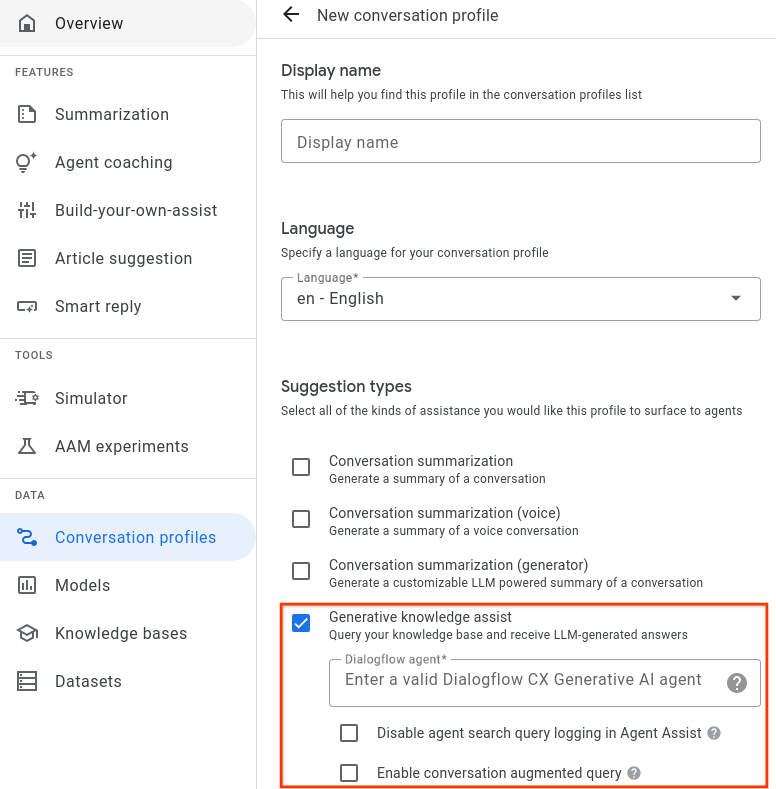
- You must enable the generative knowledge assist suggestion type and link it to the flow-based or playbook-based data store agent from the previous step.
- Optional: Use the Disable agent search query logging checkbox to indicate whether you would like Google to collect and store redacted search queries for potential quality improvement.
- You can use the Enable conversation augmented query checkbox to indicate whether you would like to take the conversation context between the human agent and the user into consideration when generating the answer for the search query.
Create from API
The following steps illustrate how to create a ConversationProfile with a HumanAgentAssistantConfig object. You can also perform these actions using the Agent Assist console.
To create a conversation profile, call the create method on the ConversationProfile resource.
Before using any of the request data, make the following replacements:- PROJECT_ID: your project ID
- LOCATION_ID: the ID for your location
- AGENT_ID: your flow-based or playbook-based data store agent ID from the previous step
  {
    "displayName": "my-conversation-profile-display-name",
    "humanAgentAssistantConfig": {
      "humanAgentSuggestionConfig": {
        "featureConfigs": [
          {
            "suggestionFeature": {
              "type": "KNOWLEDGE_SEARCH"
            },
            "queryConfig": {
              "dialogflowQuerySource": {
                "humanAgentSideConfig": {
                  "agent": "projects/PROJECT_ID/locations/LOCATION_ID/agents/AGENT_ID"
                }
              }
            },
            "disableAgentQueryLogging": false,
            "enableConversationAugmentedQuery": false,
          }
        ]
      }
    }
  }
When you create a conversation profile in the Agent Assist console, Agent Assist automatically enables Generative knowledge assist.
Step 2: Use a data store agent
Optionally, use the
SearchKnowledge
API to get the answers from the data store agent. You can also use the following configurations as part of your SearchKnowledge request:
querySource: Set this field to indicate whether an agent typed the query or Generative knowledge assist automatically suggested it.exactSearch: Set this field to indicate whether to search the exact input query without query rewrite.endUserMetadata: Set this field to include additional information about the end user that improves the generated answer. For more details, see the Data Store agent performance personalization page.searchConfig: Set this field for additional control to boost and filter knowledge documents. For more details, see the Data Store agent performance search configuration page.
Before using any of the request data, make the following replacements:
- PROJECT_ID: your project ID
- LOCATION_ID: the ID for your location
- CONVERSATION_PROFILE_ID: your conversation profile ID from the previous step
- SESSION_ID: your search session ID The search history of the same session can impact the search result. You can use the following conversation ID for the session ID.
- CONVERSATION_ID: the conversation (between human agent and end user) where the search request is triggered
- MESSAGE_ID: the latest conversation message when the search request is triggered
Here is an example JSON request:
{
  "parent": "projects/PROJECT_ID/locations/LOCATION_ID"
  "query": {
    "text": "What is the return policy?"
  }
  "conversationProfile": "projects/PROJECT_ID/locations/LOCATION_ID/conversationProfiles/CONVERSATION_PROFILE_ID"
  "sessionId": "SESSION_ID
  "conversation": "projects/PROJECT_ID/locations/LOCATION_ID/conversations/CONVERSATION_ID"
  "latestMessage": "projects/PROJECT_ID/locations/LOCATION_ID/conversations/CONVERSATION_ID/messages/MESSAGE_ID
  "querySource": AGENT_QUERY
  "exactSearch": false
  "searchConfig": {
    "filterSpecs": {
      "filter": "category: ANY(\"persona_B\")"
    }
  }
  "endUserMetadata": {
    "deviceOwned": "Google Pixel 7"
  }
}
Optionally, provide conversation and latest_message resource names if
the agent's search happens during a conversation with a user. These two fields
are required if you enable the enable_conversation_augmented_query option and
prefer enhancing the query answer experience with the conversational context
between your agent and the user.
Simulator
Test your flow-based or playbook-based data store agent in the Agent Assist simulator.
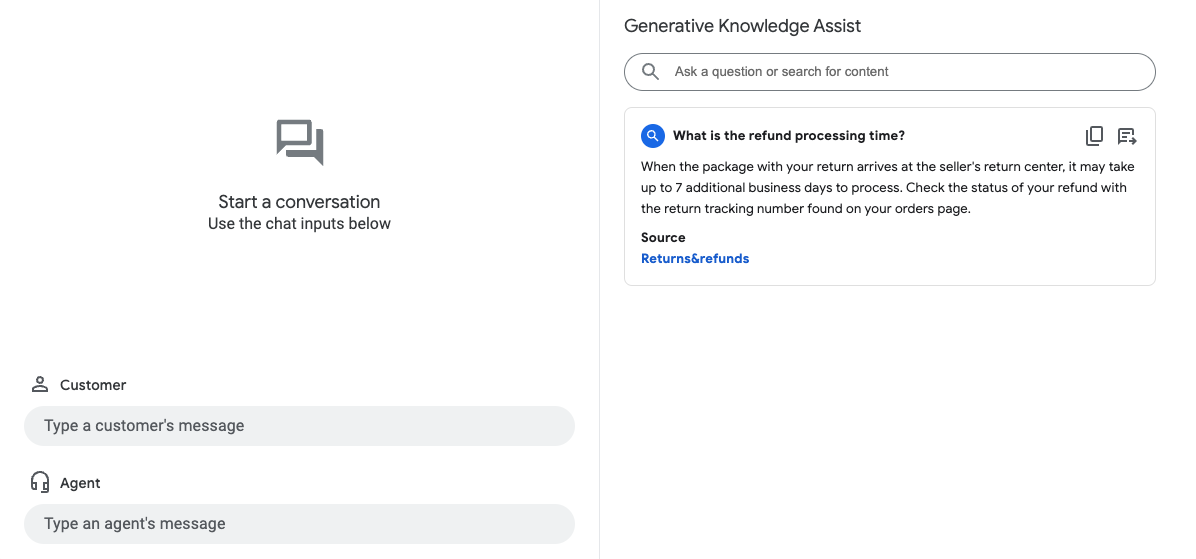
In the preceding example, the flow-based data store agent answers the user query What is the refund
processing time? with the following information:
- Generative AI generated answer: When the package with your return arrives at the seller's return center, it may take up to 7 additional business days to process. Check the status of your refund with the return tracking number found on your orders page.
- Title of the relevant knowledge document: Returns & refunds.
Send feedback
For the steps to send feedback, go to Send feedback to Agent Assist.
Answer agent questions
The following is an example JSON request for sending feedback about answering agent questions.
{
  "name": "projects/PROJECT_ID/locations/LOCATION_ID/answerRecords/ANSWER_RECORD_ID",
  "answerFeedback": {
    "displayed": true
    "clicked": true
    "correctnessLevel": "FULLY_CORRECT"
    "agentAssistantDetailFeedback": {
      "knowledgeSearchFeedback": {
        "answerCopied": true
        "clickedUris": [
          "url_1",
          "url_2",
          "url_3",
        ]
      }
    }
  }
}
Metadata
If you configure metadata for a knowledge document, both Generative knowledge assist and Proactive generative knowledge assist will return the document's metadata along with the response.
For example, you can use metadata to mark whether the knowledge document is your internal private article or an external public article. Within both the Agent Assist simulator and UI modules, both Generative knowledge assist and Proactive generative knowledge assist automatically display a document metadata value for certain keys.
gka_source_label: Value is displayed in the suggestion card directly.gka_source_tooltip: When the value isstructtype, holding your cursor over the source link expands and displays the value in a tooltip.
If you have the following metadata for a knowledge document, then the suggestion card lists the source as External Doc and the tooltip adds doc_visibility: public doc.
Metadata:
None
{
  "title": "Public Sample Doc",
  "gka_source_label": "External Doc",
  "gka_source_tooltip": {
      "doc_visibility": "public doc"
  }
}
End user Metadata
Attach end user metadata to improve and personalize the answer generated by the Datastore agent. For Generative knowledge assist, you can attach end user metadata to the end_user_metadata field or ingest it to a conversation with the IngestContextReferences API. You can use ingested end user metadata for both Generative knowledge assist and Proactive generative knowledge assist.
Example 1: Attach end user metadata
{
  "query": {
     "text": "test query"
  },
  "conversationProfile": "projects/PROJECT_ID/locations/LOCATION_ID/conversationProfiles/CONVERSATION_PROFILE_ID",
  "sessionId": "SESSION_ID",
  "conversation": "projects/PROJECT_ID/locations/LOCATION_ID/conversations/CONVERSATION_ID",
  "querySource": "AGENT_QUERY",
  "endUserMetadata": {
    "Name": "Jack",
    "Age": 33,
    "City": "Tokyo"
  }
}
Example 2: Ingest end user metadata
{
  "conversation": "projects/PROJECT_ID/locations/global/conversations/CONVERSATION_ID",
  "contextReferences": {
   "gka_end_user_metadata": {
      "contextContents": [{
"content": "{\"Name\":\"Jack\",\"Age\":33,\"city\":\"Tokyo\"}",
        "contentFormat": "JSON"
      }],
      "updateMode": "OVERWRITE",
      "languageCode": "en-US"
    }
  }
}
For more details about end user metadata in Datastore, see the information about Dialogflow personalization.
Language support
See the full list of supported languages.