

Playgrounds are powered by predeployed Vertex AI online prediction endpoints and don't incur charges. When you open the model card for a supported model, you can use the Try out panel to quickly test the model's capabilities by sending a text prompt. You can also set some of the most common parameters such as temperature and number of output tokens. The playground is limited to text input and output only.
When you launch Spaces, you have a working web application that's ready to use with far less manual effort than deploying a model and building an app to use the model's endpoint. Model Garden deploys your selected model in Vertex AI and deploys the sample app on a Cloud Run instance that uses the deployed model's endpoint. The application can also use existing endpoints, or a MaaS endpoint.
Before you begin
This tutorial requires you to set up a Google Cloud project and enable the Vertex AI API.
- Sign in to your Google Cloud account. If you're new to Google Cloud, create an account to evaluate how our products perform in real-world scenarios. New customers also get $300 in free credits to run, test, and deploy workloads.
-
In the Google Cloud console, on the project selector page, select or create a Google Cloud project.
Roles required to select or create a project
- Select a project: Selecting a project doesn't require a specific IAM role—you can select any project that you've been granted a role on.
-
Create a project: To create a project, you need the Project Creator role
(
roles/resourcemanager.projectCreator), which contains theresourcemanager.projects.createpermission. Learn how to grant roles.
-
If you're using an existing project for this guide, verify that you have the permissions required to complete this guide. If you created a new project, then you already have the required permissions.
-
Verify that billing is enabled for your Google Cloud project.
Enable the Vertex AI, Artifact Registry, Cloud Build, Cloud Logging, and Cloud Run Admin APIs.
Roles required to enable APIs
To enable APIs, you need the Service Usage Admin IAM role (
roles/serviceusage.serviceUsageAdmin), which contains theserviceusage.services.enablepermission. Learn how to grant roles.-
In the Google Cloud console, on the project selector page, select or create a Google Cloud project.
Roles required to select or create a project
- Select a project: Selecting a project doesn't require a specific IAM role—you can select any project that you've been granted a role on.
-
Create a project: To create a project, you need the Project Creator role
(
roles/resourcemanager.projectCreator), which contains theresourcemanager.projects.createpermission. Learn how to grant roles.
-
If you're using an existing project for this guide, verify that you have the permissions required to complete this guide. If you created a new project, then you already have the required permissions.
-
Verify that billing is enabled for your Google Cloud project.
Enable the Vertex AI, Artifact Registry, Cloud Build, Cloud Logging, and Cloud Run Admin APIs.
Roles required to enable APIs
To enable APIs, you need the Service Usage Admin IAM role (
roles/serviceusage.serviceUsageAdmin), which contains theserviceusage.services.enablepermission. Learn how to grant roles.- If you want to try Model Garden Spaces, then verify that the Compute Engine default service account has the required permissions to launch Spaces.
Required roles
To test model capabilities in Model Garden, ensure that both you and the Compute Engine default service account have the required IAM roles.
Required roles for users
To get the permissions that you need to test model capabilities in Model Garden, ask your administrator to grant you the following IAM roles on your Google Cloud project:
-
Service Usage Admin (
roles/serviceusage.serviceUsageAdmin) -
Artifact Registry Administrator (
roles/artifactregistry.admin) -
Cloud Run Admin (
roles/run.admin) -
Storage Admin (
roles/storage.admin) -
Vertex AI User (
roles/aiplatform.user)
For more information about granting roles, see Manage access to projects, folders, and organizations.
You might also be able to get the required permissions through custom roles or other predefined roles.
Required roles for the Compute Engine default service account
The Compute Engine default service account is used to launch Spaces.
To ensure that the Compute Engine default service account has the necessary permissions to launch Spaces, ask your administrator to grant the following IAM roles to the Compute Engine default service account on your Google Cloud project:
-
Vertex AI Service Agent (
roles/aiplatform.serviceAgent) -
Cloud Build Service Account (
roles/cloudbuild.builds.builder)
For more information about granting roles, see Manage access to projects, folders, and organizations.
Your administrator might also be able to give the Compute Engine default service account the required permissions through custom roles or other predefined roles.
Try a Playground
In the Google Cloud console, go to a supported model's model card, such as the Gemma 2 model card.
In the Try out panel:
- For Region, accept the default or choose your region.
- For Endpoint, select Demo playground.
- In the Prompt box, enter
Why is the sky blue?. - Expand the Advanced options section and view the default parameters.
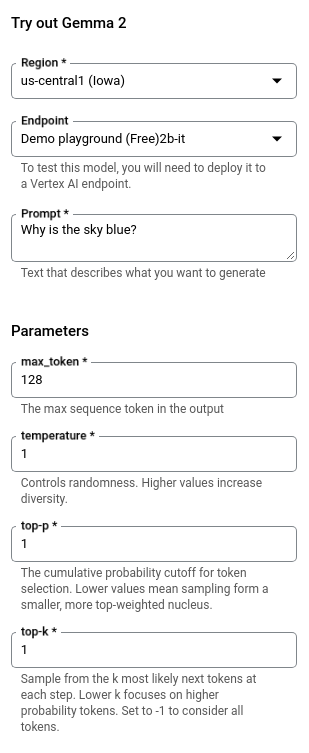
Click Submit. The output appears below the Submit button.
Try Spaces
To launch a model, open the model card for the supported model, and in the Try out Spaces panel, click a Space to launch one. You are charged for the machines that are used for the deployment and for the Cloud Run instance that's hosting the app.
You can launch Spaces with models such as Gemini, Gemma, Llama, and Stable Diffusion.
Launch Spaces
Launch Spaces to test and experiment with a model from a sample Gradio application.
In the Google Cloud console, go to Model Garden to view a model's model card.
Select the model to use. Supported models have a Try out Spaces panel, such as the Gemma 3 model card.
Click rocket_launch Run to launch a Space.
- You can choose to Require authentication (via Identity Aware Proxy) or Allow public access. For more information, see Enable APIs for the first deployment and grant permissions.
- Click Create new service to start the deployment. You can monitor the deployment status from the model card.
After the Spaces status changes to Ready, click it to view details about the deployment.
For basic protection, the web application requires a secret key that must be appended to the URL when submitting prompts. This secret key is provided in the Secret key field.
- Click Open to start using the app. You can send prompts to the model and view its responses from within the app.
You can share the URL so that others can try the app too.
- To close access to the app, click Edit in the Access control field.
In the Security tab for your Cloud Run application, select Require authentication and then click Save. The application is no longer available through the URL. Visits to the URL result in a 403 error (forbidden).
Clean up
To avoid incurring charges to your Google Cloud account for the resources used on this page, follow these steps.
Delete Spaces
To clean up Spaces, you must delete both the model's resources and the sample application's resources on Cloud Run.
Delete model resources
From within the Gradio app, you can delete model endpoints to clean up Vertex AI resources. Then, you need to delete the Cloud Run service to stop and delete the Gradio app.
To manually delete Vertex AI resources, see Undeploy models and delete resources.
Delete Cloud Run service
Delete resources related to a service, including all revision of the service. Deleting a service doesn't include items like container images from Artifact Registry. For more information see, Managing services in the Cloud Run documentation.
In the Google Cloud console, view the list of Cloud Run services:
Locate the service to delete, and then select it.
Click delete Delete. This deletes all revisions of the service.
Delete the project
The easiest way to eliminate billing is to delete the project that you created for the tutorial.
To delete the project:
- In the Google Cloud console, go to the Manage resources page.
- In the project list, select the project that you want to delete, and then click Delete.
- In the dialog, type the project ID, and then click Shut down to delete the project.
What's next
See an overview of Model Garden.