

本教程介绍了如何创建代理,以及如何使用智能体开发套件 (ADK) 流式传输功能来实现语音和视频通信。您将安装 ADK,设置一个使用 Google 搜索的基本代理,并使用 adk
web 工具运行该代理。
准备工作
本指南假定您有在 Windows、macOS 或 Linux 环境中使用终端的经验。
设置环境并安装 ADK
本部分将介绍如何准备本地环境。
创建并激活虚拟环境。建议使用虚拟环境。
# Create the environment python -m venv .venv # Activate the environment in each new terminal # For macOS or Linux: source .venv/bin/activate # For Windows CMD: .venv\Scripts\activate.bat # For Windows PowerShell: .venv\Scripts\Activate.ps1安装 ADK。
pip install google-adk
创建项目结构
为您的代理创建必要的目录和文件。
创建包含空文件的以下文件夹结构:
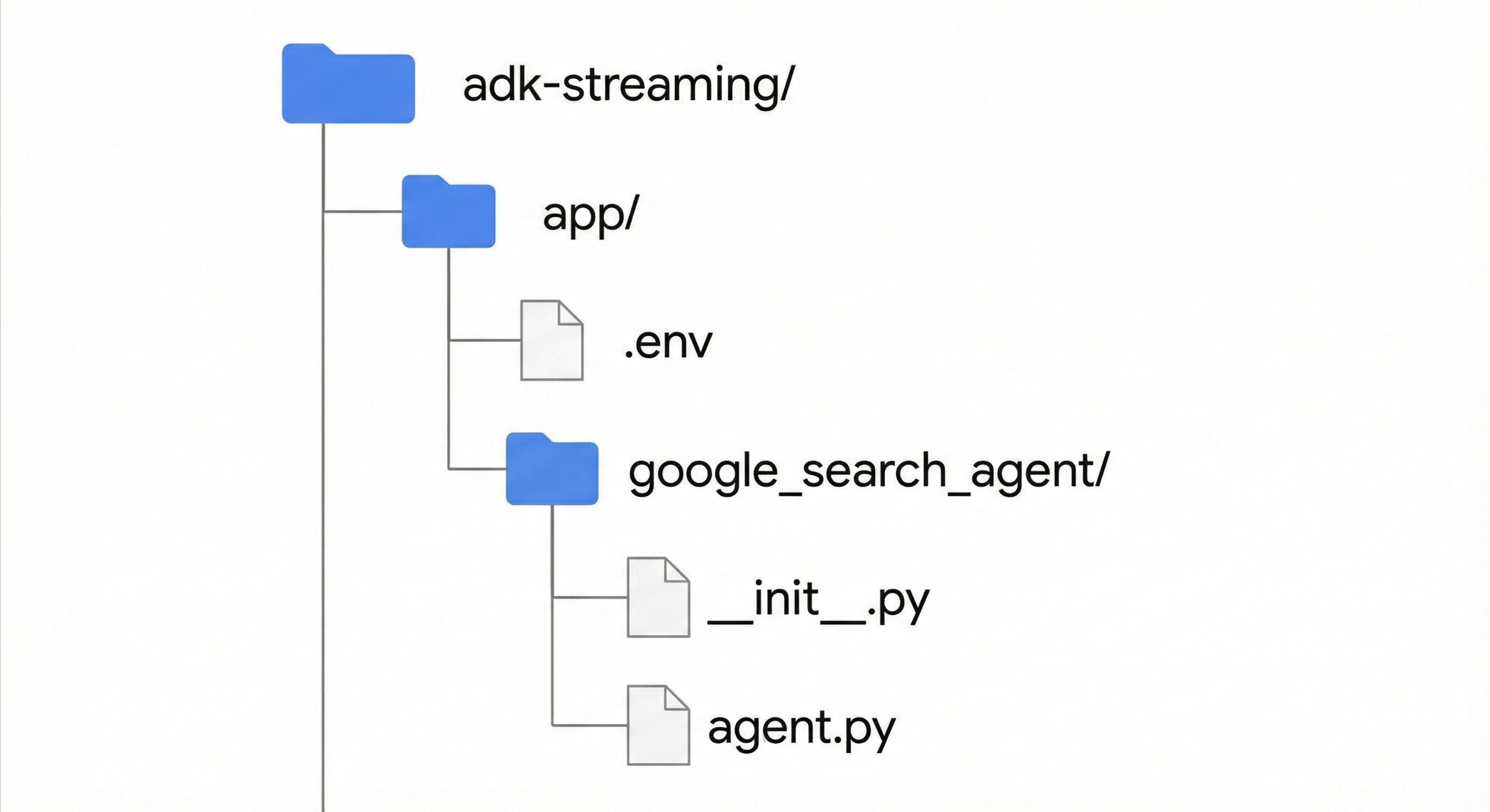
将以下代码添加到
app/google_search_agent/agent.py文件中。该文件定义了您的代理逻辑。您必须定义一个root_agent。 在以下代码中,使用受支持的模型名称更新model字段。from google.adk.agents import Agent from google.adk.tools import google_search # Import the tool root_agent = Agent( # A unique name for the agent. name="basic_search_agent", # The Large Language Model (LLM) that agent will use. # Please fill in the latest model id that supports live from # https://google.github.io/adk-docs/get-started/streaming/quickstart-streaming/#supported-models model="...", # for example: model="gemini-live-2.5-flash-preview-native-audio-09-2025" # A short description of the agent's purpose. description="Agent to answer questions using Google Search.", # Instructions to set the agent's behavior. instruction="You are an expert researcher. You always stick to the facts.", # Add google_search tool to perform grounding with Google search. tools=[google_search] )将以下代码添加到
app/google_search_agent/__init__.py文件:from . import agent
设置平台
如需运行代理,请将其配置为使用 Google Cloud Vertex AI。
打开位于
app/目录中的.env文件。将以下内容添加到该文件中。将
PROJECT_ID替换为您的 Google Cloud 项目 ID,并将LOCATION替换为您的 Google Cloud 位置。GOOGLE_CLOUD_PROJECT=PROJECT_ID GOOGLE_CLOUD_LOCATION=LOCATION GOOGLE_GENAI_USE_VERTEXAI=True
使用开发者界面运行代理
启动开发界面以与您的代理进行交互。
将当前目录切换到
app。cd app设置
SSL_CERT_FILE环境变量。必须执行此步骤,才能进行语音和视频测试。macOS/Linux
export SSL_CERT_FILE=$(python -m certifi)
Windows
$env:SSL_CERT_FILE = (python -m certifi)
运行开发者界面。
adk web打开终端中提供的网址,通常是
http://localhost:8000或http://127.0.0.1:8000。选择
google_search_agent。
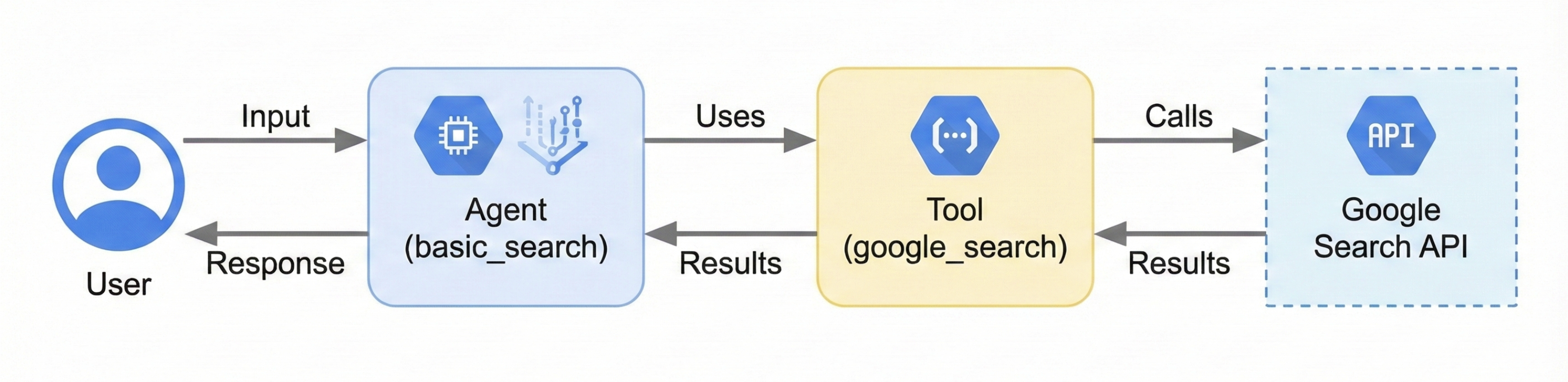
下图展示了用户输入如何流向代理、代理如何使用 Google 搜索工具,以及代理如何返回回答:
与代理交互
启动开发者界面后,您可以使用文本、语音或视频与代理进行交互。
使用文本输入
在界面中输入以下提示,以测试代理基于文本的回答。代理使用 google_search 工具获取最新信息来回答这些问题。
- 纽约的天气怎么样?
- 纽约现在几点?
- 巴黎的天气怎么样?
- 巴黎现在几点?
使用语音和视频输入
如需使用语音输入,请重新加载网络浏览器,然后点击麦克风按钮。提出问题后,您会实时听到回答。
如需使用视频输入,请重新加载网络浏览器,然后点击摄像头按钮。您可以提出“你看到了什么?”之类的问题,然后代理就会描述它从视频输入中看到的内容。
停止开发者界面
如需停止 adk web 工具,请在运行该工具的终端中按 Ctrl+C。
后续步骤
- 如需详细了解如何使用 ADK 进行 Live API 开发,请参阅 ADK 文档。
- 请参阅双向流式传输演示。
- 开始使用 Gen AI SDK。
- 开始使用 WebSocket。
- 了解如何配置语言和语音。
- 了解如何配置 Gemini 功能。
- 了解 Gemini Live API 最佳实践。