

本页面介绍了如何使用扩绘功能将图片的内容扩展到更大的区域或者具有不同尺寸的区域。
扩绘示例
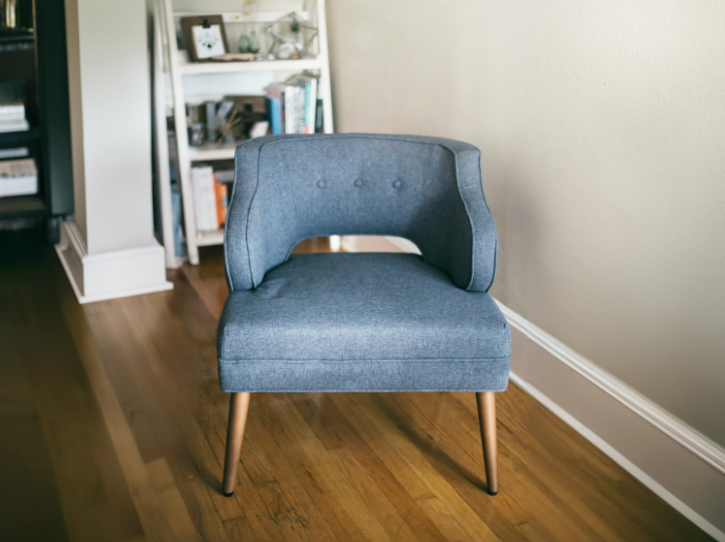
扩绘是一种基于蒙版的修改方法,可让您扩展基础图片的内容,以适合更大或不同大小的蒙版画布。
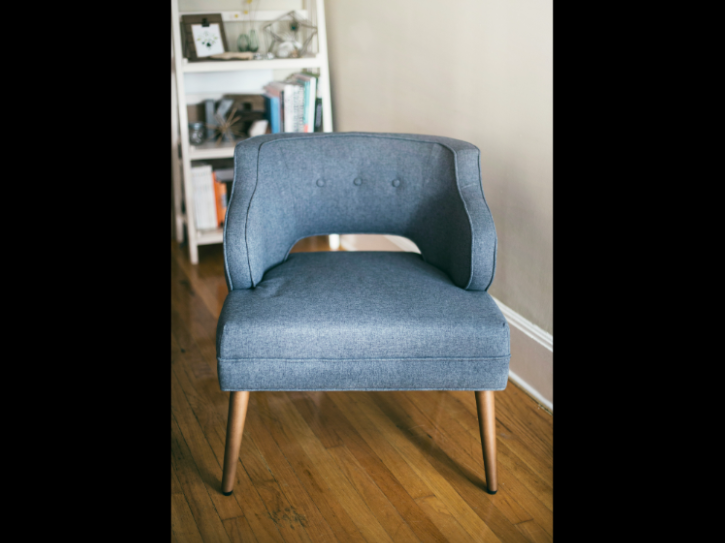
图片来源:Unsplash 用户 Kari Shea。 |

|
|
查看 Imagen for Editing and Customization 模型卡片
准备工作
- Sign in to your Google Cloud account. If you're new to Google Cloud, create an account to evaluate how our products perform in real-world scenarios. New customers also get $300 in free credits to run, test, and deploy workloads.
-
In the Google Cloud console, on the project selector page, select or create a Google Cloud project.
Roles required to select or create a project
- Select a project: Selecting a project doesn't require a specific IAM role—you can select any project that you've been granted a role on.
-
Create a project: To create a project, you need the Project Creator role
(
roles/resourcemanager.projectCreator), which contains theresourcemanager.projects.createpermission. Learn how to grant roles.
-
Verify that billing is enabled for your Google Cloud project.
-
Enable the Vertex AI API.
Roles required to enable APIs
To enable APIs, you need the Service Usage Admin IAM role (
roles/serviceusage.serviceUsageAdmin), which contains theserviceusage.services.enablepermission. Learn how to grant roles. -
In the Google Cloud console, on the project selector page, select or create a Google Cloud project.
Roles required to select or create a project
- Select a project: Selecting a project doesn't require a specific IAM role—you can select any project that you've been granted a role on.
-
Create a project: To create a project, you need the Project Creator role
(
roles/resourcemanager.projectCreator), which contains theresourcemanager.projects.createpermission. Learn how to grant roles.
-
Verify that billing is enabled for your Google Cloud project.
-
Enable the Vertex AI API.
Roles required to enable APIs
To enable APIs, you need the Service Usage Admin IAM role (
roles/serviceusage.serviceUsageAdmin), which contains theserviceusage.services.enablepermission. Learn how to grant roles. -
为您的环境设置身份验证。
Select the tab for how you plan to use the samples on this page:
Console
When you use the Google Cloud console to access Google Cloud services and APIs, you don't need to set up authentication.
Python
如需在本地开发环境中使用本页面上的 Python 示例,请安装并初始化 gcloud CLI,然后使用您的用户凭证设置应用默认凭证。
安装 Google Cloud CLI。
如果您使用的是外部身份提供方 (IdP),则必须先使用联合身份登录 gcloud CLI。
If you're using a local shell, then create local authentication credentials for your user account:
gcloud auth application-default login
You don't need to do this if you're using Cloud Shell.
If an authentication error is returned, and you are using an external identity provider (IdP), confirm that you have signed in to the gcloud CLI with your federated identity.
Google Cloud
REST
如需在本地开发环境中使用本页面上的 REST API 示例,请使用您提供给 gcloud CLI 的凭证。
安装 Google Cloud CLI。
如果您使用的是外部身份提供方 (IdP),则必须先使用联合身份登录 gcloud CLI。
如需了解详情,请参阅 Google Cloud 身份验证文档中的使用 REST 时进行身份验证。
扩展图片的内容
使用以下代码示例扩展现有图片的内容。
控制台
1. 在 Google Cloud 控制台中,依次前往 Vertex AI > Media Studio 页面。<a href="https://console.cloud.google.com/vertex-ai/studio/media/generate;tab=image" class="button button-primary" target="console" track-name="consoleLink" track-type="task">Go to Media Studio</a>点击上传。在显示的文件对话框中,选择要上传的文件。
点击扩绘。
在扩绘菜单中,为最终图片选择其中一个预定义的宽高比,或点击自定义为最终图片定义自定义尺寸。
在编辑工具栏中,选择图片的位置:
左对齐:
水平居中对齐:
右对齐:
顶部对齐:
垂直居中对齐:
底部对齐: 1 可选:在参数面板中,调整以下选项:
模型:要使用的 Imagen 模型
结果数量:要生成的结果数量
否定提示:要避免生成的内容
在提示字段中,输入提示以修改图片。
点击 生成。
Python
安装
pip install --upgrade google-genai
如需了解详情,请参阅 SDK 参考文档。
设置环境变量以将 Gen AI SDK 与 Vertex AI 搭配使用:
# Replace the `GOOGLE_CLOUD_PROJECT` and `GOOGLE_CLOUD_LOCATION` values
# with appropriate values for your project.
export GOOGLE_CLOUD_PROJECT=GOOGLE_CLOUD_PROJECT
export GOOGLE_CLOUD_LOCATION=us-central1
export GOOGLE_GENAI_USE_VERTEXAI=True
REST
在使用任何请求数据之前,请先进行以下替换:
- PROJECT_ID:您的 Google Cloud 项目 ID。
- LOCATION:您的项目的区域。 例如
us-central1、europe-west2或asia-northeast3。如需查看可用区域的列表,请参阅 Vertex AI 上的生成式 AI 位置。 prompt:对于图片扩绘,您可以提供空字符串来创建修改后的图片。 如果您选择提供提示,请使用蒙版区域的说明,以获得最佳结果。例如,使用“蓝天”,而不是“插入蓝天”。referenceType:ReferenceImage是一种图片,可为图片修改提供更多上下文。修改应用场景需要使用常规 RGB 原始参考图片 (REFERENCE_TYPE_RAW)。一次请求中最多只能存在一张原始参考图片。 输出图片的高度和宽度与原始参考图片相同。蒙版修改应用场景需要蒙版参考图片 (REFERENCE_TYPE_MASK)。如果存在原始参考图片,蒙版图片的高度和宽度必须与原始参考图片相同。如果蒙版参考图片为空,并且maskMode未设置为MASK_MODE_USER_PROVIDED,则系统会根据原始参考图片计算蒙版。- B64_BASE_IMAGE:要修改或放大的基础图片。图片必须指定为 base64 编码的字节字符串。大小上限:10 MB。
- B64_OUTPAINTING_MASK:您要用作蒙版层来修改原始图片的黑白图片。蒙版的分辨率应与输入图片相同。 输出图片的分辨率将与输入图片相同。 此蒙版图片必须指定为 base64 编码的字节字符串。大小上限:10 MB。
- MASK_DILATION - 浮点数。将此蒙版扩大的图像宽度的百分比。建议使用值
0.03,以进行扩绘。设置"dilation": 0.0可能会导致在扩展点出现明显的边框,或者可能会导致白色边框效果。 - EDIT_STEPS - 整数。基本模型的采样步数。对于扩绘,从
35步数开始。如果质量不符合您的要求,请增加步数。 - EDIT_IMAGE_COUNT - 已修改图片的数量。接受的整数值:1-4。默认值:4。
HTTP 方法和网址:
POST https://LOCATION-aiplatform.googleapis.com/v1/projects/PROJECT_ID/locations/LOCATION/publishers/google/models/imagen-3.0-capability-001:predict
请求 JSON 正文:
{
  "instances": [
    {
      "prompt": "",
      "referenceImages": [
        {
          "referenceType": "REFERENCE_TYPE_RAW",
          "referenceId": 1,
          "referenceImage": {
            "bytesBase64Encoded": "B64_BASE_IMAGE"
          }
        },
        {
          "referenceType": "REFERENCE_TYPE_MASK",
          "referenceId": 2,
          "referenceImage": {
            "bytesBase64Encoded": "B64_OUTPAINTING_MASK"
          },
          "maskImageConfig": {
            "maskMode": "MASK_MODE_USER_PROVIDED",
            "dilation": MASK_DILATION
          }
        }
      ]
    }
  ],
  "parameters": {
    "editConfig": {
      "baseSteps": EDIT_STEPS
    },
    "editMode": "EDIT_MODE_OUTPAINT",
    "sampleCount": EDIT_IMAGE_COUNT
  }
}
如需发送请求,请选择以下方式之一:
以下示例响应适用于包含curl
将请求正文保存在名为
request.json的文件中,然后执行以下命令:curl -X POST \
-H "Authorization: Bearer $(gcloud auth print-access-token)" \
-H "Content-Type: application/json; charset=utf-8" \
-d @request.json \
"https://LOCATION-aiplatform.googleapis.com/v1/projects/PROJECT_ID/locations/LOCATION/publishers/google/models/imagen-3.0-capability-001:predict"PowerShell
将请求正文保存在名为
request.json的文件中,然后执行以下命令:$cred = gcloud auth print-access-token
$headers = @{ "Authorization" = "Bearer $cred" }
Invoke-WebRequest `
-Method POST `
-Headers $headers `
-ContentType: "application/json; charset=utf-8" `
-InFile request.json `
-Uri "https://LOCATION-aiplatform.googleapis.com/v1/projects/PROJECT_ID/locations/LOCATION/publishers/google/models/imagen-3.0-capability-001:predict" | Select-Object -Expand Content"sampleCount": 2的请求。响应返回两个预测对象,其中生成的图片字节采用 base64 编码。{ "predictions": [ { "bytesBase64Encoded": "BASE64_IMG_BYTES", "mimeType": "image/png" }, { "mimeType": "image/png", "bytesBase64Encoded": "BASE64_IMG_BYTES" } ] }限制
如果扩绘后的图片扩大到原始图片大小的 200% 或更大,模型可能会生成失真的细节。根据最佳实践,我们建议添加一个后处理步骤,以对扩绘后的图片运行 Alpha 混合。
以下代码是后处理的一个示例:
parameters = {
   "editConfig": {
       "outpaintingConfig": {
         "blendingMode": "alpha-blending",
         "blendingFactor": 0.01,
       },
   },
}
后续步骤
阅读有关 Imagen 和其他 Vertex AI 上的生成式 AI 产品的文章:
- Imagen 3 on Vertex AI 开发者入门指南
- 与创作者一起为创作者打造的全新生成式媒体模型和工具
- Gemini 中的新功能:自定义 Gem 以及通过 Imagen 3 改进的图片生成
- Google DeepMind:Imagen 3 - 我们质量最高的文本转图片模型
如未另行说明,那么本页面中的内容已根据知识共享署名 4.0 许可获得了许可,并且代码示例已根据 Apache 2.0 许可获得了许可。有关详情,请参阅 Google 开发者网站政策。Java 是 Oracle 和/或其关联公司的注册商标。
最后更新时间 (UTC):2025-12-17。