


本文將說明如何使用 OpenTelemetry 檢測 LangGraph ReAct 代理程式,以便從代理程式收集遙測資料。使用者提示、代理程式回覆和選項會以附加至範圍的屬性形式,納入遙測資料。與包含生成式 AI 事件的範圍相關聯的記錄項目,也會包含代理程式的回覆。如果代理程式使用 Langchain 的 ChatVertexAI 呼叫 Gemini 模型,請按照本文中的操作說明進行。
使用 LangGraph ReAct 代理程式的應用程式也可以收集多模態提示和回應。本文說明如何收集文字提示和回覆。如要收集多模態資料,則必須進行額外設定。詳情請參閱「收集及查看多模態提示和回覆」。
檢測生成式 AI 應用程式,收集遙測資料
如要為生成式 AI 應用程式進行儀表化,以收集記錄、指標和追蹤資料,請執行下列操作:
安裝 OpenTelemetry 套件
新增下列 OpenTelemetry 檢測和匯出工具套件:
uv add 'opentelemetry-instrumentation-vertexai>=2.0b0' \
  'opentelemetry-instrumentation-sqlite3' \
  'opentelemetry-exporter-gcp-logging' \
  'opentelemetry-exporter-otlp-proto-grpc'
系統會使用 Cloud Logging API 或 Cloud Monitoring API,將記錄檔和指標資料傳送至您的 Google Cloud 專案。opentelemetry-exporter-gcp-logging 程式庫會叫用這些 API 中的端點。
追蹤記錄和指標資料會使用 Google Cloud 傳送至 Telemetry (OTLP) API,該 API 會實作 OpenTelemetry Line Protocol。opentelemetry-exporter-otlp-proto-grpc 程式庫會叫用遙測 (OTLP) API 端點。
追蹤資料的儲存格式通常與 OpenTelemetry Line Protocol 定義的 proto 檔案一致。不過,欄位可能會先從 OpenTelemetry 專屬資料類型轉換為 JSON 資料類型,再進行儲存。如要進一步瞭解儲存格式,請參閱「追蹤資料的結構定義」。
設定 OpenTelemetry,收集及傳送遙測資料
在 LangGraph 代理程式的初始化程式碼中,設定 OpenTelemetry 來擷取遙測資料並傳送至 Google Cloud 專案:
如要查看完整範例,請在範例的工具列中選取 GitHub 標誌。
追蹤生成式 AI 代理程式的叫用
如要追蹤 LangGraph 代理程式叫用的執行作業,請在代理程式叫用周圍建立自訂時距:
如要查看完整範例,請在範例的工具列中選取 GitHub 標誌。
您可能想在應用程式程式碼中的重要位置加入先前的程式碼。
如要進一步瞭解如何新增自訂範圍和指標,請參閱「在應用程式中新增自訂追蹤記錄和指標」。
執行範例
這個範例是使用 OpenTelemetry 檢測的 LangGraph 代理程式,可將追蹤記錄和記錄檔連同生成式 AI 提示和回覆,以及指標傳送至您的Google Cloud 專案。
LangGraph 代理角色
LangGraph 代理程式定義為 SQL 專家,可完整存取暫時性 SQLite 資料庫。這個代理程式是使用 LangGraph 預先建構的 ReAct 代理程式實作,並使用 SQLDatabaseToolkit 存取資料庫 (一開始是空的)。
事前準備
- 登入 Google Cloud 帳戶。如果您是 Google Cloud新手,歡迎 建立帳戶,親自評估產品在實際工作環境中的成效。新客戶還能獲得價值 $300 美元的免費抵免額,可用於執行、測試及部署工作負載。
-
安裝 Google Cloud CLI。
-
若您採用的是外部識別資訊提供者 (IdP),請先使用聯合身分登入 gcloud CLI。
-
執行下列指令,初始化 gcloud CLI:
gcloud init -
選取或建立專案所需的角色
- 選取專案:選取專案時,不需要具備特定 IAM 角色,只要您在專案中獲派角色,即可選取該專案。
-
建立專案:如要建立專案,您需要專案建立者角色 (
roles/resourcemanager.projectCreator),其中包含resourcemanager.projects.create權限。瞭解如何授予角色。
-
建立 Google Cloud 專案:
gcloud projects create PROJECT_ID
將
PROJECT_ID替換為您要建立的 Google Cloud 專案名稱。 -
選取您建立的 Google Cloud 專案:
gcloud config set project PROJECT_ID
將
PROJECT_ID替換為 Google Cloud 專案名稱。
啟用 Vertex AI、服務使用情形、Telemetry、Cloud Logging、Cloud Monitoring 和 Cloud Trace API:
啟用 API 時所需的角色
您必須具備
serviceusage.services.enable權限,才能啟用 API。如果您建立了專案,可能已透過「擁有者」角色 (roles/owner) 取得這項權限。否則,您可以透過「服務使用情形管理員」角色 (roles/serviceusage.serviceUsageAdmin) 取得這項權限。瞭解如何授予角色。gcloud services enable aiplatform.googleapis.com
serviceusage.googleapis.com telemetry.googleapis.com logging.googleapis.com monitoring.googleapis.com cloudtrace.googleapis.com -
安裝 Google Cloud CLI。
-
若您採用的是外部識別資訊提供者 (IdP),請先使用聯合身分登入 gcloud CLI。
-
執行下列指令,初始化 gcloud CLI:
gcloud init -
選取或建立專案所需的角色
- 選取專案:選取專案時,不需要具備特定 IAM 角色,只要您在專案中獲派角色,即可選取該專案。
-
建立專案:如要建立專案,您需要專案建立者角色 (
roles/resourcemanager.projectCreator),其中包含resourcemanager.projects.create權限。瞭解如何授予角色。
-
建立 Google Cloud 專案:
gcloud projects create PROJECT_ID
將
PROJECT_ID替換為您要建立的 Google Cloud 專案名稱。 -
選取您建立的 Google Cloud 專案:
gcloud config set project PROJECT_ID
將
PROJECT_ID替換為 Google Cloud 專案名稱。
啟用 Vertex AI、服務使用情形、Telemetry、Cloud Logging、Cloud Monitoring 和 Cloud Trace API:
啟用 API 時所需的角色
您必須具備
serviceusage.services.enable權限,才能啟用 API。如果您建立了專案,可能已透過「擁有者」角色 (roles/owner) 取得這項權限。否則,您可以透過「服務使用情形管理員」角色 (roles/serviceusage.serviceUsageAdmin) 取得這項權限。瞭解如何授予角色。gcloud services enable aiplatform.googleapis.com
serviceusage.googleapis.com telemetry.googleapis.com logging.googleapis.com monitoring.googleapis.com cloudtrace.googleapis.com -
如要取得讓範例應用程式寫入記錄、指標和追蹤資料所需的權限,請要求管理員授予您專案的下列 IAM 角色:
- Cloud 遙測資料追蹤記錄寫入者 (
roles/telemetry.tracesWriter) - 記錄檔寫入者 (
roles/logging.logWriter) - Monitoring 指標寫入者 (
roles/monitoring.metricWriter) - Vertex AI 使用者 (
roles/aiplatform.user)
如果您在 Cloud Shell、 Google Cloud 資源或本機開發環境中執行範例,這些權限就已足夠。
- Cloud 遙測資料追蹤記錄寫入者 (
請務必指定配額專案。Vertex AI API (
aiplatform.googleapis.com) 必須指定配額專案。詳情請參閱「設定配額專案」。舉例來說,下列指令可以設定配額專案。gcloud config set billing/quota_project PROJECT_ID
執行範例
如要執行範例,請按照下列步驟操作:
在 Cloud Shell 中複製存放區:
git clone https://github.com/GoogleCloudPlatform/opentelemetry-samples.git前往範例目錄:
cd opentelemetry-samples/python/langgraph-sql-agent設定環境變數:
# Capture GenAI prompts and responses
export OTEL_INSTRUMENTATION_GENAI_CAPTURE_MESSAGE_CONTENT=true
# Capture application logs automatically
export OTEL_PYTHON_LOGGING_AUTO_INSTRUMENTATION_ENABLED=true
# Set the location to one that supports gemini-3.5-flash
export GOOGLE_CLOUD_REGION=global
如要改用其他模型,請編輯
main.py。請確認模型支援您指定的位置。如需模型相關資訊,請參閱「Google 模型」。建立虛擬環境並執行範例:
uv run main.py應用程式會顯示類似以下的訊息:
Starting agent using ephemeral SQLite DB.如要建立資料庫,請在「Talk to the SQL agent >>」(與 SQL 代理程式對話 >>) 提示中輸入值,然後按下 Enter 鍵。
代理執行的動作隨即會顯示在 Cloud Shell 中。
下圖說明使用者與應用程式之間的互動範例:
Talk to the SQL agent >> Create a new table to hold weather data.
👤 User: Create a new table to hold weather data.
🤖 Agent: Okay, I'll create a table to hold weather data. First, I need to decide on the schema for the table. I'll include columns for date, location, temperature, humidity, and precipitation.

CREATE TABLE weather (
  date DATE,
  location VARCHAR(255),
  temperature REAL,
  humidity REAL,
  precipitation REAL
);

🤖 Agent: I have created the weather table.
👤 User: Add altitude to the table.
🤖 Agent

ALTER TABLE weather ADD COLUMN altitude REAL;
如要退出,請輸入
Ctrl-C。
生成式 AI 代理執行的動作並非確定性,因此即使輸入相同的提示,回覆也可能會有差異。
查看追蹤記錄、指標和記錄
本節說明如何查看生成式 AI 事件。
事前準備
如要取得查看記錄、指標和追蹤資料所需的權限,請要求管理員在專案中授予您下列 IAM 角色:
- 記錄檢視器 (
roles/logging.viewer) - Monitoring 檢視者 (
roles/monitoring.viewer) - Cloud Trace 使用者 (
roles/cloudtrace.user)
如要進一步瞭解如何授予角色,請參閱「管理專案、資料夾和組織的存取權」。
查看遙測資料
如要查看生成式 AI 事件,請使用「Trace Explorer」頁面:
-
前往 Google Cloud 控制台的
 「Trace Explorer」頁面:
前往「Trace explorer」(Trace 探索工具)
您也可以透過搜尋列找到這個頁面。
在工具列中,依序選取「新增篩選器」和「範圍名稱」,然後選取
invoke agent。「執行範例」一節包含範例執行作業,其中兩個提示會傳送至應用程式。下圖說明篩選資料後的「追蹤記錄探索工具」頁面:
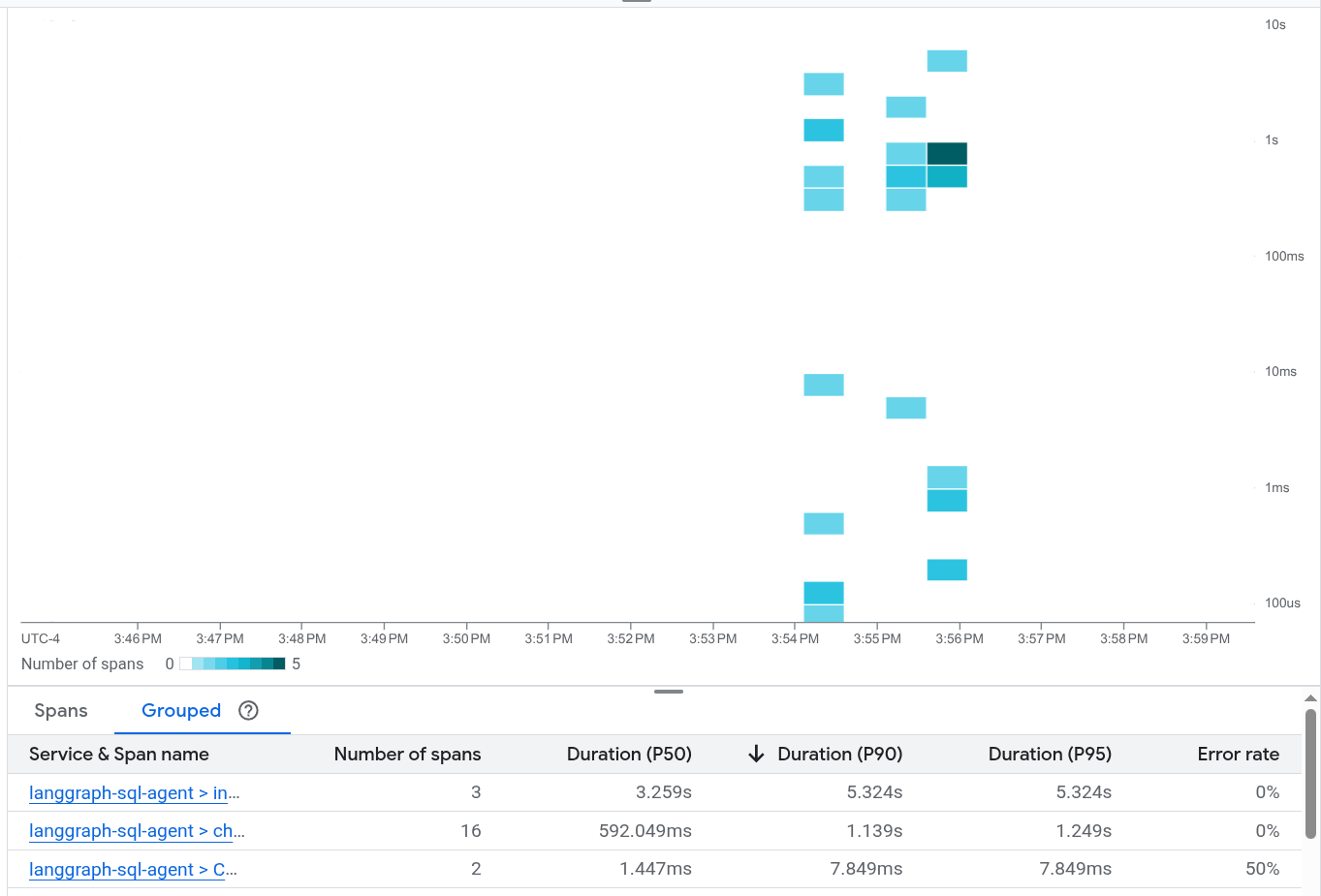
如果您從未使用過 Cloud Trace,Google Cloud Observability 就需要建立資料庫來儲存追蹤資料。建立資料庫可能需要幾分鐘,這段期間無法查看任何追蹤資料。
如要探索時距和記錄資料,請在「Spans」(時距) 表格中選取時距。
「詳細資料」頁面隨即開啟。這個頁面會顯示相關聯的追蹤記錄及其範圍。頁面上的表格會顯示所選範圍的詳細資訊。這類資訊包括:
「輸入/輸出」分頁會顯示生成式 AI 代理程式的事件。如要進一步瞭解這些事件,請參閱「查看生成式 AI 事件」一文。
下圖顯示追蹤記錄,其中一個時距的名稱為
invoke_agent。該範圍會叫用 Gemini。 Gemini 範圍包含生成式 AI 事件: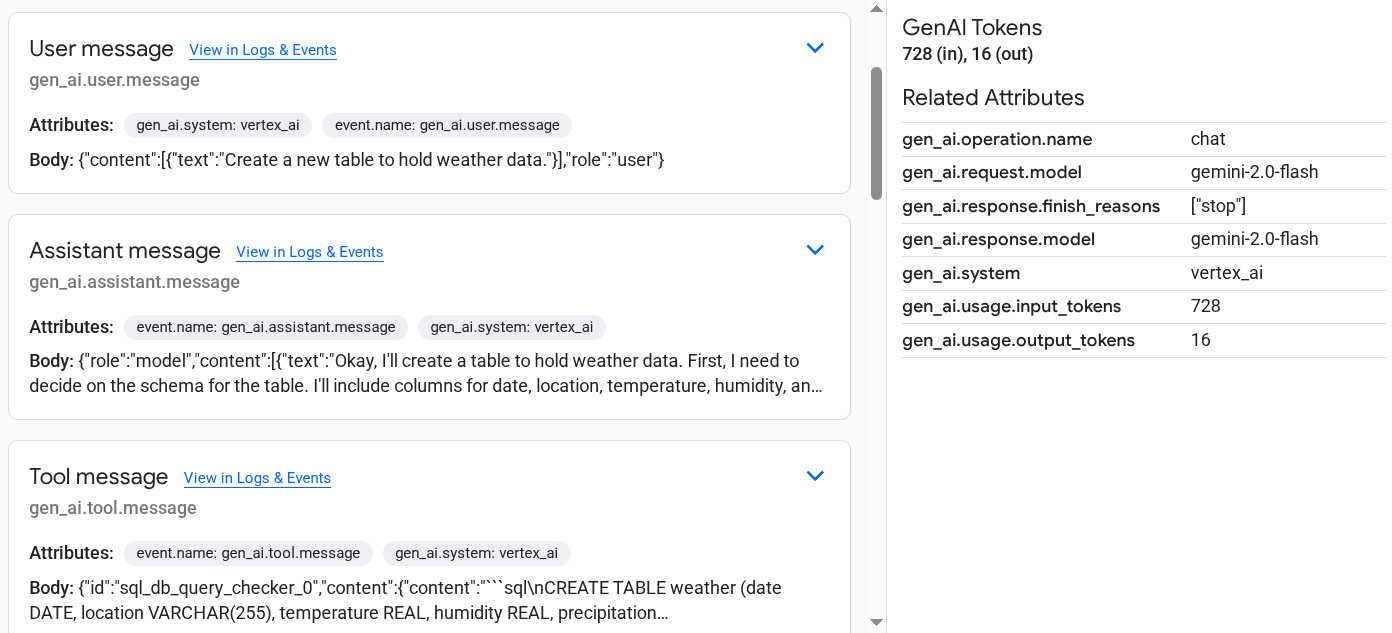
「記錄和事件」分頁會列出與時距相關聯的記錄項目和事件。如要在 Logs Explorer 中查看記錄資料,請在這個分頁的工具列中選取「查看記錄」。
記錄資料包含 LangGraph 代理程式的回應。舉例來說,在範例執行中,JSON 酬載包含下列內容:
{
  logName: "projects/my-project/logs/otel_python_inprocess_log_name_temp"
  jsonPayload: {
    message: {
      role: "model"
      content: [
        0: {
          text: "Okay, I'll create a table to hold weather data. First, I need to decide on the schema for the table. I'll include columns for date, location, temperature, humidity, and precipitation.

          CREATE TABLE weather (
              date DATE,
              location VARCHAR(255),
              temperature REAL,
              humidity REAL,
              precipitation REAL
          );
          "
        }
      ]
    }
  index: 0
  }
...
}
這個範例已完成儀表化,可將指標資料傳送至您的 Google Cloud 專案,但不會產生任何指標。