

You can query and analyze your log and trace data by using SQL in Observability Analytics to discover performance trends, generate aggregate insights, and display results in charts and tables.
You can also save query results to your custom dashboards. If you want to view individual log entries or inspect specific traces and spans, then use the Logs Explorer page or the Trace Explorer page.
About linked BigQuery datasets
You don't need a linked BigQuery dataset to query your log data, your trace data, or both data types when you use the Observability Analytics page.
You do need a linked BigQuery dataset when you want to do any of the following:
- Join log or trace data with other BigQuery datasets.
- Query your log or trace data from another service like the BigQuery Studio page or Data Studio.
- Improve the performance of Observability Analytics queries by running them on your BigQuery reserved slots.
- Create an alerting policy that monitors the result of a SQL query. This capability is only supported when log data is queried. For more information, see Monitor your SQL query results with an alerting policy.
This document doesn't describe how to create a linked BigQuery dataset, which is a process specific to each data type. For information about how to create a linked BigQuery dataset, see Query log data by using a linked BigQuery dataset or Query trace data by using a linked BigQuery dataset.
Before you begin
- Sign in to your Google Cloud account. If you're new to Google Cloud, create an account to evaluate how our products perform in real-world scenarios. New customers also get $300 in free credits to run, test, and deploy workloads.
-
In the Google Cloud console, on the project selector page, select or create a Google Cloud project.
Roles required to select or create a project
- Select a project: Selecting a project doesn't require a specific IAM role—you can select any project that you've been granted a role on.
-
Create a project: To create a project, you need the Project Creator role
(
roles/resourcemanager.projectCreator), which contains theresourcemanager.projects.createpermission. Learn how to grant roles.
-
Verify that billing is enabled for your Google Cloud project.
Enable the Observability API, if it is not already enabled.
Roles required to enable APIs
To enable APIs, you need the
serviceusage.services.enablepermission. If you created the project, then you likely already have this permission through the Owner role (roles/owner). Otherwise, you can get this permission through the Service Usage Admin role (roles/serviceusage.serviceUsageAdmin). Learn how to grant roles.-
In the Google Cloud console, on the project selector page, select or create a Google Cloud project.
Roles required to select or create a project
- Select a project: Selecting a project doesn't require a specific IAM role—you can select any project that you've been granted a role on.
-
Create a project: To create a project, you need the Project Creator role
(
roles/resourcemanager.projectCreator), which contains theresourcemanager.projects.createpermission. Learn how to grant roles.
-
Verify that billing is enabled for your Google Cloud project.
Enable the Observability API, if it is not already enabled.
Roles required to enable APIs
To enable APIs, you need the
serviceusage.services.enablepermission. If you created the project, then you likely already have this permission through the Owner role (roles/owner). Otherwise, you can get this permission through the Service Usage Admin role (roles/serviceusage.serviceUsageAdmin). Learn how to grant roles.-
To get the permissions that you need to load the Observability Analytics page, write, run, and save private queries on your trace data, ask your administrator to grant you the following IAM roles:
- Observability View Accessor (
roles/observability.viewAccessor) on the observability views that you want to query. This role supports IAM conditions, which let you restrict the grant to a specific view. If you don't attach a condition to the role grant, then the principal can access all observability views. - Observability Analytics User (
roles/observability.analyticsUser) on your project. This role contains the permissions required to save and run private queries, and to run shared queries. - Logs Viewer (
roles/logging.viewer) on your project - Logs View Accessor (
roles/logging.viewAccessor) on the project that stores the log views that you want to query.
For more information about granting roles, see Manage access to projects, folders, and organizations.
You might also be able to get the required permissions through custom roles or other predefined roles.
- Observability View Accessor (
Query log and trace data
This section describes the approaches that you can use to query your log and trace data:
- Load a system-defined query, edit this query, and then run the query.
- Enter and run a custom query. For example, you might paste in a query you have or write one. Custom queries can include joins, nested queries, and other complex SQL statements. For examples, see Sample SQL queries.
- Build a query by making menu selections and then run that query. Observability Analytics converts your selections into a SQL query, which you can both view and edit.
Load, edit, and run the system-defined query
-
In the Google Cloud console, go to the manage_search Observability Analytics page:
If you use the search bar to find this page, then select the result whose subheading is Logging.
In the Views menu, select a view.
To find the view to query, use the filter_list Filter bar or scroll through the list:
- Log views, which are listed in the Logs section, are ordered by the bucket and view IDs.
- Analytics views, which are listed in the Analytics Views section, are ordered by location and ID of the view.
- There is one trace view, which is listed in the
 Traces section.
If you don't see a view named
_Trace.Spans._AllSpans, then your Google Cloud project doesn't contain a observability bucket named_Trace. For information about how to resolve this failure, see Trace storage initialization fails.
Do one of the following:
To load a system-defined query that relies on the Query Builder, which lets you define the query with menu selections, make sure that the Query pane displays Query Builder. If a SQL editor is shown, then click tune Builder.
To load a system-defined query that extracts JSON values, then make sure that Query pane displays the SQL editor. If this pane displays Query Builder, then click code SQL.
In the Schema pane, select Query, and then click Overwrite.
The Query pane displays a system-defined query. If you selected the Query Builder mode but want to view the SQL query, click code SQL.
Optional: Modify the query.
To run the query, go to the toolbar and select Run Query.
Observability Analytics presents the query results in a table. However, you can create a chart, and you can also save the table or chart to a custom dashboard. For more information, see Chart SQL query results.
If the toolbar displays Run in BigQuery, then you need to switch Observability Analytics to use the default query engine. To make this change, in the toolbar of the Query pane, click settings Settings and then select Analytics (default).
Enter and run a custom query
To enter a SQL query, do the following:
-
In the Google Cloud console, go to the manage_search Observability Analytics page:
If you use the search bar to find this page, then select the result whose subheading is Logging.
In the Query pane, click the code SQL.
To specify a time range, we recommend that you use the time-range selector. If you add a
WHEREclause that specifies thetimestampfield, then that value overrides the setting in the time-range selector and that selector is disabled.For examples, see Sample SQL queries.
The view you query determines the format of the
FROMclause:Log data
You can query log views or analytics views. Use the following format for the
FROMclause:- Log views:
FROM `PROJECT_ID.LOCATION.BUCKET_ID.LOG_VIEW_ID`
- Analytics views:
FROM `analytics_view.PROJECT_ID.LOCATION.ANALYTICS_VIEW_ID`
The fields in the previous expressions have the following meaning:
- PROJECT_ID: The identifier of the project.
- LOCATION: The location of the log view or the analytics view.
- BUCKET_ID: The name or ID of the log bucket.
- LOG_VIEW_ID: The identifier of the log view, which is limited to 100 characters and can include only letters, digits, underscores, and hyphens.
- ANALYTICS_VIEW_ID: The ID of the analytics view, which is limited to 100 characters and can include only letters, digits, underscores, and hyphens.
If the query pane displays an error message that references the
FROMstatement, then the view can't be found. For information about how to resolve this failure, see ErrorFROMclause must contain exactly one log view.Trace data
The SQL editor displays the fully qualified name for the
_Trace.Spans._AllSpansview, which has the following form:FROM `PROJECT_ID.LOCATION._Trace.Spans._AllSpans`
The fields in the previous expression have the following meaning:
- PROJECT_ID: The identifier of the project.
- LOCATION: The location of the observability bucket.
If the query pane displays an error message that references the
FROMstatement, then the view can't be found. For information about how to resolve this failure, see Error message stating a view does not exist.- Log views:
To run the query, go to the toolbar and select Run Query.
Observability Analytics presents the query results in a table. However, you can create a chart, and you can also save the table or chart to a custom dashboard. For more information, see Chart SQL query results.
If the toolbar displays Run in BigQuery, then you need to switch Observability Analytics to use the default query engine. To make this change, in the toolbar of the Query pane, click settings Settings and then select Analytics (default).
Build, edit, and run a query
The Query Builder interface lets you build a query by making selections from menus. Observability Analytics converts your selections into a SQL query, which you can view and edit. For example, you might start by using the Query Builder interface and then switch to the SQL editor to refine your query.
Observability Analytics can always convert your menu-selections from the Query Builder interface into a SQL query. However, not all SQL queries can be represented by the Query Builder interface. For example, queries with joins can't be represented by this interface.
To build a query, do the following:
-
In the Google Cloud console, go to the manage_search Observability Analytics page:
If you use the search bar to find this page, then select the result whose subheading is Logging.
If the Query pane displays a SQL editor, then select tune Builder, which opens the Query Builder pane.
Use the Source menu to select the view you want to query. Your selections are mapped to the
FROMclause in the SQL query.Optional: Use the following menus to restrict or format the result table:
Search all fields: Search for matching strings. Your selections are mapped to the
WHEREclause in the SQL query.Columns: Select the columns that appear in the result table. Your selections are mapped to the
SELECTclauses in the SQL query.When you select a field name in this menu, a dialog opens. In this dialog, you can do the following:
Use the menu to aggregate or group your data.
To prevent syntax errors, any aggregation and grouping you apply to one column is automatically applied to other columns as well. For an example of how to aggregate and group entries, see Group and aggregate data by using the Query Builder.
Cast a value of any type into another specified data type. For more information, see the
CASTdocumentation.Extract a substring of values by using regular expressions. For more information, see the
REGEXP_EXTRACTdocumentation.
Filters: Add filters when you want to restrict the query to spans that contain a specific attribute or span ID. The menu lists all available filter options. Your selections are mapped to the
WHEREclause in the SQL query.Sort By: Set the columns to sort by, and whether the sort is ascending or descending. Your selections are mapped to the
ORDER BYclause in the SQL query.Limit: Set the maximum number of rows in the result table. Your selections are mapped to the
LIMITclause in the SQL query.
To run the query, go to the toolbar and select Run Query.
Observability Analytics presents the query results in a table. However, you can create a chart, and you can also save the table or chart to a custom dashboard. For more information, see Chart SQL query results.
If the toolbar displays Run in BigQuery, then you need to switch Observability Analytics to use the default query engine. To make this change, in the toolbar of the Query pane, click settings Settings and then select Analytics (default).
Example: Group and aggregate data by using the Query Builder
When you select a column in the Query Builder, each field includes a menu where you can add grouping and aggregation. Grouping lets you organize your data into groups based on the value of one or more columns, and aggregation lets you perform calculations on these groups to return a single value.
Each field that you select in the Columns element has an attached menu with the following options:
- None: Don't group or aggregate by this field.
- Aggregate: Group fields listed in the Columns element except when the field has an Aggregate selection. For those fields, compute the value by performing an operation on all entries in each grouping. The operation might be to compute the average of a field or to do something like count the number of entries in each grouping.
- Group By: Group entries by all fields listed in the Columns element.
The following examples illustrate how you might construct a query that groups entries and then performs some type of aggregation.
Example aggregating log data
This example shows you how to use the Query Builder to group
log entries by severity and timestamp, and then compute the average of the
http_request.response_size field for each group:
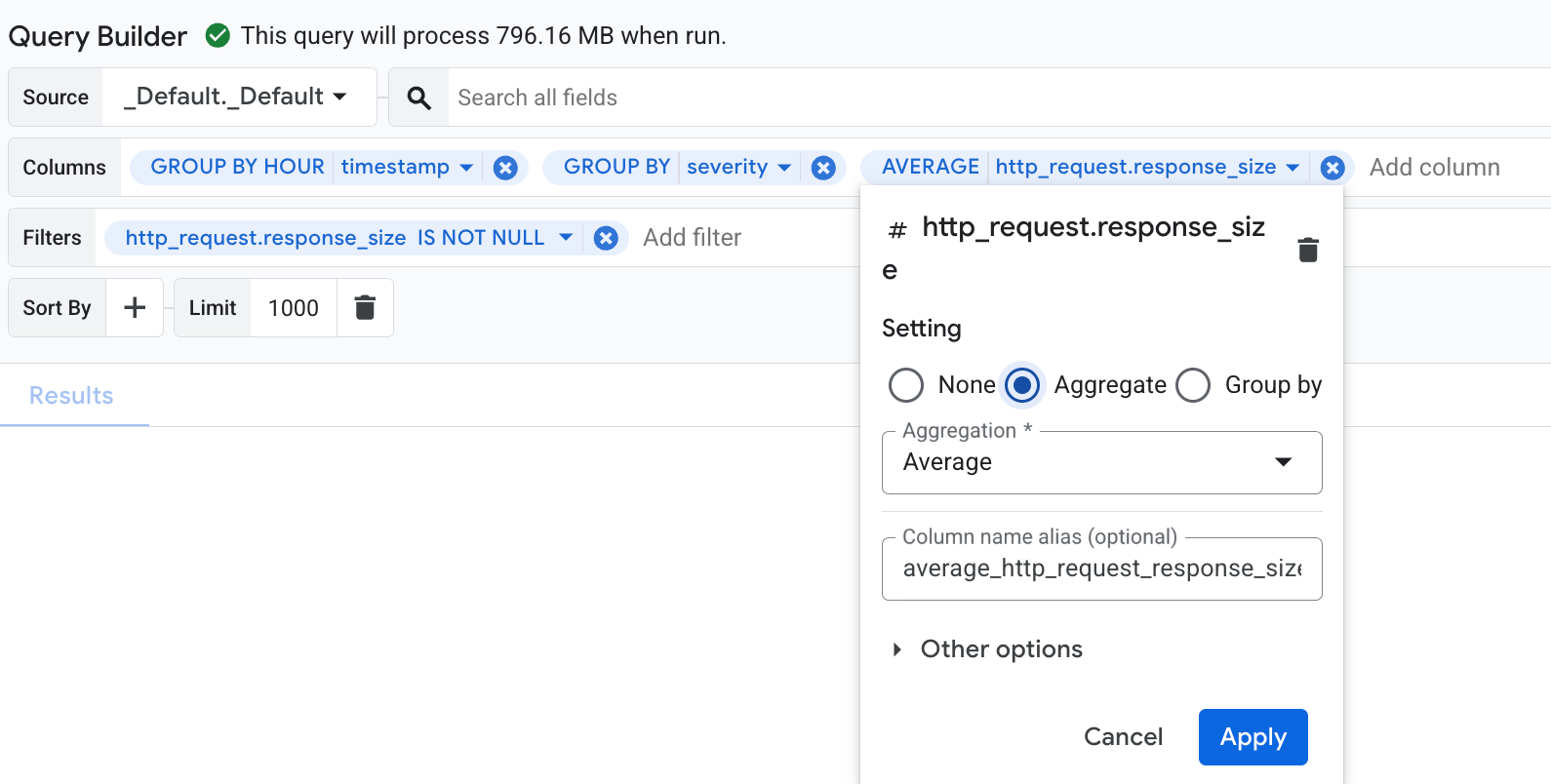
In the Columns menu, select the
timestamp,severity, andhttp_request.response_sizefields.To group your data, click the
timestampfield to open the settings dialog. In this dialog, select the Group by option, and set the Truncation Granularity toHOUR. Grouping is then automatically applied to all other fields to prevent syntax errors. If there are invalid fields where grouping can't be applied, then you see an error message. Remove the invalid fields from the menu to resolve this error.To perform aggregation on the
http_request.response_sizefield, click the field to open the settings dialog. In this dialog, select Aggregate. In the Aggregation menu, click Average.
In the Filters menu, add
http_request.response_sizeand set the comparator toIS NOT NULL. This filter matches log entries that contain aresponse_sizevalue.Your Query Builder menus look similar to the following:
To run the query, go to the toolbar and select Run Query.
The result of this query is similar to the following:
+-----------------------------------+----------+---------------+
| Row | hour_timestamp              | severity | response_size |
|     | TIMESTAMP                   | STRING   | INTEGER       |
+-----+-----------------------------+----------+---------------+
| 1   | 2025-10-06 16:00:00.000 UTC | NOTICE   | 3082          |
| 2   | 2025-10-06 17:00:00.000 UTC | WARNING  | 338           |
| 3   | 2025-10-06 16:00:00.000 UTC | INFO     | 149           |
The corresponding SQL query for the previous example is as follows:
SELECT
  -- Truncate the timestamp by hour.
  TIMESTAMP_TRUNC( timestamp, HOUR ) AS hour_timestamp,
  severity,
  -- Compute average response_size.
  AVG( http_request.response_size ) AS average_http_request_response_size
FROM
  `PROJECT_ID.LOCATION.BUCKET_ID.LOG_VIEW_ID`
WHERE
  -- Matches log entries that have a response_size.
  http_request.response_size IS NOT NULL
GROUP BY
  -- Group log entries by timestamp and severity.
  TIMESTAMP_TRUNC( timestamp, HOUR ),
  severity
LIMIT
  1000
Example aggregating trace data
This example shows you how to use the Query Builder to group spans by start time, span name, and span kind, and then compute the average duration in nanoseconds for each group:
- In the Columns menu, select the
start_time,name,kind, andduration_nanofields. - To truncate the start time to the hour, expand the menu on the
start_timecolumn and select Group By. Make sure that the granularity menu is set to Hour. Click Apply.
When you select Group By for any column, the system groups entries by all columns. In this example, the entries are grouped by the truncated value of the
start_time, the span name, the span kind, and the value of the duration.However, the objective for this example is to group entries by the truncated time, the span name, and the span kind, and then for each group, to compute the average duration. In the next step, you modify the grouping and add an aggregation.
Expand the menu on the
duration_nanofield, select Aggregate, and then set the Aggregation field to Average.When you run the query, each row corresponds to a group, which consists of a truncated time, a span name, and a span kind. The final entry in each row is the average duration for all entries in that group.
The result of this query is similar to the following:
+-----------------------------------+----------------+----------+-----------------------+
| Row | hour_timestamp              | span_name      | kind     | average_duration_nano |
|     | TIMESTAMP                   | STRING         | INTEGER  | FLOAT                 |
+-----+-----------------------------+-----------+---------------+-----------------------+
| 1   | 2025-10-09 13:00:00.000 EDT | http.receive   | 3        | 122138.22813990474
| 2   | 2025-10-09 13:00:00.000 EDT | query.request  | 1        | 6740819304.390297
| 3   | 2025-10-09 13:00:00.000 EDT | client.handler | 2        | 6739339098.409376
Your query can include multiple aggregations. For example, to add a column that counts the number of entries in each group, do the following:
- In the Columns element, click Add column.
- Select All (*).
- In the dialog, select Aggregate, select Count for the Aggregation, and then select Apply.
With this change the grouping remains the same. Entries are grouped by the truncated start time, span name, and span kind. However, for each group, the query computes the average duration and the number of entries.
The corresponding SQL query for the previous example is as follows:
WITH
  scope_query AS (
  SELECT
    *
  FROM
    `PROJECT_ID.us._Trace.Spans._AllSpans` )
SELECT
  -- Report the truncated start time, span name, span kind, average duration and number
  -- of entries for each group.
  TIMESTAMP_TRUNC( start_time, HOUR ) AS hour_start_time,
  name AS span_name,
  kind,
  AVG( duration_nano ) AS average_duration_nano,
  COUNT( * ) AS count_all
FROM
  scope_query
GROUP BY
  TIMESTAMP_TRUNC( start_time, HOUR ),
  name,
  kind
LIMIT
  100
Display the schema
The schema defines how the data is stored, which includes the fields and their
data types. This information is important to you because the schema determines
the fields you query and whether you need to cast fields to different data
types. For example, to write a query that computes the average latency of
HTTP requests, you need to know how to access the latency field and whether it
is stored as an integer like 100 or as a string like "100". If the latency
data is stored as a string, then the query must cast the value to a numeric
value before computing an average.
To identify the schema, do the following:
-
In the Google Cloud console, go to the manage_search Observability Analytics page:
If you use the search bar to find this page, then select the result whose subheading is Logging.
In the Views menu, select a view.
The Schema pane is updated. Observability Analytics automatically infers the fields of a column when the data type is JSON. To view how often these inferred fields appear in your data, click more_vert Options and select View info and description.
Log data
For log views, the schema is fixed and corresponds to the
LogEntry. For analytics views, you can modify the SQL query to change the schema.Trace data
To learn about the schema, see Storage schema for trace data.
If you don't see a view named
_Trace.Spans._AllSpans, then your Google Cloud project doesn't contain a observability bucket named_Trace. For information about how to resolve this failure, see Trace storage initialization fails.
Restrictions
If you want to query multiple views, then those views must reside in the same
location. For example, if you store two views in the us-east1 location, then
one query can query both views. You can also query two views stored in the
us multi-region. However, if a view's location is global, then that view
can reside in any physical location. Therefore, joins between two views that
have the location of global might fail.
For a list of restrictions that apply to log data, see Observability Analytics: Restrictions.