

You can chart SQL query results in Observability Analytics to identify patterns and performance trends in your log and trace data, and save those visualizations to custom dashboards.
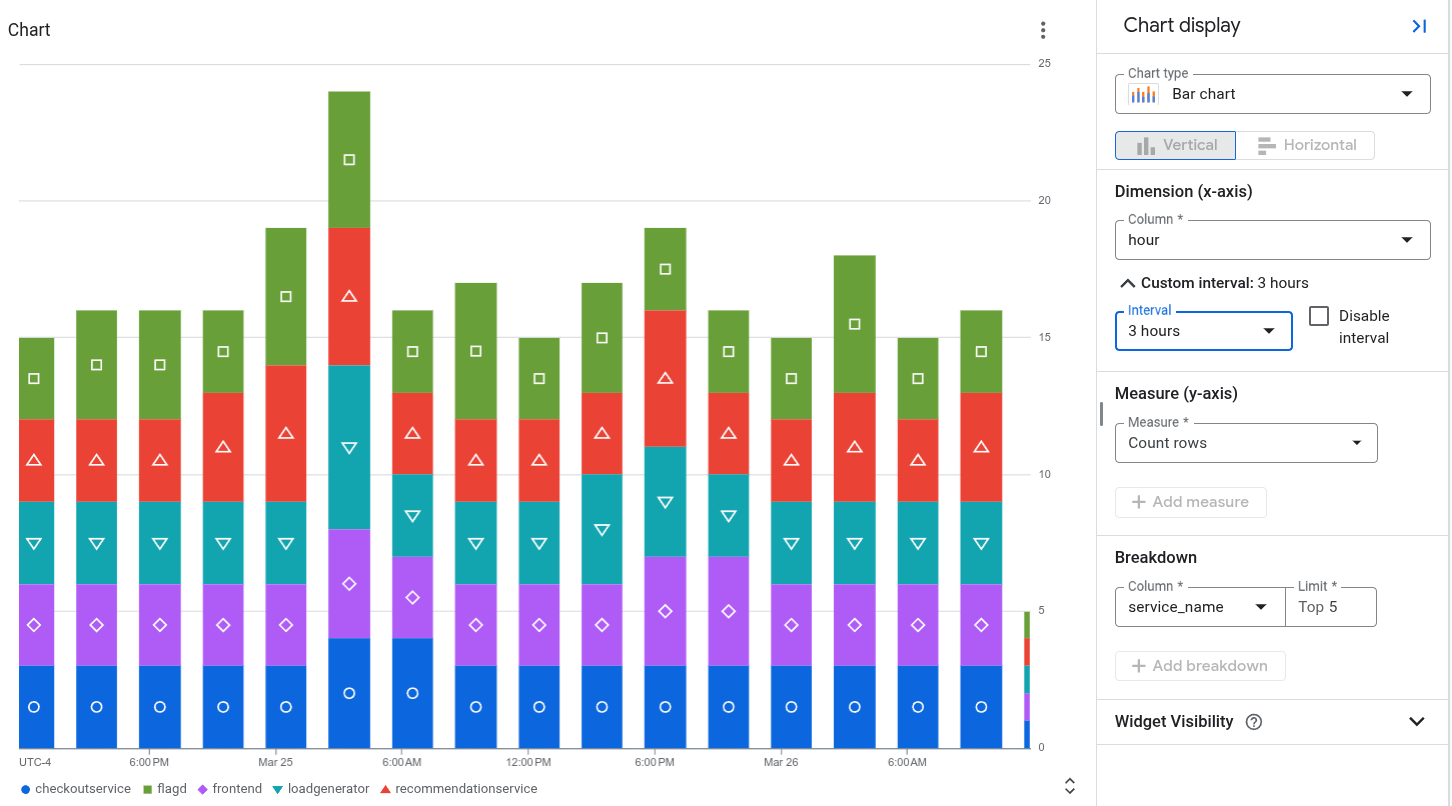
For example, the following chart displays the status reported by spans over
time, grouped by service_name:
Before you begin
- Sign in to your Google Cloud account. If you're new to Google Cloud, create an account to evaluate how our products perform in real-world scenarios. New customers also get $300 in free credits to run, test, and deploy workloads.
-
In the Google Cloud console, on the project selector page, select or create a Google Cloud project.
Roles required to select or create a project
- Select a project: Selecting a project doesn't require a specific IAM role—you can select any project that you've been granted a role on.
-
Create a project: To create a project, you need the Project Creator role
(
roles/resourcemanager.projectCreator), which contains theresourcemanager.projects.createpermission. Learn how to grant roles.
-
Verify that billing is enabled for your Google Cloud project.
Enable the Observability API, if it is not already enabled.
Roles required to enable APIs
To enable APIs, you need the
serviceusage.services.enablepermission. If you created the project, then you likely already have this permission through the Owner role (roles/owner). Otherwise, you can get this permission through the Service Usage Admin role (roles/serviceusage.serviceUsageAdmin). Learn how to grant roles.-
In the Google Cloud console, on the project selector page, select or create a Google Cloud project.
Roles required to select or create a project
- Select a project: Selecting a project doesn't require a specific IAM role—you can select any project that you've been granted a role on.
-
Create a project: To create a project, you need the Project Creator role
(
roles/resourcemanager.projectCreator), which contains theresourcemanager.projects.createpermission. Learn how to grant roles.
-
Verify that billing is enabled for your Google Cloud project.
Enable the Observability API, if it is not already enabled.
Roles required to enable APIs
To enable APIs, you need the
serviceusage.services.enablepermission. If you created the project, then you likely already have this permission through the Owner role (roles/owner). Otherwise, you can get this permission through the Service Usage Admin role (roles/serviceusage.serviceUsageAdmin). Learn how to grant roles.-
To get the permissions that you need to load the Observability Analytics page, write and run queries on your log and trace data, and save charts on custom dashboards, ask your administrator to grant you the following IAM roles:
- Monitoring Editor (
roles/monitoring.editor) on your project - Observability View Accessor (
roles/observability.viewAccessor) on the observability views that you want to query. This role supports IAM conditions, which let you restrict the grant to a specific view. If you don't attach a condition to the role grant, then the principal can access all observability views. - Logs Viewer (
roles/logging.viewer) on your project - Logs View Accessor (
roles/logging.viewAccessor) on the project that stores the log views that you want to query.
For more information about granting roles, see Manage access to projects, folders, and organizations.
You might also be able to get the required permissions through custom roles or other predefined roles.
- Monitoring Editor (
Select the data to chart
To configure what data to display on a chart, build a query by using SQL. When you select the Chart tab, a chart displays your query results. After you run the query and generate a chart, you can customize the chart by changing the chart type and selecting columns to display different data.
To view your query results as a chart, run a query by doing the following:
-
In the Google Cloud console, go to the manage_search Observability Analytics page:
If you use the search bar to find this page, then select the result whose subheading is Logging.
In the Query pane, enter a query and then click Run.
After the query has completed, in the Results tab, select how you want to view your query results:
Table: Tabular format only.
Chart: Chart format only.
Both: Chart and tabular format.
After you select how to view your query results, you can configure any fields for the selected visualization, and then save the query and results to a custom dashboard. The saved format is tabular when you've selected the Table option. Otherwise, the format is a chart.
For charts, the visualization options let you select the chart type, and select which rows and columns are charted. For more information about the chart configuration, see Customize chart configuration.
Customize chart configuration
You can customize the chart configuration by changing the chart type, selecting the dimension and measure to chart, and by applying a breakdown. The Dimension is used to group or categorize rows and is the X-axis value. The Measure, or the Y-axis value, is a data series that is plotted against the Y-axis.
Change chart type
You can select from the following chart types, depending on what kind of rows and columns you selected as the dimension and measure, and how you want that data to be visualized.
Bar chart (default): Bar charts plot data on two axes. If your chart uses a category or string as the dimension, then you can set the chart configuration for a bar chart to horizontal or vertical, where the dimension and measure axes are swapped.
Line chart: Line charts can be used to show data changes over time. When you use a line chart, each time series is shown by a different line that corresponds to the measure(s) you have selected.
If your X-axis is time-based, each data point is placed at the beginning of a time interval. Each data point is connected by linear interpolation.
Stacked area chart: An area chart is based on a line chart, and the area below each line is shaded. In area charts, the data series are stacked. For example, if you have two identical series, then the series overlap in a line chart, but the shaded area is stacked in an area chart.
Pie or donut chart: A pie chart shows how categories in a dataset relate to the whole dataset, by using a circle to represent the whole dataset and wedges in the circle to represent the categories in the dataset. The size of a wedge indicates how much, often as a percentage, the category contributes to the whole.
Table: A table shows one row for each row in the query result. The columns in the table are defined by the
SELECTclause. If you plan to display data in tabular form on a dashboard, then use aLIMITclause to restrict the number of rows in the result to be less than a few hundred.Gauge or scorecard: Gauges and scorecards provide you with the most recent value along with a green, amber, or red indication based on how that value compares to a set of thresholds. Unlike gauges, which only show information about the most recent value, scorecards can also include information about past values.
Gauges and scorecards can only display the query result when the query result contains at least one row, and that row contains a column with a timestamp and a column with numeric data. The query result can contain multiple rows and more than two columns.
If you want to perform the time-based aggregation as part of your query, then do the following:
Configure your query to aggregate data over a time interval, to order the results by descending timestamps, and to limit the number of rows in the results. You can use the
LIMITclause or use the time range selector to limit the number of rows in the query result.Log data
For example, the following queries a log view, and it aggregates data by the hour, applies a limit, and sorts the results:
SELECT TIMESTAMP_TRUNC(timestamp, HOUR) AS hour, severity, COUNT(*) AS count
FROM `PROJECT_ID.LOCATION.BUCKET_ID.LOG_VIEW_ID`
WHERE severity IS NOT NULL AND severity = "DEFAULT"
GROUP BY hour,severity
ORDER BY hour DESC
LIMIT 10
The following describes the meaning of the fields in the previous expression:
- PROJECT_ID: The identifier of the project.
- LOCATION: The location of the log view or the analytics view.
- BUCKET_ID: The name or ID of the log bucket.
- LOG_VIEW_ID: The identifier of the log view, which is limited to 100 characters and can include only letters, digits, underscores, and hyphens.
Trace data
For example, the following queries your trace data, and it aggregates the data over one-hour intervals, applies a limit, and sorts the results:
SELECT TIMESTAMP_TRUNC(start_time, HOUR) AS hour,
   COALESCE(
      JSON_VALUE(resource.attributes, '$."service.name"'),
      JSON_VALUE(attributes, '$."service.name"'),
      JSON_VALUE(attributes, '$."g.co/gae/app/module"')) AS service_name,
   status.code AS status,
   COUNT(*) AS count
FROM `PROJECT_ID.LOCATION._Trace.Spans._AllSpans`
GROUP BY hour, service_name, status
ORDER BY hour DESC
LIMIT 1000
The following describes the meaning of the fields in the previous expression:
- PROJECT_ID: The identifier of the project.
- LOCATION: The location of the observability bucket.
The previous query was used to generate the figure shown at the beginning of this document. That figure also shows the chart configuration.
Set the Dimension to match the column that reports the time-unit. For example, if your query aggregates data by one hour and creates a column named
hour, then set the Dimension menu tohour.Select Disable interval because your query already specifies the aggregation interval. In the example, this interval is one hour.
Set the Measure to the numeric column, and set the function to none.
If you want to rely on Observability Analytics to perform the time-based aggregation for you, then do the following:
- Configure the time-range selector, which affects the number of rows in the query result.
- Set the Dimension to match the column that reports the time-unit.
For example, you might set this menu to
timestamp. - Set the Interval menu to a specific aggregation interval.
For example, set the value of this field to
1 hour. Don't select Automatic interval. - Set the Measure to the numeric column, and select a function such as sum.
Change dimension and measure
You can choose which rows and columns are charted by selecting the dimension and measure fields.
Dimension
The dimension must be a timestamp, numeric, or string column. By default, the dimension is set to the first timestamp-based column in the schema. If no timestamp is present in the query, then the first string column is selected as the dimension. You can also customize what the dimension is in the Chart display panel. When a timestamp column is selected as the dimension, then the chart shows how data changes over time. When a string column is selected as the dimension for a bar chart, you can sort the data by ascending or descending, which sorts the dimension by lexical order. You can also keep the `default` sort order, which sorts the dimension based on the values of the corresponding measure in descending order.
By default, the interval for timestamps is automatically set, but you can also select a custom interval. Automatic intervals change values based on the time-range selector to maintain similarly sized groups.
You can also disable the interval, which lets you specify your own aggregations and time ranges within the query for more complex analysis. Disabling the interval sets the aggregation function of the measures to
none. Only numeric measures are permitted when the dimension interval is disabled.Measure
You can select multiple measures in the Chart display panel. When you select a measure, you must also select the aggregation function to perform on its grouped values, such as
count,sum,average, andpercentile-99. For example,count-distinctreturns the number of unique values in a given column.If you select the Disable interval checkbox for the dimension, then the
noneaggregation function option is available. If the dimension is a string value, the Disable interval checkbox is not shown. However, setting a measure's aggregation functions tononealso disables the interval.
Add a breakdown
To split a single data series into multiple data series based on another column, add a breakdown.
When you select a breakdown, choose columns that contain a small
number of short and meaningful labels, like region_name. Don't select fields
that might contain a large number of strings or long strings, like
textPayload.
Log data
For example, see the following chart configuration, where the Dimension field is set to type, the Measure field is set to Count rows, and the Breakdown field is set to severity:

In the previous screenshot, you see a stacked data series, where the resource
type k8s_container is split into different severity
types. This lets you identify how many logs of each severity type were generated
by a certain resource.
Trace data
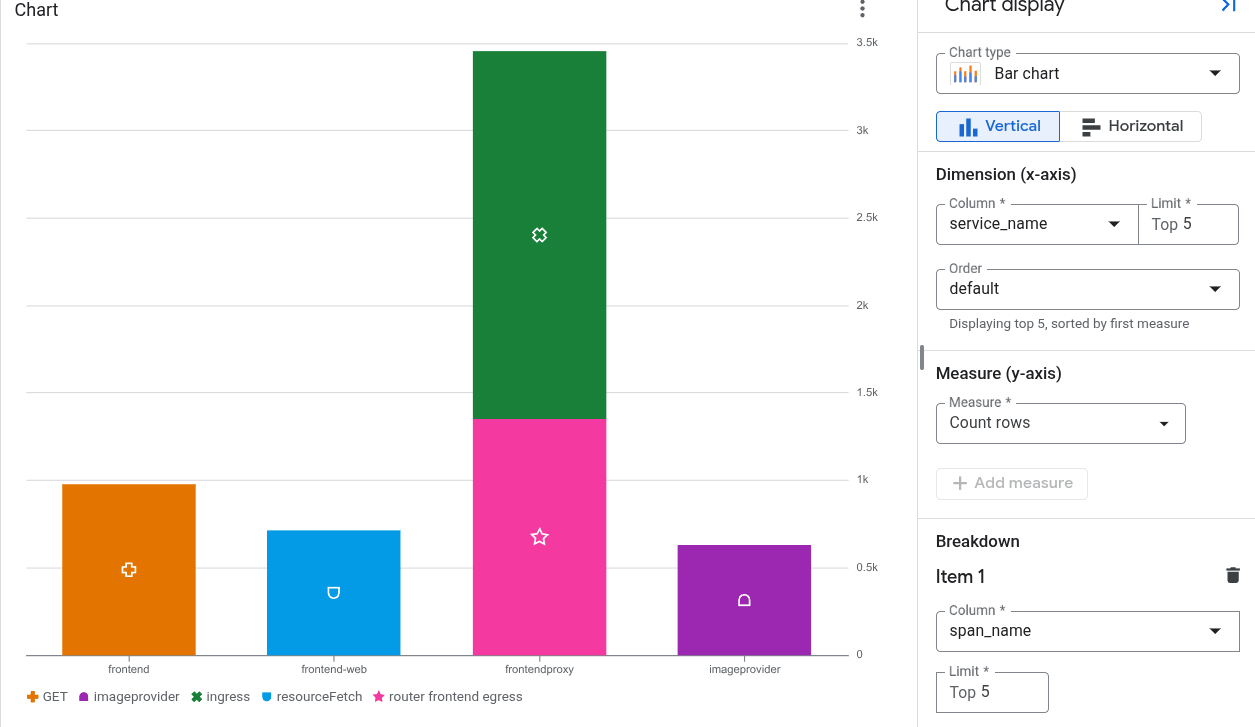
For example, the following chart displays the number of spans created by each service, along with the data broken down by the span name:
Generate and display trace exemplars
You can configure your SQL-based charts that analyze trace data to display dynamically generated exemplars. An exemplar is a representative sample request or span associated with a metric measurement. Each exemplar links to a trace; selecting an exemplar opens a flyout that displays the trace.
Configuration requirements
To display exemplars, the following must be true:
- The chart's query is written in SQL and the query target is trace data.
- The chart uses the line or bar chart visualization.
- The
trace_idand thestart_timeare part of the query results.
To hide exemplars, go to the chart's toolbar and select Hide exemplars.
How the system generates exemplars
The system applies an intelligent sampling selection strategy to keep exemplars readable and relevant:
- For statistical measures such as
AVGandPERCENTILE: The system compares raw span values against the chart's interpolated trendline and groups samples into deviation pools. A proportional sample from each pool is plotted and spaced evenly over time. - For frequency counts such as
COUNT: The system positions exemplars along the upper boundary of the chart window and spaces them evenly across time and data series breakdowns.
Limitations
- If a chart displays multiple time series, then the system reduces the number of exemplars that are shown.
- Exemplars might not be evenly distributed in the time interval of the chart.
- The Y-axis scale might distort the visual display. Distortion is most likely when a chart uses a logarithmic Y-axis or when time series contain outliers.
- You can't configure how the system generates exemplars.
Save a chart to a custom dashboard
After a chart is generated from your query, you can save that chart to a custom dashboard. Custom dashboards let you display and organize information that is useful to you by using a variety of widget types. These dashboards also let you define variables, which are dashboard-level filters that apply only to specific widgets. To apply a variable to a widget, you must modify the query. For more information, see Apply a variable to a widget.
A dashboard displays a warning message for a widget that contains a SQL query when the query runs on the BigQuery engine and the queried resources aren't in the same ownership boundary. Ownership boundaries are determined by several factors, one of which is the hierarchy of the resources the query uses. To prevent these warnings, set up a service perimeter.
To save your chart to a dashboard, do the following:
-
In the Google Cloud console, go to the manage_search Observability Analytics page:
If you use the search bar to find this page, then select the result whose subheading is Logging.
Run a query to generate a chart, then click Save to dashboard.
In the Save to dashboard dialog, enter a title for your chart and select the dashboard where you want to save the chart.
Optional: To view the custom dashboard, in the toast, click View dashboard.
To view a list of custom dashboards that contain charts generated by SQL queries, go to the Save to dashboard button and click arrow_drop_down Menu.
Edit a chart saved to a custom dashboard
You can modify a chart after it has been saved to a dashboard. For more information, see Modify a widget's configuration. In the Configure widget dialog, you can do the following:
- Change the data you query.
- Edit the query that is used to generate a chart.
- Customize the chart configuration to visualize different data.
Limitations
If your Google Cloud project is in a folder that uses Assured Workloads, then the charts that you generate can't be displayed on a custom dashboard.
Dashboard-level filters don't apply to charts generated from a SQL query.
Selected columns must have at least one row with a non-null value.
If you save a query and customize the chart configuration, then the custom chart configuration is not saved.
If your query already contains aggregations, then the generated chart might be different due to additional aggregation that is automatically applied by Observability Analytics.
JSON paths must be cast to strings or numbers in order to be charted.