

This document provides an overview of how to use SAP function calling with Gemini, by using the Agent Platform SDK for ABAP in your SAP BTP, ABAP environment.
You can define custom functions and provide them to the Gemini models by using the Function Calling feature. The models do not directly invoke the custom functions, but instead generate structured data output that specifies the function name and suggested arguments. This output lets you write applications that take the structured output and call external APIs. You can then incorporate the resulting API output into a further model prompt, allowing for more comprehensive query responses.
To invoke custom logic written in SAP function modules by using the Agent Platform SDK for ABAP, you can do the following:
- Pass the SAP function module name or OData (Open Data Protocol) service name to the model as function declarations, describing the name of the function or service, their purpose, and related parameters.
- Automatically invoke an SAP function module or an OData service when calling the model.
Before you begin
Before using the Agent Platform SDK for ABAP for SAP function calling with Gemini, make sure that you or your administrators have completed the following prerequisites:
- Enabled the Agent Platform API in your Google Cloud project.
- Installed the Agent Platform SDK for ABAP in your SAP environment.
- Set up authentication to access the Agent Platform API.
- Configured the model generation parameters.
Enrich the Gemini AI model context with SAP data by invoking an SAP function module
This section explains how you can enrich the Gemini AI model context with SAP data by invoking an SAP function module.
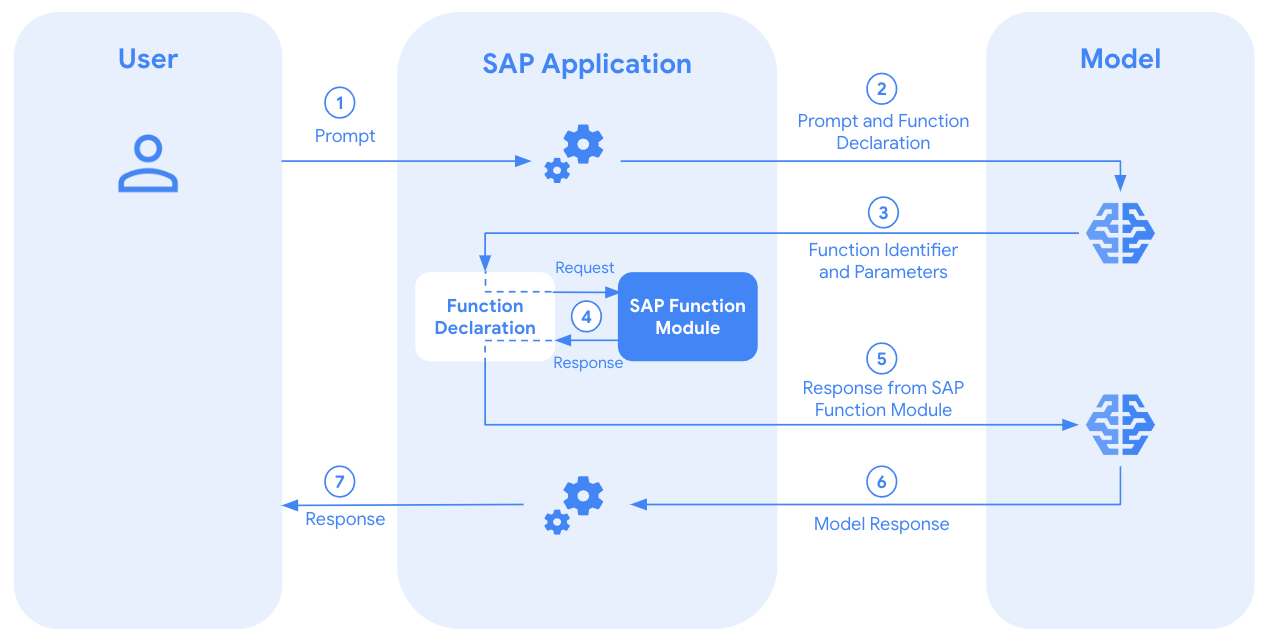
The following steps illustrate how you invoke an SAP function module:
- You provide an input prompt.
- The SDK passes the input prompt and function declarations to the model.
- The model reviews the prompt and declared functions to derive the function to call and suggests the parameter values to call the function.
- If you enable automatic invocation, then the SDK calls the SAP function module.
- The SDK then invokes the model with the output of the called function.
- The model responds to the final prompt with an answer enriched by the output of the called function.
- The SDK returns the response to you.
If you choose not to auto-invoke SAP function modules, then the SDK lets you use the function calling feature without any SAP function module invocation. In this case, you can follow the typical function calling workflow to use external tools such as APIs and functions.
Instantiate the Gemini multimodal invoker class
To invoke function calling in SAP, you use the /GOOG/CL_GENERATIVE_MODEL class.
You instantiate the class
by passing the model key configured in the model generation parameters.
DATA(lo_model) = NEW /goog/cl_generative_model( iv_model_key = 'MODEL_KEY' ).
Replace MODEL_KEY with the model key name, which is configured
in the model generation parameters.
Create an SAP function module
To create an SAP function module for automatic invocation by the SDK, follow the provided schema:
| Category | Parameter name | Associated type |
|---|---|---|
| Importing | IT_FUNCTION_PARAMETERS |
/GOOG/T_FUNCTION_PARAMETERS |
| Exporting | EV_FUNCTION_RESPONSE |
STRING |
| Changing | CV_PROMPT |
STRING |
| Exceptions | /GOOG/CX_SDK |
Exception Class |
Based on the importing parameters, write your custom logic within the function module,
which can be either fetching SAP data through SELECT
queries, or calling an external API or module
to get the missing information.
Set the EV_FUNCTION_RESPONSE exporting parameter with the information
to pass to the large language model (LLM) context. You can also change or modify
the prompt text
in the CV_PROMPT changing parameter based on the custom logic and your
business requirement to further instruct the LLM based on different business
scenarios.
Add function declaration
To add a function declaration to the LLM context, you can use the
ADD_FUNCTION_DECLARATION method. Call the ADD_FUNCTION_DECLARATION method
each time you need to add a function to the context.
DATA lt_parameters TYPE /goog/cl_generative_model=>tt_parameter_properties.
APPEND VALUE #( parameter_name = 'PARAMETER_NAME'
                type           = 'PARAMETER_TYPE'
                description    = 'PARAMETER_DESCRIPTION'
                is_required    = 'PARAMETER_IS_REQUIRED' ) TO lt_parameters.
lo_model->add_function_declaration( iv_name        = 'FUNCTION_MODULE_NAME'
                                    iv_description = 'FUNCTION_MODULE_DESCRIPTION'
                                    it_parameters  = lt_parameters ).
Replace the following:
PARAMETER_NAME: Name of the parameter.PARAMETER_TYPE: The data type of the parameter, such asstring,integer, orboolean.PARAMETER_DESCRIPTION: A clear explanation of the parameter's purpose and expected format.PARAMETER_IS_REQUIRED: If this parameter is mandatory for the function to operate, then pass theABAP_TRUEvalue.FUNCTION_MODULE_NAME: Name of the SAP function module.FUNCTION_MODULE_DESCRIPTION: Description of the SAP function module.
You can also declare a function without parameters, which can serve as a fallback or backup function. If a user prompt doesn't provide enough information to call a specific function, you can instruct Gemini to select this fallback function.
Automatically invoke an SAP function module
To automatically invoke an SAP function that the model selects, you can use the
SET_AUTO_INVOKE_SAP_FUNCTION method.
If you pass the ABAP_TRUE value in the IV_AUTO_INVOKE importing parameter,
the SDK invokes the function module and includes its response in the LLM
context to generate the final response.
You must define your function module by following the schema described in the section Create an SAP function module.
lo_model->set_auto_invoke_sap_function( abap_true ).
Generate content with function calling
To pass the prompt text to the
Gemini model, you can use the GENERATE_CONTENT method.
To get the response
generated by Gemini with the additional context
added from the SAP function module through function calling, use the GET_TEXT method.
DATA(lv_response) = lo_model->generate_content( iv_prompt_text ='PROMPT'
                           )->get_text( ).
Replace PROMPT with your text prompt.
Get the selected function name and parameter values
To get the function selected by Gemini
(from among the declared functions) and its suggested parameters,
use the GET_FUNCTION_CALL method.
DATA(lo_response) = lo_model_key->set_auto_invoke_sap_function( abap_true
                               )->generate_content( iv_prompt_text = 'PROMPT' ).
lo_response->get_function_call( IMPORTING ev_function_name       = DATA(lv_function_name)
                                          et_function_parameters = DATA(lt_function_parameters) ).
Replace PROMPT with your text prompt.
You can get the name of Gemini's selected function from the
LV_FUNCTION_NAME variable and the suggested parameters from the
LT_FUNCTION_PARAMETERS table.
You can use this information to validate, track, and log Gemini
actions according to your enterprise's security information and event management guidelines.
Code sample
The following code sample illustrates how to use SAP function calling to receive a final response from the model.
DATA lt_parameters TYPE /goog/cl_generative_model=>tt_parameter_properties.
TRY.
  DATA(lo_model) = NEW /goog/cl_generative_model( iv_model_key = 'MODEL_KEY' ).
  APPEND VALUE #( parameter_name = 'PARAMETER_NAME'
                  type           = 'PARAMETER_TYPE'
                  description    = 'PARAMETER_DESCRIPTION'
                  is_required    = 'PARAMETER_IS_REQUIRED' ) TO lt_parameters.
  DATA(lv_response) = lo_model->add_function_declaration(
                                    iv_name        = 'FUNCTION_MODULE_NAME'
                                    iv_description = 'FUNCTION_MODULE_DESCRIPTION'
                                    it_parameters  = lt_parameters
                              )->set_auto_invoke_sap_function( abap_true
                              )->generate_content( iv_prompt_text ='PROMPT'
                              )->get_text( ).
  IF lv_response IS NOT INITIAL.
      cl_demo_output=>display( lv_response ).

  ENDIF.
 CATCH /goog/cx_sdk INTO DATA(lo_cx_sdk).
  cl_demo_output=>display( lo_cx_sdk->get_text( ) ).

ENDTRY.
Replace the following:
MODEL_KEY: The model key name, which is configured in the model generation parameters.PARAMETER_NAME: Name of the parameter.PARAMETER_TYPE: The data type of the parameter, such asstring,integer, orboolean.PARAMETER_DESCRIPTION: A clear explanation of the parameter's purpose and expected format.PARAMETER_IS_REQUIRED: If this parameter is mandatory for the function to operate, then pass theABAP_TRUEvalue.FUNCTION_MODULE_NAME: Name of the SAP function module.FUNCTION_MODULE_DESCRIPTION: Description of the SAP function module.PROMPT: Your text prompt.
Enrich the Gemini AI model context with SAP data by invoking an OData service
This section explains how you can enrich the Gemini AI model context with SAP data by invoking an OData service.
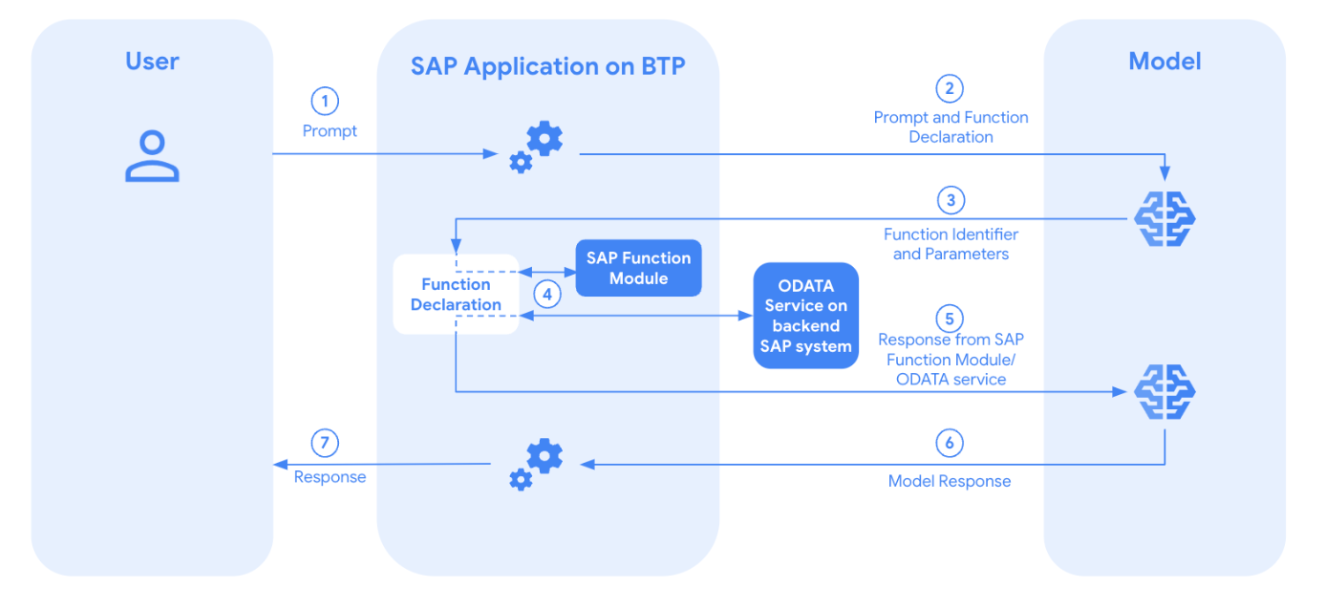
The following steps illustrate how you invoke an OData service:
- You provide an input prompt.
- The SDK passes the input prompt and function declarations to the model.
- The model reviews the prompt and declared functions to derive the function to call and suggests the parameter values to call the function.
- If you enable automatic invocation, then the SDK calls the OData service.
- The SDK then invokes the model with the output of the called OData service.
- The model responds to the final prompt with an answer enriched by the output of the called OData service.
- The SDK returns the response to you.
If you choose not to auto-invoke OData services, then the SDK lets you use the function calling feature without any OData service invocation. In this case, you can follow the typical function calling workflow to use external tools such as APIs and functions.
Create an OData service
To create an OData service for automatic invocation by the SDK as a function, use the following schema:
{
    "UserRequest": "Input Prompt as user request",
    "FunctionResponse": null,
    "ModifiedUserRequest": null,
    "ContextParameters": [
        {
            "ParameterName": "Parameter 1",
            "ParameterValue": "Value 1"
        },
        {
            "ParameterName": "Parameter 2",
            "ParameterValue": "Value 2"
        }
    ]
}
The following table provides information about the fields used in this schema:
| Schema field | Field type | Input/Output mode | Description |
|---|---|---|---|
UserRequest |
String |
Input only | The input prompt that the user enters. |
FunctionResponse |
String |
Output only | The output of the OData service. It can be a single value or a serialized JSON string. |
ModifiedUserRequest |
String |
Output only | The modified UserRequest field, which is fed to
Gemini as the prompt. |
ContextParameters |
Table of parameters |
Input only | The table of parameters, which includes parameter names and values. |
ParameterName |
String |
Input only | Name of the function parameter. |
ParameterValue |
String |
Input only | Value of the function parameter, as suggested by Gemini. |
Create the OData service entities
Create an entity by using the preceding schema.
This entity accepts the user request as a prompt, forwards it to Gemini, and is declared as a function by using Agent Platform SDK for ABAP. This entity also carries back the OData function response from the backend SAP system to BTP, which is then augmented to the Gemini AI model context.
- Set an appropriate name for the new item.
Set values for the following attributes. Retain the default values for all other attributes.
Name Is key? EDM core type ABAP field name UserRequestYes Edm.StringUSER_REQUEST FunctionResponseNo Edm.StringFUNCTION_RESPONSE ModifiedUserRequestNo Edm.StringMODIFIED_USER_REQUEST
If you want to place more entities in the same OData service, then create them by using the same schema.
Create another entity named
ContextParameterswith the following attributes. Retain the default values for all other attributes.This entity contains the function parameters and their values that the Gemini model provides.
Name Is key? EDM core type ABAP field name ParameterNameYes Edm.StringPARAMETER_NAME ParameterValueYes Edm.StringPARAMETER_VALUE Create entity sets for all the entities that you created as part of the preceding steps.
Create an association between each entity that you created in step 1 with the
ContextParametersentity that you created in step 2 as follows:- Set a name for the association.
- In the Principal Entity field, set the name of the entity that you created in step 1.
- In the Principal Entity Cardinality field, set
M. - In the Dependent Entity field, set
ContextParameters. - In the Dependent Entity Cardinality field, set
M. - Save and generate the OData runtime artifacts.
Add the created OData service in SAP Gateway and activate the ICF node.
Generate the EDMX file for the OData metadata as follows:
- Go to TCode /iwfnd/maint_services and get the metadata for the OData service.
- Format and save the generated XML with the
.edmxfile extension.
Write the OData function logic
In the generated
MPC_EXTclass, add and activate a deep entity type:TYPES: BEGIN OF ts_function_deep_entity, user_request TYPE string, function_response TYPE string, modified_user_request TYPE string, context_parameters TYPE TABLE OF ts_contextparameters WITH DEFAULT KEY, END OF ts_function_deep_entity.Redefine the
CREATE_DEEP_ENTITYmethod of the generatedDPC_EXTclass by completing the following steps:- If you created more than one OData entity in the
Create the OData service entities section,
then add a
CASEstatement for each OData entity. - Write the ABAP logic to get or prepare the response to augment the context for Gemini in the BTP application.
- In the FUNCTION_RESPONSE field, set the response.
- In the MODIFIED_USER_REQUEST field, set the modified prompt.
- By using the
COPY_DATA_TO_REFOData method, bind the overall response in the message.
The following snippet is a sample ABAP logic:
TRY. DATA: ls_request TYPE <z*_mpc_ext>=>ts_function_deep_entity. CASE io_tech_request_context->get_entity_type_name( ). WHEN <z*_mpc_ext>=>gc_ENTITY_NAME. CALL METHOD io_data_provider->read_entry_data IMPORTING es_data = ls_request. <ABAP logic to formulate OData function response> ls_request-modified_user_request = 'MODIFIED_GEMINI_PROMPT'. ls_request-function_response = 'ODATA_FUNCTION_RESPONSE'. CALL METHOD me->copy_data_to_ref EXPORTING is_data = ls_request CHANGING cr_data = er_deep_entity. ENDCASE. CATCH /iwbep/cx_mgw_busi_exception. CATCH /iwbep/cx_mgw_tech_exception. ENDTRY. ```- If you created more than one OData entity in the
Create the OData service entities section,
then add a
Replace the following:
ENTITY_TYPE: The name of the OData entity that you created in step 1 of the Create the OData service entities section.MODIFIED_GEMINI_PROMPT: The modified prompt provided by Gemini.ODATA_FUNCTION_RESPONSE: The response provided by the OData service.
If you have more than one field, or a nested structure or table to be passed as
the function response, then you can serialize the ABAP type into a string by
using the SERIALIZE_JSON method of the /GOOG/CL_JSON_UTIL class of the SDK.
Define the OData service as a service consumption model on SAP BTP
After you create the OData service, you need to define it as a service consumption model in your SAP BTP environment. You do this by creating a service consumption model, an HTTP outbound service, a communication scenario, and a communication arrangement.
Create a service consumption model
- In your ABAP project, open the context menu and select New > Other ABAP Repository Object > Business Services > Service Consumption Model.
- In the New Service Consumption Model window, complete the following
steps:
- In the Package field, select and upload the EDMX file that you generated earlier in an earlier section.
- Enter a name and description.
- In the Remote Consumption Mode field, select OData.
- Click Finish.
Create an HTTP outbound service
- In your ABAP project, open the context menu.
- Select your package and click New > Other ABAP Repository Object.
- In the Service Type field, select HTTP Service.
In the Default Path Prefix field, enter the path prefix for your OData service in the backend SAP system.
You can find out the OData path prefix by accessing the SAP Gateway Client. The value you see in the Request URI field is the path prefix for your OData service.
Click Next.
Create a communication scenario
After you create an HTTP outbound service, you must create a communication scenario and assign the outbound service to it. To do so, complete the following steps:
- In your ABAP project, select Communication Scenario and then click Next.
- In the New Communication Scenario window, complete the following steps:
- Enter a name and description.
- Click Next.
- In the Communication Scenario Type field, select Customer Managed.
- Go to the Outbound tab.
- In the Allowed Instances field, select One instance per scenario & communication system.
- In the Supported Authentication methods field, select the following checkboxes: Basic, X.509, and OAuth 2.0.
- In the OAuth 2.0 Grant Type field, select SAML 2.0 Bearer Assertion.
- Under the Outbound Services section, click Add and then select the outbound service that you created in the previous section.
- In the Outbound Service section, make sure that the Default Path Prefix is correct. If it's not, then click Synchronize.
- Save the communication scenario.
Create a communication arrangement
- Access the SAP Fiori launchpad of the BTP ABAP system where the ABAP SDK for Google Cloud is installed.
Open the Communication Arrangement app.
- Click New.
In the New Communication Arrangement dialog that appears, enter a value for the following fields:
- Scenario: select the communication scenario that you created in the Create a communication scenario section.
- Arrangement name: enter a name for the communication arrangement.
Click Create.
For the communication arrangement that appears, in the Communication System field, select the communication system that you created in the previous step.
Click Save.
Instantiate the Gemini multimodal invoker class
To invoke function calling in SAP, you use the /GOOG/CL_GENERATIVE_MODEL class.
You instantiate the class by passing the model key configured in the
model generation parameters.
DATA(lo_model) = NEW /goog/cl_generative_model( iv_model_key = 'MODEL_KEY' ).
Replace MODEL_KEY with the model key name, which is
configured in the
model generation parameters.
Add function declaration
To add an OData service as a function declaration to the LLM context, you can
use the ADD_FUNCTION_DECLARATION method. Call the ADD_FUNCTION_DECLARATION
method each time you need to add an OData service as a function to the context.
DATA lt_parameters TYPE /goog/cl_generative_model=>tt_parameter_properties.
DATA ls_connection_parameters TYPE /goog/cl_generative_model=>ty_connection_parameters.

APPEND VALUE #( parameter_name = 'PARAMETER_NAME'
                type           = 'PARAMETER_TYPE'
                description    = 'PARAMETER_DESCRIPTION'
                is_required    = 'PARAMETER_IS_REQUIRED' ) TO lt_parameters.

ls_connection_parameters-connection_type       = 'ODATA'.
ls_connection_parameters-comm_scenario         = 'COMMUNICATION_SCENARIO'.
ls_connection_parameters-service_id            = 'ODATA_SERVICE_ID'.
ls_connection_parameters-proxy_model_id        = 'ODATA_SERVICE_CONSUMPTION_MODEL_ID'.
ls_connection_parameters-relative_service_root = 'ODATA_ROOT_URI'.
ls_connection_parameters-entity_set_name       = 'ODATA_ENTITY_SET_NAME'.

lo_model->add_function_declaration( iv_name                  = 'FUNCTION_NAME'
                                    iv_description           = 'FUNCTION_DESCRIPTION'
                                    it_parameters            = lt_parameters
                                    is_connection_parameters = ls_connection_parameters ).
Replace the following:
PARAMETER_NAME: The name of the parameter.PARAMETER_TYPE: The data type of the parameter, such asstring,integer, orboolean.PARAMETER_DESCRIPTION: A clear explanation of the parameter's purpose and expected format.PARAMETER_IS_REQUIRED: If this parameter is mandatory for the function to operate, pass theABAP_TRUEvalue.COMMUNICATION_SCENARIO: The ID of the communication scenario that you created.ODATA_SERVICE_ID: The ID of the outbound service that you created for the OData service.ODATA_SERVICE_CONSUMPTION_MODEL_ID: The ID of the service consumption model that you created for the OData service.ODATA_ROOT_URI: The root URI of the OData service in the backend SAP system.ODATA_ENTITY_SET_NAME: The entity set name of the OData service that is to be declared as a function.FUNCTION_NAME: The name of the function that you declared for the OData service you want to use.FUNCTION_DESCRIPTION: The description of the function that you declared for the OData service you want to use.
Automatically invoke an OData service
To automatically invoke an OData service that the model selects,
you can use the SET_AUTO_INVOKE_SAP_FUNCTION method.
If you pass the ABAP_TRUE value in the IV_AUTO_INVOKE importing parameter,
the SDK invokes the function module and includes its response in the LLM
context to generate the final response.
You must define your function module by following the schema described in the section Create an SAP function module.
lo_model->set_auto_invoke_sap_function( abap_true ).
Generate content with function calling
To pass the prompt text to the
Gemini model, you can use the GENERATE_CONTENT method.
To get the response
generated by Gemini with the additional context
added from the SAP function module through function calling, use the GET_TEXT method.
DATA(lv_response) = lo_model->generate_content( iv_prompt_text ='PROMPT'
                           )->get_text( ).
Replace PROMPT with your text prompt.
Get the selected function name and parameter values
To get the function selected by Gemini
(from among the declared functions) and its suggested parameters,
use the GET_FUNCTION_CALL method.
DATA(lo_response) = lo_model_key->set_auto_invoke_sap_function( abap_true
                               )->generate_content( iv_prompt_text = 'PROMPT' ).
lo_response->get_function_call( IMPORTING ev_function_name       = DATA(lv_function_name)
                                          et_function_parameters = DATA(lt_function_parameters) ).
Code sample
The following code sample illustrates how to use SAP function calling with an OData service to receive a final response from the model:
DATA lt_parameters TYPE /goog/cl_generative_model=>tt_parameter_properties.
DATA ls_connection_parameters TYPE /goog/cl_generative_model=>ty_connection_parameters.
TRY.
     DATA(lo_model) = NEW /goog/cl_generative_model( iv_model_key = 'MODEL_KEY' ).
     APPEND VALUE #( parameter_name = 'PARAMETER_NAME'
                     type           = 'PARAMETER_TYPE'
                     description    = 'PARAMETER_DESCRIPTION'
                     is_required    = 'PARAMETER_IS_REQUIRED' ) TO lt_parameters.

     ls_connection_parameters-connection_type       = 'ODATA'.
     ls_connection_parameters-comm_scenario         = 'COMMUNICATION_SCENARIO'.
     ls_connection_parameters-service_id            = 'ODATA_SERVICE_ID'.
     ls_connection_parameters-proxy_model_id        = 'ODATA_SERVICE_CONSUMPTION_MODEL_ID'.
     ls_connection_parameters-relative_service_root = 'ODATA_ROOT_URI'.
     ls_connection_parameters-entity_set_name       = 'ODATA_ENTITY_SET_NAME'.

     DATA(lv_response) = lo_model_key->add_function_declaration(
                                         iv_name                  = 'FUNCTION_NAME'
                                         iv_description           = 'FUNCTION_DESCRIPTION'
                                         it_parameters            = lt_parameters
                                         is_connection_parameters = ls_connection_parameters
                                   )->set_auto_invoke_sap_function( abap_true
                                   )->generate_content( iv_prompt_text ='PROMPT'
                          )->get_text( ).
        IF lv_response IS NOT INITIAL.
          out->write( lv_response ).

      ENDIF.

  CATCH /goog/cx_sdk INTO DATA(lo_cx_sdk).
      out->write( lo_cx_sdk->get_text( ) ).
ENDTRY.
What's next
- Learn about application development with the SAP BTP edition of ABAP SDK for Google Cloud.
- Ask your questions and discuss the Agent Platform SDK for ABAP with the community on Cloud Forums.