

This page describes how to set up and configure a third-party configuration before creating the GitHub data store.
Set permissions and obtain client ID and client secret
To register a GitHub app and obtain the client ID and client secret, do the following:
- Sign in to your GitHub account.
- Go to Settings > Developer Settings.
- In the Developer Settings page, click GitHub apps.
Click New GitHub app.
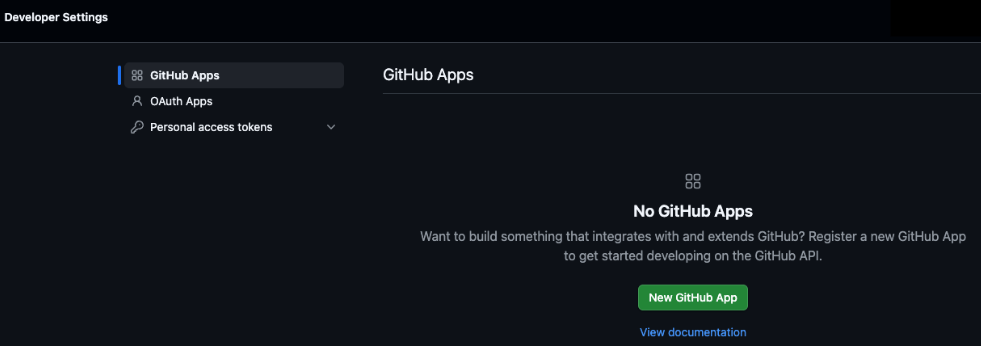
GitHub app In the app registration page, do the following:
- In the GitHub app name field, enter a label to identify the app.
- In the Homepage URL field, enter the full URL to your application homepage.
- In the Callback URL field, enter
https://vertexaisearch.cloud.google.com/oauth-redirect. - To ensure tokens expire regularly and to receive a
refresh_tokenthat can be used to request a new access token, select the Expire user authorization tokens checkbox. - To prompt users to authorize your app when they install it, select the Request user authorization (OAuth) during installation checkbox.
In the Permissions section, enable the following permissions:
Permission Name Permission Type Reason for Access Repository: Actions Read and write Trigger, list, cancel, and rerun workflow runs; access job logs Repository: Administration Read-only List repository collaborators Repository: Contents Read and write Read files, commits, branches, tags, and releases; create branches, write files, push commits, and fork repositories Repository: Discussions Read and write Read GitHub Discussions and discussion categories; add, update, or delete discussion comments Repository: Issues Read and write Read issues, labels, comments, and search issues; create or update issues, post comments, triage issues, and manage labels Repository: Metadata Read-only (Mandatory) Search for repositories and users Repository: Pull requests Read and write Read pull requests, diffs, and PR comments; merge, update, and add review comments and replies Repository: Code scanning alerts Read-only Read code scanning alerts Repository: Dependabot alerts Read-only Read Dependabot security alerts Repository: Secret scanning alerts Read-only Read secret scanning alerts Organization: Members Read-only View organization teams and their members Organization: Issue Types Read-only View organization issue types Organization: Projects Read and write Read and manage organization-level Projects v2 (projects, items, fields, and status updates) Account: Starring Read and write Star and unstar repositories Account: Profile Read and write Access user profile information In the section asking where to install the app, select Only on this account.
Click Create GitHub app.
In the navigation menu, select Install app.
Select an account to install the newly created app and click Install.
Select All repositories and click Install & authorize.
In the navigation menu, select General.
Click Generate a new client secret. Copy the Client ID and the generated Client secret values, and store them securely for later use.
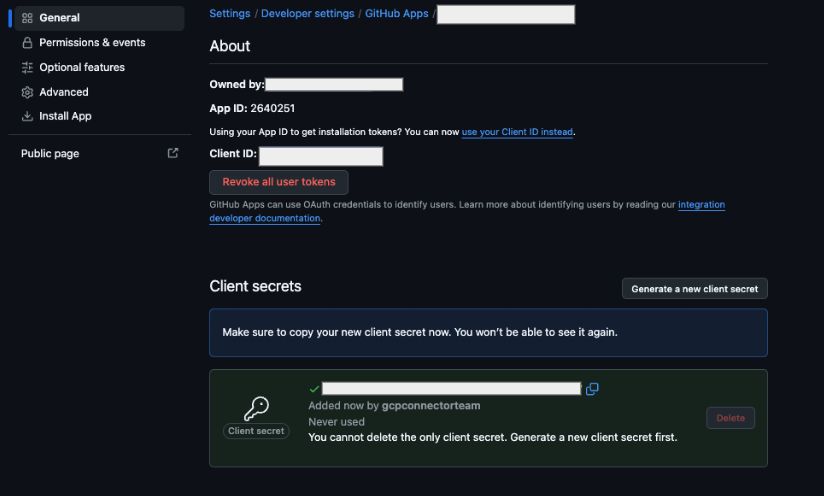
GitHub app General tab