

Before you begin
Use either a Salesforce enterprise or a Salesforce developer edition. Trial accounts are not supported.
Configure Salesforce for federated data store
To configure Salesforce for a federated data store, you must obtain authentication credentials by using the OAuth 2.0 Web Server Flow authentication method. The following sections guide you through setting up the necessary components and obtaining these credentials.
Create and configure an external client app
- In your Salesforce app, click the setup icon, and select Setup.
- Enter Apps in the quick find box and select App manager.
- Select New external client app.
- Enter the required basic information (Name, API name, and Contact email).
- In the API (Enable OAuth settings) section, configure the following OAuth settings. For more information, see Enable OAuth Settings for API Integration.
- Select the Enable OAuth checkbox.
- Enter the Callback URL as
https://vertexaisearch.cloud.google.com/oauth-redirect. - In the Selected OAuth scopes section, add the Manage user data via APIs (api), and Perform requests at any time (refresh_token, offline_access) scopes. For more information, see OAuth Tokens and Scopes.
- In the Flow enablement section, select the following checkboxes:
- Enable Authorization Code and Credentials flow
- Require user credentials in the POST body for authorization code and credentials flow
- In the Security section, select the following checkboxes:
- Require secret for Web Server Flow
- Require secret for Refresh Token Flow
- Click Create.
Pre-authorize external client app access
After creating the external client app, authorize specific users or permission sets to access it.
- In your Salesforce app, enter External client app in the quick find box and select External client app manager.
- Click the name of your external client app that you created.
- Select the Policies tab and click Edit.
- In the OAuth policies section:
- In the Permitted users field, select Admin approved users are pre-authorized.
- In the App Authorization section, in the Refresh token policy field, select Refresh token is valid until revoked.
- In the App policies section, select the profiles or permission sets authorized for this connection.
- Click Save.
- Navigate to the Settings > OAuth settings, click Consumer key and secret, and copy and store the consumer key and consumer secret to be used as authentication credentials.
Find your Salesforce base URL
- In your Salesforce app, click the setup icon, and select Setup.
- In the quick find box, search for and select My Domain.
- From the Current My Domain URL field, copy and store the URL. This is the base URL of your Salesforce instance and is required as an authentication credential when you create a data store.
Configure permissions
To verify that the user configuring the connector has the required minimum data fetching permissions, complete the following steps:
- In your Salesforce app, enter Profiles in the Quick Find box and select Profiles.
- Select the user profile running the connector.
- Navigate to the Standard object permissions section and verify the permissions.
Verify that the selected user has access to the required permissions. This process must be repeated for each entity you intend to ingest.
- Note: Check whether the default access at the user's profile level is set to Private. When an entity's access is set to Private, your Google Cloud connector cannot access the required object and logs an error.
To allow access to the object, create a permission set and share it with the user:
- Enter Permission sets in the Quick Find box and select Permission sets.
- Click New.
- Enter a name and save the permission set.
- Open the created permission set and navigate to the Apps section.
- Select Object settings.
- Select the View all records checkbox.
- In the Field permissions section, grant Read access to all fields you want to synchronize.
- Save the settings and navigate back.
Enable system permissions:
- In the System section, select System permissions.
- Enable the API enabled permission.
Assign the user to the permission set:
- Enter Users in the Quick find box and select Users.
- Select the user.
- In the Permission set assignments section, select Edit assignments.
- Add the recently created permission set to the Enabled permission sets section.
For more information, see Data access in Salesforce and Organization-Wide Sharing Defaults.
Configure Salesforce for data ingestion data store
To configure Salesforce for a data ingestion data store, follow the steps in this section.
Supported versions
The Salesforce V2 connector supports SOAP API version 30.0 or later.
Generate a service attachment
To generate a service attachment, perform the following steps:
- For Public endpoint: If the Salesforce data center Destination type is Public, you are not required to create the setup for service attachment. Instead, you can use your public URL in the Domain URL field of the Google Cloud console.
- For Private endpoint:
- Use PSC to enable connections from private instances to Google Cloud.
- Create a Virtual Private Cloud network and the required subnets.
- Create a Virtual Machine (VM) instance and install the backend service.
- Optional: Set up a health check probe to monitor backend health.
- Add a load balancer to route traffic to the VM or backend.
- Define firewall rules to allow traffic between the PSC endpoint and the backend.
- Publish the endpoint by creating a PSC service attachment.
Generate authentication credentials
Data ingestion data stores can use any of the following supported authentication types:
Set up for OAuth 2.0 - Client credentials authentication
You must set up Gemini Enterprise as an external client app (connected app) in Salesforce to obtain the following authentication information:
- Consumer ID or client ID
- Consumer secret or client key
Create and configure an external client app
- In your Salesforce app, click the setup icon, and select Setup.
- Enter Apps in the quick find box and select App manager.
- Select New external client app.
- Enter the required basic information (Name, API name, and Contact email).
- In the API (Enable OAuth settings) section, configure the following OAuth settings. For more information, see Enable OAuth Settings for API Integration.
- Select the Enable OAuth checkbox.
- Enter the Callback URL as
https://vertexaisearch.cloud.google.com/oauth-redirect. - In the Selected OAuth scopes section, add the Full access (full), Manage user data via APIs (api), and Perform requests at any time (refresh_token, offline_access) scopes. For more information, see OAuth Tokens and Scopes.
- In the Flow enablement section, select the Enable client credentials flow checkbox.
- Click Create.
Pre-authorize external client app access
After creating the external client app, authorize specific users or permission sets to access it.
- In your Salesforce app, enter External client app in the quick find box and select External client app manager.
- Click the name of your external client app that you created.
- Select the Policies tab and click Edit.
- In the OAuth policies section:
- In the Permitted users field, select Admin approved users are pre-authorized.
- Under OAuth flow and external client enhancement, select Enable client credentials flow and enter the user's email ID.
- In the Refresh token policy field, select Refresh token is valid until revoked.
- In the App policies section, select the profiles or permission sets authorized for this connection.
- Click Save.
- Navigate to the Settings > OAuth settings, click Consumer key and secret, and copy and store the consumer key and consumer secret to be used as authentication credentials.
Configure permissions
To verify that the user configuring the connector has the required minimum data fetching permissions, complete the following steps:
- In your Salesforce app, enter Profiles in the Quick Find box and select Profiles.
- Select the user profile running the connector.
- Navigate to the Standard object permissions section and verify the permissions.
- Verify that the selected user has access to the required permissions. This process must be repeated for each entity you intend to ingest.
- To allow access to the object, create a permission set and share it with the user:
- Enter Permission sets in the Quick Find box and select Permission sets.
- Click New.
- Enter a name and save the permission set.
- Open the created permission set and navigate to the Apps section.
- Select Object settings.
- Select the View all records checkbox.
- In the Field permissions section, grant Read access to all fields you want to synchronize.
- Save the settings and navigate back.
- Enable system permissions:
- In the System section, select System permissions.
- Enable the following minimum permissions:
- API enabled
- View all users
- View roles and role hierarchy
- View setup and configuration
- Assign the user to the permission set:
- Enter Users in the Quick find box and select Users.
- Select the user.
- In the Permission set assignments section, select Edit assignments.
- Add the recently created permission set to the Enabled permission sets section.
For more information, see Data access in Salesforce and Organization-Wide Sharing Defaults.
Set up for OAuth 2.0 - JWT bearer authentication
You must set up Gemini Enterprise as an external client app (connected app) in Salesforce to obtain the following authentication information:
- Customer key
- Public key
- Username
Generate private key and public certificate
- Generate a 2048-bit RSA private key by executing the following command:
openssl genrsa -out server.key 2048
This command creates a file named server.key, which contains your private key. Keep this file secure and confidential.
- Generate a self-signed public certificate by executing the following command:
openssl req -new -x509 -sha256 -days 3650 -key server.key -out server.crt
This command generates a file named server.crt, which is your public certificate. You can upload this certificate to Salesforce during the external client app (connected app) configuration.
Create and configure external client app
- In your Salesforce app, click the setup icon, and then select Setup.
- Enter Apps in the quick find box and select App manager.
- Select New external client app.
- Enter the required basic information for your external client app (connected app), such as the External client app name, API name, and Contact email.
- In the API (Enable OAuth settings) section, configure the following OAuth settings. For more information, see Enable OAuth Settings for API Integration.
- Select the Enable OAuth checkbox.
- Enter the Callback URL as
https://vertexaisearch.cloud.google.com/oauth-redirect. - In the Selected OAuth scopes section, add Full access (full), Manage user data via APIs (api), and Perform requests at any time (refresh_token, offline_access). For more information, see OAuth Tokens and Scopes.
- In the Flow enablement section:
- Select Enable JWT bearer flow.
- Upload the server.crt generated in the Generate private key and public certificate section.
Get login URL
To get the login URL for your Salesforce instance, do the following:
- In your Salesforce app, enter My domain in the quick find box and select My domain.
- Copy the domain ending in my.salesforce.com.
- Add https:// to the beginning of the copied domain. This is the instance URL that you need to create the Salesforce connector in Gemini Enterprise. The instance URL must be in the following format: https://DOMAIN_NAME.my.salesforce.com.
Install the OAuth connected app
You must install the external client app that you created. Navigate to the Connected Apps OAuth Usage page in your Salesforce account and install the app. For more information, see Connected App Usage Restrictions Change.
Set up for username and password authentication
For username and password authentication, use an existing security token, or reset the security token to receive a new one in your registered email.
To reset your security token:
- In your Salesforce app, click your profile icon and select Settings.
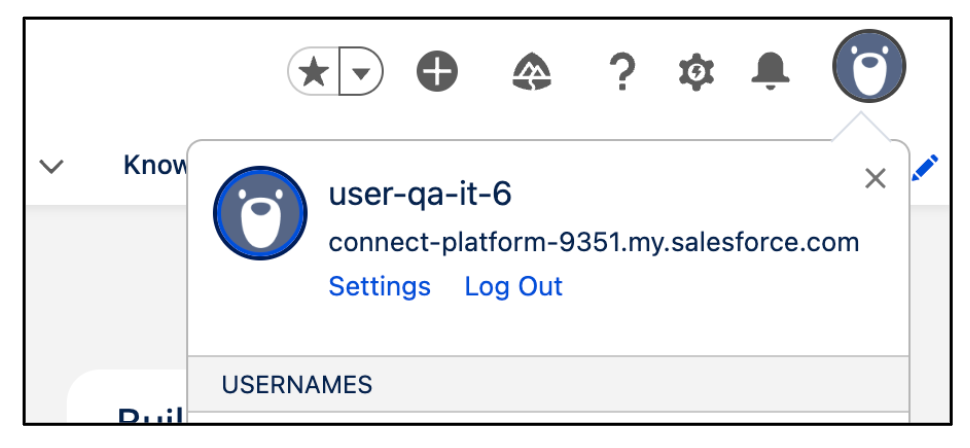
Settings - Navigate to Reset my security token and click Reset security token.
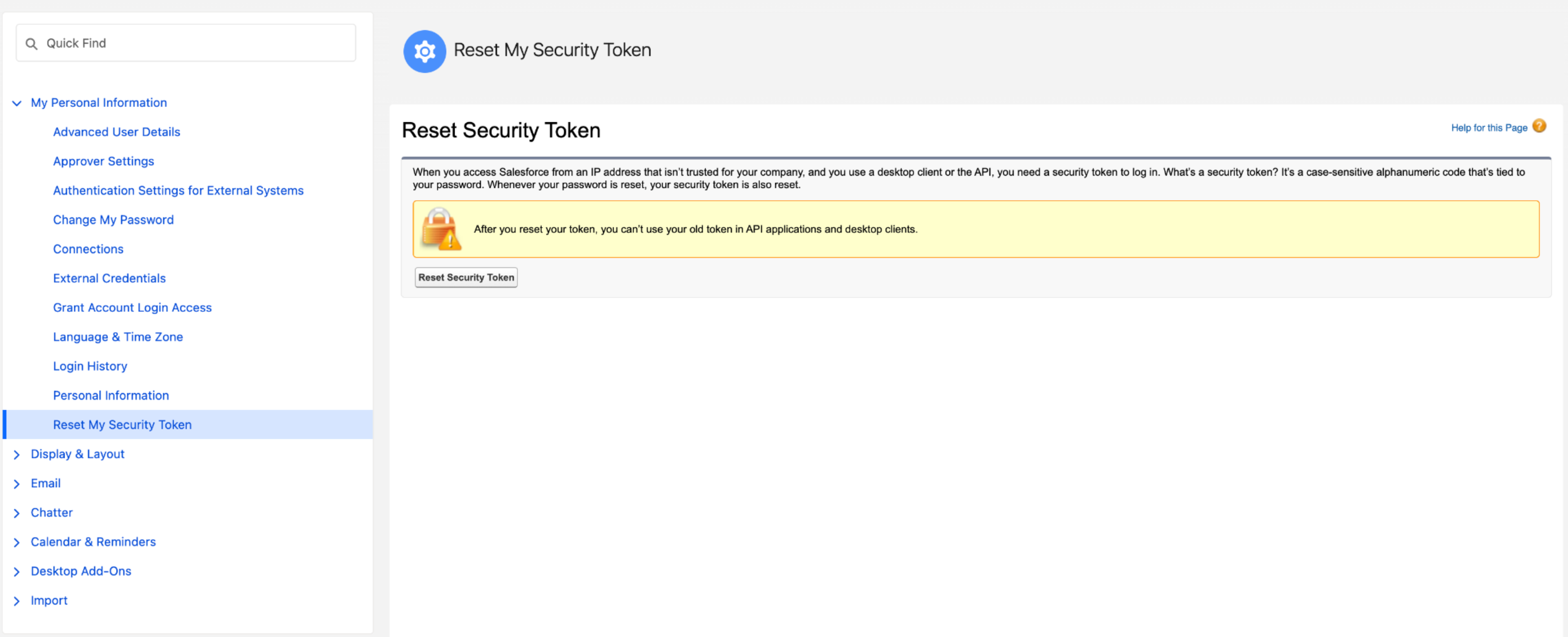
Reset security token