

By default, Gemini Enterprise encrypts customer content at rest. Gemini Enterprise handles encryption for you without any additional actions on your part. This option is called Google default encryption.
If you want to control your encryption keys, then you can use customer-managed encryption keys (CMEKs) in Cloud KMS with CMEK-integrated services including Gemini Enterprise. Using Cloud KMS keys gives you control over their protection level, location, rotation schedule, usage and access permissions, and cryptographic boundaries. Using Cloud KMS also lets you track key usage, view audit logs, and control key lifecycles. Instead of Google owning and managing the symmetric key encryption keys (KEKs) that protect your data, you control and manage these keys in Cloud KMS.
After you set up your resources with CMEKs, the experience of accessing your Gemini Enterprise resources is similar to using Google default encryption. For more information about your encryption options, see Customer-managed encryption keys (CMEK).
When a CMEK key is registered, Gemini Enterprise calls Cloud KMS periodically to maintain a logically isolated instance of your data. This happens even if the CMEK config isn't set as the default and there are no apps or data connectors using it. The usage comes from setting up and running the instance, not from the volume of data or number of users accessing it. See Cloud Key Management Service pricing.
To completely shut off all Cloud KMS usage, you must unregister your Cloud KMS key, disable the key, or revoke its permissions. Disabling the Gemini Enterprise API doesn't delete your CmekConfig or your data, and you continue to be billed for CMEK usage.
Limitations of Cloud KMS in Gemini Enterprise
The following limitations apply to CMEK (Cloud KMS) keys in Gemini Enterprise:
- Keys that are already applied to an app or data connector can't be changed, although key versions can be rotated.
- End-user data is an exception to the preceding limitation. Unlike apps and data connectors, which keep the key that they were created with, end-user data always follows the current default CmekConfig. For more information, see End-user data and the default Cloud KMS configuration.
- CMEK-protection with Gemini Enterprise is not integrated with Cloud Asset Inventory search.
- You must use US or EU multi-region apps or data stores (not global ones). For more information about multi-regions and data residency, including limits associated with using non-global locations, see locations.
If you need to register more than one key for a project, contact your Google account team to request a quota increase for CMEK configurations, providing a justification for why you need more than one key.
The following limitations apply to EKM or HSM with CMEK:
Your EKM and HSM quota for encrypt and decrypt calls should have at least 1,000 QPM of headroom. For how to check your quotas, see Check your Cloud KMS quotas.
If using EKM, the key must be reachable for more than 90% of any time window of longer than 30 seconds. If the key isn't reachable for this amount of time, it can negatively impact indexing and search freshness.
If there are billing issues, persistent out-of-quota issues, or persistent unreachability issues for more than 12 hours, the service automatically turns down the CmekConfig associated with the EKM or HSM key.
- Apps or data connectors created before a key is registered to the project can't be protected by the key.
- For apps with multiple data connectors, if one data connector uses a CMEK configuration, all other data connectors must also use the same CMEK configuration.
First-party connectors are not CMEK-compliant except for the "import-once" and "periodic" apps and data connectors for BigQuery and Cloud Storage.
For Gemini Notebook Enterprise, additional Cloud KMS restrictions apply. See Limitations of Cloud KMS in Gemini Notebook Enterprise.
- You can use Terraform to configure CMEK for Gemini Enterprise. See google_discovery_engine_cmek_config.
Before you begin
Make sure you satisfy the following prerequisites:
Create a multi-region symmetric Cloud KMS key. See Create a key ring and Create a key in the Cloud KMS documentation.
Set the rotation period to Never (Manual rotation).
For Location, select Multi-region, and select europe or us from the drop-down.
If you use third-party connectors, create three single-region symmetric Cloud KMS keys. It is optional otherwise.
Set the rotation period to Never (Manual rotation).
For Location, select region.
Select the single-regions in the following table from the location drop-down. You need to have all three keys with you when you Register your Cloud KMS keys for third-party connectors.
us single-regionseurope single-regionsus-east1europe-west1us-central1europe-west4us-west1europe-north1
The CryptoKey Encrypter/Decrypter IAM role (
roles/cloudkms.cryptoKeyEncrypterDecrypter) on the key has been granted to the Discovery Engine service agent. The service agent account has an email address that uses the following format:service-PROJECT_NUMBER@gcp-sa-discoveryengine.iam.gserviceaccount.com. For general instructions on how to add a role to a service agent, see Grant or revoke a single role.The CryptoKey Encrypter/Decrypter IAM role (
roles/cloudkms.cryptoKeyEncrypterDecrypter) on the key has been granted to the Cloud Storage service agent. If this role is not granted, data import for CMEK-protected apps and data connectors will fail because Discovery Engine is not able to make the CMEK-protected, temporary bucket and directory that is required for importing.Don't create any apps or data connectors that you want managed by your key until after you have completed the key registration instructions on this page.
- Set your key as the default before your end users start using Gemini Enterprise. End-user data that is created before the default is set isn't migrated to the key. For more information, see End-user data and the default Cloud KMS configuration.
Register your Cloud KMS key
To encrypt data using CMEK, you must register your multi-region key. Optionally, if your data needs single-region keys, for example, when using third-party connectors, you also need to register your single-region keys.
Register your multi-region Cloud KMS key
Before you begin
Make sure of the following:
- The region isn't already protected by a key. The procedure below fails if a key is already registered for the region through the REST command. To determine if there is an active key in Gemini Enterprise for a location, see View Cloud KMS keys.
- You have the Gemini Enterprise Admin
(
roles/discoveryengine.agentspaceAdmin) role.
Procedure
REST
To register your own key for Gemini Enterprise, follow these steps:
Call the
UpdateCmekConfigmethod with the key that you want to register.curl -X PATCH \ -H "Authorization: Bearer $(gcloud auth print-access-token)" \ -H "Content-Type: application/json" \ -d '{"kmsKey":"projects/KMS_PROJECT_ID/locations/KMS_LOCATION/keyRings/KEY_RING/cryptoKeys/KEY_NAME"}' \ "https://LOCATION-discoveryengine.googleapis.com/v1/projects/PROJECT_ID/locations/LOCATION/cmekConfigs/CMEK_CONFIG_ID?set_default=SET_DEFAULT"Replace the following:
KMS_PROJECT_ID: the ID of your project that contains the key. The project number won't work.KMS_LOCATION: the multi-region of your key:usoreurope.KEY_RING: the name of the key ring that holds the key.KEY_NAME: the name of the key.PROJECT_ID: the ID of your project that contains the app or data connector.LOCATION: the multi-region of your app or data connector:usoreu.CMEK_CONFIG_ID: set a unique ID for the CmekConfig resource, for example,default_cmek_config.SET_DEFAULT: set totrueto use the key as the default key for subsequent apps and data connectors created in the multi-region.
-
Verify that your key is ready to use before you create any apps or data connectors. A registered key can't protect resources until it's ready. It typically takes a few minutes to register a key. See Verify that your Cloud KMS key is ready to use.
To track the registration operation, you can record the
namevalue returned by the method and follow Get details about a long-running operation.After the key is ready, new apps and data connectors in that multi-region are protected by the key. For general information about creating apps, see About apps and data stores.
-
Create the app. For instructions, see Create an app and About apps and data stores.
Console
Procedure
To register your own key for Gemini Enterprise, follow these steps:
In the Google Cloud console, go to the Gemini Enterprise page.
Click Settings, and select the CMEK tab.
Click Add key for the us or eu location.
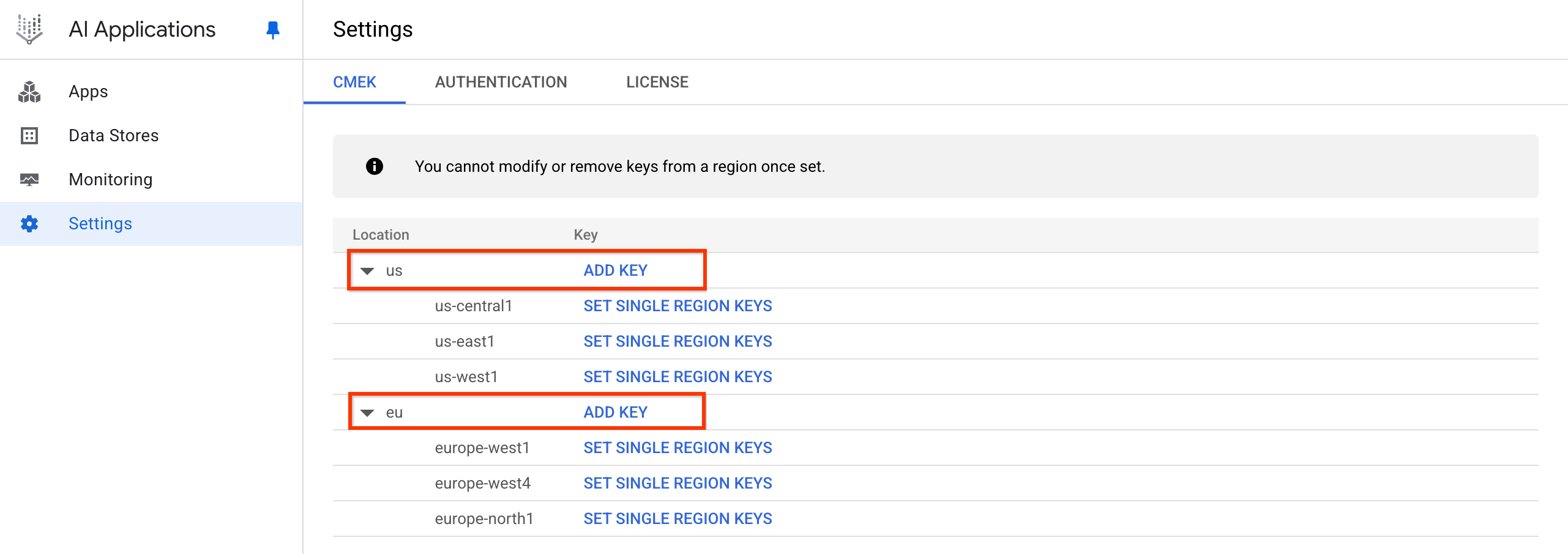
Click add key. Click the Select a Cloud KMS key drop-down, and select the key.
If the key is in a different project, click Switch project, click your project name, type the name of the key you created, and select the key.
If you know the resource name of the key, click Enter manually, paste the key resource name, and click Save.
Click OK > Save.
-
Verify that your key is ready to use before you create any apps or data connectors. A registered key can't protect resources until it's ready. See Verify that your Cloud KMS key is ready to use.
-
Create the app. For instructions, see Create an app and About apps and data stores.
This registers your key, creating a CmekResource called default_cmek_config.
It can take several hours for the ingested data to show up in search results.
Register single-region Cloud KMS keys for third-party connectors
REST
To register your own key for Gemini Enterprise, follow these steps:
Call the
UpdateCmekConfigmethod with the key that you want to register.curl -X PATCH \ -H "Authorization: Bearer $(gcloud auth print-access-token)" \ -H "Content-Type: application/json" \ -d '{"kmsKey":"projects/KMS_PROJECT_ID/locations/KMS_LOCATION/keyRings/KEY_RING/cryptoKeys/KEY_NAME"}' \ "https://LOCATION-discoveryengine.googleapis.com/v1/projects/PROJECT_ID/locations/LOCATION/cmekConfigs/CMEK_CONFIG_ID?set_default=SET_DEFAULT"Replace the following:
KMS_PROJECT_ID: the ID of your project that contains the key. The project number won't work.KMS_LOCATION: the multi-region of your key:usoreurope.KEY_RING: the name of the key ring that holds the key.KEY_NAME: the name of the key.PROJECT_ID: the ID of your project that contains the app or data connector.LOCATION: the multi-region of your app or data connector:usoreu.CMEK_CONFIG_ID: Set a unique ID for the CmekConfig resource, for example,default_cmek_config.SET_DEFAULT: set totrueto use the key as the default key for subsequent apps and data connectors created in the multi-region.
Optional: Record the
namevalue returned by the method and follow the instructions in Get details about a long-running operation to see when the operation is complete.It typically takes a few minutes to register a key.
After the operation completes, new apps and data connectors in that multi-region are protected by the key. For general information about creating apps, see About apps and data stores.
If you use third-party connectors and want to protect your third-party data with your own key, then create three additional single-region keys as follows:
curl -X PATCH \
-H "Authorization: Bearer $(gcloud auth print-access-token)" \
-H "Content-Type: application/json" \
-d '{
  "kmsKey":"projects/KMS_PROJECT_ID/locations/KMS_LOCATION/keyRings/KEY_RING/cryptoKeys/KEY_NAME",
  "singleRegionKeys": [ \
    {"kmsKey": "projects/KMS_PROJECT_ID/locations/REGION_1/keyRings/KEY_RING_1/cryptoKeys/KEY_NAME_1"}, \
    {"kmsKey": "projects/KMS_PROJECT_ID/locations/REGION_2/keyRings/KEY_RING_2/cryptoKeys/KEY_NAME_2"}, \
    {"kmsKey": "projects/KMS_PROJECT_ID/locations/REGION_3/keyRings/KEY_RING_3/cryptoKeys/KEY_NAME_3"} \
  ] \
}' \
"https://LOCATION-discoveryengine.googleapis.com/v1/projects/PROJECT_ID/locations/LOCATION/cmekConfigs/CMEK_CONFIG_ID?set_default=SET_DEFAULT"
Replace the following:
KMS_PROJECT_ID: the ID of your project that contains the key. The project number won't work.Set the
REGIONvalues:REGION_1: for theeulocation, set this toeurope-west1, and for theuslocation, set this tous-east1.REGION_2: for theeulocation, set this toeurope-west4, and for theuslocation, set this tous-central1.REGION_3: for theeulocation, set this toeurope-north1, and for theuslocation, set this tous-west1.
KEY_RING: the name of the key ring that holds the key.KEY_NAME: the name of the multi-region key.LOCATION: the multi-region of your app or data connector:usoreu.PROJECT_ID: the ID of your project that contains the app or data connector.CMEK_CONFIG_ID: Set to the ID for the CmekConfig resource. Use the same value as in Step 1, for example,default_cmek_config.SET_DEFAULT: set totrueto use the key as the default key for subsequent apps and data connectors created in the multi-region.
-
Verify that your key is ready to use before you create any apps or data connectors. A registered key can't protect resources until it's ready. See Verify that your Cloud KMS key is ready to use.
-
Create the app. For instructions, see Create an app and About apps and data stores.
Console
Before you begin
Make sure that the regions aren't already protected by keys. The following procedure fails if a key is already registered for the region through the REST command.
To determine if there is an active key for a location, see View Cloud KMS keys.
Procedure
To register your own key when using Gemini Enterprise third-party connectors, follow these steps:
In the Google Cloud console, go to the Gemini Enterprise page.
Click Settings, and select the CMEK tab.
Click Add key for the us or eu location.
Click add key. Click the Select a cloud kms key drop-down, and select the key.
If the key is in a different project, click Switch project, click your project name, type the name of the key you created, and select the key.
If you know the resource name of the key, click Enter manually, paste the key resource name, and click Save.
Click Ok > Save.
This registers your key, creating a CmekResource called
default_cmek_config.
If you are connecting a third-party data source, click Set single region keys.
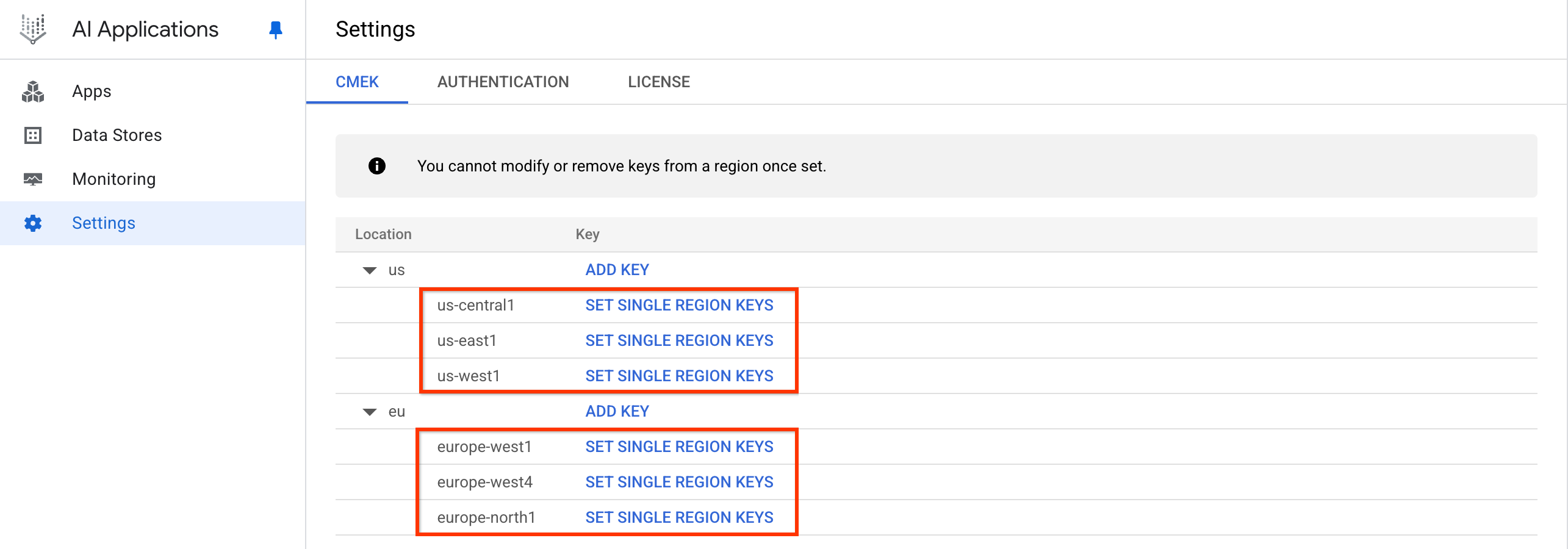
Click Set single region keys. Click the Select a cloud kms key drop-down, and select the key for each region.
If the key is in a different project, click Switch project, click your project name, type the name of the key you created, and select the key.
If you know the resource name of the key, click Enter manually, paste the key resource name, and click Save.
Click Save.
This registers your single-region keys in the CmekResource called
default_cmek_config.
-
Verify that your key is ready to use before you create any apps or data connectors. A registered key can't protect resources until it's ready. See Verify that your Cloud KMS key is ready to use.
-
Create the app. For instructions, see Create an app and About apps and data stores.
It can take several hours for the ingested data to show up in search results.
View Cloud KMS keys
To view a registered key for Gemini Enterprise, do one of the following:
If you have the CmekConfig resource name, call the
GetCmekConfigmethod:curl -X GET \ -H "Authorization: Bearer $(gcloud auth print-access-token)" \ "https://LOCATION-discoveryengine.googleapis.com/v1/projects/PROJECT_ID/locations/LOCATION/cmekConfigs/CMEK_CONFIG_ID"Replace the following:
LOCATION: the multi-region of your app or data connector:usoreu.PROJECT_ID: the ID of your project that contains the data.CMEK_CONFIG_ID: the ID of the CmekConfig resource. If you registered your key using the console, the ID isdefault_cmek_config.
An example curl call and response looks like this:
$ curl -X GET
-H "Authorization: Bearer $(gcloud auth print-access-token)"
"https://us-discoveryengine.googleapis.com/v1/projects/my-ai-app-project-123/locations/us/cmekConfigs/default_cmek_config"

{
  "name":
  "projects/my-ai-app-project-123/locations/us/cmekConfigs/default_cmek_config",
  "kmsKey": "projects/key-project-456/locations/us/keyRings/my-key-ring/cryptoKeys/my-key",
  "kmsKeyVersion": "projects/key-project-456/locations/us/keyRings/my-key-ring/cryptoKeys/my-key/cryptoKeyVersions/2",
  "state": "ACTIVE",
  "isDefault": true,
  "lastRotationTimestampMicros": "1788220800000000"
}
If you don't have the CmekConfig resource name, call the
ListCmekConfigsmethod:curl -X GET \ -H "Authorization: Bearer $(gcloud auth print-access-token)" \ "https://LOCATION-discoveryengine.googleapis.com/v1/projects/PROJECT_ID/locations/LOCATION/cmekConfigs"Replace the following:
LOCATION: the multi-region of your app or data connector:usoreu.PROJECT_ID: the ID of your project that contains the data.
An example curl call and response looks like this:
$ curl -X GET
-H "Authorization: Bearer $(gcloud auth print-access-token)"
"https://us-discoveryengine.googleapis.com/v1/projects/my-ai-app-project-123/locations/us/cmekConfigs"

{
  "cmek_configs": [
    {
      "name":
      "projects/my-ai-app-project-123/locations/us/cmekConfigs/default_cmek_config",
      "kmsKey": "projects/key-project-456/locations/us/keyRings/my-key-ring/cryptoKeys/my-key",
      "kmsKeyVersion": "projects/key-project-456/locations/us/keyRings/my-key-ring/cryptoKeys/my-key/cryptoKeyVersions/2",
      "state": "ACTIVE",
      "isDefault": true,
      "lastRotationTimestampMicros": "1788220800000000"
    }
  ]
}
Verify that your Cloud KMS key is ready to use
After you register a key, you must verify that it's ready to use before it can protect any resources:
View your registered Cloud KMS keys. See View Cloud KMS keys.
Review the output from the command. The CmekConfig is ready for use if all of the following values are in the output:
"state": "ACTIVE""isDefault": true
If
"isDefault": true, then the key is automatically applied to protect new apps and data connectors.
You can also check that a default CMEK configuration is set (that is,
"isDefault": true) using the Google Cloud console:
In the Google Cloud console, go to the Gemini Enterprise page.
Click Settings, and select the CMEK tab.
Check that the configuration status for your location shows your registered key.
Unset the default Cloud KMS configuration
Unsetting the default stops new apps and data connectors from being automatically protected by the key, and removes CMEK protection from end-user data. Existing apps and data connectors keep the key that they were created with.
To unset the default, call the
UpdateCmekConfig
method with set_default set to false:
curl -X PATCH \
-H "Authorization: Bearer $(gcloud auth print-access-token)" \
"https://LOCATION-discoveryengine.googleapis.com/v1/projects/PROJECT_ID/locations/LOCATION/cmekConfigs/CMEK_CONFIG_ID?set_default=false"
Replace the following:
LOCATION: the multi-region of your app or data connector:usoreu.PROJECT_ID: the ID of your project that contains the app or data connector.CMEK_CONFIG_ID: the ID of the CmekConfig resource. If you registered your key using the console, the ID isdefault_cmek_config.
Unsetting the default doesn't delete the CmekConfig or your key, and Cloud KMS usage continues. To stop Cloud KMS usage, unregister your key.
Unregister your Cloud KMS key
To unregister your key from Gemini Enterprise, follow these steps:
Call the
DeleteCmekConfigmethod with the CmekConfig resource name that you want to unregister.curl -X DELETE \ -H "Authorization: Bearer $(gcloud auth print-access-token)" \ "https://LOCATION-discoveryengine.googleapis.com/v1/projects/PROJECT_ID/locations/LOCATION/cmekConfigs/CMEK_CONFIG_ID"Replace the following:
LOCATION: the multi-region of your app or data connector:usoreu.PROJECT_ID: the ID of your project that contains the app or data connector.CMEK_CONFIG_ID: the ID of the CmekConfig resource. If you registered your key using the console, the ID isdefault_cmek_config.
An example curl call and response looks like this:
$ curl -X DELETE
-H "Authorization: Bearer $(gcloud auth print-access-token)"
"https://us-discoveryengine.googleapis.com/v1/projects/my-ai-app-project-123/locations/us/cmekConfigs/default_cmek_config"

{
 "name": "projects/my-ai-app-project-123/locations/us/operations/delete-cmek-config-56789",
 "metadata": {
  "@type": "type.googleapis.com/google.cloud.discoveryengine.v1.DeleteCmekConfigMetadata"
 }
}
Optional: Record the
namevalue returned by the method and follow the instructions in Get details about a long-running operation to see when the operation is complete.Deleting a CmekConfig is a long-running operation that can take up to a couple of days to complete. This is because the underlying encrypted resources are fully deprovisioned before the CmekConfig is removed.
If end-user data is still protected by the CmekConfig, the request fails with a
FAILED_PRECONDITION error similar to the following:
The default user store is currently protected by this CmekConfig. Please unset
the default CmekConfig (UpdateCmekConfig with set_default set to false) before
trying to delete the CmekConfig.
To resolve this error, unset the default Cloud KMS configuration, and then retry the delete request. Unsetting the default removes CMEK protection from end-user data. For more information, see End-user data and the default Cloud KMS configuration.
Verify that an app or data connector is protected by a key
Apps and data connectors that are created after your key is registered are protected by the key. If you want to confirm that a particular app or data connector is protected by your key, follow these steps:
Verify using the Google Cloud console
To verify whether an app is protected by a key:
In the Google Cloud console, go to the Gemini Enterprise page.
Click Apps, and select your app.
Click Security, and find the CMEK configuration section.
Check that the KMS key field shows your registered key.
To verify whether a data connector is protected by a key:
In the Google Cloud console, go to the Gemini Enterprise page.
Click Data stores, and select your data connector.
Check that the KMS key field shows your registered key.
Verify using the CLI / API
To verify for a data store:
curl -X GET \
-H "Authorization: Bearer $(gcloud auth print-access-token)" \
-H "Content-Type: application/json" \
-H "x-goog-user-project: PROJECT_ID" \
"https://LOCATION-discoveryengine.googleapis.com/v1/projects/PROJECT_ID/locations/LOCATION/collections/default_collection/dataStores/DATA_STORE_ID"
Replace the following:
LOCATION: the multi-region of your project:usoreu.PROJECT_ID: the ID of your project that contains the app or data connector.DATA_STORE_ID: the ID of the data store associated with your app or data connector.
An example curl call looks like this:
curl -X GET
-H "Authorization: Bearer $(gcloud auth print-access-token)"
-H "Content-Type: application/json"
-H "x-goog-user-project: my-ai-app-project-123"
"https://us-discoveryengine.googleapis.com/v1/projects/my-ai-app-project-123/locations/us/collections/default_collection/dataStores/my-data-store-1"
To verify for an app:
curl -X GET \
-H "Authorization: Bearer $(gcloud auth print-access-token)" \
-H "Content-Type: application/json" \
-H "x-goog-user-project: PROJECT_ID" \
"https://LOCATION-discoveryengine.googleapis.com/v1/projects/PROJECT_ID/locations/LOCATION/collections/default_collection/engines/ENGINE_ID"
Replace the following:
LOCATION: the multi-region of your project:usoreu.PROJECT_ID: the ID of your project that contains the app.ENGINE_ID: the ID of your app.
An example curl call looks like this:
curl -X GET
-H "Authorization: Bearer $(gcloud auth print-access-token)"
-H "Content-Type: application/json"
-H "x-goog-user-project: my-ai-app-project-123"
"https://us-discoveryengine.googleapis.com/v1/projects/my-ai-app-project-123/locations/us/collections/default_collection/engines/my-app"
Review the output from the command: If the
cmekConfigfield is in the output and thekmsKeyfield shows the key that you registered, then the app or data connector is protected by the key.An example response for a data store looks like this:
{
 "name": "projects/969795412903/locations/us/collections/default_collection/dataStores/my-data-store-1",
 "displayName": "my-data-store-1",
 "industryVertical": "GENERIC",
 "createTime": "2023-09-05T21:20:21.520552Z",
 "solutionTypes": [
   "SOLUTION_TYPE_SEARCH"
 ],
 "defaultSchemaId": "default_schema",
 "cmekConfig": {
   "name": "projects/969795412903/locations/us/collections/default_collection/dataStores/my-data-store-1/cmekConfigs/default_cmek_config",
   "kmsKey": "projects/my-ai-app-project-123/locations/us/keyRings/my-key-ring/cryptoKeys/my-key"
 }
}
An example response for an app looks like this:
{
  "name": "projects/969795412903/locations/us/collections/default_collection/engines/my-app",
  "displayName": "my-app",
  "dataStoreIds": [
    "my-data-store-1"
  ],
  "solutionType": "SOLUTION_TYPE_SEARCH",
  "searchEngineConfig": {
    "searchTier": "SEARCH_TIER_STANDARD"
  },
  "industryVertical": "GENERIC",
  "appType": "APP_TYPE_INTRANET",
  "cmekConfig": {
   "name": "projects/969795412903/locations/us/collections/default_collection/dataStores/my-data-store-1/cmekConfigs/default_cmek_config",
   "kmsKey": "projects/my-ai-app-project-123/locations/us/keyRings/my-key-ring/cryptoKeys/my-key"
 }
}
Other data protected by the Cloud KMS key
In addition to data in the apps and data connectors, your keys can protect other types of app-owned core information held by Gemini Enterprise, such as the session data generated during search with follow-ups. This kind of core information is CMEK-protected if the apps and data connectors are CMEK-protected.
Although you can't run a specific command to verify that sessions are protected, you can verify if the app is protected. Run the Verify that an app or data connector is protected by a key command for the app to see the key in the cmekConfig resource. Then you'll know that the session data is protected.
End-user data and the default Cloud KMS configuration
Gemini Enterprise stores data about your end users, such as their personalization settings, their UI preferences, and the credentials that authorize your data connectors on their behalf. Gemini Enterprise provisions this storage for your project automatically. You don't create or delete it, and you can't assign a key to it directly.
Instead, end-user data is protected by whichever CmekConfig is the default for the location. Its protection therefore changes when the default changes:
| Action | Effect on end-user data |
|---|---|
You set a CmekConfig as the default (set_default=true) |
End-user data is protected by that key. |
| You set a different CmekConfig as the default | End-user data is protected by the new key. Data that is stored under the previous key isn't migrated and becomes inaccessible. |
You unset the default (set_default=false) |
End-user data is no longer CMEK-protected and reverts to Google-owned and Google-managed encryption key. Data that is stored under the previous key isn't migrated and becomes inaccessible. |
Because end-user data follows the default CmekConfig, you can't delete a CmekConfig while it still protects end-user data. To delete it, first unset the default Cloud KMS configuration. For more information, see Unregister your Cloud KMS key.
Rotate Cloud KMS keys
You can't change which key protects an existing app or data connector, but you can rotate that key to a new key version. When you make a new version of a registered key the primary version, Gemini Enterprise detects the change and re-encrypts your data with the new key version automatically. You don't need to call a Gemini Enterprise method to start a rotation.
For general information about rotating keys, see Key rotation in the Cloud KMS guide.
Important: Do not rotate keys on apps or data connectors associated with recommendations or with any apps that need analytics, and don't rotate the single-region keys used for third-party connectors. See Limitations of Cloud KMS in Gemini Enterprise.
To rotate a key, follow these steps:
Create a new key version and make it the primary version. For instructions, see Rotate a key in the Cloud KMS guide.
Leave the previous key version enabled. Re-encryption starts automatically after Gemini Enterprise detects the new primary version.
Confirm that Gemini Enterprise detected the new key version. To view your CmekConfig, see View Cloud KMS keys. Check the following fields in the output:
kmsKeyVersionshows the new key version.stateisACTIVE.lastRotationTimestampMicrosshows when the rotation started.
Keep the previous key version enabled for at least 30 days after
kmsKeyVersionshows the new key version.Disable the previous key version, and make sure that everything is working as before. See Enable and disable key versions in the Cloud KMS guide.
When you are certain that no problems were caused by disabling the previous key version, destroy it. See Destroy and restore key versions in the Cloud KMS guide.
If a Cloud KMS key is disabled or revoked
If a key is disabled or permissions for the key are revoked, the app or data connector stops ingesting data and stops serving data within 15 minutes. You may re-enable your key within 30 days to resume operations before the CMEK config expires and any associated data is permanently deleted. However, re-enabling a key or restoring permissions takes a long time. It can take up to 24 hours before the app or data connector can resume serving data.
Therefore, don't disable a key unless necessary. Disabling and enabling a key on an app or data connector is a time-consuming operation. For example, repeatedly switching a key between disabled and enabled means it will take a long time for the app or data connector to reach a protected state. Disabling a key and re-enabling it immediately afterward could result in days of downtime because the key is first disabled from the app or data connector and subsequently re-enabled.
Troubleshoot: KMS key projects not found error
Symptom: When you try to create an app or data connector using a KMS key, you receive an error similar to the following:
KMS key projects/[...] not found for location: [...] and project number: [...]
Issue: This error message can be misleading. It doesn't necessarily mean that the key doesn't exist. Instead, it might indicate that the KMS key hasn't been registered for use with Gemini Enterprise in the specified location.
Solution: To resolve this issue, register your key by following the steps in Register your Cloud KMS key. After the registration is complete, you can create apps or data connectors protected by that key.